Add a Network Element to design
To add a network element (node) to your network design, follow the steps below. This guide focuses on creating an IP Router (Ethernet Ports) node using the E-lighthouse Network Planner (ENP) Web Client.
✅ Prerequisite: Make sure you have a network design loaded and opened in the Topology View. If not, follow the Create a Network Design guide first.
🧩 Step 1: Open the Add Node Menu
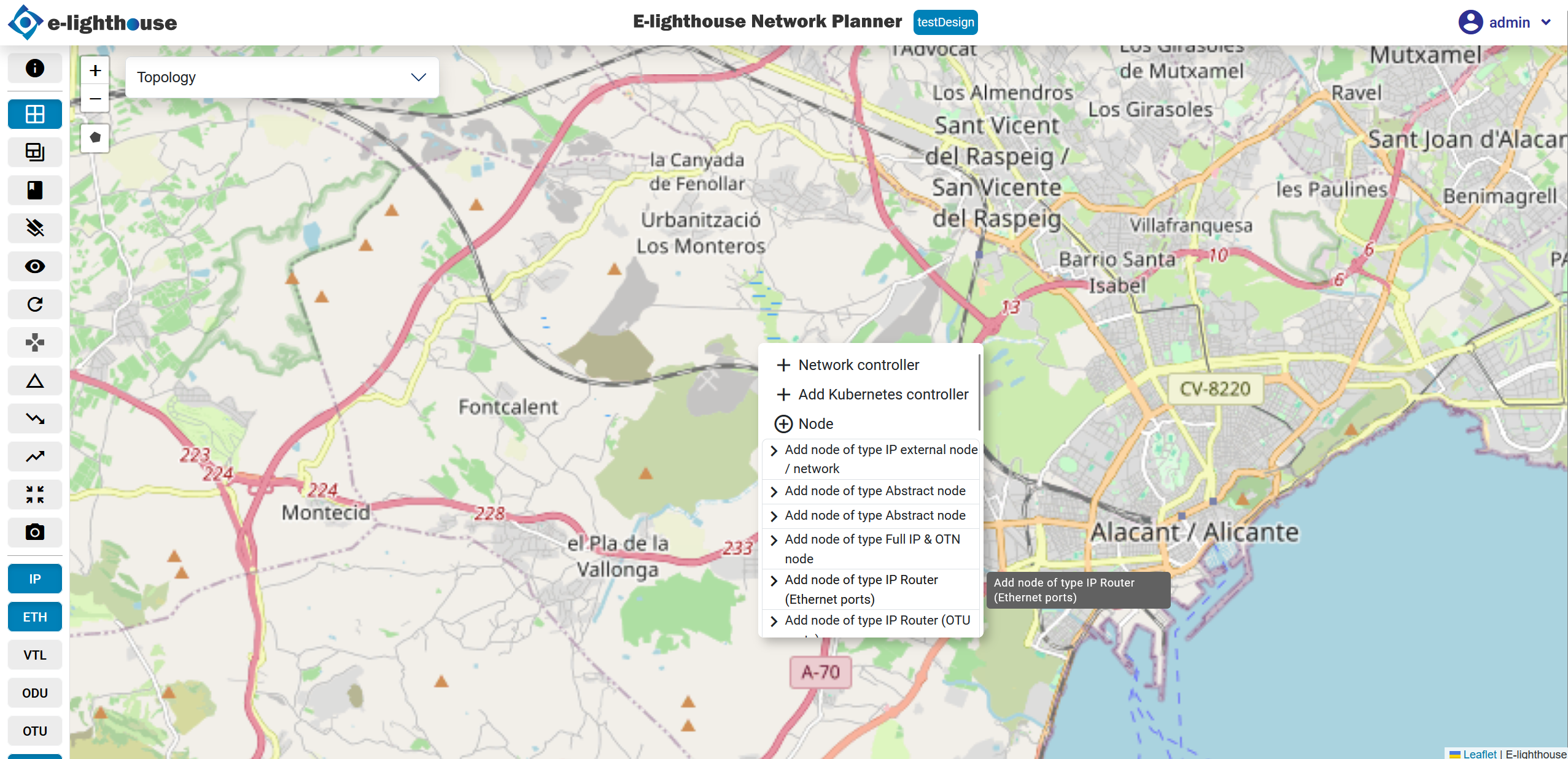
- In the Topology View, right-click anywhere on the map canvas.
- In the context menu, click the “Node” option (often displayed with a "+" icon).
- Select “Add node of type IP Router (Ethernet ports)” from the list.
📝 Step 2: Complete the Node Form
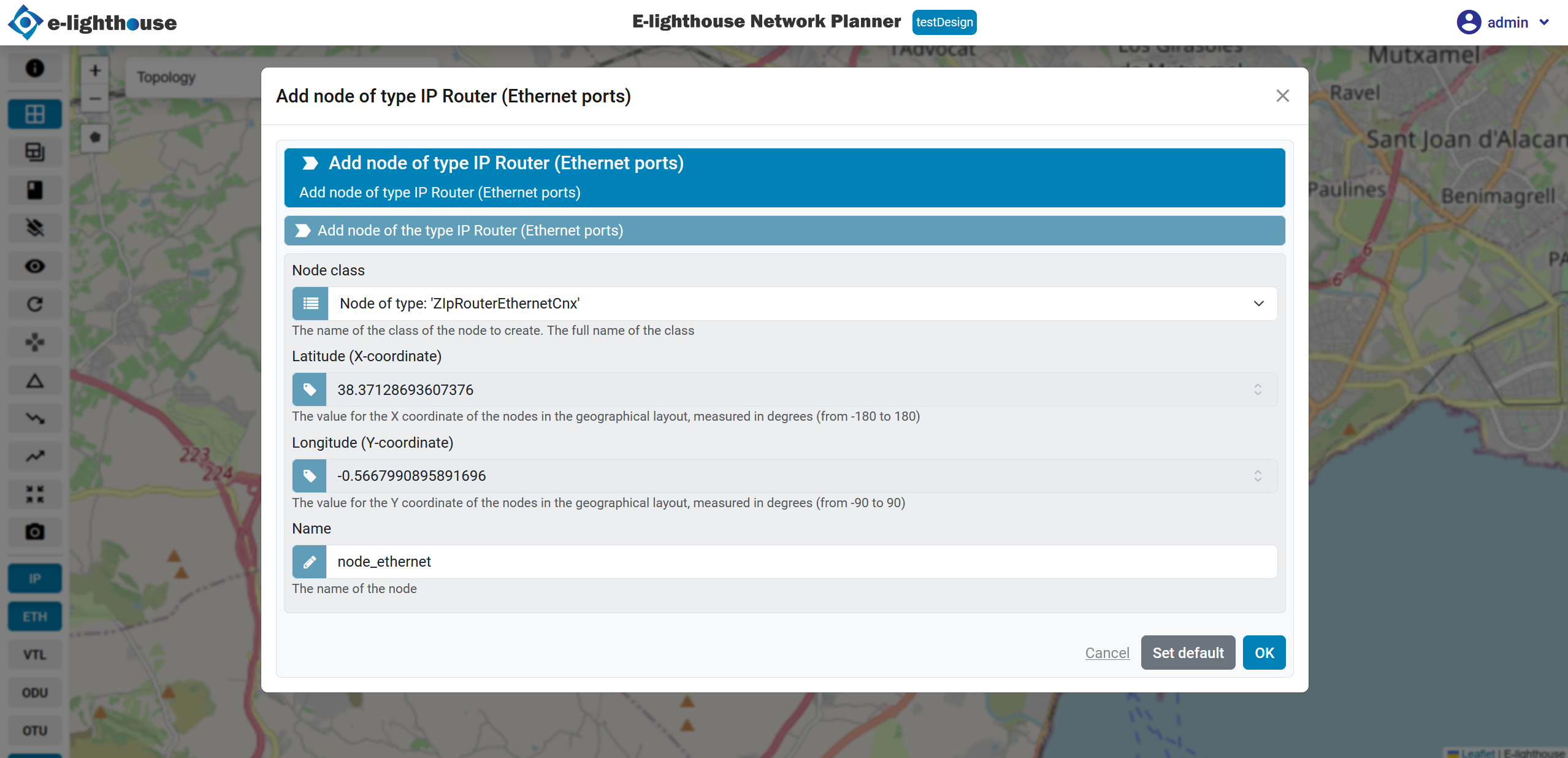
Once you select the node type, a configuration panel will open.
- Filter the node types (if necessary) to quickly find IP Router.
- Fill in the required node properties such as:
- Node name
- Technology type
- Location (if applicable)
Then, confirm the creation to add the node to the topology.
🧠 Step 3: Review the Node in the Control Window
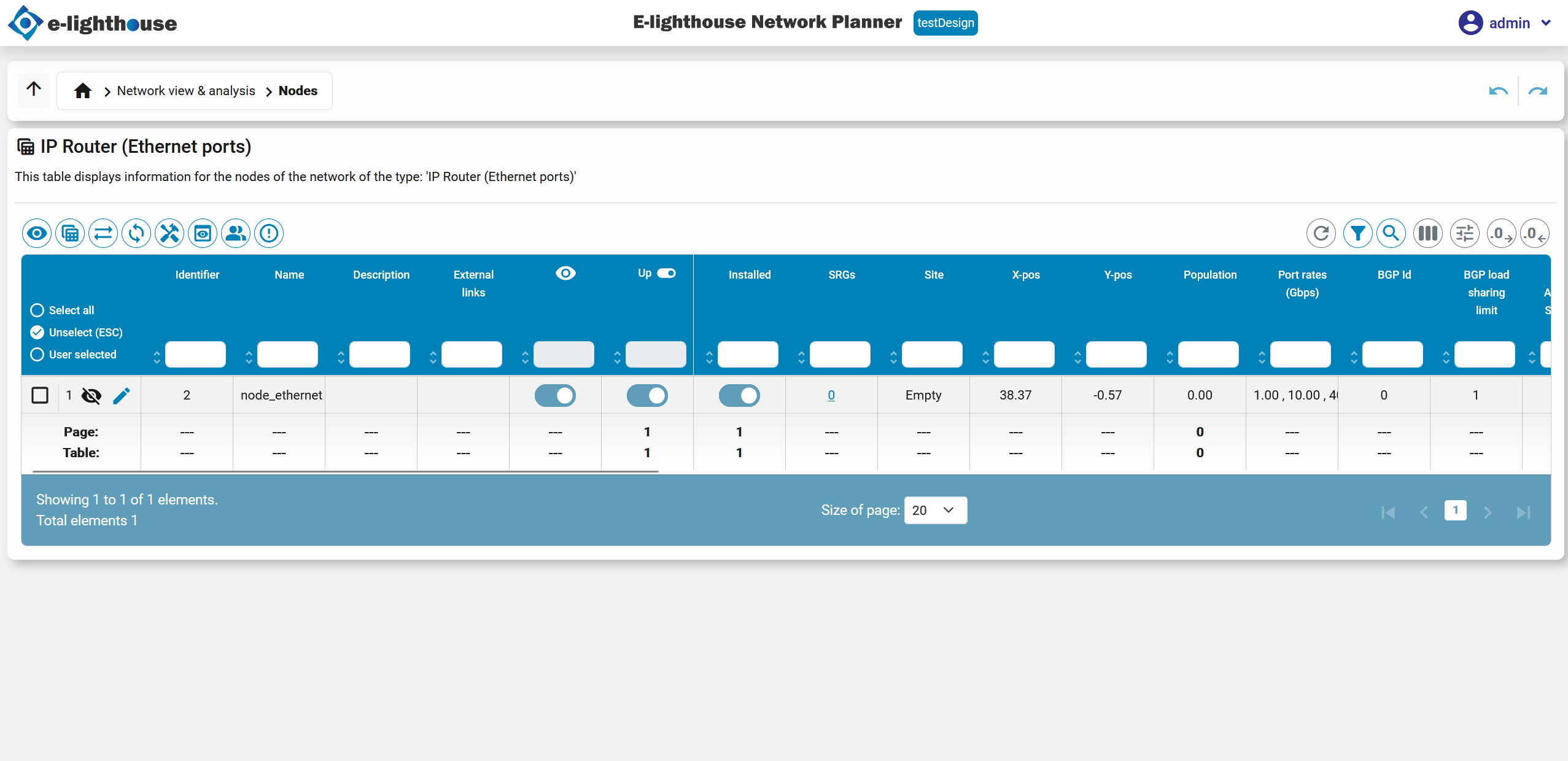
After adding the node, you can view and manage it using the Control Window.
- Open the Control Window from the top menu or use the shortcut (
C + W). - Navigate to the Network view & analysis → Nodes section.
- Open the IP Router table to see the newly added node and its details.
🔎 Additional Tips
-
Nodes that are not yet connected may be hidden on the map.
💡 Tip: Disable the “Hide non-connected nodes” toggle in the bottom-left corner of the map to reveal all nodes.
-
You can continue editing node properties from the Control Window or use the right-click context menu in the Topology View.
✅ Summary
You’ve successfully:
- Opened the context menu and selected an IP Router node type
- Configured and placed a new node on the topology
- Viewed and managed the node using the Control Window
Next, you may want to connect your node to others with links or associate a network controller to simulate behavior.
👉 Continue with Create a Network Controller