First Steps
This guide will walk you through your first moments with the E-Lighthouse Network Planner (ENP) web application — from accessing the platform to navigating its core interface.
Whether you're a first-time user or returning after a break, this is the perfect place to get reacquainted.
🔓 Accessing the Application
1. Open the ENP Web App
Launch your preferred web browser and enter the URL provided by your organization to access the ENP platform.
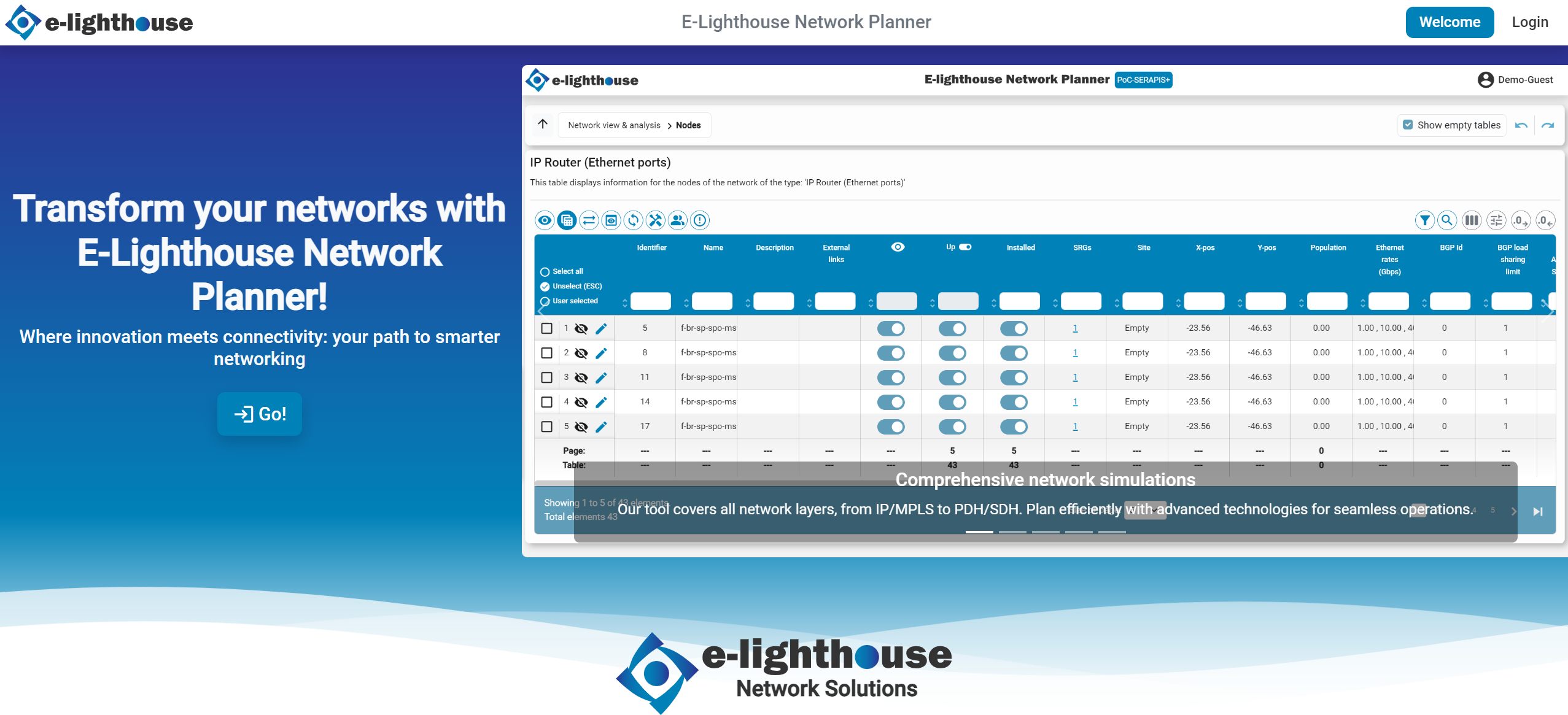
2. Log In
On the welcome screen, locate the Log In button in the upper-right corner of the page. Click it to proceed.
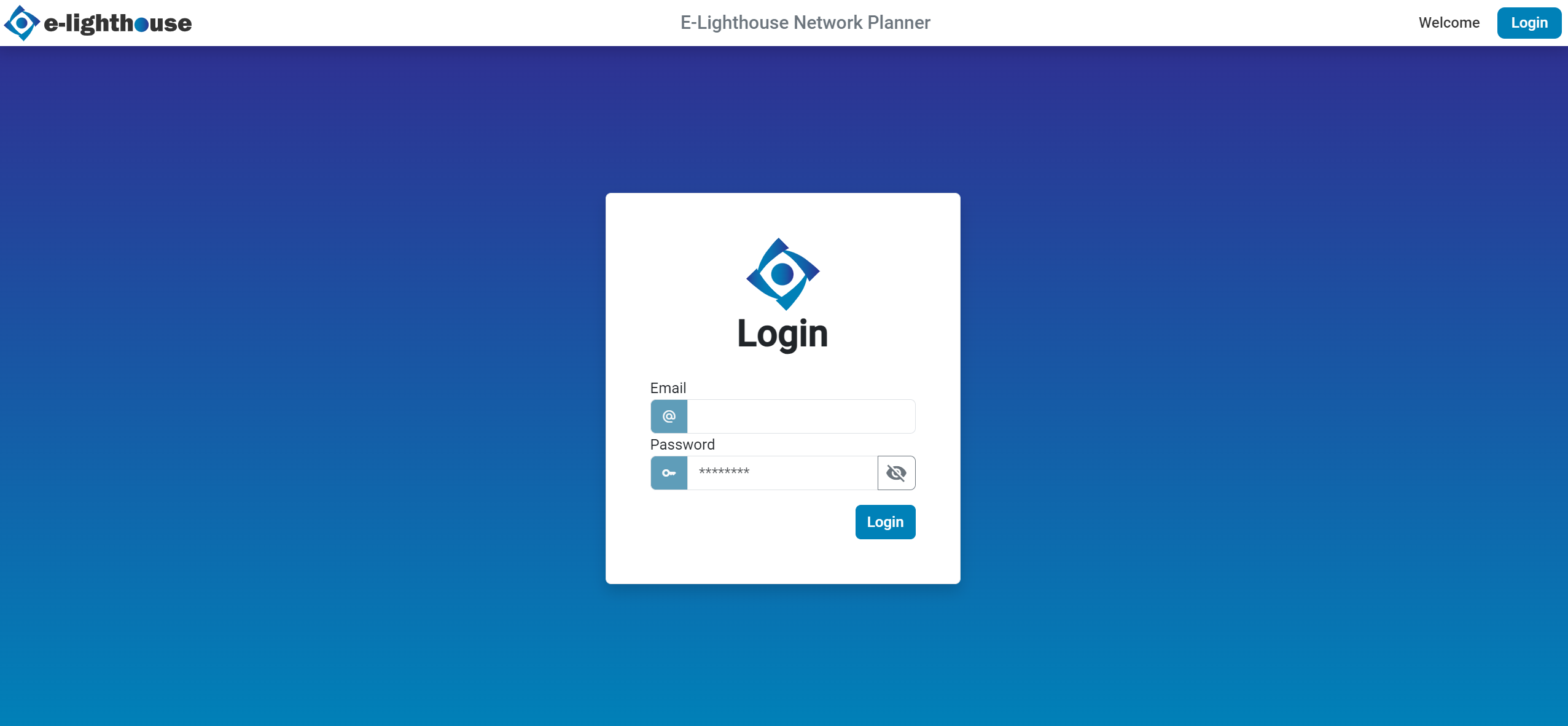
Enter your username (or email) and password in the login form to access your personalized workspace.
🧭 Exploring the Interface
After logging in, you’ll be taken to the main page. Here, you’ll find everything you need to start building, simulating, and analyzing network designs.
We recommend starting with a guided tour to get a feel for the layout, tools, and features of the platform.
👀 Want a visual walkthrough of the UI?
Take the Tour →
✅ Next Step: Create Your First Design
Once you're familiar with the interface, you're ready to create your first network design and begin your journey into network modeling and simulation.
💡 Tip: You can always return to this section later if you