E-Lighthouse Network Planner Documentation - v1.4.0
| Description | Documentation for E-Lighthouse Network Planner |
| Author(s) | Admin |
| Copyright | Copyright © 2017 - 2025 E-Lighthouse Network Solutions |
Home ↵
What is E-Lighthouse Network Planner?
The E-Lighthouse Network Planner (ENP) is an advanced tool designed for the planning and analysis of IP/MPLS/SR and transport multivendor networks. Built on extensive R&D expertise, ENP is tailored to meet the needs of network planners and designers. It facilitates network analysis, simulation, and optimization while seamlessly integrating with client databases via RESTful APIs and an intuitive web user interface.
Use Cases
The ENP provides versatile solutions for network planning, management, and optimization. Below are three core use cases where ENP demonstrates its capabilities:
Note
📘 Before running planning simulations, you’ll need to create a network design. See the Creating a New Network Design guide for details.
-
Capacity Planning. ENP enables network planners to forecast future demand and optimize network capacity accordingly. By analyzing current utilization and traffic trends, ENP helps ensure the network is prepared for growth, minimizing congestion risks and avoiding costly upgrades at the wrong time.
-
Network Resilience and Fault Tolerance. Simulate failure scenarios such as link outages or hardware malfunctions to evaluate the network’s resilience. ENP helps identify weak points and recommend strategies to improve redundancy, ensuring high availability and minimized downtime in critical environments.
Check Features in order to view more details about the features available.
Disclaimer: ENP is designed to be flexible and adaptable to a wide variety of network scenarios. Whether you’re dealing with multi-vendor environments, planning expansions, or addressing special cases, ENP can be customized to meet your unique requirements.
System Architecture
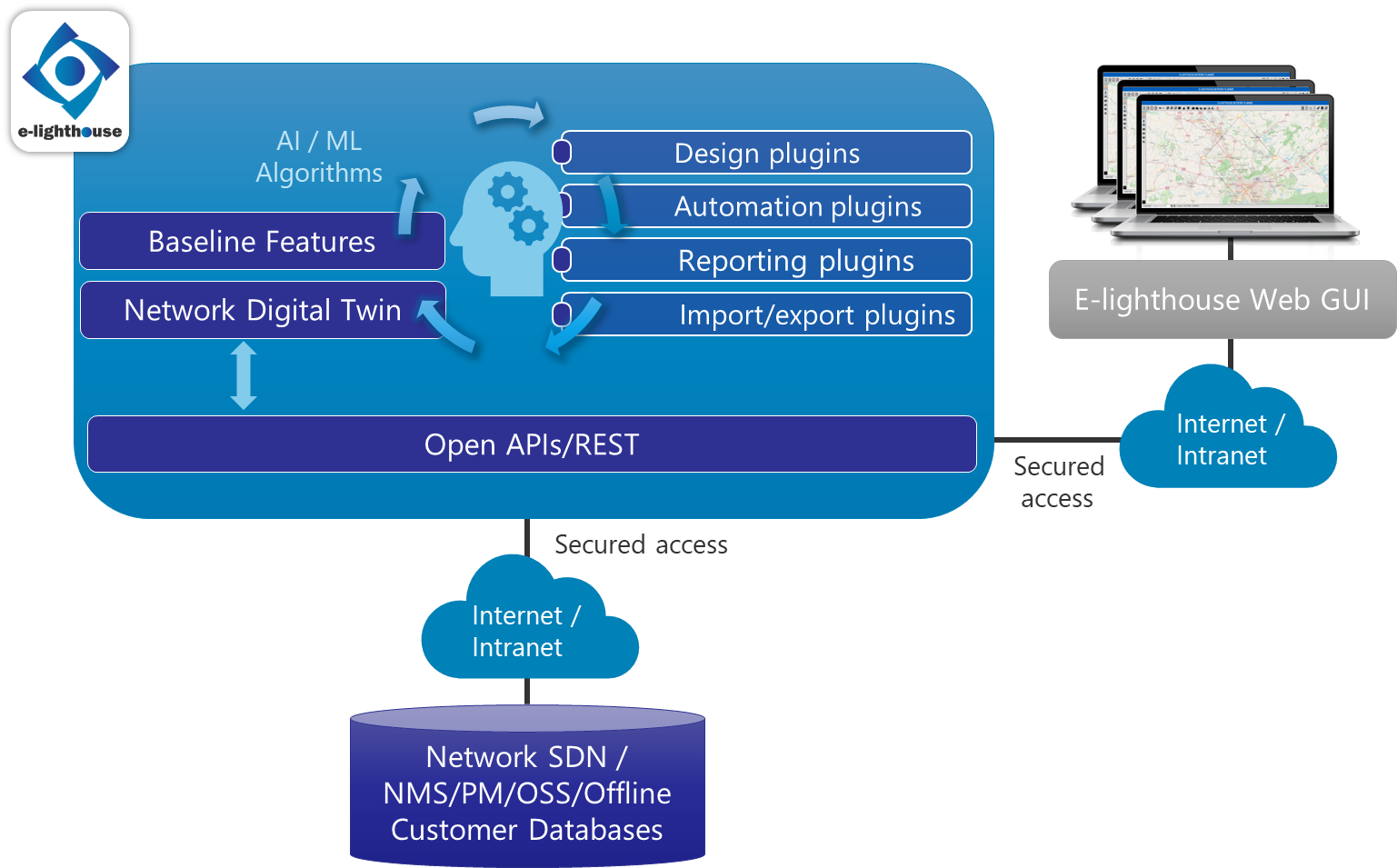
ENP’s architecture is built for high availability, security, and scalability. It is composed of the following key components:
- Application Servers: Hosted either locally or in the cloud.
- RESTful APIs: Enabling integration with external systems.
- Web Interface: A user-friendly, configurable interface for easy access.
- Plugin Modules: Extendable functionalities to suit specific customer needs.
The diagram below provides an overview of the ENP architecture:
ENP Core Functionalities
The E-Lighthouse Network Planner (ENP) is composed of two key components: the Server Module, which powers all network simulation, analysis, and design processes, and the Web Client Interface, which provides an intuitive visualization and interaction layer for users. The web client acts as the front-end interface, while the server module handles the back-end processing, ensuring seamless communication between the two.
Server Module
The server module, built on robust libraries, manages the core operations such as network simulation, analysis, and design. It operates as the backbone of the system, processing data and performing complex calculations. The architecture of the ENP server allows customization and automation, enabling users to integrate ad-hoc applications into their workflows. Key functionalities include:
- Import Modules: Automatically ingest network topology and configuration data from external sources like SDN/NMS databases, allowing the server to construct a real-time, accurate view of the network.
- Export Modules: Convert network designs into customer-specific outputs, such as Bill-of-Materials or other reports.
- Custom Reporting: Generate tailored reports using customer-defined formats for in-depth analysis.
- Automation Scripts: Automate recurrent tasks such as capacity planning by running scripts that leverage the server’s computational capabilities.
Check Network Digital Twin for more details about network simulation capabilities.
Web Client Interface
The Web Client is the visualization layer that interacts with the ENP server. While the server handles the heavy lifting—performing simulations, calculations, and network design—the web client provides an intuitive interface for users to interact with the results. The web interface enables visualization of the network model processed by the server, allowing users to explore and manage the network via a Graphical User Interface (GUI).
The Web Client consists of two key components:
- Topology Window: Offers an interactive canvas where users can view and manipulate network topology as processed by the server.
- Control Window: Provides detailed tables, panels, and tools for network design, analysis, and reporting, all backed by the server’s real-time processing capabilities.
Check Network Visualization GUI for more details about the user interface.
Together, the server and web client create a powerful platform where data is processed on the server and visualized and managed through the web client, ensuring efficient and user-friendly network planning and operations.
Note
👉 To learn how to create a new network design or network plan using the Web Client, see the Step-by-Step Design Creation Guide.
Security and Access Control
Security is at the core of ENP, ensuring data integrity and protecting sensitive information. The key security features include:
- User Authentication: Seamless integration with external access control systems or customizable proprietary schemes.
- Data Protection: Comprehensive security policies to safeguard against unauthorized access.
- Encryption: Industry-standard encryption for data both in transit and at rest to prevent interception or leakage.
Contact or More Information
For more information about the E-Lighthouse Network Planner (ENP) or to request a demo, please contact us at:
- Email: info@e-lighthouse.com
- Website: https://www.e-lighthouse.com
Our team is ready to assist with any inquiries, provide additional documentation, or discuss how ENP can be tailored to meet your specific network planning needs.
Ended: Home
Features ↵
E-Lighthouse Network Planner features
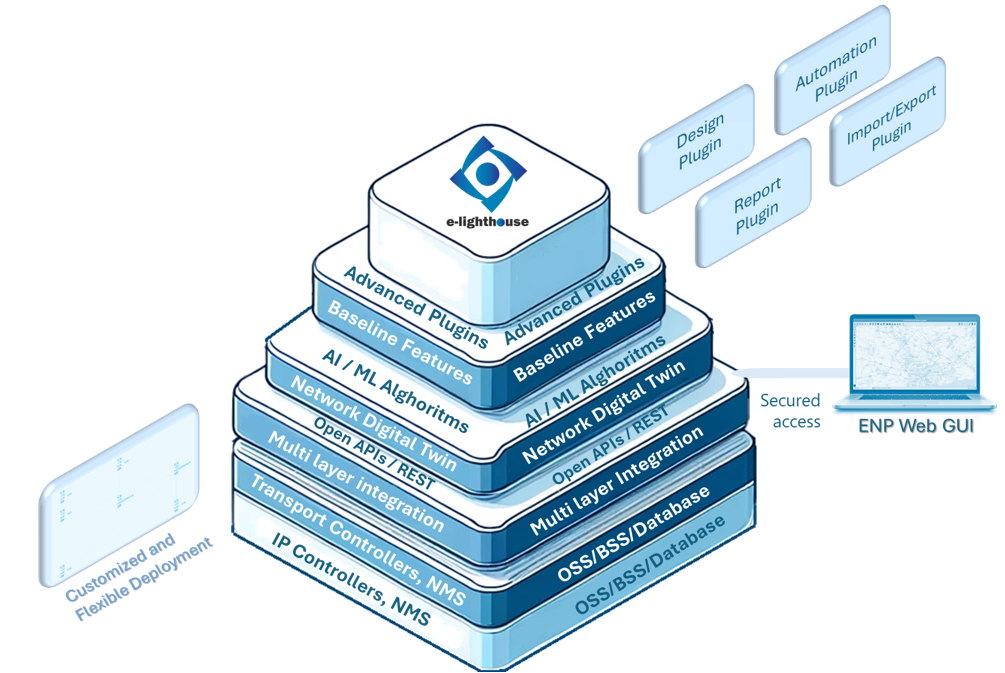
E-Lighthouse Network Planner (also known as ENP) offers a comprehensive range of functionalities for network design and simulation, including:
- Planning and simulation of IP/MPLS/SR networks including QoS configurations and traffic engineering for MPLS-TE and SR-TE.
- Planning and simulation of optical transport networks (OTN/DWDM) supporting multi-modulation and flexi-grid configurations.
- Multi-layer visualization of multivendor network topologies and elements analysis, enabling the joint visualization of IP, optical, and microwave networks, facilitating integrated analysis and optimization.
- Extensibility through plugins, adding specific functionalities such as smart provisioning, failure analysis, and optimized network dimensioning.
The ENP modular approach allows for the installation of features tailored to each customer’s needs, making it possible to add IP and transport features independently according to the network’s characteristics.
This high adaptability also facilitates fast and seamless integration with customer databases and platforms, enabling customized reporting solutions such as network expansion recommendations with integrated Bills of Materials (BOMs).
Summary of Features
ENP provides a wide set of features categorized across different network domains:
General Features
- Modular and extensible architecture
- Multi-vendor network support
- Seamless integration with existing customer databases and platforms
- Advanced reporting and network optimization tools
- Smart import and export functionalities for SDN, NMS, OSS, BSS, and Orchestrators
IP Network Features
- IP/MPLS Network Simulation: Multi-AS IGP/BGP, MPLS-TE, SR-TE, L2/L3VPN, IP multicast, QoS modeling, link aggregation
- L2-L3 VPN Simulation: Impact analysis and VPN-level KPIs
- IP Traffic Demand Forecasting: AI-based forecasting of traffic matrices and bottleneck prediction
- IP Network Risk Analysis: What-if failure analysis at service level
Transport Network Features
- OTN/DWDM Simulation: G.709 compliance, flex-grid, multi-modulation, multi-vendor support
- Smart Provisioning for OTN: Optical connection/service recommendations with KPIs and cost-benefit analysis
- Transport Network Risk Analysis: Service-level failure analysis and scenario comparison
Multilayer Features
- Multilayer IP & Transport Simulation: Impact analysis of changes across both layers
- Multilayer Fault Tolerance Analysis: SRG-based risk assessment across IP and transport networks
IP Network Capabilities
ENP offers several IP functions through its core system and plugins.
IP/MPLS Network Simulation
As a baseline, ENP offers multi-AS IGP/BGP simulation with:
- User-configurable traffic injection policies
- MPLS-TE tunnels and SR-TE path simulation
- User-defined QoS and link scheduling policies
- L2/L3VPNs, IP multicast, and link aggregation
These capabilities enable comprehensive network performance forecasting under various conditions.
L2-L3 VPN Simulation
This plugin allows:
- Analysis of VPNs at the IP layer
- Feature simulation for L3VPN and L2VPN
- KPI-based evaluation of VPN performance
- Extended failure analysis when used with the 'Fault Tolerance Analysis' plugin
IP Traffic Demand Forecasting
Using AI-powered predictive modeling, this plugin:
- Forecasts future traffic trends from historical monitoring data
- Generates IP traffic matrices for network capacity planning
- Simulates traffic demand for forecasting and scaling
- Creates synthetic traffic models when real data is unavailable
IP Network Risk Analysis
This plugin performs:
- Failure impact analysis at the service level
- Simulation of redundancy mechanisms at IP and transport layers
- Scenario-based risk assessment through What-if simulations
- Detailed risk reports for before/after comparisons
Transport Network Capabilities
For transport networks, ENP has an outstanding set of features available in its core and plugins.
OTN/DWDM Simulation
This module provides:
- G.709 compliance for standardized optical transport networks
- Flex-grid and multi-modulation support
- Multi-vendor network simulation
- State-of-the-art optical impairments modeling
- Routing and spectrum assignment (RSA) reports
Smart Provisioning for OTN
This feature enables:
- Optical connection (OTU) and service (ODU/DSR) provisioning
- Automatic recommendation of routes and assigned spectrum
- Service and route KPIs evaluation
- Cost-benefit analysis for provisioning decisions
- Faster service deployment with optimized resource utilization
Transport Network Risk Analysis
This plugin provides:
- End-to-end service failure impact assessments
- Support for multi-layer recovery mechanisms
- What-if failure analysis and visualization
- Service-level risk reports before and after simulations
Multilayer Capabilities
ENP provides multilayer capabilities through:
- Integration with multilayer controllers and orchestrators
- Direct extraction of IP and transport network topologies from network controllers or NMS
Multilayer IP & Transport Configuration and Simulation
This module allows:
- Holistic network analysis spanning IP & OTN layers
- Impact analysis of network changes on both layers
- Optimization of routing, adjacency settings, and recovery mechanisms
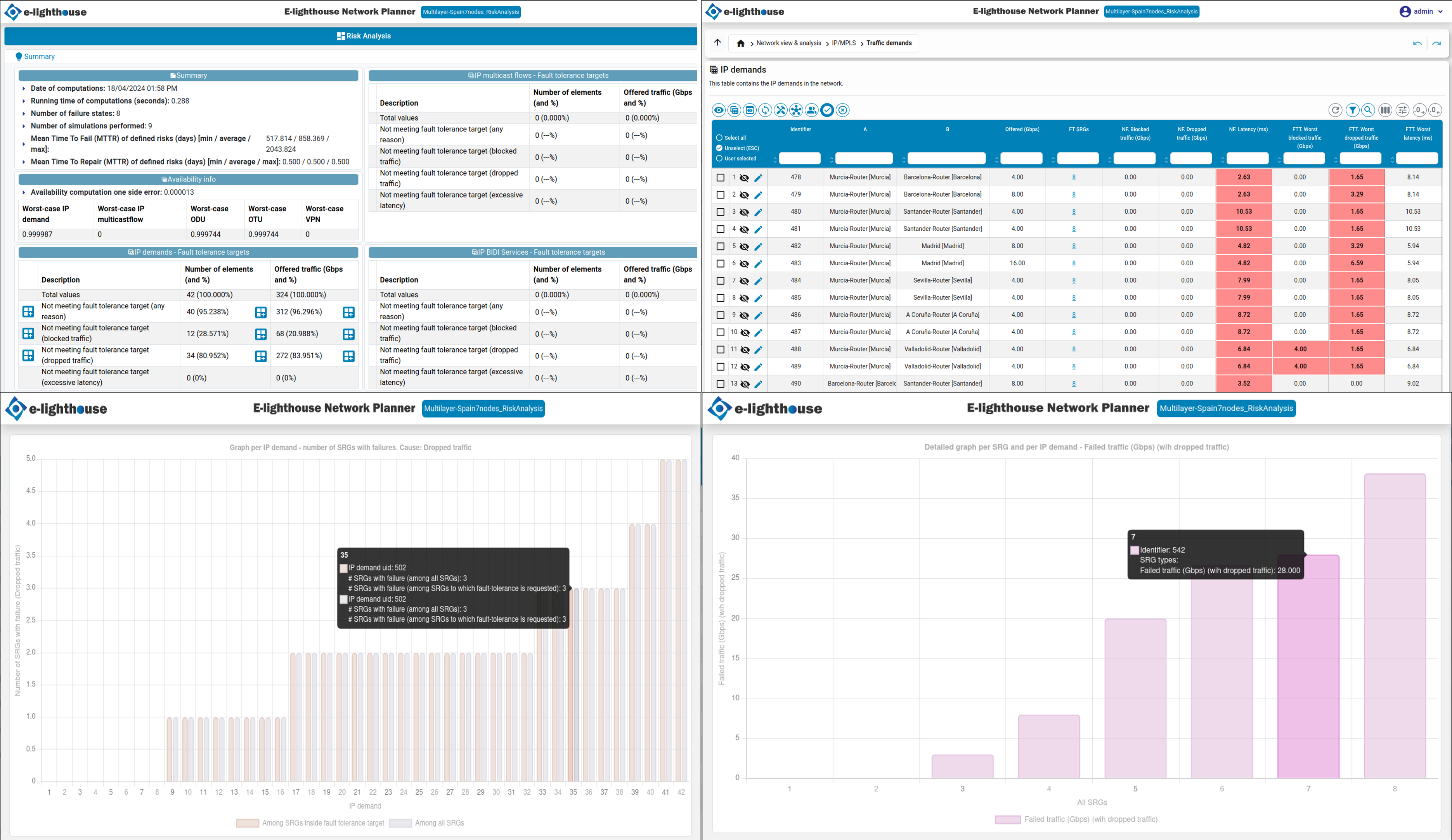
Multilayer Fault Tolerance Analysis
This plugin enables:
- End-to-end service risk evaluation across multiple layers
- Simulation of failures and recovery mechanisms across IP and transport layers
- SRG-based (Shared Risk Group) analysis
- Reports with failure impact and recovery scenarios
Smart Import & Export
Available for IP, transport, and multilayer networks, this module:
- Integrates with SDN, NMS, OSS, BSS, and Orchestrators
- Supports tailored import/export modules
- Automates network data processing from different sources
- Facilitates vendor-agnostic network integration
Ad-Hoc Features & Customization
One of ENP’s most powerful capabilities is its adaptability to unique client requirements.
By leveraging its modular and extensible architecture, ENP enables custom-built features designed to integrate seamlessly with customer-specific network environments, databases, and workflows.
Some examples of ad-hoc features developed for clients include:
- Bespoke optimization models for network expansion and cost reduction
- Custom network analysis tools aligned with enterprise-specific KPIs
- Integration with proprietary monitoring and performance platforms
- Automated configuration generation for network provisioning
- Tailor-made import/export mechanisms for legacy systems
- Custom visualization layers matching customer-specific topological layouts
Through this high level of customization, ENP ensures that each deployment aligns perfectly with the operational needs of the client, optimizing workflows while preserving full compatibility with their existing OSS, BSS, SDN controllers, and orchestration systems.
By prioritizing flexibility and extensibility, ENP empowers clients with a network planning solution that evolves alongside their infrastructure.
Ended: Features
Network Digital Twin ↵
Network Digital Twin
ENP provides a comprehensive suite of simulation tools designed to model and analyze the behavior of multilayer, multitechnology networks. Central to these capabilities is the concept of a Network Digital Twin (NDT), a digital replica that mirrors the physical network. This NDT enables the simulation of network behavior under various conditions, such as traffic fluctuations, network failures, and configuration adjustments. By leveraging the NDT, users can assess network performance, optimize design strategies, and evaluate the potential impacts of proposed changes.
Simulations are executed continuously, with the network state being updated in real-time whenever changes are made to the configuration or when failures occur. The results are immediately displayed on the ENP graphical user interface (GUI), providing users with a dynamic, real-time visualization of network behavior and the effects of any modifications.
Key simulation capabilities offered by ENP include:
IP/MPLS network simulation
- IGP simulation
- BGP simulation
- IP multicast simulation
- IP QoS simulation
- IP VPN simulation
- MPLS-TE simulation
- IP traffic monitoring and forecasting
Optical transport network
Failure simulation
IP/MPLS network simulation sections ↵
IGP simulation
OSPF simulation
OSPF (Open Shortest Path First) routing is the most widely used IGP protocol. It is a link-state protocol, where routers exchange so-called Link State Advertisement (LSA) messages, to propagate reachability information.
In OSPF, IP interfaces are associated with a positive integer metric, associated with the cost of transmitting information through it. This information is included in the LSAs that are exchanged among the AS nodes. By processing the LSAs received, each node is able to internally re-construct the topology of internal IP links in the AS, and compute the shortest path to them.
In OSPF, nodes can be arranged in areas. Each IP interface should be assigned to one and only one area and IP links can only occur between interfaces of the same area. A router with an interface to an area is assumed to belong to that area.
When multiple areas are defined:
- Each area only knows in its database the topology of IP links of its own area. This is because some types of LSAs (LSA types 1 and 2) are exchanged only within the nodes in the same area.
Note
Note that this reduces the signaling overhead and the router CPU consumption for computing the paths.
- In OSPF, area 0 is the so-called backbone area. Non-backbone areas must have at least one node that also belongs to the backbone area. Routers belonging to the backbone area, and also to one or more other areas are called ABRs (Area Border Routers)
- ABRs distribute reachability information between areas, using so-called LSA summary messages. These messages contain a list of IGP destinations, together with the cost to reach them, counting from the ABR to the destination. To avoid the creation of loops when forwarding inter-area traffic, an ABR (i) injects in the backbone the information of the destinations of the non-backbone areas it is connected to, while (ii) injects in the non-backbone areas, all the destinations except those inside the receiving area.
ENP OSPF simulation results in that:
- Intra-area routes to an IGP destination (or BGP next-hop) are always preferred over inter-area ones. These routes follow the shortest path between the nodes, considering only the area IP links.
- The inter-area route between two non-backbone areas must pass through the backbone area. The first area forwards the traffic to the ABR in its area which announces the lowest metric to the destination. The same policy is applied in the backbone area towards the end area.
- The inter-area route between a non-backbone area and the backbone forwards the traffic to the ABR in the origin area which announces the lowest metric to the destination. The same policy is applied in the backbone area towards the end area.
Assigning base areas to IP routers
As explained above, OSPF assigns areas to IP interfaces. However, ENP design tools need to decide which will be the assigned area to the new interfaces created by ENP.
To accommodate this requirement, ENP asks the user to assign a per-node IGP area number (0, 1, 2, ...). Area 0 is identified as the backbone area. Then:
- Interfaces with IP links between nodes in the same area are assigned to the area of the two nodes.
- Interfaces of IP links between nodes in different areas are assigned to the area of the lowest number. This means, e.g., that if one of the end nodes belongs to the backbone (area 0), both end interfaces are assigned to the backbone.
IS-IS simulation
IS-IS (Intermediate-System to Intermediate-System) is a routing protocol of link-state type, with many similarities with OSPF. Nodes in an IS-IS domain can belong to Level 1, Level 2, or both Level 1 and 2 areas. Level 2 nodes correspond (with some differences) to backbone routers in OSPF.
IS-IS domains with only Level 2 nodes defined are identical to single-area OSPF networks. This version of ENP cannot simulate multi-level IS-IS networks, although the majority of its behavior is similar to that of multi-area OSPF networks.
Equal-Cost Multi-Path
OSPF and IS-IS nodes, compute the shortest path to each destination (or the advertising ABR) over the IP topology reconstructed from the LSAs. If more than one shortest path exists with the same minimum cost, the Equal-Cost Multi-Path (ECMP) rule is applied.
ECMP rule means that the traffic is uniformly spread among all the different output links which have at least one shortest path route to the destination.
Some router operative systems set a limit to the maximum number of ECMP parallel output links over which the traffic can be spread (e.g. 8 or 16).
ENP permits setting this information individually for each IP node. By default, there is no limit to this number. When a limit K is set, the first K interfaces are selected in a list that orders the output interfaces by their IP address (lower first).
IGP metric optimization
ENP shows the IGP metric information for the IP links, in the IP links table.
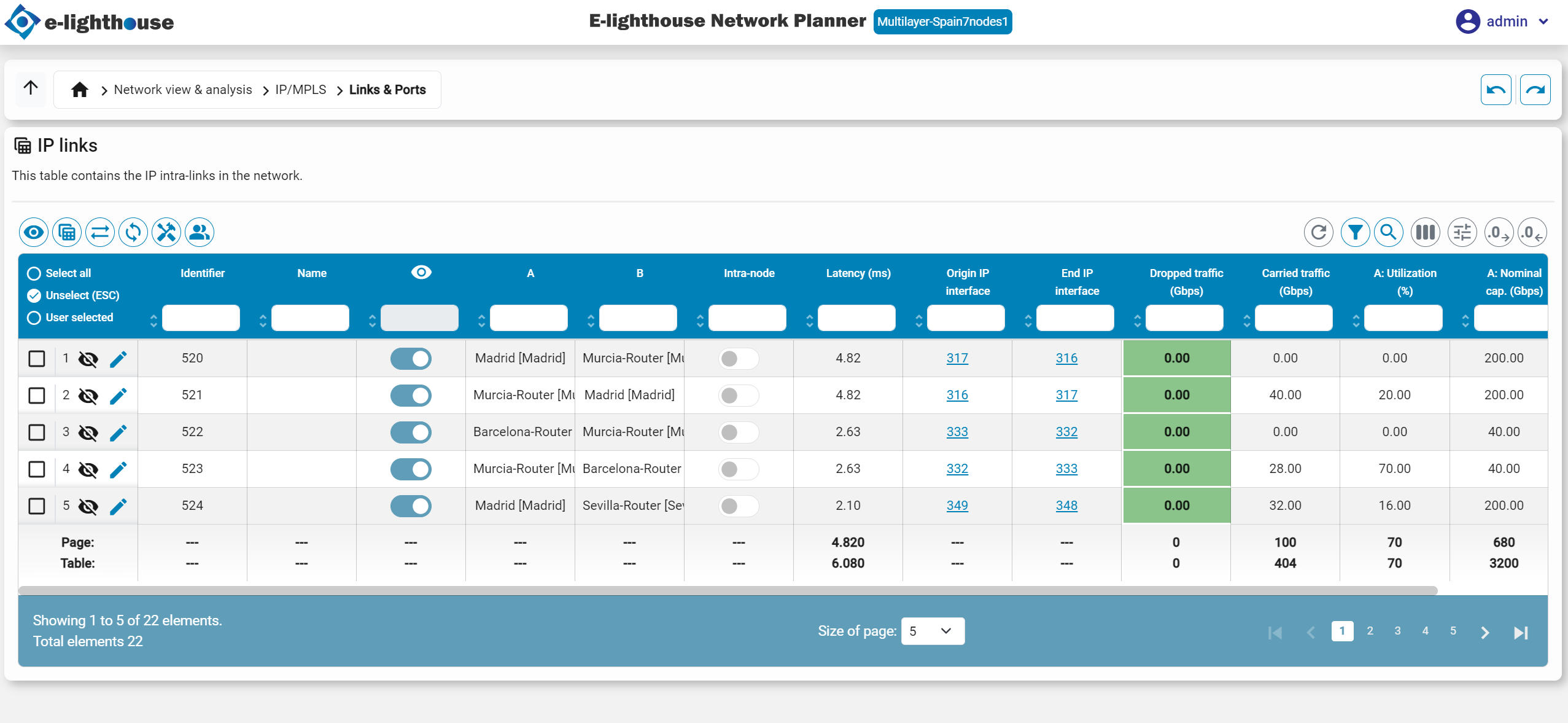
The system permits also the user to edit the IGP metrics, and then immediately observe the effect in the network of such changes. This can be done by:
- Manually setting a new IGP metric value in the appropriate cell of the IP link table.
- Setting in different forms the IGP metric to selected IP links in the table, via several right-click menu options in the table (e.g. setting a fixed IGP weight, or an IGP weight inversely proportional to IP port rates).
In addition, ENP provides several tools to recommend optimized IGP metrics with different load-balancing targets.
Definition of multiple IGP instances
ENP permits defining more than one IGP instance in the same Autonomous System. When an AS has more than one IGP instance defined:
- The user can specify for each IP demand, each IP multicast flow, and each multi-AS or MPLS-TE tunnel, which IGP instance to apply in each AS of the network, for routing the traffic through it.
- One of the IGP instances acts as a default IGP instance: the one to apply if no other IGP is specified.
BGP simulation
This chapter describes the capabilities of ENP tool for the simulation of BGP (Border Gateway Protocol), and its collaboration with the Interior Gateway Protocol (IGP) for defining the IP routing in the network.
ENP implements the IGP/BGP routing process in a form that permits the user emulate the many routing policies that the richness of IGP/BGP allows. For this, a representative view of BGP decision process (RFC 4271 and related) is simulated.
Internal and external AS nodes
ENP considers two types of IP nodes in the network:
-
Internal nodes. These are regular IP nodes, belonging to one of the autonomous systems (ASs) in the network under study. Internal nodes can be connected among them via configured IP links, named as:
- Internal intra-AS links, for those links between internal nodes of the same AS.
- Internal inter-AS links, for those links between internal nodes of different ASs.
A full mesh of iBGP connections is assumed to exist among the internal nodes of the same AS. Intra-AS routing is controlled by the IGP defined in the AS. An eBGP session is supposed to exist in each inter-AS link.
-
External-prefix nodes. These are IP nodes that represent a set of IP prefixes of external ASs. External-prefix nodes can be external sources or destinations of IP traffic that hit the network under study. The connections between internal nodes and external-prefix nodes are called external injection links. Injection links are abstract bidirectional IP links of infinite capacity, representing the form in which external traffic can reach our network. There can be at most one injection link between an external and an internal node. External-prefix nodes cannot be connected between them.
Traffic to/from external nodes
External nodes can be the source and destination of traffic, and can have one or more injection links, to internal nodes belonging to one or more ASs.
ENP permits the user the application of different policies for deciding how the traffic is injected from the external-prefix node into the network, and, in the opposite direction, how the traffic reaches the external node.
For deciding how the traffic in an external node EXT, with destination node DEST, goes out from EXT into the network, the process occurs as follows:
- ENP gets its neighbor injection nodes that announce the destination DEST as reachable (this means these nodes are up, and the link to it is up also, and have reachability information towards DEST).
- ENP keeps the injection nodes that have a higher PREFERENCE value fot destination DEST.
- For non-filtered out injection nodes, if at least one of them announces an AIGP (Accumulated IGP) attribute, we keep the injection nodes which announce the AIGP attribute, and among them, the ones with minimum AIGP attribute announced.
- For non-filtered out injection nodes, we keep those which announce a shortest length of the AS-PATH attribute. This attribute keeps a list of the ASs traversed if such next-hop is used to reach DEST
- If more than one non-filtered out injection node reaches this point, we observe the user-configurable parameter LOAD SHARING for the external node EXT, indicating the maximum number of injection nodes permitted. The injection nodes are ordered according to its BGP ID user-defined parameter, and the ones with lower BGP ID are kept (up to LOAD SHARING value).
- The traffic from EXT to DEST is uniformly load balanced among the decided injection points.
The form in which traffic arrives to an external node DEST, is dependent on:
- How injection nodes of DEST node announce the destination DEST.
- How these announcements are propagated through the rest of the network.
Both aspects are treated in the same form for external and internal destinations.
Overview of IGP/BGP process
The IP routing is governed by the interplay of IGP and BGP processes. ENP is able to accurately simulate the IGP/BGP interplay as described below. At a higher level, the IGP/BGP simulation operates as a sequence of three processes, as follows:
- IGP process. The IGP process is launched first. According to it, the IGP Routing Information Base (IGP-RIB) of each node of each AS is updated, with the shortest path route or routes to each of the other nodes in the same AS.
- BGP process. The BGP process is launched after the IGP process is completed. Its objective is to populate the BGP Routing Information Base (BGP-RIB) of each internal node, with the paths selected for destinations outside the AS, and the BGP attributes associated with them. Internally, this process requires several iterations to reflect how reachability information propagates across the ASs through the BGP sessions. The BGP process ends when such an iterative process converges.
- IP routing process. The IP routing process is launched after the BGP process is completed. Its objective is to create the actual IP routing tables of the nodes, determining how to forward the traffic to any destination. This is performed with the following considerations:
- The paths to destinations in the same AS are populated using the IGP-RIB information.
- The paths to destinations in different ASs are populated with the BGP-RIB information.
The BGP-RIB
The BGP-RIB is a routing database in each internal IP node N, which contains the routing information that N has learned for the destinations outside the AS. Each entry in the database is tagged with the following information:
- DESTINATION. The destination node of the traffic (i.e. representing the IP prefixes associated with that node). It is an external node or an internal node in a different AS.
- LEARNED-VIA. The form in which the entry has been learned. Possible values are: (i) iBGP if the entry has been learned via an iBGP session, (ii) eBGP-EXT if the entry has been learned via a direct connection to DESTINATION, which is an external node, and (iii) eBGP-INT if the entry was learned via an eBGP connection with a neighbor node of a different AS.
- LOCALPREF-OR-MED-PRIORITY. This contains the priority assigned, for preferring that entry for the destination. In BGP this priority can be implemented in various forms: (i) the AS can make an internal decision and apply it using the LOCAL PREF attribute in BGP updates, (ii) the neighbor AS can use the Multi-Exit Discriminator (MED) attribute to prioritize among different border nodes, a suggestion that the AS can apply (or not), influencing the internal routing to that destination.
- AS-PATH. Contains the AS-PATH attribute received in the path announcement. This attribute lists the ASs that would traverse the traffic if forwarded through the next hop, e.g. in the order that would be shown in a traceroute command in normal operation.
- AIGP. Contains the AIGP attribute announced with the path. This is related to the routing policies based on the Accumulated IGP (AIGP) attribute. The entry is not included when the AS of N has deactivated the AIGP function.
- NEXT-HOP. The node from where this entry has been learned.
The BGP process
The BGP process is an iterative process with the following higher layer steps:
- For each internal node N, the BGP-RIB in N is populated with the destinations of the external nodes directly connected to N, if the associated eBGP session is active. The path is stored with the following attributes:
- AS-PATH. Initialized with the external node name, and as many dummy AS names as indicated by the user in the INITIAL-AS-PATH parameter.
- AIGP. If AIGP is active in the AS, it is initialized with 0.
- For each internal node N, which is also end node of a unicast or multicast demand, the BGP-RIB in N is populated with itself as destination, with the following attributes:
- AS-PATH. Initialized with the AS name of the node.
- AIGP. If AIGP is active in the AS, it is initialized with 0.
- For each active eBGP connection between internal nodes (of different ASs), ENP computes the paths that are announced in one direction and the other, according to the current state of BGP-RIBs. The announced paths received by node N are inserted into the BGP-RIB of N.
- For each active iBGP connection between internal nodes (of the same ASs), ENP computes the paths that are announced in one direction and the other, according to the current state of BGP-RIBs. The announced paths received by node N are inserted in the BGP-RIB of N.
- For each internal node, the BGP path selection process is applied, filtering out the non-selected paths.
- Steps 2-3-4 are repeated until no changes occur in the BGP-RIBs of any node, meaning that a stable BGP routing is achived.
The BGP path selection process
The BGP path selection process in each internal node N, scans the BGP entries in the BGP-RIBs and keeps those that are selected for routing, filtering out the rest. This is perfomed with a loop that sequentially process the different destination nodes that have at least one entry in the BGP-RIB. For each destination DEST, the process:
- Looks up the entries stored in the BGP-RIB for that destination, i.e. where DESTINATION field equals to DEST.
- Filters-out those entries where the NEXT-HOP node is not reachable according to the IGP.
- Filters-out those entries which have the node AS in the AS-PATH attribute, since routing through them would produce a routing loop.
- If at least one entry exists learned via iBGP or eBGP-INT, then filters-out the referred entries which have a non-maximum LOCALPREF-OR-MED-PRIORITY attribute, among all the iBGP and eBGP-INT entries for the destination.
- (If the AIGP function is active for the AS of N). For each entry ENP computes the estimated cost to destination given by the sum of the AIGP attribute of the entry (or zero if it does not exist), plus the IGP cost to the NEXT-HOP node of the entry. Then, it filters-out those entries which are not shortest paths according to this metric.
- Keeps the entries with the lower length (in number of traversed ASs) of the AS-PATH attribute.
- Prefers paths learned via eBGP-EXT, then eBGP-INT, then iBGP.
- Keeps the entries with the lower IGP cost to the NEXT-HOP node.
- If more than one entry exists, BGP observes the BGP LOAD SHARING limit configured in the node N, which determines in this situation the maximum number of next hops to choose. The list is ordered from lower to higher BGP ID of the next hop attribute. The entries kept correspond to those which have as next-hop a node in the top LOAD SHARING positions of the list.
The BGP announcement process in iBGP sessions
When the iBGP announcement step is triggered in node N, ENP processes the current BGP-RIB entries in N one by one (already filtered out by the BGP path selection process) and proceeds as follows:
- If the entry has been learned via iBGP, N does not announce the entry. This is a regular BGP procedure for avoiding routing loops.
- If the entry has been learned via eBGP-EXT or eBGP-INT, N announces DEST with the LOCALPREF-OR-MED-PRIORITY attribute value configured by the user for DEST in N
The BGP announcement process in eBGP sessions
When the eBGP announcement step is triggered in node N, ENP proceeds as follows for each eBGP session:
- Announces all the destinations in the IGP-RIB:
- AS-PATH attribute is set to a single element, the AS where N is.
- AIGP. If the AS receiving the announcement has activated the AIGP option, the AIGP attribute is announced with the IGP cost from N to the destination node.
- Announces all the entries in BGP-RIB learned via iBGP, eBGP-INT or eBGP-EXT as follows:
- AS-PATH attribute is set to the AS-PATH attribute of the entry, with the AS of N added at the start of the list.
- AIGP. If the AS of N has activated the AIGP option, the AIGP attribute is announced with the IGP cost from N to the NEXT-HOP node in the entry, plus the current value of AIGP in the entry.
Use cases
This section describes how the ENP IGP/BGP model is able to represent some common routing policies in IP/MPLS networks.
Hot-potato-routing
Hot-potato routing policy means that an AS routes the transit traffic (not destined to it), through the closest possible gateway router with other AS, that announces the destination.
In ENP, an AS makes hot-potato for non-local destinations, when LOCALPREF-OR-MED-PRIORITY is not assigned for the AS border routers that are announcing the destination, and AIGP is not activated in the AS. Then, the traffic will be routed to the closest node according to the IGP metric, among those with the same number of ASs traversed to the destination.
Shortest-path routing
Shortest path routing policy intends to carry the transit traffic to the destination using the path which globally announces a lowest metric to the destination considering all the traversed ASs.
In ENP, this policy can be implemented by activating the AIGP attribute in all the ASs, and no LOCALPREF-OR-MED-PRIORITY option is messing up the decisions (i.e. all LOCALPREF-OR-MED are the same for all nodes).
Manual injection point definition
The aforementioned policies can be tuned by manually setting the injection points for some or all of the destinations. For this, LOCALPREF-OR-MED-PRIORITY parameters can be tuned to reflect the injection point desired for a destination, and/or choosing a decision order for failover.
IP multicast simulation
ENP supports the Source-Specific Multicast method, implemented according to the PIM (Protocol Independent Multicast) protocol (RFC 7761 and related), where each IP multicast flow has one configured source node.
Static and RPF-based multicast flows
In ENP, the user can define the multicast flow origin node, and one or more destination nodes, that are supposed to register (e.g. using PIM source-specific multicast trees) to consume the flow.
All nodes must be internal, although they could belong to different AS. However, for RPF-based IP multicast flows are simulated in the same form as if all the nodes belonged to the same AS.
For a link to be part of a multicast tree, it has to be a bidirectional IP link (not an MPLS-TE tunnel), with PIM enabled on the IP interfaces in both ends.
ENP permits the definition of two types of multicast flows, corresponding with the behavior and failure reaction of two forms of multicast flow configurations:
- Statically routed trees. This behavior represents multicast flows realized in production networks using static routes mroute at the IP nodes. In ENP, the user can select the multicast tree propagating the flow content, from a set of optimized tree alternatives presented. ENP simulates the reaction of static routed PIM multicast flows. This means that failures affecting mroutes may make some or all of the receivers to become disconnected and do not receive the traffic. This happens for the egress nodes which do not have a bidirectional failure-free path from the origin and to the destination, inside the configured tree.
- Reverse-Path-Forwarding based (RPF-based) trees. In this case, the delivery of the content from the user to the registered listeners is created automatically using the Reverse Path Forwarding algorithm that characterizes PIM (RFC 7761) and thus is affected by IGP weights for path creation. The tree is recomputed after failures/repairs, re-applying RPF, simulating the PIM behavior.
Creation and manipulation of IP multicast flows
The user can observe different metrics, such as type, traffic, end-to-end latency or length, on the IP multicast flows created in this table.
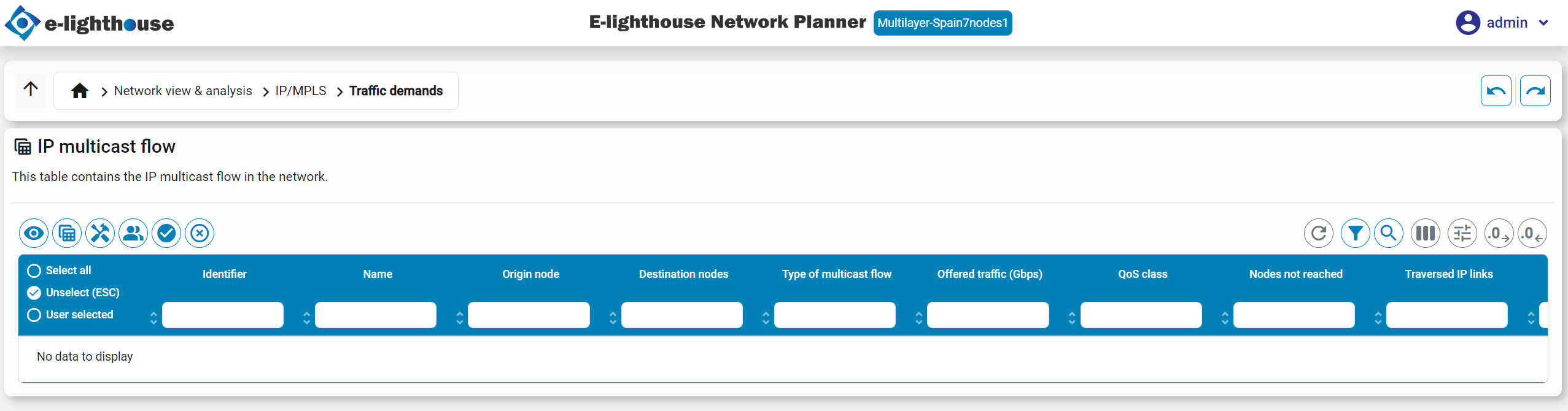
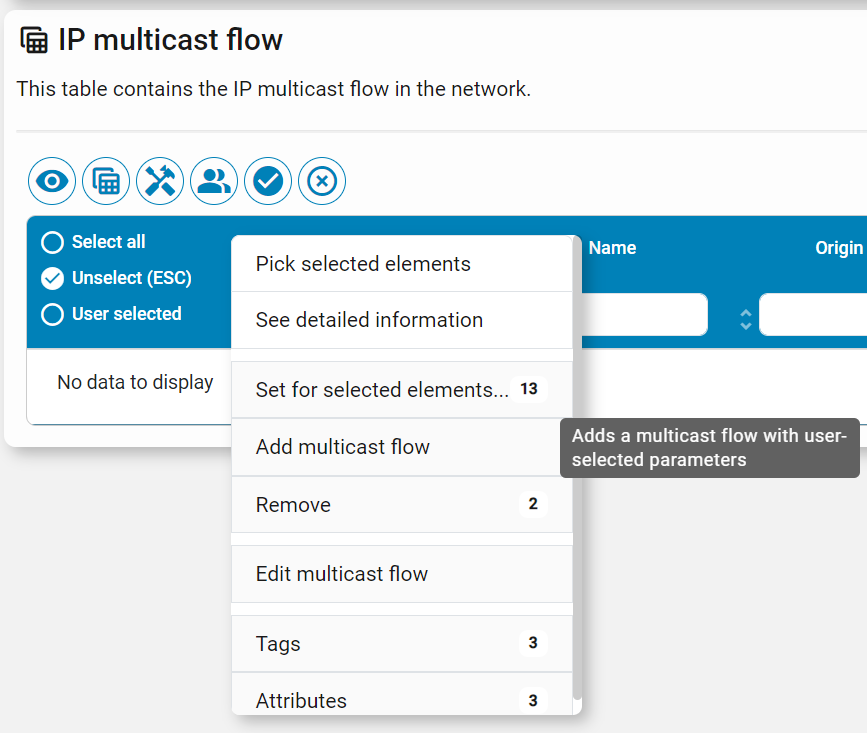
The user can manually create IP multicast flows using this right-click option.
IP QoS simulation
This chapter describes the capabilities of ENP tool for the simulation of different Quality-of-Service (QoS) policies in the IP forwarding of the traffic, e.g. reproducing the behavior of multiple DiffServ QoS flavors.
QoS policies are customary in IP networks, as a form of guaranteeing a prioritized treatment of the traffic of certain critical flows. By doing so, it is possible to keep high service level performances for critical flows without drastic network overprovisionings.
Two elements are involved for QoS assurance:
Traffic of different IP flows, unicast and multicast, should be tagged indicating its QoS class.
IP ports should implement scheduling mechanisms that assign more bandwidth to the flows, according to the flow QoS class tagged.
The form in which both aspects are simulated in ENP is described in the next sections.
Assigning a QoS class to IP demands and multicast flows
ENP permits assigning a user-defined QoS class to both IP unicast demands and IP multicast flows.
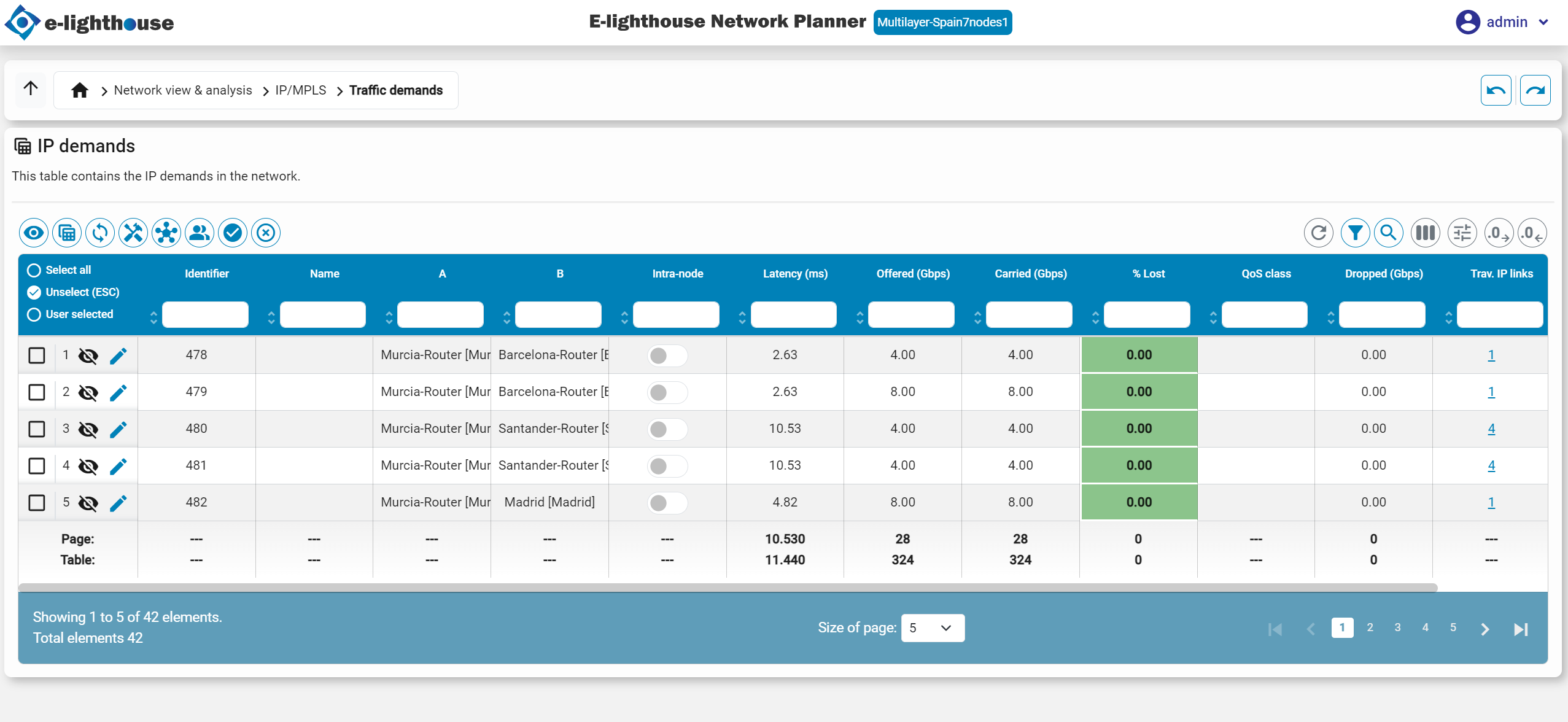
Defining IP port QoS scheduling parameters
IP QoS scheduling parameters are the form in which IP logical ports can define prioritized forms of assigning bandwidth to the outgoing traffic of the transmitted by the port.
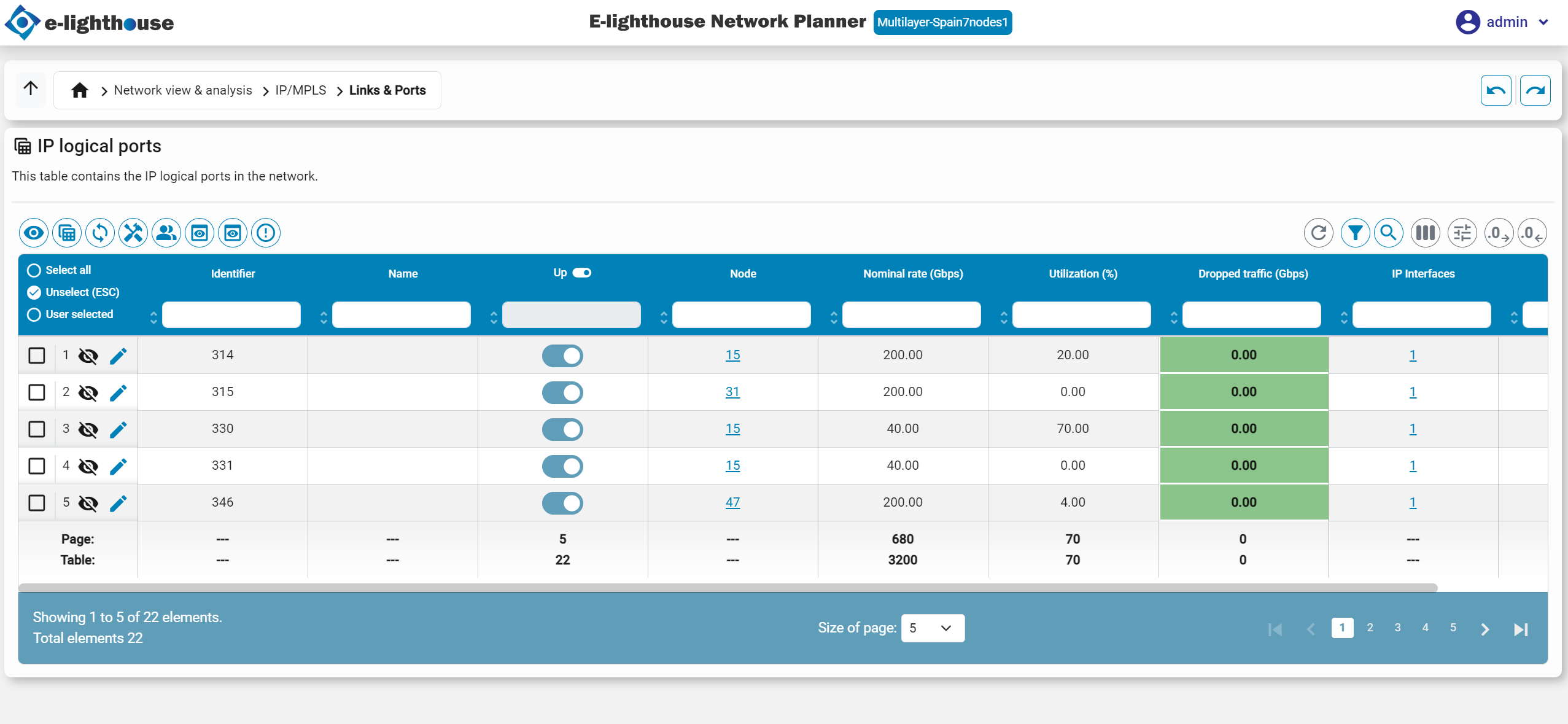
In particular, each IP logical port can define, for each user-defined IP traffic QoS class, a separated queue, with the following information:
- QoS class. The QoS class of the queue. Traffic corresponding to demands of this QoS class is handled by the queue. The traffic of two demands with the same QoS is handled in the same form.
- Priority (lower, better). The link bandwidth is assigned first to the traffic in the lower priority queues.
- Maximum BW percentage assignable to the QoS. This is a percentage of the port capacity that can be, at most, assigned to the traffic of this QoS. Excess traffic is tagged as a QoS oversubscription.
The ENP scheduling process in an IP logical port operates as follows:
- The IP demands and IP multicast flows transmitted through the port, with a QoS class with the same priority value, are grouped together. All of them will be treated equally in the bandwidth assignment. IP demands and multicast flows with a QoS type for which a queue has not been defined in the port are grouped in an untagged group, the last to be assigned bandwidth.
- The groups are ordered according to their priority (lower, better). They are processed sequentially. The link bandwidth is assumed to be fractioned in infinitesimal units, which are uniformly distributed to all the demands/multicast flows in the group, until (i) the demand has already received all the required bandwidth, (ii) the demand has received a bandwidth equal to maximum utilization parameter. The process is stopped if all the link bandwidth has been assigned.
- If at this point all the demands have been satisfied, the link is not oversubscribed, and no demand/multicast flow is suffering from QoS oversubscription in this link. Otherwise, for each demand/multicast flow, the pending traffic that has not been assigned link bandwidth is classified as oversubscription traffic.
Note
Note that, eventually, the traffic carried in the IP logical port can be or not be QoS-oversubscribed traffic. Traffic is QoS oversubscribed if it is assigned bandwidth outside the link capacity, or above its per-QoS defined limit.
QoS scheduling in MPLS-TE tunnels
MPLS-TE tunnels have their own user-configurable QoS class that overrides any QoS class of the IP demands carried by the tunnel. This modifies the previous link bandwidth assignment process: those demands transmitted through an IP logical port, when carried through an MPLS-TE tunnel, are treated as if they had a QoS class equal to the tunnel QoS class, and not the originally set QoS class for the demand.
Visualization of QoS violations
We refer to a QoS violation, as the situation where a link is assigned to at least one demand, bandwidth above its QoS limit, or outside the available bandwidth of the link
This situation can be visually observed in the following tables:
- IP logical ports table. Users can observe the QoS oversubscription column. This column shows the amount of traversing IP traffic that is out-of-contract.
- IP demands table. Users can observe the QoS oversubscription column. This column shows the highest amount of demand traffic that is out-of-contract, among all the traversed IP links of the demand.
- IP multicast flows table. Users can observe the QoS oversubscription column. This column shows the highest amount of demand traffic that is out-of-contract, among all the traversed IP links of the demand.
- MPLS-TE tunnels table. Users can observe the QoS oversubscription column. This column shows the highest amount of tunnel-carried traffic that is out-of-contract, among all the traversed IP links of the tunnel.
IP VPN simulation
This chapter describes the capabilities of ENP tool for the simulation of Virtual Private Networks (VPN) in IP networks. The user will be able to define VPNs of different types and configure their interconnection topology. Then ENP will help to observe and analyze the performances and SLA fulfillment in the VPNs, under different network conditions, and design the network so that their requirements are satisfied.
VPN properties
Virtual Private Networks are characterized by the following information:
- Name. A user-defined name, specified by the user.
- Type. The VPN type can be one of the built-in types (VPWS, VPLS, or L3VPN), or a user-defined descriptive string.
- Qos class. This is the QoS of the IP demands carrying the traffic of the VPN.
- VPN nodes. The connection points in the VPN exchange data among them. A VPN node is hosted in an internal or external IP node. A VPN cannot have more than one VPN node associated with the same IP node.
-
Connectivity type. Two VPN nodes can be connected or not by a virtual adjacency, meaning that two nodes can exchange traffic. If a virtual adjacency exists from a VPN node A to a VPN node B in the same VPN, the associated traffic would be carried using the VPN-matching IP demands. These are the IP demands that:
- Start in the IP node associated with A and end in the IP node associated with B
- Have the same QoS as the QoS of the VPN.
Note
Note that an IP demand associated with a VPN is supposed to carry traffic of many types (e.g. other VPNs, regular traffic...), not only the one of the VPN.
There are two options for defining the topology of virtual adjacencies that are allowed in the VPN:
- Full-mesh. In this case, there is a virtual adjacency between each pair of VPN nodes.
-
Manual (RT-based). In this case, the user can manually choose the VPN node pairs for which a virtual adjacency is defined. This is done by specifying, for each VPN node:
- The set of importing Route Target (RT) identifiers. An import RT defines the nodes from which announced destinations are learned, and thus to which the node can send traffic. Each RT identifier is a user-defined string.
- The set of exporting Route Target (RT) identifiers. An export RT defines the nodes to which destinations are announced, and thus from which the node could receive traffic. Each RT identifier is a user-defined string.
A virtual adjacency is considered to exist from VPN node A to VPN node B, if an RT exists that is both imported by A and exported by B.
Note
Note that having a virtual adjacency between two nodes does not mean that the traffic can flow between them: at least one VPN-matching IP demand should also exist. When more than one VPN-matching IP demand exists, its associated traffic is assumed to be uniformly split among them.
VPN properties, manipulation, and several statistics can be visualized in the VPN table, and in the VPN Node table.
VPN nodes
A VPN node represents the end node of the traffic of a VPN associated with a particular IP node. They are characterized by:
- Name. A user-defined name, specified by the user.
- Associated VPN. The VPN that this VPN node is associated with.
- Importing Route-Target. The imported Route Targets, of application if the VPN is not of full-mesh connectivity.
- Exporting Route-Target. The exported Route Targets, of application if the VPN is not of full-mesh connectivity.
VPN node properties, manipulation, and several statistics can be visualized in the VPN Node table.
VPN simulation
The simulation of VPN performances is conducted as follows:
- For each VPN a virtual adjacency, the VPN-matching IP demands are calculated. The VPN traffic of that adjacency is assumed to be uniformly split among the VPN-matching demands.
- The latency, QoS oversubscription, and blocking information for each virtual adjacency is computed as the one suffered by the VPN-matching demands.
Per-VPN, per VPN-adjacency, and per VPN-node statistics are computed and shown to the user. In addition, when the user runs a worst-case simulation failure analysis, the worst-case performances are collected and shown to the user in the tables.
MPLS-TE simulation
MPLS-TE tunnels are a common mechanism to enable finer IP traffic engineering. An MPLS-TE tunnel is a unidirectional path across the IP network, that when up, is available to the IP routing process for forwarding IP packets.
ENP precisely models the behavior of multiple settings and flavors of traffic engineering with MPLS-TE tunnels. The user is able to:
ENP simulation of MPLS-TE includes:
- Bandwidth reservation policies and tunnel priorities. Accurate representation of the bandwidth reservation mechanisms, considering also the MPLS-TE preemption policies based on tunnel priorities.
- Path computation and network recovery mechanisms. Accurate representation of the tunnel path computation forms: dynamic CSPF-based computations (for dynamic MPLS restoration), path-option lists (for pre-determined MPLS restoration), and Fast-ReRoute path protection (for MPLS protection).
- IP routing settings over the tunnels. Simulation of the IP/IGP/BGP and MPLS-TE interactions, for both Autoroute-based and Forwarding-adjacency-based tunnels.
MPLS-TE information per IP interface
The user can define the following information per IP interface, that configure the MPLS-TE behavior:
- MPLS-TE enabled. IP interfaces can be enabled or not for carrying MPLS-TE tunnels. Disabled IP interfaces are not eligible as part of the path of MPLS-TE tunnels.
- Total reservable bandwidth by traversing MPLS-TE tunnels. The user can specify for each IP interface the total bandwidth that is allowed to be reserved in the interface for traversing MPLS-TE tunnels.
- Reservable bandwidth per traversing MPLS-TE tunnels. The user can specify for each IP interface the maximum bandwidth that is allowed to be reserved in the link for each individual traversing MPLS-TE tunnel.
- Administrative weight. The user can specify for each IP interface the so-called administrative weight. This is a 32-bit unsigned int that is propagated by the IGP when it floods traffic engineering information for building tunnels. Typically it is the same number as the IGP (although you have 32 bits here). When a tunnel path is dynamically computed using CSPF, the link administrative weight is used as the default link cost. However, the user can individually decide for each tunnel, whether to use the administrative weight or the IGP metric in these calculations.
MPLS-TE information per tunnel
The user can define the following information per MPLS-TE tunnel, to configure the MPLS-TE behavior:
- Private/non-private tunnel. If the user selects the tunnel as private, it can only be used to carry traffic of the user-defined private demands. This option permits easily defining e.g. VPNs based on MPLS-TE tunnels carrying traffic of specific demands. Tunnels not declared as private operate as regular MPLS-TE tunnels and are involved in the regular forwarding of the IGP.
- QoS class. This is the QoS tagging for the traffic in the tunnel. All the tunnel’s traffic is assigned to this user-defined QoS class, and the queues in the traversing links deal with it appropriately.
- Tunnel reserved bandwidth. This is the amount of bandwidth that, at the control plane, the tunnel is reserving. As in real MPLS-TE tunnels, this may or may not be equal to the traffic that the tunnel actually carries. The reserved bandwidth has implications just in the control plane reservations. In particular, a tunnel path is affected by this value, since e.g. the sum of the reserved bandwidths of the traversed tunnels, cannot exceed the maximum IP link reservable bandwidth assigned to MPLS-TE tunnels.
- Load sharing between tunnels. If more than one tunnel to a destination exists, and only MPLS-TE tunnels are used to forward traffic to that destination, the traffic through each tunnel is proportional to the tunnel reservable bandwidth, or to a user-defined equivalent capacity value.
- Tunnel setup priority and holding priority. These are the equivalent values defined for MPLS-TE tunnels. The MPLS control plane utilizes this information to potentially pre-empt existing tunnels in the path computation process. If the setup priority of a tunnel is lower (better) than the holding priority of other tunnels, it will pre-empt it if necessary if there is not enough control-plane reservable bandwidth for both.
Note
Note that according to the standard, holding priority should always be lower (better) than setup priority.
- Autoroute / forwarding adjacency (FA) tunnels. MPLS-TE tunnels can be of the autoroute of FA type. In the former, the tunnel is not announced as a forwarding adjacency in the IGP, while FA tunnels (that must be bidirectional, with one tunnel in each direction) are announced. Being announced means that they appear in the IGP shortest path computations of other nodes. In contrast, autoroute tunnels only appear in the IGP shortest path calculations of their origin node.
- Path computation options, FRR, and path option lists. The user can select different options for defining the tunnel paths:
- CSPF dynamic calculation. In this option, the tunnel path is dynamically recomputed emulating the CSPF (Constrained SPF) algorithm. The tunnel can or not (user-defined) use the IGP weights or the administrative weights for CSPF calculations.
- Path-option lists. In this option, the user can define an ordered set of paths for the tunnel. Only one of the paths is control-plane active, thus reserving resources at the control plane level. Dynamic CSPF computation can be or is not chosen as a default last option.
- Path-option list with FRR. The difference with the previous case is that the tunnel bandwidth is reserved in all the paths assigned to the tunnels, even the ones inactive.
Creating an MPLS-TE tunnel
It is possible to add MPLS-TE tunnels in the topology panel (clicking origin and destination nodes), or in the MPLS-TE table, in this right-click option.
IP traffic monitoring and forecasting
This section describes the capabilities of ENP tool for managing IP traffic monitoring traces, estimate end-to-end traffic matrices from link monitoring traces, and build long-term traffic foecasts that can feed network capacity upgrades or redesign processes.
ENP functionalities described in this section are:
- Add, import and export traffic monitoring information associated to some or all of the IP links and/or MPLS-TE tunnels and/or IP demands and/or IP multicast flows. Monitoring information is composed of traces of traffic monitoring samples of the form (time, traffic amount).
- Create forecasts for the IP links or demands future traffic, computed manually or via built-in proprietary Machine-Learning (ML) algorithms that process the monitored information. This information can be used to assess when the different parts of the network need to be upgraded to cope with the traffic growth. These forecasts can be used to predict the traffic state in the future, and then compute.
- Graphically visualize and analyze the traffic growth patterns and forecasts.
These functionalities are accessible via right-click options under the menu ' Monitor/forecast... ' in the different tables.
Adding and manipulating monitoring traces
ENP allows the user associating monitoring traces to any of the following elements:
- IP links. Each sample in the trace stores the aggregated in or out traffic (in Gbps) in the link at a given time.
- IP injection links. Each sample in the trace stores the aggregated in or out traffic (in Gbps) in the link at a given time.
- MPLS-TE tunnels. Each sample in the trace stores the injected traffic (in Gbps) in the MPLS-TE tunnel at a given time.
- IP demands. Each sample in the trace stores the injected traffic (in Gbps) in the IP demand at a given time.
- IP multicast flows. Each sample in the trace stores the injected traffic (in Gbps) by the source of the multicast flow at a given time.
Monitoring information may be introduced in the tool in three forms:
- Monitoring information synthetically created by the ENP tool using different realistic models. The menu option 'Add synthetic monitoring trace to selected elements' in the different tables can be used for this.
- Uploading manually the CSV files with the monitoring samples to the user-defined monitoring samples folder. See this section for more information.
- Adding monitoring samples manually, one by one, using the menu option 'Add one monitoring traffic sample for selected elements'.
- Adding monitoring samples from the current traffic in the network design, using the option 'Create monitoring samples from current traffic'.
Monitoring information can be removed using different right-click options under the 'Remove...' submenu.
Note
The links above direct to the right-click options in the IP demands table, similar options exist in the IP links, injection link, tunnels, demands, and multicast flow tables.
Percentile-filtering of the monitoring traffic
Monitoring information in production networks typically consists of one monitoring sample every short period (e.g. 5 minutes), which averages the traffic in the element during the last sampling period (or on other occasions, during a fraction of it, e.g. last minute).
A five-minute sampling trace of the traffic in an element (e.g. in an IP link) shows fine-grained information on how traffic varies along the day, that may be of interest for some purposes (e.g. traffic anomaly detections).
However, such fine-grained information is not that important for the long-term capacity planning of the network. Instead, capacity planning processes are based on the so-called busy hour traffic, i.e. the traffic carried by the element during the hour of the day in which the highest traffic is carried. Then, the network should be dimensioned so that all the traffic is carried during the busy hour.
When we want to dimension the network so it is able to cope with the future traffic demands, we should be able to estimate the future traffic in the busy hour.
Percentile traffic filtering is used for this purpose. In ENP, this filtering is available via the right-click option 'Percentile-filtering of monitoring samples'. The filtering is characterized by two user-defined factors:
- Time interval between produced samples. This is the time between two consecutive samples produced by the filtering process, typically e.g. 1 sample per day. This interval is longer than the sampling interval of the input samples to be processed (e.g. one sample every 5 minutes).
- Percentile. A percentage P between 0% and 100%, typically 95% or 99%. For each time interval, all the input samples are taken (e.g. one every 5 min), and one output sample is produced with a traffic T such that the P % of the input traffic samples are below or equal to T.
When e.g. a 99% percentile filtering is applied e.g producing one sample per day, the information of how the traffic varies along the day is lost, and we just keep the traffic in the busy hour, such that roughly the traffic is higher than it at most 1% of the time during the day. This information stored for multiple consecutive days, can help us predict how the busy hour traffic will be in the future (e.g. in one year from today), and plan our network upgrade accordingly.
CSV-file storage of the monitoring information at the server
In ENP the user can define for a network design, the so-called monitoring samples folder. This folder should be located at the ENP server and is used by ENP to automatically import and export to/from CSV files the monitoring information in the different elements.
CSV files are the persistent form in which the monitoring information is automatically saved and read:
- Changes in the monitoring information produced by user actions are automatically updated in the CSV files.
- And manual changes performed in the CSV files are automatically reflected in the ENP tool.
One CSV file exists for the following elements:
- IP interfaces - transmitted traffic, with file name 'tx_#ID.csv', being #ID the unique identifier of the IP interface with the monitoring samples.
- IP interfaces - received traffic, with file name 'rx_#ID.csv', being #ID the unique identifier of the IP interface with the monitoring samples.
- IP injection links, with file name 'tx_#ID.csv', being #ID the unique identifier of the element with the monitoring samples.
- MPLS-TE tunnel, with file name 'tx_#ID.csv', being #ID the unique identifier of the element with the monitoring samples.
- IP demands, with file name 'tx_#ID.csv', being #ID the unique identifier of the element with the monitoring samples.
- IP multicast flows, with file name 'tx_#ID.csv', being #ID the unique identifier of the element with the monitoring samples.
The CSV files have a very simple structure, human-readable, with one row per monitoring sample, with two columns: one for the date in the format 'yyyy-MM-dd HH:mm:ss z', and the other with the traffic monitored in Gbps.
The user can set a new folder for becoming the monitoring samples folder arbitrarily, via appropriate right-click options in the tables.
Naturally, the user can also modify or process offline the CSV files in any form. As mentioned above, these changes are automatically reflected in the tool. This opens the door for building customized systems where ENP automatically updates its monitoring information taking it from the Performance Management system of the production network.
The functionalities described in this section are accessible in the menu 'Monit samples & CSV files'.
IP traffic forecasting
Traffic forecasting permits the user to generate predictions of the future evolution of the traffic in different network elements, according to the monitored information present in those same elements. This is applicable to IP demands, IP injection links, multicast flows, IP links, and MPLS-TE tunnels.
These options are accessible via the right-click submenu 'Create long-term traffic predictor for selected elements traffic'.
Create a traffic predictor
With this option, the user can create a traffic predictor function for each selected element (IP demands, multicast flows, IP links, and MPLS-TE tunnels). Traffic predictors can be computed in several forms:
- Automatically estimated from the monitored information present in those elements, using a Machine Learning (ML) process. In this case, the user has requested the initial and end dates of the monitoring samples to consider as input. Then, an internal ML process estimates the growth pattern and their parameters for all elements and creates the traffic predictor functions for them.
- Manually created as a linear growth of user-defined per-year traffic increment.
- Manually created as an exponential growth, with a user-defined Compound Annual Growth Rate (CAGR).
- Manually created as a constant traffic, equal to the current traffic in the network element.
The user can observe an estimation of the quality of the forecast produced, via the so-called fraction of the variance explained statistic, between 0 and 100%. A variance explained as a fraction of 100% means a forecast that perfectly fits the data. In general, when the available data is large enough, any value above 80%-90% can be considered a reasonably good forecast.
For more information on how forecast information can be visualized, see this section.
Using forecast/monitoring to set the current network traffic
These options permit the user to fix the current IP demand and IP multicast flow traffic, as the one coming from:
- The monitoring samples on a particular user-defined date.
- The forecasted traffic for a particular date.
After this setting, the traffic routing is simulated in the regular form, producing the traffic in the IP links and tunnels.
The functionalities described in this section are accessible in the menu 'Set current traffic from...'.
End-to-end traffic estimation from IP link counts
This option permits the user to generate estimations of end-to-end IP demands and multicast flows' injected traffic, from the monitored information present for IP links, MPLS-TE tunnels, and potentially partial information on IP demands and multicast flows.
This functionality is a required customary process in capacity planning of IP networks since (i) monitoring information is typically only present for IP links, but (ii) capacity planning requires an estimation of per-IP demand traffic. Monitoring the per-IP demand traffic is typically not possible, or just possible for only some selected flows, since such monitoring is computationally costful for the routers, and/or requires specific equipment at high IP rates.
For this reason, several options have been researched and are used in production networks for deriving the IP demands traffic from the IP link counts, a process commonly referred to as IP traffic matrix derivation, since in the most simple case, when at most one IP demand exists between each node pair, all the information of the IP demands' traffic can be represented by a matrix with as many rows and columns as the number of network nodes.
In ENP, the end-to-end IP traffic derivation options are accessible via the right-click menus under the 'IP end-to-end traffic matrix derivation' submenu. The user can check this menu information for specific details. Below are some somewhat-theoretical explanations of the two models offered in ENP for end-to-end traffic derivation: the gravity model, and a proprietary full-regression model.
Forecast demands traffic using the gravity model
This option permits the user to estimate the traffic in the IP demands, from the information of the traffic in the IP links, using a built-in variation of the so-called gravity model.
Gravity model-based IP demand forecast can be used when:
- No IP multicast flows are defined in the network.
- There is traffic information for all the IP links outgoing/incoming of those nodes in the network which are end nodes of IP demands. That is, it is possible to obtain the total traffic outgoing to the IP nodes, and the total traffic incoming to the IP nodes.
- For applying the gravity model we do not need to know the routing policies applied in the network (i.e. how the IP traffic was routed).
The gravity model works by assuming that the traffic from node A to node B is directly proportional to the total traffic that A produces (to any destination), and also proportional to the total traffic that B receives (from any origin).
Forecast demands traffic using the ENP full-regression model
This option permits the user to estimate the traffic in the IP demands and the traffic in the IP multicast flows, exploiting, and making the most, of the information available with respect to:
- IP demand monitoring information, if any.
- IP multicast flow monitoring information, if any.
- IP link aggregated traffic information, if any.
- MPLS-TE injected traffic information, if any.
- For applying the full-regression model we do need to know the routing policies applied in the network (i.e. how the IP traffic was routed).
The method takes benefit of the information available, to increase the estimation accuracy. In general, the more the information, the better the accuracy. Internally, the full-regression model will search for the more likely end-to-end traffic of the IP demands, that has a better consistency with the monitored data available.
To know more
For those interested in knowing more about theoretical and practical aspects of this topic, some initial reads are
- Paul Tune, Matthew Roughan, "Internet Traffic Matrices: A Primer", April 2013.
- A. Nucci, K. Papagiannaki, "Design, measurement, and management of large-scale IP networks. Bridging the gap between theory and practice", Cambridge University Press 2009.
Visualizing the monitor/forecast information
The traffic monitoring, estimation, and forecasting information can be visualized in different forms:
- Monitoring and forecast information in the tables. In the different columns under the Monitor/forecast view in the different tables (IP demands, IP links, etc). This includes information on the number of monitoring samples and initial and end dates, the forecasted traffic and its relative mismatch against current design traffic, the type of forecast method, and the variance explained with respect to the monitoring samples.
- Capacity upgrade deadline information is in the tables. For those IP logical ports for which a traffic prediction function exists, the tool provides information on the time when the estimated average traffic will reach a user-defined utilization limit. For this, see the columns under the Occupation forecast view in the IP logical links table.
- Monitoring/forecast panel. The user will be able to visually observe, zoom, etc. the monitoring traces of the elements, together with the predicted traffic, in the Monitoring/forecast panel that is shown below the information tables
Ended: IP/MPLS network simulation sections
Optical Transport Network simulation sections ↵
Optical Transport Network (OTN) simulation
ENP is able to simulate the full Optical Transport Network (OTN) stack according to ITU-T G.709, from the Optical Data Units (ODUs), and its routing over the Optical Transport Units (OTUs), down to the Optical Channels (OChs), WDM links and fiber spans (Optical Transmission Section, OTS).
Advanced aspects like a combination of multiple recovery techniques at ODU, OTU, OCh, and WDM levels can coexist in arbitrary arrangements, reflecting the heterogeneous settings found in optical networks.
ITU-T G.872 / G.709 OTN hierarchy
The ITU-T G.872 OTN and ITU-T G.709 OTN documents define the hierarchy of network elements inside the Optical Transport Network, also called the Optical Transport Hierarchy (OTH). OTH combines both optical and electrical multiplexing of signals in a common framework. The electrical domain is structured in a hierarchical order based on electrical frames with hierarchical encapsulations. The optical domain is targeted to use Wavelength Division Multiplexing (WDM) technology, with standardized methods e.g. for Operations, Administration, and Maintenance (OAM) aspects. A keystone element in the hierarchy is the definition of the Optical Channel (OCh), the optical signal to be multiplexed with its standardized overheads.
The figure below illustrates the key elements of the OTN hierarchy, as enumerated below, and described in the next sections in this page
- Optical Data Unit (ODU / ODUk). The electrical client signals to be transported in the OTN are introduced into Optical Payload Units (OPUs), with an overhead to support any rate or format adaptation process required. Then, the OPU is mapped into the Optical Data Unit (ODU), which includes extra overhead for OAM functions. Then one or more ODUs are multiplexed into an OTU to be transported via the OTN. Different rates are available for the OPU/ODU signals, e.g. ODU0 (1.25 Gbps), ODU1(2.5 Gbps), ODU2 (10 Gbps), ODU4 (100 Gbps), and the ODUflex configuration, that basically can carry any configured rate.
- Optical Transport Unit (OTU / OTUk). An OTU is a placeholder for carrying in a multiplexed form a number of ODUs. OTUs add a Forward-Error-Correction (FEC) and other overhead to the signal for OAM. Different rates are available for the OTU signals, e.g. OTU1(2.5 Gbps), OTU2 (10 Gbps), OTU4 (100 Gbps), and others.
- Optical Channel (OCh). OChs represent an end-to-end optical connection (with no conversion to electronic domain in the middle), transmitted at a particular wavelength, with a particular optical modulation and optical signal characteristics. An OCh carries encapsulated in it the client data of one OTU. The OCh payload has an electrical standardized structure, where the OTU transported in it is at the highest multiplexing level. Actually, an OTU is realized via a sequence of one or more OChs, of the same rate, with Optical-Electrical-Optical signal regeneration at intermediate nodes (where OChs end).
- Optical Multiplex Section (OMS). Multiple OChs can be transported in a Wavelength Division Multiplexing (WDM) aggrupation, as long as its occupied optical spectrum is not overlapping. The section of the optical network between two WDM multiplexers/demultiplexers is called an Optical Multiplexing Section (OMS), or more informally called a WDM link.
- Optical Transmission Section (OTS). Corresponds to passive fiber sections between any two network elements in the OTN, including optical amplifiers. More informally called a fiber span. An OMS is typically composed of a sequence of OTS sections and optical line amplifiers in the middle (potentially with other optical signal compensation elements, like dispersion compensators). Additionally, a single OCh may be directly transmitted between two elements without WDM multiplexing (and thus without the OMS section).
OTN includes and standardizes a number of OAM functions, also for the interoperation between different network providers. At OPU, ODU, and OTU layers, this involves the definition of the overheads in the different electrical frames. At OCh, OMS, and OTS levels, supervision signals are sent as optical signals outside the ITU grid, in an out-of-band common Optical Supervisory Channel (OSC).
ENP modeling of the ODUs
ENP models the ODUs using three elements:
- Unidirectional ODU demands (or requests). These elements represent the request to create an ODU between two particular end nodes, of a particular rate, and with an intended ODU recovery scheme.
- Unidirectional ODUs. An unidirectional ODU satisfies a particular ODU request, ending in particular ODU-enabled ports of the end nodes.
- Unidirectional ODU paths. A sequence of OTUs between ODU end ports. These elements are represented in the model with the UnidiSubpathOdu objects. Each ODU can be realized via one or two ODU paths, in the latter case following a 1+1 configuration.
Unidirectional ODUs can be arranged in bidirectional pairs.
ODUs can be tagged to be recoverable under failures in different forms:
The ODU has one ODU path. If the ODU path fails, the ODU is considered as down, and thus not carrying traffic.
The ODU has one ODU path. If the ODU path fails, a customizable algorithm is run in order to find a new path for the failed ODU.
The ODU has two ODU paths of the same rate, that reserve capacity in typically OTU-disjoint routes. If both ODU paths are failed, the ODU is failed.
ENP modeling of the OTUs
ENP models the OTUs using two elements:
- Unidirectional OTUs. These elements are represented in the model with the UnidiOtu objects, that define an OTU between two particular OTU-enabled ports of the end nodes.
- Unidirectional OTU paths. A sequence of OChs between OTU end ports, all of a line rate equal to the OTU line rate. These elements are represented in the model with the UnidiSubpathOtu objects. Each OTU can be realized via one or two OTU paths, in the latter case following a 1+1 configuration.
Unidirectional OTUs can be arranged in bidirectional pairs.
OTUs are mainly characterized by their end nodes, line rate, and recovery type under failures. As for the recovery type, the following alternatives are eligible:
The OTU has one OTU path. If the OTU path fails, the OTU is considered down, all its ODU paths are down, and thus not carrying traffic.
The OTU has one OTU path. If the OTU path fails, a customizable algorithm is run in order to find a new path for the failed OTU.
The OTU has two OTU paths of the same rate, that reserve capacity in typically fiber-disjoint routes. If both OTU paths are failed, the OTU is failed.
ENP modeling of the OChs
ENP models the OChs using two elements:
- Unidirectional OChs. These elements are represented in the model with the UnidiOch objects, that define an OCh between two particular OCh-enabled ports of the end nodes.
- Unidirectional OCh paths. A sequence of WDM links and/or fiber spans between the OCh end ports. These elements are represented in the model with the UnidiSubpathOch objects. Each OCh can be realized via one or two OCh paths, in the latter case following a 1+1 configuration and fiber disjoint paths, given that the same optical signal would be propagated in both paths.
Unidirectional OChs can be arranged in bidirectional pairs.
OChs are mainly characterized by their OCh type, represented by an object of the type OchType. This element defines the OCh rate, optical modulation, tunability range, and other physical layer characteristics of the OCh. For the OCh to exist, both OCh end nodes must be capable of handling OChs of its type. See this section for details on how the optical signal performances at the receiver end of the OCh are estimated.
OChs can be realized with one or two OCh paths:
The OCh has one OCh path. If the OCh path fails, the OCh is considered as down, and thus its traversing OTU path is also down.
The OCh has two OCh paths of the same type, so the same optical signal is propagated through two different fiber-disjoint paths. If both OCh paths are failed, the OCh is failed.
ENP modeling of the WDM links (OMS)
ENP models the WDM links using two elements:
- Unidirectional WDM links. These elements are represented in the model with the UnidiWdm objects, that define a WDM link between two particular WDM-enabled ports of the end nodes.
- Unidirectional WDM link paths. A sequence of fiber spans (OTS) between the WDM link end ports. These elements are represented in the model with the UnidiSubpathWdm objects. Each WDM link can be realized via one or two WDM paths, in the latter case following a 1+1 configuration and fiber disjoint paths, given that the same WDM signal would be propagated in both paths.
Unidirectional WDM links can be arranged in bidirectional pairs.
WDM links can be realized with one or two OCh paths:
The WDM link has one WDM path. If the WDM link path fails, the WDM is considered as down, and thus its traversing OCh paths are also down.
The WDM has two WDM paths, and the same optical signal is propagated through two different fiber-disjoint paths. If both WDM link paths are failed, the WDM link is failed.
ENP modeling of the fiber spans (OTS)
ENP models the fiber spans (Optical Transmission Section, OTS) using the UnidiOts objects.
Unidirectional OTS links can be arranged in bidirectional pairs.
Unidirectional OTS links are characterized by their end nodes and ports, fiber length, different parameters of the physical fiber, and user-defined information on their end connectors.
Optical signal performances simulation
This section describes ENP tool capabilities for the simulation of the physical layer optical performances of the optical channels (OCh) in the network.
Optical signal performances simulated
Per OCh-path metrics
ENP is able to compute the following optical performances for each Optical Channel (OCh) path:
- Optical power at reception (dBm).
- Optical Signal-to-Noise Ratio (OSNR) (dB).
- Chromatic Dispersion (CD) (ps/nm).
- Polarization Mode Dispersion (PMD) (ps).
Additionally, the per-OCh-path evolution of the previously shown metrics can be observed in the 'View optical performance information' right-click option.
Per optical link aggregated metrics
ENP is able to compute aggregated metrics from the per-OCh metrics described above:
- Total optical power at fiber start (dBm).
- Total optical power at fiber end (dBm).
- Ratio max/min power among OCh paths at fiber start (dB). This is a measure of how uniform is the power, among the OCh paths traversing a fiber: that ratio (in dB) between the power of the OCh path of highest power, and the one of lower power. A value of 0 dB means perfect power equalization.
- Ratio max/min power among OCh paths at fiber end (dB).
Per-OCh performance tolerances
ENP permits defining different tolerance metrics that should be satisfied at the reception side of OCh paths and visually informs the user if such tolerances are not met. Performance tolerances refer to maximum and minimum power at reception, maximum CD, PMD, or OSNR.
Additionally, the different nodes in the network can generate other warnings if the optical performances are outside their own operational ranges. For instance, nodes implementing optical amplification can generate warnings if their total input power is above the saturation range. For information on the warnings and checks implemented by different node types, please see the per-node documentation information.
Optical impairments model
The optical impairments model adopted by ENP follows the state-of-the-art guidelines for optical performance estimation. The computation of the per-OCh performances depends on the characterization of:
- Per-node optical signal modifications. Each node in the network that is capable of optically propagating an input signal to its output port, at least for one input/output node pair, is required to implement the ISimpleNodeCapableOpticalSignalPropagation interface. The implementation requires specifying what is the effect in the optical signal when traversing the node. For instance, an implementation of an optical amplifier will modify the optical power, PMD, CD, and OSNR of the signal in each OCh depending on node parameters like its noise figure (that may be input power and gain dependent), etc.
- Per-fiber span optical signal modifications. The effects in the per-OCh optical signals when traversing a fiber are computed as a function of a set of per-fiber user-configurable values, like frequency-dependent attenuation and chromatic dispersion coefficients, PMD design values, or other physical parameters of the fiber, of importance for calculating the OSNR degradation caused by nonlinear effects.
Nonlinear impairments impact in OSNR
ENP implements state-of-the-art algorithms for estimating the impact of nonlinear optical signal impairments in the OSNR when traversing the optical fibers, of significant importance in heavily loaded links with high injection powers. These algorithms are based on different variants of the so-called Gaussian Noise Model method, suitable for a broad range of coherent modulations, and have been validated against reference scenarios in the scientific literature.
Ended: Optical Transport Network simulation sections
Failure simulation and analysis
This section addresses the following aspects:
- Describe the concept of a user-defined Shared Risk Group (SRG), used by ENP to represent network vulnerabilities.
- Describe how the network reaction to failures is simulated.
- Show how it is possible to observe the network reaction under manually generated failure situations.
- Show how to produce tests that automatically analyze the network fault tolerance, to user-defined potential vulnerabilities.
Shared Risk Group (SRG)
Shared Risk Groups (SRGs) are a central element in ENP for failure analysis.
An SRG represents a network vulnerability, that is, a potential risk to the network operation. For instance, a hardware malfunction causing the failure of an IP port, or a duct cut causing the simultaneous cut of all the optical fibers in it (and thus of all the traversing optical circuits).
Users can define, manipulate, and access to different operations with SRGs via the SRG table.
An SRG is characterized by:
- Affected resources. This is the set of resources that simultaneously fail when the risk associated with the SRG occurs. Affected resources can be any user-defined combination of:
- Network nodes. When a node fails, all its input and output links or circuits at any layer also fail.
- IP logical ports. The in/out IP links in that port also fail.
- IP injection links. These links can no longer carry traffic, and eBGP sessions in it are down.
- IP adjacencies. Identified by two IP nodes. The failure of an adjacency implies the failure of all the IP links in that adjacency.
- WDM links. All the optical channel (OCh) paths traversing it are down. If the WDM link is protected in a 1+1 configuration, both the main and backup link has to be down for this to happen.
- Mean Time To Repair (MTTR). Defined as the average time (in number of days), from the moment that this risk has happened (and thus all affected resources are set to down), to the moment in which this failure is repaired, and all associated resources are set to up.
- Mean Time To Fail (MTTF). Defined as the average time (in number of days), from the moment that this risk was repaired, to the moment in which it fails again.
- SRG types. Each SRG can belong to zero, one or more SRG types. This is just a classification the user can define, in order to be able to assign fault-tolerance requisites individually for different IP or ODU traffic demands.
When MTTF and MTTR information is introduced, ENP is able to exploit it in several aspects.
Note
Note that the SRG concept in ENP permits representing single failures or multiple simultaneous failures in a single SRG. That is, the user has full flexibility to define SRGs representing regular failure situations like a node failure, or catastrophic failure situations like a simultaneous failure in multiple links and nodes caused e.g. by a natural disaster.
Fine-grained fault tolerance targets
ENP permits the user to define different fault-tolerance targets to different IP demands / IP multicast flows / ODU requests, by creating different SRG types, and assigning them to different demands
Example. A network has two types of IP demands: (i) regular demands that should be fault tolerant to single IP node failures, (ii) critical demands that should be fault tolerant to single IP node failures and to single WDM link failures. To represent this failure tolerance profile in ENP we can:
- Create all the required single IP node SRGs, and assign them to the regular SRG type
- Create all the required single WDM link SRGs, and assign them to the critical SRG type
- Those IP demands that are regular, should be assigned to the SRG group regular.
- The critical IP demands should be assigned to two SRG groups regular and critical
This fine-grained fault-tolerance requisite are considered in the analysis tools described in this section. Additionally, the ENP network design functionalities will optimize the network design according to the defined fine-grained fault-tolerance requisites
Adding SRGs
ENP provides two main forms for adding SRGs to a network design, via the appropriate right-click options in the SRG table:
- Manually. The SRGs can be added one by one, and later edited with this right-click option.
- Automatically. ENP provides different methods to automate the addition of SRGs. They are accessible via the multiple submenus of the Add SRGs from the model menu in the SRG table. For instance, adding one SRG for each single-node failure, single WDM link failure, etc. In any case, the MTTF/MTTR and the rest of the SRG information can be manually edited after the creation, using the manual SRG edition methods mentioned above.
Multilayer simulation of the network failures
ENP simulates the network failures in a multilayer network, applying the following procedure:
- Optical transport recovery. OTN recovery mechanisms are applied first:
- WDM paths that are down (manually set as down, or traverse a failed node), are identified.
- WDM links that consist of one WDM path are down if such a path is down. WDM links protected by 1+1 WDM paths are down, if both the main and backup WDM path is down.
- Optical Channels (OCh) paths that traverse a failed node or a failed WDM link are considered down.
- Optical Channels (OCh) that are realized by a single OCh path, are considered as failed if its path is failed. OChs that are realized via two 1+1 OCh paths are considered failed if both paths are down.
- Optical Transport Unit (OTU) paths that traverse a failed OCh are considered down. If the OTU restoration is active for the failed OTU path, then the OTU restoration algorithm is applied for the OTU path, that searches for a valid OTU non-failed path. If such a route is found, the OTU is considered as non-failed.
- Optical Transport Units (OTUs) that are realized by a single OTU path, are considered as failed if its path is failed. OTUs that are realized via two 1+1 OTU paths are considered failed if both paths are down
- Optical Data Unit (ODU) paths that traverse a failed OTU are considered down. If the ODU restoration is active for the failed ODU path (see here), then the ODU restoration algorithm is applied for the ODU path, that searches for a valid ODU non-failed path. If such a route is found, the ODU is considered as non-failed.
- Optical Transport Units (ODUs) that are realized by a single ODU path, are considered as failed if its path is failed. ODUs that are realized via two 1+1 ODU paths are considered failed if both paths are down
- IGP/BGP recovery. IP/BGP recovery is assumed to occur after OTN recovery is completed.
- IP ports set as down or hosted in down nodes, are considered as failed.
- IP connections transported via a failed ODU are assumed to be down.
- The full IGP/BGP and MPLS scheme is simulated considering only the surviving IP resources.
Note
Important. The OTU and ODU recovery algorithms can be implemented in a customized form to reflect the particular behavior of the equipment in place, in the form in which the restoration paths are computed. The default behavior is:
- OTU restoration. A new OTU path is searched in the same form as if the failed OTU did not exist, and a new OTU is requested between the same end nodes and for the same rate. This means using optical OEO regeneration when needed and permitted by the equipment.
- ODU restoration. A new ODU path with enough idle capacity is searched, applying shortest path criteria (minimizing end-to-end latency).
Manual failure what-if analysis
ENP permits the user to observe the network reaction under manually defined failures. For that, the user can produce failures and repairs in different resources as follows:
-
Setting the up/down failure state of any of the node inventory tables.
-
Setting the up/down failure state of IP logical ports in the IP logical ports table.
- Setting the up/down failure state of IP injection links in the IP injection links table.
- It is possible to set the up/down failure state of all the associated resources of an SRG, via the appropriate right-click option in the SRG table.
After manually configuring a network with an arbitrary arrangement of up/down states in their elements, the user can observe and analyze the full network information performances in such state, e.g.:
- Browsing the multilayer information in the View/edit network state tables, that are updated to reflect the new situation (that is automatically simulated).
- Navigating up and down the multilayer network in the Drill up/down panels.
- ...
Automatic network vulnerability analysis
ENP permits creating an automatic bulk analysis of the network fault tolerance under all the user-defined defined network vulnerabilities.
The user can access such analysis by clicking in the icon:

When this happens:
- ENP sequentially simulates the network reaction in the non-failure state, and in all the single-SRG failure states, for all the user-defined SRGs. ENP collects statistical information e.g. accounting for the surviving and non-surviving traffic, the end-to-end latencies, congestions, etc. in all situations.
- Statistical results for the non-failure state, and for the worst-case situation are derived and shown to the user in an organized form in the tables:
- IP demands table.
- IP logical ports table.
- IP VPN table.
- IP multicast flows table.
- SRGs table.
Ended: Network Digital Twin
Network visualization, analysis & design GUI ↵
Network visualization, analysis & design GUI
ENP's smart multilayer visualization offers both geographical and logical user-defined views of the network topology. Through its intuitive Graphical User Interface (GUI), users can seamlessly access a variety of network performance metrics, gain visual insights into multilayer interactions, and utilize additional tool functionalities, all of which will be demonstrated in this section.
ENP tool has two main windows, as illustrated in the next Figure:
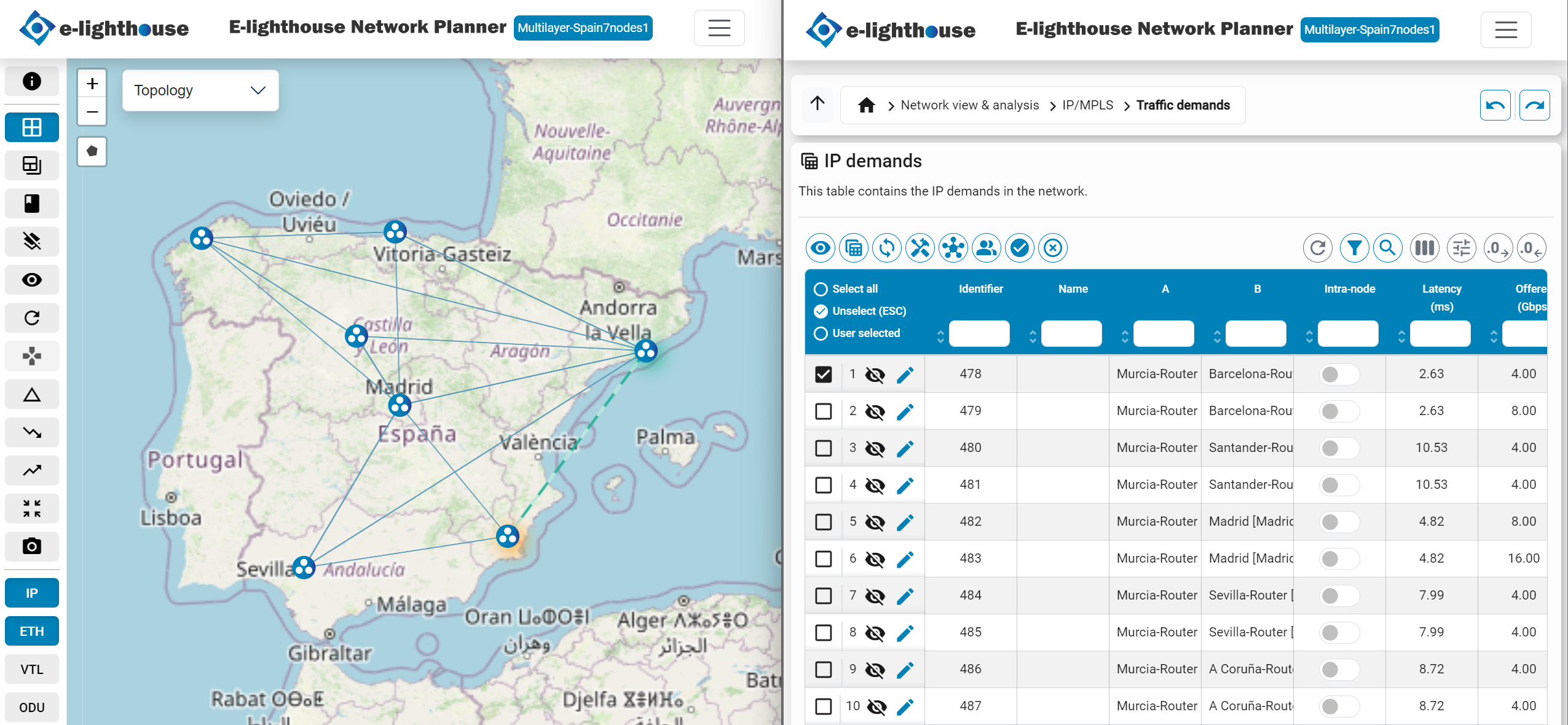
- Topology window. Displays the network topology on a canvas, enabling users to manipulate the network representation in various formats and access additional functionalities through intuitive buttons.
- Control window. Hosts tables, dashboards, and report panels for network manipulation, viewing, and analysis, while offering access to network design and reporting functionalities.
Topology window
ENP Topology panel is the main window of the GUI. Its main role is providing a user-configurable visualization of the network, in give access to other main functionalities.
As shown in the figure the Topology panel includes button bars and other information that will be described in the following sections:
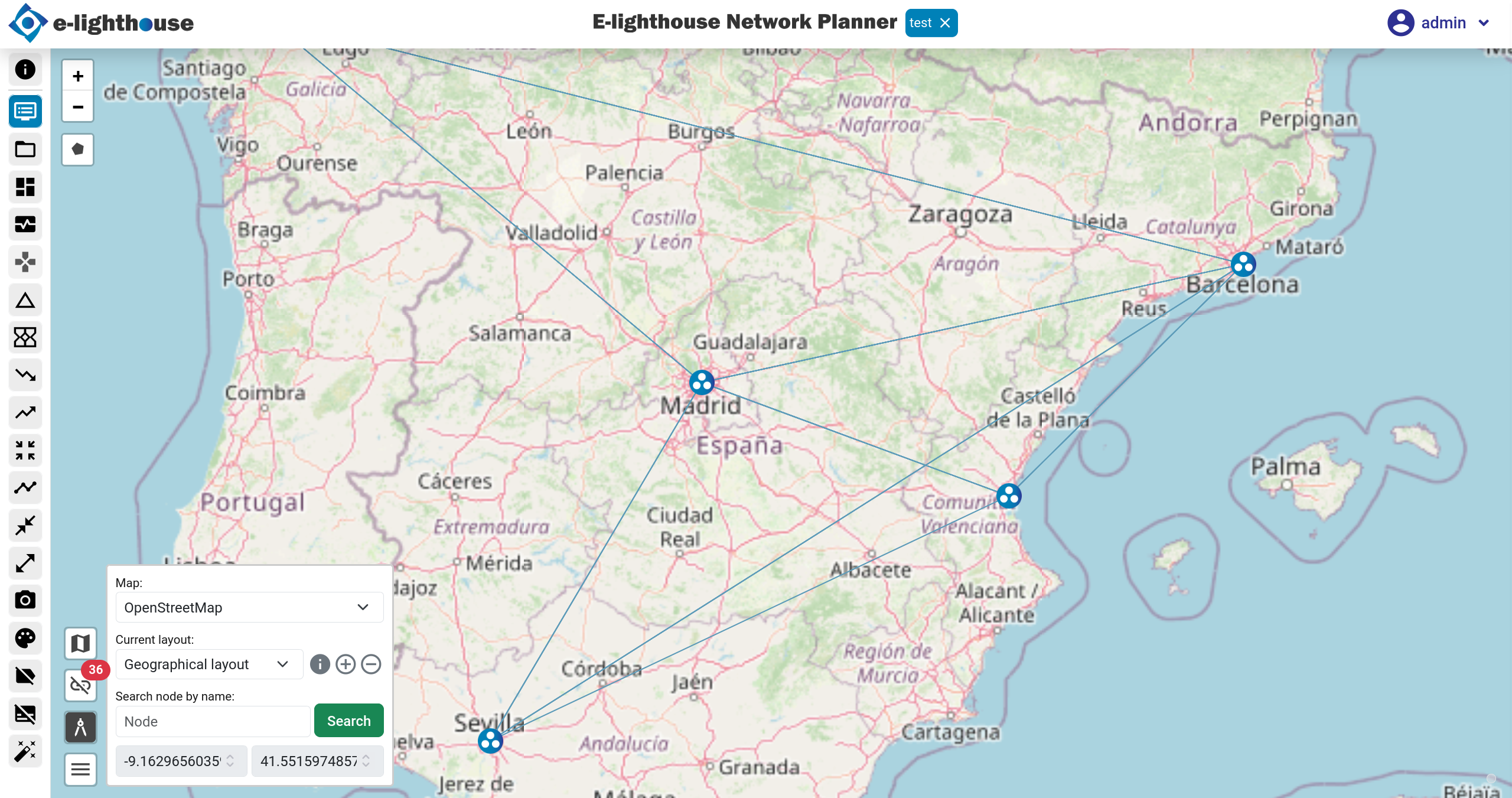
Canvas
The topology canvas displays the network nodes and links in a graphical form, and gives graphical access to several options.
This panel permits a graphical visualization of the network nodes and links between them, with the following characteristics:
Map / clear view
In the map view, the node positions are shown as in the canvas located in a geographical map.
In contrast, in the clear view, the network nodes are plotted over an empty background.
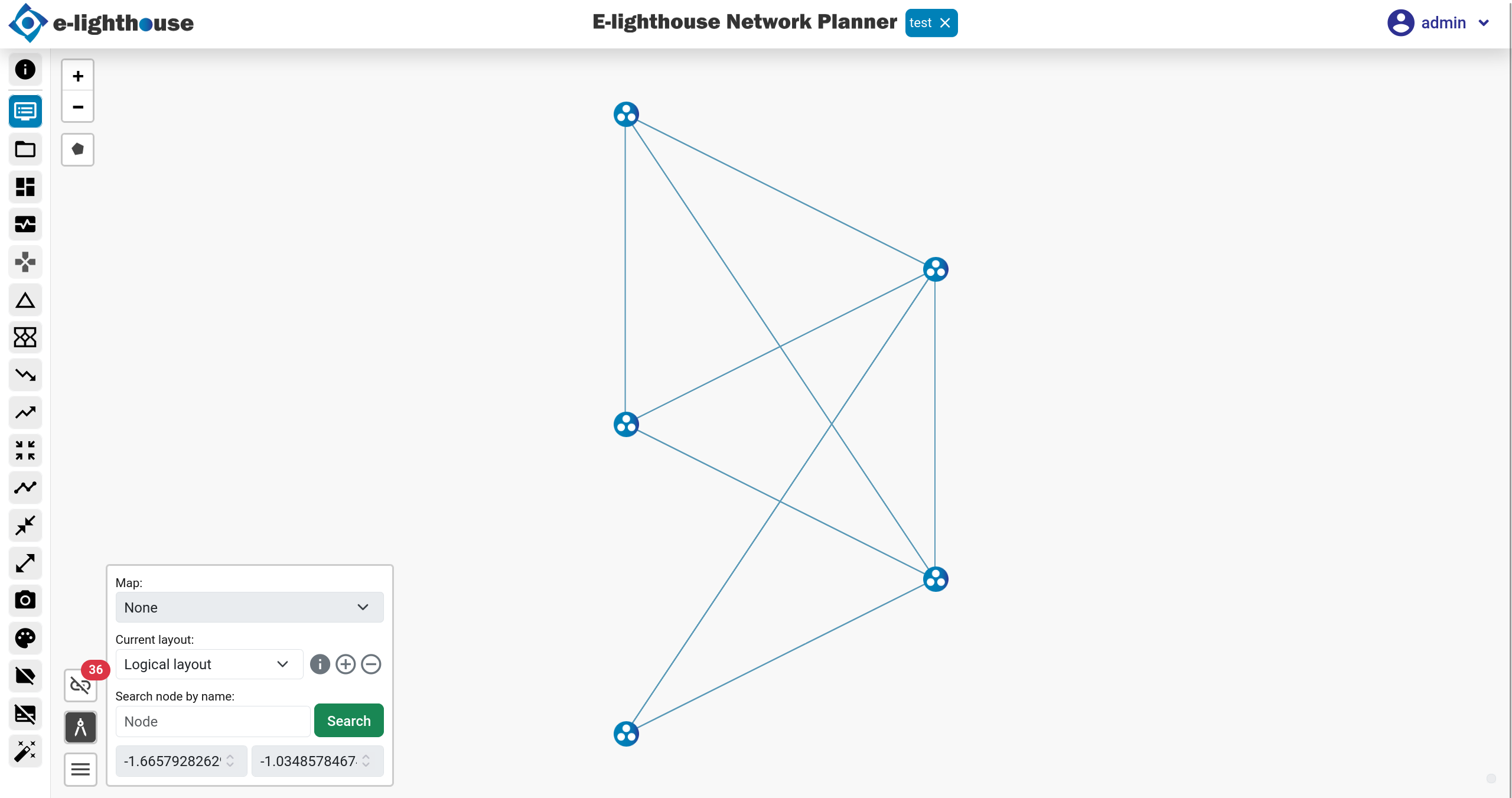
The user can activate and deactivate the map view by choosing the corresponding option from the "Current layout" selector found in Topology panel.
Layout view
A network layout is an arrangement of the nodes in (X,Y) positions in the canvas. The canvas on the topology panel displays the currently active layout for the network topology design.
- Geographical layout. In any ENP design, the so-called geographical layout displays each node in a coordinate associated to its longitude and latitude.
- User-defined layouts (Logical layout). Additionally, the user can create as many other layouts as he/she wishes, as described in Topology panel. Layouts are typically used to plot the nodes in positions that reflect their logical relations, or that simply permit a clearer view of the topology.
Toolbar
The following table describes the buttons in the toolbar on the left side of the screen:
| Icon | Description |
|---|---|
 |
Information section. Click to view the tool's help section. This is where the help tour can be activated. |
 |
Control Window. Click to open or close the new tab where the Control Window is displayed. |
 |
File system. Click to open the modal where all the designs are listed. In this modal you can choose the design you want to work with. |
 |
Dashboards. Click to open a mode where you choose the type of dashboard you want to open in a new tab. |
 |
Network Controller. Click to display the network controller section. |
 |
Delta analysis. Launch the delta analysis over the current network design. Results will be accesible in different parts of the Control Window. |
 |
Show downlayer traffic propagation. Shows the links in lower layers that carry traffic of the picked element. |
 |
Show uplayer traffic propagation. Shows the links in upper layers that provide traffic traversing the picked element. |
 |
Click to focus on the design with all its nodes and links. |
 |
Node rendering algorithm. Runs an algorithm to order the nodes of a non-geographic layout based on their links. |
 |
Collapse node aggregations Collapse all the elements within the same PoP. |
|
Expand node aggregations Expand all the elements within the same PoP. |
 |
Snapshot Takes a snapshot of the current view. |
 |
Link coloring. Displays links with their respective colors based on utilization value. |
 |
Show node names Click to show or hide the node name. |
 |
Show link utilization Click to show or hide the use of each link. |
 |
Customization options Click to open the customization panel currently hidden. |
 |
Customization options for the view:
|
 |
Click to show/hide the different types of links:
|
 |
Show/hide non-connected nodes. This toggle button allows to show or hide the nodes of the topology that have no links that are visible. |
Topology panel
Below is the Topology panel, where you can do the following:
- Change map type, which are: openStreetMap; dark; none; or satellite.
- Change, view data, add or delete layout.
- Do a search by the name of a node.
- And display the longitude and latitude of where the mouse is at all times.
On the other hand, outside the panel, on the left side (between the toolbar and the panel), there are the following functionalities:
- Zoom in on the layout.
- Create a polygon and then be able to work with it through the layout.
Top menu
The following is shown in the top menu (starting from the left):
- On the left side the E-lighthouse logo is shown.
- In the center the name of the tool (E-lighthouse Network Planner) along with the name of the current design.
- And on the right side the submenu is displayed, where you can do the following:
- Run the help tour, where the sections of the screen and their main functions are explained to the user.
- Go to Layout.
- Save changes made to the current design to the database.
- Go to the Configuration section.
- Go to the Administration section, a section that is enabled if you are an admin user.
- Go to personal profile.
- And log out.
Key shortcuts
The following actions can be performed onto the active layout on the canvas:
- Control window. To open this section, you can select the layout button or click on the C key and then on the W key (C + W).
- Historial of the picked elements. After picking multiple items, you can undo or redo your changes as follows: press Alt + Left Arrow to undo; and Alt + Right Arrow to redo.
Control window ↵
Control window
This window is designed to provide users with the ability to access detailed information, make network modifications, and generate reports for various tasks. Its primary function is to enable users to observe and adjust the network's status in a detailed and customizable manner.
The interface is organized into folders, each grouping a related set of tools. These tools are categorized to ensure easy accessibility while minimizing the number of graphical elements, helping users maintain focus on their tasks. The overall design emphasizes simplicity and efficiency, allowing users to navigate and perform operations with ease.
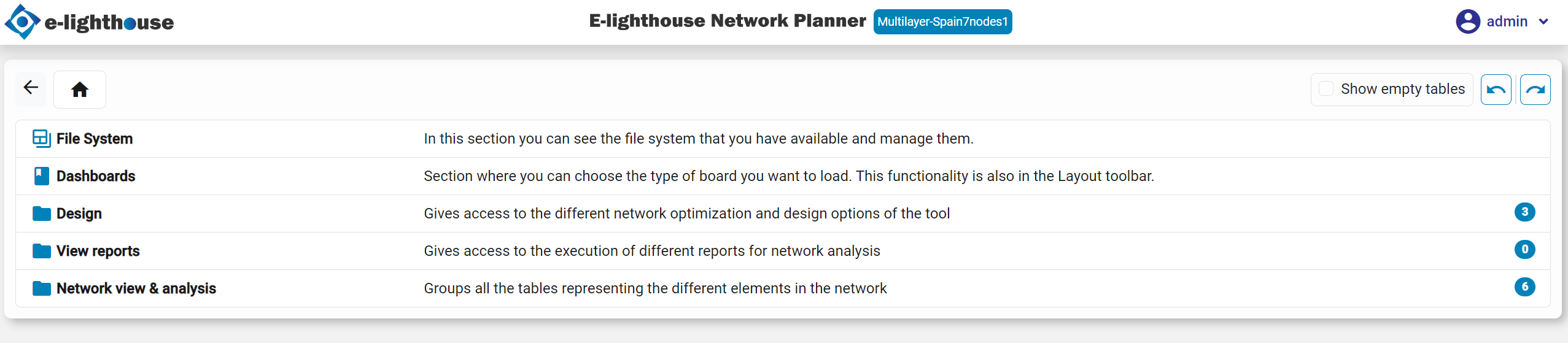
Organization
As observed in the image, the control window is organized into the following sections:
File System
This section allows you to manage stored designs and folders. You can create, delete, clone, download, upload, and move designs within the file system. The permissions are set similarly to a Unix-like system, meaning you will only see folders and designs that you have access to.
View Reports/Dashboards
This section stores the available reports and dashboards related to the network. Each report or dashboard focuses on a specific theme, providing detailed summaries and insights into various aspects of the network.
Design
In this section, you will find several tools for building network designs from scratch. These tools include the allocation of links, capacities, OTUs, and other elements, along with the definition of 'Design Rules.' The section also offers algorithms to provision different network layers. Additionally, there is a tool for executing algorithms in batch processes and offline mode, allowing you to run time-consuming algorithms in the background and access the results later.
Network View & Analysis
This section contains tables that display the information and status of the network. It is organized into categories, each focused on a specific network layer (e.g., IP, Optical), making it easy to find the desired information. Most subcategories include a list of tables for each network element, enabling detailed analysis and tuning of the network.
Monitoring & Forecast
This section provides tools for monitoring network usage and forecasting future trends. These tools offer insights into the long-term sustainability of the network and design, helping you plan for future needs.
In the upcoming subpages, each section is better described and contains more in-depth details to properly use the network to design the network and retrieve the insights.
Table view
Tables are a key point of the tool, as them show detailed information about the state of the network, and in most cases, them allow to directly modify the value of some static input-like values.
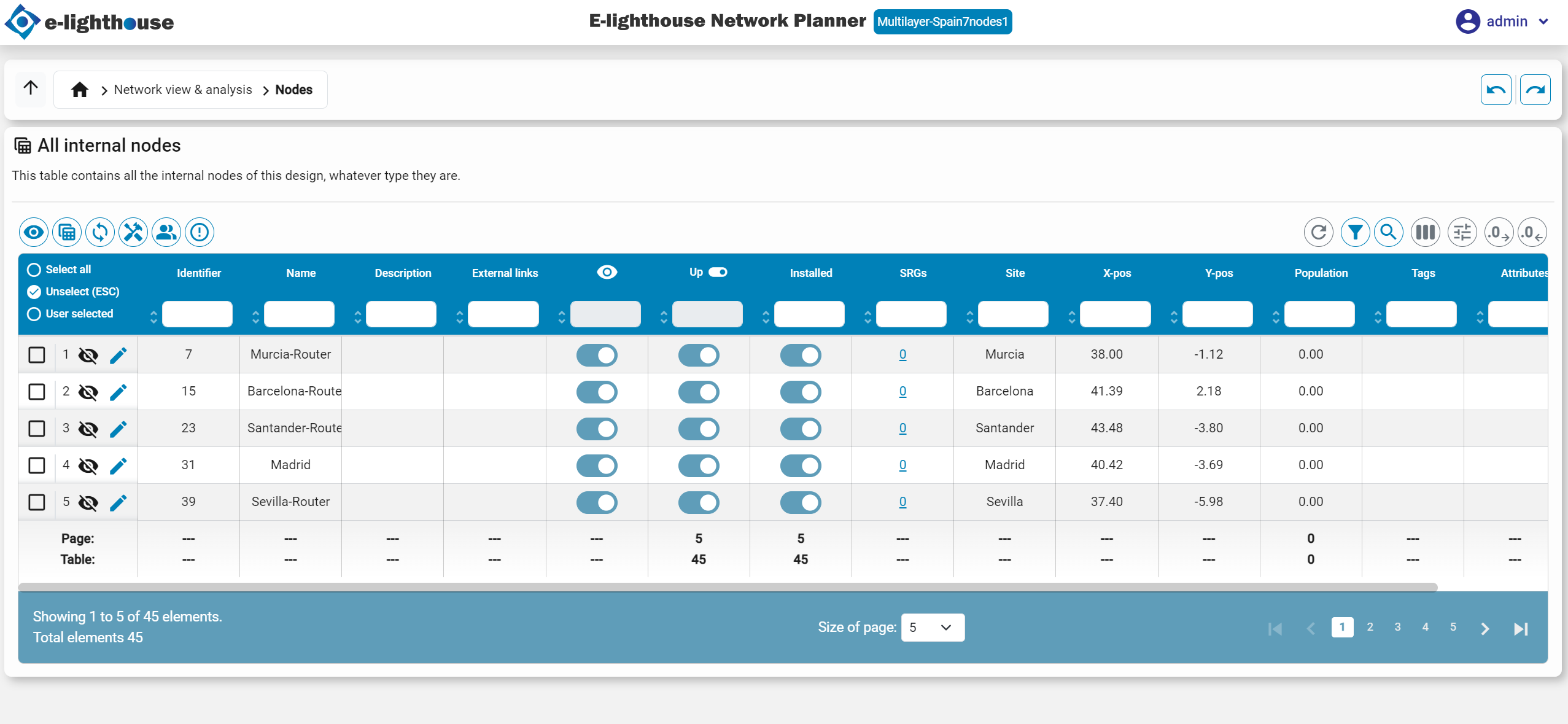
Table components & features
Each table is comprised on the sections/features, which enable the user to customize the information shown on the table, and thus, adjust the table to work with the precise and required information.
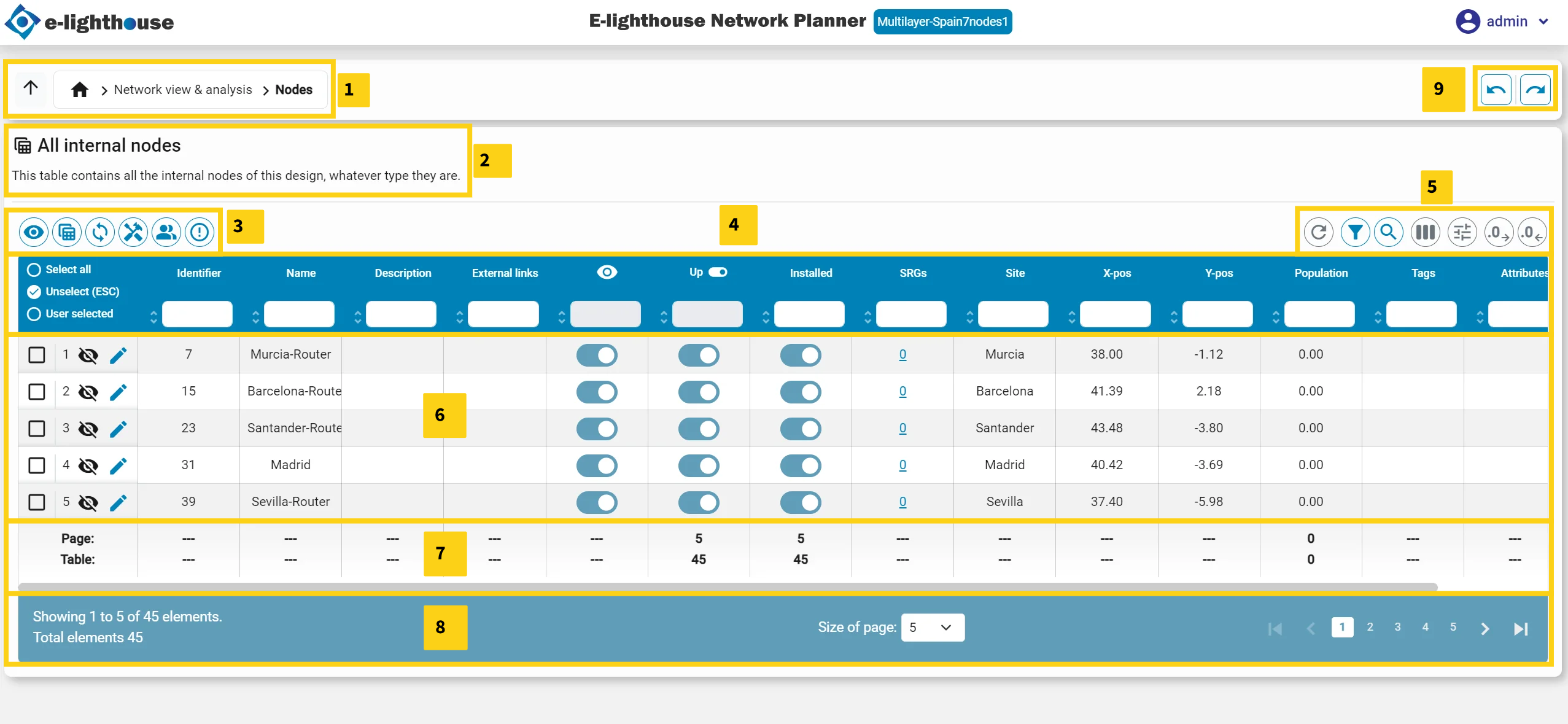
- Parent folder: folder in which the table is stored, allowing to be clicked and move to upper categories/leaves of the Control Window.
- Name & description: name and description of the viewing table.
- Columns pre-set: preset views for the table. Each one, including a tooltip with the description, allow the user to view the table in a goal-to way so the information shown is relevant to a task. Each table, and so each model, has its own list of pre-set groups.
- Viewing columns & filters: the headers of the table, and thus the columns, currently being shown. Those are changed dynamically as the user modifies the view of the table. For each column, it is contained a small input form to include some Filters.
-
Table configuration: configuration of the table, including:
- Reload table information.
- Clean all the filters.
- Fuzzy search.
- Visible columns. Allows to toggle each single column available for the table.
- Aggregators columns. Allows to modify the aggregation function of each column, by selecting it at the bottom of the column.
- Increase & decrease number of decimals.
- Export to excel. Export the current view of the table into an Excel sheet.
-
Table content: the content of the table itself. It shows the values of each column and also allows to
pick,hide/showandeditrows of the table. It also contains aright-click menuto add/remove/modify content of the table in single/batch way. - Column aggregators: aggregation view for each column, as configured in the table or by the default aggregations.
- Table navigation: allows to define the amount of entries to show, as well as to move from pages.
- Table to table navigation: allows to navigate to previous/forward tables, in the case that the table shown is the result of redirection from another table.
Cell types
Each cell can contain one of the following types of values:
- Text
- Number
- Boolean
- JSON: Clicking on these values opens a pop-up window, allowing easy viewing of the JSON content.
- Text List
- List of Elements: These values include a list of items from other tables within the tool. Clicking on them redirects to the relevant table and automatically selects the associated elements.
- Optional: can contain other types of values or either none.
Filters
Each column can receive a filter to only show the rows matching the criteria. As the previously mentioned values that cell can have, each type of cell can be filtered in a different way:
- Text: starts with the given text
- Number:
> < == != >= <= - List of Elements:
#> #< #== #!= #>= #<= - Optional:
> < == != >= <= #empty #present
Key shortcuts
- Alt + S: to show empty tables too.
- Alt + F: to show the data-Containing too.
- ESC: escape key to deselect the rows of the tables.
- Historial of the picked elements. After picking multiple items, you can undo or redo your changes as follows: press Alt + Left Arrow to undo; and Alt + Right Arrow to redo. History of selected items: After selecting multiple items, you can undo or redo the changes as follows: Press Alt + Left Arrow to undo; and Alt + Right Arrow to redo. You can also do this thanks to the following buttons:

Tables ↵
Control window
This window is designed to provide users with the ability to access detailed information, make network modifications, and generate reports for various tasks. Its primary function is to enable users to observe and adjust the network's status in a detailed and customizable manner.
The interface is organized into folders, each grouping a related set of tools. These tools are categorized to ensure easy accessibility while minimizing the number of graphical elements, helping users maintain focus on their tasks. The overall design emphasizes simplicity and efficiency, allowing users to navigate and perform operations with ease.
Organization
As observed in the image, the control window is organized into the following sections:
File System
This section allows you to manage stored designs and folders. You can create, delete, clone, download, upload, and move designs within the file system. The permissions are set similarly to a Unix-like system, meaning you will only see folders and designs that you have access to.
View Reports/Dashboards
This section stores the available reports and dashboards related to the network. Each report or dashboard focuses on a specific theme, providing detailed summaries and insights into various aspects of the network.
Design
In this section, you will find several tools for building network designs from scratch. These tools include the allocation of links, capacities, OTUs, and other elements, along with the definition of 'Design Rules.' The section also offers algorithms to provision different network layers. Additionally, there is a tool for executing algorithms in batch processes and offline mode, allowing you to run time-consuming algorithms in the background and access the results later.
Network View & Analysis
This section contains tables that display the information and status of the network. It is organized into categories, each focused on a specific network layer (e.g., IP, Optical), making it easy to find the desired information. Most subcategories include a list of tables for each network element, enabling detailed analysis and tuning of the network.
Monitoring & Forecast
This section provides tools for monitoring network usage and forecasting future trends. These tools offer insights into the long-term sustainability of the network and design, helping you plan for future needs.
In the upcoming subpages, each section is better described and contains more in-depth details to properly use the network to design the network and retrieve the insights.
Table view
Tables are a key point of the tool, as them show detailed information about the state of the network, and in most cases, them allow to directly modify the value of some static input-like values.
Table components & features
Each table is comprised on the sections/features, which enable the user to customize the information shown on the table, and thus, adjust the table to work with the precise and required information.
- Parent folder: folder in which the table is stored, allowing to be clicked and move to upper categories/leaves of the Control Window.
- Name & description: name and description of the viewing table.
- Columns pre-set: preset views for the table. Each one, including a tooltip with the description, allow the user to view the table in a goal-to way so the information shown is relevant to a task. Each table, and so each model, has its own list of pre-set groups.
- Viewing columns & filters: the headers of the table, and thus the columns, currently being shown. Those are changed dynamically as the user modifies the view of the table. For each column, it is contained a small input form to include some Filters.
-
Table configuration: configuration of the table, including:
- Reload table information.
- Clean all the filters.
- Fuzzy search.
- Visible columns. Allows to toggle each single column available for the table.
- Aggregators columns. Allows to modify the aggregation function of each column, by selecting it at the bottom of the column.
- Increase & decrease number of decimals.
- Export to excel. Export the current view of the table into an Excel sheet.
-
Table content: the content of the table itself. It shows the values of each column and also allows to
pick,hide/showandeditrows of the table. It also contains aright-click menuto add/remove/modify content of the table in single/batch way. - Column aggregators: aggregation view for each column, as configured in the table or by the default aggregations.
- Table navigation: allows to define the amount of entries to show, as well as to move from pages.
- Table to table navigation: allows to navigate to previous/forward tables, in the case that the table shown is the result of redirection from another table.
Cell types
Each cell can contain one of the following types of values:
- Text
- Number
- Boolean
- JSON: Clicking on these values opens a pop-up window, allowing easy viewing of the JSON content.
- Text List
- List of Elements: These values include a list of items from other tables within the tool. Clicking on them redirects to the relevant table and automatically selects the associated elements.
- Optional: can contain other types of values or either none.
Filters
Each column can receive a filter to only show the rows matching the criteria. As the previously mentioned values that cell can have, each type of cell can be filtered in a different way:
- Text: starts with the given text
- Number:
> < == != >= <= - List of Elements:
#> #< #== #!= #>= #<= - Optional:
> < == != >= <= #empty #present
Key shortcuts
- Alt + S: to show empty tables too.
- Alt + F: to show the data-Containing too.
- ESC: escape key to deselect the rows of the tables.
- Historial of the picked elements. After picking multiple items, you can undo or redo your changes as follows: press Alt + Left Arrow to undo; and Alt + Right Arrow to redo. History of selected items: After selecting multiple items, you can undo or redo the changes as follows: Press Alt + Left Arrow to undo; and Alt + Right Arrow to redo. You can also do this thanks to the following buttons:
Design ↵
Design
Gives access to the different network optimization and design options of the tool
Folders
- Execution of design methods. In this section, you have access to a collection of powerful algorithms designed to improve your design experience. These algorithms offer detailed information and functionality to enrich your design process.
- Design rules. Groups several tables representing user-defined topological rules that can be applied to the different design algorithms under the "Design" tab. They permit shaping the aspect of the IP topology, the topology of OTU links, and the topology of Ethernet links. For instance, they permit specifying that nodes with particular tags cannot have a direct IP link, or else, each node with particular tags (e.g. assigned to "edge nodes") must be connected with at least two nodes tagged with other tags (e.g. assigned to "core nodes").
- Batch & offline design method executions. Section displaying information related to design method executions in batch and offline mode.
Batch & offline design method executions ↵
Batch & offline design method executions
Section displaying information related to design method executions in batch and offline mode.
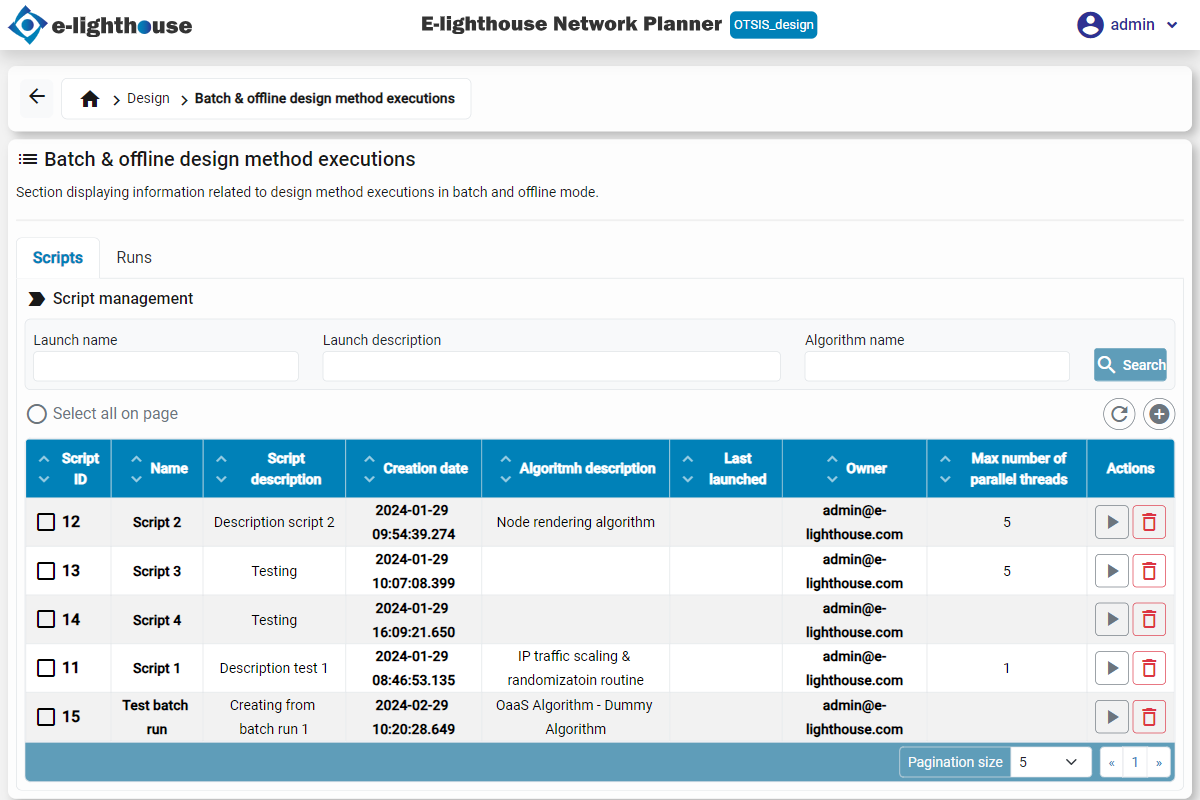
Ended: Batch & offline design method executions
Design rules ↵
Ethernet topology constraint
Table with one row for each element of the type: 'Ethernet topology constraint'.
Columns
| Name | Description |
|---|---|
| Active | Indicates if the design rule is active, and thus should be enforced |
| Tags Node A | A list of regular expressions of tags, to check against the first node of the node pair. A node is matching if ALL the regular expressions match for the node. Character '' is a wildcard: 1) If the reg-exp is of type 'something', the node matches the expression if it has at least one tag starting with 'something' (case-sensitive). 2) If the reg-exp equals '*', all nodes are matched, even those without tags. |
| Tags Node B | A list of regular expressions of tags, to check against the second node of the node pair. A node is matching if ALL the regular expressions match for the node. Character '' is a wildcard: 1) If the reg-exp is of type 'something', the node matches the expression if it has at least one tag starting with 'something' (case-sensitive). 2) If the reg-exp equals '*', all nodes are matched, even those without tags. |
| Inter-intra PoP focus | Indicates the focus of the design rule: if applied only to inter-PoP connections (and thus other connections are not accounted for), only to intra-PoP connections, or to any type of connection (even not related to PoPs). |
| Preference | The preference of this option, where smaller values are preferred over larger ones. |
| Hit elements | Target elements to which this design rule applies, i.e. they match the design rule |
| Attributes | User-defined attributes associated to this element |
| User description | A user-defined string that serves as an identifier for this rule. This is useful to identify the decisions in the reports |
| PoP/Node focus | Indicates the focus of the design rule: if node tags or PoP tags are checked to test its matching. |
| JSON | An optional JSON content describing this element |
| Property | This enumeration represents the options for a particular adjacency in a topology: it can be acceptable (i.e. it is possible to have one or more links between the adjacency end nodes), or forbidden (i.e. there cannot be links between them in the design). |
| Tags | User-defined tags associated to this element |
Views
| Name | Columns | Description |
|---|---|---|
| Full view | Active, Pop/nodeFocus, Preference, UserDescription, HitElements, Inter-intraPopFocus, TagsNodeA, TagsNodeB, Property, Tags, Attributes, Json | This table view corresponds to a view with all the table columns. In some occassions, this may imply an impractically large number of columns for human inspection. |
| Description & tags & attributes | Tags, Attributes, Json | Columns associated to side information like element names, descriptions, user associated tags or attributes |
| Default view | Active, Pop/nodeFocus, UserDescription, Inter-intraPopFocus, TagsNodeA, TagsNodeB, Property, Tags | This table view corresponds to a subset of columns selected as representative for a default table view. They typically include the most typical required values |
Table right-click menu
- Set for selected elements...: Menu with options for setting values to different parameters of the selected elements
- Value at column 'Active': This option sets the value at column 'Active'
- As true:
- For selected elements: Set the value at column 'Active' for: Selected elements (The elements already selected by the user in the table before calling this action)
- For selected elements: Set the value at column 'Active' for: All table elements (All the elements in the table, not applying any filter, and not considering any pagination)
- As false:
- For selected elements: Set the value at column 'Active' for: Selected elements (The elements already selected by the user in the table before calling this action)
- For selected elements: Set the value at column 'Active' for: All table elements (All the elements in the table, not applying any filter, and not considering any pagination)
- Value at column 'PoP/Node focus': This option sets the value at column 'PoP/Node focus'
- For selected elements: Set the value at column 'PoP/Node focus' for: Selected elements (The elements already selected by the user in the table before calling this action)
- For all table elements: Set the value at column 'PoP/Node focus' for: All table elements (All the elements in the table, not applying any filter, and not considering any pagination)
- Value at column 'Preference': This option sets the value at column 'Preference'
- For selected elements: Set the value at column 'Preference' for: Selected elements (The elements already selected by the user in the table before calling this action)
- For all table elements: Set the value at column 'Preference' for: All table elements (All the elements in the table, not applying any filter, and not considering any pagination)
- Value at column 'User description': This option sets the value at column 'User description'
- For selected elements: Set the value at column 'User description' for: Selected elements (The elements already selected by the user in the table before calling this action)
- For all table elements: Set the value at column 'User description' for: All table elements (All the elements in the table, not applying any filter, and not considering any pagination)
- Value at column 'Inter-intra PoP focus': This option sets the value at column 'Inter-intra PoP focus'
- For selected elements: Set the value at column 'Inter-intra PoP focus' for: Selected elements (The elements already selected by the user in the table before calling this action)
- For all table elements: Set the value at column 'Inter-intra PoP focus' for: All table elements (All the elements in the table, not applying any filter, and not considering any pagination)
- Value at column 'Tags Node A': This option sets the value at column 'Tags Node A'
- For selected elements: Set the value at column 'Tags Node A' for: Selected elements (The elements already selected by the user in the table before calling this action)
- For all table elements: Set the value at column 'Tags Node A' for: All table elements (All the elements in the table, not applying any filter, and not considering any pagination)
- Value at column 'Tags Node B': This option sets the value at column 'Tags Node B'
- For selected elements: Set the value at column 'Tags Node B' for: Selected elements (The elements already selected by the user in the table before calling this action)
- For all table elements: Set the value at column 'Tags Node B' for: All table elements (All the elements in the table, not applying any filter, and not considering any pagination)
- Value at column 'Property': This option sets the value at column 'Property'
- For selected elements: Set the value at column 'Property' for: Selected elements (The elements already selected by the user in the table before calling this action)
- For all table elements: Set the value at column 'Property' for: All table elements (All the elements in the table, not applying any filter, and not considering any pagination)
- Add Ethernet-topology Design Rule: Adds an Ethernet-topology design rule
- Remove: Different remove options
- Selected elements: Remove elements: Selected elements (The elements already selected by the user in the table before calling this action)
- All table elements: Remove elements: All table elements (All the elements in the table, not applying any filter, and not considering any pagination)
- Tags: Different menu options related to user-defined tags
- Add tag: Adds a user-defined tag to the indicated elements
- Remove tag: Removes a user-defined tag from the indicated elements
- Remove all tags: For all the indicated elements, all their tags are removed
- Attributes: Different menu options related to user-defined attributes
- Add attribute: Adds a user-defined attribute (key-value pair) to all the selected elements. Any attribute with the same key is replaced by the new value.
- Remove attribute: Removes a user-defined attribute (key-value pair) from all the selected elements.
- Remove all attributes: Removes all the user-defined attributes (key-value pair) from the indicated elements.
Form-required interactions
Ethernet topology constraint-CreateElement-TableDesignRuleEthernetTopology
Form to complete:
- Active: Indicates the active status of the option group, determining its applicability within the design rules.
- Tags IP node A: A comma-separated list of regular expressions representing tags used to validate the first node in the pair. A node is matching if ALL the regular expressions match for the node. Character '' is a wildcard: 1) If the reg-exp is of type 'something', the node matches the expression if it has at least one tag starting with 'something' (case-sensitive). 2) If the reg-exp equals '*', all nodes are matched, even those without tags..
- Tags IP node B: A comma-separated list of regular expressions of tags, to check against the second node of the node pair. A node is matching if ALL the regular expressions match for the node. Character '' is a wildcard: 1) If the reg-exp is of type 'something', the node matches the expression if it has at least one tag starting with 'something' (case-sensitive). 2) If the reg-exp equals '*', all nodes are matched, even those without tags..
- Property: This enumeration represents the options for a particular adjacency in a topology: it can be acceptable (i.e. it is possible to have one or more links between the adjacency end nodes), or forbidden (i.e. there cannot be links between them in the design).. Options:
- Forbidden: It is forbidden to have links of the represented topology, in the adjacencies to which this property affects.
- Acceptable: It is possible (but not mandatory) to have links (one or more) of the represented topology, in the adjacencies to which this property affects.
Network Controller-AddTag
Form to complete:
- Tag: The tag string.
- Applicable elements: This selector indicates the elements to which this action is going to be applied. Options:
- Selected elements: The elements already selected by the user in the table before calling this action.
- All table elements: All the elements in the table, not applying any filter, and not considering any pagination.
Network Controller-RemoveTag
Form to complete:
- Tag: The tag string.
- Applicable elements: This selector indicates the elements to which this action is going to be applied. Options:
- Selected elements: The elements already selected by the user in the table before calling this action.
- All table elements: All the elements in the table, not applying any filter, and not considering any pagination.
Network Controller-RemoveAllTags
Form to complete:
- Applicable elements: This selector indicates the elements to which this action is going to be applied. Options:
- Selected elements: The elements already selected by the user in the table before calling this action.
- All table elements: All the elements in the table, not applying any filter, and not considering any pagination.
Network Controller-AddAttribute
Form to complete:
- Key: The attributes key, or name.
- Value: The attribute value, to associate to the attribute name.
- Applicable elements: This selector indicates the elements to which this action is going to be applied. Options:
- Selected elements: The elements already selected by the user in the table before calling this action.
- All table elements: All the elements in the table, not applying any filter, and not considering any pagination.
Network Controller-RemoveAttribute
Form to complete:
- Key: The attributes key, or name.
- Applicable elements: This selector indicates the elements to which this action is going to be applied. Options:
- Selected elements: The elements already selected by the user in the table before calling this action.
- All table elements: All the elements in the table, not applying any filter, and not considering any pagination.
Network Controller-RemoveAllAttributes
Form to complete:
- Applicable elements: This selector indicates the elements to which this action is going to be applied. Options:
- Selected elements: The elements already selected by the user in the table before calling this action.
- All table elements: All the elements in the table, not applying any filter, and not considering any pagination.
IP adjacency option
Table with one row for each element of the type: 'IP adjacency option'.
Columns
| Name | Description |
|---|---|
| Maximum air distance (km) | If set, the maximum geographical air-distance between the end nodes is limited to this amount. |
| Tags Node A | A list of regular expressions of tags, to check against the first node of the node pair. A node is matching if ALL the regular expressions match for the node. Character '' is a wildcard: 1) If the reg-exp is of type 'something', the node matches the expression if it has at least one tag starting with 'something' (case-sensitive). 2) If the reg-exp equals '*', all nodes are matched, even those without tags. |
| Tags Node B | A list of regular expressions of tags, to check against the second node of the node pair. A node is matching if ALL the regular expressions match for the node. Character '' is a wildcard: 1) If the reg-exp is of type 'something', the node matches the expression if it has at least one tag starting with 'something' (case-sensitive). 2) If the reg-exp equals '*', all nodes are matched, even those without tags. |
| Inter-intra PoP focus | Indicates the focus of the design rule: if applied only to inter-PoP connections (and thus other connections are not accounted for), only to intra-PoP connections, or to any type of connection (even not related to PoPs). |
| Hit elements | Target elements to which this design rule applies, i.e. they match the design rule |
| Attributes | User-defined attributes associated to this element |
| JSON | An optional JSON content describing this element |
| Tags Hub | This is a configuration for IP adjacency transport, relating to regular expressions of tags for selecting applicable nodes for the adjacency options. |
| Estimated worst-case latency (ms) | If set, the estimated worst-case latency of the connection is limited to this amount. |
| Active | Indicates if the design rule is active, and thus should be enforced |
| Transport connection capacity (Gbps) | The capacity of the transport connection connected to the IP port of this adjacency option. |
| Preference | The preference of this option, where smaller values are preferred over larger ones. |
| User description | A user-defined string that serves as an identifier for this rule. This is useful to identify the decisions in the reports |
| PoP/Node focus | Indicates the focus of the design rule: if node tags or PoP tags are checked to test its matching. |
| Transport technology | The type of transport connection for this rule. |
| Tags | User-defined tags associated to this element |
Views
| Name | Columns | Description |
|---|---|---|
| Full view | Active, Pop/nodeFocus, Preference, UserDescription, HitElements, Inter-intraPopFocus, TagsNodeA, TagsNodeB, TransportConnectionCapacity(gbps), EstimatedWorst-caseLatency(ms), MaximumAirDistance(km), TransportTechnology, TagsHub, Tags, Attributes, Json | This table view corresponds to a view with all the table columns. In some occassions, this may imply an impractically large number of columns for human inspection. |
| Description & tags & attributes | Tags, Attributes, Json | Columns associated to side information like element names, descriptions, user associated tags or attributes |
| Default view | Active, Pop/nodeFocus, UserDescription, Inter-intraPopFocus, TagsNodeA, TagsNodeB, TransportConnectionCapacity(gbps), TransportTechnology, TagsHub, Tags | This table view corresponds to a subset of columns selected as representative for a default table view. They typically include the most typical required values |
Table right-click menu
- Set for selected elements...: Menu with options for setting values to different parameters of the selected elements
- Value at column 'Active': This option sets the value at column 'Active'
- As true:
- For selected elements: Set the value at column 'Active' for: Selected elements (The elements already selected by the user in the table before calling this action)
- For selected elements: Set the value at column 'Active' for: All table elements (All the elements in the table, not applying any filter, and not considering any pagination)
- As false:
- For selected elements: Set the value at column 'Active' for: Selected elements (The elements already selected by the user in the table before calling this action)
- For selected elements: Set the value at column 'Active' for: All table elements (All the elements in the table, not applying any filter, and not considering any pagination)
- Value at column 'PoP/Node focus': This option sets the value at column 'PoP/Node focus'
- For selected elements: Set the value at column 'PoP/Node focus' for: Selected elements (The elements already selected by the user in the table before calling this action)
- For all table elements: Set the value at column 'PoP/Node focus' for: All table elements (All the elements in the table, not applying any filter, and not considering any pagination)
- Value at column 'Preference': This option sets the value at column 'Preference'
- For selected elements: Set the value at column 'Preference' for: Selected elements (The elements already selected by the user in the table before calling this action)
- For all table elements: Set the value at column 'Preference' for: All table elements (All the elements in the table, not applying any filter, and not considering any pagination)
- Value at column 'User description': This option sets the value at column 'User description'
- For selected elements: Set the value at column 'User description' for: Selected elements (The elements already selected by the user in the table before calling this action)
- For all table elements: Set the value at column 'User description' for: All table elements (All the elements in the table, not applying any filter, and not considering any pagination)
- Value at column 'Inter-intra PoP focus': This option sets the value at column 'Inter-intra PoP focus'
- For selected elements: Set the value at column 'Inter-intra PoP focus' for: Selected elements (The elements already selected by the user in the table before calling this action)
- For all table elements: Set the value at column 'Inter-intra PoP focus' for: All table elements (All the elements in the table, not applying any filter, and not considering any pagination)
- Value at column 'Tags Node A': This option sets the value at column 'Tags Node A'
- For selected elements: Set the value at column 'Tags Node A' for: Selected elements (The elements already selected by the user in the table before calling this action)
- For all table elements: Set the value at column 'Tags Node A' for: All table elements (All the elements in the table, not applying any filter, and not considering any pagination)
- Value at column 'Tags Node B': This option sets the value at column 'Tags Node B'
- For selected elements: Set the value at column 'Tags Node B' for: Selected elements (The elements already selected by the user in the table before calling this action)
- For all table elements: Set the value at column 'Tags Node B' for: All table elements (All the elements in the table, not applying any filter, and not considering any pagination)
- Value at column 'Transport connection capacity (Gbps)': This option sets the value at column 'Transport connection capacity (Gbps)'
- For selected elements: Set the value at column 'Transport connection capacity (Gbps)' for: Selected elements (The elements already selected by the user in the table before calling this action)
- For all table elements: Set the value at column 'Transport connection capacity (Gbps)' for: All table elements (All the elements in the table, not applying any filter, and not considering any pagination)
- Value at column 'Estimated worst-case latency (ms)': This option sets the value at column 'Estimated worst-case latency (ms)'
- For selected elements: Set the value at column 'Estimated worst-case latency (ms)' for: Selected elements (The elements already selected by the user in the table before calling this action)
- For all table elements: Set the value at column 'Estimated worst-case latency (ms)' for: All table elements (All the elements in the table, not applying any filter, and not considering any pagination)
- Value at column 'Maximum air distance (km)': This option sets the value at column 'Maximum air distance (km)'
- For selected elements: Set the value at column 'Maximum air distance (km)' for: Selected elements (The elements already selected by the user in the table before calling this action)
- For all table elements: Set the value at column 'Maximum air distance (km)' for: All table elements (All the elements in the table, not applying any filter, and not considering any pagination)
- Value at column 'Transport technology': This option sets the value at column 'Transport technology'
- For selected elements: Set the value at column 'Transport technology' for: Selected elements (The elements already selected by the user in the table before calling this action)
- For all table elements: Set the value at column 'Transport technology' for: All table elements (All the elements in the table, not applying any filter, and not considering any pagination)
- Add IP adjacency transport design rule: Adds a new adjacency transport design rule to the IP design rules table
- Remove: Different remove options
- Selected elements: Remove elements: Selected elements (The elements already selected by the user in the table before calling this action)
- All table elements: Remove elements: All table elements (All the elements in the table, not applying any filter, and not considering any pagination)
- Tags: Different menu options related to user-defined tags
- Add tag: Adds a user-defined tag to the indicated elements
- Remove tag: Removes a user-defined tag from the indicated elements
- Remove all tags: For all the indicated elements, all their tags are removed
- Attributes: Different menu options related to user-defined attributes
- Add attribute: Adds a user-defined attribute (key-value pair) to all the selected elements. Any attribute with the same key is replaced by the new value.
- Remove attribute: Removes a user-defined attribute (key-value pair) from all the selected elements.
- Remove all attributes: Removes all the user-defined attributes (key-value pair) from the indicated elements.
Form-required interactions
IP adjacency option-CreateElement-TableDesignRuleIpIndividualAdjacencyOption
Form to complete:
- IP port capacity (Gbps): Specifies the IP port capacity (in Gbps) associated with this adjacency option..
-
Estimated worst-case latency (ms): If set, the estimated worst-case latency of the connection is limited to this amount..
-
Maximum air distance (km): When specified, this value caps the maximum geographical distance (in kilometers) between the endpoint nodes..
-
Preference (smaller is better): Indicates the preference ranking of this option, where lower numerical values are favored over higher ones..
- Transport technology: The type of transport connection for this rule.. Options:
- IPoWDM P2P pluggable transport: The IP ports of the adjacency are connected via an ODU (Optical Data Unit), starting in an IPoWDM point-to-point (P2P) optical pluggable in the end routers..
- IPoWDM P2MP pluggable transport: The IP ports of the adjacency are connected via an ODU (Optical Data Unit), starting in an IPoWDM point-to-multipoint (P2MP) optical pluggable in the end routers. P2MP pluggables can connect to more than one P2MP pluggables creating e.g. optical trees..
- OTN transport: The IP ports of the adjacency are connected via an ODU (Optical Data Unit) in the OTN network, using a regular transponder (not optical pluggable-based)..
- Virtual P2P connection: The IP ports of the adjacency are connected via virtual point-to-point connections, in an unspecified generic transport technology.
Network Controller-AddTag
Form to complete:
- Tag: The tag string.
- Applicable elements: This selector indicates the elements to which this action is going to be applied. Options:
- Selected elements: The elements already selected by the user in the table before calling this action.
- All table elements: All the elements in the table, not applying any filter, and not considering any pagination.
Network Controller-RemoveTag
Form to complete:
- Tag: The tag string.
- Applicable elements: This selector indicates the elements to which this action is going to be applied. Options:
- Selected elements: The elements already selected by the user in the table before calling this action.
- All table elements: All the elements in the table, not applying any filter, and not considering any pagination.
Network Controller-RemoveAllTags
Form to complete:
- Applicable elements: This selector indicates the elements to which this action is going to be applied. Options:
- Selected elements: The elements already selected by the user in the table before calling this action.
- All table elements: All the elements in the table, not applying any filter, and not considering any pagination.
Network Controller-AddAttribute
Form to complete:
- Key: The attributes key, or name.
- Value: The attribute value, to associate to the attribute name.
- Applicable elements: This selector indicates the elements to which this action is going to be applied. Options:
- Selected elements: The elements already selected by the user in the table before calling this action.
- All table elements: All the elements in the table, not applying any filter, and not considering any pagination.
Network Controller-RemoveAttribute
Form to complete:
- Key: The attributes key, or name.
- Applicable elements: This selector indicates the elements to which this action is going to be applied. Options:
- Selected elements: The elements already selected by the user in the table before calling this action.
- All table elements: All the elements in the table, not applying any filter, and not considering any pagination.
Network Controller-RemoveAllAttributes
Form to complete:
- Applicable elements: This selector indicates the elements to which this action is going to be applied. Options:
- Selected elements: The elements already selected by the user in the table before calling this action.
- All table elements: All the elements in the table, not applying any filter, and not considering any pagination.
IP topology constraint
Table with one row for each element of the type: 'IP topology constraint'.
Columns
| Name | Description |
|---|---|
| Tags Node A | A list of regular expressions of tags, to check against the first node of the node pair. A node is matching if ALL the regular expressions match for the node. Character '' is a wildcard: 1) If the reg-exp is of type 'something', the node matches the expression if it has at least one tag starting with 'something' (case-sensitive). 2) If the reg-exp equals '*', all nodes are matched, even those without tags. |
| Tags Node B | A list of regular expressions of tags, to check against the second node of the node pair. A node is matching if ALL the regular expressions match for the node. Character '' is a wildcard: 1) If the reg-exp is of type 'something', the node matches the expression if it has at least one tag starting with 'something' (case-sensitive). 2) If the reg-exp equals '*', all nodes are matched, even those without tags. |
| Inter-intra PoP focus | Indicates the focus of the design rule: if applied only to inter-PoP connections (and thus other connections are not accounted for), only to intra-PoP connections, or to any type of connection (even not related to PoPs). |
| Max # IP neighbors | The maximum number of IP neighbors that all nodes matching the expression for 'Node A' can have, influenced by tags specified for 'Node B'. |
| Hit elements | Target elements to which this design rule applies, i.e. they match the design rule |
| Min # IP neighbors | The minimum number of IP neighbors that all nodes matching the expression for 'Node A' can have, influenced by tags specified for 'Node B'. |
| Attributes | User-defined attributes associated to this element |
| Rule type | The type of design rule |
| JSON | An optional JSON content describing this element |
| Active | Indicates if the design rule is active, and thus should be enforced |
| Preference | The preference of this option, where smaller values are preferred over larger ones. |
| User description | A user-defined string that serves as an identifier for this rule. This is useful to identify the decisions in the reports |
| PoP/Node focus | Indicates the focus of the design rule: if node tags or PoP tags are checked to test its matching. |
| Tags | User-defined tags associated to this element |
Views
| Name | Columns | Description |
|---|---|---|
| Full view | Active, Pop/nodeFocus, Preference, UserDescription, HitElements, Inter-intraPopFocus, TagsNodeA, TagsNodeB, RuleType, Min#IpNeighbors, Max#IpNeighbors, Tags, Attributes, Json | This table view corresponds to a view with all the table columns. In some occassions, this may imply an impractically large number of columns for human inspection. |
| Description & tags & attributes | Tags, Attributes, Json | Columns associated to side information like element names, descriptions, user associated tags or attributes |
| Default view | Active, Pop/nodeFocus, UserDescription, Inter-intraPopFocus, TagsNodeA, TagsNodeB, RuleType, Min#IpNeighbors, Max#IpNeighbors, Tags | This table view corresponds to a subset of columns selected as representative for a default table view. They typically include the most typical required values |
Table right-click menu
- Set for selected elements...: Menu with options for setting values to different parameters of the selected elements
- Value at column 'Active': This option sets the value at column 'Active'
- As true:
- For selected elements: Set the value at column 'Active' for: Selected elements (The elements already selected by the user in the table before calling this action)
- For selected elements: Set the value at column 'Active' for: All table elements (All the elements in the table, not applying any filter, and not considering any pagination)
- As false:
- For selected elements: Set the value at column 'Active' for: Selected elements (The elements already selected by the user in the table before calling this action)
- For selected elements: Set the value at column 'Active' for: All table elements (All the elements in the table, not applying any filter, and not considering any pagination)
- Value at column 'PoP/Node focus': This option sets the value at column 'PoP/Node focus'
- For selected elements: Set the value at column 'PoP/Node focus' for: Selected elements (The elements already selected by the user in the table before calling this action)
- For all table elements: Set the value at column 'PoP/Node focus' for: All table elements (All the elements in the table, not applying any filter, and not considering any pagination)
- Value at column 'Preference': This option sets the value at column 'Preference'
- For selected elements: Set the value at column 'Preference' for: Selected elements (The elements already selected by the user in the table before calling this action)
- For all table elements: Set the value at column 'Preference' for: All table elements (All the elements in the table, not applying any filter, and not considering any pagination)
- Value at column 'User description': This option sets the value at column 'User description'
- For selected elements: Set the value at column 'User description' for: Selected elements (The elements already selected by the user in the table before calling this action)
- For all table elements: Set the value at column 'User description' for: All table elements (All the elements in the table, not applying any filter, and not considering any pagination)
- Value at column 'Inter-intra PoP focus': This option sets the value at column 'Inter-intra PoP focus'
- For selected elements: Set the value at column 'Inter-intra PoP focus' for: Selected elements (The elements already selected by the user in the table before calling this action)
- For all table elements: Set the value at column 'Inter-intra PoP focus' for: All table elements (All the elements in the table, not applying any filter, and not considering any pagination)
- Value at column 'Tags Node A': This option sets the value at column 'Tags Node A'
- For selected elements: Set the value at column 'Tags Node A' for: Selected elements (The elements already selected by the user in the table before calling this action)
- For all table elements: Set the value at column 'Tags Node A' for: All table elements (All the elements in the table, not applying any filter, and not considering any pagination)
- Value at column 'Tags Node B': This option sets the value at column 'Tags Node B'
- For selected elements: Set the value at column 'Tags Node B' for: Selected elements (The elements already selected by the user in the table before calling this action)
- For all table elements: Set the value at column 'Tags Node B' for: All table elements (All the elements in the table, not applying any filter, and not considering any pagination)
- Value at column 'Rule type': This option sets the value at column 'Rule type'
- For selected elements: Set the value at column 'Rule type' for: Selected elements (The elements already selected by the user in the table before calling this action)
- For all table elements: Set the value at column 'Rule type' for: All table elements (All the elements in the table, not applying any filter, and not considering any pagination)
- Value at column 'Min # IP neighbors': This option sets the value at column 'Min # IP neighbors'
- For selected elements: Set the value at column 'Min # IP neighbors' for: Selected elements (The elements already selected by the user in the table before calling this action)
- For all table elements: Set the value at column 'Min # IP neighbors' for: All table elements (All the elements in the table, not applying any filter, and not considering any pagination)
- Value at column 'Max # IP neighbors': This option sets the value at column 'Max # IP neighbors'
- For selected elements: Set the value at column 'Max # IP neighbors' for: Selected elements (The elements already selected by the user in the table before calling this action)
- For all table elements: Set the value at column 'Max # IP neighbors' for: All table elements (All the elements in the table, not applying any filter, and not considering any pagination)
- Add Ethernet-topology Design Rule: Adds an Ethernet-topology design rule
- Remove: Different remove options
- Selected elements: Remove elements: Selected elements (The elements already selected by the user in the table before calling this action)
- All table elements: Remove elements: All table elements (All the elements in the table, not applying any filter, and not considering any pagination)
- Tags: Different menu options related to user-defined tags
- Add tag: Adds a user-defined tag to the indicated elements
- Remove tag: Removes a user-defined tag from the indicated elements
- Remove all tags: For all the indicated elements, all their tags are removed
- Attributes: Different menu options related to user-defined attributes
- Add attribute: Adds a user-defined attribute (key-value pair) to all the selected elements. Any attribute with the same key is replaced by the new value.
- Remove attribute: Removes a user-defined attribute (key-value pair) from all the selected elements.
- Remove all attributes: Removes all the user-defined attributes (key-value pair) from the indicated elements.
Form-required interactions
IP topology constraint-CreateElement-TableDesignRuleIpTopology
Form to complete:
- Active: Indicates if the option group is active, and thus applicable.
- Tags IP node A: A comma-separated list of regular expressions of tags, to check against the first node of the node pair. A node is matching if ALL the regular expressions match for the node. Character '' is a wildcard: 1) If the reg-exp is of type 'something', the node matches the expression if it has at least one tag starting with 'something' (case-sensitive). 2) If the reg-exp equals '*', all nodes are matched, even those without tags..
- Tags IP node B: A comma-separated list of regular expressions of tags, to check against the second node of the node pair. A node is matching if ALL the regular expressions match for the node. Character '' is a wildcard: 1) If the reg-exp is of type 'something', the node matches the expression if it has at least one tag starting with 'something' (case-sensitive). 2) If the reg-exp equals '*', all nodes are matched, even those without tags..
- Rule type: The rule type. Options:
- Degree-constrained: The links matching this rule are possible, but they are constrained by degree rules related to the end nodes of the link.
- Forbidden: It is forbidden to have links of the represented topology, in the adjacencies to which this property affects.
- Mandatory: The links matching this rule are mandatory.
-
Min # IP Neighbors : The minimum number of IP neighbors, matching the tags specified for 'Node B', that all nodes matching the expression for 'Node A' can have. A negative number means that there is no such limit..
-
Max # IP Neighbors : The maximum number of IP neighbors, matching the tags specified for 'Node B', that all nodes matching the expression for 'Node A' can have. A negative number means that there is no such limit..
Network Controller-AddTag
Form to complete:
- Tag: The tag string.
- Applicable elements: This selector indicates the elements to which this action is going to be applied. Options:
- Selected elements: The elements already selected by the user in the table before calling this action.
- All table elements: All the elements in the table, not applying any filter, and not considering any pagination.
Network Controller-RemoveTag
Form to complete:
- Tag: The tag string.
- Applicable elements: This selector indicates the elements to which this action is going to be applied. Options:
- Selected elements: The elements already selected by the user in the table before calling this action.
- All table elements: All the elements in the table, not applying any filter, and not considering any pagination.
Network Controller-RemoveAllTags
Form to complete:
- Applicable elements: This selector indicates the elements to which this action is going to be applied. Options:
- Selected elements: The elements already selected by the user in the table before calling this action.
- All table elements: All the elements in the table, not applying any filter, and not considering any pagination.
Network Controller-AddAttribute
Form to complete:
- Key: The attributes key, or name.
- Value: The attribute value, to associate to the attribute name.
- Applicable elements: This selector indicates the elements to which this action is going to be applied. Options:
- Selected elements: The elements already selected by the user in the table before calling this action.
- All table elements: All the elements in the table, not applying any filter, and not considering any pagination.
Network Controller-RemoveAttribute
Form to complete:
- Key: The attributes key, or name.
- Applicable elements: This selector indicates the elements to which this action is going to be applied. Options:
- Selected elements: The elements already selected by the user in the table before calling this action.
- All table elements: All the elements in the table, not applying any filter, and not considering any pagination.
Network Controller-RemoveAllAttributes
Form to complete:
- Applicable elements: This selector indicates the elements to which this action is going to be applied. Options:
- Selected elements: The elements already selected by the user in the table before calling this action.
- All table elements: All the elements in the table, not applying any filter, and not considering any pagination.
OTSI option
Table with one row for each element of the type: 'OTSI option'.
Columns
| Name | Description |
|---|---|
| Tags Node A | A list of regular expressions of tags, to check against the first node of the node pair. A node is matching if ALL the regular expressions match for the node. Character '' is a wildcard: 1) If the reg-exp is of type 'something', the node matches the expression if it has at least one tag starting with 'something' (case-sensitive). 2) If the reg-exp equals '*', all nodes are matched, even those without tags. |
| Tags Node B | A list of regular expressions of tags, to check against the second node of the node pair. A node is matching if ALL the regular expressions match for the node. Character '' is a wildcard: 1) If the reg-exp is of type 'something', the node matches the expression if it has at least one tag starting with 'something' (case-sensitive). 2) If the reg-exp equals '*', all nodes are matched, even those without tags. |
| Nominal reach (Km) | Indicates the nominal reach of the optical signal type |
| Inter-intra PoP focus | Indicates the focus of the design rule: if applied only to inter-PoP connections (and thus other connections are not accounted for), only to intra-PoP connections, or to any type of connection (even not related to PoPs). |
| Optical Signal Type | The optical signal type associated to this design rule |
| Hit elements | Target elements to which this design rule applies, i.e. they match the design rule |
| Line rate (Gbps) | Indicates the line rate of the optical signal type |
| Forbidden intermediate node/PoP tags | A list of regular expressions of tags, to check against each of the intermediate nodes or PoPs (depending on the design rule focus) of the optical path, and reject the path if one intermediate node/PoP matches. A node/PoP is matching if ALL the regular expressions match for the node/PoP. Character '' is a wildcard: 1) If the reg-exp is of type 'something', the node matches the expression if it has at least one tag starting with 'something' (case-sensitive). 2) If the reg-exp equals '*', all nodes/PoPs are matched, even those without tags. |
| Attributes | User-defined attributes associated to this element |
| JSON | An optional JSON content describing this element |
| Active | Indicates if the design rule is active, and thus should be enforced |
| Max number of hops | If set, the maximum number of hops of the path is set. In node-level design rules, it applies to the sequence of nodes traversed by the OTSI paths, in PoP level, it applies to the sequence of PoPs traversed. If not set, there is no limit |
| Preference | The preference of this option, where smaller values are preferred over larger ones. |
| User description | A user-defined string that serves as an identifier for this rule. This is useful to identify the decisions in the reports |
| PoP/Node focus | Indicates the focus of the design rule: if node tags or PoP tags are checked to test its matching. |
| Tags | User-defined tags associated to this element |
Views
| Name | Columns | Description |
|---|---|---|
| Full view | Active, Pop/nodeFocus, Preference, UserDescription, HitElements, Inter-intraPopFocus, TagsNodeA, TagsNodeB, LineRate(gbps), NominalReach(km), OpticalSignalType, MaxNumberOfHops, ForbiddenIntermediateNode/popTags, Tags, Attributes, Json | This table view corresponds to a view with all the table columns. In some occassions, this may imply an impractically large number of columns for human inspection. |
| Description & tags & attributes | Tags, Attributes, Json | Columns associated to side information like element names, descriptions, user associated tags or attributes |
| Default view | Active, Pop/nodeFocus, UserDescription, Inter-intraPopFocus, TagsNodeA, TagsNodeB, LineRate(gbps), NominalReach(km), OpticalSignalType, MaxNumberOfHops, ForbiddenIntermediateNode/popTags, Tags | This table view corresponds to a subset of columns selected as representative for a default table view. They typically include the most typical required values |
Table right-click menu
- Set for selected elements...: Menu with options for setting values to different parameters of the selected elements
- Value at column 'Active': This option sets the value at column 'Active'
- As true:
- For selected elements: Set the value at column 'Active' for: Selected elements (The elements already selected by the user in the table before calling this action)
- For selected elements: Set the value at column 'Active' for: All table elements (All the elements in the table, not applying any filter, and not considering any pagination)
- As false:
- For selected elements: Set the value at column 'Active' for: Selected elements (The elements already selected by the user in the table before calling this action)
- For selected elements: Set the value at column 'Active' for: All table elements (All the elements in the table, not applying any filter, and not considering any pagination)
- Value at column 'PoP/Node focus': This option sets the value at column 'PoP/Node focus'
- For selected elements: Set the value at column 'PoP/Node focus' for: Selected elements (The elements already selected by the user in the table before calling this action)
- For all table elements: Set the value at column 'PoP/Node focus' for: All table elements (All the elements in the table, not applying any filter, and not considering any pagination)
- Value at column 'Preference': This option sets the value at column 'Preference'
- For selected elements: Set the value at column 'Preference' for: Selected elements (The elements already selected by the user in the table before calling this action)
- For all table elements: Set the value at column 'Preference' for: All table elements (All the elements in the table, not applying any filter, and not considering any pagination)
- Value at column 'User description': This option sets the value at column 'User description'
- For selected elements: Set the value at column 'User description' for: Selected elements (The elements already selected by the user in the table before calling this action)
- For all table elements: Set the value at column 'User description' for: All table elements (All the elements in the table, not applying any filter, and not considering any pagination)
- Value at column 'Inter-intra PoP focus': This option sets the value at column 'Inter-intra PoP focus'
- For selected elements: Set the value at column 'Inter-intra PoP focus' for: Selected elements (The elements already selected by the user in the table before calling this action)
- For all table elements: Set the value at column 'Inter-intra PoP focus' for: All table elements (All the elements in the table, not applying any filter, and not considering any pagination)
- Value at column 'Tags Node A': This option sets the value at column 'Tags Node A'
- For selected elements: Set the value at column 'Tags Node A' for: Selected elements (The elements already selected by the user in the table before calling this action)
- For all table elements: Set the value at column 'Tags Node A' for: All table elements (All the elements in the table, not applying any filter, and not considering any pagination)
- Value at column 'Tags Node B': This option sets the value at column 'Tags Node B'
- For selected elements: Set the value at column 'Tags Node B' for: Selected elements (The elements already selected by the user in the table before calling this action)
- For all table elements: Set the value at column 'Tags Node B' for: All table elements (All the elements in the table, not applying any filter, and not considering any pagination)
- Value at column 'Optical Signal Type': This option sets the value at column 'Optical Signal Type'
- For selected elements: Set the value at column 'Optical Signal Type' for: Selected elements (The elements already selected by the user in the table before calling this action)
- For all table elements: Set the value at column 'Optical Signal Type' for: All table elements (All the elements in the table, not applying any filter, and not considering any pagination)
- Value at column 'Max number of hops': This option sets the value at column 'Max number of hops'
- For selected elements: Set the value at column 'Max number of hops' for: Selected elements (The elements already selected by the user in the table before calling this action)
- For all table elements: Set the value at column 'Max number of hops' for: All table elements (All the elements in the table, not applying any filter, and not considering any pagination)
- Value at column 'Forbidden intermediate node/PoP tags': This option sets the value at column 'Forbidden intermediate node/PoP tags'
- For selected elements: Set the value at column 'Forbidden intermediate node/PoP tags' for: Selected elements (The elements already selected by the user in the table before calling this action)
- For all table elements: Set the value at column 'Forbidden intermediate node/PoP tags' for: All table elements (All the elements in the table, not applying any filter, and not considering any pagination)
- Add OTSI Design Rule: Adds an OTSI design rule
- Remove: Different remove options
- Selected elements: Remove elements: Selected elements (The elements already selected by the user in the table before calling this action)
- All table elements: Remove elements: All table elements (All the elements in the table, not applying any filter, and not considering any pagination)
- Tags: Different menu options related to user-defined tags
- Add tag: Adds a user-defined tag to the indicated elements
- Remove tag: Removes a user-defined tag from the indicated elements
- Remove all tags: For all the indicated elements, all their tags are removed
- Attributes: Different menu options related to user-defined attributes
- Add attribute: Adds a user-defined attribute (key-value pair) to all the selected elements. Any attribute with the same key is replaced by the new value.
- Remove attribute: Removes a user-defined attribute (key-value pair) from all the selected elements.
- Remove all attributes: Removes all the user-defined attributes (key-value pair) from the indicated elements.
Form-required interactions
OTSI option-CreateElement-TableDesignRuleOtsiPathAndOst
Form to complete:
- Is active?: Indicates if this design rule is active, and thus should be applied in the designs..
- Description: Description of the design rule.
- Optical signal type: The optical signal type to use in this element.
- PoP/Node focus: Indicates the focus of the design rule. Options:
- Node level: The design rule is applied at the level of the nodes. This means that node tags are the ones checked against the rule.
- Pop level: The design rule is applied at the level of the POPs. This means that POP tags are the ones checked against the rule.
- Intra/Inter PoP focus: Indicates the focus of the design rule. Options:
- Inter-PoP only: The design rule is applied only for inter-PoP connections.
- Intra-PoP only: The design rule is applied only for intra-PoP connections.
- Any: The design rule is applied for both inter-PoP and intra-PoP connections, as well as for any other kind of connection..
- Tags A: A comma-separated list of regular expressions of tags, to check against the first node/PoP of the pair. A node/PoP is matching if ALL the regular expressions match for the node/PoP. Character '' is a wildcard: 1) If the reg-exp is of type 'something', the node matches the expression if it has at least one tag starting with 'something' (case-sensitive). 2) If the reg-exp equals '*', all nodes/PoPs are matched, even those without tags..
- Tags B: A comma-separated list of regular expressions of tags, to check against the second node/PoP of the pair. A node/PoP is matching if ALL the regular expressions match for the node/PoP. Character '' is a wildcard: 1) If the reg-exp is of type 'something', the node matches the expression if it has at least one tag starting with 'something' (case-sensitive). 2) If the reg-exp equals '*', all nodes/PoPs are matched, even those without tags..
-
Max number of hops: If set, the maximum number of hops of the path is set. In node-level design rules, it applies to the sequence of nodes traversed by the OTSI paths, in PoP level, it applies to the sequence of PoPs traversed. If not set, there is no limit.
-
Forbidden intermediate nodes/PoPs: A comma-separated list of regular expressions of tags, to check against the intermediate node/PoP of the pair. A node/PoP is matching if ALL the regular expressions match for it. Character '' is a wildcard: 1) If the reg-exp is of type 'something', the node matches the expression if it has at least one tag starting with 'something' (case-sensitive). 2) If the reg-exp equals '*', all nodes/PoPs are matched, even those without tags..
-
Preference: Preference of the design rule, lower values are preferred over higher values. If two design rules have the same preference, the one with the lowest ID is preferred..
Network Controller-AddTag
Form to complete:
- Tag: The tag string.
- Applicable elements: This selector indicates the elements to which this action is going to be applied. Options:
- Selected elements: The elements already selected by the user in the table before calling this action.
- All table elements: All the elements in the table, not applying any filter, and not considering any pagination.
Network Controller-RemoveTag
Form to complete:
- Tag: The tag string.
- Applicable elements: This selector indicates the elements to which this action is going to be applied. Options:
- Selected elements: The elements already selected by the user in the table before calling this action.
- All table elements: All the elements in the table, not applying any filter, and not considering any pagination.
Network Controller-RemoveAllTags
Form to complete:
- Applicable elements: This selector indicates the elements to which this action is going to be applied. Options:
- Selected elements: The elements already selected by the user in the table before calling this action.
- All table elements: All the elements in the table, not applying any filter, and not considering any pagination.
Network Controller-AddAttribute
Form to complete:
- Key: The attributes key, or name.
- Value: The attribute value, to associate to the attribute name.
- Applicable elements: This selector indicates the elements to which this action is going to be applied. Options:
- Selected elements: The elements already selected by the user in the table before calling this action.
- All table elements: All the elements in the table, not applying any filter, and not considering any pagination.
Network Controller-RemoveAttribute
Form to complete:
- Key: The attributes key, or name.
- Applicable elements: This selector indicates the elements to which this action is going to be applied. Options:
- Selected elements: The elements already selected by the user in the table before calling this action.
- All table elements: All the elements in the table, not applying any filter, and not considering any pagination.
Network Controller-RemoveAllAttributes
Form to complete:
- Applicable elements: This selector indicates the elements to which this action is going to be applied. Options:
- Selected elements: The elements already selected by the user in the table before calling this action.
- All table elements: All the elements in the table, not applying any filter, and not considering any pagination.
OTU topology constraint
Table with one row for each element of the type: 'OTU topology constraint'.
Columns
| Name | Description |
|---|---|
| Active | Indicates if the design rule is active, and thus should be enforced |
| Tags Node A | A list of regular expressions of tags, to check against the first node of the node pair. A node is matching if ALL the regular expressions match for the node. Character '' is a wildcard: 1) If the reg-exp is of type 'something', the node matches the expression if it has at least one tag starting with 'something' (case-sensitive). 2) If the reg-exp equals '*', all nodes are matched, even those without tags. |
| Tags Node B | A list of regular expressions of tags, to check against the second node of the node pair. A node is matching if ALL the regular expressions match for the node. Character '' is a wildcard: 1) If the reg-exp is of type 'something', the node matches the expression if it has at least one tag starting with 'something' (case-sensitive). 2) If the reg-exp equals '*', all nodes are matched, even those without tags. |
| Inter-intra PoP focus | Indicates the focus of the design rule: if applied only to inter-PoP connections (and thus other connections are not accounted for), only to intra-PoP connections, or to any type of connection (even not related to PoPs). |
| Preference | The preference of this option, where smaller values are preferred over larger ones. |
| Hit elements | Target elements to which this design rule applies, i.e. they match the design rule |
| Attributes | User-defined attributes associated to this element |
| User description | A user-defined string that serves as an identifier for this rule. This is useful to identify the decisions in the reports |
| PoP/Node focus | Indicates the focus of the design rule: if node tags or PoP tags are checked to test its matching. |
| JSON | An optional JSON content describing this element |
| Property | Defines the adjacency options in a topology, which can be either 'acceptable' allowing links or 'forbidden' disallowing links between adjacent nodes in the design. |
| Tags | User-defined tags associated to this element |
Views
| Name | Columns | Description |
|---|---|---|
| Full view | Active, Pop/nodeFocus, Preference, UserDescription, HitElements, Inter-intraPopFocus, TagsNodeA, TagsNodeB, Property, Tags, Attributes, Json | This table view corresponds to a view with all the table columns. In some occassions, this may imply an impractically large number of columns for human inspection. |
| Description & tags & attributes | Tags, Attributes, Json | Columns associated to side information like element names, descriptions, user associated tags or attributes |
| Default view | Active, Pop/nodeFocus, UserDescription, Inter-intraPopFocus, TagsNodeA, TagsNodeB, Property, Tags | This table view corresponds to a subset of columns selected as representative for a default table view. They typically include the most typical required values |
Table right-click menu
- Set for selected elements...: Menu with options for setting values to different parameters of the selected elements
- Value at column 'Active': This option sets the value at column 'Active'
- As true:
- For selected elements: Set the value at column 'Active' for: Selected elements (The elements already selected by the user in the table before calling this action)
- For selected elements: Set the value at column 'Active' for: All table elements (All the elements in the table, not applying any filter, and not considering any pagination)
- As false:
- For selected elements: Set the value at column 'Active' for: Selected elements (The elements already selected by the user in the table before calling this action)
- For selected elements: Set the value at column 'Active' for: All table elements (All the elements in the table, not applying any filter, and not considering any pagination)
- Value at column 'PoP/Node focus': This option sets the value at column 'PoP/Node focus'
- For selected elements: Set the value at column 'PoP/Node focus' for: Selected elements (The elements already selected by the user in the table before calling this action)
- For all table elements: Set the value at column 'PoP/Node focus' for: All table elements (All the elements in the table, not applying any filter, and not considering any pagination)
- Value at column 'Preference': This option sets the value at column 'Preference'
- For selected elements: Set the value at column 'Preference' for: Selected elements (The elements already selected by the user in the table before calling this action)
- For all table elements: Set the value at column 'Preference' for: All table elements (All the elements in the table, not applying any filter, and not considering any pagination)
- Value at column 'User description': This option sets the value at column 'User description'
- For selected elements: Set the value at column 'User description' for: Selected elements (The elements already selected by the user in the table before calling this action)
- For all table elements: Set the value at column 'User description' for: All table elements (All the elements in the table, not applying any filter, and not considering any pagination)
- Value at column 'Inter-intra PoP focus': This option sets the value at column 'Inter-intra PoP focus'
- For selected elements: Set the value at column 'Inter-intra PoP focus' for: Selected elements (The elements already selected by the user in the table before calling this action)
- For all table elements: Set the value at column 'Inter-intra PoP focus' for: All table elements (All the elements in the table, not applying any filter, and not considering any pagination)
- Value at column 'Tags Node A': This option sets the value at column 'Tags Node A'
- For selected elements: Set the value at column 'Tags Node A' for: Selected elements (The elements already selected by the user in the table before calling this action)
- For all table elements: Set the value at column 'Tags Node A' for: All table elements (All the elements in the table, not applying any filter, and not considering any pagination)
- Value at column 'Tags Node B': This option sets the value at column 'Tags Node B'
- For selected elements: Set the value at column 'Tags Node B' for: Selected elements (The elements already selected by the user in the table before calling this action)
- For all table elements: Set the value at column 'Tags Node B' for: All table elements (All the elements in the table, not applying any filter, and not considering any pagination)
- Value at column 'Property': This option sets the value at column 'Property'
- For selected elements: Set the value at column 'Property' for: Selected elements (The elements already selected by the user in the table before calling this action)
- For all table elements: Set the value at column 'Property' for: All table elements (All the elements in the table, not applying any filter, and not considering any pagination)
- Add OTU-topology Design Rule: Adds an OTU-topology design rule
- Remove: Different remove options
- Selected elements: Remove elements: Selected elements (The elements already selected by the user in the table before calling this action)
- All table elements: Remove elements: All table elements (All the elements in the table, not applying any filter, and not considering any pagination)
- Tags: Different menu options related to user-defined tags
- Add tag: Adds a user-defined tag to the indicated elements
- Remove tag: Removes a user-defined tag from the indicated elements
- Remove all tags: For all the indicated elements, all their tags are removed
- Attributes: Different menu options related to user-defined attributes
- Add attribute: Adds a user-defined attribute (key-value pair) to all the selected elements. Any attribute with the same key is replaced by the new value.
- Remove attribute: Removes a user-defined attribute (key-value pair) from all the selected elements.
- Remove all attributes: Removes all the user-defined attributes (key-value pair) from the indicated elements.
Form-required interactions
OTU topology constraint-CreateElement-TableDesignRuleOtuTopology
Form to complete:
- Active: Indicates whether the option group is currently active and applicable for use.
- Tags IP node A: A comma-separated list of regular expressions of tags used to determine characteristics of nodes within an OTU-topology design rule. A node is matching if ALL the regular expressions match for the node. Character '' is a wildcard: 1) If the reg-exp is of type 'something', the node matches the expression if it has at least one tag starting with 'something' (case-sensitive). 2) If the reg-exp equals '*', all nodes are matched, even those without tags..
- Tags IP node B: A comma-separated list of regular expressions of tags, to check against the second node of the node pair. A node is matching if ALL the regular expressions match for the node. Character '' is a wildcard: 1) If the reg-exp is of type 'something', the node matches the expression if it has at least one tag starting with 'something' (case-sensitive). 2) If the reg-exp equals '*', all nodes are matched, even those without tags..
- Property: Defines the adjacency options in a topology, which can be either 'acceptable' allowing links or 'forbidden' disallowing links between adjacent nodes in the design.. Options:
- Forbidden: It is forbidden to have links of the represented topology, in the adjacencies to which this property affects.
- Acceptable: It is possible (but not mandatory) to have links (one or more) of the represented topology, in the adjacencies to which this property affects.
Network Controller-AddTag
Form to complete:
- Tag: The tag string.
- Applicable elements: This selector indicates the elements to which this action is going to be applied. Options:
- Selected elements: The elements already selected by the user in the table before calling this action.
- All table elements: All the elements in the table, not applying any filter, and not considering any pagination.
Network Controller-RemoveTag
Form to complete:
- Tag: The tag string.
- Applicable elements: This selector indicates the elements to which this action is going to be applied. Options:
- Selected elements: The elements already selected by the user in the table before calling this action.
- All table elements: All the elements in the table, not applying any filter, and not considering any pagination.
Network Controller-RemoveAllTags
Form to complete:
- Applicable elements: This selector indicates the elements to which this action is going to be applied. Options:
- Selected elements: The elements already selected by the user in the table before calling this action.
- All table elements: All the elements in the table, not applying any filter, and not considering any pagination.
Network Controller-AddAttribute
Form to complete:
- Key: The attributes key, or name.
- Value: The attribute value, to associate to the attribute name.
- Applicable elements: This selector indicates the elements to which this action is going to be applied. Options:
- Selected elements: The elements already selected by the user in the table before calling this action.
- All table elements: All the elements in the table, not applying any filter, and not considering any pagination.
Network Controller-RemoveAttribute
Form to complete:
- Key: The attributes key, or name.
- Applicable elements: This selector indicates the elements to which this action is going to be applied. Options:
- Selected elements: The elements already selected by the user in the table before calling this action.
- All table elements: All the elements in the table, not applying any filter, and not considering any pagination.
Network Controller-RemoveAllAttributes
Form to complete:
- Applicable elements: This selector indicates the elements to which this action is going to be applied. Options:
- Selected elements: The elements already selected by the user in the table before calling this action.
- All table elements: All the elements in the table, not applying any filter, and not considering any pagination.
Design rules
Groups several tables representing user-defined topological rules that can be applied to the different design algorithms under the "Design" tab. They permit shaping the aspect of the IP topology, the topology of OTU links, and the topology of Ethernet links. For instance, they permit specifying that nodes with particular tags cannot have a direct IP link, or else, each node with particular tags (e.g. assigned to "edge nodes") must be connected with at least two nodes tagged with other tags (e.g. assigned to "core nodes").
Tables
- IP topology constraint. Table with one row for each element of the type: 'IP topology constraint'.
- IP adjacency option. Table with one row for each element of the type: 'IP adjacency option'.
- Ethernet topology constraint. Table with one row for each element of the type: 'Ethernet topology constraint'.
- OTU topology constraint. Table with one row for each element of the type: 'OTU topology constraint'.
- OTSI option. Table with one row for each element of the type: 'OTSI option'.
Ended: Design rules
Execution of design methods ↵
Execution of design methods
In this section, you have access to a collection of powerful algorithms designed to improve your design experience. These algorithms offer detailed information and functionality to enrich your design process.
Folders
- Computational resources design / capacity planning methods. Methods used for design, dimensioning and/or capacity planning, applied to the computational resources.
- Network design / capacity planning methods. Methods used for network design, dimensioning and/or capacity planning, for the IP and/or transport network.
- Testing / debugging algorithms. Methods used in testing or debugging procedures
- Reference topology generators. This sections gives access to methods that produce reference or sample topologies of different types, e.g. to be used as a reference for different studies.
Computational resources design capacity planning methods ↵
Computational resources design / capacity planning methods
Methods used for design, dimensioning and/or capacity planning, applied to the computational resources.
Interactions
OaaS Algorithm - EDGE Planning for service allocation
This algorithms execute a network plannification algorithm for allocate for microservices in the context of a network with multiple Kubernetes worker nodes.
Click to see more details
Form to complete:
- Input Algorithm: Input for the algorithm.
- Service: Name of the service to allocate.
- Description: Description of the service.
- Max allowed delay in milliseconds: Maximum end to end delay for the service allocation.
- Use Production: If true, the production platform is used.
Form response:
- Output Algorithm: Output for the algorithm.
- End?: If checked the algorithm has finished.
- Status: The status of the algorithm execution.
- Selected Node: The selected node for the service allocation.
- Raw content: The content of the algorithm.
Ended: Computational resources design capacity planning methods
Network design capacity planning methods ↵
Network design / capacity planning methods
Methods used for network design, dimensioning and/or capacity planning, for the IP and/or transport network.
Interactions
IP traffic scaling & randomizatoin routine
This algorithm permits applying a traffic scaling and/or traffic randomization to the IP demands
Click to see more details
Form to complete:
- Total IP traffic (Gbps): The total amount of IP traffic in Gbps, summing all the IP demands in the design. The traffic of all demands is scaled proportionally to fit this value.
- Randomize traffic: If checked, the traffic of all demands is randomly changed, but keeping the total traffic constant.
- Random seed: The seed to use in the random number generator.
- Randomization factor [0,1]: Each traffic demand will be first multiplied by a factor randomly chosen between (1-k , 1+k), being k this value. If zero, no randomization os produced. After this randomization the final demand traffic is scaled to fit the total normalization value.
General transport network design (OTN, pluggables, IP virtual links)
This algorihtm is devoted to perform the design of the transport connections of any type in the network. IP adjacencies, the amount of capacity in each adjacency, and the fault tolerance information for those adjacencies are received via an attribute. This information can be obtained from a previous call to the IP topology design & capacity planning algorithm.The transport connection options for each IP adjacecny are determined by the user-defined design rules. IP adjacencies can be transported via the OTN network (with IPoWDM pluggables, or using stand-alone transponders), or via general virtual transport serial connections between IP routers. Networks with heterogeneous PoP types are possible.
Click to see more details
Form to complete:
- Design option: The design option to be used in the design. Options:
- Greenfield design: Greenfield design of the network. All IP ports are removed before launching the design.
- Brownfield design: Brownfield design of the optical network. Existing IP ports and connections are initially kept, although the designer may choose to replace or upgrade them.
- Attribute name for SRG and adjacency requirements: The name of the attribute that contains the SRG and adjacency requirements.
- # OTU Shortest paths.
- # ODU Shortest paths.
- Fault tolerant design: If true, the algorithm will try to make the design fault tolerant. If false, the algorithm will try to make the design with no fault tolerance.
- Max IP port utilization non failure state: The maximum utilization of the IP port in the non failure state.
-
Max IP port utilization failure states: The maximum utilization of the IP port in the failure states. If not present, the same maximum utilization as in the non failure state is used.
-
OTU recovery type new OTUs: The OTU recovery type for the new OTUs. Options:
- No recovery: The OTN layer does not make any attempt to automatically recover the OTUs.
- 1+1 OTU path: OTUs will be attempted to be routed with two paths maximally link and node disjoint (i.e. as disjoint as possible). If only one path exists, the OTU will be realized via a single path. If the OTU has two paths, it will be up as long as one of the two paths is up.
- OTU restoration: OTUs will be marked as restorable. This means that if the OTU original path fails, the OTU restoration algorithm will search a valid path for it.
- ODU recovery type new ODUs: The ODU recovery type for the new ODUs. Options:
- No recovery: The OTN layer does not make any attempt to automatically recover the ODUs.
- 1+1 ODUs: ODUs will be attempted to be routed with two paths maximally OTU link and node disjoint (i.e. as disjoint as possible). If only one path exists, the ODU will be realized via a single path. If the ODU has two paths, it will be up as long as one of the two paths is up.
- ODU restoration: ODUs will be marked as restorable. This means that if the ODU original path fails, the ODU restoration algorithm will search a valid path for it.
-
Max number of OTUs in new ODU path: The maximum number of OTUs in the new ODU path. If not present, there is no limit.
-
ODU latency cost factor: The ODU latency in miliseconds that is equivalent to one cost unit for ODU KSP computations. Higher values tend to favor ODUs with lower number of traversed OTUs, lower values tend to favor ODUs with lower total latency in ms, whatever the number of OTUs traversed.
- XR design properties: In those cases where design rules state that point-to-multipoint XR pluggables should be used, this group includes some properties for the design of the XR trees.
Form response:
- Algorithm Output: output stats: Output stats of the algorithm.
- # IP routers.
- # Multilayer IP & OTN PoPs.
IP & transport combined design
This algorithm permits doing a combined IP & transport design and capacity planning for the network. The design is affected by some user defined parameters, and existing (also user-defined) design rules. In particular, the design can be requested to be fault tolerant, to the fault tolerance targets and the network risks (SRGs) defined. The algorithm permits brownfield and greenfield alternatives. The user can also keep unchangde, or alternativalye reoptimiza, the IP topology.
Click to see more details
Form to complete:
- Design option: The design option to use. Options:
- Greenfield design: Greenfield design of the network. All IP ports are removed before launching the design.
- Brownfield design: Brownfield design of the optical network. Existing IP ports and connections are initially kept, although the designer may choose to replace or upgrade them.
- Fault tolerant design: If set, the algorithm searches for a solution with no blocking in the non-failure case, AND where the fault tolerance targets of the IP demands are met, for all the SRGs.
- Number of k-shortest paths: In several parts of the algorithms, where different paths are enumerated for path optimization, the maximum number of alternate paths that are considered as usable between each node pair. Higher values (e.g. > 20) may involve deep computational costs for the algorithm..
- IP capacity requirements attribute: The name of the attribute where the JSON file with the per-IP adjacency capacity requirements is stored, as auxiliary output of this algorithm in the IP part..
- Latency-constrained design: If set, the algorithm is restricted to satisfy the end-to-end latency requisites to the IP demands.
- Keep current IP topology: If set, the algorithm does not remove any existing IP adjacencies, nor add new ones.
-
Tag prefix for input adjacencies: If set, the IP adjacencies of the design will be those coming from this prefix in the nodes. .
-
Tag prefix for output adjacencies: If set, the end nodes of the output adjacencies will be added a tag of the form XXX-YY, where XXX is the indicated prefix, and YY is a consecutive number, the same in both ends of the same IP adjacency.
-
Non-failure state: max IP port utilization (%): The maximum utilization percentage of the IP ports in the non-failure state.
- Failure state: max IP port utilization (%): The maximum utilization percentage of the IP ports in any single-SRG failure state.
- OTU recovery type new OTUs: The OTU recovery type for the new OTUs. Options:
- No recovery: The OTN layer does not make any attempt to automatically recover the OTUs.
- 1+1 OTU path: OTUs will be attempted to be routed with two paths maximally link and node disjoint (i.e. as disjoint as possible). If only one path exists, the OTU will be realized via a single path. If the OTU has two paths, it will be up as long as one of the two paths is up.
- OTU restoration: OTUs will be marked as restorable. This means that if the OTU original path fails, the OTU restoration algorithm will search a valid path for it.
- ODU recovery type new ODUs: The ODU recovery type for the new ODUs. Options:
- No recovery: The OTN layer does not make any attempt to automatically recover the ODUs.
- 1+1 ODUs: ODUs will be attempted to be routed with two paths maximally OTU link and node disjoint (i.e. as disjoint as possible). If only one path exists, the ODU will be realized via a single path. If the ODU has two paths, it will be up as long as one of the two paths is up.
- ODU restoration: ODUs will be marked as restorable. This means that if the ODU original path fails, the ODU restoration algorithm will search a valid path for it.
-
Max number of OTUs in new ODU path: The maximum number of OTUs in the new ODU path. If not present, there is no limit.
-
ODU latency cost factor: The ODU latency in miliseconds that is equivalent to one cost unit for ODU KSP computations. Higher values tend to favor ODUs with lower number of traversed OTUs, lower values tend to favor ODUs with lower total latency in ms, whatever the number of OTUs traversed.
- Apply XR properties: If set, the design will be affected by the XR properties.
- XR design properties: In those cases where design rules state that point-to-multipoint XR pluggables should be used, this group includes some properties for the design of the XR trees.
IP topology design & IP capacity planning
This algorithm provides solutions for the IP topology design of a given network. The resulting design will satisfy the IP design rules defined by the user, as well as some other connectivity and/or fault tolerance requirements. The algorithm will give preference to the IP adjacencies between routers with more direct traffic between them (or between the sites both ends belong to). The algorithm output is the IP topology and the capacity requirements for each IP adjacency and each failure state of the network. This information is stored in the design, in an attribute, and can be used by the transport design algorithm to actually add the transport connections that carry the IP traffic.
Click to see more details
Form to complete:
- Design option: The design option to use. Options:
- Greenfield design: Greenfield design of the network. All IP ports are removed before launching the design.
- Brownfield design: Brownfield design of the optical network. Existing IP ports and connections are initially kept, although the designer may choose to replace or upgrade them.
- IP capacity requirements attribute: The name of the attribute where the JSON file with the per-IP adjacency capacity requirements is stored, as output of this algorithm..
- Fault tolerant design: If set, the algorithm searches for a solution with no blocking in the non-failure case, AND where the fault tolerance targets of the IP demands are met, for all the SRGs.
- Latency-constrained design: If set, the algorithm is restricted to satisfy the end-to-end latency requisites to the IP demands.
- Keep current IP topology: If set, the algorithm does not remove any existing IP adjacencies, nor add new ones.
-
Tag prefix for input adjacencies: If set, the IP adjacencies of the design will be those coming from this prefix in the nodes. .
-
Tag prefix for output adjacencies: If set, the end nodes of the output adjacencies will be added a tag of the form XXX-YY, where XXX is the indicated prefix, and YY is a consecutive number, the same in both ends of the same IP adjacency.
-
POP level connectivity: The connectivity requirement, at PoP level. This means, applied to a topology with one node per PoP, and one link between PoPs with at least one link between nodes in the two PoPs. Options:
- Biconnectivity: This means that the topology of connection between elements should be biconnected: then, there should be connected, and keep being connected under the removal of any node.
- Connectivity: This means that the topology of connection between elements should be connected: then, there should be a path between any pair of nodes.
- None: No connectivity requirement.
- Node level connectivity: The connectivity requirement, at the IP node level. This means, applied to a topology with one node per internal IP node, and one link between IP nodes with at least one link between nodes in the two IP nodes. Options:
- Biconnectivity: This means that the topology of connection between elements should be biconnected: then, there should be connected, and keep being connected under the removal of any node.
- Connectivity: This means that the topology of connection between elements should be connected: then, there should be a path between any pair of nodes.
- None: No connectivity requirement.
- Number of optical k-shortest paths: In the OTN transport case, the optical paths that are considered as usable between each node pair, are the k-lower latency paths between those end nodes. This information affects the fault tolerance analysis, since paths that are not in these candidate lists are considered as not usable..
- Non-failure state: max IP port utilization (%): The maximum utilization percentage of the IP ports in the non-failure state.
- Failure state: max IP port utilization (%): The maximum utilization percentage of the IP ports in any single-SRG failure state.
Ended: Network design capacity planning methods
Reference topology generators ↵
Reference topology generators
This sections gives access to methods that produce reference or sample topologies of different types, e.g. to be used as a reference for different studies.
Interactions
Generator of sample topologies
This algorithm produces example networks of reference.
Click to see more details
Form to complete:
- Algorithm Input: generator of sample topologies: This algorithm produces example networks of reference..
- Network type: The type of network to import. Options:
- Reference network 1.
- Reference network 2.
- IP - 3 clusters - 1 aggregation.
- Reference network 1+2.
- Network prefix: The prefix of the network.
- Make greenfield design IP and transport: Make greenfield design IP and transport.
- Fault tolerant network: Fault tolerance is applied to the network.
- OTU recovery type: OTU recovery type for the new OTUs created. Options:
- No recovery: The OTN layer does not make any attempt to automatically recover the OTUs.
- 1+1 OTU path: OTUs will be attempted to be routed with two paths maximally link and node disjoint (i.e. as disjoint as possible). If only one path exists, the OTU will be realized via a single path. If the OTU has two paths, it will be up as long as one of the two paths is up.
- OTU restoration: OTUs will be marked as restorable. This means that if the OTU original path fails, the OTU restoration algorithm will search a valid path for it.
- ODU recovery type: ODU recovery type for the new ODUs created. Options:
- No recovery: The OTN layer does not make any attempt to automatically recover the ODUs.
- 1+1 ODUs: ODUs will be attempted to be routed with two paths maximally OTU link and node disjoint (i.e. as disjoint as possible). If only one path exists, the ODU will be realized via a single path. If the ODU has two paths, it will be up as long as one of the two paths is up.
- ODU restoration: ODUs will be marked as restorable. This means that if the ODU original path fails, the ODU restoration algorithm will search a valid path for it.
- Use MPLS-TE tunnels in clusters and aggregation: Use MPLS-TE tunnels in clusters and aggregation.
- Number of BSs per cluster: Number of BSs per cluster.
- Traffic scaling factor respect to default: Traffic scaling factor respect to default.
- Default total downstream traffic from internet Gbps: Default total downstream traffic from internet in Gbps. The total amount is this one multiplied by the scaling factor.
- Default total downstream traffic from datacenters: Default total downstream traffic from datacenters. The total amount is this one multiplied by the scaling factor.
- Default total P2P traffic to rest of the nodes Gbps: Default total P2P traffic to rest of the nodes in Gbps. The total amount is this one multiplied by the scaling factor.
- Traffic downstream vs upstream: Traffic downstream vs upstream.
- Fraction traffic priority respect to total: Fraction traffic priority respect to total.
-
Max span length Km: Max span length in Km.
-
Max # line OTUs per transponder: If present, the this limits the maximum number of line side OTUs that a transponder allocated in the PoPs can have. The dimensioning algorithm creates new transponder nodes when needed.
-
Max transponder throughput (Gbps): If present, the this limits the aggregated capacity of the line side OTUs of the transponder. The dimensioning algorithm creates new transponder nodes when needed.
Form response:
- Algorithm Output: output stats: Output stats of the algorithm.
- # IP routers.
- # Multilayer IP & OTN PoPs.
Generator of sample topologies for TIM
This algorithm produces example networks, where the user can choose among differnt topologies, PoP (Point-of-presence) architecvtures, and other properties.
Click to see more details
Form to complete:
- Network type: The type of network to import. Options:
- Metro-Small-TIM.
- Metro-Medium-TIM.
- Metro-Large-TIM.
- Metro-DenseUrban-TIM.
- Metro-Allegro-TIM.
- Example 3 nodes.
- Example 4 nodes.
- UPF/BNG placement policy: The policy to use for placing UPF/BNG nodes in the network. Options:
- All metro-Core backbone nodes.
- Tagged PoPs.
- All metro-core nodes (backbone or not).
-
PoP Tag for UPF/BNG placement: If set, the nodes where UPF/BNGs are placed in Pops tagged with this tag.
-
PoP architecture: The architecture to use in the point-of-presence. Options:
- Router-Tranponsder-Mux-Roadm: Each point-of-presence includes a conventional IP router, a bank of transponders, connected to a flexi-grid multiplexer as add/drop module (implemented with a mux-demux, or with an splitter/coupler), and this connected to a degree of a ROADM, which then connects to the outgoing optical links to neighbor PoPs.
- Packet Optical Whitebox-Mux-ROADM: Each point-of-presence includes a packet-optical router with colored pluggables, connected to a flexi-grid multiplexer as add/drop module (implemented with a mux-demux, or with an splitter/coupler), and this connected to a degree of a ROADM, which then connects to the outgoing optical links to neighbor PoPs.
- Router-Mux point-to-point OEO: Each point-of-presence includes a packet-optical router with colored pluggables, each pluggable connected to one (or maybe more in XR case) outgoing optical links. Each outgoing link is ended in a flexi-grid mux-demux.
- IP topology policy: If selected, it is possible to save an IP topology in the design, using tags in the nodes. Options:
- No IP Topology.
- Hierarchical (B5G-OPEN).
- OEO.
- Prefered IP transport type: The prefered IP transport type to use in the IP topology. This will result in design rules added.. Options:
- IPoWDM P2P pluggable transport: The IP ports of the adjacency are connected via an ODU (Optical Data Unit), starting in an IPoWDM point-to-point (P2P) optical pluggable in the end routers..
- IPoWDM P2MP pluggable transport: The IP ports of the adjacency are connected via an ODU (Optical Data Unit), starting in an IPoWDM point-to-multipoint (P2MP) optical pluggable in the end routers. P2MP pluggables can connect to more than one P2MP pluggables creating e.g. optical trees..
- OTN transport: The IP ports of the adjacency are connected via an ODU (Optical Data Unit) in the OTN network, using a regular transponder (not optical pluggable-based)..
- Virtual P2P connection: The IP ports of the adjacency are connected via virtual point-to-point connections, in an unspecified generic transport technology.
- SRGs created: If selected, it is possible to create SRGs in the design. Options:
- None: No SRGs aare created.
- One per UPF/BNG node: Creates one SRG for UPF/BNG node..
- One per bidirectional WDM link between PoPs: Creates one SRG for each pair of WDM links (bidirecional one opposite to the other) between PoPs. Intra PoP links are not considered..
- One per bidirectional WDM link between PoPs and per UPF/BNG node: Creates one SRG for each pair of WDM links (bidirecional one opposite to the other) between PoPs, and one for each UPF/BNG node. Intra PoP links are not considered..
-
End node tag prefix: If set, for each adjacency added, the end nodes are added a tag with a key equal to this prefix, followed by -XXX, where XX an index on the bidi adjacency to add..
-
Clear previous topology: Remove all pre-existing nodes, ASs, layouts and optical signal types. Then create default new ones, together with ASs and default IGPs ..
- Inicial usable frequency (THz): The initial usable frequency in THz for all the optical links.
- Optical links BW (THz): The total bandwidth in all the optical links in this design.
-
Total downstream traffic (Tbps): The total downstream traffic to assume for traffic computations. If not set, and we are in Allegro network case, the total traffic is computed from the year and CAGR values per household and cell.
-
Year: In CAGR-based traffic computations, the year (zero means today).
- Year 0 normalized traffic per household (Gbps): The normalized traffic per household in abstract units (since everything is normalized at the end acccording to the total downstream traffic).
- Year 0 normalized traffic per macro cell (Gbps): The normalized traffic per macro cell in abstract units (since everything is normalized at the end acccording to the total downstream traffic).
- Year 0 normalized traffic per small cell (Gbps): The normalized traffic per small cell in abstract units (since everything is normalized at the end acccording to the total downstream traffic).
- Fraction of total traffic (DC): The fraction of total traffic that goes to the DC gw nodes (closest one according to BGP/OSPF metrics). Can only be non-zero in networks with DC-Gw nodes.
- Fraction of total traffic (p2p): The fraction of total traffic that is p2p.
- Fraction of total traffic (web): The fraction of total traffic that is web.
- Fraction of total traffic (video): The fraction of total traffic that is video.
- Ratio of upstream vs downstream traffic (DC GW): The ratio of upstream vs downstream traffic for traffic that goes to DC.
- Ratio of upstream vs downstream traffic (web): The ratio of upstream vs downstream traffic for web.
- Ratio of upstream vs downstream traffic (video): The ratio of upstream vs downstream traffic for video.
- Fraction of node p2p traffic that goes to the core: The fraction of node p2p traffic that goes to the core.
- Fraction of node web traffic that goes to the core: The fraction of node web traffic that goes to the core.
- Fraction of node video traffic that goes to the core: The fraction of node video traffic that goes to the core.
- Randomize traffic: If checked, the traffic of all demands is randomly changed, but keeping the total traffic constant.
- Random seed: The seed to use in the random number generator.
- Maximum multiplication factor: Each traffic demand will be first multiplied by a factor randomly chosen between (1-k , 1+k), being k this value. If zero, no randomization os produced. After this randomization the final demand traffic is scaled to fit the total normalization value.
- Forbid Agg connections after the hub: If checked, OTSI design rules are added for setting that: Otsis from Agg to Hub with non-aggregation intermediate nodes are forbidden, i.e. connections from aggregation nodes, that traverse a hub node without ending in it.
- Force Otsis to be OEO between two PoPs: If checked, OTSI design rules are added for setting that: Otsis must be OEO between two PoPs are forced.
Ended: Reference topology generators
Testing debugging algorithms ↵
Testing / debugging algorithms
Methods used in testing or debugging procedures
Interactions
Debug - Example algorithm with output form
This algorithm is an example with output form
Click to see more details
Form to complete:
- Input Algorithm: Input for the algorithm.
- Total IP traffic (Gbps): The total amount of IP traffic in Gbps, summing all the IP demands in the design. The traffic of all demands is scaled proportionally to fit this value.
- Randomize traffic: If checked, the traffic of all demands is randomly changed, but keeping the total traffic constant.
- Random seed: The seed to use in the random number generator.
- Randomization factor [0,1]: Each traffic demand will be first multiplied by a factor randomly chosen between (1-k , 1+k), being k this value. If zero, no randomization os produced. After this randomization the final demand traffic is scaled to fit the total normalization value.
Form response:
- Output Algorithm: Output for the algorithm.
- Success: True if the algorithm ran successfully.
- A message with the result of the algorithm.
- Output: Output of the algorithm.
- Number: A number.
Debug - Create design for Performance Testing
This algorithm creates a design to execute the performance testing.
Click to see more details
Form to complete:
- Input Algorithm: Input for the algorithm.
- Number of nodes: Number of nodes to create in the design.
- Node distribution: Node distribution in the design. Options:
- Europe: Europe.
- Spain: Spain.
- PoP size (km): Size of the PoP in km.
- Create links: If checked, links are created in the design.
- Link algorithm: Algorithm to create links in the design. Options:
- All with all: All with all.
- Ring: Ring.
Form response:
- Output Algorithm: Output for the algorithm.
- Number of nodes created: Number of nodes created in the design.
- Number of links created: Number of links created in the design.
- Number of PoPs created: Number of PoPs created in the design.
Debug - Create network using example designs
This algorithm uses the example designs to populate the current design
Click to see more details
Form to complete:
- Input Algorithm: Input for the algorithm.
- Class Name: Class name of the example design. Options:
- CreateSerapisNetwork_ExcelOtnFromTbra: CreateSerapisNetwork_ExcelOtnFromTbra.
- ExampleDesignKubernetes: ExampleDesignKubernetes.
- ExampleWithPluggables: ExampleWithPluggables.
- _0_CreateReferenceNetwork_5SitesMultilayer: _0_CreateReferenceNetwork_5SitesMultilayer.
- _1_CreateMultilayerNetwork_Spain7nodes: _1_CreateMultilayerNetwork_Spain7nodes.
- Overwrite current design: If checked, the current design is erased and the new design is created from scratch.
Form response:
- Output Algorithm: Output for the algorithm.
- Success: True if the algorithm ran successfully.
- A message with the result of the algorithm.
Node rendering algorithm
Select over different algorithms that permit creating friendly renderings (positionings) of the nodes in the design, to ease its visualization.
Click to see more details
Form to complete:
- Layout: The layout where the initial position of the nodes will be taken, and where the final positions will be saved. It cannot be the geographical layout.
- Node layout method: The type of node layout algorithm to consider. Options:
- Circle: Plots the node in a circle.
- Force-directed: Implements the Fruchterman-Reingold force-directed algorithm for node layout. See "Fruchterman and Reingold, 'Graph Drawing by Force-directed Placement'".
- Kamada-Kawai layout: Implements the Kamada-Kawai algorithm for node layout. See Tomihisa Kamada and Satoru Kawai: An algorithm for drawing general indirect graphs. Information Processing Letters 31(1):7-15, 1989.
- Self-organizing layout: Implements a self-organizing map layout algorithm, based on Meyer's self-organizing graph methods.
- Spring-based: Applies a spring-embedder model to layout nodes. Uses attractive and repulsive forces to position nodes based on the forces acting on them. .
- Link information: The node layout algorithm will consider the links of this type as an input information when deciding the new node positions. Options:
- IP-level links: The elements to consider are the IP links.
- Physical-level links: The elements to consider are the physical links, including Ethernet, optical fibers or virtual transport links.
- Apply to sites: If checked, the plotting is not applied to nodes, but to sites. Then, the nodes in the sites keep their relative positions within the site, and the full site is relocated by the algorithm.
- Height (pixels): The maximum height of the graph in the new layout .
- Width (pixels): The maximum width of the graph in the new layout .
- Options Force Directed Algorithm: Specific options to configure in order to modify the force directed algorithm.
- Options Spring Algorithm: Specific options for the Spring Algorithm.
- Options for Kamada-Kawai Algorithm: Specific options for the Kamada-Kawai Algorithm.
- Options Circle Algorithm: Specific options for the Circle Algorithm.
Testing algorithm. Do not use in production
Click to see more details
Form to complete:
- Makes nothing during all this time.
Ended: Testing debugging algorithms
Ended: Execution of design methods
Ended: Design
File System ↵
File System
In this section you can see the file system that you have available and manage them.
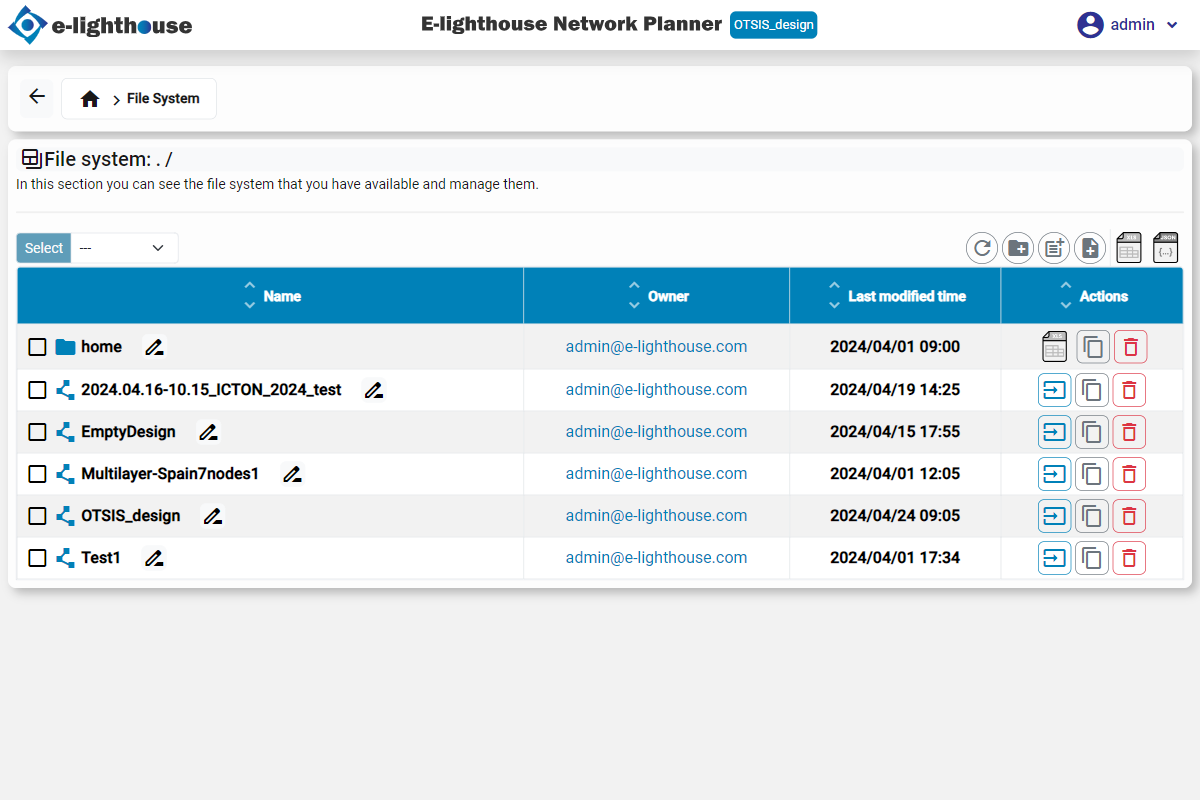
Available features
Here are the available features for managing your designs:
| Icon | Function |
|---|---|
 |
Refresh table |
 |
Create a new folder |
 |
Create a new design |
 |
Create a new design from a JSON |
 |
Download a summary of each design in Excel format |
 |
Download each design in JSON format |
 |
Load a network design from a file in the local file system |
 |
Create a copy of the selected design |
 |
Delete the selected design |
Ended: File System
Monitoring & forecasts ↵
Monitoring & forecasts
In this section, you can access monitoring and forecasting tools to analyze and predict network behavior. These tools provide real-time data and insights to help you make informed decisions and optimize network performance.
Interactions
Adds one traffic sample manually
Adds one traffic sample manually
Click to see more details
Form to complete:
- Adds one traffic sample manually: Adds one traffic sample manually.
- Date: Date of the sample.
- Element ID: ID of the element to which the sample is added.
- Traffic (Gbps): Traffic in Gbps.
- Is received traffic: If true, the traffic is received. If false, the traffic is transmitted.
-
User tag: Optional tag to be associated with the sample.
-
Log this interaction: If checked, the call to this interaction is logged at the time of 'now', as a new entry in the database of generic type, with the input parameters as the ones used for this process run.
Adds batch traffic samples from JSON
Adds a set traffic samples from JSON. JSON expected structure: an array of entries, each entry a JSON object with the following fields: entryTimestamp, elementId, trafficTxGbps, trafficRxGbps. Each of the last two elements of the object are optional
Click to see more details
Form to complete:
- Adds batch traffic samples from JSON: Adds a set traffic samples from JSON. JSON expected structure: an array of entries, each entry a JSON object with the following fields: entryTimestamp, elementId, trafficTxGbps, trafficRxGbps. Each of the last two elements of the object are optional.
-
User tag: Optional tag to be associated with all the samples.
-
Log this interaction: If checked, the call to this interaction is logged at the time of 'now', as a new entry in the database of generic type, with the input parameters as the ones used for this process run.
- Entries JSON: JSON array with the entries to be added. See the JSON expected structure in the description of this interaction..
Save current state as traffic samples
Saves the current network state as traffic samples
Click to see more details
Form to complete:
- Save current state as traffic samples: Saves the current network state as traffic samples.
- Assigned GMT date (format yyyy-MM-dd HH:mm:ss): Introduce the date in the indicated format.
-
User tag: Optional tag to be associated with all the samples.
-
Elements to save: Indicate the elements in the design for which its current traffic will be saved as traffic samples.
- Log this interaction: If checked, the call to this interaction is logged at the time of 'now', as a new entry in the database of generic type, with the input parameters as the ones used for this process run.
Add synthetic traces of samples from current traffic
For each selected element, a new traffic trace is generated using its initial traffic as the current traffic
Click to see more details
Form to complete:
- Add synthetic traces of samples from current traffic: For each selected element, a new traffic trace is generated using its initial traffic as the current traffic.
- Initial GMT date (format yyyy-MM-dd HH:mm:ss): Introduce the initial date in the indicated format.
- Custom interval: Indicate if a custom interval between samples is used.
- Synthetic data interval: Indicate a fixed interval between samples. Options:
- 5 minutes: 5 minutes interval between samples.
- 30 minutes: 30 minutes interval between samples.
- 1 hour: 1 hour interval between samples.
- 1 day: 1 day interval between samples.
- 1 week: 1 week interval between samples.
- 1 month: 1 month interval between samples.
- Synthetic total period: Indicate a fixed total period for the synthetic traffic samples creation.. Options:
- Three months: Three months of samples.
- Six months: Six months of samples.
- One year: One year of samples.
- Two years: Two years of samples.
- Three years: Three years of samples.
- Synthetic data interval (minutes): Introduce interval (in minutes) between consecutive samples.
- Synthetic total period (samples): Indicate the total number of samples to be created, starting from the initial date. The total period is the interval between the first and last sample.
-
User tag: Optional tag to be associated with all the samples.
-
Random number generator seed: Introduce the seed of the random number generator to be used in the random traffic samples creation.
- Long-term growth type: The growth traffic type, in the long term. Options:
- Exponential growth: Exponential traffic growth means that traffic at year T+1 is GF times the traffic at year T, where GF is the growth factor..
- Linear growth: Linear traffic growth means that the traffic at year T+1 is the traffic at T plus GF, where GF is the growth factor..
- Long-term growth factor (per year): If exponential growth, this is the compound annual growth rate (CAGR) (adimensional value), if linear growth, this is the traffic growth per year in Gbps.
- Daily variation: busy-hour-to-valley factor (>= 1): In daily variations, the traffic outside the busy hours is shaped down. This is the ratio between the average traffic in the busy hour vs. the rest of the day. If < 1, no daily variation is applied.
- Daily variation: hour of the start of busy-hour period (0..24): In daily variations, the hour (as a double in [0 , 24) when peak traffic interval (busy hours) start. If not in [0,24), no daily variation is applied.
- Daily variation: duration in hours of the busy-hours period (0..24): In daily variations, the duration in hours (as a double in [0 , 24) of peak traffic interval (busy hours) start. If start time plus duration exceeds the hour 24, an error is raised.
- Noise coefficient of variation: A normal traffic noise centered in 0 and typical deviation given by this value multiplied by the current traffic, is added to the estimation. Note that negative traffics are later truncated to zero.
- Affected elements: Indicate the elements in the design for which this operation will be applied.
- Log this interaction: If checked, the call to this interaction is logged at the time of 'now', as a new entry in the database of generic type, with the input parameters as the ones used for this process run.
Forecast traffic samples given stored traffic
For the selected elements and based on stored traffic samples, this action creates a trace of traffic forecasts.
Click to see more details
Form to complete:
- Forecast traffic samples given stored traffic: For the selected elements and based on stored traffic samples, this action creates a trace of traffic forecasts..
- Forecast initial GMT date (format yyyy-MM-dd HH:mm:ss): Introduce the initial date in the indicated format.
- Custom interval: Indicate if a custom interval between samples is used.
- Interval between forecasted samples: Indicate a fixed interval between forecasted samples. Options:
- 5 minutes: 5 minutes interval between samples.
- 30 minutes: 30 minutes interval between samples.
- 1 hour: 1 hour interval between samples.
- 1 day: 1 day interval between samples.
- 1 week: 1 week interval between samples.
- 1 month: 1 month interval between samples.
- Time to forecast: Indicate a fixed time to forecast. Options:
- Three months: Three months of samples.
- Six months: Six months of samples.
- One year: One year of samples.
- Two years: Two years of samples.
- Three years: Three years of samples.
- Forecast interval between samples (minutes): Introduce interval (in minutes) between consecutive samples.
- Forecast number of samples: Introduce the number of monitoring samples to create.
-
Apply tag to forecasted samples: Optional tag to add to the created forecasts.
-
Input traffic samples initial date (format yyyy-MM-dd HH:mm:ss): Introduce the date in the indicated format.
- Input traffic samples end date (format yyyy-MM-dd HH:mm:ss): Introduce the date in the indicated format.
- Is RX traffic: If true, only the rx traffic is considered. If false, only the tx traffic is considered. By default, only IP interfaces has RX traffic, the other monitorable resources are considered as TX traffic..
-
Input traffic samples tag: Optional tag, if present the input traffic samples are taken only from those with this tag.
-
Input traffic aggregation window: One sample is produced for each interval (if at least one sample exists for it). Options:
- Minute: One sample per minute is created, with a traffic such that %p of the samples in that period is below that quantity.
- Hour: One sample per hour is created, with a traffic such that %p of the samples in that period is below that quantity.
- Day: One sample per day is created, with a traffic such that %p of the samples in that period is below that quantity.
- Week: One sample per week is created, with a traffic such that %p of the samples in that period is below that quantity.
- Month: One sample per month is created, with a traffic such that %p of the samples in that period is below that quantity.
- Year: One sample per year is created, with a traffic such that %p of the samples in that period is below that quantity.
- Affected elements: Indicate the elements in the design for which this operation will be applied.
- Confidence interval: The confidence (probability between 0 and one) to compute the confidence intervals for the forecasts.
- Log this interaction: If checked, the call to this interaction is logged at the time of 'now', as a new entry in the database of generic type, with the input parameters as the ones used for this process run.
Add synthetic traces in links from demands
For each selected element, a new traffic trace will be created by simulating the traffic in the IP demands and the resulting traffic in the selected elements. The traffic in the IP demands will be interpolated from the existing samples, and the traffic in the selected elements will be obtained by simulating the network.
Click to see more details
Form to complete:
- Add synthetic traces in links from demands: For each selected element, a new traffic trace will be created by simulating the traffic in the IP demands and the resulting traffic in the selected elements. The traffic in the IP demands will be interpolated from the existing samples, and the traffic in the selected elements will be obtained by simulating the network..
- Initial GMT date (format yyyy-MM-dd HH:mm:ss): Introduce the initial date in the indicated format.
- Interval between samples (minutes): Introduce interval (in minutes) between consecutive smaples.
- Number of samples: Introduce the number of monitoring samples to create.
-
(Read) Demand traffic samples tag: Optional tag of the samples of the IP demands that will be used..
-
Max offset in minutes to consider a demand sample: The demand traffic at a particular time will be considered as the linear interpolation of the traffic between the closest existing traffic samples, filtering out those samples that are further than this value in time from the target time..
-
(Write) Tag to set in new traffic samples: Optional tag to be associated with all the samples created.
-
Output elements: Indicate the elements in the design for which traffic samples will be created.
- Log this interaction: If checked, the call to this interaction is logged at the time of 'now', as a new entry in the database of generic type, with the input parameters as the ones used for this process run.
Form response:
- Dates without samples: List of dates for which no samples will be created.
Remove monitoring/forecast samples
Permits removing samples of the monitoring or forecast type to a design
Click to see more details
Form to complete:
- Remove monitoring/forecast samples: Permits removing samples of the monitoring or forecast type to a design.
- Initial GMT date (format yyyy-MM-dd HH:mm:ss): Introduce the initial date in the indicated format.
- End GMT date (format yyyy-MM-dd HH:mm:ss): Introduce the initial date in the indicated format.
- Remove traffic samples: If true, the traffic samples will be removed.
- Affected elements: Indicate the elements in the design for which this operation will be applied.
- Remove general algorithm run samples: If true, the general algorithm run entries will be removed.
-
Sample tag: Optional tag, if present, only the samples with this tag are removed.
-
Log this interaction: If checked, the call to this interaction is logged at the time of 'now', as a new entry in the database of generic type, with the input parameters as the ones used for this process run.
Get monitoring metadata
Get monitoring metadata for the selected elements
Click to see more details
Form to complete:
- Get monitoring metadata: Get monitoring metadata for the selected elements.
- Log this interaction: If checked, the call to this interaction is logged at the time of 'now', as a new entry in the database of generic type, with the input parameters as the ones used for this process run.
Form response:
- Traces Metadata: List of metadata for the traces available.
Get traffic samples
Retrieves traffic samples of the design, potentally passing through a percentile filtering
Click to see more details
Form to complete:
- Get traffic samples: Retrieves traffic samples of the design, potentally passing through a percentile filtering.
- Initial GMT date (format yyyy-MM-dd HH:mm:ss): Introduce the initial date in the indicated format.
- End GMT date (format yyyy-MM-dd HH:mm:ss): Introduce the initial date in the indicated format.
-
Sample tag: Optional tag, if present, only the samples with this tag are affected.
-
Is RX traffic: If true, only the rx traffic is considered. If false, only the tx traffic is considered. By default, only IP interfaces has RX traffic, the other monitorable resources are considered as TX traffic..
- Include forecast confidence inverval: If true, the forecasted confidence interval is included in the output if available.
- Affected elements: Indicate the elements in the design for which this operation will be applied.
- Aggregation Window: One sample is produced for each interval (if at least one sample exists for it). Options:
- Minute: One sample per minute is created, with a traffic such that %p of the samples in that period is below that quantity.
- Hour: One sample per hour is created, with a traffic such that %p of the samples in that period is below that quantity.
- Day: One sample per day is created, with a traffic such that %p of the samples in that period is below that quantity.
- Week: One sample per week is created, with a traffic such that %p of the samples in that period is below that quantity.
- Month: One sample per month is created, with a traffic such that %p of the samples in that period is below that quantity.
- Year: One sample per year is created, with a traffic such that %p of the samples in that period is below that quantity.
- Fill missing values: If true, the missing values are filled with zero. If false, the missing values are not filled and the output is only the samples.
- Apply percentile filtering: If true, the percentile filtering is applied.
- Percentile: Introduce the percentile. 1 means peaking the maximum value in the interval.
- Output format: The output format of the samples. Options:
- JSON: Using a JSON file structure.
- CSV: Using a CSV file structure.
- Log this interaction: If checked, the call to this interaction is logged at the time of 'now', as a new entry in the database of generic type, with the input parameters as the ones used for this process run.
Form response:
- Output JSON: The output JSON.
- Output CSV: The output CSV.
Get algorithm samples
Retrieves algorithm samples of the design
Click to see more details
Form to complete:
- Get algorithm samples: Retrieves algorithm samples of the design.
- Initial GMT date (format yyyy-MM-dd HH:mm:ss): Introduce the initial date in the indicated format.
- End GMT date (format yyyy-MM-dd HH:mm:ss): Introduce the initial date in the indicated format.
- Affected elements: Indicate the elements in the design for which this operation will be applied.
-
Sample tag: Optional tag, if present, only the samples with this tag are affected.
-
Log this interaction: If checked, the call to this interaction is logged at the time of 'now', as a new entry in the database of generic type, with the input parameters as the ones used for this process run.
Form response:
- Output JSON: The output JSON.
Add percentile samples
Computes percentile samples from the traffic samples of a design, and stores them
Click to see more details
Form to complete:
- Add percentile samples: Computes percentile samples from the traffic samples of a design, and stores them.
- Initial GMT date: Introduce the initial date in the indicated format.
- End GMT date: Introduce the initial date in the indicated format.
-
Input trace tag: Optional tag, if present, only the samples with this tag are used as input samples.
-
Input aggregation window: Group samples in the aggregation window. Options:
- Minute: One sample per minute is created, with a traffic such that %p of the samples in that period is below that quantity.
- Hour: One sample per hour is created, with a traffic such that %p of the samples in that period is below that quantity.
- Day: One sample per day is created, with a traffic such that %p of the samples in that period is below that quantity.
- Week: One sample per week is created, with a traffic such that %p of the samples in that period is below that quantity.
- Month: One sample per month is created, with a traffic such that %p of the samples in that period is below that quantity.
- Year: One sample per year is created, with a traffic such that %p of the samples in that period is below that quantity.
- Is RX traffic: If true, only the rx traffic is considered. If false, only the tx traffic is considered. By default, only IP interfaces has RX traffic, the other monitor able resources are considered as TX traffic..
- Include forecast confidence interval: If true, the forecasted confidence interval is included in the output if available.
- Percentile interval: One sample is produced for each interval (if at least one sample exists for it). Options:
- Minute: One sample per minute is created, with a traffic such that %p of the samples in that period is below that quantity.
- Hour: One sample per hour is created, with a traffic such that %p of the samples in that period is below that quantity.
- Day: One sample per day is created, with a traffic such that %p of the samples in that period is below that quantity.
- Week: One sample per week is created, with a traffic such that %p of the samples in that period is below that quantity.
- Month: One sample per month is created, with a traffic such that %p of the samples in that period is below that quantity.
- Year: One sample per year is created, with a traffic such that %p of the samples in that period is below that quantity.
- Percentile: Introduce the percentile. 1 means peaking the maximum value in the interval.
- Output percentile samples tag: The samples created with percentile values are tagged with this.
- Affected elements: Indicate the elements in the design for which this operation will be applied.
- Log this interaction: If checked, the call to this interaction is logged at the time of 'now', as a new entry in the database of generic type, with the input parameters as the ones used for this process run.
Traffic matrix derivation
Computes the traffic matrix derivation for a given design and a given set of monitoring samples
Click to see more details
Form to complete:
- Traffic matrix derivation: Computes the traffic matrix derivation for a given design and a given set of monitoring samples.
- Initial date for traffic estimation (format yyyy-MM-dd HH:mm:ss): Introduce the initial date in the indicated format.
- Custom interval: Indicate if a custom interval between samples is used.
- Sample interval: Indicate a interval between samples. Options:
- 5 minutes: 5 minutes interval between samples.
- 30 minutes: 30 minutes interval between samples.
- 1 hour: 1 hour interval between samples.
- 1 day: 1 day interval between samples.
- 1 week: 1 week interval between samples.
- 1 month: 1 month interval between samples.
- Total period: Indicate a total period for the traffic samples matrix derivation.. Options:
- Three months: Three months of samples.
- Six months: Six months of samples.
- One year: One year of samples.
- Two years: Two years of samples.
- Three years: Three years of samples.
- Interval between samples (minutes): Introduce interval (in minutes) between consecutive smaples.
- Number of samples: Introduce the number of monitoring samples to estimate. First sample is at the initial date, and the rest are separated by the interval between samples.
-
Output IP demand samples tag: The tag to use for the output IP demand samples.
-
Input measurement samples tag: Optional tag, if present, only the samples with this tag are used as input samples.
-
Is RX traffic: If true, only the rx traffic is considered. If false, only the tx traffic is considered. By default, only IP interfaces has RX traffic, the other monitorable resources are considered as TX traffic..
- Max offset in minutes to consider for link traffic sample: The IP link/interdce traffic at a particular time will be considered as the linear interpolation of the traffic between the closest existing traffic samples, filtering out those samples that are further than this value in time from the target time..
- Traffic estimation model: Indicate the traffic demand estimation model to apply. Options:
- Proprietary model: Full-fledged proprietary regression model.
- Adapted gravity model: Adapted version of the general gravity model method.
- Log this interaction: If checked, the call to this interaction is logged at the time of 'now', as a new entry in the database of generic type, with the input parameters as the ones used for this process run.
Form response:
- Number of dates with IP demand estimation performed: Number of dates with estimation performed.
- Number of dates with IP demand estimation not performed: Number of dates with estimation not performed.
Set demands to given time and simulate
Sets the current network IP traffic of the demands, to the one estimated for a given date. Then, simulate the network for that traffic, and set the traffic in the links etc accordingly. If there is no estimation for all demands, an error is raised.
Click to see more details
Form to complete:
- Set demands to given time and simulate: Sets the current network IP traffic of the demands, to the one estimated for a given date. Then, simulate the network for that traffic, and set the traffic in the links etc accordingly. If there is no estimation for all demands, an error is raised..
-
IP demand samples tag: The tag to use for reading the demand samples and interpolate the traffic at the given time.
-
Find last date: If true, the last date with samples will be used as target date.
- Date for traffic estimation: Introduce the date for the traffic estimation.
- Max offset in minutes to consider for demand traffic sample: The IP traffic at a particular time will be considered as the linear interpolation of the traffic between the closest existing traffic samples, filtering out those samples that are further than this value in time from the target time..
- Compute ground-truth values for comparison: If true, the ground-truth values are computed from the database values in the same date, for comparison purposes.
-
Ground-truth comparing tag: The tag to use for reading the traffic in links, demands etc. for comparison. The traffic measurements will be considered for those elements (interfaces, links...) with samples at the target date, or close enough according to the same time margin as the one indicated for the IP demands.
-
Create new design: If true, the new design will be created, and the simulation will be done on it. If false, the simulation will be done on the current design.
- Log this interaction: If checked, the call to this interaction is logged at the time of 'now', as a new entry in the database of generic type, with the input parameters as the ones used for this process run.
Ended: Monitoring & forecasts
Network view & analysis ↵
Shared risk group (SRG)
Table with one row for each element of the type: 'Shared risk group (SRG)'.
Columns
| Name | Description |
|---|---|
| Failing elements (static) | The elements specifically and statically assigned to this SRG as failing elements, that will be down when this SRG is activated |
| Description | A user-defined text description (potentially long) that can be assigned to this element |
| All: Sum OTU blocking (Gbps) | [Applied to all elements: those that have this SRG in its fault-tolerance-target (FTT) or not] Sum of the capacity of the blocked OTUs in this SRG (Gbps) |
| Attributes | User-defined attributes associated to this element |
| FTT: Worst VPN blocking (%) | [Restricted to the elements that have this SRG in its fault-tolerance-target (FTT)] Worst blocking percentage among the VPNs in this SRG (%) |
| MTTF (days) | Mean Time to Fail, measured in days. The average time between the SRG is repaired (after a failure), and the next failure occurs |
| Name | A user-defined name (typically short) that can be assigned to this element |
| All: Worst multicast blocking (%) | [Applied to all elements: those that have this SRG in its fault-tolerance-target (FTT) or not] Worst blocking percentage among the multicast flows in this SRG (%) |
| All: Worst VPN blocking (%) | [Applied to all elements: those that have this SRG in its fault-tolerance-target (FTT) or not] Worst blocking percentage among the VPNs in this SRG (%) |
| All: Worst OTU latency excess (ms) | [Applied to all elements: those that have this SRG in its fault-tolerance-target (FTT) or not] Worst excess in latency of any OTU respect to its declared maximum tolerable latency (ms), in this SRG |
| Identifier | A unique identifier set to the element, and never changed |
| All: Sum ODU blocking (Gbps) | [Applied to all elements: those that have this SRG in its fault-tolerance-target (FTT) or not] Sum of the capacity of the blocked ODUs in this SRG (Gbps) |
| Sum IP dropped traffic (Gbps) | Sum of the IP traffic dropped at the IP ports, because of congestion or QoS violation, in this SRG |
| % Time ok | The percentage of time that this risk or SRG is not happening (i.e. not failed). This is directly calculated from the MTTF and MTTR values |
| Failing IP adjacencies (dynamic) | A set of IP adjacencies (where an adjacency is represented by its two end nodes), so when this SRG fails, all the IP links of the adjacency simultaneously fail. This SRG is tagged as 'dynamic' since in the network design algorithm, it assumes that all the IP links associated to an adjacency fails, and adding more capacity (e.g. new IP links) to that adjancency would not help. |
| MTTR (days) | Mean Time to Repair, measured in hours. The average time between the SRG fails, and the failure is repaired so the underlying system/s are active again |
| FTT: Worst IP demands latency excess (ms) | [Restricted to the elements that have this SRG in its fault-tolerance-target (FTT)] Worst excess in latency of any IP demand respect to its declared maximum tolerable latency (ms), in this SRG |
| All: Worst multicast latency excess (ms) | [Applied to all elements: those that have this SRG in its fault-tolerance-target (FTT) or not] Worst excess in latency of any multicast flow respect to its declared maximum tolerable latency (ms), in this SRG |
| All: Worst ODU latency excess (ms) | [Applied to all elements: those that have this SRG in its fault-tolerance-target (FTT) or not] Worst excess in latency of any ODU respect to its declared maximum tolerable latency (ms), in this SRG |
| All: Worst IP demands latency excess (ms) | [Applied to all elements: those that have this SRG in its fault-tolerance-target (FTT) or not] Worst excess in latency of any IP demand respect to its declared maximum tolerable latency (ms), in this SRG |
| External links | Indicates if this element has one or more user-defined external URLs associated to it. If so, when the user clicks this cell, and selects the URL (if more than one), a navigator is launched and the URL page is shown. External links are not editable in the GUI, but via API. |
| FTT: Sum IP demands blocked traffic (Gbps) | [Restricted to the elements that have this SRG in its fault-tolerance-target (FTT)] Sum of demands blocked traffic (Gbps) in this SRG |
| Tags | User-defined tags associated to this element |
| Failing IP adjacencies | A set of IP adjacencies (where an adjacency is represented by its two end nodes), so when this SRG fails, all the IP links of the adjacency simultaneously fail. This SRG is tagged as 'dynamic' since in the network design algorithm, it assumes that all the IP links associated to an adjacency fails, and adding more capacity (e.g. new IP links) to that adjancency would not help. |
| FTT: Worst multicast latency excess (ms) | [Restricted to the elements that have this SRG in its fault-tolerance-target (FTT)] Worst excess in latency of any multicast flow respect to its declared maximum tolerable latency (ms), in this SRG |
| FTT: Sum OTU blocking (Gbps) | [Restricted to the elements that have this SRG in its fault-tolerance-target (FTT)] Sum of the capacity of the blocked OTUs in this SRG (Gbps) |
| JSON | An optional JSON content describing this element |
| All failing elements | The elements that fail when this SRG is activated. This includes both the failing elements statically assigned to this SRG, as well as the transport connection associated to failing IP adjacencies (if any) |
| SRG types | The SRG types that this SRG belongs to |
| FTT: Worst OTU latency excess (ms) | [Restricted to the elements that have this SRG in its fault-tolerance-target (FTT)] Worst excess in latency of any OTU respect to its declared maximum tolerable latency (ms), in this SRG |
| FTT: Sum ODU blocking (Gbps) | [Restricted to the elements that have this SRG in its fault-tolerance-target (FTT)] Sum of the capacity of the blocked ODUs in this SRG (Gbps) |
| FTT: Worst multicast blocking (%) | [Restricted to the elements that have this SRG in its fault-tolerance-target (FTT)] Worst blocking percentage among the multicast flows in this SRG (%) |
| All: Sum IP demands blocked traffic (Gbps) | [Applied to all elements: those that have this SRG in its fault-tolerance-target (FTT) or not] Sum of demands blocked traffic (Gbps) in this SRG |
| FTT: Worst ODU latency excess (ms) | [Restricted to the elements that have this SRG in its fault-tolerance-target (FTT)] Worst excess in latency of any ODU respect to its declared maximum tolerable latency (ms), in this SRG |
Views
| Name | Columns | Description |
|---|---|---|
| Full view | Name, Identifier, Description, ExternalLinks, Mttf(days), Mttr(days), %TimeOk, SrgTypes, AllFailingElements, FailingElements(static), FailingIpAdjacencies(dynamic), FailingIpAdjacencies, SumIpDroppedTraffic(gbps), Ftt:SumIpDemandsBlockedTraffic(gbps), Ftt:WorstIpDemandsLatencyExcess(ms), Ftt:WorstMulticastBlocking(%), Ftt:WorstMulticastLatencyExcess(ms), Ftt:WorstVpnBlocking(%), Ftt:SumOduBlocking(gbps), Ftt:WorstOduLatencyExcess(ms), Ftt:SumOtuBlocking(gbps), Ftt:WorstOtuLatencyExcess(ms), All:SumIpDemandsBlockedTraffic(gbps), All:WorstIpDemandsLatencyExcess(ms), All:WorstMulticastBlocking(%), All:WorstMulticastLatencyExcess(ms), All:WorstVpnBlocking(%), All:SumOduBlocking(gbps), All:WorstOduLatencyExcess(ms), All:SumOtuBlocking(gbps), All:WorstOtuLatencyExcess(ms), Tags, Attributes, Json | This table view corresponds to a view with all the table columns. In some occassions, this may imply an impractically large number of columns for human inspection. |
| Risk analysis (FTT) | SrgTypes, AllFailingElements, FailingElements(static), FailingIpAdjacencies(dynamic), SumIpDroppedTraffic(gbps), Ftt:SumIpDemandsBlockedTraffic(gbps), Ftt:WorstIpDemandsLatencyExcess(ms), Ftt:WorstMulticastBlocking(%), Ftt:WorstMulticastLatencyExcess(ms), Ftt:WorstVpnBlocking(%), Ftt:SumOduBlocking(gbps), Ftt:WorstOduLatencyExcess(ms), Ftt:SumOtuBlocking(gbps), Ftt:WorstOtuLatencyExcess(ms) | Columns conveying information on the network risk analysis, associated to the risk situations inside the fault-tolerance target defined for this element |
| Risk analysis (non FTT) | SrgTypes, AllFailingElements, FailingElements(static), FailingIpAdjacencies(dynamic), All:SumIpDemandsBlockedTraffic(gbps), All:WorstIpDemandsLatencyExcess(ms), All:WorstMulticastBlocking(%), All:WorstMulticastLatencyExcess(ms), All:WorstVpnBlocking(%), All:SumOduBlocking(gbps), All:WorstOduLatencyExcess(ms), All:SumOtuBlocking(gbps), All:WorstOtuLatencyExcess(ms) | Columns conveying information on the network risk analysis, associated to all the risk situations, i.e. those inside the fault-tolerance target defined for this element, or not |
| Connectivity | SrgTypes, AllFailingElements, FailingElements(static), FailingIpAdjacencies(dynamic), FailingIpAdjacencies | Columns associated to the element related paths, links, neighbor nodes and alike |
| Description & tags & attributes | Name, Identifier, Description, ExternalLinks, SrgTypes, AllFailingElements, FailingElements(static), FailingIpAdjacencies(dynamic), Tags, Attributes, Json | Columns associated to side information like element names, descriptions, user associated tags or attributes |
| KPIs | Mttf(days), Mttr(days), %TimeOk, SrgTypes, AllFailingElements, FailingElements(static), FailingIpAdjacencies(dynamic) | Columns associated to traffic-related KPIs of the multicast flows |
| Default view | %TimeOk, SrgTypes, AllFailingElements, FailingElements(static), FailingIpAdjacencies(dynamic), SumIpDroppedTraffic(gbps), All:SumIpDemandsBlockedTraffic(gbps), Tags | This table view corresponds to a subset of columns selected as representative for a default table view. They typically include the most typical required values |
Table right-click menu
- Set for selected elements...: Menu with options for setting values to different parameters of the selected elements
- Value at column 'Name': This option sets the value at column 'Name'
- For selected elements: Set the value at column 'Name' for: Selected elements (The elements already selected by the user in the table before calling this action)
- For all table elements: Set the value at column 'Name' for: All table elements (All the elements in the table, not applying any filter, and not considering any pagination)
- Value at column 'Identifier': This option sets the value at column 'Identifier'
- For selected elements: Set the value at column 'Identifier' for: Selected elements (The elements already selected by the user in the table before calling this action)
- For all table elements: Set the value at column 'Identifier' for: All table elements (All the elements in the table, not applying any filter, and not considering any pagination)
- Value at column 'Description': This option sets the value at column 'Description'
- For selected elements: Set the value at column 'Description' for: Selected elements (The elements already selected by the user in the table before calling this action)
- For all table elements: Set the value at column 'Description' for: All table elements (All the elements in the table, not applying any filter, and not considering any pagination)
- Value at column 'MTTF (days)': This option sets the value at column 'MTTF (days)'
- For selected elements: Set the value at column 'MTTF (days)' for: Selected elements (The elements already selected by the user in the table before calling this action)
- For all table elements: Set the value at column 'MTTF (days)' for: All table elements (All the elements in the table, not applying any filter, and not considering any pagination)
- Value at column 'MTTR (days)': This option sets the value at column 'MTTR (days)'
- For selected elements: Set the value at column 'MTTR (days)' for: Selected elements (The elements already selected by the user in the table before calling this action)
- For all table elements: Set the value at column 'MTTR (days)' for: All table elements (All the elements in the table, not applying any filter, and not considering any pagination)
- Value at column 'SRG types': This option sets the value at column 'SRG types'
- For selected elements: Set the value at column 'SRG types' for: Selected elements (The elements already selected by the user in the table before calling this action)
- For all table elements: Set the value at column 'SRG types' for: All table elements (All the elements in the table, not applying any filter, and not considering any pagination)
- Value at column 'Failing IP adjacencies': This option sets the value at column 'Failing IP adjacencies'
- For selected elements: Set the value at column 'Failing IP adjacencies' for: Selected elements (The elements already selected by the user in the table before calling this action)
- For all table elements: Set the value at column 'Failing IP adjacencies' for: All table elements (All the elements in the table, not applying any filter, and not considering any pagination)
- Add...: Options to add new SRGs to the design
- Add empty SRG: Adds an empty SRG with no failing resources associated
- Add SRGs for each tagged element: Adds one SRG for each element with the indicated tag, that is suitable to be part of a SRG
- Add SRGs for node type: Options to add one SRG for each node of selected type
- One SRG per node of given type: Adds a new SRG for each existing node of user selected type
- Add SRGs from model: Options to add SRGs according to different automatic models
- One SRG per internal IP node: Adds one SRG for each IP internal node
- One SRG per bidirectional injection link: Adds one SRG for each bidirectional injection link
- Given MTTF/MTTR: The MTTF and MTTR parameters are manually set as constant
- MTTF proportional to length: The MTTR is constant and manually set, but the MTTF is computed for each SRG as a function of the link length
- One SRG per IP adjacency: Adds one SRG for each node pair among the selected IP nodes, so all the IP ports with IP links between them fail
- One SRG per WDM link: Adds one SRG for each WDM link. If the link is bidirectional, one SRG is created covering both opposite bidirectional links
- Given MTTF/MTTR: The MTTF and MTTR parameters are manually set as constant
- MTTF proportional to length: The MTTR is constant and manually set, but the MTTF is computed for each SRG as a function of the link length
- One SRG per VTL link: Adds one SRG for each VTL (Virtual Transport Link). If the link is bidirectional, one SRG is created covering both opposite bidirectional links
- Remove: Different remove options
- Selected elements: Remove elements: Selected elements (The elements already selected by the user in the table before calling this action)
- All table elements: Remove elements: All table elements (All the elements in the table, not applying any filter, and not considering any pagination)
- Fail all elements in the SRGs: All the failable elements associated to the selected SRGs are set as failed.
- Repair all elements in the SRG: All the failable elements associated to this SRG are set as not failed.
- Tags: Different menu options related to user-defined tags
- Add tag: Adds a user-defined tag to the indicated elements
- Remove tag: Removes a user-defined tag from the indicated elements
- Remove all tags: For all the indicated elements, all their tags are removed
- Attributes: Different menu options related to user-defined attributes
- Add attribute: Adds a user-defined attribute (key-value pair) to all the selected elements. Any attribute with the same key is replaced by the new value.
- Remove attribute: Removes a user-defined attribute (key-value pair) from all the selected elements.
- Remove all attributes: Removes all the user-defined attributes (key-value pair) from the indicated elements.
Form-required interactions
Shared risk group (SRG)-AddSrgFromTag
Form to complete:
- Tag: One SRG is added for each element with this tag, that is suitable to be part of an SRG (e.g. nodes, ports, transport links).
- MTTF (days): The Mean Time To Fail measured in days for this SRG. This is the time since it got repaired and started working, until next failure occurs..
- MTTR (days): The Mean Time To Repair measured in days for this SRG. This is the time since the system is down since it failed, and it gets up once the repair is completed.
- Remove existing SRGs: If checked, the existing SRGs will be removed before this new SRGs are added.
Shared risk group (SRG)-AddSrgPerNodeType
Form to complete:
- Node type: The type of node. One SRG is created for all the nodes of this type.
- Node tag: Optionally, a tag, so only the nodes that have a tag which contains the given string are selected.
Shared risk group (SRG)-AddSrgFromModel-OnePerIpNode
Form to complete:
-
Elements tag: If set, only the elements with this tag are selected. If not, all the elements are selected.
-
MTTF (days): The Mean Time To Fail measured in days for this SRG. This is the time since it got repaired and started working, until next failure occurs..
- MTTR (days): The Mean Time To Repair measured in days for this SRG. This is the time since the system is down since it failed, and it gets up once the repair is completed.
- Remove existing SRGs: If checked, the existing SRGs will be removed before this new SRGs are added.
Shared risk group (SRG)-AddSrgFromModel-TrueOnePerBidiInjectionLink
Form to complete:
-
Elements tag: If set, only the elements with this tag are selected. If not, all the elements are selected.
-
MTTF (days): The Mean Time To Fail measured in days for this SRG. This is the time since it got repaired and started working, until next failure occurs..
- MTTR (days): The Mean Time To Repair measured in days for this SRG. This is the time since the system is down since it failed, and it gets up once the repair is completed.
- Remove existing SRGs: If checked, the existing SRGs will be removed before this new SRGs are added.
Shared risk group (SRG)-AddSrgFromModel-FalseOnePerBidiInjectionLink
Form to complete:
-
Elements tag: If set, only the elements with this tag are selected. If not, all the elements are selected.
-
Failures per year every 1000 km: Number of failures per year that occur in average in each link.
- MTTR (days): The Mean Time To Repair measured in days for this SRG. This is the time since the system is down since it failed, and it gets up once the repair is completed.
- Remove existing SRGs: If checked, the existing SRGs will be removed before this new SRGs are added.
Shared risk group (SRG)-AddSrgFromModel-OnePerDynamicIpNodePair
Form to complete:
-
Elements tag: If set, only the elements with this tag are selected. If not, all the elements are selected.
-
MTTF (days): The Mean Time To Fail measured in days for this SRG. This is the time since it got repaired and started working, until next failure occurs..
- MTTR (days): The Mean Time To Repair measured in days for this SRG. This is the time since the system is down since it failed, and it gets up once the repair is completed.
- Remove existing SRGs: If checked, the existing SRGs will be removed before this new SRGs are added.
Shared risk group (SRG)-AddSrgFromModel-TrueOnePerBidiWdmLink
Form to complete:
-
Elements tag: If set, only the elements with this tag are selected. If not, all the elements are selected.
-
MTTF (days): The Mean Time To Fail measured in days for this SRG. This is the time since it got repaired and started working, until next failure occurs..
- MTTR (days): The Mean Time To Repair measured in days for this SRG. This is the time since the system is down since it failed, and it gets up once the repair is completed.
- Remove existing SRGs: If checked, the existing SRGs will be removed before this new SRGs are added.
Shared risk group (SRG)-AddSrgFromModel-FalseOnePerBidiWdmLink
Form to complete:
-
Elements tag: If set, only the elements with this tag are selected. If not, all the elements are selected.
-
Failures per year every 1000 km: Number of failures per year that occur in average in each link.
- MTTR (days): The Mean Time To Repair measured in days for this SRG. This is the time since the system is down since it failed, and it gets up once the repair is completed.
- Remove existing SRGs: If checked, the existing SRGs will be removed before this new SRGs are added.
Shared risk group (SRG)-AddSrgFromModel-OnePerBidiVtl
Form to complete:
-
Elements tag: If set, only the elements with this tag are selected. If not, all the elements are selected.
-
MTTF (days): The Mean Time To Fail measured in days for this SRG. This is the time since it got repaired and started working, until next failure occurs..
- MTTR (days): The Mean Time To Repair measured in days for this SRG. This is the time since the system is down since it failed, and it gets up once the repair is completed.
- Remove existing SRGs: If checked, the existing SRGs will be removed before this new SRGs are added.
Network Controller-AddTag
Form to complete:
- Tag: The tag string.
- Applicable elements: This selector indicates the elements to which this action is going to be applied. Options:
- Selected elements: The elements already selected by the user in the table before calling this action.
- All table elements: All the elements in the table, not applying any filter, and not considering any pagination.
Network Controller-RemoveTag
Form to complete:
- Tag: The tag string.
- Applicable elements: This selector indicates the elements to which this action is going to be applied. Options:
- Selected elements: The elements already selected by the user in the table before calling this action.
- All table elements: All the elements in the table, not applying any filter, and not considering any pagination.
Network Controller-RemoveAllTags
Form to complete:
- Applicable elements: This selector indicates the elements to which this action is going to be applied. Options:
- Selected elements: The elements already selected by the user in the table before calling this action.
- All table elements: All the elements in the table, not applying any filter, and not considering any pagination.
Network Controller-AddAttribute
Form to complete:
- Key: The attributes key, or name.
- Value: The attribute value, to associate to the attribute name.
- Applicable elements: This selector indicates the elements to which this action is going to be applied. Options:
- Selected elements: The elements already selected by the user in the table before calling this action.
- All table elements: All the elements in the table, not applying any filter, and not considering any pagination.
Network Controller-RemoveAttribute
Form to complete:
- Key: The attributes key, or name.
- Applicable elements: This selector indicates the elements to which this action is going to be applied. Options:
- Selected elements: The elements already selected by the user in the table before calling this action.
- All table elements: All the elements in the table, not applying any filter, and not considering any pagination.
Network Controller-RemoveAllAttributes
Form to complete:
- Applicable elements: This selector indicates the elements to which this action is going to be applied. Options:
- Selected elements: The elements already selected by the user in the table before calling this action.
- All table elements: All the elements in the table, not applying any filter, and not considering any pagination.
Network view & analysis
Groups all the tables representing the different elements in the network
Folders
- Node aggregations. Groups all the tables representing the different node aggregations, typically representing PoPs (point-of-presence) locations, putting together all the nodes (or other node aggregations) inside
- Nodes. Groups all the tables representing the different nodes of the different types, in the network, for all the technologies
- IP/MPLS. Groups different tables related to the IP/MPLS part of the network
- Optical. Groups different tables related to the optical transport part of the network
- IT Orchestators. Groups different tables related to the IT Orchestators information of the elements in the network
- Network Controllers. Groups different tables related to the network controllers parts of the network
Tables
- Shared risk group (SRG). Table with one row for each element of the type: 'Shared risk group (SRG)'.
IP MPLS ↵
IP/MPLS
Groups different tables related to the IP/MPLS part of the network
Folders
- AS, IGP & MPLS-TE. Groups tables related to the Autonomous System, the different IGP (Internal Gateway Protocol) instances defined (e.g. OSPF, and single or multi-area), and MPLS-TE circuits in the network
- Links & Ports. Groups tables related to IP and Ethernet links and ports
- Traffic demands. Groups tables related to unicast and multicast IP demands defined for the network
- VPN. Groups tables related to the Virtual Private Networks (VPNs) defined in the network
AS, IGP & MPLS-TE ↵
IP Autonomous System
Table with one row for each element of the type: 'IP Autonomous System'.
Columns
| Name | Description |
|---|---|
| Out traffic (Gbps) | Accumulated IP traffic outgoing to this AS via injection or inter-AS links |
| Description | A user-defined text description (potentially long) that can be assigned to this element |
| ASBR neighbors | The ASBR (Autonomous System Border Router) nodes of neighbor ASs that are directly connected to this AS in non failure state |
| Attributes | User-defined attributes associated to this element |
| AIGP active | Indicates whether the Accumulated IGP attribute is active for the BGP protocol in this AS |
| Neighbor ASs | The AS that are directly connected to this AS in non failure state |
| JSON | An optional JSON content describing this element |
| AS Number | Unique identifier of the IP AS |
| AS Nodes | IP routers that are part of this AS |
| Name | A user-defined name (typically short) that can be assigned to this element |
| Non-ASBRs | The non ASBR (Autonomous System Border Router) nodes of the AS, without an IP link to an external node, or a node in other AS |
| Identifier | A unique identifier set to the element, and never changed |
| Inter-AS out links | The IP links from a node in this AS to a node in other AS |
| Inter-AS in links | The IP links from a node in other AS to a node in this AS |
| IGP instances | The IGP instances defined in the routers of this AS |
| ASBRs | The ASBR (Autonomous System Border Router) nodes of the AS, with an IP link to an external node, or a node in other AS |
| Injection in links | The IP links from a node in this AS to an external node |
| Injection out links | The IP links from an external node to a node in this AS |
| Intra-AS links | The IP links between nodes in this AS |
| Ext. nodes neighbors | The external nodes that are directly connected to this AS in non failure state |
| External links | Indicates if this element has one or more user-defined external URLs associated to it. If so, when the user clicks this cell, and selects the URL (if more than one), a navigator is launched and the URL page is shown. External links are not editable in the GUI, but via API. |
| In traffic (Gbps) | Accumulated IP traffic incoming to this AS via injection or inter-AS links |
| Tags | User-defined tags associated to this element |
Views
| Name | Columns | Description |
|---|---|---|
| Full view | Name, Identifier, Description, ExternalLinks, AsNumber, AigpActive, IgpInstances, AsNodes, Asbrs, Non-asbrs, Inter-asOutLinks, Inter-asInLinks, InjectionOutLinks, InjectionInLinks, Intra-asLinks, NeighborAss, AsbrNeighbors, Ext.NodesNeighbors, InTraffic(gbps), OutTraffic(gbps), Tags, Attributes, Json | This table view corresponds to a view with all the table columns. In some occassions, this may imply an impractically large number of columns for human inspection. |
| BGP/IGP | AsNumber, AigpActive, IgpInstances, Asbrs, Non-asbrs | Columns associated to BGP and/or IGP information of the node |
| Connectivity | AsNumber, AsNodes, Inter-asOutLinks, Inter-asInLinks, InjectionOutLinks, InjectionInLinks, Intra-asLinks, NeighborAss, AsbrNeighbors, Ext.NodesNeighbors | Columns associated to the element related paths, links, neighbor nodes and alike |
| Description & tags & attributes | Name, Identifier, Description, ExternalLinks, AsNumber, Tags, Attributes, Json | Columns associated to side information like element names, descriptions, user associated tags or attributes |
| KPIs | AsNumber, InTraffic(gbps), OutTraffic(gbps) | Columns associated to traffic-related KPIs of the multicast flows |
| Default view | AsNumber, AigpActive, IgpInstances, AsNodes, NeighborAss, InTraffic(gbps), OutTraffic(gbps), Tags | This table view corresponds to a subset of columns selected as representative for a default table view. They typically include the most typical required values |
Table right-click menu
- Set for selected elements...: Menu with options for setting values to different parameters of the selected elements
- Value at column 'Name': This option sets the value at column 'Name'
- For selected elements: Set the value at column 'Name' for: Selected elements (The elements already selected by the user in the table before calling this action)
- For all table elements: Set the value at column 'Name' for: All table elements (All the elements in the table, not applying any filter, and not considering any pagination)
- Value at column 'Identifier': This option sets the value at column 'Identifier'
- For selected elements: Set the value at column 'Identifier' for: Selected elements (The elements already selected by the user in the table before calling this action)
- For all table elements: Set the value at column 'Identifier' for: All table elements (All the elements in the table, not applying any filter, and not considering any pagination)
- Value at column 'Description': This option sets the value at column 'Description'
- For selected elements: Set the value at column 'Description' for: Selected elements (The elements already selected by the user in the table before calling this action)
- For all table elements: Set the value at column 'Description' for: All table elements (All the elements in the table, not applying any filter, and not considering any pagination)
- Value at column 'AIGP active': This option sets the value at column 'AIGP active'
- As true:
- For selected elements: Set the value at column 'AIGP active' for: Selected elements (The elements already selected by the user in the table before calling this action)
- For selected elements: Set the value at column 'AIGP active' for: All table elements (All the elements in the table, not applying any filter, and not considering any pagination)
- As false:
- For selected elements: Set the value at column 'AIGP active' for: Selected elements (The elements already selected by the user in the table before calling this action)
- For selected elements: Set the value at column 'AIGP active' for: All table elements (All the elements in the table, not applying any filter, and not considering any pagination)
- Add AS: Adds a new IP Autonomous System to the network
- Remove: Different remove options
- Selected elements: Remove elements: Selected elements (The elements already selected by the user in the table before calling this action)
- All table elements: Remove elements: All table elements (All the elements in the table, not applying any filter, and not considering any pagination)
- Add new OSPF instance to selected AS: Adds a new OSPF instance to the selected Autonomous System
- Tags: Different menu options related to user-defined tags
- Add tag: Adds a user-defined tag to the indicated elements
- Remove tag: Removes a user-defined tag from the indicated elements
- Remove all tags: For all the indicated elements, all their tags are removed
- Attributes: Different menu options related to user-defined attributes
- Add attribute: Adds a user-defined attribute (key-value pair) to all the selected elements. Any attribute with the same key is replaced by the new value.
- Remove attribute: Removes a user-defined attribute (key-value pair) from all the selected elements.
- Remove all attributes: Removes all the user-defined attributes (key-value pair) from the indicated elements.
Form-required interactions
IP Autonomous System-Create
Form to complete:
- AS name: The name of the new Autonomous System (AS) that will be created.
IP Autonomous System-AddOspfInstance
Form to complete:
- OSPF name: The name of the new OSPF that will be created in selected AS.
Network Controller-AddTag
Form to complete:
- Tag: The tag string.
- Applicable elements: This selector indicates the elements to which this action is going to be applied. Options:
- Selected elements: The elements already selected by the user in the table before calling this action.
- All table elements: All the elements in the table, not applying any filter, and not considering any pagination.
Network Controller-RemoveTag
Form to complete:
- Tag: The tag string.
- Applicable elements: This selector indicates the elements to which this action is going to be applied. Options:
- Selected elements: The elements already selected by the user in the table before calling this action.
- All table elements: All the elements in the table, not applying any filter, and not considering any pagination.
Network Controller-RemoveAllTags
Form to complete:
- Applicable elements: This selector indicates the elements to which this action is going to be applied. Options:
- Selected elements: The elements already selected by the user in the table before calling this action.
- All table elements: All the elements in the table, not applying any filter, and not considering any pagination.
Network Controller-AddAttribute
Form to complete:
- Key: The attributes key, or name.
- Value: The attribute value, to associate to the attribute name.
- Applicable elements: This selector indicates the elements to which this action is going to be applied. Options:
- Selected elements: The elements already selected by the user in the table before calling this action.
- All table elements: All the elements in the table, not applying any filter, and not considering any pagination.
Network Controller-RemoveAttribute
Form to complete:
- Key: The attributes key, or name.
- Applicable elements: This selector indicates the elements to which this action is going to be applied. Options:
- Selected elements: The elements already selected by the user in the table before calling this action.
- All table elements: All the elements in the table, not applying any filter, and not considering any pagination.
Network Controller-RemoveAllAttributes
Form to complete:
- Applicable elements: This selector indicates the elements to which this action is going to be applied. Options:
- Selected elements: The elements already selected by the user in the table before calling this action.
- All table elements: All the elements in the table, not applying any filter, and not considering any pagination.
IS-IS instance
Table with one row for each element of the type: 'IS-IS instance'.
Columns
| Name | Description |
|---|---|
| Is default | Indicates whether the current IGP instance is the default instance within its Autonomous System. |
| Description | A user-defined text description (potentially long) that can be assigned to this element |
| Attributes | User-defined attributes associated to this element |
| JSON | An optional JSON content describing this element |
| Level-1 nodes | The nodes of Level-1 in the ISIS instance (handle intra-area routing) |
| Nodes | The nodes in the ISIS domain |
| Adjacencies | The intra AS links where is active this OSPF instance |
| Name | A user-defined name (typically short) that can be assigned to this element |
| Interfaces | The interfaces part of the ISIS domain |
| AS | The AS of this OSPF instance |
| Level-2 nodes | The nodes of Level-2 in the ISIS instance (manage inter-area routing) |
| Identifier | A unique identifier set to the element, and never changed |
| Level-1 & 2 nodes | The nodes of Level-1-2 in the ISIS instance (manage both inter/intra-area routing) |
| External links | Indicates if this element has one or more user-defined external URLs associated to it. If so, when the user clicks this cell, and selects the URL (if more than one), a navigator is launched and the URL page is shown. External links are not editable in the GUI, but via API. |
| Tags | User-defined tags associated to this element |
Views
| Name | Columns | Description |
|---|---|---|
| Full view | Name, Identifier, Description, ExternalLinks, IsDefault, As, Nodes, Level-2Nodes, Level-1&2Nodes, Level-1Nodes, Interfaces, Adjacencies, Tags, Attributes, Json | This table view corresponds to a view with all the table columns. In some occassions, this may imply an impractically large number of columns for human inspection. |
| Description & tags & attributes | Name, Identifier, Description, ExternalLinks, Tags, Attributes, Json | Columns associated to side information like element names, descriptions, user associated tags or attributes |
| Default view | IsDefault, As, Nodes, Level-2Nodes, Level-1&2Nodes, Level-1Nodes, Interfaces, Adjacencies, Tags | This table view corresponds to a subset of columns selected as representative for a default table view. They typically include the most typical required values |
Table right-click menu
- Set for selected elements...: Menu with options for setting values to different parameters of the selected elements
- Value at column 'Name': This option sets the value at column 'Name'
- For selected elements: Set the value at column 'Name' for: Selected elements (The elements already selected by the user in the table before calling this action)
- For all table elements: Set the value at column 'Name' for: All table elements (All the elements in the table, not applying any filter, and not considering any pagination)
- Value at column 'Identifier': This option sets the value at column 'Identifier'
- For selected elements: Set the value at column 'Identifier' for: Selected elements (The elements already selected by the user in the table before calling this action)
- For all table elements: Set the value at column 'Identifier' for: All table elements (All the elements in the table, not applying any filter, and not considering any pagination)
- Value at column 'Description': This option sets the value at column 'Description'
- For selected elements: Set the value at column 'Description' for: Selected elements (The elements already selected by the user in the table before calling this action)
- For all table elements: Set the value at column 'Description' for: All table elements (All the elements in the table, not applying any filter, and not considering any pagination)
- Add...: Options to add ISIS instances
- Add ISIS instance: Adds an IS-IS instance to a user-selected existing Autonomous System
- Remove: Different remove options
- Selected elements: Remove elements: Selected elements (The elements already selected by the user in the table before calling this action)
- All table elements: Remove elements: All table elements (All the elements in the table, not applying any filter, and not considering any pagination)
- Add/remove/edit IS-IS nodes: Adds, removes or edits the IS-IS information for the tagged nodes
- Add/remove/edit IS-IS interfaces: Adds, removes or edits the IS-IS information for the tagged IP interfaces
- Tags: Different menu options related to user-defined tags
- Add tag: Adds a user-defined tag to the indicated elements
- Remove tag: Removes a user-defined tag from the indicated elements
- Remove all tags: For all the indicated elements, all their tags are removed
- Attributes: Different menu options related to user-defined attributes
- Add attribute: Adds a user-defined attribute (key-value pair) to all the selected elements. Any attribute with the same key is replaced by the new value.
- Remove attribute: Removes a user-defined attribute (key-value pair) from all the selected elements.
- Remove all attributes: Removes all the user-defined attributes (key-value pair) from the indicated elements.
Form-required interactions
IS-IS instance-AddIsisInstance
Form to complete:
- Name: The name of the new ISIS instance that will be created.
- AS: The Autonomous System of the new ISIS instance that will be created.
IS-IS instance-AddRemoveEditIsisNodes
Form to complete:
- IS-IS instance: The IS-IS instance where this operation applies.
- All nodes: If set, all nodes are selected to apply this procedure.
- Tag: The tag, so elements with this tag are selected to apply this procedure.
- Operation: The type of operation to complete. Options:
- Add elements: Operation consisting in adding new elements.
- Remove elements: Operation consisting in removing selected elements.
- Edit properties: Operation consisting in modifying the properties of existing selected elements.
-
Node level: If set, the node level is modified and set as the indicated one. Options:
- level-1: This enum indicates L1-only capability..
- level-2: This enum indicates L2-only capability..
- level-all: This enum indicates capability for both levels..
-
Node area: If set, the node area is modified and set as the indicated one.
IS-IS instance-AddRemoveEditIsisInterfaces
Form to complete:
- IS-IS instance: The IS-IS instance where this operation applies.
- All interfaces: If set, all interfaces are selected to apply this procedure.
- Tag: The tag, so elements with this tag are selected to apply this procedure.
- Operation: The type of operation to complete. Options:
- Add elements: Operation consisting in adding new elements.
- Remove elements: Operation consisting in removing selected elements.
- Edit properties: Operation consisting in modifying the properties of existing selected elements.
-
Interface level: If set, the interface level is modified and set as the indicated one. Options:
- level-1: This enum indicates L1-only capability..
- level-2: This enum indicates L2-only capability..
- level-all: This enum indicates capability for both levels..
-
Metric: If set, the node metric (a possitive value) is modified and set as the indicated one.
Network Controller-AddTag
Form to complete:
- Tag: The tag string.
- Applicable elements: This selector indicates the elements to which this action is going to be applied. Options:
- Selected elements: The elements already selected by the user in the table before calling this action.
- All table elements: All the elements in the table, not applying any filter, and not considering any pagination.
Network Controller-RemoveTag
Form to complete:
- Tag: The tag string.
- Applicable elements: This selector indicates the elements to which this action is going to be applied. Options:
- Selected elements: The elements already selected by the user in the table before calling this action.
- All table elements: All the elements in the table, not applying any filter, and not considering any pagination.
Network Controller-RemoveAllTags
Form to complete:
- Applicable elements: This selector indicates the elements to which this action is going to be applied. Options:
- Selected elements: The elements already selected by the user in the table before calling this action.
- All table elements: All the elements in the table, not applying any filter, and not considering any pagination.
Network Controller-AddAttribute
Form to complete:
- Key: The attributes key, or name.
- Value: The attribute value, to associate to the attribute name.
- Applicable elements: This selector indicates the elements to which this action is going to be applied. Options:
- Selected elements: The elements already selected by the user in the table before calling this action.
- All table elements: All the elements in the table, not applying any filter, and not considering any pagination.
Network Controller-RemoveAttribute
Form to complete:
- Key: The attributes key, or name.
- Applicable elements: This selector indicates the elements to which this action is going to be applied. Options:
- Selected elements: The elements already selected by the user in the table before calling this action.
- All table elements: All the elements in the table, not applying any filter, and not considering any pagination.
Network Controller-RemoveAllAttributes
Form to complete:
- Applicable elements: This selector indicates the elements to which this action is going to be applied. Options:
- Selected elements: The elements already selected by the user in the table before calling this action.
- All table elements: All the elements in the table, not applying any filter, and not considering any pagination.
OSPF area
Table with one row for each element of the type: 'OSPF area'.
Columns
| Name | Description |
|---|---|
| IP interfaces | The IP interfaces assigned to this OSPF area |
| Identifier | A unique identifier set to the element, and never changed |
| Description | A user-defined text description (potentially long) that can be assigned to this element |
| Attributes | User-defined attributes associated to this element |
| OSPF instance | The OSPF instance this element belongs to |
| JSON | An optional JSON content describing this element |
| External links | Indicates if this element has one or more user-defined external URLs associated to it. If so, when the user clicks this cell, and selects the URL (if more than one), a navigator is launched and the URL page is shown. External links are not editable in the GUI, but via API. |
| IP nodes | The internal IP nodes that have at least one assigned interface within this OSPF area |
| Tags | User-defined tags associated to this element |
| Name | A user-defined name (typically short) that can be assigned to this element |
| Is backbone area? | Indicates whether this OSPF area is a backbone area |
Views
| Name | Columns | Description |
|---|---|---|
| Full view | Name, Identifier, Description, ExternalLinks, IsBackboneArea?, OspfInstance, IpNodes, IpInterfaces, Tags, Attributes, Json | This table view corresponds to a view with all the table columns. In some occassions, this may imply an impractically large number of columns for human inspection. |
| Description & tags & attributes | Name, Identifier, Description, ExternalLinks, Tags, Attributes, Json | Columns associated to side information like element names, descriptions, user associated tags or attributes |
| Default view | IsBackboneArea?, OspfInstance, IpNodes, IpInterfaces, Tags | This table view corresponds to a subset of columns selected as representative for a default table view. They typically include the most typical required values |
Table right-click menu
- Set for selected elements...: Menu with options for setting values to different parameters of the selected elements
- Value at column 'Name': This option sets the value at column 'Name'
- For selected elements: Set the value at column 'Name' for: Selected elements (The elements already selected by the user in the table before calling this action)
- For all table elements: Set the value at column 'Name' for: All table elements (All the elements in the table, not applying any filter, and not considering any pagination)
- Value at column 'Identifier': This option sets the value at column 'Identifier'
- For selected elements: Set the value at column 'Identifier' for: Selected elements (The elements already selected by the user in the table before calling this action)
- For all table elements: Set the value at column 'Identifier' for: All table elements (All the elements in the table, not applying any filter, and not considering any pagination)
- Value at column 'Description': This option sets the value at column 'Description'
- For selected elements: Set the value at column 'Description' for: Selected elements (The elements already selected by the user in the table before calling this action)
- For all table elements: Set the value at column 'Description' for: All table elements (All the elements in the table, not applying any filter, and not considering any pagination)
- Value at column 'OSPF instance': This option sets the value at column 'OSPF instance'
- For selected elements: Set the value at column 'OSPF instance' for: Selected elements (The elements already selected by the user in the table before calling this action)
- For all table elements: Set the value at column 'OSPF instance' for: All table elements (All the elements in the table, not applying any filter, and not considering any pagination)
- Add OSPF area: Adds an OSPF area to an existing user-selected OSPF instance
- Remove: Different remove options
- Selected elements: Remove elements: Selected elements (The elements already selected by the user in the table before calling this action)
- All table elements: Remove elements: All table elements (All the elements in the table, not applying any filter, and not considering any pagination)
- Tags: Different menu options related to user-defined tags
- Add tag: Adds a user-defined tag to the indicated elements
- Remove tag: Removes a user-defined tag from the indicated elements
- Remove all tags: For all the indicated elements, all their tags are removed
- Attributes: Different menu options related to user-defined attributes
- Add attribute: Adds a user-defined attribute (key-value pair) to all the selected elements. Any attribute with the same key is replaced by the new value.
- Remove attribute: Removes a user-defined attribute (key-value pair) from all the selected elements.
- Remove all attributes: Removes all the user-defined attributes (key-value pair) from the indicated elements.
Form-required interactions
OSPF area-Add
Form to complete:
- Name: The name of the new OSPF area that will be created.
- OSPF instance: The OSPF instance of the new OSPF area that will be created.
Network Controller-AddTag
Form to complete:
- Tag: The tag string.
- Applicable elements: This selector indicates the elements to which this action is going to be applied. Options:
- Selected elements: The elements already selected by the user in the table before calling this action.
- All table elements: All the elements in the table, not applying any filter, and not considering any pagination.
Network Controller-RemoveTag
Form to complete:
- Tag: The tag string.
- Applicable elements: This selector indicates the elements to which this action is going to be applied. Options:
- Selected elements: The elements already selected by the user in the table before calling this action.
- All table elements: All the elements in the table, not applying any filter, and not considering any pagination.
Network Controller-RemoveAllTags
Form to complete:
- Applicable elements: This selector indicates the elements to which this action is going to be applied. Options:
- Selected elements: The elements already selected by the user in the table before calling this action.
- All table elements: All the elements in the table, not applying any filter, and not considering any pagination.
Network Controller-AddAttribute
Form to complete:
- Key: The attributes key, or name.
- Value: The attribute value, to associate to the attribute name.
- Applicable elements: This selector indicates the elements to which this action is going to be applied. Options:
- Selected elements: The elements already selected by the user in the table before calling this action.
- All table elements: All the elements in the table, not applying any filter, and not considering any pagination.
Network Controller-RemoveAttribute
Form to complete:
- Key: The attributes key, or name.
- Applicable elements: This selector indicates the elements to which this action is going to be applied. Options:
- Selected elements: The elements already selected by the user in the table before calling this action.
- All table elements: All the elements in the table, not applying any filter, and not considering any pagination.
Network Controller-RemoveAllAttributes
Form to complete:
- Applicable elements: This selector indicates the elements to which this action is going to be applied. Options:
- Selected elements: The elements already selected by the user in the table before calling this action.
- All table elements: All the elements in the table, not applying any filter, and not considering any pagination.
OSPF instance
Table with one row for each element of the type: 'OSPF instance'.
Columns
| Name | Description |
|---|---|
| Is default | Indicates whether this OSPF instance is the default instance, which cannot be removed |
| Description | A user-defined text description (potentially long) that can be assigned to this element |
| Backbone area | The OSPF backbone area of this OSPF instance |
| Active interfaces | The IP interfaces where this OSPF instance is active |
| Attributes | User-defined attributes associated to this element |
| JSON | An optional JSON content describing this element |
| Name | A user-defined name (typically short) that can be assigned to this element |
| AS | The AS of this OSPF instance |
| Identifier | A unique identifier set to the element, and never changed |
| OSPF Areas | The OSPF areas of this OSPF instance |
| External links | Indicates if this element has one or more user-defined external URLs associated to it. If so, when the user clicks this cell, and selects the URL (if more than one), a navigator is launched and the URL page is shown. External links are not editable in the GUI, but via API. |
| ABRs | The Area Border Router (ABR) nodes in any area of this OSPF instance in non failure state |
| Active links | The intra AS links where is active this OSPF instance |
| Tags | User-defined tags associated to this element |
Views
| Name | Columns | Description |
|---|---|---|
| Full view | Name, Identifier, Description, ExternalLinks, IsDefault, As, OspfAreas, BackboneArea, Abrs, ActiveInterfaces, ActiveLinks, Tags, Attributes, Json | This table view corresponds to a view with all the table columns. In some occassions, this may imply an impractically large number of columns for human inspection. |
| Description & tags & attributes | Name, Identifier, Description, ExternalLinks, Tags, Attributes, Json | Columns associated to side information like element names, descriptions, user associated tags or attributes |
| Default view | IsDefault, As, OspfAreas, BackboneArea, Abrs, ActiveInterfaces, ActiveLinks, Tags | This table view corresponds to a subset of columns selected as representative for a default table view. They typically include the most typical required values |
Table right-click menu
- Set for selected elements...: Menu with options for setting values to different parameters of the selected elements
- Value at column 'Name': This option sets the value at column 'Name'
- For selected elements: Set the value at column 'Name' for: Selected elements (The elements already selected by the user in the table before calling this action)
- For all table elements: Set the value at column 'Name' for: All table elements (All the elements in the table, not applying any filter, and not considering any pagination)
- Value at column 'Identifier': This option sets the value at column 'Identifier'
- For selected elements: Set the value at column 'Identifier' for: Selected elements (The elements already selected by the user in the table before calling this action)
- For all table elements: Set the value at column 'Identifier' for: All table elements (All the elements in the table, not applying any filter, and not considering any pagination)
- Value at column 'Description': This option sets the value at column 'Description'
- For selected elements: Set the value at column 'Description' for: Selected elements (The elements already selected by the user in the table before calling this action)
- For all table elements: Set the value at column 'Description' for: All table elements (All the elements in the table, not applying any filter, and not considering any pagination)
- Value at column 'Backbone area': This option sets the value at column 'Backbone area'
- For selected elements: Set the value at column 'Backbone area' for: Selected elements (The elements already selected by the user in the table before calling this action)
- For all table elements: Set the value at column 'Backbone area' for: All table elements (All the elements in the table, not applying any filter, and not considering any pagination)
- Add...: Options to add OSPF instances and OSPF areas
- Add OSPF instance: Adds an OSPF instance to a user-selected existing AS
- Add new OSPF area to selected OSPF instance: Adds a new OSPF area to an existing selected OSPF instance
- Remove: Different remove options
- Selected elements: Remove elements: Selected elements (The elements already selected by the user in the table before calling this action)
- All table elements: Remove elements: All table elements (All the elements in the table, not applying any filter, and not considering any pagination)
- Tags: Different menu options related to user-defined tags
- Add tag: Adds a user-defined tag to the indicated elements
- Remove tag: Removes a user-defined tag from the indicated elements
- Remove all tags: For all the indicated elements, all their tags are removed
- Attributes: Different menu options related to user-defined attributes
- Add attribute: Adds a user-defined attribute (key-value pair) to all the selected elements. Any attribute with the same key is replaced by the new value.
- Remove attribute: Removes a user-defined attribute (key-value pair) from all the selected elements.
- Remove all attributes: Removes all the user-defined attributes (key-value pair) from the indicated elements.
Form-required interactions
IP Autonomous System-AddOspfInstance
Form to complete:
- OSPF name: The name of the new OSPF that will be created in selected AS.
OSPF instance-AddOspfAreaToSelectedInstance
Form to complete:
- OSPF area name: The name of the new OSPF area that will be created in selected OSPF instance.
Network Controller-AddTag
Form to complete:
- Tag: The tag string.
- Applicable elements: This selector indicates the elements to which this action is going to be applied. Options:
- Selected elements: The elements already selected by the user in the table before calling this action.
- All table elements: All the elements in the table, not applying any filter, and not considering any pagination.
Network Controller-RemoveTag
Form to complete:
- Tag: The tag string.
- Applicable elements: This selector indicates the elements to which this action is going to be applied. Options:
- Selected elements: The elements already selected by the user in the table before calling this action.
- All table elements: All the elements in the table, not applying any filter, and not considering any pagination.
Network Controller-RemoveAllTags
Form to complete:
- Applicable elements: This selector indicates the elements to which this action is going to be applied. Options:
- Selected elements: The elements already selected by the user in the table before calling this action.
- All table elements: All the elements in the table, not applying any filter, and not considering any pagination.
Network Controller-AddAttribute
Form to complete:
- Key: The attributes key, or name.
- Value: The attribute value, to associate to the attribute name.
- Applicable elements: This selector indicates the elements to which this action is going to be applied. Options:
- Selected elements: The elements already selected by the user in the table before calling this action.
- All table elements: All the elements in the table, not applying any filter, and not considering any pagination.
Network Controller-RemoveAttribute
Form to complete:
- Key: The attributes key, or name.
- Applicable elements: This selector indicates the elements to which this action is going to be applied. Options:
- Selected elements: The elements already selected by the user in the table before calling this action.
- All table elements: All the elements in the table, not applying any filter, and not considering any pagination.
Network Controller-RemoveAllAttributes
Form to complete:
- Applicable elements: This selector indicates the elements to which this action is going to be applied. Options:
- Selected elements: The elements already selected by the user in the table before calling this action.
- All table elements: All the elements in the table, not applying any filter, and not considering any pagination.
MPLS-TE tunnel
Table with one row for each element of the type: 'MPLS-TE tunnel'.
Columns
| Name | Description |
|---|---|
| A | Origin node |
| B | Destination node |
| Description | A user-defined text description (potentially long) that can be assigned to this element |
| IGP weight | Weight assigned to the tunnel when the IGP instance considers it to forward traffic |
| Ground-truth traffic (Gbps) | The traffic in the element indicated as ground-truth estimation, to compare to the current simulated traffic |
| Attributes | User-defined attributes associated to this element |
| Setup and holding priorities | The setup and holding priorities of the tunnel |
| Estimation absolute error (Gbps) | The absolute difference in Gbps, between the ground-truth traffic stored, and the curren traffic in this element |
| Name | A user-defined name (typically short) that can be assigned to this element |
| Path option list | The list of paths user-defined for the tunnel. A path is defined as a sequence of IP interfaces. Each path is tried in order |
| Carried IP traffic (Gbps) | The traffic carried by the tunnel, in Gbps |
| Identifier | A unique identifier set to the element, and never changed |
| Length (km) | The length in km that traverses the traffic of this element, considering the paths followed in the underlying physical transport connections. The value provided is the worst case length: all the paths of this element in the underlying infrastructure are analyzed. More than one path can occur e.g. if 1+1 bifurcations appear at lower layers carrying this element |
| Latency (ms) | The latency in miliseconds suffered by the traffic of this element, considering the paths followed in the underlying physical transport connections. The value provided is the worst case length: all the paths of this element in the underlying infrastructure are analyzed. More than one path can occur e.g. if 1+1 bifurcations appear at lower layers carrying this element |
| Reserved bandwidth (Gbps) | The bandwidth that this MPLS-TE tunnel reserves at the control plane. |
| FRR? | Indicates if the tunnel is reserving bandwidth according to Fast Reroute, in all the paths assigned to the tunnel (not just to the current active one) |
| External links | Indicates if this element has one or more user-defined external URLs associated to it. If so, when the user clicks this cell, and selects the URL (if more than one), a navigator is launched and the URL page is shown. External links are not editable in the GUI, but via API. |
| Traversed IP Demands | Demands traversing this tunnel |
| Autoroute tunnel? | A flag indicating if the tunnel is of the autoroute type. If not, the tunnel is considered to be of the Forwarding Adjacency (FA) type |
| Current path info | The information on the current path. If no info, the tunnel is not being carried. If the path is present, the boolean value indicates if the current path comes from a CSPF computation |
| Tags | User-defined tags associated to this element |
| Estimation relative error (%) | The relative error measured as the ratio between the absolute error, and the ground-truth traffic in this element |
| Path | Path |
| Intra-node | Indicates if both end nodes are the same or not |
| Bidi pair | If this element is bidirectional, contains its bidirectional pair |
| JSON | An optional JSON content describing this element |
| QoS class | The user-defined QoS class name for this element. |
| CSPF path restriction tag | If present, the CSPF computation for the tunnel path is restricted to be inside to those IGP instances with that tag. If not, present, the path is computed using IP links that belong to the first IGP instance where the end nodes are active. |
| Path computation type | The form in which tunnel path is going to be computed |
| Weight used for CSPF | The indication if the tunnel should use IP interface regular IGP weights or MPLS-TE administrative weights, when computing the CSPF path for the tunnel. |
| Effective BW for load sharing (Gbps) | The effective bandwidth to be used when the tunnel is involved in load balancing of traffic with other tunnels |
| Normalized traffic | The forwarding rules for the traversing demands, as a fraction of the offered traffic of that demand |
Views
| Name | Columns | Description |
|---|---|---|
| Full view | Name, Identifier, Description, ExternalLinks, A, B, Intra-node, BidiPair, Length(km), Latency(ms), QosClass, PathOptionList, PathComputationType, CspfPathRestrictionTag, Ground-truthTraffic(gbps), IgpWeight, Path, ReservedBandwidth(gbps), CarriedIpTraffic(gbps), NormalizedTraffic, TraversedIpDemands, EffectiveBwForLoadSharing(gbps), AutorouteTunnel?, WeightUsedForCspf, SetupAndHoldingPriorities, Frr?, CurrentPathInfo, Tags, Attributes, Json, Ground-truthTraffic(gbps), EstimationAbsoluteError(gbps), EstimationRelativeError(%) | This table view corresponds to a view with all the table columns. In some occassions, this may imply an impractically large number of columns for human inspection. |
| Connectivity | A, B, BidiPair, PathOptionList, PathComputationType, CspfPathRestrictionTag, Ground-truthTraffic(gbps), IgpWeight, EffectiveBwForLoadSharing(gbps), WeightUsedForCspf, SetupAndHoldingPriorities, CurrentPathInfo | Columns associated to the element related paths, links, neighbor nodes and alike |
| Description & tags & attributes | Name, Identifier, Description, ExternalLinks, A, B, IgpWeight, Tags, Attributes, Json | Columns associated to side information like element names, descriptions, user associated tags or attributes |
| KPIs | A, B, Length(km), Latency(ms), QosClass, Ground-truthTraffic(gbps), IgpWeight, Frr?, CurrentPathInfo | Columns associated to traffic-related KPIs of the multicast flows |
| Default view | A, B, Latency(ms), IgpWeight, Path, ReservedBandwidth(gbps), CarriedIpTraffic(gbps), NormalizedTraffic, TraversedIpDemands, AutorouteTunnel?, Frr?, Tags | This table view corresponds to a subset of columns selected as representative for a default table view. They typically include the most typical required values |
| Ground-truth traffic comparison | A, B, IgpWeight, Ground-truthTraffic(gbps), EstimationAbsoluteError(gbps), EstimationRelativeError(%) | This view collects information related to the comparison of the current traffic in the element with the ground-truth traffic |
Table right-click menu
- Set for selected elements...: Menu with options for setting values to different parameters of the selected elements
- Value at column 'Name': This option sets the value at column 'Name'
- For selected elements: Set the value at column 'Name' for: Selected elements (The elements already selected by the user in the table before calling this action)
- For all table elements: Set the value at column 'Name' for: All table elements (All the elements in the table, not applying any filter, and not considering any pagination)
- Value at column 'Identifier': This option sets the value at column 'Identifier'
- For selected elements: Set the value at column 'Identifier' for: Selected elements (The elements already selected by the user in the table before calling this action)
- For all table elements: Set the value at column 'Identifier' for: All table elements (All the elements in the table, not applying any filter, and not considering any pagination)
- Value at column 'Description': This option sets the value at column 'Description'
- For selected elements: Set the value at column 'Description' for: Selected elements (The elements already selected by the user in the table before calling this action)
- For all table elements: Set the value at column 'Description' for: All table elements (All the elements in the table, not applying any filter, and not considering any pagination)
- Value at column 'QoS class': This option sets the value at column 'QoS class'
- For selected elements: Set the value at column 'QoS class' for: Selected elements (The elements already selected by the user in the table before calling this action)
- For all table elements: Set the value at column 'QoS class' for: All table elements (All the elements in the table, not applying any filter, and not considering any pagination)
- Value at column 'Path option list': This option sets the value at column 'Path option list'
- For selected elements: Set the value at column 'Path option list' for: Selected elements (The elements already selected by the user in the table before calling this action)
- For all table elements: Set the value at column 'Path option list' for: All table elements (All the elements in the table, not applying any filter, and not considering any pagination)
- Value at column 'Path computation type': This option sets the value at column 'Path computation type'
- For selected elements: Set the value at column 'Path computation type' for: Selected elements (The elements already selected by the user in the table before calling this action)
- For all table elements: Set the value at column 'Path computation type' for: All table elements (All the elements in the table, not applying any filter, and not considering any pagination)
- Value at column 'CSPF path restriction tag': This option sets the value at column 'CSPF path restriction tag'
- For selected elements: Set the value at column 'CSPF path restriction tag' for: Selected elements (The elements already selected by the user in the table before calling this action)
- For all table elements: Set the value at column 'CSPF path restriction tag' for: All table elements (All the elements in the table, not applying any filter, and not considering any pagination)
- Value at column 'Ground-truth traffic (Gbps)': This option sets the value at column 'Ground-truth traffic (Gbps)'
- For selected elements: Set the value at column 'Ground-truth traffic (Gbps)' for: Selected elements (The elements already selected by the user in the table before calling this action)
- For all table elements: Set the value at column 'Ground-truth traffic (Gbps)' for: All table elements (All the elements in the table, not applying any filter, and not considering any pagination)
- Value at column 'IGP weight': This option sets the value at column 'IGP weight'
- For selected elements: Set the value at column 'IGP weight' for: Selected elements (The elements already selected by the user in the table before calling this action)
- For all table elements: Set the value at column 'IGP weight' for: All table elements (All the elements in the table, not applying any filter, and not considering any pagination)
- Value at column 'Reserved bandwidth (Gbps)': This option sets the value at column 'Reserved bandwidth (Gbps)'
- For selected elements: Set the value at column 'Reserved bandwidth (Gbps)' for: Selected elements (The elements already selected by the user in the table before calling this action)
- For all table elements: Set the value at column 'Reserved bandwidth (Gbps)' for: All table elements (All the elements in the table, not applying any filter, and not considering any pagination)
- Value at column 'Carried IP traffic (Gbps)': This option sets the value at column 'Carried IP traffic (Gbps)'
- For selected elements: Set the value at column 'Carried IP traffic (Gbps)' for: Selected elements (The elements already selected by the user in the table before calling this action)
- For all table elements: Set the value at column 'Carried IP traffic (Gbps)' for: All table elements (All the elements in the table, not applying any filter, and not considering any pagination)
- Value at column 'Normalized traffic': This option sets the value at column 'Normalized traffic'
- For selected elements: Set the value at column 'Normalized traffic' for: Selected elements (The elements already selected by the user in the table before calling this action)
- For all table elements: Set the value at column 'Normalized traffic' for: All table elements (All the elements in the table, not applying any filter, and not considering any pagination)
- Value at column 'Effective BW for load sharing (Gbps)': This option sets the value at column 'Effective BW for load sharing (Gbps)'
- For selected elements: Set the value at column 'Effective BW for load sharing (Gbps)' for: Selected elements (The elements already selected by the user in the table before calling this action)
- For all table elements: Set the value at column 'Effective BW for load sharing (Gbps)' for: All table elements (All the elements in the table, not applying any filter, and not considering any pagination)
- Value at column 'Autoroute tunnel?': This option sets the value at column 'Autoroute tunnel?'
- As true:
- For selected elements: Set the value at column 'Autoroute tunnel?' for: Selected elements (The elements already selected by the user in the table before calling this action)
- For selected elements: Set the value at column 'Autoroute tunnel?' for: All table elements (All the elements in the table, not applying any filter, and not considering any pagination)
- As false:
- For selected elements: Set the value at column 'Autoroute tunnel?' for: Selected elements (The elements already selected by the user in the table before calling this action)
- For selected elements: Set the value at column 'Autoroute tunnel?' for: All table elements (All the elements in the table, not applying any filter, and not considering any pagination)
- Value at column 'Weight used for CSPF': This option sets the value at column 'Weight used for CSPF'
- For selected elements: Set the value at column 'Weight used for CSPF' for: Selected elements (The elements already selected by the user in the table before calling this action)
- For all table elements: Set the value at column 'Weight used for CSPF' for: All table elements (All the elements in the table, not applying any filter, and not considering any pagination)
- Value at column 'Setup and holding priorities': This option sets the value at column 'Setup and holding priorities'
- For selected elements: Set the value at column 'Setup and holding priorities' for: Selected elements (The elements already selected by the user in the table before calling this action)
- For all table elements: Set the value at column 'Setup and holding priorities' for: All table elements (All the elements in the table, not applying any filter, and not considering any pagination)
- Value at column 'FRR?': This option sets the value at column 'FRR?'
- For selected elements: Set the value at column 'FRR?' for: Selected elements (The elements already selected by the user in the table before calling this action)
- For all table elements: Set the value at column 'FRR?' for: All table elements (All the elements in the table, not applying any filter, and not considering any pagination)
- Value at column 'Current path info': This option sets the value at column 'Current path info'
- For selected elements: Set the value at column 'Current path info' for: Selected elements (The elements already selected by the user in the table before calling this action)
- For all table elements: Set the value at column 'Current path info' for: All table elements (All the elements in the table, not applying any filter, and not considering any pagination)
- Add...: Menu with different options for adding MPLS-TE tunnels to the network
- Add MPLS-TE tunnel over two nodes: Adds a new MPLS-TE tunnel between two nodes
- Add full mesh of MPLS-TE tunnels among tagged nodes: Adds full mesh of MPLS-TE tunnels. A tunnel is added from each input node with the indicated tag, to each output node with the indicated tag. Bidirectional tunnels can be created
- Remove: Different remove options
- Selected elements: Remove elements: Selected elements (The elements already selected by the user in the table before calling this action)
- All table elements: Remove elements: All table elements (All the elements in the table, not applying any filter, and not considering any pagination)
- Bidirectional relations: Different options to manage bidirectionality relations between elements
- Remove bidirectional association to selected elements: For all selected elements that are bidirectional, removes such bidirectional association leaving two unidirectional independent elements
- Set bidirectional pair to selected element: For all selected elements that are not currently bidirectional, are arranged into pairs of opposite elements (with opposite end nodes), and are set as bidirectional.
- Tags: Different menu options related to user-defined tags
- Add tag: Adds a user-defined tag to the indicated elements
- Remove tag: Removes a user-defined tag from the indicated elements
- Remove all tags: For all the indicated elements, all their tags are removed
- Add tags to element end nodes: For all the user indicated elements, a user-defined tag is added to both end nodes of the element
- Remove tags from element end nodes: For all the user indicated elements, a user-defined tag is removed from both end nodes of the element
- Attributes: Different menu options related to user-defined attributes
- Add attribute: Adds a user-defined attribute (key-value pair) to all the selected elements. Any attribute with the same key is replaced by the new value.
- Remove attribute: Removes a user-defined attribute (key-value pair) from all the selected elements.
- Remove all attributes: Removes all the user-defined attributes (key-value pair) from the indicated elements.
Form-required interactions
MPLS-TE tunnel-CreateMplsTunnelAmongTaggedNodes
Form to complete:
- Full mesh: If checked, a full mesh of tunnels is created among all nodes matching the specified tags..
- Origin nodes tag: The tag in the origin nodes of the tunnels..
- Use the same tag for destination nodes: If checked, the same tag is used for destination nodes.
- Destination nodes tag: The tag in the destination nodes of the tunnels..
- Origin to destination reserved traffic (Gbps): The reserved traffic to assign to the tunnels from origin to destination node..
- Bidirectional: If checked, the tunnels created are bidirectional (from origin to destination and vice versa), i.e a double number of unidirectional tunnels are created.
- Opposite bidirectional reserved traffic (Gbps): If bidirectional tunnels are created, the reserved traffic of the tunnels from destination to origin nodes.
-
CSPF path restriction tag: If present, the CSPF computation for the tunnel path is restricted to be inside to those IGP instances with that tag. If not, present, the path is computed using IP links that belong to the first IGP instance where the end nodes are active..
-
Tag for created tunnels: Optionally, the tag to add to the created demands.
Network Controller-AddTag
Form to complete:
- Tag: The tag string.
- Applicable elements: This selector indicates the elements to which this action is going to be applied. Options:
- Selected elements: The elements already selected by the user in the table before calling this action.
- All table elements: All the elements in the table, not applying any filter, and not considering any pagination.
Network Controller-RemoveTag
Form to complete:
- Tag: The tag string.
- Applicable elements: This selector indicates the elements to which this action is going to be applied. Options:
- Selected elements: The elements already selected by the user in the table before calling this action.
- All table elements: All the elements in the table, not applying any filter, and not considering any pagination.
Network Controller-RemoveAllTags
Form to complete:
- Applicable elements: This selector indicates the elements to which this action is going to be applied. Options:
- Selected elements: The elements already selected by the user in the table before calling this action.
- All table elements: All the elements in the table, not applying any filter, and not considering any pagination.
Ethernet link-AddTagToEndNodes
Form to complete:
- Tag: The tag string.
- Applicable elements: This selector indicates the elements to which this action is going to be applied. Options:
- Selected elements: The elements already selected by the user in the table before calling this action.
- All table elements: All the elements in the table, not applying any filter, and not considering any pagination.
Ethernet link-RemoveTagFromEndNodes
Form to complete:
- Tag: The tag string.
- Applicable elements: This selector indicates the elements to which this action is going to be applied. Options:
- Selected elements: The elements already selected by the user in the table before calling this action.
- All table elements: All the elements in the table, not applying any filter, and not considering any pagination.
Network Controller-AddAttribute
Form to complete:
- Key: The attributes key, or name.
- Value: The attribute value, to associate to the attribute name.
- Applicable elements: This selector indicates the elements to which this action is going to be applied. Options:
- Selected elements: The elements already selected by the user in the table before calling this action.
- All table elements: All the elements in the table, not applying any filter, and not considering any pagination.
Network Controller-RemoveAttribute
Form to complete:
- Key: The attributes key, or name.
- Applicable elements: This selector indicates the elements to which this action is going to be applied. Options:
- Selected elements: The elements already selected by the user in the table before calling this action.
- All table elements: All the elements in the table, not applying any filter, and not considering any pagination.
Network Controller-RemoveAllAttributes
Form to complete:
- Applicable elements: This selector indicates the elements to which this action is going to be applied. Options:
- Selected elements: The elements already selected by the user in the table before calling this action.
- All table elements: All the elements in the table, not applying any filter, and not considering any pagination.
AS, IGP & MPLS-TE
Groups tables related to the Autonomous System, the different IGP (Internal Gateway Protocol) instances defined (e.g. OSPF, and single or multi-area), and MPLS-TE circuits in the network
Tables
- IP Autonomous System. Table with one row for each element of the type: 'IP Autonomous System'.
- IS-IS instance. Table with one row for each element of the type: 'IS-IS instance'.
- OSPF instance. Table with one row for each element of the type: 'OSPF instance'.
- OSPF area. Table with one row for each element of the type: 'OSPF area'.
- MPLS-TE tunnel. Table with one row for each element of the type: 'MPLS-TE tunnel'.
Ended: AS, IGP & MPLS-TE
Links & Ports ↵
IP interface
Table with one row for each element of the type: 'IP interface'.
Columns
| Name | Description |
|---|---|
| Port capacity (Gbps) | The current capacity of the underlying IP port (or ports if LAG), in Gbps |
| IGP instance | The IGP (e.g., OSPF) weight applied for ECMP computations, applicable to the current IGP instance assigned to this interface |
| Description | A user-defined text description (potentially long) that can be assigned to this element |
| MPLS-TE enabled? | Indicates if the interface is allowed to carry MPLS-TE tunnels. |
| Rx: Ground-truth traffic (Gbps) | For the reception traffic: the traffic computed in the element as ground-truth traffic. This traffic is compared to the current traffic in this element |
| PIM enabled? | Indicates if the interface is enabled for multicast traffic management, including PIM protocol support |
| IGP weight | The IGP (e.g. OSPF) weight applied for ECMP computations, in the IGP where this interface is assigned, if any |
| Node | Associated node |
| Port | IP port associated |
| Attributes | User-defined attributes associated to this element |
| Rx: Estimation absolute error (Gbps) | For the reception traffic: The absolute difference in Gbps, between the ground-truth traffic stored, and the curren traffic in this element |
| IP in links | The incoming IP links |
| Name | A user-defined name (typically short) that can be assigned to this element |
| MPLS-TE Admin weight | The administrative weight assigned to the interface for MPLS-TE tunnel path calculations. Used when the tunnel is configured to dynamically optimize the tunnel path using the CSPF algorithm |
| Identifier | A unique identifier set to the element, and never changed |
| IP neighbour nodes | Indicates the set of nodes that have an IP link with this interface |
| IP out links | The outgoing IP links |
| Rx: Estimation relative error (%) | For the reception traffic: The relative error measured as the ratio between the absolute error, and the ground-truth traffic in this element |
| External links | Indicates if this element has one or more user-defined external URLs associated to it. If so, when the user clicks this cell, and selects the URL (if more than one), a navigator is launched and the URL page is shown. External links are not editable in the GUI, but via API. |
| IP address and mask size | Indicates the IP address |
| Rx traffic (Gbps) | The received IP traffic through this interface, in Gbps |
| Tags | User-defined tags associated to this element |
| Tx traffic (Gbps) | The transmitted IP traffic through this interface, in Gbps |
| Tx: Ground-truth traffic (Gbps) | For the tranmission traffic: the traffic computed in the element as ground-truth traffic. This traffic is compared to the current traffic in this element |
| Tx: Estimation relative error (%) | For the transmission traffic: The relative error measured as the ratio between the absolute error, and the ground-truth traffic in this element |
| Tx: Estimation absolute error (Gbps) | For the transmission traffic: The absolute difference in Gbps, between the ground-truth traffic stored, and the curren traffic in this element |
| VLAN | Indicates the VLAN this interface belongs to, relevant for Ethernet configurations and IP switches |
| MPLS-TE Reservable BW | Indicates the total amount of interface bandwidth (in Gbps) that is reservable by traversing MPLS-TE tunnels. |
| JSON | An optional JSON content describing this element |
| MPLS-TE Reservable BW per tunnel | Indicates the maximum amount of interface bandwidth (in Gbps) that is reservable by EACH traversing MPLS-TE tunnels. |
| Subinterface? | Indicates if the interface is a subinterface: this means that the associated port has more than one interface defined |
Views
| Name | Columns | Description |
|---|---|---|
| Full view | Name, Identifier, Description, ExternalLinks, Node, Port, Subinterface?, IpNeighbourNodes, PimEnabled?, IpAddressAndMaskSize, Vlan, IgpInstance, IgpWeight, IpOutLinks, IpInLinks, TxTraffic(gbps), RxTraffic(gbps), PortCapacity(gbps), Mpls-teEnabled?, Mpls-teReservableBw, Mpls-teReservableBwPerTunnel, Mpls-teAdminWeight, Tags, Attributes, Json, Tx:Ground-truthTraffic(gbps), Rx:Ground-truthTraffic(gbps), Tx:EstimationAbsoluteError(gbps), Tx:EstimationRelativeError(%), Rx:EstimationAbsoluteError(gbps), Rx:EstimationRelativeError(%) | This table view corresponds to a view with all the table columns. In some occassions, this may imply an impractically large number of columns for human inspection. |
| BGP/IGP | Node, IpAddressAndMaskSize, Vlan, IgpInstance, IgpWeight | Columns associated to BGP and/or IGP information of the node |
| Connectivity | Node, Port, Subinterface?, IpNeighbourNodes, PimEnabled?, IpAddressAndMaskSize, Vlan, IpOutLinks, IpInLinks | Columns associated to the element related paths, links, neighbor nodes and alike |
| Description & tags & attributes | Name, Identifier, Description, ExternalLinks, Node, IpAddressAndMaskSize, Vlan, Tags, Attributes, Json | Columns associated to side information like element names, descriptions, user associated tags or attributes |
| KPIs | Node, IpAddressAndMaskSize, Vlan, TxTraffic(gbps), RxTraffic(gbps), PortCapacity(gbps) | Columns associated to traffic-related KPIs of the multicast flows |
| Default view | Node, IpAddressAndMaskSize, Vlan, IgpWeight, TxTraffic(gbps), RxTraffic(gbps), PortCapacity(gbps), Tags | This table view corresponds to a subset of columns selected as representative for a default table view. They typically include the most typical required values |
| MPLS-TE | Node, IpAddressAndMaskSize, Vlan, Mpls-teEnabled?, Mpls-teReservableBw, Mpls-teReservableBwPerTunnel, Mpls-teAdminWeight | Columns associated to MPLS-TE operation or KPIs |
| Ground-truth traffic comparison | Node, IpAddressAndMaskSize, Vlan, TxTraffic(gbps), RxTraffic(gbps), Tx:Ground-truthTraffic(gbps), Rx:Ground-truthTraffic(gbps), Tx:EstimationAbsoluteError(gbps), Tx:EstimationRelativeError(%), Rx:EstimationAbsoluteError(gbps), Rx:EstimationRelativeError(%) | This view collects information related to the comparison of the current traffic in the element with the ground-truth traffic |
Table right-click menu
- Set for selected elements...: Menu with options for setting values to different parameters of the selected elements
- Value at column 'Name': This option sets the value at column 'Name'
- For selected elements: Set the value at column 'Name' for: Selected elements (The elements already selected by the user in the table before calling this action)
- For all table elements: Set the value at column 'Name' for: All table elements (All the elements in the table, not applying any filter, and not considering any pagination)
- Value at column 'Identifier': This option sets the value at column 'Identifier'
- For selected elements: Set the value at column 'Identifier' for: Selected elements (The elements already selected by the user in the table before calling this action)
- For all table elements: Set the value at column 'Identifier' for: All table elements (All the elements in the table, not applying any filter, and not considering any pagination)
- Value at column 'Description': This option sets the value at column 'Description'
- For selected elements: Set the value at column 'Description' for: Selected elements (The elements already selected by the user in the table before calling this action)
- For all table elements: Set the value at column 'Description' for: All table elements (All the elements in the table, not applying any filter, and not considering any pagination)
- Value at column 'PIM enabled?': This option sets the value at column 'PIM enabled?'
- For selected elements: Set the value at column 'PIM enabled?' for: Selected elements (The elements already selected by the user in the table before calling this action)
- For selected elements: Set the value at column 'PIM enabled?' for: All table elements (All the elements in the table, not applying any filter, and not considering any pagination)
- Value at column 'VLAN': This option sets the value at column 'VLAN'
- For selected elements: Set the value at column 'VLAN' for: Selected elements (The elements already selected by the user in the table before calling this action)
- For all table elements: Set the value at column 'VLAN' for: All table elements (All the elements in the table, not applying any filter, and not considering any pagination)
- Value at column 'MPLS-TE enabled?': This option sets the value at column 'MPLS-TE enabled?'
- For selected elements: Set the value at column 'MPLS-TE enabled?' for: Selected elements (The elements already selected by the user in the table before calling this action)
- For selected elements: Set the value at column 'MPLS-TE enabled?' for: All table elements (All the elements in the table, not applying any filter, and not considering any pagination)
- MPLS-TE reservable bandwidth (Gbps): This option sets the value at column 'MPLS-TE Reservable BW'
- For selected elements: Set the value at column 'MPLS-TE Reservable BW' for: Selected elements (The elements already selected by the user in the table before calling this action)
- For all table elements: Set the value at column 'MPLS-TE Reservable BW' for: All table elements (All the elements in the table, not applying any filter, and not considering any pagination)
- MPLS-TE reservable bandwidth per tunnel (Gbps): This option sets the value at column 'MPLS-TE Reservable BW per tunnel'
- For selected elements: Set the value at column 'MPLS-TE Reservable BW per tunnel' for: Selected elements (The elements already selected by the user in the table before calling this action)
- For all table elements: Set the value at column 'MPLS-TE Reservable BW per tunnel' for: All table elements (All the elements in the table, not applying any filter, and not considering any pagination)
- Value at column 'MPLS-TE Admin weight': This option sets the value at column 'MPLS-TE Admin weight'
- For selected elements: Set the value at column 'MPLS-TE Admin weight' for: Selected elements (The elements already selected by the user in the table before calling this action)
- For all table elements: Set the value at column 'MPLS-TE Admin weight' for: All table elements (All the elements in the table, not applying any filter, and not considering any pagination)
- Add unnumbered IP interface/s: Adds an IP interface to tagged IP ports
- Remove: Different remove options
- Selected elements: Remove elements: Selected elements (The elements already selected by the user in the table before calling this action)
- All table elements: Remove elements: All table elements (All the elements in the table, not applying any filter, and not considering any pagination)
- Register in IGP: Register the selected IP interfaces in an IGP
- Tags: Different menu options related to user-defined tags
- Add tag: Adds a user-defined tag to the indicated elements
- Remove tag: Removes a user-defined tag from the indicated elements
- Remove all tags: For all the indicated elements, all their tags are removed
- Attributes: Different menu options related to user-defined attributes
- Add attribute: Adds a user-defined attribute (key-value pair) to all the selected elements. Any attribute with the same key is replaced by the new value.
- Remove attribute: Removes a user-defined attribute (key-value pair) from all the selected elements.
- Remove all attributes: Removes all the user-defined attributes (key-value pair) from the indicated elements.
Form-required interactions
IP interface-CreateInTaggedPorts
Form to complete:
-
Port tag: If present, the IP interface is added to the IP ports with the given tag. If not, to all the IP ports.
-
Skip ports with already one IP interface: If checked, a new IP interface will notbe added to those ports that already have one.
IP interface-RegisterInterfaceInIgp
Form to complete:
- IGP: The IGP where the interfaces will be registered. The IGP and the node hosting the interface must be in the same Autonomous System.
- IGP weight: The IGP weight to set (must be strictly positive).
Network Controller-AddTag
Form to complete:
- Tag: The tag string.
- Applicable elements: This selector indicates the elements to which this action is going to be applied. Options:
- Selected elements: The elements already selected by the user in the table before calling this action.
- All table elements: All the elements in the table, not applying any filter, and not considering any pagination.
Network Controller-RemoveTag
Form to complete:
- Tag: The tag string.
- Applicable elements: This selector indicates the elements to which this action is going to be applied. Options:
- Selected elements: The elements already selected by the user in the table before calling this action.
- All table elements: All the elements in the table, not applying any filter, and not considering any pagination.
Network Controller-RemoveAllTags
Form to complete:
- Applicable elements: This selector indicates the elements to which this action is going to be applied. Options:
- Selected elements: The elements already selected by the user in the table before calling this action.
- All table elements: All the elements in the table, not applying any filter, and not considering any pagination.
Network Controller-AddAttribute
Form to complete:
- Key: The attributes key, or name.
- Value: The attribute value, to associate to the attribute name.
- Applicable elements: This selector indicates the elements to which this action is going to be applied. Options:
- Selected elements: The elements already selected by the user in the table before calling this action.
- All table elements: All the elements in the table, not applying any filter, and not considering any pagination.
Network Controller-RemoveAttribute
Form to complete:
- Key: The attributes key, or name.
- Applicable elements: This selector indicates the elements to which this action is going to be applied. Options:
- Selected elements: The elements already selected by the user in the table before calling this action.
- All table elements: All the elements in the table, not applying any filter, and not considering any pagination.
Network Controller-RemoveAllAttributes
Form to complete:
- Applicable elements: This selector indicates the elements to which this action is going to be applied. Options:
- Selected elements: The elements already selected by the user in the table before calling this action.
- All table elements: All the elements in the table, not applying any filter, and not considering any pagination.
IP logical port
Table with one row for each element of the type: 'IP logical port'.
Columns
| Name | Description |
|---|---|
| IP Interfaces | The IP interfaces defined in the port (if more than one, they are typically called subinterfaces). In LAG members, the interfaces defined in the father LAG are shown |
| Utilization threshold for upgrade | A user-configurable utilization threshold for the capacity of the port, such that a warning is visualized if the IP forecasted traffic exceeds this value |
| Description | A user-defined text description (potentially long) that can be assigned to this element |
| NF. Dropped traffic (Gbps | In the non-failure state, the amount of dropped traffic in Gbps. Dropping is caused by QoS oversubscription of traffic of one or more classes, that is then dropped by the port scheduler, or just traffic exceeding the port capacity. |
| P2P: Opposite port | In P2P ports, the opposite port at the other end |
| Node | Associated node |
| Attributes | User-defined attributes associated to this element |
| SRGs | The Shared Risk Groups (SRGs) this element belongs to: the SRGs that mandate the shutdown (set in failure state) of this element |
| QoS priorities | The list of the QoS class types with their priority values (only for non LAG members) |
| IP in links | The incoming IP links, for any interface in this port. In LAG members, this refers to the the interfaces defined in the father LAG |
| Name | A user-defined name (typically short) that can be assigned to this element |
| LAG load balancing mode | The load balancing mode used when this port is part of a LAG. If one port in the LAG sets the balancing mode to be of the weighted type, all the traffic in the LAG is assumed to be split in that form |
| Worst utilization (SRGs) | The SGRs where the worst case utilization occurs, as calculated in the last risk analysis. |
| Worst utilization (%) | In the worst case among all the SRGs: the port utilization percentage as calculated in the last risk analysis. |
| Identifier | A unique identifier set to the element, and never changed |
| Utilization (out , %) | The port utilization (% of capacity used), considering the transmission side of the port |
| Worst dropped traffic (SRGs) | The SRGs where the worst case traffic dropping occurs, as calculated in the last risk analysis. |
| Allocation info | Information on where this port is allocated inside the hosting node |
| Traffic out (Gbps) | The traffic transmitted from the port in Gbps |
| LAG brothers | If the port is a LAG, shows the LAG members, not including itself |
| IP out links | The outgoing IP links, for any interface in this port. In LAG members, this refers to the the interfaces defined in the father LAG |
| Transport type | The type of transport connection associated with the port. |
| Estimated date for reaching utilization limit | The estimated date when the port utilization reaches the threshold for upgrade, based on the current traffic forecast |
| Dropped traffic (Gbps) | The amount of traffic in the transmission part of the port that is violating its QoS according to the link scheduling, and would be dropped. |
| External links | Indicates if this element has one or more user-defined external URLs associated to it. If so, when the user clicks this cell, and selects the URL (if more than one), a navigator is launched and the URL page is shown. External links are not editable in the GUI, but via API. |
| Tags | User-defined tags associated to this element |
| Transport (rx) | The transport connection (reception part) attached to this IP port |
| Traffic in (Gbps) | The traffic received by the port in Gbps |
| Transport (tx) | The transport connection (transmission part) attached to this IP port |
| Utilization (in , %) | The port utilization (% of capacity used), considering the transmission side of the port |
| NF. Utilization (%) | In the non-failure state, the port utilization percentage as calculated in the last risk analysis. |
| JSON | An optional JSON content describing this element |
| Worst dropped traffic (Gbps) | In the worst case among all the SRGs: the amount of dropped traffic in Gbps. Dropping is caused by QoS oversubscription of traffic of one or more classes, that is then dropped by the port scheduler, or just traffic exceeding the port capacity. |
| QoS max utilizations | The list of the QoS class types with their max link utilization values (only for non LAG members) |
| Nominal rate (Gbps) | The nominal rate in Gbps of the IP port |
| Installed | Indicates if the element is installed. If not installed, the element behaves as if it did not exist, being unable to e.g. handle traffic or reserve any bandwidth |
| In LAG | Indicates if the port is a member of a Link Aggregation Group (LAG). |
| Up | Indicates if the element is up (active) or down (failed) |
Views
| Name | Columns | Description |
|---|---|---|
| Full view | Name, Identifier, Description, ExternalLinks, Up, Installed, Srgs, Node, AllocationInfo, NominalRate(gbps), TrafficOut(gbps), TrafficIn(gbps), Utilization(out,%), Utilization(in,%), DroppedTraffic(gbps), QosPriorities, QosMaxUtilizations, InLag, LagBrothers, LagLoadBalancingMode, IpInterfaces, IpOutLinks, IpInLinks, TransportType, Transport(tx), Transport(rx), P2p:OppositePort, UtilizationThresholdForUpgrade, EstimatedDateForReachingUtilizationLimit, Nf.Utilization(%), Nf.DroppedTraffic(gbps, WorstUtilization(%), WorstDroppedTraffic(gbps), WorstUtilization(srgs), WorstDroppedTraffic(srgs), Tags, Attributes, Json | This table view corresponds to a view with all the table columns. In some occassions, this may imply an impractically large number of columns for human inspection. |
| Failure status | Up, Installed, Srgs, Node, NominalRate(gbps) | Columns associated to the risks this element belongs to, and its failure status |
| Connectivity | Up, Node, NominalRate(gbps), InLag, LagBrothers, LagLoadBalancingMode, IpInterfaces, IpOutLinks, IpInLinks, TransportType, Transport(tx), Transport(rx), P2p:OppositePort | Columns associated to the element related paths, links, neighbor nodes and alike |
| QoS scheduling | Up, Node, NominalRate(gbps), DroppedTraffic(gbps), QosPriorities, QosMaxUtilizations | Columns conveying information on the QoS scheduling in the ports |
| Risk analysis | Up, Node, NominalRate(gbps), Nf.Utilization(%), Nf.DroppedTraffic(gbps, WorstUtilization(%), WorstDroppedTraffic(gbps), WorstUtilization(srgs), WorstDroppedTraffic(srgs) | Columns conveying information on the network risk analysis, using information resulting to the last risk analysis computations performed |
| Description & tags & attributes | Name, Identifier, Description, ExternalLinks, Up, Node, AllocationInfo, NominalRate(gbps), Tags, Attributes, Json | Columns associated to side information like element names, descriptions, user associated tags or attributes |
| KPIs | Up, Installed, Node, NominalRate(gbps), TrafficOut(gbps), TrafficIn(gbps), Utilization(out,%), Utilization(in,%), DroppedTraffic(gbps), QosPriorities, QosMaxUtilizations | Columns associated to traffic-related KPIs of the multicast flows |
| Capacity upgrade time analysis | Up, Node, NominalRate(gbps), UtilizationThresholdForUpgrade, EstimatedDateForReachingUtilizationLimit | This view collects information related to the time analysis of the capacity upgrade of the element |
| Default view | Up, Node, NominalRate(gbps), Utilization(out,%), Utilization(in,%), DroppedTraffic(gbps), IpInterfaces, Tags | This table view corresponds to a subset of columns selected as representative for a default table view. They typically include the most typical required values |
Table right-click menu
- Set for selected elements...: Menu with options for setting values to different parameters of the selected elements
- Value at column 'Name': This option sets the value at column 'Name'
- For selected elements: Set the value at column 'Name' for: Selected elements (The elements already selected by the user in the table before calling this action)
- For all table elements: Set the value at column 'Name' for: All table elements (All the elements in the table, not applying any filter, and not considering any pagination)
- Value at column 'Identifier': This option sets the value at column 'Identifier'
- For selected elements: Set the value at column 'Identifier' for: Selected elements (The elements already selected by the user in the table before calling this action)
- For all table elements: Set the value at column 'Identifier' for: All table elements (All the elements in the table, not applying any filter, and not considering any pagination)
- Value at column 'Description': This option sets the value at column 'Description'
- For selected elements: Set the value at column 'Description' for: Selected elements (The elements already selected by the user in the table before calling this action)
- For all table elements: Set the value at column 'Description' for: All table elements (All the elements in the table, not applying any filter, and not considering any pagination)
- Value at column 'Up': This option sets the value at column 'Up'
- As true:
- For selected elements: Set the value at column 'Up' for: Selected elements (The elements already selected by the user in the table before calling this action)
- For selected elements: Set the value at column 'Up' for: All table elements (All the elements in the table, not applying any filter, and not considering any pagination)
- As false:
- For selected elements: Set the value at column 'Up' for: Selected elements (The elements already selected by the user in the table before calling this action)
- For selected elements: Set the value at column 'Up' for: All table elements (All the elements in the table, not applying any filter, and not considering any pagination)
- Value at column 'Installed': This option sets the value at column 'Installed'
- As true:
- For selected elements: Set the value at column 'Installed' for: Selected elements (The elements already selected by the user in the table before calling this action)
- For selected elements: Set the value at column 'Installed' for: All table elements (All the elements in the table, not applying any filter, and not considering any pagination)
- As false:
- For selected elements: Set the value at column 'Installed' for: Selected elements (The elements already selected by the user in the table before calling this action)
- For selected elements: Set the value at column 'Installed' for: All table elements (All the elements in the table, not applying any filter, and not considering any pagination)
- Value at column 'Allocation info': This option sets the value at column 'Allocation info'
- For selected elements: Set the value at column 'Allocation info' for: Selected elements (The elements already selected by the user in the table before calling this action)
- For all table elements: Set the value at column 'Allocation info' for: All table elements (All the elements in the table, not applying any filter, and not considering any pagination)
- Value at column 'LAG load balancing mode': This option sets the value at column 'LAG load balancing mode'
- For selected elements: Set the value at column 'LAG load balancing mode' for: Selected elements (The elements already selected by the user in the table before calling this action)
- For all table elements: Set the value at column 'LAG load balancing mode' for: All table elements (All the elements in the table, not applying any filter, and not considering any pagination)
- Value at column 'Utilization threshold for upgrade': This option sets the value at column 'Utilization threshold for upgrade'
- For selected elements: Set the value at column 'Utilization threshold for upgrade' for: Selected elements (The elements already selected by the user in the table before calling this action)
- For all table elements: Set the value at column 'Utilization threshold for upgrade' for: All table elements (All the elements in the table, not applying any filter, and not considering any pagination)
- Value at column 'Estimated date for reaching utilization limit': This option sets the value at column 'Estimated date for reaching utilization limit'
- For selected elements: Set the value at column 'Estimated date for reaching utilization limit' for: Selected elements (The elements already selected by the user in the table before calling this action)
- For all table elements: Set the value at column 'Estimated date for reaching utilization limit' for: All table elements (All the elements in the table, not applying any filter, and not considering any pagination)
- Add...: Different 'add' menus
- Add new IP port: Adds a new IP port
- Add IP unnumbered interface to selected ports: Adds a new IP interface to the selected IP ports
- Remove: Different remove options
- Selected elements: Remove elements: Selected elements (The elements already selected by the user in the table before calling this action)
- All table elements: Remove elements: All table elements (All the elements in the table, not applying any filter, and not considering any pagination)
- Connect IP port to a non-attached transport connection: Associate the IP logical port to an existing transport connection link outgoing from the node, that is not already attached to any port. The incoming bidirectional pair is automatically coupled also.
- Dettach selected IP ports from its transport connection: Dettach the selected IP ports from their corresponding transport connections if any
- Bundle selected ports in LAGs when possible: Bundles in Link Aggregation Groups (LAGs), the selected IP ports that are attached to a transport connections with same end nodes, and same rate.
- Unbundle selected ports: Unbundle any LAG (i.e. remove the Link Aggregation Group relation) where at least one selected IP port belongs to, if any.
- Set QoS reservation limits to selected ports: Sets the QoS scheduling reservation limits for the selected IP ports
- Remove QoS reservation limits to selected ports: Removes stored QoS scheduling reservation limits for the selected IP ports
- Tags: Different menu options related to user-defined tags
- Add tag: Adds a user-defined tag to the indicated elements
- Remove tag: Removes a user-defined tag from the indicated elements
- Remove all tags: For all the indicated elements, all their tags are removed
- Attributes: Different menu options related to user-defined attributes
- Add attribute: Adds a user-defined attribute (key-value pair) to all the selected elements. Any attribute with the same key is replaced by the new value.
- Remove attribute: Removes a user-defined attribute (key-value pair) from all the selected elements.
- Remove all attributes: Removes all the user-defined attributes (key-value pair) from the indicated elements.
Form-required interactions
IP Autonomous System-Create
Form to complete:
- AS name: The name of the new Autonomous System (AS) that will be created.
IP logical port-CreateInterface
Form to complete:
- Skip ports with already an IP interface: If checked, a new IP interface will notbe added to those ports that already have one.
IP logical port-ConnectToTransport
Form to complete:
- Transport connection: Transport connection that can be attached.
IP logical port-SetQosLimits
Form to complete:
- QoS type: A user-defined string, indicating the QoS of the traffic that applies to this policy.
- QoS priority (the lower the better): A value indicating the priority that is assigned to the traffic of this type..
- QoS max link utilization: The maximum link capacity (given in terms of link utilization) that is allowed to the traffic of this QoS..
Network Controller-AddTag
Form to complete:
- Tag: The tag string.
- Applicable elements: This selector indicates the elements to which this action is going to be applied. Options:
- Selected elements: The elements already selected by the user in the table before calling this action.
- All table elements: All the elements in the table, not applying any filter, and not considering any pagination.
Network Controller-RemoveTag
Form to complete:
- Tag: The tag string.
- Applicable elements: This selector indicates the elements to which this action is going to be applied. Options:
- Selected elements: The elements already selected by the user in the table before calling this action.
- All table elements: All the elements in the table, not applying any filter, and not considering any pagination.
Network Controller-RemoveAllTags
Form to complete:
- Applicable elements: This selector indicates the elements to which this action is going to be applied. Options:
- Selected elements: The elements already selected by the user in the table before calling this action.
- All table elements: All the elements in the table, not applying any filter, and not considering any pagination.
Network Controller-AddAttribute
Form to complete:
- Key: The attributes key, or name.
- Value: The attribute value, to associate to the attribute name.
- Applicable elements: This selector indicates the elements to which this action is going to be applied. Options:
- Selected elements: The elements already selected by the user in the table before calling this action.
- All table elements: All the elements in the table, not applying any filter, and not considering any pagination.
Network Controller-RemoveAttribute
Form to complete:
- Key: The attributes key, or name.
- Applicable elements: This selector indicates the elements to which this action is going to be applied. Options:
- Selected elements: The elements already selected by the user in the table before calling this action.
- All table elements: All the elements in the table, not applying any filter, and not considering any pagination.
Network Controller-RemoveAllAttributes
Form to complete:
- Applicable elements: This selector indicates the elements to which this action is going to be applied. Options:
- Selected elements: The elements already selected by the user in the table before calling this action.
- All table elements: All the elements in the table, not applying any filter, and not considering any pagination.
Ethernet link
Table with one row for each element of the type: 'Ethernet link'.
Columns
| Name | Description |
|---|---|
| A | Origin node |
| B | Destination node |
| Description | A user-defined text description (potentially long) that can be assigned to this element |
| Attributes | User-defined attributes associated to this element |
| Hit design rule | The design rule matching this element. |
| CEP B | TAPI connection-edge-point in the link destination |
| SRGs | The Shared Risk Groups (SRGs) this element belongs to: the SRGs that mandate the shutdown (set in failure state) of this element |
| NEP A | TAPI node-edge-point in the link origin |
| CEP A | TAPI connection-edge-point in the link origin |
| TAPI uuid | TAPI global uuid json object |
| NEP B | TAPI node-edge-point in the link destination |
| Name | A user-defined name (typically short) that can be assigned to this element |
| Identifier | A unique identifier set to the element, and never changed |
| Length (km) | The length in km of this element |
| Latency (ms) | The latency in miliseconds added to the traffic traversing this element |
| IP Port (B) | IP Hardware port in B attached in this Ethernet link, if not attached to an Ethernet switch |
| Traversing IP Links | IP links traversing this Ethernet link |
| External links | Indicates if this element has one or more user-defined external URLs associated to it. If so, when the user clicks this cell, and selects the URL (if more than one), a navigator is launched and the URL page is shown. External links are not editable in the GUI, but via API. |
| Tags | User-defined tags associated to this element |
| Current carried traffic (Gbps) | Indicates the current carried traffic in Gbps. |
| TAPI JSON | Full TAPI JSON for this element |
| Intra-node | Indicates if both end nodes are the same or not |
| Bidi pair | If this element is bidirectional, contains its bidirectional pair |
| JSON | An optional JSON content describing this element |
| Nominal rate (Gbps) | Nominal rate in Gbps of the Ethernet port |
| Installed | Indicates if the element is installed. If not installed, the element behaves as if it did not exist, being unable to e.g. handle traffic or reserve any bandwidth |
| IP Port (A) | IP Hardware port in A attached in this Ethernet link, if not attached to an Ethernet switch |
| TAPI Local uuid | TAPI local UUID. This means, local respet to belonging TAPI element |
| Show | Show the element in the canvas, or else hide it |
| Up | Indicates if the element is up (active) or down (failed) |
| Utilization (%) | Indicates the point-to-multipoint utilization (maximum utilization of all attached IP logical ports of the Ethernet link). |
Views
| Name | Columns | Description |
|---|---|---|
| Full view | Name, Identifier, Description, ExternalLinks, Show, A, B, Intra-node, BidiPair, Length(km), Latency(ms), HitDesignRule, Up, Installed, Srgs, NominalRate(gbps), CurrentCarriedTraffic(gbps), Utilization(%), IpPort(a), IpPort(b), TraversingIpLinks, Tags, Attributes, Json, NepA, NepB, CepA, CepB, TapiLocalUuid, TapiUuid, TapiJson | This table view corresponds to a view with all the table columns. In some occassions, this may imply an impractically large number of columns for human inspection. |
| TAPI | A, B, Up, NepA, NepB, CepA, CepB, TapiLocalUuid, TapiUuid, TapiJson | Columns associated to TAPI-related info |
| Failure status | A, B, Up, Installed, Srgs | Columns associated to the risks this element belongs to, and its failure status |
| Connectivity | A, B, BidiPair, Up | Columns associated to the element related paths, links, neighbor nodes and alike |
| Design info | A, B, HitDesignRule, Up | Columns associated to design algorithms, or design rules imposed to the network |
| Description & tags & attributes | Name, Identifier, Description, ExternalLinks, A, B, Up, Tags, Attributes, Json | Columns associated to side information like element names, descriptions, user associated tags or attributes |
| KPIs | A, B, Length(km), Latency(ms), Up, Installed | Columns associated to traffic-related KPIs of the multicast flows |
| Default view | Show, A, B, Latency(ms), Up, NominalRate(gbps), CurrentCarriedTraffic(gbps), Utilization(%), IpPort(a), IpPort(b), TraversingIpLinks, Tags | This table view corresponds to a subset of columns selected as representative for a default table view. They typically include the most typical required values |
Table right-click menu
- Set for selected elements...: Menu with options for setting values to different parameters of the selected elements
- Value at column 'Name': This option sets the value at column 'Name'
- For selected elements: Set the value at column 'Name' for: Selected elements (The elements already selected by the user in the table before calling this action)
- For all table elements: Set the value at column 'Name' for: All table elements (All the elements in the table, not applying any filter, and not considering any pagination)
- Value at column 'Identifier': This option sets the value at column 'Identifier'
- For selected elements: Set the value at column 'Identifier' for: Selected elements (The elements already selected by the user in the table before calling this action)
- For all table elements: Set the value at column 'Identifier' for: All table elements (All the elements in the table, not applying any filter, and not considering any pagination)
- Value at column 'Description': This option sets the value at column 'Description'
- For selected elements: Set the value at column 'Description' for: Selected elements (The elements already selected by the user in the table before calling this action)
- For all table elements: Set the value at column 'Description' for: All table elements (All the elements in the table, not applying any filter, and not considering any pagination)
- Value at column 'Show': This option sets the value at column 'Show'
- As true:
- For selected elements: Set the value at column 'Show' for: Selected elements (The elements already selected by the user in the table before calling this action)
- For selected elements: Set the value at column 'Show' for: All table elements (All the elements in the table, not applying any filter, and not considering any pagination)
- As false:
- For selected elements: Set the value at column 'Show' for: Selected elements (The elements already selected by the user in the table before calling this action)
- For selected elements: Set the value at column 'Show' for: All table elements (All the elements in the table, not applying any filter, and not considering any pagination)
- Value at column 'Length (km)': This option sets the value at column 'Length (km)'
- For selected elements: Set the value at column 'Length (km)' for: Selected elements (The elements already selected by the user in the table before calling this action)
- For all table elements: Set the value at column 'Length (km)' for: All table elements (All the elements in the table, not applying any filter, and not considering any pagination)
- Scale link length by a multiplicative factor: This option sets the value at column 'Length (km)'
- For selected elements: Set the value at column 'Length (km)' for: Selected elements (The elements already selected by the user in the table before calling this action)
- For all table elements: Set the value at column 'Length (km)' for: All table elements (All the elements in the table, not applying any filter, and not considering any pagination)
- Set link length from geographical distance of end nodes: This option sets the value at column 'Length (km)'
- For selected elements: Set the value at column 'Length (km)' for: Selected elements (The elements already selected by the user in the table before calling this action)
- For all table elements: Set the value at column 'Length (km)' for: All table elements (All the elements in the table, not applying any filter, and not considering any pagination)
- Value at column 'Latency (ms)': This option sets the value at column 'Latency (ms)'
- For selected elements: Set the value at column 'Latency (ms)' for: Selected elements (The elements already selected by the user in the table before calling this action)
- For all table elements: Set the value at column 'Latency (ms)' for: All table elements (All the elements in the table, not applying any filter, and not considering any pagination)
- Scale latency by a multiplicative factor: This option sets the value at column 'Latency (ms)'
- For selected elements: Set the value at column 'Latency (ms)' for: Selected elements (The elements already selected by the user in the table before calling this action)
- For all table elements: Set the value at column 'Latency (ms)' for: All table elements (All the elements in the table, not applying any filter, and not considering any pagination)
- Set link latency as proportional to link length: This option sets the value at column 'Latency (ms)'
- For selected elements: Set the value at column 'Latency (ms)' for: Selected elements (The elements already selected by the user in the table before calling this action)
- For all table elements: Set the value at column 'Latency (ms)' for: All table elements (All the elements in the table, not applying any filter, and not considering any pagination)
- Value at column 'Up': This option sets the value at column 'Up'
- As true:
- For selected elements: Set the value at column 'Up' for: Selected elements (The elements already selected by the user in the table before calling this action)
- For selected elements: Set the value at column 'Up' for: All table elements (All the elements in the table, not applying any filter, and not considering any pagination)
- As false:
- For selected elements: Set the value at column 'Up' for: Selected elements (The elements already selected by the user in the table before calling this action)
- For selected elements: Set the value at column 'Up' for: All table elements (All the elements in the table, not applying any filter, and not considering any pagination)
- Value at column 'Installed': This option sets the value at column 'Installed'
- As true:
- For selected elements: Set the value at column 'Installed' for: Selected elements (The elements already selected by the user in the table before calling this action)
- For selected elements: Set the value at column 'Installed' for: All table elements (All the elements in the table, not applying any filter, and not considering any pagination)
- As false:
- For selected elements: Set the value at column 'Installed' for: Selected elements (The elements already selected by the user in the table before calling this action)
- For selected elements: Set the value at column 'Installed' for: All table elements (All the elements in the table, not applying any filter, and not considering any pagination)
- Add new Ethernet link: Adds an Ethernet link to the network design
- Remove: Different remove options
- Selected elements: Remove elements: Selected elements (The elements already selected by the user in the table before calling this action)
- All table elements: Remove elements: All table elements (All the elements in the table, not applying any filter, and not considering any pagination)
- Bidirectional relations: Different options to manage bidirectionality relations between elements
- Remove bidirectional association to selected elements: For all selected elements that are bidirectional, removes such bidirectional association leaving two unidirectional independent elements
- Set bidirectional pair to selected element: For all selected elements that are not currently bidirectional, are arranged into pairs of opposite elements (with opposite end nodes), and are set as bidirectional.
- Tags: Different menu options related to user-defined tags
- Add tag: Adds a user-defined tag to the indicated elements
- Remove tag: Removes a user-defined tag from the indicated elements
- Remove all tags: For all the indicated elements, all their tags are removed
- Add tags to element end nodes: For all the user indicated elements, a user-defined tag is added to both end nodes of the element
- Remove tags from element end nodes: For all the user indicated elements, a user-defined tag is removed from both end nodes of the element
- Attributes: Different menu options related to user-defined attributes
- Add attribute: Adds a user-defined attribute (key-value pair) to all the selected elements. Any attribute with the same key is replaced by the new value.
- Remove attribute: Removes a user-defined attribute (key-value pair) from all the selected elements.
- Remove all attributes: Removes all the user-defined attributes (key-value pair) from the indicated elements.
Form-required interactions
IP Autonomous System-Create
Form to complete:
- AS name: The name of the new Autonomous System (AS) that will be created.
Network Controller-AddTag
Form to complete:
- Tag: The tag string.
- Applicable elements: This selector indicates the elements to which this action is going to be applied. Options:
- Selected elements: The elements already selected by the user in the table before calling this action.
- All table elements: All the elements in the table, not applying any filter, and not considering any pagination.
Network Controller-RemoveTag
Form to complete:
- Tag: The tag string.
- Applicable elements: This selector indicates the elements to which this action is going to be applied. Options:
- Selected elements: The elements already selected by the user in the table before calling this action.
- All table elements: All the elements in the table, not applying any filter, and not considering any pagination.
Network Controller-RemoveAllTags
Form to complete:
- Applicable elements: This selector indicates the elements to which this action is going to be applied. Options:
- Selected elements: The elements already selected by the user in the table before calling this action.
- All table elements: All the elements in the table, not applying any filter, and not considering any pagination.
Ethernet link-AddTagToEndNodes
Form to complete:
- Tag: The tag string.
- Applicable elements: This selector indicates the elements to which this action is going to be applied. Options:
- Selected elements: The elements already selected by the user in the table before calling this action.
- All table elements: All the elements in the table, not applying any filter, and not considering any pagination.
Ethernet link-RemoveTagFromEndNodes
Form to complete:
- Tag: The tag string.
- Applicable elements: This selector indicates the elements to which this action is going to be applied. Options:
- Selected elements: The elements already selected by the user in the table before calling this action.
- All table elements: All the elements in the table, not applying any filter, and not considering any pagination.
Network Controller-AddAttribute
Form to complete:
- Key: The attributes key, or name.
- Value: The attribute value, to associate to the attribute name.
- Applicable elements: This selector indicates the elements to which this action is going to be applied. Options:
- Selected elements: The elements already selected by the user in the table before calling this action.
- All table elements: All the elements in the table, not applying any filter, and not considering any pagination.
Network Controller-RemoveAttribute
Form to complete:
- Key: The attributes key, or name.
- Applicable elements: This selector indicates the elements to which this action is going to be applied. Options:
- Selected elements: The elements already selected by the user in the table before calling this action.
- All table elements: All the elements in the table, not applying any filter, and not considering any pagination.
Network Controller-RemoveAllAttributes
Form to complete:
- Applicable elements: This selector indicates the elements to which this action is going to be applied. Options:
- Selected elements: The elements already selected by the user in the table before calling this action.
- All table elements: All the elements in the table, not applying any filter, and not considering any pagination.
IP link
Table with one row for each element of the type: 'IP link'.
Columns
| Name | Description |
|---|---|
| A | Origin node |
| Origin IP interface | The IP interface where this IP link starts |
| B | Destination node |
| Description | A user-defined text description (potentially long) that can be assigned to this element |
| IGP weight | The IGP (e.g. OSPF) weight applied for ECMP computations, in the default IGP instance of the AS |
| A: Current cap. (Gbps) | At the transmission side: indicates the current rate of the port in Gbps (or aggregated rate of the up ports if there is a LAG) |
| B: Utilization (%) | At the reception side: indicates the utilization of the port or ports |
| Name | A user-defined name (typically short) that can be assigned to this element |
| Traversing tunnels | The tunnels in which this link is included in its path |
| Identifier | A unique identifier set to the element, and never changed |
| A: Nominal cap. (Gbps) | At the transmission side: indicates the nominal rate of the port in Gbps (or aggregated rate of the ports if there is a LAG) |
| A: Utilization (%) | At the transmission side: indicates the utilization of the port or ports |
| Length (km) | The length in km that traverses the traffic of this element, considering the paths followed in the underlying physical transport connections. The value provided is the worst case length: all the paths of this element in the underlying infrastructure are analyzed. More than one path can occur e.g. if 1+1 bifurcations appear at lower layers carrying this element |
| Latency (ms) | The latency in miliseconds suffered by the traffic of this element, considering the paths followed in the underlying physical transport connections. The value provided is the worst case length: all the paths of this element in the underlying infrastructure are analyzed. More than one path can occur e.g. if 1+1 bifurcations appear at lower layers carrying this element |
| Port B | Hardware IP port in the destination |
| Port A | Hardware IP port in the origin |
| Dropped traffic (Gbps) | The amount of traffic in the link that is violating its QoS according to the link scheduling. |
| External links | Indicates if this element has one or more user-defined external URLs associated to it. If so, when the user clicks this cell, and selects the URL (if more than one), a navigator is launched and the URL page is shown. External links are not editable in the GUI, but via API. |
| B: Current cap. (Gbps) | At the reception side: indicates the current rate of the port in Gbps (or aggregated rate of the up ports if there is a LAG) |
| Traversing IP demands | The IP demands putting traffic in this link |
| Carried traffic (Gbps) | Indicates the current carried traffic in Gbps. |
| Intra-node | Indicates if both end nodes are the same or not |
| Bidi pair | If this element is bidirectional, contains its bidirectional pair |
| End IP interface | The IP interface where this IP link ends |
| B: Nominal cap. (Gbps) | At the reception side: indicates the nominal rate of the port in Gbps (or aggregated rate of the ports if there is a LAG) |
| Show | Show the element in the canvas, or else hide it |
| Traversing multicast flows | The IP multicast flows putting traffic in this link |
Views
| Name | Columns | Description |
|---|---|---|
| Full view | Name, Identifier, Description, ExternalLinks, Show, A, B, Intra-node, BidiPair, Length(km), Latency(ms), OriginIpInterface, EndIpInterface, PortA, PortB, DroppedTraffic(gbps), CarriedTraffic(gbps), A:Utilization(%), A:NominalCap.(gbps), A:CurrentCap.(gbps), B:Utilization(%), B:NominalCap.(gbps), B:CurrentCap.(gbps), TraversingIpDemands, TraversingTunnels, TraversingMulticastFlows, IgpWeight | This table view corresponds to a view with all the table columns. In some occassions, this may imply an impractically large number of columns for human inspection. |
| BGP/IGP | A, B, IgpWeight | Columns associated to BGP and/or IGP information of the node |
| Connectivity | A, B, BidiPair, OriginIpInterface, EndIpInterface, PortA, PortB, TraversingIpDemands, TraversingTunnels, TraversingMulticastFlows | Columns associated to the element related paths, links, neighbor nodes and alike |
| Description & tags & attributes | Name, Identifier, Description, ExternalLinks, A, B | Columns associated to side information like element names, descriptions, user associated tags or attributes |
| KPIs | A, B, Length(km), Latency(ms), DroppedTraffic(gbps), CarriedTraffic(gbps), A:Utilization(%), A:NominalCap.(gbps), A:CurrentCap.(gbps), B:Utilization(%), B:NominalCap.(gbps), B:CurrentCap.(gbps) | Columns associated to traffic-related KPIs of the multicast flows |
| Default view | Show, A, B, Latency(ms), OriginIpInterface, EndIpInterface, DroppedTraffic(gbps), CarriedTraffic(gbps), A:Utilization(%), A:NominalCap.(gbps), IgpWeight | This table view corresponds to a subset of columns selected as representative for a default table view. They typically include the most typical required values |
Table right-click menu
- Set for selected elements...: Menu with options for setting values to different parameters of the selected elements
- Value at column 'Name': This option sets the value at column 'Name'
- For selected elements: Set the value at column 'Name' for: Selected elements (The elements already selected by the user in the table before calling this action)
- For all table elements: Set the value at column 'Name' for: All table elements (All the elements in the table, not applying any filter, and not considering any pagination)
- Value at column 'Identifier': This option sets the value at column 'Identifier'
- For selected elements: Set the value at column 'Identifier' for: Selected elements (The elements already selected by the user in the table before calling this action)
- For all table elements: Set the value at column 'Identifier' for: All table elements (All the elements in the table, not applying any filter, and not considering any pagination)
- Value at column 'Description': This option sets the value at column 'Description'
- For selected elements: Set the value at column 'Description' for: Selected elements (The elements already selected by the user in the table before calling this action)
- For all table elements: Set the value at column 'Description' for: All table elements (All the elements in the table, not applying any filter, and not considering any pagination)
- Value at column 'Show': This option sets the value at column 'Show'
- As true:
- For selected elements: Set the value at column 'Show' for: Selected elements (The elements already selected by the user in the table before calling this action)
- For selected elements: Set the value at column 'Show' for: All table elements (All the elements in the table, not applying any filter, and not considering any pagination)
- As false:
- For selected elements: Set the value at column 'Show' for: Selected elements (The elements already selected by the user in the table before calling this action)
- For selected elements: Set the value at column 'Show' for: All table elements (All the elements in the table, not applying any filter, and not considering any pagination)
- Value at column 'Origin IP interface': This option sets the value at column 'Origin IP interface'
- For selected elements: Set the value at column 'Origin IP interface' for: Selected elements (The elements already selected by the user in the table before calling this action)
- For all table elements: Set the value at column 'Origin IP interface' for: All table elements (All the elements in the table, not applying any filter, and not considering any pagination)
- Value at column 'End IP interface': This option sets the value at column 'End IP interface'
- For selected elements: Set the value at column 'End IP interface' for: Selected elements (The elements already selected by the user in the table before calling this action)
- For all table elements: Set the value at column 'End IP interface' for: All table elements (All the elements in the table, not applying any filter, and not considering any pagination)
- Set IGP weight to selected links: Options to set the IGP weight in the selected IP links (i.e. in the IP interface at the link origin)
- as constant value: A constant weight is set to all selected IP links
- inversely proportional to link rates: Sets the IGP weight of selected IP links, so the IGP weight will be related to the link rate and an user-defined value called 'base rate'. Weight = BASE_RATE / LINK_RATE (integer positive value, minimum weight = 1)
- proportional to link latency: Sets the IGP weight of selected IP links in a form which produces lower weights for IP links with lower end-to-end latency
- Bundle selected P2P links: Bundles in Link Aggregation Groups (LAGs), the selected IP links that are attached to a transport connections with same end nodes, and same rate.
- Unbundle selected P2P links: Unbundle any LAG (i.e. remove the Link Aggregation Group relation) where at least one selected IP link belongs to, if any.
Form-required interactions
IP link-SetIgpWeight-Constant
Form to complete:
- IGP weight: User-defined IGP weight for selected links, adjustable based on different weighting methods.
IP link-SetIgpWeight-InvLinkRates
Form to complete:
- Base Rate (Gbps): The user-defined value used in weight calculation (strictly positive).
- Round weight to closest integer?: If checked, the weights will be rounded to the closest integer, with a minimum value of one..
IP link-SetIgpWeight-PropLatency
Form to complete:
- IGP weight to links of minimum latency: Introduce the IGP weight to assign to the links of the minimum latency among the selected ones. IGP weight must be strictly positive..
- IGP weight to links of maximum latency: Introduce the IGP weight to assign to the links of the maximum latency among the selected ones, IGP weight must be strictly positive..
- Round weight to closest integer?: If checked, the weights will be rounded to the closest integer, with a minimum value of one..
External IP link
Table with one row for each element of the type: 'External IP link'.
Columns
| Name | Description |
|---|---|
| Carried traffic (Gbps) | Indicates the current carried traffic in Gbps. |
| A | Origin node |
| B | Destination node |
| Description | A user-defined text description (potentially long) that can be assigned to this element |
| Attributes | User-defined attributes associated to this element |
| Ground-truth traffic (Gbps) | The traffic computed in the element as ground-truth traffic. This traffic is compared to the current traffic in this element |
| Intra-node | Indicates if both end nodes are the same or not |
| Bidi pair | If this element is bidirectional, contains its bidirectional pair |
| JSON | An optional JSON content describing this element |
| SRGs | The Shared Risk Groups (SRGs) this element belongs to: the SRGs that mandate the shutdown (set in failure state) of this element |
| Estimation absolute error (Gbps) | The absolute difference in Gbps, between the ground-truth traffic stored, and the curren traffic in this element |
| Name | A user-defined name (typically short) that can be assigned to this element |
| Identifier | A unique identifier set to the element, and never changed |
| Length (km) | The length in km of this element |
| Latency (ms) | The latency in miliseconds added to the traffic traversing this element |
| Installed | Indicates if the element is installed. If not installed, the element behaves as if it did not exist, being unable to e.g. handle traffic or reserve any bandwidth |
| Show | Show the element in the canvas, or else hide it |
| Up | Indicates if the element is up (active) or down (failed) |
| External links | Indicates if this element has one or more user-defined external URLs associated to it. If so, when the user clicks this cell, and selects the URL (if more than one), a navigator is launched and the URL page is shown. External links are not editable in the GUI, but via API. |
| Tags | User-defined tags associated to this element |
| Estimation relative error (%) | The relative error measured as the ratio between the absolute error, and the ground-truth traffic in this element |
Views
| Name | Columns | Description |
|---|---|---|
| Full view | Name, Identifier, Description, ExternalLinks, Show, A, B, Intra-node, BidiPair, Length(km), Latency(ms), Up, Installed, Srgs, CarriedTraffic(gbps), Tags, Attributes, Json, Ground-truthTraffic(gbps), EstimationAbsoluteError(gbps), EstimationRelativeError(%) | This table view corresponds to a view with all the table columns. In some occassions, this may imply an impractically large number of columns for human inspection. |
| Failure status | A, B, Up, Installed, Srgs | Columns associated to the risks this element belongs to, and its failure status |
| Connectivity | A, B, BidiPair, Up | Columns associated to the element related paths, links, neighbor nodes and alike |
| Description & tags & attributes | Name, Identifier, Description, ExternalLinks, A, B, Up, Tags, Attributes, Json | Columns associated to side information like element names, descriptions, user associated tags or attributes |
| KPIs | A, B, Length(km), Latency(ms), Up, Installed | Columns associated to traffic-related KPIs of the multicast flows |
| Default view | Show, A, B, Latency(ms), Up, CarriedTraffic(gbps), Tags | This table view corresponds to a subset of columns selected as representative for a default table view. They typically include the most typical required values |
| Ground-truth traffic comparison | A, B, Up, CarriedTraffic(gbps), Ground-truthTraffic(gbps), EstimationAbsoluteError(gbps), EstimationRelativeError(%) | This view collects information related to the comparison of the current traffic in the element with the ground-truth traffic |
Table right-click menu
- Set for selected elements...: Menu with options for setting values to different parameters of the selected elements
- Value at column 'Name': This option sets the value at column 'Name'
- For selected elements: Set the value at column 'Name' for: Selected elements (The elements already selected by the user in the table before calling this action)
- For all table elements: Set the value at column 'Name' for: All table elements (All the elements in the table, not applying any filter, and not considering any pagination)
- Value at column 'Identifier': This option sets the value at column 'Identifier'
- For selected elements: Set the value at column 'Identifier' for: Selected elements (The elements already selected by the user in the table before calling this action)
- For all table elements: Set the value at column 'Identifier' for: All table elements (All the elements in the table, not applying any filter, and not considering any pagination)
- Value at column 'Description': This option sets the value at column 'Description'
- For selected elements: Set the value at column 'Description' for: Selected elements (The elements already selected by the user in the table before calling this action)
- For all table elements: Set the value at column 'Description' for: All table elements (All the elements in the table, not applying any filter, and not considering any pagination)
- Value at column 'Show': This option sets the value at column 'Show'
- As true:
- For selected elements: Set the value at column 'Show' for: Selected elements (The elements already selected by the user in the table before calling this action)
- For selected elements: Set the value at column 'Show' for: All table elements (All the elements in the table, not applying any filter, and not considering any pagination)
- As false:
- For selected elements: Set the value at column 'Show' for: Selected elements (The elements already selected by the user in the table before calling this action)
- For selected elements: Set the value at column 'Show' for: All table elements (All the elements in the table, not applying any filter, and not considering any pagination)
- Value at column 'Length (km)': This option sets the value at column 'Length (km)'
- For selected elements: Set the value at column 'Length (km)' for: Selected elements (The elements already selected by the user in the table before calling this action)
- For all table elements: Set the value at column 'Length (km)' for: All table elements (All the elements in the table, not applying any filter, and not considering any pagination)
- Scale link length by a multiplicative factor: This option sets the value at column 'Length (km)'
- For selected elements: Set the value at column 'Length (km)' for: Selected elements (The elements already selected by the user in the table before calling this action)
- For all table elements: Set the value at column 'Length (km)' for: All table elements (All the elements in the table, not applying any filter, and not considering any pagination)
- Set link length from geographical distance of end nodes: This option sets the value at column 'Length (km)'
- For selected elements: Set the value at column 'Length (km)' for: Selected elements (The elements already selected by the user in the table before calling this action)
- For all table elements: Set the value at column 'Length (km)' for: All table elements (All the elements in the table, not applying any filter, and not considering any pagination)
- Value at column 'Latency (ms)': This option sets the value at column 'Latency (ms)'
- For selected elements: Set the value at column 'Latency (ms)' for: Selected elements (The elements already selected by the user in the table before calling this action)
- For all table elements: Set the value at column 'Latency (ms)' for: All table elements (All the elements in the table, not applying any filter, and not considering any pagination)
- Scale latency by a multiplicative factor: This option sets the value at column 'Latency (ms)'
- For selected elements: Set the value at column 'Latency (ms)' for: Selected elements (The elements already selected by the user in the table before calling this action)
- For all table elements: Set the value at column 'Latency (ms)' for: All table elements (All the elements in the table, not applying any filter, and not considering any pagination)
- Set link latency as proportional to link length: This option sets the value at column 'Latency (ms)'
- For selected elements: Set the value at column 'Latency (ms)' for: Selected elements (The elements already selected by the user in the table before calling this action)
- For all table elements: Set the value at column 'Latency (ms)' for: All table elements (All the elements in the table, not applying any filter, and not considering any pagination)
- Value at column 'Up': This option sets the value at column 'Up'
- As true:
- For selected elements: Set the value at column 'Up' for: Selected elements (The elements already selected by the user in the table before calling this action)
- For selected elements: Set the value at column 'Up' for: All table elements (All the elements in the table, not applying any filter, and not considering any pagination)
- As false:
- For selected elements: Set the value at column 'Up' for: Selected elements (The elements already selected by the user in the table before calling this action)
- For selected elements: Set the value at column 'Up' for: All table elements (All the elements in the table, not applying any filter, and not considering any pagination)
- Value at column 'Installed': This option sets the value at column 'Installed'
- As true:
- For selected elements: Set the value at column 'Installed' for: Selected elements (The elements already selected by the user in the table before calling this action)
- For selected elements: Set the value at column 'Installed' for: All table elements (All the elements in the table, not applying any filter, and not considering any pagination)
- As false:
- For selected elements: Set the value at column 'Installed' for: Selected elements (The elements already selected by the user in the table before calling this action)
- For selected elements: Set the value at column 'Installed' for: All table elements (All the elements in the table, not applying any filter, and not considering any pagination)
- Add IP injection link: Adds an IP injection link between specified external and internal nodes within the design
- Remove: Different remove options
- Selected elements: Remove elements: Selected elements (The elements already selected by the user in the table before calling this action)
- All table elements: Remove elements: All table elements (All the elements in the table, not applying any filter, and not considering any pagination)
- Bidirectional relations: Different options to manage bidirectionality relations between elements
- Remove bidirectional association to selected elements: For all selected elements that are bidirectional, removes such bidirectional association leaving two unidirectional independent elements
- Set bidirectional pair to selected element: For all selected elements that are not currently bidirectional, are arranged into pairs of opposite elements (with opposite end nodes), and are set as bidirectional.
- Tags: Different menu options related to user-defined tags
- Add tag: Adds a user-defined tag to the indicated elements
- Remove tag: Removes a user-defined tag from the indicated elements
- Remove all tags: For all the indicated elements, all their tags are removed
- Add tags to element end nodes: For all the user indicated elements, a user-defined tag is added to both end nodes of the element
- Remove tags from element end nodes: For all the user indicated elements, a user-defined tag is removed from both end nodes of the element
- Attributes: Different menu options related to user-defined attributes
- Add attribute: Adds a user-defined attribute (key-value pair) to all the selected elements. Any attribute with the same key is replaced by the new value.
- Remove attribute: Removes a user-defined attribute (key-value pair) from all the selected elements.
- Remove all attributes: Removes all the user-defined attributes (key-value pair) from the indicated elements.
Form-required interactions
IP Autonomous System-Create
Form to complete:
- AS name: The name of the new Autonomous System (AS) that will be created.
Network Controller-AddTag
Form to complete:
- Tag: The tag string.
- Applicable elements: This selector indicates the elements to which this action is going to be applied. Options:
- Selected elements: The elements already selected by the user in the table before calling this action.
- All table elements: All the elements in the table, not applying any filter, and not considering any pagination.
Network Controller-RemoveTag
Form to complete:
- Tag: The tag string.
- Applicable elements: This selector indicates the elements to which this action is going to be applied. Options:
- Selected elements: The elements already selected by the user in the table before calling this action.
- All table elements: All the elements in the table, not applying any filter, and not considering any pagination.
Network Controller-RemoveAllTags
Form to complete:
- Applicable elements: This selector indicates the elements to which this action is going to be applied. Options:
- Selected elements: The elements already selected by the user in the table before calling this action.
- All table elements: All the elements in the table, not applying any filter, and not considering any pagination.
Ethernet link-AddTagToEndNodes
Form to complete:
- Tag: The tag string.
- Applicable elements: This selector indicates the elements to which this action is going to be applied. Options:
- Selected elements: The elements already selected by the user in the table before calling this action.
- All table elements: All the elements in the table, not applying any filter, and not considering any pagination.
Ethernet link-RemoveTagFromEndNodes
Form to complete:
- Tag: The tag string.
- Applicable elements: This selector indicates the elements to which this action is going to be applied. Options:
- Selected elements: The elements already selected by the user in the table before calling this action.
- All table elements: All the elements in the table, not applying any filter, and not considering any pagination.
Network Controller-AddAttribute
Form to complete:
- Key: The attributes key, or name.
- Value: The attribute value, to associate to the attribute name.
- Applicable elements: This selector indicates the elements to which this action is going to be applied. Options:
- Selected elements: The elements already selected by the user in the table before calling this action.
- All table elements: All the elements in the table, not applying any filter, and not considering any pagination.
Network Controller-RemoveAttribute
Form to complete:
- Key: The attributes key, or name.
- Applicable elements: This selector indicates the elements to which this action is going to be applied. Options:
- Selected elements: The elements already selected by the user in the table before calling this action.
- All table elements: All the elements in the table, not applying any filter, and not considering any pagination.
Network Controller-RemoveAllAttributes
Form to complete:
- Applicable elements: This selector indicates the elements to which this action is going to be applied. Options:
- Selected elements: The elements already selected by the user in the table before calling this action.
- All table elements: All the elements in the table, not applying any filter, and not considering any pagination.
Serial connection
Table with one row for each element of the type: 'Serial connection'.
Columns
| Name | Description |
|---|---|
| A | Origin node |
| B | Destination node |
| Description | A user-defined text description (potentially long) that can be assigned to this element |
| VLANs Sequence | Indicates the sequence of VLANs associated with the current path configuration |
| Attributes | User-defined attributes associated to this element |
| CEP B | TAPI connection-edge-point in the link destination |
| SRGs | The Shared Risk Groups (SRGs) this element belongs to: the SRGs that mandate the shutdown (set in failure state) of this element |
| NEP A | TAPI node-edge-point in the link origin |
| CEP A | TAPI connection-edge-point in the link origin |
| TAPI uuid | TAPI global uuid json object |
| NEP B | TAPI node-edge-point in the link destination |
| Rate (Gbps) | The rate in Gbps of the end ports of the element |
| Name | A user-defined name (typically short) that can be assigned to this element |
| Identifier | A unique identifier set to the element, and never changed |
| Length (km) | The length in km that traverses the traffic of this element, considering the paths followed in the underlying physical transport connections. The value provided is the worst case length: all the paths of this element in the underlying infrastructure are analyzed. More than one path can occur e.g. if 1+1 bifurcations appear at lower layers carrying this element |
| Latency (ms) | The latency in miliseconds suffered by the traffic of this element, considering the paths followed in the underlying physical transport connections. The value provided is the worst case length: all the paths of this element in the underlying infrastructure are analyzed. More than one path can occur e.g. if 1+1 bifurcations appear at lower layers carrying this element |
| IP port (B) | Attached IP port in link destination |
| Traversing IP Links | IP links traversing this virtual transport connection |
| External links | Indicates if this element has one or more user-defined external URLs associated to it. If so, when the user clicks this cell, and selects the URL (if more than one), a navigator is launched and the URL page is shown. External links are not editable in the GUI, but via API. |
| Tags | User-defined tags associated to this element |
| Carried traffic (Gbps) | Indicates the current carried IP traffic in Gbps. |
| TAPI JSON | Full TAPI JSON for this element |
| Intra-node | Indicates if both end nodes are the same or not |
| Bidi pair | If this element is bidirectional, contains its bidirectional pair |
| JSON | An optional JSON content describing this element |
| Path Sequence | Indicates the sequence of paths used in the current configuration |
| IP port (A) | Attached IP port in link origin |
| Installed | Indicates if the element is installed. If not installed, the element behaves as if it did not exist, being unable to e.g. handle traffic or reserve any bandwidth |
| TAPI Local uuid | TAPI local UUID. This means, local respet to belonging TAPI element |
| Up | Indicates if the element is up (active) or down (failed) |
| Utilization (%) | Indicates the maximum utilization measured as a percentage across all attached IP logical ports |
Views
| Name | Columns | Description |
|---|---|---|
| Full view | Name, Identifier, Description, ExternalLinks, A, B, Intra-node, BidiPair, IpPort(a), IpPort(b), Length(km), Latency(ms), Up, Installed, Srgs, Rate(gbps), CarriedTraffic(gbps), Utilization(%), TraversingIpLinks, VlansSequence, PathSequence, Tags, Attributes, Json, NepA, NepB, CepA, CepB, TapiLocalUuid, TapiUuid, TapiJson | This table view corresponds to a view with all the table columns. In some occassions, this may imply an impractically large number of columns for human inspection. |
| TAPI | A, B, Up, Rate(gbps), CarriedTraffic(gbps), Utilization(%), NepA, NepB, CepA, CepB, TapiLocalUuid, TapiUuid, TapiJson | Columns associated to TAPI-related info |
| Failure status | A, B, Up, Installed, Srgs, Rate(gbps), CarriedTraffic(gbps), Utilization(%) | Columns associated to the risks this element belongs to, and its failure status |
| Connectivity | A, B, BidiPair, IpPort(a), IpPort(b), Up, Rate(gbps), CarriedTraffic(gbps), Utilization(%), TraversingIpLinks | Columns associated to the element related paths, links, neighbor nodes and alike |
| Description & tags & attributes | Name, Identifier, Description, ExternalLinks, A, B, Up, Rate(gbps), CarriedTraffic(gbps), Utilization(%), Tags, Attributes, Json | Columns associated to side information like element names, descriptions, user associated tags or attributes |
| KPIs | A, B, Length(km), Latency(ms), Up, Installed, Rate(gbps), CarriedTraffic(gbps), Utilization(%) | Columns associated to traffic-related KPIs of the multicast flows |
| Default view | A, B, IpPort(a), IpPort(b), Latency(ms), Up, Rate(gbps), CarriedTraffic(gbps), Utilization(%), VlansSequence, PathSequence, Tags | This table view corresponds to a subset of columns selected as representative for a default table view. They typically include the most typical required values |
Table right-click menu
- Set for selected elements...: Menu with options for setting values to different parameters of the selected elements
- Value at column 'Name': This option sets the value at column 'Name'
- For selected elements: Set the value at column 'Name' for: Selected elements (The elements already selected by the user in the table before calling this action)
- For all table elements: Set the value at column 'Name' for: All table elements (All the elements in the table, not applying any filter, and not considering any pagination)
- Value at column 'Identifier': This option sets the value at column 'Identifier'
- For selected elements: Set the value at column 'Identifier' for: Selected elements (The elements already selected by the user in the table before calling this action)
- For all table elements: Set the value at column 'Identifier' for: All table elements (All the elements in the table, not applying any filter, and not considering any pagination)
- Value at column 'Description': This option sets the value at column 'Description'
- For selected elements: Set the value at column 'Description' for: Selected elements (The elements already selected by the user in the table before calling this action)
- For all table elements: Set the value at column 'Description' for: All table elements (All the elements in the table, not applying any filter, and not considering any pagination)
- Value at column 'Up': This option sets the value at column 'Up'
- As true:
- For selected elements: Set the value at column 'Up' for: Selected elements (The elements already selected by the user in the table before calling this action)
- For selected elements: Set the value at column 'Up' for: All table elements (All the elements in the table, not applying any filter, and not considering any pagination)
- As false:
- For selected elements: Set the value at column 'Up' for: Selected elements (The elements already selected by the user in the table before calling this action)
- For selected elements: Set the value at column 'Up' for: All table elements (All the elements in the table, not applying any filter, and not considering any pagination)
- Value at column 'Installed': This option sets the value at column 'Installed'
- As true:
- For selected elements: Set the value at column 'Installed' for: Selected elements (The elements already selected by the user in the table before calling this action)
- For selected elements: Set the value at column 'Installed' for: All table elements (All the elements in the table, not applying any filter, and not considering any pagination)
- As false:
- For selected elements: Set the value at column 'Installed' for: Selected elements (The elements already selected by the user in the table before calling this action)
- For selected elements: Set the value at column 'Installed' for: All table elements (All the elements in the table, not applying any filter, and not considering any pagination)
- Value at column 'Rate (Gbps)': This option sets the value at column 'Rate (Gbps)'
- For selected elements: Set the value at column 'Rate (Gbps)' for: Selected elements (The elements already selected by the user in the table before calling this action)
- For all table elements: Set the value at column 'Rate (Gbps)' for: All table elements (All the elements in the table, not applying any filter, and not considering any pagination)
- Add serial PPP link: Adds a serial PPP link between user-selected end nodes
- Remove: Different remove options
- Selected elements: Remove elements: Selected elements (The elements already selected by the user in the table before calling this action)
- All table elements: Remove elements: All table elements (All the elements in the table, not applying any filter, and not considering any pagination)
- Bidirectional relations: Different options to manage bidirectionality relations between elements
- Remove bidirectional association to selected elements: For all selected elements that are bidirectional, removes such bidirectional association leaving two unidirectional independent elements
- Set bidirectional pair to selected element: For all selected elements that are not currently bidirectional, are arranged into pairs of opposite elements (with opposite end nodes), and are set as bidirectional.
- Tags: Different menu options related to user-defined tags
- Add tag: Adds a user-defined tag to the indicated elements
- Remove tag: Removes a user-defined tag from the indicated elements
- Remove all tags: For all the indicated elements, all their tags are removed
- Add tags to element end nodes: For all the user indicated elements, a user-defined tag is added to both end nodes of the element
- Remove tags from element end nodes: For all the user indicated elements, a user-defined tag is removed from both end nodes of the element
- Attributes: Different menu options related to user-defined attributes
- Add attribute: Adds a user-defined attribute (key-value pair) to all the selected elements. Any attribute with the same key is replaced by the new value.
- Remove attribute: Removes a user-defined attribute (key-value pair) from all the selected elements.
- Remove all attributes: Removes all the user-defined attributes (key-value pair) from the indicated elements.
Form-required interactions
Serial connection-AddSerialPPP
Form to complete:
- Link node A: One of the end nodes of the link (which is always bidirectional).
- Link node B: One of the end nodes of the link (which is always bidirectional).
- Nominal rate (Gbps): The nominal rate in Gbps.
Network Controller-AddTag
Form to complete:
- Tag: The tag string.
- Applicable elements: This selector indicates the elements to which this action is going to be applied. Options:
- Selected elements: The elements already selected by the user in the table before calling this action.
- All table elements: All the elements in the table, not applying any filter, and not considering any pagination.
Network Controller-RemoveTag
Form to complete:
- Tag: The tag string.
- Applicable elements: This selector indicates the elements to which this action is going to be applied. Options:
- Selected elements: The elements already selected by the user in the table before calling this action.
- All table elements: All the elements in the table, not applying any filter, and not considering any pagination.
Network Controller-RemoveAllTags
Form to complete:
- Applicable elements: This selector indicates the elements to which this action is going to be applied. Options:
- Selected elements: The elements already selected by the user in the table before calling this action.
- All table elements: All the elements in the table, not applying any filter, and not considering any pagination.
Ethernet link-AddTagToEndNodes
Form to complete:
- Tag: The tag string.
- Applicable elements: This selector indicates the elements to which this action is going to be applied. Options:
- Selected elements: The elements already selected by the user in the table before calling this action.
- All table elements: All the elements in the table, not applying any filter, and not considering any pagination.
Ethernet link-RemoveTagFromEndNodes
Form to complete:
- Tag: The tag string.
- Applicable elements: This selector indicates the elements to which this action is going to be applied. Options:
- Selected elements: The elements already selected by the user in the table before calling this action.
- All table elements: All the elements in the table, not applying any filter, and not considering any pagination.
Network Controller-AddAttribute
Form to complete:
- Key: The attributes key, or name.
- Value: The attribute value, to associate to the attribute name.
- Applicable elements: This selector indicates the elements to which this action is going to be applied. Options:
- Selected elements: The elements already selected by the user in the table before calling this action.
- All table elements: All the elements in the table, not applying any filter, and not considering any pagination.
Network Controller-RemoveAttribute
Form to complete:
- Key: The attributes key, or name.
- Applicable elements: This selector indicates the elements to which this action is going to be applied. Options:
- Selected elements: The elements already selected by the user in the table before calling this action.
- All table elements: All the elements in the table, not applying any filter, and not considering any pagination.
Network Controller-RemoveAllAttributes
Form to complete:
- Applicable elements: This selector indicates the elements to which this action is going to be applied. Options:
- Selected elements: The elements already selected by the user in the table before calling this action.
- All table elements: All the elements in the table, not applying any filter, and not considering any pagination.
Virtual transport connection
Table with one row for each element of the type: 'Virtual transport connection'.
Columns
| Name | Description |
|---|---|
| Carried traffic (Gbps) | Indicates the current carried traffic in Gbps. |
| A | Origin node |
| B | Destination node |
| Description | A user-defined text description (potentially long) that can be assigned to this element |
| Hit option rule | The design option matching this element. If no design option is matched, it is assumed that the element is not confirming the design rules |
| Attributes | User-defined attributes associated to this element |
| Intra-node | Indicates if both end nodes are the same or not |
| Bidi pair | If this element is bidirectional, contains its bidirectional pair |
| JSON | An optional JSON content describing this element |
| SRGs | The Shared Risk Groups (SRGs) this element belongs to: the SRGs that mandate the shutdown (set in failure state) of this element |
| Rate (Gbps) | The rate in Gbps of the end ports of the element |
| Name | A user-defined name (typically short) that can be assigned to this element |
| Identifier | A unique identifier set to the element, and never changed |
| Length (km) | The length in km of this element |
| Latency (ms) | The latency in miliseconds added to the traffic traversing this element |
| IP port (A) | Attached IP port in link origin |
| Installed | Indicates if the element is installed. If not installed, the element behaves as if it did not exist, being unable to e.g. handle traffic or reserve any bandwidth |
| IP port (B) | Attached IP port in link destination |
| Show | Show the element in the canvas, or else hide it |
| Up | Indicates if the element is up (active) or down (failed) |
| Traversing IP Links | IP links traversing this virtual transport connection |
| External links | Indicates if this element has one or more user-defined external URLs associated to it. If so, when the user clicks this cell, and selects the URL (if more than one), a navigator is launched and the URL page is shown. External links are not editable in the GUI, but via API. |
| Utilization (%) | Indicates the point-to-multipoint utilization (maximum utilization of all attached IP logical ports of the virtual transport link) |
| Tags | User-defined tags associated to this element |
Views
| Name | Columns | Description |
|---|---|---|
| Full view | Name, Identifier, Description, ExternalLinks, Show, A, B, Intra-node, BidiPair, IpPort(a), IpPort(b), Length(km), Latency(ms), HitOptionRule, Up, Installed, Srgs, Rate(gbps), CarriedTraffic(gbps), Utilization(%), TraversingIpLinks, Tags, Attributes, Json | This table view corresponds to a view with all the table columns. In some occassions, this may imply an impractically large number of columns for human inspection. |
| Failure status | A, B, Up, Installed, Srgs, Rate(gbps), CarriedTraffic(gbps), Utilization(%) | Columns associated to the risks this element belongs to, and its failure status |
| Connectivity | A, B, BidiPair, IpPort(a), IpPort(b), Up, Rate(gbps), CarriedTraffic(gbps), Utilization(%), TraversingIpLinks | Columns associated to the element related paths, links, neighbor nodes and alike |
| Design info | A, B, HitOptionRule, Up, Rate(gbps), CarriedTraffic(gbps), Utilization(%) | Columns associated to design algorithms, or design rules imposed to the network |
| Description & tags & attributes | Name, Identifier, Description, ExternalLinks, A, B, Up, Rate(gbps), CarriedTraffic(gbps), Utilization(%), Tags, Attributes, Json | Columns associated to side information like element names, descriptions, user associated tags or attributes |
| KPIs | A, B, Length(km), Latency(ms), Up, Installed, Rate(gbps), CarriedTraffic(gbps), Utilization(%) | Columns associated to traffic-related KPIs of the multicast flows |
| Default view | Show, A, B, IpPort(a), IpPort(b), Latency(ms), Up, Rate(gbps), CarriedTraffic(gbps), Utilization(%), Tags | This table view corresponds to a subset of columns selected as representative for a default table view. They typically include the most typical required values |
Table right-click menu
- Set for selected elements...: Menu with options for setting values to different parameters of the selected elements
- Value at column 'Name': This option sets the value at column 'Name'
- For selected elements: Set the value at column 'Name' for: Selected elements (The elements already selected by the user in the table before calling this action)
- For all table elements: Set the value at column 'Name' for: All table elements (All the elements in the table, not applying any filter, and not considering any pagination)
- Value at column 'Identifier': This option sets the value at column 'Identifier'
- For selected elements: Set the value at column 'Identifier' for: Selected elements (The elements already selected by the user in the table before calling this action)
- For all table elements: Set the value at column 'Identifier' for: All table elements (All the elements in the table, not applying any filter, and not considering any pagination)
- Value at column 'Description': This option sets the value at column 'Description'
- For selected elements: Set the value at column 'Description' for: Selected elements (The elements already selected by the user in the table before calling this action)
- For all table elements: Set the value at column 'Description' for: All table elements (All the elements in the table, not applying any filter, and not considering any pagination)
- Value at column 'Show': This option sets the value at column 'Show'
- As true:
- For selected elements: Set the value at column 'Show' for: Selected elements (The elements already selected by the user in the table before calling this action)
- For selected elements: Set the value at column 'Show' for: All table elements (All the elements in the table, not applying any filter, and not considering any pagination)
- As false:
- For selected elements: Set the value at column 'Show' for: Selected elements (The elements already selected by the user in the table before calling this action)
- For selected elements: Set the value at column 'Show' for: All table elements (All the elements in the table, not applying any filter, and not considering any pagination)
- Value at column 'Length (km)': This option sets the value at column 'Length (km)'
- For selected elements: Set the value at column 'Length (km)' for: Selected elements (The elements already selected by the user in the table before calling this action)
- For all table elements: Set the value at column 'Length (km)' for: All table elements (All the elements in the table, not applying any filter, and not considering any pagination)
- Scale link length by a multiplicative factor: This option sets the value at column 'Length (km)'
- For selected elements: Set the value at column 'Length (km)' for: Selected elements (The elements already selected by the user in the table before calling this action)
- For all table elements: Set the value at column 'Length (km)' for: All table elements (All the elements in the table, not applying any filter, and not considering any pagination)
- Set link length from geographical distance of end nodes: This option sets the value at column 'Length (km)'
- For selected elements: Set the value at column 'Length (km)' for: Selected elements (The elements already selected by the user in the table before calling this action)
- For all table elements: Set the value at column 'Length (km)' for: All table elements (All the elements in the table, not applying any filter, and not considering any pagination)
- Value at column 'Latency (ms)': This option sets the value at column 'Latency (ms)'
- For selected elements: Set the value at column 'Latency (ms)' for: Selected elements (The elements already selected by the user in the table before calling this action)
- For all table elements: Set the value at column 'Latency (ms)' for: All table elements (All the elements in the table, not applying any filter, and not considering any pagination)
- Scale latency by a multiplicative factor: This option sets the value at column 'Latency (ms)'
- For selected elements: Set the value at column 'Latency (ms)' for: Selected elements (The elements already selected by the user in the table before calling this action)
- For all table elements: Set the value at column 'Latency (ms)' for: All table elements (All the elements in the table, not applying any filter, and not considering any pagination)
- Set link latency as proportional to link length: This option sets the value at column 'Latency (ms)'
- For selected elements: Set the value at column 'Latency (ms)' for: Selected elements (The elements already selected by the user in the table before calling this action)
- For all table elements: Set the value at column 'Latency (ms)' for: All table elements (All the elements in the table, not applying any filter, and not considering any pagination)
- Value at column 'Up': This option sets the value at column 'Up'
- As true:
- For selected elements: Set the value at column 'Up' for: Selected elements (The elements already selected by the user in the table before calling this action)
- For selected elements: Set the value at column 'Up' for: All table elements (All the elements in the table, not applying any filter, and not considering any pagination)
- As false:
- For selected elements: Set the value at column 'Up' for: Selected elements (The elements already selected by the user in the table before calling this action)
- For selected elements: Set the value at column 'Up' for: All table elements (All the elements in the table, not applying any filter, and not considering any pagination)
- Value at column 'Installed': This option sets the value at column 'Installed'
- As true:
- For selected elements: Set the value at column 'Installed' for: Selected elements (The elements already selected by the user in the table before calling this action)
- For selected elements: Set the value at column 'Installed' for: All table elements (All the elements in the table, not applying any filter, and not considering any pagination)
- As false:
- For selected elements: Set the value at column 'Installed' for: Selected elements (The elements already selected by the user in the table before calling this action)
- For selected elements: Set the value at column 'Installed' for: All table elements (All the elements in the table, not applying any filter, and not considering any pagination)
- Value at column 'Rate (Gbps)': This option sets the value at column 'Rate (Gbps)'
- For selected elements: Set the value at column 'Rate (Gbps)' for: Selected elements (The elements already selected by the user in the table before calling this action)
- For all table elements: Set the value at column 'Rate (Gbps)' for: All table elements (All the elements in the table, not applying any filter, and not considering any pagination)
- Add...: Different options for adding links
- Add virtual transport link: Adds a virtual transport link between user-selected end nodes
- Add SRG from selected links: Creates a new SRG associated to a simultaneous failure in all selected links.
- Remove: Different remove options
- Selected elements: Remove elements: Selected elements (The elements already selected by the user in the table before calling this action)
- All table elements: Remove elements: All table elements (All the elements in the table, not applying any filter, and not considering any pagination)
- Set nominal rate (bidirectional case): This option sets the nominal rate of this element, and if bidirectional, also to the opposite element
- Bidirectional relations: Different options to manage bidirectionality relations between elements
- Remove bidirectional association to selected elements: For all selected elements that are bidirectional, removes such bidirectional association leaving two unidirectional independent elements
- Set bidirectional pair to selected element: For all selected elements that are not currently bidirectional, are arranged into pairs of opposite elements (with opposite end nodes), and are set as bidirectional.
- Tags: Different menu options related to user-defined tags
- Add tag: Adds a user-defined tag to the indicated elements
- Remove tag: Removes a user-defined tag from the indicated elements
- Remove all tags: For all the indicated elements, all their tags are removed
- Add tags to element end nodes: For all the user indicated elements, a user-defined tag is added to both end nodes of the element
- Remove tags from element end nodes: For all the user indicated elements, a user-defined tag is removed from both end nodes of the element
- Attributes: Different menu options related to user-defined attributes
- Add attribute: Adds a user-defined attribute (key-value pair) to all the selected elements. Any attribute with the same key is replaced by the new value.
- Remove attribute: Removes a user-defined attribute (key-value pair) from all the selected elements.
- Remove all attributes: Removes all the user-defined attributes (key-value pair) from the indicated elements.
Form-required interactions
Virtual transport connection-AddVtl
Form to complete:
- Link node A: One of the end nodes of the link (which is always bidirectional).
- Link node B: One of the end nodes of the link (which is always bidirectional).
- Nominal rate (Gbps): The nominal rate in Gbps.
- Add IP ports: If marked, two new IP ports with the same nominal rate as the transport link rate are created at the end nodes, and attached to the newly created virtual transport link.
- Add IP interfaces: If marked, the newly created ports also have a new IP interface, with the information provided.
- Unnumbered interfaces: If marked, the newly created interfaces are unnumbered, i.e. have no IP address.
- Origin IP address: The IP address to set in the origin node.
- Destination IP address: The IP address to set in the destination node.
Virtual transport connection-SetNominalRate-VTL
Form to complete:
- Nominal rate (Gbps): The nominal rate in Gbps.
Network Controller-AddTag
Form to complete:
- Tag: The tag string.
- Applicable elements: This selector indicates the elements to which this action is going to be applied. Options:
- Selected elements: The elements already selected by the user in the table before calling this action.
- All table elements: All the elements in the table, not applying any filter, and not considering any pagination.
Network Controller-RemoveTag
Form to complete:
- Tag: The tag string.
- Applicable elements: This selector indicates the elements to which this action is going to be applied. Options:
- Selected elements: The elements already selected by the user in the table before calling this action.
- All table elements: All the elements in the table, not applying any filter, and not considering any pagination.
Network Controller-RemoveAllTags
Form to complete:
- Applicable elements: This selector indicates the elements to which this action is going to be applied. Options:
- Selected elements: The elements already selected by the user in the table before calling this action.
- All table elements: All the elements in the table, not applying any filter, and not considering any pagination.
Ethernet link-AddTagToEndNodes
Form to complete:
- Tag: The tag string.
- Applicable elements: This selector indicates the elements to which this action is going to be applied. Options:
- Selected elements: The elements already selected by the user in the table before calling this action.
- All table elements: All the elements in the table, not applying any filter, and not considering any pagination.
Ethernet link-RemoveTagFromEndNodes
Form to complete:
- Tag: The tag string.
- Applicable elements: This selector indicates the elements to which this action is going to be applied. Options:
- Selected elements: The elements already selected by the user in the table before calling this action.
- All table elements: All the elements in the table, not applying any filter, and not considering any pagination.
Network Controller-AddAttribute
Form to complete:
- Key: The attributes key, or name.
- Value: The attribute value, to associate to the attribute name.
- Applicable elements: This selector indicates the elements to which this action is going to be applied. Options:
- Selected elements: The elements already selected by the user in the table before calling this action.
- All table elements: All the elements in the table, not applying any filter, and not considering any pagination.
Network Controller-RemoveAttribute
Form to complete:
- Key: The attributes key, or name.
- Applicable elements: This selector indicates the elements to which this action is going to be applied. Options:
- Selected elements: The elements already selected by the user in the table before calling this action.
- All table elements: All the elements in the table, not applying any filter, and not considering any pagination.
Network Controller-RemoveAllAttributes
Form to complete:
- Applicable elements: This selector indicates the elements to which this action is going to be applied. Options:
- Selected elements: The elements already selected by the user in the table before calling this action.
- All table elements: All the elements in the table, not applying any filter, and not considering any pagination.
Links & Ports
Groups tables related to IP and Ethernet links and ports
Tables
- IP link. Table with one row for each element of the type: 'IP link'.
- IP logical port. Table with one row for each element of the type: 'IP logical port'.
- IP interface. Table with one row for each element of the type: 'IP interface'.
- Virtual transport connection. Table with one row for each element of the type: 'Virtual transport connection'.
- Ethernet link. Table with one row for each element of the type: 'Ethernet link'.
- External IP link. Table with one row for each element of the type: 'External IP link'.
- Serial connection. Table with one row for each element of the type: 'Serial connection'.
Ended: Links & Ports
Traffic demands ↵
IP service
Table with one row for each element of the type: 'IP service'.
Columns
| Name | Description |
|---|---|
| Identifier | A unique identifier set to the element, and never changed |
| Description | A user-defined text description (potentially long) that can be assigned to this element |
| Attributes | User-defined attributes associated to this element |
| JSON | An optional JSON content describing this element |
| External links | Indicates if this element has one or more user-defined external URLs associated to it. If so, when the user clicks this cell, and selects the URL (if more than one), a navigator is launched and the URL page is shown. External links are not editable in the GUI, but via API. |
| Tags | User-defined tags associated to this element |
| Name | A user-defined name (typically short) that can be assigned to this element |
Views
| Name | Columns | Description |
|---|---|---|
| Full view | Name, Identifier, Description, ExternalLinks, Tags, Attributes, Json | This table view corresponds to a view with all the table columns. In some occassions, this may imply an impractically large number of columns for human inspection. |
| Description & tags & attributes | Name, Identifier, Description, ExternalLinks, Tags, Attributes, Json | Columns associated to side information like element names, descriptions, user associated tags or attributes |
| Default view | Tags | This table view corresponds to a subset of columns selected as representative for a default table view. They typically include the most typical required values |
Table right-click menu
- Set for selected elements...: Menu with options for setting values to different parameters of the selected elements
- Value at column 'Name': This option sets the value at column 'Name'
- For selected elements: Set the value at column 'Name' for: Selected elements (The elements already selected by the user in the table before calling this action)
- For all table elements: Set the value at column 'Name' for: All table elements (All the elements in the table, not applying any filter, and not considering any pagination)
- Value at column 'Identifier': This option sets the value at column 'Identifier'
- For selected elements: Set the value at column 'Identifier' for: Selected elements (The elements already selected by the user in the table before calling this action)
- For all table elements: Set the value at column 'Identifier' for: All table elements (All the elements in the table, not applying any filter, and not considering any pagination)
- Value at column 'Description': This option sets the value at column 'Description'
- For selected elements: Set the value at column 'Description' for: Selected elements (The elements already selected by the user in the table before calling this action)
- For all table elements: Set the value at column 'Description' for: All table elements (All the elements in the table, not applying any filter, and not considering any pagination)
- Add...: Menu with different options for adding IP services to the network
- Add IP service for selected origin node: Adds one IP service with user-selected end node
- Remove: Different remove options
- Selected elements: Remove elements: Selected elements (The elements already selected by the user in the table before calling this action)
- All table elements: Remove elements: All table elements (All the elements in the table, not applying any filter, and not considering any pagination)
- Tags: Different menu options related to user-defined tags
- Add tag: Adds a user-defined tag to the indicated elements
- Remove tag: Removes a user-defined tag from the indicated elements
- Remove all tags: For all the indicated elements, all their tags are removed
- Attributes: Different menu options related to user-defined attributes
- Add attribute: Adds a user-defined attribute (key-value pair) to all the selected elements. Any attribute with the same key is replaced by the new value.
- Remove attribute: Removes a user-defined attribute (key-value pair) from all the selected elements.
- Remove all attributes: Removes all the user-defined attributes (key-value pair) from the indicated elements.
Form-required interactions
IP service-CreateOneUserSelectedEndNode
Form to complete:
- Origin node: The origin node of this element.
- Offered traffic (Gbps): The offered traffic of the demand in Gbps.
- Downstream/Upstream traffic ratio: The ratio of downstream to upstream traffic. If the value is 1, the traffic is symmetric. If the value is 0, the traffic is completely upstream. If the value is infinite, the traffic is completely downstream.
Network Controller-AddTag
Form to complete:
- Tag: The tag string.
- Applicable elements: This selector indicates the elements to which this action is going to be applied. Options:
- Selected elements: The elements already selected by the user in the table before calling this action.
- All table elements: All the elements in the table, not applying any filter, and not considering any pagination.
Network Controller-RemoveTag
Form to complete:
- Tag: The tag string.
- Applicable elements: This selector indicates the elements to which this action is going to be applied. Options:
- Selected elements: The elements already selected by the user in the table before calling this action.
- All table elements: All the elements in the table, not applying any filter, and not considering any pagination.
Network Controller-RemoveAllTags
Form to complete:
- Applicable elements: This selector indicates the elements to which this action is going to be applied. Options:
- Selected elements: The elements already selected by the user in the table before calling this action.
- All table elements: All the elements in the table, not applying any filter, and not considering any pagination.
Network Controller-AddAttribute
Form to complete:
- Key: The attributes key, or name.
- Value: The attribute value, to associate to the attribute name.
- Applicable elements: This selector indicates the elements to which this action is going to be applied. Options:
- Selected elements: The elements already selected by the user in the table before calling this action.
- All table elements: All the elements in the table, not applying any filter, and not considering any pagination.
Network Controller-RemoveAttribute
Form to complete:
- Key: The attributes key, or name.
- Applicable elements: This selector indicates the elements to which this action is going to be applied. Options:
- Selected elements: The elements already selected by the user in the table before calling this action.
- All table elements: All the elements in the table, not applying any filter, and not considering any pagination.
Network Controller-RemoveAllAttributes
Form to complete:
- Applicable elements: This selector indicates the elements to which this action is going to be applied. Options:
- Selected elements: The elements already selected by the user in the table before calling this action.
- All table elements: All the elements in the table, not applying any filter, and not considering any pagination.
IP multicast flow
Table with one row for each element of the type: 'IP multicast flow'.
Columns
| Name | Description |
|---|---|
| FTT. Worst blocked traffic (SRGs) | The SRGs where the worst case blocked traffic occurs, among the SRGs that this element has declared that it should be fault-tolerant to (the Fault-Tolerance-Target), calculated in the last risk analysis. This is the multicast flow blocked traffic (not injected since no path is found) averaged among the destinations, as a percentage (0...100) respect to the offered traffic |
| Statistical error | The statistical error associated with the accuracy of availability and survivability measures computed during analysis. |
| Description | A user-defined text description (potentially long) that can be assigned to this element |
| SRG groups | The names (comma-separated) of the SRG groups, for which this IP demand should be fault tolerant to. "All" stands for all the SRGs defined |
| Maximum E2 latency (ms) | The user-defined maximum acceptable end-to-end latency, from the origin node, to the destination node |
| Destination nodes | The set of destination nodes of the multicast flow. Cannot contain the origin node |
| Nodes not reached | Number of egress nodes that are receiving the traffic |
| Attributes | User-defined attributes associated to this element |
| Ground-truth traffic (Gbps) | The traffic computed in the element as ground-truth traffic. This traffic is compared to the current traffic in this element |
| Estimation absolute error (Gbps) | The absolute difference in Gbps, between the ground-truth traffic stored, and the curren traffic in this element |
| Name | A user-defined name (typically short) that can be assigned to this element |
| FTT. Worst dropped traffic (SRGs) | The SRGs where the worst case dropped traffic occurs, among the SRGs that this element has declared that it should be fault-tolerant to (the Fault-Tolerance-Target), calculated in the last risk analysis. Dropped traffic means traffic injected by the origin node, but dropped in one or more intermediate links, because of port congestion, or QoS violation |
| Identifier | A unique identifier set to the element, and never changed |
| Any SRG. Worst latency (SRGs) | The SRGs where the worst case latency occurs, among all the SRGs (even if outside this element fault-tolerance target), calculated in the last risk analysis. |
| Any SRG. Worst latency (ms) | The worst case latency (ms) among all the SRGs (even if outside this element fault-tolerance target). For the latency computation, if the traffic follows different paths, the worst case among them is considered |
| Any SRG. Worst blocked traffic (SRGs) | The SRGs where the worst case blocked traffic occurs, among all the SRGs (even if outside this element fault-tolerance target), calculated in the last risk analysis. This is the multicast flow blocked traffic (not injected since no path is found) averaged among the destinations, as a percentage (0...100) respect to the offered traffic |
| FTT. Worst latency (SRGs) | The SRGs where the worst case latency occurs, among the SRGs that this element has declared that it should be fault-tolerant to (the Fault-Tolerance-Target), calculated in the last risk analysis. |
| Any SRG. Worst dropped traffic (Gbps) | The worst case dropped traffic (Gbps) among all the SRGs (even if outside this element fault-tolerance target), calculated in the last risk analysis. Dropped traffic means traffic injected by the origin node, but dropped in one or more intermediate links, because of port congestion, or QoS violation |
| External links | Indicates if this element has one or more user-defined external URLs associated to it. If so, when the user clicks this cell, and selects the URL (if more than one), a navigator is launched and the URL page is shown. External links are not editable in the GUI, but via API. |
| Tags | User-defined tags associated to this element |
| Estimation relative error (%) | The relative error measured as the ratio between the absolute error, and the ground-truth traffic in this element |
| Availability | The estimated availability of this element, according to the last risk analysis computation, i.e. the expected fraction of the time in which this element is perfectly operating / being carried (i.e. 100% carried). This is a pessimistic computation. The optimistic one is this value, plus the error margin |
| Worst case e2e length (km) | The worst case length of traversed links in km (considering lower layer propagations), from the ingress node, to the egress nodes that receive the traffic |
| FT SRGs | The SRGs to which this IP demand should be fault tolerant to |
| Traversed IP links | The IP links traversed, that are part of the tree |
| Origin node | The origin node of this multicast flow |
| Any SRG. Worst blocked traffic (%) | The worst case blocked traffic (%) among all the SRGs (even if outside this element fault-tolerance target), calculated in the last risk analysis. This is the multicast flow blocked traffic (not injected since no path is found) averaged among the destinations, as a percentage (0...100) respect to the offered traffic |
| NF. Dropped traffic (Gbps) | The no failure dropped traffic (Gbps) calculated in the last risk analysis. Dropped traffic means traffic injected by the origin node, but dropped in one or more intermediate links, because of port congestion, or QoS violation |
| JSON | An optional JSON content describing this element |
| Offered traffic (Gbps) | The traffic that the origin node injects (in Gbps), that has as target the destination nodes |
| Nodes latency violation | Number of egress nodes that are receiving the traffic, but violating the maximum end-to-end limit defined for this flow |
| FTT. Worst blocked traffic (%) | The worst case blocked traffic (%) among the risk failures that this element has declared that it should be fault-tolerant to (the Fault-Tolerance-Target), calculated in the last risk analysis. This is the multicast flow blocked traffic (not injected since no path is found) averaged among the destinations, as a percentage (0...100) respect to the offered traffic |
| FTT. Worst dropped traffic (Gbps) | The worst case dropped traffic (Gbps) among the risk failures that this element has declared that it should be fault-tolerant to (the Fault-Tolerance-Target), calculated in the last risk analysis. Dropped traffic means traffic injected by the origin node, but dropped in one or more intermediate links, because of port congestion, or QoS violation |
| QoS class | The user-defined QoS class name for this IP multicast flow |
| Worst case e2e latency (ms) | The worst case latency in ms, from the ingress node, to the egress nodes that receive the traffic |
| FTT. Worst latency (ms) | The worst case latency (ms) among the risk failures that this element has declared that it should be fault-tolerant to (the Fault-Tolerance-Target). For the latency computation, if the traffic follows different paths, the worst case among them is considered |
| Total link BW consumed (Gbps) | The link bandwidth consumed summing all the links carrying traffic of this flow |
| QoS overs. | The amount of traffic in the demand that is violating the QoS in a traversing link. If this happens in several links, the maximum capacity outside the QoS assignment |
| Type of multicast flow | The type of multicast flow. Options are RPF-based and Statically routed. See the IP multicast simulation section for more details |
| Any SRG. Worst dropped traffic (SRGs) | The SRGs where the worst case dropped traffic occurs, among all the SRGs (even if outside this element fault-tolerance target), calculated in the last risk analysis. Dropped traffic means traffic injected by the origin node, but dropped in one or more intermediate links, because of port congestion, or QoS violation |
| NF. Blocked traffic (%) | The no failure blocked traffic (%) calculated in the last risk analysis. This is the multicast flow blocked traffic (not injected since no path is found) averaged among the destinations, as a percentage (0...100) respect to the offered traffic. |
| NF. Latency (ms) | The no failure latency in ms in the worst case, i.e. if the traffic follows different paths, the worst case among them is considered |
| Survivability | The estimated survivability of this element demand, according to the last risk analysis computation, i.e. the expected fraction of the demand traffic that will be correctly carried, considering the potential failures, their occurrence probability, and the fraction of traffic that survives in each failure. The optimistic value is this value, minus the error margin. Note that survivability values are always higher than availability ones, since in availability computations, any state in which less than 100% of the traffic is carried, sums as not unavailable time. |
Views
| Name | Columns | Description |
|---|---|---|
| Full view | Name, Identifier, Description, ExternalLinks, OriginNode, DestinationNodes, TypeOfMulticastFlow, OfferedTraffic(gbps), QosClass, QosOvers., NodesNotReached, NodesLatencyViolation, TraversedIpLinks, TotalLinkBwConsumed(gbps), MaximumE2Latency(ms), WorstCaseE2eLatency(ms), WorstCaseE2eLength(km), SrgGroups, FtSrgs, Nf.BlockedTraffic(%), Nf.DroppedTraffic(gbps), Nf.Latency(ms), Ftt.WorstBlockedTraffic(%), Ftt.WorstDroppedTraffic(gbps), Ftt.WorstLatency(ms), Ftt.WorstBlockedTraffic(srgs), Ftt.WorstDroppedTraffic(srgs), Ftt.WorstLatency(srgs), Availability, Survivability, StatisticalError, AnySrg.WorstBlockedTraffic(%), AnySrg.WorstDroppedTraffic(gbps), AnySrg.WorstLatency(ms), AnySrg.WorstBlockedTraffic(srgs), AnySrg.WorstDroppedTraffic(srgs), AnySrg.WorstLatency(srgs), Tags, Attributes, Json, Ground-truthTraffic(gbps), EstimationAbsoluteError(gbps), EstimationRelativeError(%) | This table view corresponds to a view with all the table columns. In some occassions, this may imply an impractically large number of columns for human inspection. |
| Risk analysis (FTT) | OriginNode, TypeOfMulticastFlow, OfferedTraffic(gbps), SrgGroups, FtSrgs, Nf.BlockedTraffic(%), Nf.DroppedTraffic(gbps), Nf.Latency(ms), Ftt.WorstBlockedTraffic(%), Ftt.WorstDroppedTraffic(gbps), Ftt.WorstLatency(ms), Ftt.WorstBlockedTraffic(srgs), Ftt.WorstDroppedTraffic(srgs), Ftt.WorstLatency(srgs) | Columns conveying information on the network risk analysis, associated to the risk situations inside the fault-tolerance target defined for this element |
| Risk analysis (non FTT) | OriginNode, TypeOfMulticastFlow, OfferedTraffic(gbps), Availability, Survivability, StatisticalError, AnySrg.WorstBlockedTraffic(%), AnySrg.WorstDroppedTraffic(gbps), AnySrg.WorstLatency(ms), AnySrg.WorstBlockedTraffic(srgs), AnySrg.WorstDroppedTraffic(srgs), AnySrg.WorstLatency(srgs) | Columns conveying information on the network risk analysis, associated to all the risk situations, i.e. those inside the fault-tolerance target defined for this element, or not |
| Description & tags & attributes | Name, Identifier, Description, ExternalLinks, OriginNode, TypeOfMulticastFlow, OfferedTraffic(gbps), Tags, Attributes, Json | Columns associated to side information like element names, descriptions, user associated tags or attributes |
| KPIs | OriginNode, TypeOfMulticastFlow, OfferedTraffic(gbps), QosClass, QosOvers., NodesNotReached, NodesLatencyViolation, TraversedIpLinks, TotalLinkBwConsumed(gbps), MaximumE2Latency(ms), WorstCaseE2eLatency(ms), WorstCaseE2eLength(km) | Columns associated to traffic-related KPIs of the multicast flows |
| Default view | OriginNode, DestinationNodes, TypeOfMulticastFlow, OfferedTraffic(gbps), QosClass, NodesNotReached, TraversedIpLinks, Tags | This table view corresponds to a subset of columns selected as representative for a default table view. They typically include the most typical required values |
| Ground-truth traffic comparison | OriginNode, TypeOfMulticastFlow, OfferedTraffic(gbps), Ground-truthTraffic(gbps), EstimationAbsoluteError(gbps), EstimationRelativeError(%) | This view collects information related to the comparison of the current traffic in the element with the ground-truth traffic |
Table right-click menu
- Set for selected elements...: Menu with options for setting values to different parameters of the selected elements
- Value at column 'Name': This option sets the value at column 'Name'
- For selected elements: Set the value at column 'Name' for: Selected elements (The elements already selected by the user in the table before calling this action)
- For all table elements: Set the value at column 'Name' for: All table elements (All the elements in the table, not applying any filter, and not considering any pagination)
- Value at column 'Identifier': This option sets the value at column 'Identifier'
- For selected elements: Set the value at column 'Identifier' for: Selected elements (The elements already selected by the user in the table before calling this action)
- For all table elements: Set the value at column 'Identifier' for: All table elements (All the elements in the table, not applying any filter, and not considering any pagination)
- Value at column 'Description': This option sets the value at column 'Description'
- For selected elements: Set the value at column 'Description' for: Selected elements (The elements already selected by the user in the table before calling this action)
- For all table elements: Set the value at column 'Description' for: All table elements (All the elements in the table, not applying any filter, and not considering any pagination)
- Value at column 'Origin node': This option sets the value at column 'Origin node'
- For selected elements: Set the value at column 'Origin node' for: Selected elements (The elements already selected by the user in the table before calling this action)
- For all table elements: Set the value at column 'Origin node' for: All table elements (All the elements in the table, not applying any filter, and not considering any pagination)
- Value at column 'Destination nodes': This option sets the value at column 'Destination nodes'
- For selected elements: Set the value at column 'Destination nodes' for: Selected elements (The elements already selected by the user in the table before calling this action)
- For all table elements: Set the value at column 'Destination nodes' for: All table elements (All the elements in the table, not applying any filter, and not considering any pagination)
- Value at column 'Type of multicast flow': This option sets the value at column 'Type of multicast flow'
- For selected elements: Set the value at column 'Type of multicast flow' for: Selected elements (The elements already selected by the user in the table before calling this action)
- For all table elements: Set the value at column 'Type of multicast flow' for: All table elements (All the elements in the table, not applying any filter, and not considering any pagination)
- Value at column 'Offered traffic (Gbps)': This option sets the value at column 'Offered traffic (Gbps)'
- For selected elements: Set the value at column 'Offered traffic (Gbps)' for: Selected elements (The elements already selected by the user in the table before calling this action)
- For all table elements: Set the value at column 'Offered traffic (Gbps)' for: All table elements (All the elements in the table, not applying any filter, and not considering any pagination)
- Value at column 'QoS class': This option sets the value at column 'QoS class'
- For selected elements: Set the value at column 'QoS class' for: Selected elements (The elements already selected by the user in the table before calling this action)
- For all table elements: Set the value at column 'QoS class' for: All table elements (All the elements in the table, not applying any filter, and not considering any pagination)
- Value at column 'Traversed IP links': This option sets the value at column 'Traversed IP links'
- For selected elements: Set the value at column 'Traversed IP links' for: Selected elements (The elements already selected by the user in the table before calling this action)
- For all table elements: Set the value at column 'Traversed IP links' for: All table elements (All the elements in the table, not applying any filter, and not considering any pagination)
- Value at column 'Maximum E2 latency (ms)': This option sets the value at column 'Maximum E2 latency (ms)'
- For selected elements: Set the value at column 'Maximum E2 latency (ms)' for: Selected elements (The elements already selected by the user in the table before calling this action)
- For all table elements: Set the value at column 'Maximum E2 latency (ms)' for: All table elements (All the elements in the table, not applying any filter, and not considering any pagination)
- SRG groups: This option sets the value at column 'SRG groups'
- For selected elements: Set the value at column 'SRG groups' for: Selected elements (The elements already selected by the user in the table before calling this action)
- For all table elements: Set the value at column 'SRG groups' for: All table elements (All the elements in the table, not applying any filter, and not considering any pagination)
- Value at column 'Availability': This option sets the value at column 'Availability'
- For selected elements: Set the value at column 'Availability' for: Selected elements (The elements already selected by the user in the table before calling this action)
- For all table elements: Set the value at column 'Availability' for: All table elements (All the elements in the table, not applying any filter, and not considering any pagination)
- Value at column 'Survivability': This option sets the value at column 'Survivability'
- For selected elements: Set the value at column 'Survivability' for: Selected elements (The elements already selected by the user in the table before calling this action)
- For all table elements: Set the value at column 'Survivability' for: All table elements (All the elements in the table, not applying any filter, and not considering any pagination)
- Add multicast flow: Adds a multicast flow with user-selected parameters
- Remove: Different remove options
- Selected elements: Remove elements: Selected elements (The elements already selected by the user in the table before calling this action)
- All table elements: Remove elements: All table elements (All the elements in the table, not applying any filter, and not considering any pagination)
- Edit multicast flow: Adds a multicast flow with user-selected parameters
- Tags: Different menu options related to user-defined tags
- Add tag: Adds a user-defined tag to the indicated elements
- Remove tag: Removes a user-defined tag from the indicated elements
- Remove all tags: For all the indicated elements, all their tags are removed
- Attributes: Different menu options related to user-defined attributes
- Add attribute: Adds a user-defined attribute (key-value pair) to all the selected elements. Any attribute with the same key is replaced by the new value.
- Remove attribute: Removes a user-defined attribute (key-value pair) from all the selected elements.
- Remove all attributes: Removes all the user-defined attributes (key-value pair) from the indicated elements.
Form-required interactions
IP multicast flow-CreateOneUserSelectedEndNodes
Form to complete:
- Add multicast flow.
- Origin node: The origin node of this element.
- Egress nodes: Egress nodes of the IP multicast flow. Options:
- RPF-based: IP multicast flow where flow path is constructed via the Reverse-Path-Forwarding rules.
- Statically routed: IP multicast flow where the path is constructed via statically user-defined trees (i.e. realize via mroute commands).
- Offered IP traffic (Gbps): The traffic produced by the ingress node of the multicast flow, to carry to all the destinations. Options:
- Preference to lower bandwidth consumption: In the path search process, prefer paths traversing a lower number of hops (resulting in less bandwidth consumption).
- Preferece to lower latency: In the path search process, prefer paths with lower latency.
IP multicast flow-EditTree
Form to complete:
- Edit multicast flow.
- Origin node: The origin node of this element.
- Egress nodes: Egress nodes of the IP multicast flow. Options:
- RPF-based: IP multicast flow where flow path is constructed via the Reverse-Path-Forwarding rules.
- Statically routed: IP multicast flow where the path is constructed via statically user-defined trees (i.e. realize via mroute commands).
- Offered IP traffic (Gbps): The traffic produced by the ingress node of the multicast flow, to carry to all the destinations. Options:
- Preference to lower bandwidth consumption: In the path search process, prefer paths traversing a lower number of hops (resulting in less bandwidth consumption).
- Preferece to lower latency: In the path search process, prefer paths with lower latency.
Network Controller-AddTag
Form to complete:
- Tag: The tag string.
- Applicable elements: This selector indicates the elements to which this action is going to be applied. Options:
- Selected elements: The elements already selected by the user in the table before calling this action.
- All table elements: All the elements in the table, not applying any filter, and not considering any pagination.
Network Controller-RemoveTag
Form to complete:
- Tag: The tag string.
- Applicable elements: This selector indicates the elements to which this action is going to be applied. Options:
- Selected elements: The elements already selected by the user in the table before calling this action.
- All table elements: All the elements in the table, not applying any filter, and not considering any pagination.
Network Controller-RemoveAllTags
Form to complete:
- Applicable elements: This selector indicates the elements to which this action is going to be applied. Options:
- Selected elements: The elements already selected by the user in the table before calling this action.
- All table elements: All the elements in the table, not applying any filter, and not considering any pagination.
Network Controller-AddAttribute
Form to complete:
- Key: The attributes key, or name.
- Value: The attribute value, to associate to the attribute name.
- Applicable elements: This selector indicates the elements to which this action is going to be applied. Options:
- Selected elements: The elements already selected by the user in the table before calling this action.
- All table elements: All the elements in the table, not applying any filter, and not considering any pagination.
Network Controller-RemoveAttribute
Form to complete:
- Key: The attributes key, or name.
- Applicable elements: This selector indicates the elements to which this action is going to be applied. Options:
- Selected elements: The elements already selected by the user in the table before calling this action.
- All table elements: All the elements in the table, not applying any filter, and not considering any pagination.
Network Controller-RemoveAllAttributes
Form to complete:
- Applicable elements: This selector indicates the elements to which this action is going to be applied. Options:
- Selected elements: The elements already selected by the user in the table before calling this action.
- All table elements: All the elements in the table, not applying any filter, and not considering any pagination.
IP demand
Table with one row for each element of the type: 'IP demand'.
Columns
| Name | Description |
|---|---|
| A | Origin node |
| B | Destination node |
| FTT. Worst blocked traffic (SRGs) | The SRGs where the worst case blocked traffic occurs, among the SRGs that this element has declared that it should be fault-tolerant to (the Fault-Tolerance-Target), calculated in the last risk analysis. Blocked traffic means traffic not injected by the origin node, because no path was found |
| Statistical error | The statistical error estimated in the availability and survivability computations |
| Description | A user-defined text description (potentially long) that can be assigned to this element |
| % Lost | The percentage of lost traffic in this IP demand |
| Dropped (Gbps) | The amount of traffic in the demand that is not blocked, but is violating the QoS in a traversing link, or traverses a congested link, and is thus dropped in that link. If this happens in several links, the maximum dropped outside the QoS assignment |
| SRG groups | The names (comma-separated) of the SRG groups, for which this IP demand should be fault tolerant to. "All" stands for all the SRGs defined |
| Any SRG. Worst blocked traffic (Gbps) | The worst case blocked traffic (Gbps) among all the SRGs (even if outside this element fault-tolerance target), calculated in the last risk analysis. Blocked traffic means traffic not injected by the origin node, because no path was found |
| Attributes | User-defined attributes associated to this element |
| Ground-truth traffic (Gbps) | The traffic computed in the element as ground-truth traffic. This traffic is compared to the current traffic in this element |
| Trav. IP links | The traversed IP links |
| Estimation absolute error (Gbps) | The absolute difference in Gbps, between the ground-truth traffic stored, and the curren traffic in this element |
| Name | A user-defined name (typically short) that can be assigned to this element |
| FTT. Worst blocked traffic (Gbps) | The worst case blocked traffic (Gbps) for declared fault-tolerance targets in risk analysis. |
| Max e2e latency (ms) | Maximum acceptable end-to-end latency for the traffic of this IP demand |
| FTT. Worst dropped traffic (SRGs) | The SRGs where the worst case dropped traffic occurs, among the SRGs that this element has declared that it should be fault-tolerant to (the Fault-Tolerance-Target), calculated in the last risk analysis. Dropped traffic means traffic injected by the origin node, but dropped in one or more intermediate links, because of port congestion, or QoS violation |
| Identifier | A unique identifier set to the element, and never changed |
| Offered (Gbps) | The IP demand offered traffic in Gbps |
| Length (km) | The length in km that traverses the traffic of this element, considering the paths followed in the underlying physical transport connections. The value provided is the worst case length: all the paths of this element in the underlying infrastructure are analyzed. More than one path can occur e.g. if 1+1 bifurcations appear at lower layers carrying this element |
| Latency (ms) | The latency in miliseconds suffered by the traffic of this element, considering the paths followed in the underlying physical transport connections. The value provided is the worst case length: all the paths of this element in the underlying infrastructure are analyzed. More than one path can occur e.g. if 1+1 bifurcations appear at lower layers carrying this element |
| Any SRG. Worst latency (SRGs) | The SRGs where the worst case latency occurs, among all the SRGs (even if outside this element fault-tolerance target), calculated in the last risk analysis. |
| Any SRG. Worst latency (ms) | The worst case latency (ms) among all the SRGs (even if outside this element fault-tolerance target). For the latency computation, if the traffic follows different paths, the worst case among them is considered |
| Any SRG. Worst blocked traffic (SRGs) | The SRGs where the worst case blocked traffic occurs, among all the SRGs (even if outside this element fault-tolerance target), calculated in the last risk analysis. Blocked traffic means traffic not injected by the origin node, because no path was found |
| FTT. Worst latency (SRGs) | The SRGs where the worst case latency occurs, among the SRGs that this element has declared that it should be fault-tolerant to (the Fault-Tolerance-Target), calculated in the last risk analysis. |
| Any SRG. Worst dropped traffic (Gbps) | The worst case dropped traffic (Gbps) among all the SRGs (even if outside this element fault-tolerance target), calculated in the last risk analysis. Dropped traffic means traffic injected by the origin node, but dropped in one or more intermediate links, because of port congestion, or QoS violation |
| External links | Indicates if this element has one or more user-defined external URLs associated to it. If so, when the user clicks this cell, and selects the URL (if more than one), a navigator is launched and the URL page is shown. External links are not editable in the GUI, but via API. |
| Tags | User-defined tags associated to this element |
| Estimation relative error (%) | The relative error measured as the ratio between the absolute error, and the ground-truth traffic in this element |
| Availability | The estimated availability of this element, according to the last risk analysis computation, i.e. the expected fraction of the time in which this element is perfectly operating / being carried (i.e. 100% carried). This is a pessimistic computation. The optimistic one is this value, plus the error margin |
| FT SRGs | The SRGs to which this IP demand should be fault tolerant to |
| Intra-node | Indicates if both end nodes are the same or not |
| Bidi pair | If this element is bidirectional, contains its bidirectional pair |
| NF. Blocked traffic (Gbps) | The no failure blocked traffic (Gbps) calculated in the last risk analysis. Blocked traffic means traffic not injected by the origin node, because no path was found |
| NF. Dropped traffic (Gbps) | The no failure dropped traffic (Gbps) calculated in the last risk analysis. Dropped traffic means traffic injected by the origin node, but dropped in one or more intermediate links, because of port congestion, or QoS violation |
| JSON | An optional JSON content describing this element |
| FTT. Worst dropped traffic (Gbps) | The worst case dropped traffic (Gbps) among the risk failures that this element has declared that it should be fault-tolerant to (the Fault-Tolerance-Target), calculated in the last risk analysis. Dropped traffic means traffic injected by the origin node, but dropped in one or more intermediate links, because of port congestion, or QoS violation |
| QoS class | The QoS class of the demand |
| FTT. Worst latency (ms) | The worst case latency (ms) among the risk failures that this element has declared that it should be fault-tolerant to (the Fault-Tolerance-Target). For the latency computation, if the traffic follows different paths, the worst case among them is considered |
| Carried (Gbps) | The IP demand carried traffic in Gbps |
| Max # IP hops | Worst case number of traversed IP hops, for each of the paths carrying traffic of this demand |
| Any SRG. Worst dropped traffic (SRGs) | The SRGs where the worst case dropped traffic occurs, among all the SRGs (even if outside this element fault-tolerance target), calculated in the last risk analysis. Dropped traffic means traffic injected by the origin node, but dropped in one or more intermediate links, because of port congestion, or QoS violation |
| Trav. tunnels | The number of traversed MPLS tunnels |
| NF. Latency (ms) | The no failure latency in ms in the worst case, i.e. if the traffic follows different paths, the worst case among them is considered |
| Survivability | The estimated survivability of this element demand, according to the last risk analysis computation, i.e. the expected fraction of the demand traffic that will be correctly carried, considering the potential failures, their occurrence probability, and the fraction of traffic that survives in each failure. The optimistic value is this value, minus the error margin. Note that survivability values are always higher than availability ones, since in availability computations, any state in which less than 100% of the traffic is carried, sums as not unavailable time. |
Views
| Name | Columns | Description |
|---|---|---|
| Full view | Name, Identifier, Description, ExternalLinks, A, B, Intra-node, BidiPair, Length(km), Latency(ms), Offered(gbps), Carried(gbps), %Lost, QosClass, Dropped(gbps), Trav.IpLinks, Trav.Tunnels, Max#IpHops, MaxE2eLatency(ms), SrgGroups, FtSrgs, Nf.BlockedTraffic(gbps), Nf.DroppedTraffic(gbps), Nf.Latency(ms), Ftt.WorstBlockedTraffic(gbps), Ftt.WorstDroppedTraffic(gbps), Ftt.WorstLatency(ms), Ftt.WorstBlockedTraffic(srgs), Ftt.WorstDroppedTraffic(srgs), Ftt.WorstLatency(srgs), Availability, Survivability, StatisticalError, AnySrg.WorstBlockedTraffic(gbps), AnySrg.WorstDroppedTraffic(gbps), AnySrg.WorstLatency(ms), AnySrg.WorstBlockedTraffic(srgs), AnySrg.WorstDroppedTraffic(srgs), AnySrg.WorstLatency(srgs), Tags, Attributes, Json, Ground-truthTraffic(gbps), EstimationAbsoluteError(gbps), EstimationRelativeError(%) | This table view corresponds to a view with all the table columns. In some occassions, this may imply an impractically large number of columns for human inspection. |
| Risk analysis (FTT) | A, B, Offered(gbps), SrgGroups, FtSrgs, Nf.BlockedTraffic(gbps), Nf.DroppedTraffic(gbps), Nf.Latency(ms), Ftt.WorstBlockedTraffic(gbps), Ftt.WorstDroppedTraffic(gbps), Ftt.WorstLatency(ms), Ftt.WorstBlockedTraffic(srgs), Ftt.WorstDroppedTraffic(srgs), Ftt.WorstLatency(srgs) | Columns conveying information on the network risk analysis, associated to the risk situations inside the fault-tolerance target defined for this element |
| Risk analysis (non FTT) | A, B, Availability, Survivability, StatisticalError, AnySrg.WorstBlockedTraffic(gbps), AnySrg.WorstDroppedTraffic(gbps), AnySrg.WorstLatency(ms), AnySrg.WorstBlockedTraffic(srgs), AnySrg.WorstDroppedTraffic(srgs), AnySrg.WorstLatency(srgs) | Columns conveying information on the network risk analysis, associated to all the risk situations, i.e. those inside the fault-tolerance target defined for this element, or not |
| Connectivity | A, B, BidiPair, Trav.IpLinks | Columns associated to the element related paths, links, neighbor nodes and alike |
| Description & tags & attributes | Name, Identifier, Description, ExternalLinks, A, B, Tags, Attributes, Json | Columns associated to side information like element names, descriptions, user associated tags or attributes |
| KPIs | A, B, Length(km), Latency(ms), Offered(gbps), Carried(gbps), %Lost, QosClass, Dropped(gbps), Max#IpHops, MaxE2eLatency(ms) | Columns associated to traffic-related KPIs of the multicast flows |
| Default view | A, B, Latency(ms), Offered(gbps), Carried(gbps), %Lost, QosClass, Dropped(gbps), Trav.IpLinks, Tags | This table view corresponds to a subset of columns selected as representative for a default table view. They typically include the most typical required values |
| MPLS-TE | A, B, Offered(gbps), %Lost, QosClass, Trav.IpLinks, Trav.Tunnels | Columns associated to MPLS-TE operation or KPIs |
| Ground-truth traffic comparison | A, B, Offered(gbps), Ground-truthTraffic(gbps), EstimationAbsoluteError(gbps), EstimationRelativeError(%) | This view collects information related to the comparison of the current traffic in the element with the ground-truth traffic |
Table right-click menu
- Set for selected elements...: Menu with options for setting values to different parameters of the selected elements
- Value at column 'Name': This option sets the value at column 'Name'
- For selected elements: Set the value at column 'Name' for: Selected elements (The elements already selected by the user in the table before calling this action)
- For all table elements: Set the value at column 'Name' for: All table elements (All the elements in the table, not applying any filter, and not considering any pagination)
- Value at column 'Identifier': This option sets the value at column 'Identifier'
- For selected elements: Set the value at column 'Identifier' for: Selected elements (The elements already selected by the user in the table before calling this action)
- For all table elements: Set the value at column 'Identifier' for: All table elements (All the elements in the table, not applying any filter, and not considering any pagination)
- Value at column 'Description': This option sets the value at column 'Description'
- For selected elements: Set the value at column 'Description' for: Selected elements (The elements already selected by the user in the table before calling this action)
- For all table elements: Set the value at column 'Description' for: All table elements (All the elements in the table, not applying any filter, and not considering any pagination)
- Value at column 'Offered (Gbps)': This option sets the value at column 'Offered (Gbps)'
- For selected elements: Set the value at column 'Offered (Gbps)' for: Selected elements (The elements already selected by the user in the table before calling this action)
- For all table elements: Set the value at column 'Offered (Gbps)' for: All table elements (All the elements in the table, not applying any filter, and not considering any pagination)
- Scale offered traffic (Gbps) by multiplicative factor: This option sets the value at column 'Offered (Gbps)'
- For selected elements: Set the value at column 'Offered (Gbps)' for: Selected elements (The elements already selected by the user in the table before calling this action)
- For all table elements: Set the value at column 'Offered (Gbps)' for: All table elements (All the elements in the table, not applying any filter, and not considering any pagination)
- Value at column 'QoS class': This option sets the value at column 'QoS class'
- For selected elements: Set the value at column 'QoS class' for: Selected elements (The elements already selected by the user in the table before calling this action)
- For all table elements: Set the value at column 'QoS class' for: All table elements (All the elements in the table, not applying any filter, and not considering any pagination)
- Value at column 'Max e2e latency (ms)': This option sets the value at column 'Max e2e latency (ms)'
- For selected elements: Set the value at column 'Max e2e latency (ms)' for: Selected elements (The elements already selected by the user in the table before calling this action)
- For all table elements: Set the value at column 'Max e2e latency (ms)' for: All table elements (All the elements in the table, not applying any filter, and not considering any pagination)
- SRG groups: This option sets the value at column 'SRG groups'
- For selected elements: Set the value at column 'SRG groups' for: Selected elements (The elements already selected by the user in the table before calling this action)
- For all table elements: Set the value at column 'SRG groups' for: All table elements (All the elements in the table, not applying any filter, and not considering any pagination)
- Value at column 'Availability': This option sets the value at column 'Availability'
- For selected elements: Set the value at column 'Availability' for: Selected elements (The elements already selected by the user in the table before calling this action)
- For all table elements: Set the value at column 'Availability' for: All table elements (All the elements in the table, not applying any filter, and not considering any pagination)
- Value at column 'Survivability': This option sets the value at column 'Survivability'
- For selected elements: Set the value at column 'Survivability' for: Selected elements (The elements already selected by the user in the table before calling this action)
- For all table elements: Set the value at column 'Survivability' for: All table elements (All the elements in the table, not applying any filter, and not considering any pagination)
- Add...: Menu with options for adding unicast IP demands between specified nodes in the network
- Add IP demand between two given end nodes: Adds one IP unicast demand with user-selected end nodes
- Add IP demands among all external nodes: Adds a full-mesh of bidirectional IP demands between all the external nodes
- Add IP demands between tagged end nodes: Adds IP demands among all the nodes indicated via a tags. One demand is added from each input node with the indicated tag, to each output node with the indicated tag. Bidirectional demands can be created
- Duplicate selected IP demands: Duplicates all the demands selected. This means that for each demand selected, one new demand is created with oppostite end nodes and the same offered traffic. The demand user-defined tags and attributes are also duplicated. In addtion, the user can choose a new tag string to add to the created demands. The new demands have no further configuration (i.e. other elements in the demand to duplicate are not replicated). Selected demands that are bidirectional are duplicated also in its opposite demand, even if it was not selected
- Remove: Different remove options
- Selected elements: Remove elements: Selected elements (The elements already selected by the user in the table before calling this action)
- All table elements: Remove elements: All table elements (All the elements in the table, not applying any filter, and not considering any pagination)
- Bidirectional relations: Different options to manage bidirectionality relations between elements
- Remove bidirectional association to selected elements: For all selected elements that are bidirectional, removes such bidirectional association leaving two unidirectional independent elements
- Set bidirectional pair to selected element: For all selected elements that are not currently bidirectional, are arranged into pairs of opposite elements (with opposite end nodes), and are set as bidirectional.
- Tags: Different menu options related to user-defined tags
- Add tag: Adds a user-defined tag to the indicated elements
- Remove tag: Removes a user-defined tag from the indicated elements
- Remove all tags: For all the indicated elements, all their tags are removed
- Add tags to element end nodes: For all the user indicated elements, a user-defined tag is added to both end nodes of the element
- Remove tags from element end nodes: For all the user indicated elements, a user-defined tag is removed from both end nodes of the element
- Attributes: Different menu options related to user-defined attributes
- Add attribute: Adds a user-defined attribute (key-value pair) to all the selected elements. Any attribute with the same key is replaced by the new value.
- Remove attribute: Removes a user-defined attribute (key-value pair) from all the selected elements.
- Remove all attributes: Removes all the user-defined attributes (key-value pair) from the indicated elements.
Form-required interactions
IP multicast flow-CreateOneUserSelectedEndNodes
Form to complete:
- Add multicast flow.
- Origin node: The origin node of this element.
- Egress nodes: Egress nodes of the IP multicast flow. Options:
- RPF-based: IP multicast flow where flow path is constructed via the Reverse-Path-Forwarding rules.
- Statically routed: IP multicast flow where the path is constructed via statically user-defined trees (i.e. realize via mroute commands).
- Offered IP traffic (Gbps): The traffic produced by the ingress node of the multicast flow, to carry to all the destinations. Options:
- Preference to lower bandwidth consumption: In the path search process, prefer paths traversing a lower number of hops (resulting in less bandwidth consumption).
- Preferece to lower latency: In the path search process, prefer paths with lower latency.
IP demand-CreateDemandsAmongTaggedNodes
Form to complete:
- Origin nodes tag: The tag in the origin nodes of the demand..
- Destination nodes tag: The tag in the destination nodes of the demand..
- Origin to destination traffic (Gbps): The traffic to assign to the demands from origin to destination node..
- Bidirectional demands: If checked, the demands created are bidirectional (from origin to destination and viceversa), i.e a double number of unidirectional demands are created.
- Opposite bidirectional traffic (Gbps): If bidirectional demands are created, the traffic of the demands from destination to origin nodes.
- Tag for created demands: Optionally, the tag to add to the created demands.
IP demand-DuplicateSelectedDemands
Form to complete:
- Tag for new demands: The tag to add to the created demands.
Network Controller-AddTag
Form to complete:
- Tag: The tag string.
- Applicable elements: This selector indicates the elements to which this action is going to be applied. Options:
- Selected elements: The elements already selected by the user in the table before calling this action.
- All table elements: All the elements in the table, not applying any filter, and not considering any pagination.
Network Controller-RemoveTag
Form to complete:
- Tag: The tag string.
- Applicable elements: This selector indicates the elements to which this action is going to be applied. Options:
- Selected elements: The elements already selected by the user in the table before calling this action.
- All table elements: All the elements in the table, not applying any filter, and not considering any pagination.
Network Controller-RemoveAllTags
Form to complete:
- Applicable elements: This selector indicates the elements to which this action is going to be applied. Options:
- Selected elements: The elements already selected by the user in the table before calling this action.
- All table elements: All the elements in the table, not applying any filter, and not considering any pagination.
Ethernet link-AddTagToEndNodes
Form to complete:
- Tag: The tag string.
- Applicable elements: This selector indicates the elements to which this action is going to be applied. Options:
- Selected elements: The elements already selected by the user in the table before calling this action.
- All table elements: All the elements in the table, not applying any filter, and not considering any pagination.
Ethernet link-RemoveTagFromEndNodes
Form to complete:
- Tag: The tag string.
- Applicable elements: This selector indicates the elements to which this action is going to be applied. Options:
- Selected elements: The elements already selected by the user in the table before calling this action.
- All table elements: All the elements in the table, not applying any filter, and not considering any pagination.
Network Controller-AddAttribute
Form to complete:
- Key: The attributes key, or name.
- Value: The attribute value, to associate to the attribute name.
- Applicable elements: This selector indicates the elements to which this action is going to be applied. Options:
- Selected elements: The elements already selected by the user in the table before calling this action.
- All table elements: All the elements in the table, not applying any filter, and not considering any pagination.
Network Controller-RemoveAttribute
Form to complete:
- Key: The attributes key, or name.
- Applicable elements: This selector indicates the elements to which this action is going to be applied. Options:
- Selected elements: The elements already selected by the user in the table before calling this action.
- All table elements: All the elements in the table, not applying any filter, and not considering any pagination.
Network Controller-RemoveAllAttributes
Form to complete:
- Applicable elements: This selector indicates the elements to which this action is going to be applied. Options:
- Selected elements: The elements already selected by the user in the table before calling this action.
- All table elements: All the elements in the table, not applying any filter, and not considering any pagination.
Traffic demands
Groups tables related to unicast and multicast IP demands defined for the network
Tables
- IP demand. Table with one row for each element of the type: 'IP demand'.
- IP service. Table with one row for each element of the type: 'IP service'.
- IP multicast flow. Table with one row for each element of the type: 'IP multicast flow'.
Ended: Traffic demands
VPN ↵
VPN
Groups tables related to the Virtual Private Networks (VPNs) defined in the network
Ended: VPN
Ended: IP MPLS
IT Orchestators ↵
IT Orchestators
Groups different tables related to the IT Orchestators information of the elements in the network
Folders
- Kubernetes. Groups different tables related to the Kubernetes information of the elements in the network
Kubernetes ↵
K8S deployment
Table with one row for each element of the type: 'K8S deployment'.
Columns
| Name | Description |
|---|---|
| Deployment name | Deployment name of this element |
| Identifier | A unique identifier set to the element, and never changed |
| Description | A user-defined text description (potentially long) that can be assigned to this element |
| Hosting K8S | The Kubernetes cluster that hosts this element |
| Attributes | User-defined attributes associated to this element |
| JSON | An optional JSON content describing this element |
| External links | Indicates if this element has one or more user-defined external URLs associated to it. If so, when the user clicks this cell, and selects the URL (if more than one), a navigator is launched and the URL page is shown. External links are not editable in the GUI, but via API. |
| Namespace | Namespace of this element |
| Tags | User-defined tags associated to this element |
| Name | A user-defined name (typically short) that can be assigned to this element |
Views
| Name | Columns | Description |
|---|---|---|
| Full view | Name, Identifier, Description, ExternalLinks, HostingK8s, Namespace, DeploymentName, Tags, Attributes, Json | This table view corresponds to a view with all the table columns. In some occassions, this may imply an impractically large number of columns for human inspection. |
| Description & tags & attributes | Name, Identifier, Description, ExternalLinks, Tags, Attributes, Json | Columns associated to side information like element names, descriptions, user associated tags or attributes |
| Default view | HostingK8s, Namespace, DeploymentName, Tags | This table view corresponds to a subset of columns selected as representative for a default table view. They typically include the most typical required values |
Table right-click menu
- Set for selected elements...: Menu with options for setting values to different parameters of the selected elements
- Value at column 'Name': This option sets the value at column 'Name'
- For selected elements: Set the value at column 'Name' for: Selected elements (The elements already selected by the user in the table before calling this action)
- For all table elements: Set the value at column 'Name' for: All table elements (All the elements in the table, not applying any filter, and not considering any pagination)
- Value at column 'Identifier': This option sets the value at column 'Identifier'
- For selected elements: Set the value at column 'Identifier' for: Selected elements (The elements already selected by the user in the table before calling this action)
- For all table elements: Set the value at column 'Identifier' for: All table elements (All the elements in the table, not applying any filter, and not considering any pagination)
- Value at column 'Description': This option sets the value at column 'Description'
- For selected elements: Set the value at column 'Description' for: Selected elements (The elements already selected by the user in the table before calling this action)
- For all table elements: Set the value at column 'Description' for: All table elements (All the elements in the table, not applying any filter, and not considering any pagination)
- Value at column 'Hosting K8S': This option sets the value at column 'Hosting K8S'
- For selected elements: Set the value at column 'Hosting K8S' for: Selected elements (The elements already selected by the user in the table before calling this action)
- For all table elements: Set the value at column 'Hosting K8S' for: All table elements (All the elements in the table, not applying any filter, and not considering any pagination)
- Apply to cluster...: Execute tasks in the Kubernetes cluster
- Add new deployment: Add a deployment to the cluster
- Remove existing deployment: Remove an existing deployment from the cluster
- Remove: Different remove options
- Selected elements: Remove elements: Selected elements (The elements already selected by the user in the table before calling this action)
- All table elements: Remove elements: All table elements (All the elements in the table, not applying any filter, and not considering any pagination)
- Tags: Different menu options related to user-defined tags
- Add tag: Adds a user-defined tag to the indicated elements
- Remove tag: Removes a user-defined tag from the indicated elements
- Remove all tags: For all the indicated elements, all their tags are removed
- Attributes: Different menu options related to user-defined attributes
- Add attribute: Adds a user-defined attribute (key-value pair) to all the selected elements. Any attribute with the same key is replaced by the new value.
- Remove attribute: Removes a user-defined attribute (key-value pair) from all the selected elements.
- Remove all attributes: Removes all the user-defined attributes (key-value pair) from the indicated elements.
Form-required interactions
IP Autonomous System-Create
Form to complete:
- AS name: The name of the new Autonomous System (AS) that will be created.
K8S deployment-Remove
Form to complete:
- Kubernetes controller: The kubernetes controller to apply.
- Deployment to delete: The deployment to delete.
- Perform network discovery: Indicates if the network discovery should be performed after the provision.
Network Controller-AddTag
Form to complete:
- Tag: The tag string.
- Applicable elements: This selector indicates the elements to which this action is going to be applied. Options:
- Selected elements: The elements already selected by the user in the table before calling this action.
- All table elements: All the elements in the table, not applying any filter, and not considering any pagination.
Network Controller-RemoveTag
Form to complete:
- Tag: The tag string.
- Applicable elements: This selector indicates the elements to which this action is going to be applied. Options:
- Selected elements: The elements already selected by the user in the table before calling this action.
- All table elements: All the elements in the table, not applying any filter, and not considering any pagination.
Network Controller-RemoveAllTags
Form to complete:
- Applicable elements: This selector indicates the elements to which this action is going to be applied. Options:
- Selected elements: The elements already selected by the user in the table before calling this action.
- All table elements: All the elements in the table, not applying any filter, and not considering any pagination.
Network Controller-AddAttribute
Form to complete:
- Key: The attributes key, or name.
- Value: The attribute value, to associate to the attribute name.
- Applicable elements: This selector indicates the elements to which this action is going to be applied. Options:
- Selected elements: The elements already selected by the user in the table before calling this action.
- All table elements: All the elements in the table, not applying any filter, and not considering any pagination.
Network Controller-RemoveAttribute
Form to complete:
- Key: The attributes key, or name.
- Applicable elements: This selector indicates the elements to which this action is going to be applied. Options:
- Selected elements: The elements already selected by the user in the table before calling this action.
- All table elements: All the elements in the table, not applying any filter, and not considering any pagination.
Network Controller-RemoveAllAttributes
Form to complete:
- Applicable elements: This selector indicates the elements to which this action is going to be applied. Options:
- Selected elements: The elements already selected by the user in the table before calling this action.
- All table elements: All the elements in the table, not applying any filter, and not considering any pagination.
K8S Slice
Table with one row for each element of the type: 'K8S Slice'.
Columns
| Name | Description |
|---|---|
| Identifier | A unique identifier set to the element, and never changed |
| Description | A user-defined text description (potentially long) that can be assigned to this element |
| Attributes | User-defined attributes associated to this element |
| JSON | An optional JSON content describing this element |
| External links | Indicates if this element has one or more user-defined external URLs associated to it. If so, when the user clicks this cell, and selects the URL (if more than one), a navigator is launched and the URL page is shown. External links are not editable in the GUI, but via API. |
| Tags | User-defined tags associated to this element |
| Name | A user-defined name (typically short) that can be assigned to this element |
Views
| Name | Columns | Description |
|---|---|---|
| Full view | Name, Identifier, Description, ExternalLinks, Tags, Attributes, Json | This table view corresponds to a view with all the table columns. In some occassions, this may imply an impractically large number of columns for human inspection. |
| Description & tags & attributes | Name, Identifier, Description, ExternalLinks, Tags, Attributes, Json | Columns associated to side information like element names, descriptions, user associated tags or attributes |
| Default view | Tags | This table view corresponds to a subset of columns selected as representative for a default table view. They typically include the most typical required values |
Table right-click menu
- Set for selected elements...: Menu with options for setting values to different parameters of the selected elements
- Value at column 'Name': This option sets the value at column 'Name'
- For selected elements: Set the value at column 'Name' for: Selected elements (The elements already selected by the user in the table before calling this action)
- For all table elements: Set the value at column 'Name' for: All table elements (All the elements in the table, not applying any filter, and not considering any pagination)
- Value at column 'Identifier': This option sets the value at column 'Identifier'
- For selected elements: Set the value at column 'Identifier' for: Selected elements (The elements already selected by the user in the table before calling this action)
- For all table elements: Set the value at column 'Identifier' for: All table elements (All the elements in the table, not applying any filter, and not considering any pagination)
- Value at column 'Description': This option sets the value at column 'Description'
- For selected elements: Set the value at column 'Description' for: Selected elements (The elements already selected by the user in the table before calling this action)
- For all table elements: Set the value at column 'Description' for: All table elements (All the elements in the table, not applying any filter, and not considering any pagination)
- Remove: Different remove options
- Selected elements: Remove elements: Selected elements (The elements already selected by the user in the table before calling this action)
- All table elements: Remove elements: All table elements (All the elements in the table, not applying any filter, and not considering any pagination)
- Tags: Different menu options related to user-defined tags
- Add tag: Adds a user-defined tag to the indicated elements
- Remove tag: Removes a user-defined tag from the indicated elements
- Remove all tags: For all the indicated elements, all their tags are removed
- Attributes: Different menu options related to user-defined attributes
- Add attribute: Adds a user-defined attribute (key-value pair) to all the selected elements. Any attribute with the same key is replaced by the new value.
- Remove attribute: Removes a user-defined attribute (key-value pair) from all the selected elements.
- Remove all attributes: Removes all the user-defined attributes (key-value pair) from the indicated elements.
Form-required interactions
Network Controller-AddTag
Form to complete:
- Tag: The tag string.
- Applicable elements: This selector indicates the elements to which this action is going to be applied. Options:
- Selected elements: The elements already selected by the user in the table before calling this action.
- All table elements: All the elements in the table, not applying any filter, and not considering any pagination.
Network Controller-RemoveTag
Form to complete:
- Tag: The tag string.
- Applicable elements: This selector indicates the elements to which this action is going to be applied. Options:
- Selected elements: The elements already selected by the user in the table before calling this action.
- All table elements: All the elements in the table, not applying any filter, and not considering any pagination.
Network Controller-RemoveAllTags
Form to complete:
- Applicable elements: This selector indicates the elements to which this action is going to be applied. Options:
- Selected elements: The elements already selected by the user in the table before calling this action.
- All table elements: All the elements in the table, not applying any filter, and not considering any pagination.
Network Controller-AddAttribute
Form to complete:
- Key: The attributes key, or name.
- Value: The attribute value, to associate to the attribute name.
- Applicable elements: This selector indicates the elements to which this action is going to be applied. Options:
- Selected elements: The elements already selected by the user in the table before calling this action.
- All table elements: All the elements in the table, not applying any filter, and not considering any pagination.
Network Controller-RemoveAttribute
Form to complete:
- Key: The attributes key, or name.
- Applicable elements: This selector indicates the elements to which this action is going to be applied. Options:
- Selected elements: The elements already selected by the user in the table before calling this action.
- All table elements: All the elements in the table, not applying any filter, and not considering any pagination.
Network Controller-RemoveAllAttributes
Form to complete:
- Applicable elements: This selector indicates the elements to which this action is going to be applied. Options:
- Selected elements: The elements already selected by the user in the table before calling this action.
- All table elements: All the elements in the table, not applying any filter, and not considering any pagination.
K8S namespace
Table with one row for each element of the type: 'K8S namespace'.
Columns
| Name | Description |
|---|---|
| Status | Current status of the Kubernetes namespace |
| Identifier | A unique identifier set to the element, and never changed |
| Description | A user-defined text description (potentially long) that can be assigned to this element |
| K8s namespace name | The name of the namespace in k8s |
| Hosting K8S | The Kubernetes cluster that hosts this element |
| Attributes | User-defined attributes associated to this element |
| JSON | An optional JSON content describing this element |
| External links | Indicates if this element has one or more user-defined external URLs associated to it. If so, when the user clicks this cell, and selects the URL (if more than one), a navigator is launched and the URL page is shown. External links are not editable in the GUI, but via API. |
| Tags | User-defined tags associated to this element |
| Name | A user-defined name (typically short) that can be assigned to this element |
Views
| Name | Columns | Description |
|---|---|---|
| Full view | Name, Identifier, Description, ExternalLinks, K8sNamespaceName, HostingK8s, Status, Tags, Attributes, Json | This table view corresponds to a view with all the table columns. In some occassions, this may imply an impractically large number of columns for human inspection. |
| Description & tags & attributes | Name, Identifier, Description, ExternalLinks, Tags, Attributes, Json | Columns associated to side information like element names, descriptions, user associated tags or attributes |
| Default view | K8sNamespaceName, HostingK8s, Status, Tags | This table view corresponds to a subset of columns selected as representative for a default table view. They typically include the most typical required values |
Table right-click menu
- Set for selected elements...: Menu with options for setting values to different parameters of the selected elements
- Value at column 'Name': This option sets the value at column 'Name'
- For selected elements: Set the value at column 'Name' for: Selected elements (The elements already selected by the user in the table before calling this action)
- For all table elements: Set the value at column 'Name' for: All table elements (All the elements in the table, not applying any filter, and not considering any pagination)
- Value at column 'Identifier': This option sets the value at column 'Identifier'
- For selected elements: Set the value at column 'Identifier' for: Selected elements (The elements already selected by the user in the table before calling this action)
- For all table elements: Set the value at column 'Identifier' for: All table elements (All the elements in the table, not applying any filter, and not considering any pagination)
- Value at column 'Description': This option sets the value at column 'Description'
- For selected elements: Set the value at column 'Description' for: Selected elements (The elements already selected by the user in the table before calling this action)
- For all table elements: Set the value at column 'Description' for: All table elements (All the elements in the table, not applying any filter, and not considering any pagination)
- Value at column 'K8s namespace name': This option sets the value at column 'K8s namespace name'
- For selected elements: Set the value at column 'K8s namespace name' for: Selected elements (The elements already selected by the user in the table before calling this action)
- For all table elements: Set the value at column 'K8s namespace name' for: All table elements (All the elements in the table, not applying any filter, and not considering any pagination)
- Value at column 'Hosting K8S': This option sets the value at column 'Hosting K8S'
- For selected elements: Set the value at column 'Hosting K8S' for: Selected elements (The elements already selected by the user in the table before calling this action)
- For all table elements: Set the value at column 'Hosting K8S' for: All table elements (All the elements in the table, not applying any filter, and not considering any pagination)
- Apply to cluster...: Execute tasks in the kubernetes cluster
- Add new namespacce: Add a namespace to the cluster
- Remove existing namespace: Remove an existing namespace from the cluster
- Remove: Different remove options
- Selected elements: Remove elements: Selected elements (The elements already selected by the user in the table before calling this action)
- All table elements: Remove elements: All table elements (All the elements in the table, not applying any filter, and not considering any pagination)
- Tags: Different menu options related to user-defined tags
- Add tag: Adds a user-defined tag to the indicated elements
- Remove tag: Removes a user-defined tag from the indicated elements
- Remove all tags: For all the indicated elements, all their tags are removed
- Attributes: Different menu options related to user-defined attributes
- Add attribute: Adds a user-defined attribute (key-value pair) to all the selected elements. Any attribute with the same key is replaced by the new value.
- Remove attribute: Removes a user-defined attribute (key-value pair) from all the selected elements.
- Remove all attributes: Removes all the user-defined attributes (key-value pair) from the indicated elements.
Form-required interactions
IP Autonomous System-Create
Form to complete:
- AS name: The name of the new Autonomous System (AS) that will be created.
K8S deployment-Remove
Form to complete:
- Kubernetes controller: The kubernetes controller to apply.
- Deployment to delete: The deployment to delete.
- Perform network discovery: Indicates if the network discovery should be performed after the provision.
Network Controller-AddTag
Form to complete:
- Tag: The tag string.
- Applicable elements: This selector indicates the elements to which this action is going to be applied. Options:
- Selected elements: The elements already selected by the user in the table before calling this action.
- All table elements: All the elements in the table, not applying any filter, and not considering any pagination.
Network Controller-RemoveTag
Form to complete:
- Tag: The tag string.
- Applicable elements: This selector indicates the elements to which this action is going to be applied. Options:
- Selected elements: The elements already selected by the user in the table before calling this action.
- All table elements: All the elements in the table, not applying any filter, and not considering any pagination.
Network Controller-RemoveAllTags
Form to complete:
- Applicable elements: This selector indicates the elements to which this action is going to be applied. Options:
- Selected elements: The elements already selected by the user in the table before calling this action.
- All table elements: All the elements in the table, not applying any filter, and not considering any pagination.
Network Controller-AddAttribute
Form to complete:
- Key: The attributes key, or name.
- Value: The attribute value, to associate to the attribute name.
- Applicable elements: This selector indicates the elements to which this action is going to be applied. Options:
- Selected elements: The elements already selected by the user in the table before calling this action.
- All table elements: All the elements in the table, not applying any filter, and not considering any pagination.
Network Controller-RemoveAttribute
Form to complete:
- Key: The attributes key, or name.
- Applicable elements: This selector indicates the elements to which this action is going to be applied. Options:
- Selected elements: The elements already selected by the user in the table before calling this action.
- All table elements: All the elements in the table, not applying any filter, and not considering any pagination.
Network Controller-RemoveAllAttributes
Form to complete:
- Applicable elements: This selector indicates the elements to which this action is going to be applied. Options:
- Selected elements: The elements already selected by the user in the table before calling this action.
- All table elements: All the elements in the table, not applying any filter, and not considering any pagination.
K8S pod
Table with one row for each element of the type: 'K8S pod'.
Columns
| Name | Description |
|---|---|
| Description | A user-defined text description (potentially long) that can be assigned to this element |
| Node name | Node name of this element |
| Attributes | User-defined attributes associated to this element |
| Restart Policy | Restart policy of this element |
| JSON | An optional JSON content describing this element |
| Namespace | Namespace of this element |
| Name | A user-defined name (typically short) that can be assigned to this element |
| App name | App name of this element |
| Pod name | Pod name of this element |
| Identifier | A unique identifier set to the element, and never changed |
| Hosting K8S | The Kubernetes cluster that hosts this element |
| External links | Indicates if this element has one or more user-defined external URLs associated to it. If so, when the user clicks this cell, and selects the URL (if more than one), a navigator is launched and the URL page is shown. External links are not editable in the GUI, but via API. |
| Tags | User-defined tags associated to this element |
Views
| Name | Columns | Description |
|---|---|---|
| Full view | Name, Identifier, Description, ExternalLinks, HostingK8s, Namespace, PodName, NodeName, AppName, RestartPolicy, Tags, Attributes, Json | This table view corresponds to a view with all the table columns. In some occassions, this may imply an impractically large number of columns for human inspection. |
| Description & tags & attributes | Name, Identifier, Description, ExternalLinks, Tags, Attributes, Json | Columns associated to side information like element names, descriptions, user associated tags or attributes |
| Default view | HostingK8s, Namespace, PodName, NodeName, AppName, RestartPolicy, Tags | This table view corresponds to a subset of columns selected as representative for a default table view. They typically include the most typical required values |
Table right-click menu
- Set for selected elements...: Menu with options for setting values to different parameters of the selected elements
- Value at column 'Name': This option sets the value at column 'Name'
- For selected elements: Set the value at column 'Name' for: Selected elements (The elements already selected by the user in the table before calling this action)
- For all table elements: Set the value at column 'Name' for: All table elements (All the elements in the table, not applying any filter, and not considering any pagination)
- Value at column 'Identifier': This option sets the value at column 'Identifier'
- For selected elements: Set the value at column 'Identifier' for: Selected elements (The elements already selected by the user in the table before calling this action)
- For all table elements: Set the value at column 'Identifier' for: All table elements (All the elements in the table, not applying any filter, and not considering any pagination)
- Value at column 'Description': This option sets the value at column 'Description'
- For selected elements: Set the value at column 'Description' for: Selected elements (The elements already selected by the user in the table before calling this action)
- For all table elements: Set the value at column 'Description' for: All table elements (All the elements in the table, not applying any filter, and not considering any pagination)
- Value at column 'Hosting K8S': This option sets the value at column 'Hosting K8S'
- For selected elements: Set the value at column 'Hosting K8S' for: Selected elements (The elements already selected by the user in the table before calling this action)
- For all table elements: Set the value at column 'Hosting K8S' for: All table elements (All the elements in the table, not applying any filter, and not considering any pagination)
- Remove: Different remove options
- Selected elements: Remove elements: Selected elements (The elements already selected by the user in the table before calling this action)
- All table elements: Remove elements: All table elements (All the elements in the table, not applying any filter, and not considering any pagination)
- Tags: Different menu options related to user-defined tags
- Add tag: Adds a user-defined tag to the indicated elements
- Remove tag: Removes a user-defined tag from the indicated elements
- Remove all tags: For all the indicated elements, all their tags are removed
- Attributes: Different menu options related to user-defined attributes
- Add attribute: Adds a user-defined attribute (key-value pair) to all the selected elements. Any attribute with the same key is replaced by the new value.
- Remove attribute: Removes a user-defined attribute (key-value pair) from all the selected elements.
- Remove all attributes: Removes all the user-defined attributes (key-value pair) from the indicated elements.
Form-required interactions
Network Controller-AddTag
Form to complete:
- Tag: The tag string.
- Applicable elements: This selector indicates the elements to which this action is going to be applied. Options:
- Selected elements: The elements already selected by the user in the table before calling this action.
- All table elements: All the elements in the table, not applying any filter, and not considering any pagination.
Network Controller-RemoveTag
Form to complete:
- Tag: The tag string.
- Applicable elements: This selector indicates the elements to which this action is going to be applied. Options:
- Selected elements: The elements already selected by the user in the table before calling this action.
- All table elements: All the elements in the table, not applying any filter, and not considering any pagination.
Network Controller-RemoveAllTags
Form to complete:
- Applicable elements: This selector indicates the elements to which this action is going to be applied. Options:
- Selected elements: The elements already selected by the user in the table before calling this action.
- All table elements: All the elements in the table, not applying any filter, and not considering any pagination.
Network Controller-AddAttribute
Form to complete:
- Key: The attributes key, or name.
- Value: The attribute value, to associate to the attribute name.
- Applicable elements: This selector indicates the elements to which this action is going to be applied. Options:
- Selected elements: The elements already selected by the user in the table before calling this action.
- All table elements: All the elements in the table, not applying any filter, and not considering any pagination.
Network Controller-RemoveAttribute
Form to complete:
- Key: The attributes key, or name.
- Applicable elements: This selector indicates the elements to which this action is going to be applied. Options:
- Selected elements: The elements already selected by the user in the table before calling this action.
- All table elements: All the elements in the table, not applying any filter, and not considering any pagination.
Network Controller-RemoveAllAttributes
Form to complete:
- Applicable elements: This selector indicates the elements to which this action is going to be applied. Options:
- Selected elements: The elements already selected by the user in the table before calling this action.
- All table elements: All the elements in the table, not applying any filter, and not considering any pagination.
K8S service
Table with one row for each element of the type: 'K8S service'.
Columns
| Name | Description |
|---|---|
| Identifier | A unique identifier set to the element, and never changed |
| Description | A user-defined text description (potentially long) that can be assigned to this element |
| Hosting K8S | The Kubernetes cluster that hosts this element |
| Service name | Service name of this element |
| Attributes | User-defined attributes associated to this element |
| JSON | An optional JSON content describing this element |
| External links | Indicates if this element has one or more user-defined external URLs associated to it. If so, when the user clicks this cell, and selects the URL (if more than one), a navigator is launched and the URL page is shown. External links are not editable in the GUI, but via API. |
| Namespace | Namespace of this element |
| Tags | User-defined tags associated to this element |
| Name | A user-defined name (typically short) that can be assigned to this element |
Views
| Name | Columns | Description |
|---|---|---|
| Full view | Name, Identifier, Description, ExternalLinks, HostingK8s, Namespace, ServiceName, Tags, Attributes, Json | This table view corresponds to a view with all the table columns. In some occassions, this may imply an impractically large number of columns for human inspection. |
| Description & tags & attributes | Name, Identifier, Description, ExternalLinks, Tags, Attributes, Json | Columns associated to side information like element names, descriptions, user associated tags or attributes |
| Default view | HostingK8s, Namespace, ServiceName, Tags | This table view corresponds to a subset of columns selected as representative for a default table view. They typically include the most typical required values |
Table right-click menu
- Set for selected elements...: Menu with options for setting values to different parameters of the selected elements
- Value at column 'Name': This option sets the value at column 'Name'
- For selected elements: Set the value at column 'Name' for: Selected elements (The elements already selected by the user in the table before calling this action)
- For all table elements: Set the value at column 'Name' for: All table elements (All the elements in the table, not applying any filter, and not considering any pagination)
- Value at column 'Identifier': This option sets the value at column 'Identifier'
- For selected elements: Set the value at column 'Identifier' for: Selected elements (The elements already selected by the user in the table before calling this action)
- For all table elements: Set the value at column 'Identifier' for: All table elements (All the elements in the table, not applying any filter, and not considering any pagination)
- Value at column 'Description': This option sets the value at column 'Description'
- For selected elements: Set the value at column 'Description' for: Selected elements (The elements already selected by the user in the table before calling this action)
- For all table elements: Set the value at column 'Description' for: All table elements (All the elements in the table, not applying any filter, and not considering any pagination)
- Value at column 'Hosting K8S': This option sets the value at column 'Hosting K8S'
- For selected elements: Set the value at column 'Hosting K8S' for: Selected elements (The elements already selected by the user in the table before calling this action)
- For all table elements: Set the value at column 'Hosting K8S' for: All table elements (All the elements in the table, not applying any filter, and not considering any pagination)
- Apply to cluster...: Execute tasks in the kubernetes cluster
- Add new service: Add a service to the cluster
- Remove existing service: Remove an existing service from the cluster
- Remove: Different remove options
- Selected elements: Remove elements: Selected elements (The elements already selected by the user in the table before calling this action)
- All table elements: Remove elements: All table elements (All the elements in the table, not applying any filter, and not considering any pagination)
- Tags: Different menu options related to user-defined tags
- Add tag: Adds a user-defined tag to the indicated elements
- Remove tag: Removes a user-defined tag from the indicated elements
- Remove all tags: For all the indicated elements, all their tags are removed
- Attributes: Different menu options related to user-defined attributes
- Add attribute: Adds a user-defined attribute (key-value pair) to all the selected elements. Any attribute with the same key is replaced by the new value.
- Remove attribute: Removes a user-defined attribute (key-value pair) from all the selected elements.
- Remove all attributes: Removes all the user-defined attributes (key-value pair) from the indicated elements.
Form-required interactions
IP Autonomous System-Create
Form to complete:
- AS name: The name of the new Autonomous System (AS) that will be created.
K8S deployment-Remove
Form to complete:
- Kubernetes controller: The kubernetes controller to apply.
- Deployment to delete: The deployment to delete.
- Perform network discovery: Indicates if the network discovery should be performed after the provision.
Network Controller-AddTag
Form to complete:
- Tag: The tag string.
- Applicable elements: This selector indicates the elements to which this action is going to be applied. Options:
- Selected elements: The elements already selected by the user in the table before calling this action.
- All table elements: All the elements in the table, not applying any filter, and not considering any pagination.
Network Controller-RemoveTag
Form to complete:
- Tag: The tag string.
- Applicable elements: This selector indicates the elements to which this action is going to be applied. Options:
- Selected elements: The elements already selected by the user in the table before calling this action.
- All table elements: All the elements in the table, not applying any filter, and not considering any pagination.
Network Controller-RemoveAllTags
Form to complete:
- Applicable elements: This selector indicates the elements to which this action is going to be applied. Options:
- Selected elements: The elements already selected by the user in the table before calling this action.
- All table elements: All the elements in the table, not applying any filter, and not considering any pagination.
Network Controller-AddAttribute
Form to complete:
- Key: The attributes key, or name.
- Value: The attribute value, to associate to the attribute name.
- Applicable elements: This selector indicates the elements to which this action is going to be applied. Options:
- Selected elements: The elements already selected by the user in the table before calling this action.
- All table elements: All the elements in the table, not applying any filter, and not considering any pagination.
Network Controller-RemoveAttribute
Form to complete:
- Key: The attributes key, or name.
- Applicable elements: This selector indicates the elements to which this action is going to be applied. Options:
- Selected elements: The elements already selected by the user in the table before calling this action.
- All table elements: All the elements in the table, not applying any filter, and not considering any pagination.
Network Controller-RemoveAllAttributes
Form to complete:
- Applicable elements: This selector indicates the elements to which this action is going to be applied. Options:
- Selected elements: The elements already selected by the user in the table before calling this action.
- All table elements: All the elements in the table, not applying any filter, and not considering any pagination.
K8S worker node
Table with one row for each element of the type: 'K8S worker node'.
Columns
| Name | Description |
|---|---|
| Description | A user-defined text description (potentially long) that can be assigned to this element |
| Attributes | User-defined attributes associated to this element |
| Operative System | Operating system of this element |
| JSON | An optional JSON content describing this element |
| Namespace | Namespace of this element |
| Worker name | Worker name of this element |
| Name | A user-defined name (typically short) that can be assigned to this element |
| CPU capacity | CPU capacity of this element |
| Identifier | A unique identifier set to the element, and never changed |
| Hosting K8S | The Kubernetes cluster that hosts this element |
| Memory capacity (GB) | Memory capacity of this element |
| External links | Indicates if this element has one or more user-defined external URLs associated to it. If so, when the user clicks this cell, and selects the URL (if more than one), a navigator is launched and the URL page is shown. External links are not editable in the GUI, but via API. |
| Tags | User-defined tags associated to this element |
Views
| Name | Columns | Description |
|---|---|---|
| Full view | Name, Identifier, Description, ExternalLinks, HostingK8s, Namespace, WorkerName, CpuCapacity, MemoryCapacity(gb), OperativeSystem, Tags, Attributes, Json | This table view corresponds to a view with all the table columns. In some occassions, this may imply an impractically large number of columns for human inspection. |
| Description & tags & attributes | Name, Identifier, Description, ExternalLinks, Tags, Attributes, Json | Columns associated to side information like element names, descriptions, user associated tags or attributes |
| Default view | HostingK8s, Namespace, WorkerName, CpuCapacity, MemoryCapacity(gb), OperativeSystem, Tags | This table view corresponds to a subset of columns selected as representative for a default table view. They typically include the most typical required values |
Table right-click menu
- Set for selected elements...: Menu with options for setting values to different parameters of the selected elements
- Value at column 'Name': This option sets the value at column 'Name'
- For selected elements: Set the value at column 'Name' for: Selected elements (The elements already selected by the user in the table before calling this action)
- For all table elements: Set the value at column 'Name' for: All table elements (All the elements in the table, not applying any filter, and not considering any pagination)
- Value at column 'Identifier': This option sets the value at column 'Identifier'
- For selected elements: Set the value at column 'Identifier' for: Selected elements (The elements already selected by the user in the table before calling this action)
- For all table elements: Set the value at column 'Identifier' for: All table elements (All the elements in the table, not applying any filter, and not considering any pagination)
- Value at column 'Description': This option sets the value at column 'Description'
- For selected elements: Set the value at column 'Description' for: Selected elements (The elements already selected by the user in the table before calling this action)
- For all table elements: Set the value at column 'Description' for: All table elements (All the elements in the table, not applying any filter, and not considering any pagination)
- Value at column 'Hosting K8S': This option sets the value at column 'Hosting K8S'
- For selected elements: Set the value at column 'Hosting K8S' for: Selected elements (The elements already selected by the user in the table before calling this action)
- For all table elements: Set the value at column 'Hosting K8S' for: All table elements (All the elements in the table, not applying any filter, and not considering any pagination)
- Remove: Different remove options
- Selected elements: Remove elements: Selected elements (The elements already selected by the user in the table before calling this action)
- All table elements: Remove elements: All table elements (All the elements in the table, not applying any filter, and not considering any pagination)
- Tags: Different menu options related to user-defined tags
- Add tag: Adds a user-defined tag to the indicated elements
- Remove tag: Removes a user-defined tag from the indicated elements
- Remove all tags: For all the indicated elements, all their tags are removed
- Attributes: Different menu options related to user-defined attributes
- Add attribute: Adds a user-defined attribute (key-value pair) to all the selected elements. Any attribute with the same key is replaced by the new value.
- Remove attribute: Removes a user-defined attribute (key-value pair) from all the selected elements.
- Remove all attributes: Removes all the user-defined attributes (key-value pair) from the indicated elements.
Form-required interactions
Network Controller-AddTag
Form to complete:
- Tag: The tag string.
- Applicable elements: This selector indicates the elements to which this action is going to be applied. Options:
- Selected elements: The elements already selected by the user in the table before calling this action.
- All table elements: All the elements in the table, not applying any filter, and not considering any pagination.
Network Controller-RemoveTag
Form to complete:
- Tag: The tag string.
- Applicable elements: This selector indicates the elements to which this action is going to be applied. Options:
- Selected elements: The elements already selected by the user in the table before calling this action.
- All table elements: All the elements in the table, not applying any filter, and not considering any pagination.
Network Controller-RemoveAllTags
Form to complete:
- Applicable elements: This selector indicates the elements to which this action is going to be applied. Options:
- Selected elements: The elements already selected by the user in the table before calling this action.
- All table elements: All the elements in the table, not applying any filter, and not considering any pagination.
Network Controller-AddAttribute
Form to complete:
- Key: The attributes key, or name.
- Value: The attribute value, to associate to the attribute name.
- Applicable elements: This selector indicates the elements to which this action is going to be applied. Options:
- Selected elements: The elements already selected by the user in the table before calling this action.
- All table elements: All the elements in the table, not applying any filter, and not considering any pagination.
Network Controller-RemoveAttribute
Form to complete:
- Key: The attributes key, or name.
- Applicable elements: This selector indicates the elements to which this action is going to be applied. Options:
- Selected elements: The elements already selected by the user in the table before calling this action.
- All table elements: All the elements in the table, not applying any filter, and not considering any pagination.
Network Controller-RemoveAllAttributes
Form to complete:
- Applicable elements: This selector indicates the elements to which this action is going to be applied. Options:
- Selected elements: The elements already selected by the user in the table before calling this action.
- All table elements: All the elements in the table, not applying any filter, and not considering any pagination.
Kubernetes
Groups different tables related to the Kubernetes information of the elements in the network
Tables
- K8S Slice. Table with one row for each element of the type: 'K8S Slice'.
- K8S namespace. Table with one row for each element of the type: 'K8S namespace'.
- K8S worker node. Table with one row for each element of the type: 'K8S worker node'.
- K8S service. Table with one row for each element of the type: 'K8S service'.
- K8S deployment. Table with one row for each element of the type: 'K8S deployment'.
- K8S pod. Table with one row for each element of the type: 'K8S pod'.
Ended: Kubernetes
Ended: IT Orchestators
Network Controllers ↵
Network Controller
Table with one row for each element of the type: 'Network Controller'.
Columns
| Name | Description |
|---|---|
| Num. elements discovered | Number of elements discovered in the last call of topology discovery |
| Identifier | A unique identifier set to the element, and never changed |
| Description | A user-defined text description (potentially long) that can be assigned to this element |
| Attributes | User-defined attributes associated to this element |
| JSON | An optional JSON content describing this element |
| External links | Indicates if this element has one or more user-defined external URLs associated to it. If so, when the user clicks this cell, and selects the URL (if more than one), a navigator is launched and the URL page is shown. External links are not editable in the GUI, but via API. |
| Tags | User-defined tags associated to this element |
| Name | A user-defined name (typically short) that can be assigned to this element |
| Last topology discovery | Last execution of topology discovery |
Views
| Name | Columns | Description |
|---|---|---|
| Full view | Name, Identifier, Description, ExternalLinks, Name, Num.ElementsDiscovered, LastTopologyDiscovery, Tags, Attributes, Json | This table view corresponds to a view with all the table columns. In some occassions, this may imply an impractically large number of columns for human inspection. |
| Description & tags & attributes | Name, Identifier, Description, ExternalLinks, Tags, Attributes, Json | Columns associated to side information like element names, descriptions, user associated tags or attributes |
| Default view | Name, Num.ElementsDiscovered, LastTopologyDiscovery, Tags | This table view corresponds to a subset of columns selected as representative for a default table view. They typically include the most typical required values |
Table right-click menu
- Set for selected elements...: Menu with options for setting values to different parameters of the selected elements
- Value at column 'Name': This option sets the value at column 'Name'
- For selected elements: Set the value at column 'Name' for: Selected elements (The elements already selected by the user in the table before calling this action)
- For all table elements: Set the value at column 'Name' for: All table elements (All the elements in the table, not applying any filter, and not considering any pagination)
- Value at column 'Identifier': This option sets the value at column 'Identifier'
- For selected elements: Set the value at column 'Identifier' for: Selected elements (The elements already selected by the user in the table before calling this action)
- For all table elements: Set the value at column 'Identifier' for: All table elements (All the elements in the table, not applying any filter, and not considering any pagination)
- Value at column 'Description': This option sets the value at column 'Description'
- For selected elements: Set the value at column 'Description' for: Selected elements (The elements already selected by the user in the table before calling this action)
- For all table elements: Set the value at column 'Description' for: All table elements (All the elements in the table, not applying any filter, and not considering any pagination)
- Remove: Different remove options
- Selected elements: Remove elements: Selected elements (The elements already selected by the user in the table before calling this action)
- All table elements: Remove elements: All table elements (All the elements in the table, not applying any filter, and not considering any pagination)
- Remove all elements inside domain: Remove all the elements discovered inside this domain
- Tags: Different menu options related to user-defined tags
- Add tag: Adds a user-defined tag to the indicated elements
- Remove tag: Removes a user-defined tag from the indicated elements
- Remove all tags: For all the indicated elements, all their tags are removed
- Attributes: Different menu options related to user-defined attributes
- Add attribute: Adds a user-defined attribute (key-value pair) to all the selected elements. Any attribute with the same key is replaced by the new value.
- Remove attribute: Removes a user-defined attribute (key-value pair) from all the selected elements.
- Remove all attributes: Removes all the user-defined attributes (key-value pair) from the indicated elements.
Form-required interactions
Network Controller-Rc-CleanNetControllerElements
Form to complete:
- Deletes everything in a network controller domain: Deletes all the elements in the network controller domain.
- Network controller: The network controller in order to execute the provisioning..
Network Controller-AddTag
Form to complete:
- Tag: The tag string.
- Applicable elements: This selector indicates the elements to which this action is going to be applied. Options:
- Selected elements: The elements already selected by the user in the table before calling this action.
- All table elements: All the elements in the table, not applying any filter, and not considering any pagination.
Network Controller-RemoveTag
Form to complete:
- Tag: The tag string.
- Applicable elements: This selector indicates the elements to which this action is going to be applied. Options:
- Selected elements: The elements already selected by the user in the table before calling this action.
- All table elements: All the elements in the table, not applying any filter, and not considering any pagination.
Network Controller-RemoveAllTags
Form to complete:
- Applicable elements: This selector indicates the elements to which this action is going to be applied. Options:
- Selected elements: The elements already selected by the user in the table before calling this action.
- All table elements: All the elements in the table, not applying any filter, and not considering any pagination.
Network Controller-AddAttribute
Form to complete:
- Key: The attributes key, or name.
- Value: The attribute value, to associate to the attribute name.
- Applicable elements: This selector indicates the elements to which this action is going to be applied. Options:
- Selected elements: The elements already selected by the user in the table before calling this action.
- All table elements: All the elements in the table, not applying any filter, and not considering any pagination.
Network Controller-RemoveAttribute
Form to complete:
- Key: The attributes key, or name.
- Applicable elements: This selector indicates the elements to which this action is going to be applied. Options:
- Selected elements: The elements already selected by the user in the table before calling this action.
- All table elements: All the elements in the table, not applying any filter, and not considering any pagination.
Network Controller-RemoveAllAttributes
Form to complete:
- Applicable elements: This selector indicates the elements to which this action is going to be applied. Options:
- Selected elements: The elements already selected by the user in the table before calling this action.
- All table elements: All the elements in the table, not applying any filter, and not considering any pagination.
Kubernetes controller
Table with one row for each element of the type: 'Kubernetes controller'.
Columns
| Name | Description |
|---|---|
| Num. elements discovered | Number of elements discovered in the last call of topology discovery |
| Identifier | A unique identifier set to the element, and never changed |
| Description | A user-defined text description (potentially long) that can be assigned to this element |
| Attributes | User-defined attributes associated to this element |
| JSON | An optional JSON content describing this element |
| External links | Indicates if this element has one or more user-defined external URLs associated to it. If so, when the user clicks this cell, and selects the URL (if more than one), a navigator is launched and the URL page is shown. External links are not editable in the GUI, but via API. |
| Tags | User-defined tags associated to this element |
| Name | A user-defined name (typically short) that can be assigned to this element |
| Last topology discovery | Last execution of topology discovery |
Views
| Name | Columns | Description |
|---|---|---|
| Full view | Name, Identifier, Description, ExternalLinks, Num.ElementsDiscovered, LastTopologyDiscovery, Tags, Attributes, Json | This table view corresponds to a view with all the table columns. In some occassions, this may imply an impractically large number of columns for human inspection. |
| Description & tags & attributes | Name, Identifier, Description, ExternalLinks, Tags, Attributes, Json | Columns associated to side information like element names, descriptions, user associated tags or attributes |
| Default view | Num.ElementsDiscovered, LastTopologyDiscovery, Tags | This table view corresponds to a subset of columns selected as representative for a default table view. They typically include the most typical required values |
Table right-click menu
- Set for selected elements...: Menu with options for setting values to different parameters of the selected elements
- Value at column 'Name': This option sets the value at column 'Name'
- For selected elements: Set the value at column 'Name' for: Selected elements (The elements already selected by the user in the table before calling this action)
- For all table elements: Set the value at column 'Name' for: All table elements (All the elements in the table, not applying any filter, and not considering any pagination)
- Value at column 'Identifier': This option sets the value at column 'Identifier'
- For selected elements: Set the value at column 'Identifier' for: Selected elements (The elements already selected by the user in the table before calling this action)
- For all table elements: Set the value at column 'Identifier' for: All table elements (All the elements in the table, not applying any filter, and not considering any pagination)
- Value at column 'Description': This option sets the value at column 'Description'
- For selected elements: Set the value at column 'Description' for: Selected elements (The elements already selected by the user in the table before calling this action)
- For all table elements: Set the value at column 'Description' for: All table elements (All the elements in the table, not applying any filter, and not considering any pagination)
- Remove: Different remove options
- Selected elements: Remove elements: Selected elements (The elements already selected by the user in the table before calling this action)
- All table elements: Remove elements: All table elements (All the elements in the table, not applying any filter, and not considering any pagination)
- Tags: Different menu options related to user-defined tags
- Add tag: Adds a user-defined tag to the indicated elements
- Remove tag: Removes a user-defined tag from the indicated elements
- Remove all tags: For all the indicated elements, all their tags are removed
- Attributes: Different menu options related to user-defined attributes
- Add attribute: Adds a user-defined attribute (key-value pair) to all the selected elements. Any attribute with the same key is replaced by the new value.
- Remove attribute: Removes a user-defined attribute (key-value pair) from all the selected elements.
- Remove all attributes: Removes all the user-defined attributes (key-value pair) from the indicated elements.
Form-required interactions
Network Controller-AddTag
Form to complete:
- Tag: The tag string.
- Applicable elements: This selector indicates the elements to which this action is going to be applied. Options:
- Selected elements: The elements already selected by the user in the table before calling this action.
- All table elements: All the elements in the table, not applying any filter, and not considering any pagination.
Network Controller-RemoveTag
Form to complete:
- Tag: The tag string.
- Applicable elements: This selector indicates the elements to which this action is going to be applied. Options:
- Selected elements: The elements already selected by the user in the table before calling this action.
- All table elements: All the elements in the table, not applying any filter, and not considering any pagination.
Network Controller-RemoveAllTags
Form to complete:
- Applicable elements: This selector indicates the elements to which this action is going to be applied. Options:
- Selected elements: The elements already selected by the user in the table before calling this action.
- All table elements: All the elements in the table, not applying any filter, and not considering any pagination.
Network Controller-AddAttribute
Form to complete:
- Key: The attributes key, or name.
- Value: The attribute value, to associate to the attribute name.
- Applicable elements: This selector indicates the elements to which this action is going to be applied. Options:
- Selected elements: The elements already selected by the user in the table before calling this action.
- All table elements: All the elements in the table, not applying any filter, and not considering any pagination.
Network Controller-RemoveAttribute
Form to complete:
- Key: The attributes key, or name.
- Applicable elements: This selector indicates the elements to which this action is going to be applied. Options:
- Selected elements: The elements already selected by the user in the table before calling this action.
- All table elements: All the elements in the table, not applying any filter, and not considering any pagination.
Network Controller-RemoveAllAttributes
Form to complete:
- Applicable elements: This selector indicates the elements to which this action is going to be applied. Options:
- Selected elements: The elements already selected by the user in the table before calling this action.
- All table elements: All the elements in the table, not applying any filter, and not considering any pagination.
Network Controllers
Groups different tables related to the network controllers parts of the network
Folders
- Inventory Controllers. Groups different tables related to the Inventory controllers parts of the network
- IP Controllers. Groups different tables related to the IP network controllers parts of the network
- Optical Controllers. Groups different tables related to the Optical network controllers parts of the network
- Provisions. Here, you can access various provisioning actions to efficiently manage your network resources. From configuring DSR to multi-domain provisioning, our tools enable agile and precise implementation of changes. Select an action from the provided list to start optimizing and managing your network with ease and efficiency.
Tables
- Kubernetes controller. Table with one row for each element of the type: 'Kubernetes controller'.
- Network Controller. Table with one row for each element of the type: 'Network Controller'.
IP Controllers ↵
Ietf C8f controller
Table with one row for each element of the type: 'Ietf C8f controller'.
Columns
| Name | Description |
|---|---|
| Num. elements discovered | Number of elements discovered in the last call of topology discovery |
| Identifier | A unique identifier set to the element, and never changed |
| Description | A user-defined text description (potentially long) that can be assigned to this element |
| Attributes | User-defined attributes associated to this element |
| TCP port | The TCP port where the SDN controller is listening |
| IP address | The IP address or DNS of the machine hosting the SDN controller, exposing its North Bound Interface |
| JSON | An optional JSON content describing this element |
| External links | Indicates if this element has one or more user-defined external URLs associated to it. If so, when the user clicks this cell, and selects the URL (if more than one), a navigator is launched and the URL page is shown. External links are not editable in the GUI, but via API. |
| Tags | User-defined tags associated to this element |
| Name | A user-defined name (typically short) that can be assigned to this element |
| Last topology discovery | Last execution of topology discovery |
Views
| Name | Columns | Description |
|---|---|---|
| Full view | Name, Identifier, Description, ExternalLinks, IpAddress, TcpPort, Num.ElementsDiscovered, LastTopologyDiscovery, Tags, Attributes, Json | This table view corresponds to a view with all the table columns. In some occassions, this may imply an impractically large number of columns for human inspection. |
| Description & tags & attributes | Name, Identifier, Description, ExternalLinks, Tags, Attributes, Json | Columns associated to side information like element names, descriptions, user associated tags or attributes |
| Default view | IpAddress, TcpPort, Num.ElementsDiscovered, LastTopologyDiscovery, Tags | This table view corresponds to a subset of columns selected as representative for a default table view. They typically include the most typical required values |
Table right-click menu
- Set for selected elements...: Menu with options for setting values to different parameters of the selected elements
- Value at column 'Name': This option sets the value at column 'Name'
- For selected elements: Set the value at column 'Name' for: Selected elements (The elements already selected by the user in the table before calling this action)
- For all table elements: Set the value at column 'Name' for: All table elements (All the elements in the table, not applying any filter, and not considering any pagination)
- Value at column 'Identifier': This option sets the value at column 'Identifier'
- For selected elements: Set the value at column 'Identifier' for: Selected elements (The elements already selected by the user in the table before calling this action)
- For all table elements: Set the value at column 'Identifier' for: All table elements (All the elements in the table, not applying any filter, and not considering any pagination)
- Value at column 'Description': This option sets the value at column 'Description'
- For selected elements: Set the value at column 'Description' for: Selected elements (The elements already selected by the user in the table before calling this action)
- For all table elements: Set the value at column 'Description' for: All table elements (All the elements in the table, not applying any filter, and not considering any pagination)
- Value at column 'IP address': This option sets the value at column 'IP address'
- For selected elements: Set the value at column 'IP address' for: Selected elements (The elements already selected by the user in the table before calling this action)
- For all table elements: Set the value at column 'IP address' for: All table elements (All the elements in the table, not applying any filter, and not considering any pagination)
- Value at column 'TCP port': This option sets the value at column 'TCP port'
- For selected elements: Set the value at column 'TCP port' for: Selected elements (The elements already selected by the user in the table before calling this action)
- For all table elements: Set the value at column 'TCP port' for: All table elements (All the elements in the table, not applying any filter, and not considering any pagination)
- Remove: Different remove options
- Selected elements: Remove elements: Selected elements (The elements already selected by the user in the table before calling this action)
- All table elements: Remove elements: All table elements (All the elements in the table, not applying any filter, and not considering any pagination)
- Tags: Different menu options related to user-defined tags
- Add tag: Adds a user-defined tag to the indicated elements
- Remove tag: Removes a user-defined tag from the indicated elements
- Remove all tags: For all the indicated elements, all their tags are removed
- Attributes: Different menu options related to user-defined attributes
- Add attribute: Adds a user-defined attribute (key-value pair) to all the selected elements. Any attribute with the same key is replaced by the new value.
- Remove attribute: Removes a user-defined attribute (key-value pair) from all the selected elements.
- Remove all attributes: Removes all the user-defined attributes (key-value pair) from the indicated elements.
Form-required interactions
Network Controller-AddTag
Form to complete:
- Tag: The tag string.
- Applicable elements: This selector indicates the elements to which this action is going to be applied. Options:
- Selected elements: The elements already selected by the user in the table before calling this action.
- All table elements: All the elements in the table, not applying any filter, and not considering any pagination.
Network Controller-RemoveTag
Form to complete:
- Tag: The tag string.
- Applicable elements: This selector indicates the elements to which this action is going to be applied. Options:
- Selected elements: The elements already selected by the user in the table before calling this action.
- All table elements: All the elements in the table, not applying any filter, and not considering any pagination.
Network Controller-RemoveAllTags
Form to complete:
- Applicable elements: This selector indicates the elements to which this action is going to be applied. Options:
- Selected elements: The elements already selected by the user in the table before calling this action.
- All table elements: All the elements in the table, not applying any filter, and not considering any pagination.
Network Controller-AddAttribute
Form to complete:
- Key: The attributes key, or name.
- Value: The attribute value, to associate to the attribute name.
- Applicable elements: This selector indicates the elements to which this action is going to be applied. Options:
- Selected elements: The elements already selected by the user in the table before calling this action.
- All table elements: All the elements in the table, not applying any filter, and not considering any pagination.
Network Controller-RemoveAttribute
Form to complete:
- Key: The attributes key, or name.
- Applicable elements: This selector indicates the elements to which this action is going to be applied. Options:
- Selected elements: The elements already selected by the user in the table before calling this action.
- All table elements: All the elements in the table, not applying any filter, and not considering any pagination.
Network Controller-RemoveAllAttributes
Form to complete:
- Applicable elements: This selector indicates the elements to which this action is going to be applied. Options:
- Selected elements: The elements already selected by the user in the table before calling this action.
- All table elements: All the elements in the table, not applying any filter, and not considering any pagination.
Ietf C8f controller
Table with one row for each element of the type: 'Ietf C8f controller'.
Columns
| Name | Description |
|---|---|
| Num. elements discovered | Number of elements discovered in the last call of topology discovery |
| Identifier | A unique identifier set to the element, and never changed |
| Description | A user-defined text description (potentially long) that can be assigned to this element |
| Attributes | User-defined attributes associated to this element |
| TCP port | The TCP port where the SDN controller is listening |
| IP address | The IP address or DNS of the machine hosting the SDN controller, exposiing its North Bound Interface |
| JSON | An optional JSON content describing this element |
| External links | Indicates if this element has one or more user-defined external URLs associated to it. If so, when the user clicks this cell, and selects the URL (if more than one), a navigator is launched and the URL page is shown. External links are not editable in the GUI, but via API. |
| Tags | User-defined tags associated to this element |
| Name | A user-defined name (typically short) that can be assigned to this element |
| Last topology discovery | Last execution of topology discovery |
Views
| Name | Columns | Description |
|---|---|---|
| Full view | Name, Identifier, Description, ExternalLinks, IpAddress, TcpPort, Num.ElementsDiscovered, LastTopologyDiscovery, Tags, Attributes, Json | This table view corresponds to a view with all the table columns. In some occassions, this may imply an impractically large number of columns for human inspection. |
| Description & tags & attributes | Name, Identifier, Description, ExternalLinks, Tags, Attributes, Json | Columns associated to side information like element names, descriptions, user associated tags or attributes |
| Default view | IpAddress, TcpPort, Num.ElementsDiscovered, LastTopologyDiscovery, Tags | This table view corresponds to a subset of columns selected as representative for a default table view. They typically include the most typical required values |
Table right-click menu
- Set for selected elements...: Menu with options for setting values to different parameters of the selected elements
- Value at column 'Name': This option sets the value at column 'Name'
- For selected elements: Set the value at column 'Name' for: Selected elements (The elements already selected by the user in the table before calling this action)
- For all table elements: Set the value at column 'Name' for: All table elements (All the elements in the table, not applying any filter, and not considering any pagination)
- Value at column 'Identifier': This option sets the value at column 'Identifier'
- For selected elements: Set the value at column 'Identifier' for: Selected elements (The elements already selected by the user in the table before calling this action)
- For all table elements: Set the value at column 'Identifier' for: All table elements (All the elements in the table, not applying any filter, and not considering any pagination)
- Value at column 'Description': This option sets the value at column 'Description'
- For selected elements: Set the value at column 'Description' for: Selected elements (The elements already selected by the user in the table before calling this action)
- For all table elements: Set the value at column 'Description' for: All table elements (All the elements in the table, not applying any filter, and not considering any pagination)
- Value at column 'IP address': This option sets the value at column 'IP address'
- For selected elements: Set the value at column 'IP address' for: Selected elements (The elements already selected by the user in the table before calling this action)
- For all table elements: Set the value at column 'IP address' for: All table elements (All the elements in the table, not applying any filter, and not considering any pagination)
- Value at column 'TCP port': This option sets the value at column 'TCP port'
- For selected elements: Set the value at column 'TCP port' for: Selected elements (The elements already selected by the user in the table before calling this action)
- For all table elements: Set the value at column 'TCP port' for: All table elements (All the elements in the table, not applying any filter, and not considering any pagination)
- Remove: Different remove options
- Selected elements: Remove elements: Selected elements (The elements already selected by the user in the table before calling this action)
- All table elements: Remove elements: All table elements (All the elements in the table, not applying any filter, and not considering any pagination)
- Tags: Different menu options related to user-defined tags
- Add tag: Adds a user-defined tag to the indicated elements
- Remove tag: Removes a user-defined tag from the indicated elements
- Remove all tags: For all the indicated elements, all their tags are removed
- Attributes: Different menu options related to user-defined attributes
- Add attribute: Adds a user-defined attribute (key-value pair) to all the selected elements. Any attribute with the same key is replaced by the new value.
- Remove attribute: Removes a user-defined attribute (key-value pair) from all the selected elements.
- Remove all attributes: Removes all the user-defined attributes (key-value pair) from the indicated elements.
Form-required interactions
Network Controller-AddTag
Form to complete:
- Tag: The tag string.
- Applicable elements: This selector indicates the elements to which this action is going to be applied. Options:
- Selected elements: The elements already selected by the user in the table before calling this action.
- All table elements: All the elements in the table, not applying any filter, and not considering any pagination.
Network Controller-RemoveTag
Form to complete:
- Tag: The tag string.
- Applicable elements: This selector indicates the elements to which this action is going to be applied. Options:
- Selected elements: The elements already selected by the user in the table before calling this action.
- All table elements: All the elements in the table, not applying any filter, and not considering any pagination.
Network Controller-RemoveAllTags
Form to complete:
- Applicable elements: This selector indicates the elements to which this action is going to be applied. Options:
- Selected elements: The elements already selected by the user in the table before calling this action.
- All table elements: All the elements in the table, not applying any filter, and not considering any pagination.
Network Controller-AddAttribute
Form to complete:
- Key: The attributes key, or name.
- Value: The attribute value, to associate to the attribute name.
- Applicable elements: This selector indicates the elements to which this action is going to be applied. Options:
- Selected elements: The elements already selected by the user in the table before calling this action.
- All table elements: All the elements in the table, not applying any filter, and not considering any pagination.
Network Controller-RemoveAttribute
Form to complete:
- Key: The attributes key, or name.
- Applicable elements: This selector indicates the elements to which this action is going to be applied. Options:
- Selected elements: The elements already selected by the user in the table before calling this action.
- All table elements: All the elements in the table, not applying any filter, and not considering any pagination.
Network Controller-RemoveAllAttributes
Form to complete:
- Applicable elements: This selector indicates the elements to which this action is going to be applied. Options:
- Selected elements: The elements already selected by the user in the table before calling this action.
- All table elements: All the elements in the table, not applying any filter, and not considering any pagination.
IP Controllers
Groups different tables related to the IP network controllers parts of the network
Tables
- Ietf C8f controller. Table with one row for each element of the type: 'Ietf C8f controller'.
- Ietf C8f controller. Table with one row for each element of the type: 'Ietf C8f controller'.
Ended: IP Controllers
Inventory Controllers ↵
B5G PDP Inventory database
Table with one row for each element of the type: 'B5G PDP Inventory database'.
Columns
| Name | Description |
|---|---|
| Num. elements discovered | Number of elements discovered in the last call of topology discovery |
| Identifier | A unique identifier set to the element, and never changed |
| Description | A user-defined text description (potentially long) that can be assigned to this element |
| Attributes | User-defined attributes associated to this element |
| JSON | An optional JSON content describing this element |
| External links | Indicates if this element has one or more user-defined external URLs associated to it. If so, when the user clicks this cell, and selects the URL (if more than one), a navigator is launched and the URL page is shown. External links are not editable in the GUI, but via API. |
| Tags | User-defined tags associated to this element |
| Name | A user-defined name (typically short) that can be assigned to this element |
| Last topology discovery | Last execution of topology discovery |
Views
| Name | Columns | Description |
|---|---|---|
| Full view | Name, Identifier, Description, ExternalLinks, Num.ElementsDiscovered, LastTopologyDiscovery, Tags, Attributes, Json | This table view corresponds to a view with all the table columns. In some occassions, this may imply an impractically large number of columns for human inspection. |
| Description & tags & attributes | Name, Identifier, Description, ExternalLinks, Tags, Attributes, Json | Columns associated to side information like element names, descriptions, user associated tags or attributes |
| Default view | Num.ElementsDiscovered, LastTopologyDiscovery, Tags | This table view corresponds to a subset of columns selected as representative for a default table view. They typically include the most typical required values |
Table right-click menu
- Set for selected elements...: Menu with options for setting values to different parameters of the selected elements
- Value at column 'Name': This option sets the value at column 'Name'
- For selected elements: Set the value at column 'Name' for: Selected elements (The elements already selected by the user in the table before calling this action)
- For all table elements: Set the value at column 'Name' for: All table elements (All the elements in the table, not applying any filter, and not considering any pagination)
- Value at column 'Identifier': This option sets the value at column 'Identifier'
- For selected elements: Set the value at column 'Identifier' for: Selected elements (The elements already selected by the user in the table before calling this action)
- For all table elements: Set the value at column 'Identifier' for: All table elements (All the elements in the table, not applying any filter, and not considering any pagination)
- Value at column 'Description': This option sets the value at column 'Description'
- For selected elements: Set the value at column 'Description' for: Selected elements (The elements already selected by the user in the table before calling this action)
- For all table elements: Set the value at column 'Description' for: All table elements (All the elements in the table, not applying any filter, and not considering any pagination)
- Remove: Different remove options
- Selected elements: Remove elements: Selected elements (The elements already selected by the user in the table before calling this action)
- All table elements: Remove elements: All table elements (All the elements in the table, not applying any filter, and not considering any pagination)
- Demo PDP Steps: Options to execute the interactions steps for Pdp
- Step 1 - create netcontrollers: Create all network controllers
- Step 2 - network discovery: Execute all network discovery
- Step 3 - multidomain provision: Execute multidomain provision
- Tags: Different menu options related to user-defined tags
- Add tag: Adds a user-defined tag to the indicated elements
- Remove tag: Removes a user-defined tag from the indicated elements
- Remove all tags: For all the indicated elements, all their tags are removed
- Attributes: Different menu options related to user-defined attributes
- Add attribute: Adds a user-defined attribute (key-value pair) to all the selected elements. Any attribute with the same key is replaced by the new value.
- Remove attribute: Removes a user-defined attribute (key-value pair) from all the selected elements.
- Remove all attributes: Removes all the user-defined attributes (key-value pair) from the indicated elements.
Form-required interactions
B5G PDP Inventory database-Set-Step2-Pdp
Form to complete:
- PDP - Multi-domain topology discovery: The SDN controllers in the PDP are called for topology discovery in the right order..
- Parallelize execution: If true, the execution will be parallelized when possible by calling the controllers in parallel.
B5G PDP Inventory database-Set-Step3-Pdp
Form to complete:
- PDP - Multi-domain provisioning: This option permits to provisioning a DSR over a OTN..
- Origin node: The origin node of this element.
- Origin pluggable .
- IP with mask A: The IP address with mask of the interface in the origin node.
- ASN (A): The AS number of side A in the adjacency.
- Destination node: The destination node of this element.
- Destination pluggable .
- IP with mask B: The IP address with mask of the interface in the destination node.
- ASN (B): The AS number of side B in the adjacency.
- Optical signal type: The optical signal type to be used.
- Parallelize execution: If true, the execution will be parallelized when possible by calling the controllers in parallel.
- Use Path Computation.
Network Controller-AddTag
Form to complete:
- Tag: The tag string.
- Applicable elements: This selector indicates the elements to which this action is going to be applied. Options:
- Selected elements: The elements already selected by the user in the table before calling this action.
- All table elements: All the elements in the table, not applying any filter, and not considering any pagination.
Network Controller-RemoveTag
Form to complete:
- Tag: The tag string.
- Applicable elements: This selector indicates the elements to which this action is going to be applied. Options:
- Selected elements: The elements already selected by the user in the table before calling this action.
- All table elements: All the elements in the table, not applying any filter, and not considering any pagination.
Network Controller-RemoveAllTags
Form to complete:
- Applicable elements: This selector indicates the elements to which this action is going to be applied. Options:
- Selected elements: The elements already selected by the user in the table before calling this action.
- All table elements: All the elements in the table, not applying any filter, and not considering any pagination.
Network Controller-AddAttribute
Form to complete:
- Key: The attributes key, or name.
- Value: The attribute value, to associate to the attribute name.
- Applicable elements: This selector indicates the elements to which this action is going to be applied. Options:
- Selected elements: The elements already selected by the user in the table before calling this action.
- All table elements: All the elements in the table, not applying any filter, and not considering any pagination.
Network Controller-RemoveAttribute
Form to complete:
- Key: The attributes key, or name.
- Applicable elements: This selector indicates the elements to which this action is going to be applied. Options:
- Selected elements: The elements already selected by the user in the table before calling this action.
- All table elements: All the elements in the table, not applying any filter, and not considering any pagination.
Network Controller-RemoveAllAttributes
Form to complete:
- Applicable elements: This selector indicates the elements to which this action is going to be applied. Options:
- Selected elements: The elements already selected by the user in the table before calling this action.
- All table elements: All the elements in the table, not applying any filter, and not considering any pagination.
Inventory Controllers
Groups different tables related to the Inventory controllers parts of the network
Tables
- B5G PDP Inventory database. Table with one row for each element of the type: 'B5G PDP Inventory database'.
Ended: Inventory Controllers
Optical Controllers ↵
B5G TAPI SDN controller
Table with one row for each element of the type: 'B5G TAPI SDN controller'.
Columns
| Name | Description |
|---|---|
| Num. elements discovered | Number of elements discovered in the last call of topology discovery |
| Identifier | A unique identifier set to the element, and never changed |
| Description | A user-defined text description (potentially long) that can be assigned to this element |
| Attributes | User-defined attributes associated to this element |
| TCP port | The TCP port where the SDN controller is listening |
| IP address | The IP address or DNS of the machine hosting the SDN controller, exposiing its North Bound Interface |
| JSON | An optional JSON content describing this element |
| External links | Indicates if this element has one or more user-defined external URLs associated to it. If so, when the user clicks this cell, and selects the URL (if more than one), a navigator is launched and the URL page is shown. External links are not editable in the GUI, but via API. |
| Tags | User-defined tags associated to this element |
| Name | A user-defined name (typically short) that can be assigned to this element |
| Last topology discovery | Last execution of topology discovery |
Views
| Name | Columns | Description |
|---|---|---|
| Full view | Name, Identifier, Description, ExternalLinks, IpAddress, TcpPort, Num.ElementsDiscovered, LastTopologyDiscovery, Tags, Attributes, Json | This table view corresponds to a view with all the table columns. In some occassions, this may imply an impractically large number of columns for human inspection. |
| Description & tags & attributes | Name, Identifier, Description, ExternalLinks, Tags, Attributes, Json | Columns associated to side information like element names, descriptions, user associated tags or attributes |
| Default view | IpAddress, TcpPort, Num.ElementsDiscovered, LastTopologyDiscovery, Tags | This table view corresponds to a subset of columns selected as representative for a default table view. They typically include the most typical required values |
Table right-click menu
- Set for selected elements...: Menu with options for setting values to different parameters of the selected elements
- Value at column 'Name': This option sets the value at column 'Name'
- For selected elements: Set the value at column 'Name' for: Selected elements (The elements already selected by the user in the table before calling this action)
- For all table elements: Set the value at column 'Name' for: All table elements (All the elements in the table, not applying any filter, and not considering any pagination)
- Value at column 'Identifier': This option sets the value at column 'Identifier'
- For selected elements: Set the value at column 'Identifier' for: Selected elements (The elements already selected by the user in the table before calling this action)
- For all table elements: Set the value at column 'Identifier' for: All table elements (All the elements in the table, not applying any filter, and not considering any pagination)
- Value at column 'Description': This option sets the value at column 'Description'
- For selected elements: Set the value at column 'Description' for: Selected elements (The elements already selected by the user in the table before calling this action)
- For all table elements: Set the value at column 'Description' for: All table elements (All the elements in the table, not applying any filter, and not considering any pagination)
- Value at column 'IP address': This option sets the value at column 'IP address'
- For selected elements: Set the value at column 'IP address' for: Selected elements (The elements already selected by the user in the table before calling this action)
- For all table elements: Set the value at column 'IP address' for: All table elements (All the elements in the table, not applying any filter, and not considering any pagination)
- Value at column 'TCP port': This option sets the value at column 'TCP port'
- For selected elements: Set the value at column 'TCP port' for: Selected elements (The elements already selected by the user in the table before calling this action)
- For all table elements: Set the value at column 'TCP port' for: All table elements (All the elements in the table, not applying any filter, and not considering any pagination)
- Remove: Different remove options
- Selected elements: Remove elements: Selected elements (The elements already selected by the user in the table before calling this action)
- All table elements: Remove elements: All table elements (All the elements in the table, not applying any filter, and not considering any pagination)
- Tags: Different menu options related to user-defined tags
- Add tag: Adds a user-defined tag to the indicated elements
- Remove tag: Removes a user-defined tag from the indicated elements
- Remove all tags: For all the indicated elements, all their tags are removed
- Attributes: Different menu options related to user-defined attributes
- Add attribute: Adds a user-defined attribute (key-value pair) to all the selected elements. Any attribute with the same key is replaced by the new value.
- Remove attribute: Removes a user-defined attribute (key-value pair) from all the selected elements.
- Remove all attributes: Removes all the user-defined attributes (key-value pair) from the indicated elements.
Form-required interactions
Network Controller-AddTag
Form to complete:
- Tag: The tag string.
- Applicable elements: This selector indicates the elements to which this action is going to be applied. Options:
- Selected elements: The elements already selected by the user in the table before calling this action.
- All table elements: All the elements in the table, not applying any filter, and not considering any pagination.
Network Controller-RemoveTag
Form to complete:
- Tag: The tag string.
- Applicable elements: This selector indicates the elements to which this action is going to be applied. Options:
- Selected elements: The elements already selected by the user in the table before calling this action.
- All table elements: All the elements in the table, not applying any filter, and not considering any pagination.
Network Controller-RemoveAllTags
Form to complete:
- Applicable elements: This selector indicates the elements to which this action is going to be applied. Options:
- Selected elements: The elements already selected by the user in the table before calling this action.
- All table elements: All the elements in the table, not applying any filter, and not considering any pagination.
Network Controller-AddAttribute
Form to complete:
- Key: The attributes key, or name.
- Value: The attribute value, to associate to the attribute name.
- Applicable elements: This selector indicates the elements to which this action is going to be applied. Options:
- Selected elements: The elements already selected by the user in the table before calling this action.
- All table elements: All the elements in the table, not applying any filter, and not considering any pagination.
Network Controller-RemoveAttribute
Form to complete:
- Key: The attributes key, or name.
- Applicable elements: This selector indicates the elements to which this action is going to be applied. Options:
- Selected elements: The elements already selected by the user in the table before calling this action.
- All table elements: All the elements in the table, not applying any filter, and not considering any pagination.
Network Controller-RemoveAllAttributes
Form to complete:
- Applicable elements: This selector indicates the elements to which this action is going to be applied. Options:
- Selected elements: The elements already selected by the user in the table before calling this action.
- All table elements: All the elements in the table, not applying any filter, and not considering any pagination.
Ciena TAPI SDN controller
Table with one row for each element of the type: 'Ciena TAPI SDN controller'.
Columns
| Name | Description |
|---|---|
| Num. elements discovered | Number of elements discovered in the last call of topology discovery |
| Identifier | A unique identifier set to the element, and never changed |
| Description | A user-defined text description (potentially long) that can be assigned to this element |
| Attributes | User-defined attributes associated to this element |
| TCP port | The TCP port where the SDN controller is listening |
| IP address | The IP address or DNS of the machine hosting the SDN controller, exposiing its North Bound Interface |
| JSON | An optional JSON content describing this element |
| External links | Indicates if this element has one or more user-defined external URLs associated to it. If so, when the user clicks this cell, and selects the URL (if more than one), a navigator is launched and the URL page is shown. External links are not editable in the GUI, but via API. |
| Tags | User-defined tags associated to this element |
| Name | A user-defined name (typically short) that can be assigned to this element |
| Last topology discovery | Last execution of topology discovery |
Views
| Name | Columns | Description |
|---|---|---|
| Full view | Name, Identifier, Description, ExternalLinks, IpAddress, TcpPort, Num.ElementsDiscovered, LastTopologyDiscovery, Tags, Attributes, Json | This table view corresponds to a view with all the table columns. In some occassions, this may imply an impractically large number of columns for human inspection. |
| Description & tags & attributes | Name, Identifier, Description, ExternalLinks, Tags, Attributes, Json | Columns associated to side information like element names, descriptions, user associated tags or attributes |
| Default view | IpAddress, TcpPort, Num.ElementsDiscovered, LastTopologyDiscovery, Tags | This table view corresponds to a subset of columns selected as representative for a default table view. They typically include the most typical required values |
Table right-click menu
- Set for selected elements...: Menu with options for setting values to different parameters of the selected elements
- Value at column 'Name': This option sets the value at column 'Name'
- For selected elements: Set the value at column 'Name' for: Selected elements (The elements already selected by the user in the table before calling this action)
- For all table elements: Set the value at column 'Name' for: All table elements (All the elements in the table, not applying any filter, and not considering any pagination)
- Value at column 'Identifier': This option sets the value at column 'Identifier'
- For selected elements: Set the value at column 'Identifier' for: Selected elements (The elements already selected by the user in the table before calling this action)
- For all table elements: Set the value at column 'Identifier' for: All table elements (All the elements in the table, not applying any filter, and not considering any pagination)
- Value at column 'Description': This option sets the value at column 'Description'
- For selected elements: Set the value at column 'Description' for: Selected elements (The elements already selected by the user in the table before calling this action)
- For all table elements: Set the value at column 'Description' for: All table elements (All the elements in the table, not applying any filter, and not considering any pagination)
- Value at column 'IP address': This option sets the value at column 'IP address'
- For selected elements: Set the value at column 'IP address' for: Selected elements (The elements already selected by the user in the table before calling this action)
- For all table elements: Set the value at column 'IP address' for: All table elements (All the elements in the table, not applying any filter, and not considering any pagination)
- Value at column 'TCP port': This option sets the value at column 'TCP port'
- For selected elements: Set the value at column 'TCP port' for: Selected elements (The elements already selected by the user in the table before calling this action)
- For all table elements: Set the value at column 'TCP port' for: All table elements (All the elements in the table, not applying any filter, and not considering any pagination)
- Remove: Different remove options
- Selected elements: Remove elements: Selected elements (The elements already selected by the user in the table before calling this action)
- All table elements: Remove elements: All table elements (All the elements in the table, not applying any filter, and not considering any pagination)
- Tags: Different menu options related to user-defined tags
- Add tag: Adds a user-defined tag to the indicated elements
- Remove tag: Removes a user-defined tag from the indicated elements
- Remove all tags: For all the indicated elements, all their tags are removed
- Attributes: Different menu options related to user-defined attributes
- Add attribute: Adds a user-defined attribute (key-value pair) to all the selected elements. Any attribute with the same key is replaced by the new value.
- Remove attribute: Removes a user-defined attribute (key-value pair) from all the selected elements.
- Remove all attributes: Removes all the user-defined attributes (key-value pair) from the indicated elements.
Form-required interactions
Network Controller-AddTag
Form to complete:
- Tag: The tag string.
- Applicable elements: This selector indicates the elements to which this action is going to be applied. Options:
- Selected elements: The elements already selected by the user in the table before calling this action.
- All table elements: All the elements in the table, not applying any filter, and not considering any pagination.
Network Controller-RemoveTag
Form to complete:
- Tag: The tag string.
- Applicable elements: This selector indicates the elements to which this action is going to be applied. Options:
- Selected elements: The elements already selected by the user in the table before calling this action.
- All table elements: All the elements in the table, not applying any filter, and not considering any pagination.
Network Controller-RemoveAllTags
Form to complete:
- Applicable elements: This selector indicates the elements to which this action is going to be applied. Options:
- Selected elements: The elements already selected by the user in the table before calling this action.
- All table elements: All the elements in the table, not applying any filter, and not considering any pagination.
Network Controller-AddAttribute
Form to complete:
- Key: The attributes key, or name.
- Value: The attribute value, to associate to the attribute name.
- Applicable elements: This selector indicates the elements to which this action is going to be applied. Options:
- Selected elements: The elements already selected by the user in the table before calling this action.
- All table elements: All the elements in the table, not applying any filter, and not considering any pagination.
Network Controller-RemoveAttribute
Form to complete:
- Key: The attributes key, or name.
- Applicable elements: This selector indicates the elements to which this action is going to be applied. Options:
- Selected elements: The elements already selected by the user in the table before calling this action.
- All table elements: All the elements in the table, not applying any filter, and not considering any pagination.
Network Controller-RemoveAllAttributes
Form to complete:
- Applicable elements: This selector indicates the elements to which this action is going to be applied. Options:
- Selected elements: The elements already selected by the user in the table before calling this action.
- All table elements: All the elements in the table, not applying any filter, and not considering any pagination.
Huawei TAPI SDN controller
Table with one row for each element of the type: 'Huawei TAPI SDN controller'.
Columns
| Name | Description |
|---|---|
| Num. elements discovered | Number of elements discovered in the last call of topology discovery |
| Identifier | A unique identifier set to the element, and never changed |
| Description | A user-defined text description (potentially long) that can be assigned to this element |
| Attributes | User-defined attributes associated to this element |
| TCP port | The TCP port where the SDN controller is listening |
| IP address | The IP address or DNS of the machine hosting the SDN controller, exposiing its North Bound Interface |
| JSON | An optional JSON content describing this element |
| External links | Indicates if this element has one or more user-defined external URLs associated to it. If so, when the user clicks this cell, and selects the URL (if more than one), a navigator is launched and the URL page is shown. External links are not editable in the GUI, but via API. |
| Tags | User-defined tags associated to this element |
| Name | A user-defined name (typically short) that can be assigned to this element |
| Last topology discovery | Last execution of topology discovery |
Views
| Name | Columns | Description |
|---|---|---|
| Full view | Name, Identifier, Description, ExternalLinks, IpAddress, TcpPort, Num.ElementsDiscovered, LastTopologyDiscovery, Tags, Attributes, Json | This table view corresponds to a view with all the table columns. In some occassions, this may imply an impractically large number of columns for human inspection. |
| Description & tags & attributes | Name, Identifier, Description, ExternalLinks, Tags, Attributes, Json | Columns associated to side information like element names, descriptions, user associated tags or attributes |
| Default view | IpAddress, TcpPort, Num.ElementsDiscovered, LastTopologyDiscovery, Tags | This table view corresponds to a subset of columns selected as representative for a default table view. They typically include the most typical required values |
Table right-click menu
- Set for selected elements...: Menu with options for setting values to different parameters of the selected elements
- Value at column 'Name': This option sets the value at column 'Name'
- For selected elements: Set the value at column 'Name' for: Selected elements (The elements already selected by the user in the table before calling this action)
- For all table elements: Set the value at column 'Name' for: All table elements (All the elements in the table, not applying any filter, and not considering any pagination)
- Value at column 'Identifier': This option sets the value at column 'Identifier'
- For selected elements: Set the value at column 'Identifier' for: Selected elements (The elements already selected by the user in the table before calling this action)
- For all table elements: Set the value at column 'Identifier' for: All table elements (All the elements in the table, not applying any filter, and not considering any pagination)
- Value at column 'Description': This option sets the value at column 'Description'
- For selected elements: Set the value at column 'Description' for: Selected elements (The elements already selected by the user in the table before calling this action)
- For all table elements: Set the value at column 'Description' for: All table elements (All the elements in the table, not applying any filter, and not considering any pagination)
- Value at column 'IP address': This option sets the value at column 'IP address'
- For selected elements: Set the value at column 'IP address' for: Selected elements (The elements already selected by the user in the table before calling this action)
- For all table elements: Set the value at column 'IP address' for: All table elements (All the elements in the table, not applying any filter, and not considering any pagination)
- Value at column 'TCP port': This option sets the value at column 'TCP port'
- For selected elements: Set the value at column 'TCP port' for: Selected elements (The elements already selected by the user in the table before calling this action)
- For all table elements: Set the value at column 'TCP port' for: All table elements (All the elements in the table, not applying any filter, and not considering any pagination)
- Remove: Different remove options
- Selected elements: Remove elements: Selected elements (The elements already selected by the user in the table before calling this action)
- All table elements: Remove elements: All table elements (All the elements in the table, not applying any filter, and not considering any pagination)
- Tags: Different menu options related to user-defined tags
- Add tag: Adds a user-defined tag to the indicated elements
- Remove tag: Removes a user-defined tag from the indicated elements
- Remove all tags: For all the indicated elements, all their tags are removed
- Attributes: Different menu options related to user-defined attributes
- Add attribute: Adds a user-defined attribute (key-value pair) to all the selected elements. Any attribute with the same key is replaced by the new value.
- Remove attribute: Removes a user-defined attribute (key-value pair) from all the selected elements.
- Remove all attributes: Removes all the user-defined attributes (key-value pair) from the indicated elements.
Form-required interactions
Network Controller-AddTag
Form to complete:
- Tag: The tag string.
- Applicable elements: This selector indicates the elements to which this action is going to be applied. Options:
- Selected elements: The elements already selected by the user in the table before calling this action.
- All table elements: All the elements in the table, not applying any filter, and not considering any pagination.
Network Controller-RemoveTag
Form to complete:
- Tag: The tag string.
- Applicable elements: This selector indicates the elements to which this action is going to be applied. Options:
- Selected elements: The elements already selected by the user in the table before calling this action.
- All table elements: All the elements in the table, not applying any filter, and not considering any pagination.
Network Controller-RemoveAllTags
Form to complete:
- Applicable elements: This selector indicates the elements to which this action is going to be applied. Options:
- Selected elements: The elements already selected by the user in the table before calling this action.
- All table elements: All the elements in the table, not applying any filter, and not considering any pagination.
Network Controller-AddAttribute
Form to complete:
- Key: The attributes key, or name.
- Value: The attribute value, to associate to the attribute name.
- Applicable elements: This selector indicates the elements to which this action is going to be applied. Options:
- Selected elements: The elements already selected by the user in the table before calling this action.
- All table elements: All the elements in the table, not applying any filter, and not considering any pagination.
Network Controller-RemoveAttribute
Form to complete:
- Key: The attributes key, or name.
- Applicable elements: This selector indicates the elements to which this action is going to be applied. Options:
- Selected elements: The elements already selected by the user in the table before calling this action.
- All table elements: All the elements in the table, not applying any filter, and not considering any pagination.
Network Controller-RemoveAllAttributes
Form to complete:
- Applicable elements: This selector indicates the elements to which this action is going to be applied. Options:
- Selected elements: The elements already selected by the user in the table before calling this action.
- All table elements: All the elements in the table, not applying any filter, and not considering any pagination.
6G-OPTRAN TAPI SDN controller
Table with one row for each element of the type: '6G-OPTRAN TAPI SDN controller'.
Columns
| Name | Description |
|---|---|
| Num. elements discovered | Number of elements discovered in the last call of topology discovery |
| Identifier | A unique identifier set to the element, and never changed |
| Description | A user-defined text description (potentially long) that can be assigned to this element |
| Attributes | User-defined attributes associated to this element |
| TCP port | The TCP port where the SDN controller is listening |
| IP address | The IP address or DNS of the machine hosting the SDN controller, exposiing its North Bound Interface |
| JSON | An optional JSON content describing this element |
| External links | Indicates if this element has one or more user-defined external URLs associated to it. If so, when the user clicks this cell, and selects the URL (if more than one), a navigator is launched and the URL page is shown. External links are not editable in the GUI, but via API. |
| Tags | User-defined tags associated to this element |
| Name | A user-defined name (typically short) that can be assigned to this element |
| Last topology discovery | Last execution of topology discovery |
Views
| Name | Columns | Description |
|---|---|---|
| Full view | Name, Identifier, Description, ExternalLinks, IpAddress, TcpPort, Num.ElementsDiscovered, LastTopologyDiscovery, Tags, Attributes, Json | This table view corresponds to a view with all the table columns. In some occassions, this may imply an impractically large number of columns for human inspection. |
| Description & tags & attributes | Name, Identifier, Description, ExternalLinks, Tags, Attributes, Json | Columns associated to side information like element names, descriptions, user associated tags or attributes |
| Default view | IpAddress, TcpPort, Num.ElementsDiscovered, LastTopologyDiscovery, Tags | This table view corresponds to a subset of columns selected as representative for a default table view. They typically include the most typical required values |
Table right-click menu
- Set for selected elements...: Menu with options for setting values to different parameters of the selected elements
- Value at column 'Name': This option sets the value at column 'Name'
- For selected elements: Set the value at column 'Name' for: Selected elements (The elements already selected by the user in the table before calling this action)
- For all table elements: Set the value at column 'Name' for: All table elements (All the elements in the table, not applying any filter, and not considering any pagination)
- Value at column 'Identifier': This option sets the value at column 'Identifier'
- For selected elements: Set the value at column 'Identifier' for: Selected elements (The elements already selected by the user in the table before calling this action)
- For all table elements: Set the value at column 'Identifier' for: All table elements (All the elements in the table, not applying any filter, and not considering any pagination)
- Value at column 'Description': This option sets the value at column 'Description'
- For selected elements: Set the value at column 'Description' for: Selected elements (The elements already selected by the user in the table before calling this action)
- For all table elements: Set the value at column 'Description' for: All table elements (All the elements in the table, not applying any filter, and not considering any pagination)
- Value at column 'IP address': This option sets the value at column 'IP address'
- For selected elements: Set the value at column 'IP address' for: Selected elements (The elements already selected by the user in the table before calling this action)
- For all table elements: Set the value at column 'IP address' for: All table elements (All the elements in the table, not applying any filter, and not considering any pagination)
- Value at column 'TCP port': This option sets the value at column 'TCP port'
- For selected elements: Set the value at column 'TCP port' for: Selected elements (The elements already selected by the user in the table before calling this action)
- For all table elements: Set the value at column 'TCP port' for: All table elements (All the elements in the table, not applying any filter, and not considering any pagination)
- Remove: Different remove options
- Selected elements: Remove elements: Selected elements (The elements already selected by the user in the table before calling this action)
- All table elements: Remove elements: All table elements (All the elements in the table, not applying any filter, and not considering any pagination)
- Tags: Different menu options related to user-defined tags
- Add tag: Adds a user-defined tag to the indicated elements
- Remove tag: Removes a user-defined tag from the indicated elements
- Remove all tags: For all the indicated elements, all their tags are removed
- Attributes: Different menu options related to user-defined attributes
- Add attribute: Adds a user-defined attribute (key-value pair) to all the selected elements. Any attribute with the same key is replaced by the new value.
- Remove attribute: Removes a user-defined attribute (key-value pair) from all the selected elements.
- Remove all attributes: Removes all the user-defined attributes (key-value pair) from the indicated elements.
Form-required interactions
Network Controller-AddTag
Form to complete:
- Tag: The tag string.
- Applicable elements: This selector indicates the elements to which this action is going to be applied. Options:
- Selected elements: The elements already selected by the user in the table before calling this action.
- All table elements: All the elements in the table, not applying any filter, and not considering any pagination.
Network Controller-RemoveTag
Form to complete:
- Tag: The tag string.
- Applicable elements: This selector indicates the elements to which this action is going to be applied. Options:
- Selected elements: The elements already selected by the user in the table before calling this action.
- All table elements: All the elements in the table, not applying any filter, and not considering any pagination.
Network Controller-RemoveAllTags
Form to complete:
- Applicable elements: This selector indicates the elements to which this action is going to be applied. Options:
- Selected elements: The elements already selected by the user in the table before calling this action.
- All table elements: All the elements in the table, not applying any filter, and not considering any pagination.
Network Controller-AddAttribute
Form to complete:
- Key: The attributes key, or name.
- Value: The attribute value, to associate to the attribute name.
- Applicable elements: This selector indicates the elements to which this action is going to be applied. Options:
- Selected elements: The elements already selected by the user in the table before calling this action.
- All table elements: All the elements in the table, not applying any filter, and not considering any pagination.
Network Controller-RemoveAttribute
Form to complete:
- Key: The attributes key, or name.
- Applicable elements: This selector indicates the elements to which this action is going to be applied. Options:
- Selected elements: The elements already selected by the user in the table before calling this action.
- All table elements: All the elements in the table, not applying any filter, and not considering any pagination.
Network Controller-RemoveAllAttributes
Form to complete:
- Applicable elements: This selector indicates the elements to which this action is going to be applied. Options:
- Selected elements: The elements already selected by the user in the table before calling this action.
- All table elements: All the elements in the table, not applying any filter, and not considering any pagination.
Optical Controllers
Groups different tables related to the Optical network controllers parts of the network
Tables
- B5G TAPI SDN controller. Table with one row for each element of the type: 'B5G TAPI SDN controller'.
- Ciena TAPI SDN controller. Table with one row for each element of the type: 'Ciena TAPI SDN controller'.
- Huawei TAPI SDN controller. Table with one row for each element of the type: 'Huawei TAPI SDN controller'.
- 6G-OPTRAN TAPI SDN controller. Table with one row for each element of the type: '6G-OPTRAN TAPI SDN controller'.
Ended: Optical Controllers
Provisions ↵
Provisions
Here, you can access various provisioning actions to efficiently manage your network resources. From configuring DSR to multi-domain provisioning, our tools enable agile and precise implementation of changes. Select an action from the provided list to start optimizing and managing your network with ease and efficiency.
Interactions
Debug Provisioning form
This option permits to debug a provision with form as output
Click to see more details
Form to complete:
- Debug Provisioning form: This option permits to debug a provision with form as output.
- Info: Informative info to the user.
- Progress: Progress of the operation.
- Timeout: Timeout in seconds.
- Success: True if the operation was successful, false otherwise.
- Informative message to the user.
Form response:
- Successfull provisioning: True if the provisioning operation was successful, false otherwise.
- Error message: Informative message in the case of not successful provision.
Provisioning DSR
This option permits to provisioning a DSR over a OTN.
Click to see more details
Form to complete:
- Provisioning DSR: This option permits to provisioning a DSR over a OTN..
- Network controller: The network controller in order to execute the provisioning..
- Origin node: The origin node of this element.
- Origin Service Interface Point ID: The SIP associated with the origin node..
- Destination node: The destination node of this element.
- Destination Service Interface Point ID: The SIP associated with the origin node..
- Connectivity direction: The desired direction for the connection to provision. Options:
- BIDIRECTIONAL: The Fowarding entity supports both BIDIRECTIONAL flows at all Ports (i.e. all Ports have both an INPUT flow and an OUTPUT flow defined).
- UNIDIRECTIONAL: The Forwarding entity has Ports that are either INPUT or OUTPUT. It has no BIDIRECTIONAL Ports..
- UNDEFINED_OR_UNKNOWN: Not a normal state. The system is unable to determine the correct value..
- Route objective function: The desired objective function to be used for route calculation for this connection. Options:
- MIN_WORK_ROUTE_HOP: none.
- MIN_WORK_ROUTE_COST: none.
- MIN_WORK_ROUTE_LATENCY: none.
- MIN_SUM_OF_WORK_AND_PROTECTION_ROUTE_HOP: none.
- MIN_SUM_OF_WORK_AND_PROTECTION_ROUTE_COST: none.
- MIN_SUM_OF_WORK_AND_PROTECTION_ROUTE_LATENCY: none.
- LOAD_BALANCE_MAX_UNUSED_CAPACITY: none.
- Requested capacity (Gbps): The requested circuit capacity measured in Gbps.
Form response:
- Successfull provisioning: True if the provisioning operation was successful, false otherwise.
- Error message: Informative message in the case of not successful provision.
Kubernetes - Apply manifest to cluster
This option allows you to apply a manifest to a selected Kubernetes cluster.
Click to see more details
Form to complete:
- Kubernetes - Apply manifest to cluster: This option allows you to apply a manifest to a selected Kubernetes cluster..
- Kubernetes controller: The kubernetes controller to apply the deployment.
- Namespace: The namespace to apply the deployment.
- Manifest YAML: The manifest file content to apply.
- Perform network discovery: Indicates if the network discovery should be performed after the provision.
OPTIMAIX (NetOperation) - Schedule and evaluate a topology change
This option permits to provisioning a TVR topology change.
Click to see more details
Form to complete:
- OPTIMAIX (NetOperation) - Schedule and evaluate a topology change: This option permits to provisioning a TVR topology change..
- Controller node: The controller node to apply the schedule.
- Topology Change Type: The type of topology change to be applied. Options:
- Link: Link.
- Node: Node.
- Selected element to apply the change: The selected element to apply the change.
- Set Topology Change: The state to set the topology change.
- TVR Configuration Schedule: The TVR topology configuration to be applied.
- Controller passthrough: If true, the controller will not apply the requested change, but will return the expected result to evaluate the change.
OPTIMAIX (NetPlanning) - Create initial network
Create initial network with controllers and optical signal types for OPTIMAIX (NetPlanning)
Click to see more details
Ended: Provisions
Ended: Network Controllers
Node aggregations ↵
Aggregation of nodes
Table with one row for each element of the type: 'Aggregation of nodes'.
Columns
| Name | Description |
|---|---|
| Description | A user-defined text description (potentially long) that can be assigned to this element |
| IP In/out current cap. (Gbps) | Accumulated current capacity of the in/out ports |
| # Out IP links | Outgoing IP links |
| IP Out traffic (Gbps) | Accumulated IP traffic outgoing from the node group, to external nodes from the node group |
| Attributes | User-defined attributes associated to this element |
| JSON | An optional JSON content describing this element |
| # Hosted IP ports | Hosted IP ports in the node |
| Nodes | The nodes grouped |
| Name | A user-defined name (typically short) that can be assigned to this element |
| X-pos | Coordinate along x-axis (i.e. longitude) |
| Identifier | A unique identifier set to the element, and never changed |
| IP In traffic (Gbps) | Accumulated IP traffic incoming to the node group, from external nodes into the node group |
| Population | Total population summing up the populations associated to the grouped nodes |
| Show | Show the element in the canvas, or else hide it |
| IP In/out nominal cap. (Gbps) | Accumulated nominal capacity of the in/out ports |
| Y-pos | Coordinate along y-axis (i.e. latitude) |
| External links | Indicates if this element has one or more user-defined external URLs associated to it. If so, when the user clicks this cell, and selects the URL (if more than one), a navigator is launched and the URL page is shown. External links are not editable in the GUI, but via API. |
| Tags | User-defined tags associated to this element |
| # In IP links | Incoming IP links |
Views
| Name | Columns | Description |
|---|---|---|
| Full view | Name, Identifier, Description, ExternalLinks, Show, X-pos, Y-pos, Population, Nodes, #HostedIpPorts, #InIpLinks, #OutIpLinks, IpIn/outNominalCap.(gbps), IpIn/outCurrentCap.(gbps), IpInTraffic(gbps), IpOutTraffic(gbps), Tags, Attributes, Json | This table view corresponds to a view with all the table columns. In some occassions, this may imply an impractically large number of columns for human inspection. |
| IP | Nodes, #HostedIpPorts, #InIpLinks, #OutIpLinks, IpIn/outNominalCap.(gbps), IpIn/outCurrentCap.(gbps), IpInTraffic(gbps), IpOutTraffic(gbps) | Columns associated to the IP/MPLS layer |
| Connectivity | X-pos, Y-pos, Nodes | Columns associated to the element related paths, links, neighbor nodes and alike |
| Description & tags & attributes | Name, Identifier, Description, ExternalLinks, Population, Nodes, Tags, Attributes, Json | Columns associated to side information like element names, descriptions, user associated tags or attributes |
| Default view | Name, Show, Nodes, IpIn/outNominalCap.(gbps), IpIn/outCurrentCap.(gbps), IpInTraffic(gbps), IpOutTraffic(gbps), Tags | This table view corresponds to a subset of columns selected as representative for a default table view. They typically include the most typical required values |
Table right-click menu
- Set for selected elements...: Menu with options for setting values to different parameters of the selected elements
- Value at column 'Name': This option sets the value at column 'Name'
- For selected elements: Set the value at column 'Name' for: Selected elements (The elements already selected by the user in the table before calling this action)
- For all table elements: Set the value at column 'Name' for: All table elements (All the elements in the table, not applying any filter, and not considering any pagination)
- Value at column 'Identifier': This option sets the value at column 'Identifier'
- For selected elements: Set the value at column 'Identifier' for: Selected elements (The elements already selected by the user in the table before calling this action)
- For all table elements: Set the value at column 'Identifier' for: All table elements (All the elements in the table, not applying any filter, and not considering any pagination)
- Value at column 'Description': This option sets the value at column 'Description'
- For selected elements: Set the value at column 'Description' for: Selected elements (The elements already selected by the user in the table before calling this action)
- For all table elements: Set the value at column 'Description' for: All table elements (All the elements in the table, not applying any filter, and not considering any pagination)
- Value at column 'Show': This option sets the value at column 'Show'
- As true:
- For selected elements: Set the value at column 'Show' for: Selected elements (The elements already selected by the user in the table before calling this action)
- For selected elements: Set the value at column 'Show' for: All table elements (All the elements in the table, not applying any filter, and not considering any pagination)
- As false:
- For selected elements: Set the value at column 'Show' for: Selected elements (The elements already selected by the user in the table before calling this action)
- For selected elements: Set the value at column 'Show' for: All table elements (All the elements in the table, not applying any filter, and not considering any pagination)
- Value at column 'X-pos': This option sets the value at column 'X-pos'
- For selected elements: Set the value at column 'X-pos' for: Selected elements (The elements already selected by the user in the table before calling this action)
- For all table elements: Set the value at column 'X-pos' for: All table elements (All the elements in the table, not applying any filter, and not considering any pagination)
- Value at column 'Y-pos': This option sets the value at column 'Y-pos'
- For selected elements: Set the value at column 'Y-pos' for: Selected elements (The elements already selected by the user in the table before calling this action)
- For all table elements: Set the value at column 'Y-pos' for: All table elements (All the elements in the table, not applying any filter, and not considering any pagination)
- Remove: Different remove options
- Selected elements: Remove elements: Selected elements (The elements already selected by the user in the table before calling this action)
- All table elements: Remove elements: All table elements (All the elements in the table, not applying any filter, and not considering any pagination)
- Node Aggrupation: Different node aggrupation options
- Arrange PoP node positions: Re-arranges node positions of seleted PoPs, in the indicated layout, with the indicated distances
- Attach to aggregation: Attach selection to an existing node aggregation
- Dettach to aggregation: Dettach selection to an existing node aggregation
- Collapse aggregation: For all the elements selected, if they have a parent aggregation, such parent aggregation is set as not visible in the current layout
- Expand aggregation: For all the elements selected, if they have a parent aggregation, such parent aggregation is set as visible in the current layout
- Create new aggregation: Creates an aggregated node, grouping together the selected nodes
- Ungroup aggregations: Ungroups all selected aggregation nodes
- Create a node aggregation per site: Create a node aggregation per site
- Change node color: Changes the color of the icon of the indicated nodes
- Tags: Different menu options related to user-defined tags
- Add tag: Adds a user-defined tag to the indicated elements
- Remove tag: Removes a user-defined tag from the indicated elements
- Remove all tags: For all the indicated elements, all their tags are removed
- Attributes: Different menu options related to user-defined attributes
- Add attribute: Adds a user-defined attribute (key-value pair) to all the selected elements. Any attribute with the same key is replaced by the new value.
- Remove attribute: Removes a user-defined attribute (key-value pair) from all the selected elements.
- Remove all attributes: Removes all the user-defined attributes (key-value pair) from the indicated elements.
Form-required interactions
Node-ArrangePoPNodePositions
Form to complete:
- Layout: The layout where to apply the node arrangement.
- PoP radius: The radius of the PoP, meaning the maximum distance to the center. In geographical layout, this is expected to be measured in km. If not, in the units of visualization of the layout.
Node-RC-AttachToAggregation
Form to complete:
- Applicable elements: This selector indicates the elements to which this action is going to be applied. Options:
- Selected elements: The elements already selected by the user in the table before calling this action.
- All table elements: All the elements in the table, not applying any filter, and not considering any pagination.
Node-RC-DettachToAggregation
Form to complete:
- Applicable elements: This selector indicates the elements to which this action is going to be applied. Options:
- Selected elements: The elements already selected by the user in the table before calling this action.
- All table elements: All the elements in the table, not applying any filter, and not considering any pagination.
Node-RC-CollapseAggregation
Form to complete:
- Applicable elements: This selector indicates the elements to which this action is going to be applied. Options:
- Selected elements: The elements already selected by the user in the table before calling this action.
- All table elements: All the elements in the table, not applying any filter, and not considering any pagination.
Node-RC-ExpandAggregation
Form to complete:
- Applicable elements: This selector indicates the elements to which this action is going to be applied. Options:
- Selected elements: The elements already selected by the user in the table before calling this action.
- All table elements: All the elements in the table, not applying any filter, and not considering any pagination.
Node-CreateNewAggregation
Form to complete:
- Aggregation name: The name of the new aggregation that will be created.
Aggregation of nodes-FeiChangeIconColorRequest-RC-DefaultNodeAggregation
Form to complete:
- Change node color: Changes the color of the icon of the indicated nodes.
- Color: The color to be used for the icon. Options:
- Blue: The default color.
- Green: The color green.
- Orange: The color orange.
- Purple: The color purple.
- Yellow: The color yellow.
- Apply to children: If true, the color will be applied to all the children of the selected nodes.
Network Controller-AddTag
Form to complete:
- Tag: The tag string.
- Applicable elements: This selector indicates the elements to which this action is going to be applied. Options:
- Selected elements: The elements already selected by the user in the table before calling this action.
- All table elements: All the elements in the table, not applying any filter, and not considering any pagination.
Network Controller-RemoveTag
Form to complete:
- Tag: The tag string.
- Applicable elements: This selector indicates the elements to which this action is going to be applied. Options:
- Selected elements: The elements already selected by the user in the table before calling this action.
- All table elements: All the elements in the table, not applying any filter, and not considering any pagination.
Network Controller-RemoveAllTags
Form to complete:
- Applicable elements: This selector indicates the elements to which this action is going to be applied. Options:
- Selected elements: The elements already selected by the user in the table before calling this action.
- All table elements: All the elements in the table, not applying any filter, and not considering any pagination.
Network Controller-AddAttribute
Form to complete:
- Key: The attributes key, or name.
- Value: The attribute value, to associate to the attribute name.
- Applicable elements: This selector indicates the elements to which this action is going to be applied. Options:
- Selected elements: The elements already selected by the user in the table before calling this action.
- All table elements: All the elements in the table, not applying any filter, and not considering any pagination.
Network Controller-RemoveAttribute
Form to complete:
- Key: The attributes key, or name.
- Applicable elements: This selector indicates the elements to which this action is going to be applied. Options:
- Selected elements: The elements already selected by the user in the table before calling this action.
- All table elements: All the elements in the table, not applying any filter, and not considering any pagination.
Network Controller-RemoveAllAttributes
Form to complete:
- Applicable elements: This selector indicates the elements to which this action is going to be applied. Options:
- Selected elements: The elements already selected by the user in the table before calling this action.
- All table elements: All the elements in the table, not applying any filter, and not considering any pagination.
IP & OTN PoP
Table with one row for each element of the type: 'IP & OTN PoP'.
Columns
| Name | Description |
|---|---|
| Description | A user-defined text description (potentially long) that can be assigned to this element |
| # Out IP links | Outgoing IP links |
| Attributes | User-defined attributes associated to this element |
| ROADM Add/drop modules | Add/drop modules connected to the ROADM/s in the PoP |
| # Out OTUs | Outgoing OTUs |
| Name | A user-defined name (typically short) that can be assigned to this element |
| ROADMs | ROADMs in the POP |
| Identifier | A unique identifier set to the element, and never changed |
| IP In traffic (Gbps) | Accumulated IP traffic incoming to the node group, from nodes outside the node group |
| IP routers | IP routers in the PoP |
| Population | Total population summing up the populations associated to the grouped nodes |
| IP In/out nominal cap. (Gbps) | Accumulated nominal capacity of the in/out ports |
| Y-pos | Coordinate along y-axis (i.e. latitude) |
| External links | Indicates if this element has one or more user-defined external URLs associated to it. If so, when the user clicks this cell, and selects the URL (if more than one), a navigator is launched and the URL page is shown. External links are not editable in the GUI, but via API. |
| Tags | User-defined tags associated to this element |
| Maximum number of OTUs per transponder | If set, when requested for a new OTU in the PoP, it will consider that existing transponders will have this maximum number of OTUs |
| IP In/out current cap. (Gbps) | Accumulated current capacity of the in/out ports |
| IP Out traffic (Gbps) | Accumulated IP traffic outgoing from the node group, to nodes outside the node group |
| JSON | An optional JSON content describing this element |
| Nodes | The nodes grouped |
| X-pos | Coordinate along x-axis (i.e. longitude) |
| Maximum line side capacity (Gbps) | If set, when requested for a new OTU in the PoP, it will consider that existing transponder hosted OTUs cannot sum more than this amount in Gbps |
| # In OTUs | Incoming OTUs |
| OTN Transponders | OTN Transponders in the POP |
| OTU nominal cap. (Gbps) | Accumulated nominal capacity of the OTUs defined (only outgoing OTUs are considered) |
| Show | Show the element in the canvas, or else hide it |
| # In IP links | Incoming IP links |
Views
| Name | Columns | Description |
|---|---|---|
| Full view | Name, Identifier, Description, ExternalLinks, Show, X-pos, Y-pos, Population, Nodes, IpRouters, Roadms, OtnTransponders, RoadmAdd/dropModules, #InIpLinks, #OutIpLinks, IpIn/outNominalCap.(gbps), IpIn/outCurrentCap.(gbps), IpInTraffic(gbps), IpOutTraffic(gbps), MaximumNumberOfOtusPerTransponder, MaximumLineSideCapacity(gbps), #InOtus, #OutOtus, OtuNominalCap.(gbps), Tags, Attributes, Json | This table view corresponds to a view with all the table columns. In some occassions, this may imply an impractically large number of columns for human inspection. |
| IP | IpRouters, #InIpLinks, #OutIpLinks, IpIn/outNominalCap.(gbps), IpIn/outCurrentCap.(gbps), IpInTraffic(gbps), IpOutTraffic(gbps) | Columns associated to the IP/MPLS layer |
| OTN | MaximumNumberOfOtusPerTransponder, MaximumLineSideCapacity(gbps), #InOtus, #OutOtus, OtuNominalCap.(gbps) | Columns associated to the OTN information |
| Connectivity | X-pos, Y-pos | Columns associated to the element related paths, links, neighbor nodes and alike |
| Description & tags & attributes | Name, Identifier, Description, ExternalLinks, Population, Tags, Attributes, Json | Columns associated to side information like element names, descriptions, user associated tags or attributes |
| Default view | Name, Show, IpRouters, Roadms, OtnTransponders, RoadmAdd/dropModules, IpIn/outNominalCap.(gbps), IpIn/outCurrentCap.(gbps), IpInTraffic(gbps), IpOutTraffic(gbps), OtuNominalCap.(gbps), Tags | This table view corresponds to a subset of columns selected as representative for a default table view. They typically include the most typical required values |
Table right-click menu
- Set for selected elements...: Menu with options for setting values to different parameters of the selected elements
- Value at column 'Name': This option sets the value at column 'Name'
- For selected elements: Set the value at column 'Name' for: Selected elements (The elements already selected by the user in the table before calling this action)
- For all table elements: Set the value at column 'Name' for: All table elements (All the elements in the table, not applying any filter, and not considering any pagination)
- Value at column 'Identifier': This option sets the value at column 'Identifier'
- For selected elements: Set the value at column 'Identifier' for: Selected elements (The elements already selected by the user in the table before calling this action)
- For all table elements: Set the value at column 'Identifier' for: All table elements (All the elements in the table, not applying any filter, and not considering any pagination)
- Value at column 'Description': This option sets the value at column 'Description'
- For selected elements: Set the value at column 'Description' for: Selected elements (The elements already selected by the user in the table before calling this action)
- For all table elements: Set the value at column 'Description' for: All table elements (All the elements in the table, not applying any filter, and not considering any pagination)
- Value at column 'Show': This option sets the value at column 'Show'
- As true:
- For selected elements: Set the value at column 'Show' for: Selected elements (The elements already selected by the user in the table before calling this action)
- For selected elements: Set the value at column 'Show' for: All table elements (All the elements in the table, not applying any filter, and not considering any pagination)
- As false:
- For selected elements: Set the value at column 'Show' for: Selected elements (The elements already selected by the user in the table before calling this action)
- For selected elements: Set the value at column 'Show' for: All table elements (All the elements in the table, not applying any filter, and not considering any pagination)
- Value at column 'X-pos': This option sets the value at column 'X-pos'
- For selected elements: Set the value at column 'X-pos' for: Selected elements (The elements already selected by the user in the table before calling this action)
- For all table elements: Set the value at column 'X-pos' for: All table elements (All the elements in the table, not applying any filter, and not considering any pagination)
- Value at column 'Y-pos': This option sets the value at column 'Y-pos'
- For selected elements: Set the value at column 'Y-pos' for: Selected elements (The elements already selected by the user in the table before calling this action)
- For all table elements: Set the value at column 'Y-pos' for: All table elements (All the elements in the table, not applying any filter, and not considering any pagination)
- Value at column 'Maximum number of OTUs per transponder': This option sets the value at column 'Maximum number of OTUs per transponder'
- For selected elements: Set the value at column 'Maximum number of OTUs per transponder' for: Selected elements (The elements already selected by the user in the table before calling this action)
- For all table elements: Set the value at column 'Maximum number of OTUs per transponder' for: All table elements (All the elements in the table, not applying any filter, and not considering any pagination)
- Value at column 'Maximum line side capacity (Gbps)': This option sets the value at column 'Maximum line side capacity (Gbps)'
- For selected elements: Set the value at column 'Maximum line side capacity (Gbps)' for: Selected elements (The elements already selected by the user in the table before calling this action)
- For all table elements: Set the value at column 'Maximum line side capacity (Gbps)' for: All table elements (All the elements in the table, not applying any filter, and not considering any pagination)
- Remove: Different remove options
- Selected elements: Remove elements: Selected elements (The elements already selected by the user in the table before calling this action)
- All table elements: Remove elements: All table elements (All the elements in the table, not applying any filter, and not considering any pagination)
- Node Aggrupation: Different node aggrupation options
- Arrange PoP node positions: Re-arranges node positions of seleted PoPs, in the indicated layout, with the indicated distances
- Attach to aggregation: Attach selection to an existing node aggregation
- Dettach to aggregation: Dettach selection to an existing node aggregation
- Collapse aggregation: For all the elements selected, if they have a parent aggregation, such parent aggregation is set as not visible in the current layout
- Expand aggregation: For all the elements selected, if they have a parent aggregation, such parent aggregation is set as visible in the current layout
- Create new aggregation: Creates an aggregated node, grouping together the selected nodes
- Ungroup aggregations: Ungroups all selected aggregation nodes
- For selected PoPs, change vendor of inner elements: This option allows to change the vendor of elements in a PoP. The PoP must be a general PoP
- Create a node aggregation per site: Create a node aggregation per site
- Change node color: Changes the color of the icon of the indicated nodes
- Tags: Different menu options related to user-defined tags
- Add tag: Adds a user-defined tag to the indicated elements
- Remove tag: Removes a user-defined tag from the indicated elements
- Remove all tags: For all the indicated elements, all their tags are removed
- Attributes: Different menu options related to user-defined attributes
- Add attribute: Adds a user-defined attribute (key-value pair) to all the selected elements. Any attribute with the same key is replaced by the new value.
- Remove attribute: Removes a user-defined attribute (key-value pair) from all the selected elements.
- Remove all attributes: Removes all the user-defined attributes (key-value pair) from the indicated elements.
Form-required interactions
Node-ArrangePoPNodePositions
Form to complete:
- Layout: The layout where to apply the node arrangement.
- PoP radius: The radius of the PoP, meaning the maximum distance to the center. In geographical layout, this is expected to be measured in km. If not, in the units of visualization of the layout.
Node-RC-AttachToAggregation
Form to complete:
- Applicable elements: This selector indicates the elements to which this action is going to be applied. Options:
- Selected elements: The elements already selected by the user in the table before calling this action.
- All table elements: All the elements in the table, not applying any filter, and not considering any pagination.
Node-RC-DettachToAggregation
Form to complete:
- Applicable elements: This selector indicates the elements to which this action is going to be applied. Options:
- Selected elements: The elements already selected by the user in the table before calling this action.
- All table elements: All the elements in the table, not applying any filter, and not considering any pagination.
Node-RC-CollapseAggregation
Form to complete:
- Applicable elements: This selector indicates the elements to which this action is going to be applied. Options:
- Selected elements: The elements already selected by the user in the table before calling this action.
- All table elements: All the elements in the table, not applying any filter, and not considering any pagination.
Node-RC-ExpandAggregation
Form to complete:
- Applicable elements: This selector indicates the elements to which this action is going to be applied. Options:
- Selected elements: The elements already selected by the user in the table before calling this action.
- All table elements: All the elements in the table, not applying any filter, and not considering any pagination.
Node-CreateNewAggregation
Form to complete:
- Aggregation name: The name of the new aggregation that will be created.
IP & OTN PoP-FeiChangeVendorFromGeneralNodeAggRequest-change-vendor-generalpop
Form to complete:
- Available vendors: The available vendors for the selected PoP. Options:
- Generic Vendor: Generic Vendor.
- Vendor1: Vendor1.
- Vendor2: Vendor2.
- Apply to routers: If checked, apply selected vendor to router.
- Apply to pluggables: If checked, apply selected vendor to pluggables.
- Apply to ROADMs: If checked, apply selected vendor to ROADMs.
- Apply to transponders: If checked, apply selected vendor to transponder.
- Apply to add/drops: If checked, apply selected vendor to add/drops.
IP & OTN PoP-FeiChangeIconColorRequest-RC-NaGeneralIpOtnPop
Form to complete:
- Change node color: Changes the color of the icon of the indicated nodes.
- Color: The color to be used for the icon. Options:
- Blue: The default color.
- Green: The color green.
- Orange: The color orange.
- Purple: The color purple.
- Yellow: The color yellow.
- Apply to children: If true, the color will be applied to all the children of the selected nodes.
Network Controller-AddTag
Form to complete:
- Tag: The tag string.
- Applicable elements: This selector indicates the elements to which this action is going to be applied. Options:
- Selected elements: The elements already selected by the user in the table before calling this action.
- All table elements: All the elements in the table, not applying any filter, and not considering any pagination.
Network Controller-RemoveTag
Form to complete:
- Tag: The tag string.
- Applicable elements: This selector indicates the elements to which this action is going to be applied. Options:
- Selected elements: The elements already selected by the user in the table before calling this action.
- All table elements: All the elements in the table, not applying any filter, and not considering any pagination.
Network Controller-RemoveAllTags
Form to complete:
- Applicable elements: This selector indicates the elements to which this action is going to be applied. Options:
- Selected elements: The elements already selected by the user in the table before calling this action.
- All table elements: All the elements in the table, not applying any filter, and not considering any pagination.
Network Controller-AddAttribute
Form to complete:
- Key: The attributes key, or name.
- Value: The attribute value, to associate to the attribute name.
- Applicable elements: This selector indicates the elements to which this action is going to be applied. Options:
- Selected elements: The elements already selected by the user in the table before calling this action.
- All table elements: All the elements in the table, not applying any filter, and not considering any pagination.
Network Controller-RemoveAttribute
Form to complete:
- Key: The attributes key, or name.
- Applicable elements: This selector indicates the elements to which this action is going to be applied. Options:
- Selected elements: The elements already selected by the user in the table before calling this action.
- All table elements: All the elements in the table, not applying any filter, and not considering any pagination.
Network Controller-RemoveAllAttributes
Form to complete:
- Applicable elements: This selector indicates the elements to which this action is going to be applied. Options:
- Selected elements: The elements already selected by the user in the table before calling this action.
- All table elements: All the elements in the table, not applying any filter, and not considering any pagination.
Node aggregations
Groups all the tables representing the different node aggregations, typically representing PoPs (point-of-presence) locations, putting together all the nodes (or other node aggregations) inside
Tables
- Aggregation of nodes. Table with one row for each element of the type: 'Aggregation of nodes'.
- IP & OTN PoP. Table with one row for each element of the type: 'IP & OTN PoP'.
Ended: Node aggregations
Nodes ↵
Node
Table with one row for each element of the type: 'Node'.
Columns
| Name | Description |
|---|---|
| Site | Site this node belongs to |
| Description | A user-defined text description (potentially long) that can be assigned to this element |
| Power consumption (KW) | Estimated power consumption of the element, in KiloWatts (KW) |
| Attributes | User-defined attributes associated to this element |
| JSON | An optional JSON content describing this element |
| SRGs | The Shared Risk Groups (SRGs) this element belongs to: the SRGs that mandate the shutdown (set in failure state) of this element |
| Power consumption details | A JSON detailing the cost items in this element |
| Name | A user-defined name (typically short) that can be assigned to this element |
| X-pos | Coordinate along x-axis (i.e. longitude) |
| Identifier | A unique identifier set to the element, and never changed |
| OPEX (per year) | Estimated OPEX cost of the element per year, in arbitrary units |
| Installed | Indicates if the element is installed. If not installed, the element behaves as if it did not exist, being unable to e.g. handle traffic or reserve any bandwidth |
| CAPEX | Estimated CAPEX cost of the element, in arbitrary units |
| Population | Total population in this node |
| Show | Show the element in the canvas, or else hide it |
| Up | Indicates if the element is up (active) or down (failed) |
| Y-pos | Coordinate along y-axis (i.e. latitude) |
| External links | Indicates if this element has one or more user-defined external URLs associated to it. If so, when the user clicks this cell, and selects the URL (if more than one), a navigator is launched and the URL page is shown. External links are not editable in the GUI, but via API. |
| Tags | User-defined tags associated to this element |
| Cost details | A JSON detailing the cost items in this element |
Views
| Name | Columns | Description |
|---|---|---|
| Full view | Name, Identifier, Description, ExternalLinks, Show, Up, Installed, Srgs, Site, X-pos, Y-pos, Population, Tags, Attributes, Json, Capex, Opex(perYear), CostDetails, PowerConsumption(kw), PowerConsumptionDetails | This table view corresponds to a view with all the table columns. In some occassions, this may imply an impractically large number of columns for human inspection. |
| Failure status | Name, Up, Installed, Srgs | Columns associated to the risks this element belongs to, and its failure status |
| Connectivity | Name, Up, X-pos, Y-pos | Columns associated to the element related paths, links, neighbor nodes and alike |
| Description & tags & attributes | Name, Identifier, Description, ExternalLinks, Up, Site, Population, Tags, Attributes, Json | Columns associated to side information like element names, descriptions, user associated tags or attributes |
| Power consumption info | Name, Up, PowerConsumption(kw), PowerConsumptionDetails | This view collects information on the estimated power consumption related to this element |
| KPIs | Name, Up, Installed | Columns associated to traffic-related KPIs of the multicast flows |
| Default view | Name, Show, Up, Site, Tags | This table view corresponds to a subset of columns selected as representative for a default table view. They typically include the most typical required values |
| Cost info | Name, Up, Capex, Opex(perYear), CostDetails | This view collects information on the estimated costs related to this element |
Table right-click menu
- Set for selected elements...: Menu with options for setting values to different parameters of the selected elements
- Value at column 'Name': This option sets the value at column 'Name'
- For selected elements: Set the value at column 'Name' for: Selected elements (The elements already selected by the user in the table before calling this action)
- For all table elements: Set the value at column 'Name' for: All table elements (All the elements in the table, not applying any filter, and not considering any pagination)
- Value at column 'Identifier': This option sets the value at column 'Identifier'
- For selected elements: Set the value at column 'Identifier' for: Selected elements (The elements already selected by the user in the table before calling this action)
- For all table elements: Set the value at column 'Identifier' for: All table elements (All the elements in the table, not applying any filter, and not considering any pagination)
- Value at column 'Description': This option sets the value at column 'Description'
- For selected elements: Set the value at column 'Description' for: Selected elements (The elements already selected by the user in the table before calling this action)
- For all table elements: Set the value at column 'Description' for: All table elements (All the elements in the table, not applying any filter, and not considering any pagination)
- Value at column 'Show': This option sets the value at column 'Show'
- As true:
- For selected elements: Set the value at column 'Show' for: Selected elements (The elements already selected by the user in the table before calling this action)
- For selected elements: Set the value at column 'Show' for: All table elements (All the elements in the table, not applying any filter, and not considering any pagination)
- As false:
- For selected elements: Set the value at column 'Show' for: Selected elements (The elements already selected by the user in the table before calling this action)
- For selected elements: Set the value at column 'Show' for: All table elements (All the elements in the table, not applying any filter, and not considering any pagination)
- Value at column 'Up': This option sets the value at column 'Up'
- As true:
- For selected elements: Set the value at column 'Up' for: Selected elements (The elements already selected by the user in the table before calling this action)
- For selected elements: Set the value at column 'Up' for: All table elements (All the elements in the table, not applying any filter, and not considering any pagination)
- As false:
- For selected elements: Set the value at column 'Up' for: Selected elements (The elements already selected by the user in the table before calling this action)
- For selected elements: Set the value at column 'Up' for: All table elements (All the elements in the table, not applying any filter, and not considering any pagination)
- Value at column 'Installed': This option sets the value at column 'Installed'
- As true:
- For selected elements: Set the value at column 'Installed' for: Selected elements (The elements already selected by the user in the table before calling this action)
- For selected elements: Set the value at column 'Installed' for: All table elements (All the elements in the table, not applying any filter, and not considering any pagination)
- As false:
- For selected elements: Set the value at column 'Installed' for: Selected elements (The elements already selected by the user in the table before calling this action)
- For selected elements: Set the value at column 'Installed' for: All table elements (All the elements in the table, not applying any filter, and not considering any pagination)
- Site this node belongs to: This option sets the value at column 'Site'
- For selected elements: Set the value at column 'Site' for: Selected elements (The elements already selected by the user in the table before calling this action)
- For all table elements: Set the value at column 'Site' for: All table elements (All the elements in the table, not applying any filter, and not considering any pagination)
- Value at column 'X-pos': This option sets the value at column 'X-pos'
- For selected elements: Set the value at column 'X-pos' for: Selected elements (The elements already selected by the user in the table before calling this action)
- For all table elements: Set the value at column 'X-pos' for: All table elements (All the elements in the table, not applying any filter, and not considering any pagination)
- Value at column 'Y-pos': This option sets the value at column 'Y-pos'
- For selected elements: Set the value at column 'Y-pos' for: Selected elements (The elements already selected by the user in the table before calling this action)
- For all table elements: Set the value at column 'Y-pos' for: All table elements (All the elements in the table, not applying any filter, and not considering any pagination)
- Value at column 'Population': This option sets the value at column 'Population'
- For selected elements: Set the value at column 'Population' for: Selected elements (The elements already selected by the user in the table before calling this action)
- For all table elements: Set the value at column 'Population' for: All table elements (All the elements in the table, not applying any filter, and not considering any pagination)
- Remove: Different remove options
- Selected elements: Remove elements: Selected elements (The elements already selected by the user in the table before calling this action)
- All table elements: Remove elements: All table elements (All the elements in the table, not applying any filter, and not considering any pagination)
- Node Aggrupation: Different node aggrupation options
- Arrange PoP node positions: Re-arranges node positions of seleted PoPs, in the indicated layout, with the indicated distances
- Attach to aggregation: Attach selection to an existing node aggregation
- Dettach to aggregation: Dettach selection to an existing node aggregation
- Collapse aggregation: For all the elements selected, if they have a parent aggregation, such parent aggregation is set as not visible in the current layout
- Expand aggregation: For all the elements selected, if they have a parent aggregation, such parent aggregation is set as visible in the current layout
- Create new aggregation: Creates an aggregated node, grouping together the selected nodes
- Ungroup aggregations: Ungroups all selected aggregation nodes
- Tags: Different menu options related to user-defined tags
- Add tag: Adds a user-defined tag to the indicated elements
- Remove tag: Removes a user-defined tag from the indicated elements
- Remove all tags: For all the indicated elements, all their tags are removed
- Attributes: Different menu options related to user-defined attributes
- Add attribute: Adds a user-defined attribute (key-value pair) to all the selected elements. Any attribute with the same key is replaced by the new value.
- Remove attribute: Removes a user-defined attribute (key-value pair) from all the selected elements.
- Remove all attributes: Removes all the user-defined attributes (key-value pair) from the indicated elements.
Form-required interactions
Node-ArrangePoPNodePositions
Form to complete:
- Layout: The layout where to apply the node arrangement.
- PoP radius: The radius of the PoP, meaning the maximum distance to the center. In geographical layout, this is expected to be measured in km. If not, in the units of visualization of the layout.
Node-RC-AttachToAggregation
Form to complete:
- Applicable elements: This selector indicates the elements to which this action is going to be applied. Options:
- Selected elements: The elements already selected by the user in the table before calling this action.
- All table elements: All the elements in the table, not applying any filter, and not considering any pagination.
Node-RC-DettachToAggregation
Form to complete:
- Applicable elements: This selector indicates the elements to which this action is going to be applied. Options:
- Selected elements: The elements already selected by the user in the table before calling this action.
- All table elements: All the elements in the table, not applying any filter, and not considering any pagination.
Node-RC-CollapseAggregation
Form to complete:
- Applicable elements: This selector indicates the elements to which this action is going to be applied. Options:
- Selected elements: The elements already selected by the user in the table before calling this action.
- All table elements: All the elements in the table, not applying any filter, and not considering any pagination.
Node-RC-ExpandAggregation
Form to complete:
- Applicable elements: This selector indicates the elements to which this action is going to be applied. Options:
- Selected elements: The elements already selected by the user in the table before calling this action.
- All table elements: All the elements in the table, not applying any filter, and not considering any pagination.
Node-CreateNewAggregation
Form to complete:
- Aggregation name: The name of the new aggregation that will be created.
Network Controller-AddTag
Form to complete:
- Tag: The tag string.
- Applicable elements: This selector indicates the elements to which this action is going to be applied. Options:
- Selected elements: The elements already selected by the user in the table before calling this action.
- All table elements: All the elements in the table, not applying any filter, and not considering any pagination.
Network Controller-RemoveTag
Form to complete:
- Tag: The tag string.
- Applicable elements: This selector indicates the elements to which this action is going to be applied. Options:
- Selected elements: The elements already selected by the user in the table before calling this action.
- All table elements: All the elements in the table, not applying any filter, and not considering any pagination.
Network Controller-RemoveAllTags
Form to complete:
- Applicable elements: This selector indicates the elements to which this action is going to be applied. Options:
- Selected elements: The elements already selected by the user in the table before calling this action.
- All table elements: All the elements in the table, not applying any filter, and not considering any pagination.
Network Controller-AddAttribute
Form to complete:
- Key: The attributes key, or name.
- Value: The attribute value, to associate to the attribute name.
- Applicable elements: This selector indicates the elements to which this action is going to be applied. Options:
- Selected elements: The elements already selected by the user in the table before calling this action.
- All table elements: All the elements in the table, not applying any filter, and not considering any pagination.
Network Controller-RemoveAttribute
Form to complete:
- Key: The attributes key, or name.
- Applicable elements: This selector indicates the elements to which this action is going to be applied. Options:
- Selected elements: The elements already selected by the user in the table before calling this action.
- All table elements: All the elements in the table, not applying any filter, and not considering any pagination.
Network Controller-RemoveAllAttributes
Form to complete:
- Applicable elements: This selector indicates the elements to which this action is going to be applied. Options:
- Selected elements: The elements already selected by the user in the table before calling this action.
- All table elements: All the elements in the table, not applying any filter, and not considering any pagination.
IP external node
Table with one row for each element of the type: 'IP external node'.
Columns
| Name | Description |
|---|---|
| Site | Site this node belongs to |
| AS-PATH | Represents the AS-path announced by this node as the destination. |
| Out traffic (Gbps) | Accumulated IP traffic incoming to the node |
| Description | A user-defined text description (potentially long) that can be assigned to this element |
| Attributes | User-defined attributes associated to this element |
| JSON | An optional JSON content describing this element |
| SRGs | The Shared Risk Groups (SRGs) this element belongs to: the SRGs that mandate the shutdown (set in failure state) of this element |
| Name | A user-defined name (typically short) that can be assigned to this element |
| X-pos | Coordinate along x-axis (i.e. longitude) |
| BGP sharing limit | Specifies the BGP load-sharing limit, defining the maximum number of next-hops that can be selected |
| Identifier | A unique identifier set to the element, and never changed |
| # In IP inj. links | Number of INPUT IP injection links |
| Installed | Indicates if the element is installed. If not installed, the element behaves as if it did not exist, being unable to e.g. handle traffic or reserve any bandwidth |
| Population | Total population in this node |
| Show | Show the element in the canvas, or else hide it |
| Up | Indicates if the element is up (active) or down (failed) |
| Y-pos | Coordinate along y-axis (i.e. latitude) |
| # Out IP inj. links | Number of OUTPUT IP injection links |
| # IP neighbors | Number of IP internal nodes that have an IP injection link with this node, and thus are IP neighbors |
| External links | Indicates if this element has one or more user-defined external URLs associated to it. If so, when the user clicks this cell, and selects the URL (if more than one), a navigator is launched and the URL page is shown. External links are not editable in the GUI, but via API. |
| In traffic (Gbps) | Accumulated IP traffic incoming to the node |
| AIGP active? | Indicates if the BGP protocol has AIGP active from this node to internal nodes it connects to |
| Tags | User-defined tags associated to this element |
Views
| Name | Columns | Description |
|---|---|---|
| Full view | Name, Identifier, Description, ExternalLinks, Show, Up, Installed, Srgs, Site, X-pos, Y-pos, Population, #InIpInj.Links, #OutIpInj.Links, #IpNeighbors, InTraffic(gbps), OutTraffic(gbps), AigpActive?, As-path, BgpSharingLimit, Tags, Attributes, Json | This table view corresponds to a view with all the table columns. In some occassions, this may imply an impractically large number of columns for human inspection. |
| Failure status | Up, Installed, Srgs | Columns associated to the risks this element belongs to, and its failure status |
| BGP/IGP | Up, AigpActive?, As-path, BgpSharingLimit | Columns associated to BGP and/or IGP information of the node |
| Connectivity | Up, X-pos, Y-pos, #InIpInj.Links, #OutIpInj.Links, #IpNeighbors | Columns associated to the element related paths, links, neighbor nodes and alike |
| Description & tags & attributes | Name, Identifier, Description, ExternalLinks, Up, Site, Population, Tags, Attributes, Json | Columns associated to side information like element names, descriptions, user associated tags or attributes |
| KPIs | Up, Installed, InTraffic(gbps), OutTraffic(gbps) | Columns associated to traffic-related KPIs of the multicast flows |
| Default view | Name, Show, Up, Site, InTraffic(gbps), OutTraffic(gbps), As-path, Tags | This table view corresponds to a subset of columns selected as representative for a default table view. They typically include the most typical required values |
Table right-click menu
- Set for selected elements...: Menu with options for setting values to different parameters of the selected elements
- Value at column 'Name': This option sets the value at column 'Name'
- For selected elements: Set the value at column 'Name' for: Selected elements (The elements already selected by the user in the table before calling this action)
- For all table elements: Set the value at column 'Name' for: All table elements (All the elements in the table, not applying any filter, and not considering any pagination)
- Value at column 'Identifier': This option sets the value at column 'Identifier'
- For selected elements: Set the value at column 'Identifier' for: Selected elements (The elements already selected by the user in the table before calling this action)
- For all table elements: Set the value at column 'Identifier' for: All table elements (All the elements in the table, not applying any filter, and not considering any pagination)
- Value at column 'Description': This option sets the value at column 'Description'
- For selected elements: Set the value at column 'Description' for: Selected elements (The elements already selected by the user in the table before calling this action)
- For all table elements: Set the value at column 'Description' for: All table elements (All the elements in the table, not applying any filter, and not considering any pagination)
- Value at column 'Show': This option sets the value at column 'Show'
- As true:
- For selected elements: Set the value at column 'Show' for: Selected elements (The elements already selected by the user in the table before calling this action)
- For selected elements: Set the value at column 'Show' for: All table elements (All the elements in the table, not applying any filter, and not considering any pagination)
- As false:
- For selected elements: Set the value at column 'Show' for: Selected elements (The elements already selected by the user in the table before calling this action)
- For selected elements: Set the value at column 'Show' for: All table elements (All the elements in the table, not applying any filter, and not considering any pagination)
- Value at column 'Up': This option sets the value at column 'Up'
- As true:
- For selected elements: Set the value at column 'Up' for: Selected elements (The elements already selected by the user in the table before calling this action)
- For selected elements: Set the value at column 'Up' for: All table elements (All the elements in the table, not applying any filter, and not considering any pagination)
- As false:
- For selected elements: Set the value at column 'Up' for: Selected elements (The elements already selected by the user in the table before calling this action)
- For selected elements: Set the value at column 'Up' for: All table elements (All the elements in the table, not applying any filter, and not considering any pagination)
- Value at column 'Installed': This option sets the value at column 'Installed'
- As true:
- For selected elements: Set the value at column 'Installed' for: Selected elements (The elements already selected by the user in the table before calling this action)
- For selected elements: Set the value at column 'Installed' for: All table elements (All the elements in the table, not applying any filter, and not considering any pagination)
- As false:
- For selected elements: Set the value at column 'Installed' for: Selected elements (The elements already selected by the user in the table before calling this action)
- For selected elements: Set the value at column 'Installed' for: All table elements (All the elements in the table, not applying any filter, and not considering any pagination)
- Site this node belongs to: This option sets the value at column 'Site'
- For selected elements: Set the value at column 'Site' for: Selected elements (The elements already selected by the user in the table before calling this action)
- For all table elements: Set the value at column 'Site' for: All table elements (All the elements in the table, not applying any filter, and not considering any pagination)
- Value at column 'X-pos': This option sets the value at column 'X-pos'
- For selected elements: Set the value at column 'X-pos' for: Selected elements (The elements already selected by the user in the table before calling this action)
- For all table elements: Set the value at column 'X-pos' for: All table elements (All the elements in the table, not applying any filter, and not considering any pagination)
- Value at column 'Y-pos': This option sets the value at column 'Y-pos'
- For selected elements: Set the value at column 'Y-pos' for: Selected elements (The elements already selected by the user in the table before calling this action)
- For all table elements: Set the value at column 'Y-pos' for: All table elements (All the elements in the table, not applying any filter, and not considering any pagination)
- Value at column 'Population': This option sets the value at column 'Population'
- For selected elements: Set the value at column 'Population' for: Selected elements (The elements already selected by the user in the table before calling this action)
- For all table elements: Set the value at column 'Population' for: All table elements (All the elements in the table, not applying any filter, and not considering any pagination)
- Value at column 'AIGP active?': This option sets the value at column 'AIGP active?'
- As true:
- For selected elements: Set the value at column 'AIGP active?' for: Selected elements (The elements already selected by the user in the table before calling this action)
- For selected elements: Set the value at column 'AIGP active?' for: All table elements (All the elements in the table, not applying any filter, and not considering any pagination)
- As false:
- For selected elements: Set the value at column 'AIGP active?' for: Selected elements (The elements already selected by the user in the table before calling this action)
- For selected elements: Set the value at column 'AIGP active?' for: All table elements (All the elements in the table, not applying any filter, and not considering any pagination)
- Value at column 'AS-PATH': This option sets the value at column 'AS-PATH'
- For selected elements: Set the value at column 'AS-PATH' for: Selected elements (The elements already selected by the user in the table before calling this action)
- For all table elements: Set the value at column 'AS-PATH' for: All table elements (All the elements in the table, not applying any filter, and not considering any pagination)
- Value at column 'BGP sharing limit': This option sets the value at column 'BGP sharing limit'
- For selected elements: Set the value at column 'BGP sharing limit' for: Selected elements (The elements already selected by the user in the table before calling this action)
- For all table elements: Set the value at column 'BGP sharing limit' for: All table elements (All the elements in the table, not applying any filter, and not considering any pagination)
- Add external IP node: Adds an external IP node, with indicated parameters
- Remove: Different remove options
- Selected elements: Remove elements: Selected elements (The elements already selected by the user in the table before calling this action)
- All table elements: Remove elements: All table elements (All the elements in the table, not applying any filter, and not considering any pagination)
- Node Aggrupation: Different node aggrupation options
- Arrange PoP node positions: Re-arranges node positions of seleted PoPs, in the indicated layout, with the indicated distances
- Attach to aggregation: Attach selection to an existing node aggregation
- Dettach to aggregation: Dettach selection to an existing node aggregation
- Collapse aggregation: For all the elements selected, if they have a parent aggregation, such parent aggregation is set as not visible in the current layout
- Expand aggregation: For all the elements selected, if they have a parent aggregation, such parent aggregation is set as visible in the current layout
- Create new aggregation: Creates an aggregated node, grouping together the selected nodes
- Ungroup aggregations: Ungroups all selected aggregation nodes
- Tags: Different menu options related to user-defined tags
- Add tag: Adds a user-defined tag to the indicated elements
- Remove tag: Removes a user-defined tag from the indicated elements
- Remove all tags: For all the indicated elements, all their tags are removed
- Attributes: Different menu options related to user-defined attributes
- Add attribute: Adds a user-defined attribute (key-value pair) to all the selected elements. Any attribute with the same key is replaced by the new value.
- Remove attribute: Removes a user-defined attribute (key-value pair) from all the selected elements.
- Remove all attributes: Removes all the user-defined attributes (key-value pair) from the indicated elements.
Form-required interactions
IP Autonomous System-Create
Form to complete:
- AS name: The name of the new Autonomous System (AS) that will be created.
Node-ArrangePoPNodePositions
Form to complete:
- Layout: The layout where to apply the node arrangement.
- PoP radius: The radius of the PoP, meaning the maximum distance to the center. In geographical layout, this is expected to be measured in km. If not, in the units of visualization of the layout.
Node-RC-AttachToAggregation
Form to complete:
- Applicable elements: This selector indicates the elements to which this action is going to be applied. Options:
- Selected elements: The elements already selected by the user in the table before calling this action.
- All table elements: All the elements in the table, not applying any filter, and not considering any pagination.
Node-RC-DettachToAggregation
Form to complete:
- Applicable elements: This selector indicates the elements to which this action is going to be applied. Options:
- Selected elements: The elements already selected by the user in the table before calling this action.
- All table elements: All the elements in the table, not applying any filter, and not considering any pagination.
Node-RC-CollapseAggregation
Form to complete:
- Applicable elements: This selector indicates the elements to which this action is going to be applied. Options:
- Selected elements: The elements already selected by the user in the table before calling this action.
- All table elements: All the elements in the table, not applying any filter, and not considering any pagination.
Node-RC-ExpandAggregation
Form to complete:
- Applicable elements: This selector indicates the elements to which this action is going to be applied. Options:
- Selected elements: The elements already selected by the user in the table before calling this action.
- All table elements: All the elements in the table, not applying any filter, and not considering any pagination.
Node-CreateNewAggregation
Form to complete:
- Aggregation name: The name of the new aggregation that will be created.
Network Controller-AddTag
Form to complete:
- Tag: The tag string.
- Applicable elements: This selector indicates the elements to which this action is going to be applied. Options:
- Selected elements: The elements already selected by the user in the table before calling this action.
- All table elements: All the elements in the table, not applying any filter, and not considering any pagination.
Network Controller-RemoveTag
Form to complete:
- Tag: The tag string.
- Applicable elements: This selector indicates the elements to which this action is going to be applied. Options:
- Selected elements: The elements already selected by the user in the table before calling this action.
- All table elements: All the elements in the table, not applying any filter, and not considering any pagination.
Network Controller-RemoveAllTags
Form to complete:
- Applicable elements: This selector indicates the elements to which this action is going to be applied. Options:
- Selected elements: The elements already selected by the user in the table before calling this action.
- All table elements: All the elements in the table, not applying any filter, and not considering any pagination.
Network Controller-AddAttribute
Form to complete:
- Key: The attributes key, or name.
- Value: The attribute value, to associate to the attribute name.
- Applicable elements: This selector indicates the elements to which this action is going to be applied. Options:
- Selected elements: The elements already selected by the user in the table before calling this action.
- All table elements: All the elements in the table, not applying any filter, and not considering any pagination.
Network Controller-RemoveAttribute
Form to complete:
- Key: The attributes key, or name.
- Applicable elements: This selector indicates the elements to which this action is going to be applied. Options:
- Selected elements: The elements already selected by the user in the table before calling this action.
- All table elements: All the elements in the table, not applying any filter, and not considering any pagination.
Network Controller-RemoveAllAttributes
Form to complete:
- Applicable elements: This selector indicates the elements to which this action is going to be applied. Options:
- Selected elements: The elements already selected by the user in the table before calling this action.
- All table elements: All the elements in the table, not applying any filter, and not considering any pagination.
Optical line amplifier (OLA)
Table with one row for each element of the type: 'Optical line amplifier (OLA)'.
Columns
| Name | Description |
|---|---|
| Site | Site this node belongs to |
| Current gain West-East (dB) | The current gain in dB, for the signal from West to East ports |
| Description | A user-defined text description (potentially long) that can be assigned to this element |
| Min out. power (dBm) | The minimum acceptable output power (dBm) |
| Attributes | User-defined attributes associated to this element |
| Is active East-West | Indicates if the amplifier is active in the direction East-West. If not, a pass-through wired connection with 0 attenuation is supposed to exist |
| Slot TX | The slot RX information as read from the inventory |
| SRGs | The Shared Risk Groups (SRGs) this element belongs to: the SRGs that mandate the shutdown (set in failure state) of this element |
| Slot RX | The slot RX information as read from the inventory |
| Max in. power (dBm) | The maximum acceptable output power (dBm) |
| Name | A user-defined name (typically short) that can be assigned to this element |
| Port TX | The port RX information as read from the inventory |
| Equip | The equip information as read from the inventory |
| Port RX | The port RX information as read from the inventory |
| Identifier | A unique identifier set to the element, and never changed |
| Min in. power (dBm) | The minimum acceptable output power (dBm) |
| OPEX (per year) | Estimated OPEX cost of the element per year, in arbitrary units |
| Max gain (dB) | The maximum acceptable gain of this element (dB) |
| Population | Total population in this node |
| Min gain (dB) | The minimum acceptable gain of this element (dB) |
| Y-pos | Coordinate along y-axis (i.e. latitude) |
| External links | Indicates if this element has one or more user-defined external URLs associated to it. If so, when the user clicks this cell, and selects the URL (if more than one), a navigator is launched and the URL page is shown. External links are not editable in the GUI, but via API. |
| Tags | User-defined tags associated to this element |
| Current gain East-West (dB) | The current gain in dB, for the signal from East to West ports |
| Cost details | A JSON detailing the cost items in this element |
| Power consumption (KW) | Estimated power consumption of the element, in KiloWatts (KW) |
| Fabricante | The vendor information as read from the inventory |
| JSON | An optional JSON content describing this element |
| Added PMD (psB) | The PMD added by this element |
| Max out. power (dBm) | The maximum acceptable output power (dBm) |
| Power consumption details | A JSON detailing the cost items in this element |
| Shelf RX | The shelf RX information as read from the inventory |
| X-pos | Coordinate along x-axis (i.e. longitude) |
| Shelf TX | The shelf RX information as read from the inventory |
| Release Hardware | The release hardware information as read from the inventory |
| Modelo | The equipment model information as read from the inventory |
| Installed | Indicates if the element is installed. If not installed, the element behaves as if it did not exist, being unable to e.g. handle traffic or reserve any bandwidth |
| CAPEX | Estimated CAPEX cost of the element, in arbitrary units |
| Is active West-East | Indicates if the amplifier is active in the direction West-East. If not, a pass-through wired connection with 0 attenuation is supposed to exist |
| Gain tilt (dB) | The current gain tilt in dB |
| Show | Show the element in the canvas, or else hide it |
| Up | Indicates if the element is up (active) or down (failed) |
| Noise figure mask (dB) | The noise figure mask, specified as the noise figure depending on the gain (dB) |
| Location | The location information as read from the inventory |
Views
| Name | Columns | Description |
|---|---|---|
| Full view | Name, Identifier, Description, ExternalLinks, Show, Up, Installed, Srgs, Site, X-pos, Y-pos, Population, Location, Equip, Modelo, ReleaseHardware, Fabricante, ShelfRx, SlotRx, PortRx, ShelfTx, SlotTx, PortTx, IsActiveEast-west, IsActiveWest-east, GainTilt(db), CurrentGainEast-west(db), CurrentGainWest-east(db), NoiseFigureMask(db), AddedPmd(psb), MaxGain(db), MaxIn.Power(dbm), MaxOut.Power(dbm), MinGain(db), MinIn.Power(dbm), MinOut.Power(dbm), Tags, Attributes, Json, Capex, Opex(perYear), CostDetails, PowerConsumption(kw), PowerConsumptionDetails | This table view corresponds to a view with all the table columns. In some occassions, this may imply an impractically large number of columns for human inspection. |
| Failure status | Name, Up, Installed, Srgs | Columns associated to the risks this element belongs to, and its failure status |
| Connectivity | Name, Up, X-pos, Y-pos | Columns associated to the element related paths, links, neighbor nodes and alike |
| Description & tags & attributes | Name, Identifier, Description, ExternalLinks, Up, Site, Population, Tags, Attributes, Json | Columns associated to side information like element names, descriptions, user associated tags or attributes |
| Power consumption info | Name, Up, PowerConsumption(kw), PowerConsumptionDetails | This view collects information on the estimated power consumption related to this element |
| KPIs | Name, Up, Installed | Columns associated to traffic-related KPIs of the multicast flows |
| Default view | Name, Show, Up, Site, Tags | This table view corresponds to a subset of columns selected as representative for a default table view. They typically include the most typical required values |
| Configuration | Name, Up, Location, Equip, Modelo, ReleaseHardware, Fabricante, ShelfRx, SlotRx, PortRx, ShelfTx, SlotTx, PortTx, IsActiveEast-west, IsActiveWest-east, GainTilt(db), CurrentGainEast-west(db), CurrentGainWest-east(db), NoiseFigureMask(db), AddedPmd(psb), MaxGain(db), MaxIn.Power(dbm), MaxOut.Power(dbm), MinGain(db), MinIn.Power(dbm), MinOut.Power(dbm) | Columns associated to configurable options of this node |
| Cost info | Name, Up, Capex, Opex(perYear), CostDetails | This view collects information on the estimated costs related to this element |
Table right-click menu
- Set for selected elements...: Menu with options for setting values to different parameters of the selected elements
- Value at column 'Name': This option sets the value at column 'Name'
- For selected elements: Set the value at column 'Name' for: Selected elements (The elements already selected by the user in the table before calling this action)
- For all table elements: Set the value at column 'Name' for: All table elements (All the elements in the table, not applying any filter, and not considering any pagination)
- Value at column 'Identifier': This option sets the value at column 'Identifier'
- For selected elements: Set the value at column 'Identifier' for: Selected elements (The elements already selected by the user in the table before calling this action)
- For all table elements: Set the value at column 'Identifier' for: All table elements (All the elements in the table, not applying any filter, and not considering any pagination)
- Value at column 'Description': This option sets the value at column 'Description'
- For selected elements: Set the value at column 'Description' for: Selected elements (The elements already selected by the user in the table before calling this action)
- For all table elements: Set the value at column 'Description' for: All table elements (All the elements in the table, not applying any filter, and not considering any pagination)
- Value at column 'Show': This option sets the value at column 'Show'
- As true:
- For selected elements: Set the value at column 'Show' for: Selected elements (The elements already selected by the user in the table before calling this action)
- For selected elements: Set the value at column 'Show' for: All table elements (All the elements in the table, not applying any filter, and not considering any pagination)
- As false:
- For selected elements: Set the value at column 'Show' for: Selected elements (The elements already selected by the user in the table before calling this action)
- For selected elements: Set the value at column 'Show' for: All table elements (All the elements in the table, not applying any filter, and not considering any pagination)
- Value at column 'Up': This option sets the value at column 'Up'
- As true:
- For selected elements: Set the value at column 'Up' for: Selected elements (The elements already selected by the user in the table before calling this action)
- For selected elements: Set the value at column 'Up' for: All table elements (All the elements in the table, not applying any filter, and not considering any pagination)
- As false:
- For selected elements: Set the value at column 'Up' for: Selected elements (The elements already selected by the user in the table before calling this action)
- For selected elements: Set the value at column 'Up' for: All table elements (All the elements in the table, not applying any filter, and not considering any pagination)
- Value at column 'Installed': This option sets the value at column 'Installed'
- As true:
- For selected elements: Set the value at column 'Installed' for: Selected elements (The elements already selected by the user in the table before calling this action)
- For selected elements: Set the value at column 'Installed' for: All table elements (All the elements in the table, not applying any filter, and not considering any pagination)
- As false:
- For selected elements: Set the value at column 'Installed' for: Selected elements (The elements already selected by the user in the table before calling this action)
- For selected elements: Set the value at column 'Installed' for: All table elements (All the elements in the table, not applying any filter, and not considering any pagination)
- Site this node belongs to: This option sets the value at column 'Site'
- For selected elements: Set the value at column 'Site' for: Selected elements (The elements already selected by the user in the table before calling this action)
- For all table elements: Set the value at column 'Site' for: All table elements (All the elements in the table, not applying any filter, and not considering any pagination)
- Value at column 'X-pos': This option sets the value at column 'X-pos'
- For selected elements: Set the value at column 'X-pos' for: Selected elements (The elements already selected by the user in the table before calling this action)
- For all table elements: Set the value at column 'X-pos' for: All table elements (All the elements in the table, not applying any filter, and not considering any pagination)
- Value at column 'Y-pos': This option sets the value at column 'Y-pos'
- For selected elements: Set the value at column 'Y-pos' for: Selected elements (The elements already selected by the user in the table before calling this action)
- For all table elements: Set the value at column 'Y-pos' for: All table elements (All the elements in the table, not applying any filter, and not considering any pagination)
- Value at column 'Population': This option sets the value at column 'Population'
- For selected elements: Set the value at column 'Population' for: Selected elements (The elements already selected by the user in the table before calling this action)
- For all table elements: Set the value at column 'Population' for: All table elements (All the elements in the table, not applying any filter, and not considering any pagination)
- Value at column 'Location': This option sets the value at column 'Location'
- For selected elements: Set the value at column 'Location' for: Selected elements (The elements already selected by the user in the table before calling this action)
- For all table elements: Set the value at column 'Location' for: All table elements (All the elements in the table, not applying any filter, and not considering any pagination)
- Value at column 'Equip': This option sets the value at column 'Equip'
- For selected elements: Set the value at column 'Equip' for: Selected elements (The elements already selected by the user in the table before calling this action)
- For all table elements: Set the value at column 'Equip' for: All table elements (All the elements in the table, not applying any filter, and not considering any pagination)
- Value at column 'Modelo': This option sets the value at column 'Modelo'
- For selected elements: Set the value at column 'Modelo' for: Selected elements (The elements already selected by the user in the table before calling this action)
- For all table elements: Set the value at column 'Modelo' for: All table elements (All the elements in the table, not applying any filter, and not considering any pagination)
- Value at column 'Release Hardware': This option sets the value at column 'Release Hardware'
- For selected elements: Set the value at column 'Release Hardware' for: Selected elements (The elements already selected by the user in the table before calling this action)
- For all table elements: Set the value at column 'Release Hardware' for: All table elements (All the elements in the table, not applying any filter, and not considering any pagination)
- Value at column 'Fabricante': This option sets the value at column 'Fabricante'
- For selected elements: Set the value at column 'Fabricante' for: Selected elements (The elements already selected by the user in the table before calling this action)
- For all table elements: Set the value at column 'Fabricante' for: All table elements (All the elements in the table, not applying any filter, and not considering any pagination)
- Value at column 'Shelf RX': This option sets the value at column 'Shelf RX'
- For selected elements: Set the value at column 'Shelf RX' for: Selected elements (The elements already selected by the user in the table before calling this action)
- For all table elements: Set the value at column 'Shelf RX' for: All table elements (All the elements in the table, not applying any filter, and not considering any pagination)
- Value at column 'Slot RX': This option sets the value at column 'Slot RX'
- For selected elements: Set the value at column 'Slot RX' for: Selected elements (The elements already selected by the user in the table before calling this action)
- For all table elements: Set the value at column 'Slot RX' for: All table elements (All the elements in the table, not applying any filter, and not considering any pagination)
- Value at column 'Port RX': This option sets the value at column 'Port RX'
- For selected elements: Set the value at column 'Port RX' for: Selected elements (The elements already selected by the user in the table before calling this action)
- For all table elements: Set the value at column 'Port RX' for: All table elements (All the elements in the table, not applying any filter, and not considering any pagination)
- Value at column 'Shelf TX': This option sets the value at column 'Shelf TX'
- For selected elements: Set the value at column 'Shelf TX' for: Selected elements (The elements already selected by the user in the table before calling this action)
- For all table elements: Set the value at column 'Shelf TX' for: All table elements (All the elements in the table, not applying any filter, and not considering any pagination)
- Value at column 'Slot TX': This option sets the value at column 'Slot TX'
- For selected elements: Set the value at column 'Slot TX' for: Selected elements (The elements already selected by the user in the table before calling this action)
- For all table elements: Set the value at column 'Slot TX' for: All table elements (All the elements in the table, not applying any filter, and not considering any pagination)
- Value at column 'Port TX': This option sets the value at column 'Port TX'
- For selected elements: Set the value at column 'Port TX' for: Selected elements (The elements already selected by the user in the table before calling this action)
- For all table elements: Set the value at column 'Port TX' for: All table elements (All the elements in the table, not applying any filter, and not considering any pagination)
- Add...: Different options for adding nodes
- Add node: Adds one node in the network of the type 'Optical line amplifier (OLA)'
- Add multiple nodes: Adds multiple nodes in the network of the type 'Optical line amplifier (OLA)'
- Add external node attached to selected elements: For all selected nodes of this table, a new external (cloud) node will be added, attached to it via an injection IP link
- Add full-mesh of IP demands to selected elements: Adds a full-mesh of bidirectional IP demands among selected nodes
- Remove: Different remove options
- Selected elements: Remove elements: Selected elements (The elements already selected by the user in the table before calling this action)
- All table elements: Remove elements: All table elements (All the elements in the table, not applying any filter, and not considering any pagination)
- Node Aggrupation: Different node aggrupation options
- Arrange PoP node positions: Re-arranges node positions of seleted PoPs, in the indicated layout, with the indicated distances
- Attach to aggregation: Attach selection to an existing node aggregation
- Dettach to aggregation: Dettach selection to an existing node aggregation
- Collapse aggregation: For all the elements selected, if they have a parent aggregation, such parent aggregation is set as not visible in the current layout
- Expand aggregation: For all the elements selected, if they have a parent aggregation, such parent aggregation is set as visible in the current layout
- Create new aggregation: Creates an aggregated node, grouping together the selected nodes
- Ungroup aggregations: Ungroups all selected aggregation nodes
- Add SRG from selected nodes: Creates a new SRG associated to a simultaneous failure in all selected nodes.
- Configure specific options for one selected node: Opens a dialog to configure different options of the selected node (only one node can be selected)
- Import node positions & population: This option permits the user setting with a JSON file, the node geographical longitude and latitude positions, as well as the node population. The JSON is an object with a field (node-info) that contains an array element. The array elements are objects with the following properties: (i) node-id (string), (ii) node-name (string), (iii) longitude (float), (iv) latitude (float) and (v) population (float). Not all the information of the node may be present. If node-id is present is preferred instead of node name to identify the node. The entries in the object matching a node-id or node-name in the design are imported. If population of longitude/latitude are not present, the previous node values are kept
- Change node color: Changes the color of the icon of the indicated nodes
- Tags: Different menu options related to user-defined tags
- Add tag: Adds a user-defined tag to the indicated elements
- Remove tag: Removes a user-defined tag from the indicated elements
- Remove all tags: For all the indicated elements, all their tags are removed
- Attributes: Different menu options related to user-defined attributes
- Add attribute: Adds a user-defined attribute (key-value pair) to all the selected elements. Any attribute with the same key is replaced by the new value.
- Remove attribute: Removes a user-defined attribute (key-value pair) from all the selected elements.
- Remove all attributes: Removes all the user-defined attributes (key-value pair) from the indicated elements.
Form-required interactions
Optical line amplifier (OLA)-Create0
Form to complete:
- Add node of the type Optical line amplifier (OLA).
- Node class: The name of the class of the node to create. The full name of the class. Options:
- Node of type: 'Project_ZOpticalLineBidiAmplifierSerapis': Node of the type represented by the identifier: 'Project_ZOpticalLineBidiAmplifierSerapis'.
- Longitude (X-coordinate): The value for the Y coordinate of the nodes in the geographical layout, measured in degrees (from -90 to 90).
- Latitude (Y-coordinate): The value for the X coordinate of the nodes in the geographical layout, measured in degrees (from -180 to 180).
- Name: The name of the node.
IP Autonomous System-Create
Form to complete:
- AS name: The name of the new Autonomous System (AS) that will be created.
Optical line amplifier (OLA)-CreateFullMeshDemandsSelectedNodes
Form to complete:
- Origin to destination traffic (Gbps): The traffic to assign to the demands from origin to destination node..
- Tag for created demands: Optionally, the tag to add to the created demands.
Node-ArrangePoPNodePositions
Form to complete:
- Layout: The layout where to apply the node arrangement.
- PoP radius: The radius of the PoP, meaning the maximum distance to the center. In geographical layout, this is expected to be measured in km. If not, in the units of visualization of the layout.
Node-RC-AttachToAggregation
Form to complete:
- Applicable elements: This selector indicates the elements to which this action is going to be applied. Options:
- Selected elements: The elements already selected by the user in the table before calling this action.
- All table elements: All the elements in the table, not applying any filter, and not considering any pagination.
Node-RC-DettachToAggregation
Form to complete:
- Applicable elements: This selector indicates the elements to which this action is going to be applied. Options:
- Selected elements: The elements already selected by the user in the table before calling this action.
- All table elements: All the elements in the table, not applying any filter, and not considering any pagination.
Node-RC-CollapseAggregation
Form to complete:
- Applicable elements: This selector indicates the elements to which this action is going to be applied. Options:
- Selected elements: The elements already selected by the user in the table before calling this action.
- All table elements: All the elements in the table, not applying any filter, and not considering any pagination.
Node-RC-ExpandAggregation
Form to complete:
- Applicable elements: This selector indicates the elements to which this action is going to be applied. Options:
- Selected elements: The elements already selected by the user in the table before calling this action.
- All table elements: All the elements in the table, not applying any filter, and not considering any pagination.
Node-CreateNewAggregation
Form to complete:
- Aggregation name: The name of the new aggregation that will be created.
Optical line amplifier (OLA)-ImportNodePosition&Population
Form to complete:
- JSON content: A string in JSON syntax with the per-node information.
Optical line amplifier (OLA)-FeiChangeIconColorRequest-RC-Project_ZOpticalLineBidiAmplifierSerapis
Form to complete:
- Change node color: Changes the color of the icon of the indicated nodes.
- Color: The color to be used for the icon. Options:
- Blue: The default color.
- Green: The color green.
- Orange: The color orange.
- Purple: The color purple.
- Yellow: The color yellow.
- Apply to children: If true, the color will be applied to all the children of the selected nodes.
Network Controller-AddTag
Form to complete:
- Tag: The tag string.
- Applicable elements: This selector indicates the elements to which this action is going to be applied. Options:
- Selected elements: The elements already selected by the user in the table before calling this action.
- All table elements: All the elements in the table, not applying any filter, and not considering any pagination.
Network Controller-RemoveTag
Form to complete:
- Tag: The tag string.
- Applicable elements: This selector indicates the elements to which this action is going to be applied. Options:
- Selected elements: The elements already selected by the user in the table before calling this action.
- All table elements: All the elements in the table, not applying any filter, and not considering any pagination.
Network Controller-RemoveAllTags
Form to complete:
- Applicable elements: This selector indicates the elements to which this action is going to be applied. Options:
- Selected elements: The elements already selected by the user in the table before calling this action.
- All table elements: All the elements in the table, not applying any filter, and not considering any pagination.
Network Controller-AddAttribute
Form to complete:
- Key: The attributes key, or name.
- Value: The attribute value, to associate to the attribute name.
- Applicable elements: This selector indicates the elements to which this action is going to be applied. Options:
- Selected elements: The elements already selected by the user in the table before calling this action.
- All table elements: All the elements in the table, not applying any filter, and not considering any pagination.
Network Controller-RemoveAttribute
Form to complete:
- Key: The attributes key, or name.
- Applicable elements: This selector indicates the elements to which this action is going to be applied. Options:
- Selected elements: The elements already selected by the user in the table before calling this action.
- All table elements: All the elements in the table, not applying any filter, and not considering any pagination.
Network Controller-RemoveAllAttributes
Form to complete:
- Applicable elements: This selector indicates the elements to which this action is going to be applied. Options:
- Selected elements: The elements already selected by the user in the table before calling this action.
- All table elements: All the elements in the table, not applying any filter, and not considering any pagination.
TAPI Full OTN (Ciena)
Table with one row for each element of the type: 'TAPI Full OTN (Ciena)'.
Columns
| Name | Description |
|---|---|
| Site | Site this node belongs to |
| Optical signal types | Optical signal types types that can be provisioned by this node |
| Description | A user-defined text description (potentially long) that can be assigned to this element |
| Splitting losses (dB) | The losses incurred by the splitting function in the bradcast and select architecture, in dB |
| Added OTUs | OTUs initiated in this node |
| Min out. power (dBm) | The minimum acceptable output power (dBm) |
| Attributes | User-defined attributes associated to this element |
| SRGs | The Shared Risk Groups (SRGs) this element belongs to: the SRGs that mandate the shutdown (set in failure state) of this element |
| TAPI uuid | TAPI global uuid json object |
| Gbps by Added ODUs | Total amount of NOMINAL Gbps of Number of added ODUs |
| Max in. power (dBm) | The maximum acceptable output power (dBm) |
| Gain per link (dB) | The current gain in dB of the amplifier in the link (booster amplifier in outgoing links, pre-amplifier in incoming links) |
| Name | A user-defined name (typically short) that can be assigned to this element |
| # In Eth Links | Number of ethernet incomming links of this switch |
| Identifier | A unique identifier set to the element, and never changed |
| Min in. power (dBm) | The minimum acceptable output power (dBm) |
| OPEX (per year) | Estimated OPEX cost of the element per year, in arbitrary units |
| Max gain (dB) | The maximum acceptable gain of this element (dB) |
| Population | Total population in this node |
| Min gain (dB) | The minimum acceptable gain of this element (dB) |
| Y-pos | Coordinate along y-axis (i.e. latitude) |
| External links | Indicates if this element has one or more user-defined external URLs associated to it. If so, when the user clicks this cell, and selects the URL (if more than one), a navigator is launched and the URL page is shown. External links are not editable in the GUI, but via API. |
| Dropped OTUs | OTUs terminated in this node |
| Gbps by Dropped OTUs | Total amount of NOMINAL Gbps of Number of dropped OTUs |
| Tags | User-defined tags associated to this element |
| Cost details | A JSON detailing the cost items in this element |
| TAPI JSON | Full TAPI JSON for this element |
| # Out Eth Links | Number of ethernet outgoing links of this switch |
| Power consumption (KW) | Estimated power consumption of the element, in KiloWatts (KW) |
| JSON | An optional JSON content describing this element |
| Max out. power (dBm) | The maximum acceptable output power (dBm) |
| Added PMD (psB) | The PMD added by this element |
| Power consumption details | A JSON detailing the cost items in this element |
| Dropped ODUs | ODUs terminated in this node |
| Gbps by Dropped ODUs | Total amount of NOMINAL Gbps of Number of dropped ODUs |
| WSS attenuation (dB) | The attenuation of the WSS (both the same) |
| TAPI global uuid | Associated GLOBAL uuid to this element. Global means that if the element e.g. is NEP inside a node, this uuid is a JSON with nep uuid, node uuid, and topology uuid, that uniquely identifies this node |
| X-pos | Coordinate along x-axis (i.e. longitude) |
| Installed | Indicates if the element is installed. If not installed, the element behaves as if it did not exist, being unable to e.g. handle traffic or reserve any bandwidth |
| Added ODUs | ODUs initiated in this node |
| TAPI local uuid | Associated LOCAL uuid to this element. Local means that if the element e.g. is NEP inside a node, this uuid is only locally unique inside the node |
| CAPEX | Estimated CAPEX cost of the element, in arbitrary units |
| Show | Show the element in the canvas, or else hide it |
| Up | Indicates if the element is up (active) or down (failed) |
| Gbps by Added OTUs | Total amount of NOMINAL Gbps of Number of added OTUs |
| Noise figure mask (dB) | The noise figure mask, specified as the noise figure (dB) depending on the gain (dB) |
Views
| Name | Columns | Description |
|---|---|---|
| Full view | Name, Identifier, Description, ExternalLinks, Show, Up, Installed, Srgs, Site, X-pos, Y-pos, Population, OpticalSignalTypes, AddedOtus, DroppedOtus, GbpsByAddedOtus, GbpsByDroppedOtus, AddedOdus, DroppedOdus, GbpsByAddedOdus, GbpsByDroppedOdus, #InEthLinks, #OutEthLinks, GainPerLink(db), NoiseFigureMask(db), MaxGain(db), MaxIn.Power(dbm), MaxOut.Power(dbm), MinGain(db), MinIn.Power(dbm), MinOut.Power(dbm), AddedPmd(psb), SplittingLosses(db), TapiGlobalUuid, TapiLocalUuid, WssAttenuation(db), Tags, Attributes, Json, TapiLocalUuid, TapiUuid, TapiJson, Capex, Opex(perYear), CostDetails, PowerConsumption(kw), PowerConsumptionDetails | This table view corresponds to a view with all the table columns. In some occassions, this may imply an impractically large number of columns for human inspection. |
| TAPI | Name, Up, TapiLocalUuid, TapiUuid, TapiJson | Columns associated to TAPI-related info |
| Failure status | Name, Up, Installed, Srgs | Columns associated to the risks this element belongs to, and its failure status |
| Connectivity | Name, Up, X-pos, Y-pos, AddedOtus, DroppedOtus, AddedOdus, DroppedOdus, #InEthLinks, #OutEthLinks | Columns associated to the element related paths, links, neighbor nodes and alike |
| Description & tags & attributes | Name, Identifier, Description, ExternalLinks, Up, Site, Population, Tags, Attributes, Json | Columns associated to side information like element names, descriptions, user associated tags or attributes |
| Power consumption info | Name, Up, PowerConsumption(kw), PowerConsumptionDetails | This view collects information on the estimated power consumption related to this element |
| KPIs | Name, Up, Installed, GbpsByAddedOtus, GbpsByDroppedOtus, GbpsByAddedOdus, GbpsByDroppedOdus | Columns associated to traffic-related KPIs of the multicast flows |
| Default view | Name, Show, Up, Site, Tags | This table view corresponds to a subset of columns selected as representative for a default table view. They typically include the most typical required values |
| Configuration | Name, Up, OpticalSignalTypes, GainPerLink(db), NoiseFigureMask(db), MaxGain(db), MaxIn.Power(dbm), MaxOut.Power(dbm), MinGain(db), MinIn.Power(dbm), MinOut.Power(dbm), AddedPmd(psb), SplittingLosses(db), TapiGlobalUuid, TapiLocalUuid, WssAttenuation(db) | Columns associated to configurable options of this node |
| Cost info | Name, Up, Capex, Opex(perYear), CostDetails | This view collects information on the estimated costs related to this element |
Table right-click menu
- Set for selected elements...: Menu with options for setting values to different parameters of the selected elements
- Value at column 'Name': This option sets the value at column 'Name'
- For selected elements: Set the value at column 'Name' for: Selected elements (The elements already selected by the user in the table before calling this action)
- For all table elements: Set the value at column 'Name' for: All table elements (All the elements in the table, not applying any filter, and not considering any pagination)
- Value at column 'Identifier': This option sets the value at column 'Identifier'
- For selected elements: Set the value at column 'Identifier' for: Selected elements (The elements already selected by the user in the table before calling this action)
- For all table elements: Set the value at column 'Identifier' for: All table elements (All the elements in the table, not applying any filter, and not considering any pagination)
- Value at column 'Description': This option sets the value at column 'Description'
- For selected elements: Set the value at column 'Description' for: Selected elements (The elements already selected by the user in the table before calling this action)
- For all table elements: Set the value at column 'Description' for: All table elements (All the elements in the table, not applying any filter, and not considering any pagination)
- Value at column 'Show': This option sets the value at column 'Show'
- As true:
- For selected elements: Set the value at column 'Show' for: Selected elements (The elements already selected by the user in the table before calling this action)
- For selected elements: Set the value at column 'Show' for: All table elements (All the elements in the table, not applying any filter, and not considering any pagination)
- As false:
- For selected elements: Set the value at column 'Show' for: Selected elements (The elements already selected by the user in the table before calling this action)
- For selected elements: Set the value at column 'Show' for: All table elements (All the elements in the table, not applying any filter, and not considering any pagination)
- Value at column 'Up': This option sets the value at column 'Up'
- As true:
- For selected elements: Set the value at column 'Up' for: Selected elements (The elements already selected by the user in the table before calling this action)
- For selected elements: Set the value at column 'Up' for: All table elements (All the elements in the table, not applying any filter, and not considering any pagination)
- As false:
- For selected elements: Set the value at column 'Up' for: Selected elements (The elements already selected by the user in the table before calling this action)
- For selected elements: Set the value at column 'Up' for: All table elements (All the elements in the table, not applying any filter, and not considering any pagination)
- Value at column 'Installed': This option sets the value at column 'Installed'
- As true:
- For selected elements: Set the value at column 'Installed' for: Selected elements (The elements already selected by the user in the table before calling this action)
- For selected elements: Set the value at column 'Installed' for: All table elements (All the elements in the table, not applying any filter, and not considering any pagination)
- As false:
- For selected elements: Set the value at column 'Installed' for: Selected elements (The elements already selected by the user in the table before calling this action)
- For selected elements: Set the value at column 'Installed' for: All table elements (All the elements in the table, not applying any filter, and not considering any pagination)
- Site this node belongs to: This option sets the value at column 'Site'
- For selected elements: Set the value at column 'Site' for: Selected elements (The elements already selected by the user in the table before calling this action)
- For all table elements: Set the value at column 'Site' for: All table elements (All the elements in the table, not applying any filter, and not considering any pagination)
- Value at column 'X-pos': This option sets the value at column 'X-pos'
- For selected elements: Set the value at column 'X-pos' for: Selected elements (The elements already selected by the user in the table before calling this action)
- For all table elements: Set the value at column 'X-pos' for: All table elements (All the elements in the table, not applying any filter, and not considering any pagination)
- Value at column 'Y-pos': This option sets the value at column 'Y-pos'
- For selected elements: Set the value at column 'Y-pos' for: Selected elements (The elements already selected by the user in the table before calling this action)
- For all table elements: Set the value at column 'Y-pos' for: All table elements (All the elements in the table, not applying any filter, and not considering any pagination)
- Value at column 'Population': This option sets the value at column 'Population'
- For selected elements: Set the value at column 'Population' for: Selected elements (The elements already selected by the user in the table before calling this action)
- For all table elements: Set the value at column 'Population' for: All table elements (All the elements in the table, not applying any filter, and not considering any pagination)
- Add...: Different options for adding nodes
- Add node: Adds one node in the network of the type 'TAPI Full OTN (Ciena)'
- Add multiple nodes: Adds multiple nodes in the network of the type 'TAPI Full OTN (Ciena)'
- Add external node attached to selected elements: For all selected nodes of this table, a new external (cloud) node will be added, attached to it via an injection IP link
- Add full-mesh of IP demands to selected elements: Adds a full-mesh of bidirectional IP demands among selected nodes
- Remove: Different remove options
- Selected elements: Remove elements: Selected elements (The elements already selected by the user in the table before calling this action)
- All table elements: Remove elements: All table elements (All the elements in the table, not applying any filter, and not considering any pagination)
- Node Aggrupation: Different node aggrupation options
- Arrange PoP node positions: Re-arranges node positions of seleted PoPs, in the indicated layout, with the indicated distances
- Attach to aggregation: Attach selection to an existing node aggregation
- Dettach to aggregation: Dettach selection to an existing node aggregation
- Collapse aggregation: For all the elements selected, if they have a parent aggregation, such parent aggregation is set as not visible in the current layout
- Expand aggregation: For all the elements selected, if they have a parent aggregation, such parent aggregation is set as visible in the current layout
- Create new aggregation: Creates an aggregated node, grouping together the selected nodes
- Ungroup aggregations: Ungroups all selected aggregation nodes
- Add SRG from selected nodes: Creates a new SRG associated to a simultaneous failure in all selected nodes.
- Configure specific options for one selected node: Opens a dialog to configure different options of the selected node (only one node can be selected)
- Import node positions & population: This option permits the user setting with a JSON file, the node geographical longitude and latitude positions, as well as the node population. The JSON is an object with a field (node-info) that contains an array element. The array elements are objects with the following properties: (i) node-id (string), (ii) node-name (string), (iii) longitude (float), (iv) latitude (float) and (v) population (float). Not all the information of the node may be present. If node-id is present is preferred instead of node name to identify the node. The entries in the object matching a node-id or node-name in the design are imported. If population of longitude/latitude are not present, the previous node values are kept
- Change node color: Changes the color of the icon of the indicated nodes
- Tags: Different menu options related to user-defined tags
- Add tag: Adds a user-defined tag to the indicated elements
- Remove tag: Removes a user-defined tag from the indicated elements
- Remove all tags: For all the indicated elements, all their tags are removed
- Attributes: Different menu options related to user-defined attributes
- Add attribute: Adds a user-defined attribute (key-value pair) to all the selected elements. Any attribute with the same key is replaced by the new value.
- Remove attribute: Removes a user-defined attribute (key-value pair) from all the selected elements.
- Remove all attributes: Removes all the user-defined attributes (key-value pair) from the indicated elements.
Form-required interactions
Optical line amplifier (OLA)-Create0
Form to complete:
- Add node of the type Optical line amplifier (OLA).
- Node class: The name of the class of the node to create. The full name of the class. Options:
- Node of type: 'Project_ZOpticalLineBidiAmplifierSerapis': Node of the type represented by the identifier: 'Project_ZOpticalLineBidiAmplifierSerapis'.
- Longitude (X-coordinate): The value for the Y coordinate of the nodes in the geographical layout, measured in degrees (from -90 to 90).
- Latitude (Y-coordinate): The value for the X coordinate of the nodes in the geographical layout, measured in degrees (from -180 to 180).
- Name: The name of the node.
IP Autonomous System-Create
Form to complete:
- AS name: The name of the new Autonomous System (AS) that will be created.
Optical line amplifier (OLA)-CreateFullMeshDemandsSelectedNodes
Form to complete:
- Origin to destination traffic (Gbps): The traffic to assign to the demands from origin to destination node..
- Tag for created demands: Optionally, the tag to add to the created demands.
Node-ArrangePoPNodePositions
Form to complete:
- Layout: The layout where to apply the node arrangement.
- PoP radius: The radius of the PoP, meaning the maximum distance to the center. In geographical layout, this is expected to be measured in km. If not, in the units of visualization of the layout.
Node-RC-AttachToAggregation
Form to complete:
- Applicable elements: This selector indicates the elements to which this action is going to be applied. Options:
- Selected elements: The elements already selected by the user in the table before calling this action.
- All table elements: All the elements in the table, not applying any filter, and not considering any pagination.
Node-RC-DettachToAggregation
Form to complete:
- Applicable elements: This selector indicates the elements to which this action is going to be applied. Options:
- Selected elements: The elements already selected by the user in the table before calling this action.
- All table elements: All the elements in the table, not applying any filter, and not considering any pagination.
Node-RC-CollapseAggregation
Form to complete:
- Applicable elements: This selector indicates the elements to which this action is going to be applied. Options:
- Selected elements: The elements already selected by the user in the table before calling this action.
- All table elements: All the elements in the table, not applying any filter, and not considering any pagination.
Node-RC-ExpandAggregation
Form to complete:
- Applicable elements: This selector indicates the elements to which this action is going to be applied. Options:
- Selected elements: The elements already selected by the user in the table before calling this action.
- All table elements: All the elements in the table, not applying any filter, and not considering any pagination.
Node-CreateNewAggregation
Form to complete:
- Aggregation name: The name of the new aggregation that will be created.
Optical line amplifier (OLA)-ImportNodePosition&Population
Form to complete:
- JSON content: A string in JSON syntax with the per-node information.
TAPI Full OTN (Ciena)-FeiChangeIconColorRequest-RC-Project_ZTapiFullOtnNodeCiena
Form to complete:
- Change node color: Changes the color of the icon of the indicated nodes.
- Color: The color to be used for the icon. Options:
- Blue: The default color.
- Green: The color green.
- Orange: The color orange.
- Purple: The color purple.
- Yellow: The color yellow.
- Apply to children: If true, the color will be applied to all the children of the selected nodes.
Network Controller-AddTag
Form to complete:
- Tag: The tag string.
- Applicable elements: This selector indicates the elements to which this action is going to be applied. Options:
- Selected elements: The elements already selected by the user in the table before calling this action.
- All table elements: All the elements in the table, not applying any filter, and not considering any pagination.
Network Controller-RemoveTag
Form to complete:
- Tag: The tag string.
- Applicable elements: This selector indicates the elements to which this action is going to be applied. Options:
- Selected elements: The elements already selected by the user in the table before calling this action.
- All table elements: All the elements in the table, not applying any filter, and not considering any pagination.
Network Controller-RemoveAllTags
Form to complete:
- Applicable elements: This selector indicates the elements to which this action is going to be applied. Options:
- Selected elements: The elements already selected by the user in the table before calling this action.
- All table elements: All the elements in the table, not applying any filter, and not considering any pagination.
Network Controller-AddAttribute
Form to complete:
- Key: The attributes key, or name.
- Value: The attribute value, to associate to the attribute name.
- Applicable elements: This selector indicates the elements to which this action is going to be applied. Options:
- Selected elements: The elements already selected by the user in the table before calling this action.
- All table elements: All the elements in the table, not applying any filter, and not considering any pagination.
Network Controller-RemoveAttribute
Form to complete:
- Key: The attributes key, or name.
- Applicable elements: This selector indicates the elements to which this action is going to be applied. Options:
- Selected elements: The elements already selected by the user in the table before calling this action.
- All table elements: All the elements in the table, not applying any filter, and not considering any pagination.
Network Controller-RemoveAllAttributes
Form to complete:
- Applicable elements: This selector indicates the elements to which this action is going to be applied. Options:
- Selected elements: The elements already selected by the user in the table before calling this action.
- All table elements: All the elements in the table, not applying any filter, and not considering any pagination.
Full IP & OTN node
Table with one row for each element of the type: 'Full IP & OTN node'.
Columns
| Name | Description |
|---|---|
| Optical signal types | Optical signal types types that can be provisioned by this node |
| Added OTUs | OTUs initiated in this node |
| Attributes | User-defined attributes associated to this element |
| IP In/out nominal capacity (Gbps) | Accumulated nominal capacity of the in/out ports |
| SRGs | The Shared Risk Groups (SRGs) this element belongs to: the SRGs that mandate the shutdown (set in failure state) of this element |
| # Hosted IP ports | Hosted IP ports in the node |
| Name | A user-defined name (typically short) that can be assigned to this element |
| # In Eth Links | Number of ethernet incomming links of this switch |
| Identifier | A unique identifier set to the element, and never changed |
| IP In traffic (Gbps) | Accumulated IP traffic incoming to the node |
| BGP sharing | BGP load sharing factor for internal nodes, indicating the maximum number of announcing next hops to be chosen for each destination, among the reachable BGP nodes winning in the precedence parameter and IGP cost to them |
| Y-pos | Coordinate along y-axis (i.e. latitude) |
| Port rates (Gbps) | The acceptable rates for any port in Gbps |
| DR Violations | The design rules that this IP node is currently violating |
| Gbps by Dropped OTUs | Total amount of NOMINAL Gbps of Number of dropped OTUs |
| Tags | User-defined tags associated to this element |
| Cost details | A JSON detailing the cost items in this element |
| # Out Eth Links | Number of ethernet outgoing links of this switch |
| Power consumption (KW) | Estimated power consumption of the element, in KiloWatts (KW) |
| JSON | An optional JSON content describing this element |
| Dropped ODUs | ODUs terminated in this node |
| Gbps by Dropped ODUs | Total amount of NOMINAL Gbps of Number of dropped ODUs |
| X-pos | Coordinate along x-axis (i.e. longitude) |
| CAPEX | Estimated CAPEX cost of the element, in arbitrary units |
| Show | Show the element in the canvas, or else hide it |
| Up | Indicates if the element is up (active) or down (failed) |
| Accepted OSPF areas | A map assigning for each OSPF instance in the Autonomous System, the OSPF areas that would be acceptable for being assigned to IP interfaces in this node. If an OSPF instance has not assigned area, the backbone area is assumed as the only acceptable area. |
| Site | Site this node belongs to |
| Description | A user-defined text description (potentially long) that can be assigned to this element |
| # Out IP links | Outgoing IP links |
| BGP load sharing limit | The load sharing limit BGP parameter for this node. See the BGP simulation documentation for more details. |
| Hit design rule | The design rule matching this element. |
| Gbps by Added ODUs | Total amount of NOMINAL Gbps of Number of added ODUs |
| AS | IP Autonomous System of this node |
| OPEX (per year) | Estimated OPEX cost of the element per year, in arbitrary units |
| Population | Total population in this node |
| # IP neighbors | IP nodes that have an IP link (non MPLS-TE tunnel) with this node, and thus are IP neighbors |
| External links | Indicates if this element has one or more user-defined external URLs associated to it. If so, when the user clicks this cell, and selects the URL (if more than one), a navigator is launched and the URL page is shown. External links are not editable in the GUI, but via API. |
| Dropped OTUs | OTUs terminated in this node |
| IP Out traffic (Gbps) | Accumulated IP traffic outgoing from the node |
| IP Autonomous System (AS) | The IP Autonomous System this node belongs to, if it is an IP node |
| Power consumption details | A JSON detailing the cost items in this element |
| ODU rates (Gbps) | The acceptable rates for any ODU in Gbps |
| BGP ID | BGP Identifier for the node. Used on some tie-breaking decisions in IP routing. |
| Installed | Indicates if the element is installed. If not installed, the element behaves as if it did not exist, being unable to e.g. handle traffic or reserve any bandwidth |
| Added ODUs | ODUs initiated in this node |
| Gbps by Added OTUs | Total amount of NOMINAL Gbps of Number of added OTUs |
| BGP preference map | A map destination-to-preference map, storing the non-default values of the BGP preference of this node, for traffic to each destination. Higher values mean more preference of this node for becoming a next-hop for that destination. When no value appears in this map, the default preference value 10.0 is assumed. See the BGP simulation documentation section for more details. |
| # In IP links | Incoming IP links |
Views
| Name | Columns | Description |
|---|---|---|
| Full view | Name, Identifier, Description, ExternalLinks, Show, HitDesignRule, Up, Installed, Srgs, Site, X-pos, Y-pos, Population, As, BgpId, #HostedIpPorts, #InIpLinks, #OutIpLinks, #IpNeighbors, DrViolations, IpIn/outNominalCapacity(gbps), IpInTraffic(gbps), IpOutTraffic(gbps), BgpSharing, OpticalSignalTypes, AddedOtus, DroppedOtus, GbpsByAddedOtus, GbpsByDroppedOtus, AddedOdus, DroppedOdus, GbpsByAddedOdus, GbpsByDroppedOdus, #InEthLinks, #OutEthLinks, OduRates(gbps), PortRates(gbps), BgpLoadSharingLimit, IpAutonomousSystem(as), AcceptedOspfAreas, BgpPreferenceMap, Tags, Attributes, Json, Capex, Opex(perYear), CostDetails, PowerConsumption(kw), PowerConsumptionDetails | This table view corresponds to a view with all the table columns. In some occassions, this may imply an impractically large number of columns for human inspection. |
| Failure status | Name, Up, Installed, Srgs | Columns associated to the risks this element belongs to, and its failure status |
| BGP/IGP | Name, Up, As, BgpId, BgpSharing | Columns associated to BGP and/or IGP information of the node |
| Connectivity | Name, Up, X-pos, Y-pos, #HostedIpPorts, #InIpLinks, #OutIpLinks, #IpNeighbors, AddedOtus, DroppedOtus, AddedOdus, DroppedOdus, #InEthLinks, #OutEthLinks | Columns associated to the element related paths, links, neighbor nodes and alike |
| Design info | Name, HitDesignRule, Up | Columns associated to design algorithms, or design rules imposed to the network |
| Description & tags & attributes | Name, Identifier, Description, ExternalLinks, Up, Site, Population, Tags, Attributes, Json | Columns associated to side information like element names, descriptions, user associated tags or attributes |
| Power consumption info | Name, Up, PowerConsumption(kw), PowerConsumptionDetails | This view collects information on the estimated power consumption related to this element |
| KPIs | Name, Up, Installed, DrViolations, IpIn/outNominalCapacity(gbps), IpInTraffic(gbps), IpOutTraffic(gbps), GbpsByAddedOtus, GbpsByDroppedOtus, GbpsByAddedOdus, GbpsByDroppedOdus | Columns associated to traffic-related KPIs of the multicast flows |
| Default view | Name, Show, Up, Site, As, IpIn/outNominalCapacity(gbps), IpInTraffic(gbps), IpOutTraffic(gbps), Tags | This table view corresponds to a subset of columns selected as representative for a default table view. They typically include the most typical required values |
| Configuration | Name, Up, BgpId, OpticalSignalTypes, OduRates(gbps), PortRates(gbps), BgpLoadSharingLimit, IpAutonomousSystem(as), AcceptedOspfAreas, BgpPreferenceMap | Columns associated to configurable options of this node |
| Cost info | Name, Up, Capex, Opex(perYear), CostDetails | This view collects information on the estimated costs related to this element |
Table right-click menu
- Set for selected elements...: Menu with options for setting values to different parameters of the selected elements
- Value at column 'Name': This option sets the value at column 'Name'
- For selected elements: Set the value at column 'Name' for: Selected elements (The elements already selected by the user in the table before calling this action)
- For all table elements: Set the value at column 'Name' for: All table elements (All the elements in the table, not applying any filter, and not considering any pagination)
- Value at column 'Identifier': This option sets the value at column 'Identifier'
- For selected elements: Set the value at column 'Identifier' for: Selected elements (The elements already selected by the user in the table before calling this action)
- For all table elements: Set the value at column 'Identifier' for: All table elements (All the elements in the table, not applying any filter, and not considering any pagination)
- Value at column 'Description': This option sets the value at column 'Description'
- For selected elements: Set the value at column 'Description' for: Selected elements (The elements already selected by the user in the table before calling this action)
- For all table elements: Set the value at column 'Description' for: All table elements (All the elements in the table, not applying any filter, and not considering any pagination)
- Value at column 'Show': This option sets the value at column 'Show'
- As true:
- For selected elements: Set the value at column 'Show' for: Selected elements (The elements already selected by the user in the table before calling this action)
- For selected elements: Set the value at column 'Show' for: All table elements (All the elements in the table, not applying any filter, and not considering any pagination)
- As false:
- For selected elements: Set the value at column 'Show' for: Selected elements (The elements already selected by the user in the table before calling this action)
- For selected elements: Set the value at column 'Show' for: All table elements (All the elements in the table, not applying any filter, and not considering any pagination)
- Value at column 'Up': This option sets the value at column 'Up'
- As true:
- For selected elements: Set the value at column 'Up' for: Selected elements (The elements already selected by the user in the table before calling this action)
- For selected elements: Set the value at column 'Up' for: All table elements (All the elements in the table, not applying any filter, and not considering any pagination)
- As false:
- For selected elements: Set the value at column 'Up' for: Selected elements (The elements already selected by the user in the table before calling this action)
- For selected elements: Set the value at column 'Up' for: All table elements (All the elements in the table, not applying any filter, and not considering any pagination)
- Value at column 'Installed': This option sets the value at column 'Installed'
- As true:
- For selected elements: Set the value at column 'Installed' for: Selected elements (The elements already selected by the user in the table before calling this action)
- For selected elements: Set the value at column 'Installed' for: All table elements (All the elements in the table, not applying any filter, and not considering any pagination)
- As false:
- For selected elements: Set the value at column 'Installed' for: Selected elements (The elements already selected by the user in the table before calling this action)
- For selected elements: Set the value at column 'Installed' for: All table elements (All the elements in the table, not applying any filter, and not considering any pagination)
- Site this node belongs to: This option sets the value at column 'Site'
- For selected elements: Set the value at column 'Site' for: Selected elements (The elements already selected by the user in the table before calling this action)
- For all table elements: Set the value at column 'Site' for: All table elements (All the elements in the table, not applying any filter, and not considering any pagination)
- Value at column 'X-pos': This option sets the value at column 'X-pos'
- For selected elements: Set the value at column 'X-pos' for: Selected elements (The elements already selected by the user in the table before calling this action)
- For all table elements: Set the value at column 'X-pos' for: All table elements (All the elements in the table, not applying any filter, and not considering any pagination)
- Value at column 'Y-pos': This option sets the value at column 'Y-pos'
- For selected elements: Set the value at column 'Y-pos' for: Selected elements (The elements already selected by the user in the table before calling this action)
- For all table elements: Set the value at column 'Y-pos' for: All table elements (All the elements in the table, not applying any filter, and not considering any pagination)
- Value at column 'Population': This option sets the value at column 'Population'
- For selected elements: Set the value at column 'Population' for: Selected elements (The elements already selected by the user in the table before calling this action)
- For all table elements: Set the value at column 'Population' for: All table elements (All the elements in the table, not applying any filter, and not considering any pagination)
- Value at column 'AS': This option sets the value at column 'AS'
- For selected elements: Set the value at column 'AS' for: Selected elements (The elements already selected by the user in the table before calling this action)
- For all table elements: Set the value at column 'AS' for: All table elements (All the elements in the table, not applying any filter, and not considering any pagination)
- Value at column 'BGP ID': This option sets the value at column 'BGP ID'
- For selected elements: Set the value at column 'BGP ID' for: Selected elements (The elements already selected by the user in the table before calling this action)
- For all table elements: Set the value at column 'BGP ID' for: All table elements (All the elements in the table, not applying any filter, and not considering any pagination)
- Value at column 'BGP sharing': This option sets the value at column 'BGP sharing'
- For selected elements: Set the value at column 'BGP sharing' for: Selected elements (The elements already selected by the user in the table before calling this action)
- For all table elements: Set the value at column 'BGP sharing' for: All table elements (All the elements in the table, not applying any filter, and not considering any pagination)
- Add...: Different options for adding nodes
- Add node: Adds one node in the network of the type 'Full IP & OTN node'
- Add multiple nodes: Adds multiple nodes in the network of the type 'Full IP & OTN node'
- Add external node attached to selected elements: For all selected nodes of this table, a new external (cloud) node will be added, attached to it via an injection IP link
- Add full-mesh of IP demands to selected elements: Adds a full-mesh of bidirectional IP demands among selected nodes
- Remove: Different remove options
- Selected elements: Remove elements: Selected elements (The elements already selected by the user in the table before calling this action)
- All table elements: Remove elements: All table elements (All the elements in the table, not applying any filter, and not considering any pagination)
- Node Aggrupation: Different node aggrupation options
- Arrange PoP node positions: Re-arranges node positions of seleted PoPs, in the indicated layout, with the indicated distances
- Attach to aggregation: Attach selection to an existing node aggregation
- Dettach to aggregation: Dettach selection to an existing node aggregation
- Collapse aggregation: For all the elements selected, if they have a parent aggregation, such parent aggregation is set as not visible in the current layout
- Expand aggregation: For all the elements selected, if they have a parent aggregation, such parent aggregation is set as visible in the current layout
- Create new aggregation: Creates an aggregated node, grouping together the selected nodes
- Ungroup aggregations: Ungroups all selected aggregation nodes
- Configure specific options for one selected node: Opens a dialog to configure different options of the selected node (only one node can be selected)
- Import node positions & population: This option permits the user setting with a JSON file, the node geographical longitude and latitude positions, as well as the node population. The JSON is an object with a field (node-info) that contains an array element. The array elements are objects with the following properties: (i) node-id (string), (ii) node-name (string), (iii) longitude (float), (iv) latitude (float) and (v) population (float). Not all the information of the node may be present. If node-id is present is preferred instead of node name to identify the node. The entries in the object matching a node-id or node-name in the design are imported. If population of longitude/latitude are not present, the previous node values are kept
- Set BGP LOCAL-PREF/MED preference value for selected nodes: Sets for all selected nodes, and a particular destination (or all destinations), the BGP-preference value used in the BGP path decision process for routing the traffic in the node, that is targeted to that destination. See the ENP documentation regarding the BGP simulation for details on how this parameter influences the IP routing.
- Show/Edit BGP LOCAL-PREF/MED preference values for selected node: Sets for one selected node, the BGP-preference value used in the BGP path decision process for routing the traffic in the node, that is targeted to different destinations. See the ENP documentation regarding the BGP simulation for details on how this parameter influences the IP routing.
- Add SRG: Menu with several options for defining new SRGs in the network
- Add SRG from selected nodes: Creates a new SRG associated to a simultaneous failure in all selected nodes.
- Add IP adjacency SRGs between all selected nodes: Adds one IP adjancency SRG for each possible pair of different selected nodes
- Change node color: Changes the color of the icon of the indicated nodes
- Tags: Different menu options related to user-defined tags
- Add tag: Adds a user-defined tag to the indicated elements
- Remove tag: Removes a user-defined tag from the indicated elements
- Remove all tags: For all the indicated elements, all their tags are removed
- Attributes: Different menu options related to user-defined attributes
- Add attribute: Adds a user-defined attribute (key-value pair) to all the selected elements. Any attribute with the same key is replaced by the new value.
- Remove attribute: Removes a user-defined attribute (key-value pair) from all the selected elements.
- Remove all attributes: Removes all the user-defined attributes (key-value pair) from the indicated elements.
Form-required interactions
Optical line amplifier (OLA)-Create0
Form to complete:
- Add node of the type Optical line amplifier (OLA).
- Node class: The name of the class of the node to create. The full name of the class. Options:
- Node of type: 'Project_ZOpticalLineBidiAmplifierSerapis': Node of the type represented by the identifier: 'Project_ZOpticalLineBidiAmplifierSerapis'.
- Longitude (X-coordinate): The value for the Y coordinate of the nodes in the geographical layout, measured in degrees (from -90 to 90).
- Latitude (Y-coordinate): The value for the X coordinate of the nodes in the geographical layout, measured in degrees (from -180 to 180).
- Name: The name of the node.
IP Autonomous System-Create
Form to complete:
- AS name: The name of the new Autonomous System (AS) that will be created.
Optical line amplifier (OLA)-CreateFullMeshDemandsSelectedNodes
Form to complete:
- Origin to destination traffic (Gbps): The traffic to assign to the demands from origin to destination node..
- Tag for created demands: Optionally, the tag to add to the created demands.
Node-ArrangePoPNodePositions
Form to complete:
- Layout: The layout where to apply the node arrangement.
- PoP radius: The radius of the PoP, meaning the maximum distance to the center. In geographical layout, this is expected to be measured in km. If not, in the units of visualization of the layout.
Node-RC-AttachToAggregation
Form to complete:
- Applicable elements: This selector indicates the elements to which this action is going to be applied. Options:
- Selected elements: The elements already selected by the user in the table before calling this action.
- All table elements: All the elements in the table, not applying any filter, and not considering any pagination.
Node-RC-DettachToAggregation
Form to complete:
- Applicable elements: This selector indicates the elements to which this action is going to be applied. Options:
- Selected elements: The elements already selected by the user in the table before calling this action.
- All table elements: All the elements in the table, not applying any filter, and not considering any pagination.
Node-RC-CollapseAggregation
Form to complete:
- Applicable elements: This selector indicates the elements to which this action is going to be applied. Options:
- Selected elements: The elements already selected by the user in the table before calling this action.
- All table elements: All the elements in the table, not applying any filter, and not considering any pagination.
Node-RC-ExpandAggregation
Form to complete:
- Applicable elements: This selector indicates the elements to which this action is going to be applied. Options:
- Selected elements: The elements already selected by the user in the table before calling this action.
- All table elements: All the elements in the table, not applying any filter, and not considering any pagination.
Node-CreateNewAggregation
Form to complete:
- Aggregation name: The name of the new aggregation that will be created.
Optical line amplifier (OLA)-ImportNodePosition&Population
Form to complete:
- JSON content: A string in JSON syntax with the per-node information.
Full IP & OTN node-SetBgpLocalPrefOrMed
Form to complete:
- Priority value (int, higher-better): The priority value announced by this node via iBGP, for the given destinations.
- Apply to all destination nodes outside the AS: Applies this preference to all destination nodes that are not in the same AS as this node.
- Destination IP node: The destination nodes to be announced with the given preference.
Full IP & OTN node-AddSrgIpAdjType
Form to complete:
- MTTF (in days):: The Mean Time To Fail measured in days for this SRG. This is the time since it got repaired and started working, until next failure occurs..
- MTTR (in days):: The Mean Time To Repair measured in days for this SRG. This is the time since the system is down since it failed, and it gets up once the repair is completed.
Full IP & OTN node-FeiChangeIconColorRequest-RC-TestOnly_ZIpAndOtnNode
Form to complete:
- Change node color: Changes the color of the icon of the indicated nodes.
- Color: The color to be used for the icon. Options:
- Blue: The default color.
- Green: The color green.
- Orange: The color orange.
- Purple: The color purple.
- Yellow: The color yellow.
- Apply to children: If true, the color will be applied to all the children of the selected nodes.
Network Controller-AddTag
Form to complete:
- Tag: The tag string.
- Applicable elements: This selector indicates the elements to which this action is going to be applied. Options:
- Selected elements: The elements already selected by the user in the table before calling this action.
- All table elements: All the elements in the table, not applying any filter, and not considering any pagination.
Network Controller-RemoveTag
Form to complete:
- Tag: The tag string.
- Applicable elements: This selector indicates the elements to which this action is going to be applied. Options:
- Selected elements: The elements already selected by the user in the table before calling this action.
- All table elements: All the elements in the table, not applying any filter, and not considering any pagination.
Network Controller-RemoveAllTags
Form to complete:
- Applicable elements: This selector indicates the elements to which this action is going to be applied. Options:
- Selected elements: The elements already selected by the user in the table before calling this action.
- All table elements: All the elements in the table, not applying any filter, and not considering any pagination.
Network Controller-AddAttribute
Form to complete:
- Key: The attributes key, or name.
- Value: The attribute value, to associate to the attribute name.
- Applicable elements: This selector indicates the elements to which this action is going to be applied. Options:
- Selected elements: The elements already selected by the user in the table before calling this action.
- All table elements: All the elements in the table, not applying any filter, and not considering any pagination.
Network Controller-RemoveAttribute
Form to complete:
- Key: The attributes key, or name.
- Applicable elements: This selector indicates the elements to which this action is going to be applied. Options:
- Selected elements: The elements already selected by the user in the table before calling this action.
- All table elements: All the elements in the table, not applying any filter, and not considering any pagination.
Network Controller-RemoveAllAttributes
Form to complete:
- Applicable elements: This selector indicates the elements to which this action is going to be applied. Options:
- Selected elements: The elements already selected by the user in the table before calling this action.
- All table elements: All the elements in the table, not applying any filter, and not considering any pagination.
IP Router
Table with one row for each element of the type: 'IP Router'.
Columns
| Name | Description |
|---|---|
| Optical signal types | Optical signal types types that can be provisioned by this node |
| Avilable ZR pluggable vendors | The cost and power consumption for each ZR pluggable capacity in Gbps |
| Added OTUs | OTUs initiated in this node |
| Attributes | User-defined attributes associated to this element |
| IP In/out nominal capacity (Gbps) | Accumulated nominal capacity of the in/out ports |
| SRGs | The Shared Risk Groups (SRGs) this element belongs to: the SRGs that mandate the shutdown (set in failure state) of this element |
| # Hosted IP ports | Hosted IP ports in the node |
| Available vendors | The available vendors for the router box and the cost and power consumption for each capacity in Gbps. |
| Name | A user-defined name (typically short) that can be assigned to this element |
| # In Eth Links | Number of ethernet incomming links of this switch |
| Identifier | A unique identifier set to the element, and never changed |
| IP In traffic (Gbps) | Accumulated IP traffic incoming to the node |
| BGP sharing | BGP load sharing factor for internal nodes, indicating the maximum number of announcing next hops to be chosen for each destination, among the reachable BGP nodes winning in the precedence parameter and IGP cost to them |
| Y-pos | Coordinate along y-axis (i.e. latitude) |
| Port rates (Gbps) | The acceptable rates for any port in Gbps |
| DR Violations | The design rules that this IP node is currently violating |
| Gbps by Dropped OTUs | Total amount of NOMINAL Gbps of Number of dropped OTUs |
| Tags | User-defined tags associated to this element |
| Cost details | A JSON detailing the cost items in this element |
| Available SR pluggable vendors | The cost and power consumption for each SR pluggable capacity in Gbps |
| # Out Eth Links | Number of ethernet outgoing links of this switch |
| Power consumption (KW) | Estimated power consumption of the element, in KiloWatts (KW) |
| JSON | An optional JSON content describing this element |
| Dropped ODUs | ODUs terminated in this node |
| Gbps by Dropped ODUs | Total amount of NOMINAL Gbps of Number of dropped ODUs |
| X-pos | Coordinate along x-axis (i.e. longitude) |
| Vendor 1000 km reach pluggables | The name of the vendor of the 1000 km reach pluggables |
| CAPEX | Estimated CAPEX cost of the element, in arbitrary units |
| Show | Show the element in the canvas, or else hide it |
| Up | Indicates if the element is up (active) or down (failed) |
| Accepted OSPF areas | A map assigning for each OSPF instance in the Autonomous System, the OSPF areas that would be acceptable for being assigned to IP interfaces in this node. If an OSPF instance has not assigned area, the backbone area is assumed as the only acceptable area. |
| Site | Site this node belongs to |
| Description | A user-defined text description (potentially long) that can be assigned to this element |
| # Out IP links | Outgoing IP links |
| BGP load sharing limit | The load sharing limit BGP parameter for this node. See the BGP simulation documentation for more details. |
| Hit design rule | The design rule matching this element. |
| Gbps by Added ODUs | Total amount of NOMINAL Gbps of Number of added ODUs |
| AS | IP Autonomous System of this node |
| OPEX (per year) | Estimated OPEX cost of the element per year, in arbitrary units |
| Population | Total population in this node |
| # IP neighbors | IP nodes that have an IP link (non MPLS-TE tunnel) with this node, and thus are IP neighbors |
| External links | Indicates if this element has one or more user-defined external URLs associated to it. If so, when the user clicks this cell, and selects the URL (if more than one), a navigator is launched and the URL page is shown. External links are not editable in the GUI, but via API. |
| Dropped OTUs | OTUs terminated in this node |
| Vendor grey pluggables | The name of the vendor of the grey pluggables |
| Vendor 100 km reach pluggables | The name of the vendor of the 100 km reach pluggables |
| Availabe ZR+ pluggable vendors | The cost and power consumption for each ZR+ pluggable capacity in Gbps |
| IP Out traffic (Gbps) | Accumulated IP traffic outgoing from the node |
| Available XR pluggable vendors | The cost and power consumption for each XR pluggable capacity in Gbps |
| IP Autonomous System (AS) | The IP Autonomous System this node belongs to, if it is an IP node |
| Power consumption details | A JSON detailing the cost items in this element |
| Router IDs | A comma separated string with the router IDs |
| BGP ID | BGP Identifier for the node. Used on some tie-breaking decisions in IP routing. |
| Installed | Indicates if the element is installed. If not installed, the element behaves as if it did not exist, being unable to e.g. handle traffic or reserve any bandwidth |
| Added ODUs | ODUs initiated in this node |
| Vendor router box | The name of the vendor of the router |
| Vendor XR pluggables | The name of the vendor of the XR pluggables |
| Gbps by Added OTUs | Total amount of NOMINAL Gbps of Number of added OTUs |
| BGP preference map | A map destination-to-preference map, storing the non-default values of the BGP preference of this node, for traffic to each destination. Higher values mean more preference of this node for becoming a next-hop for that destination. When no value appears in this map, the default preference value 10.0 is assumed. See the BGP simulation documentation section for more details. |
| # In IP links | Incoming IP links |
Views
| Name | Columns | Description |
|---|---|---|
| Full view | Name, Identifier, Description, ExternalLinks, Show, HitDesignRule, Up, Installed, Srgs, Site, X-pos, Y-pos, Population, As, BgpId, #HostedIpPorts, #InIpLinks, #OutIpLinks, #IpNeighbors, DrViolations, IpIn/outNominalCapacity(gbps), IpInTraffic(gbps), IpOutTraffic(gbps), BgpSharing, OpticalSignalTypes, AddedOtus, DroppedOtus, GbpsByAddedOtus, GbpsByDroppedOtus, AddedOdus, DroppedOdus, GbpsByAddedOdus, GbpsByDroppedOdus, #InEthLinks, #OutEthLinks, VendorRouterBox, AvailableVendors, VendorGreyPluggables, AvailableSrPluggableVendors, Vendor100KmReachPluggables, AvilableZrPluggableVendors, Vendor1000KmReachPluggables, AvailabeZr+PluggableVendors, VendorXrPluggables, AvailableXrPluggableVendors, PortRates(gbps), BgpLoadSharingLimit, IpAutonomousSystem(as), AcceptedOspfAreas, BgpPreferenceMap, RouterIds, Tags, Attributes, Json, Capex, Opex(perYear), CostDetails, PowerConsumption(kw), PowerConsumptionDetails | This table view corresponds to a view with all the table columns. In some occassions, this may imply an impractically large number of columns for human inspection. |
| Failure status | Name, Up, Installed, Srgs | Columns associated to the risks this element belongs to, and its failure status |
| BGP/IGP | Name, Up, As, BgpId, BgpSharing | Columns associated to BGP and/or IGP information of the node |
| Connectivity | Name, Up, X-pos, Y-pos, #HostedIpPorts, #InIpLinks, #OutIpLinks, #IpNeighbors, AddedOtus, DroppedOtus, AddedOdus, DroppedOdus, #InEthLinks, #OutEthLinks | Columns associated to the element related paths, links, neighbor nodes and alike |
| Design info | Name, HitDesignRule, Up | Columns associated to design algorithms, or design rules imposed to the network |
| Description & tags & attributes | Name, Identifier, Description, ExternalLinks, Up, Site, Population, VendorRouterBox, AvailableVendors, VendorGreyPluggables, AvailableSrPluggableVendors, Vendor100KmReachPluggables, AvilableZrPluggableVendors, Vendor1000KmReachPluggables, AvailabeZr+PluggableVendors, VendorXrPluggables, AvailableXrPluggableVendors, Tags, Attributes, Json | Columns associated to side information like element names, descriptions, user associated tags or attributes |
| Power consumption info | Name, Up, VendorRouterBox, AvailableVendors, VendorGreyPluggables, AvailableSrPluggableVendors, Vendor100KmReachPluggables, AvilableZrPluggableVendors, Vendor1000KmReachPluggables, AvailabeZr+PluggableVendors, VendorXrPluggables, AvailableXrPluggableVendors, PowerConsumption(kw), PowerConsumptionDetails | This view collects information on the estimated power consumption related to this element |
| KPIs | Name, Up, Installed, DrViolations, IpIn/outNominalCapacity(gbps), IpInTraffic(gbps), IpOutTraffic(gbps), GbpsByAddedOtus, GbpsByDroppedOtus, GbpsByAddedOdus, GbpsByDroppedOdus | Columns associated to traffic-related KPIs of the multicast flows |
| Default view | Name, Show, Up, Site, As, IpIn/outNominalCapacity(gbps), IpInTraffic(gbps), IpOutTraffic(gbps), Tags | This table view corresponds to a subset of columns selected as representative for a default table view. They typically include the most typical required values |
| Configuration | Name, Up, BgpId, OpticalSignalTypes, VendorRouterBox, AvailableVendors, VendorGreyPluggables, AvailableSrPluggableVendors, Vendor100KmReachPluggables, AvilableZrPluggableVendors, Vendor1000KmReachPluggables, AvailabeZr+PluggableVendors, VendorXrPluggables, AvailableXrPluggableVendors, PortRates(gbps), BgpLoadSharingLimit, IpAutonomousSystem(as), AcceptedOspfAreas, BgpPreferenceMap, RouterIds | Columns associated to configurable options of this node |
| Cost info | Name, Up, VendorRouterBox, AvailableVendors, VendorGreyPluggables, AvailableSrPluggableVendors, Vendor100KmReachPluggables, AvilableZrPluggableVendors, Vendor1000KmReachPluggables, AvailabeZr+PluggableVendors, VendorXrPluggables, AvailableXrPluggableVendors, Capex, Opex(perYear), CostDetails | This view collects information on the estimated costs related to this element |
Table right-click menu
- Set for selected elements...: Menu with options for setting values to different parameters of the selected elements
- Value at column 'Name': This option sets the value at column 'Name'
- For selected elements: Set the value at column 'Name' for: Selected elements (The elements already selected by the user in the table before calling this action)
- For all table elements: Set the value at column 'Name' for: All table elements (All the elements in the table, not applying any filter, and not considering any pagination)
- Value at column 'Identifier': This option sets the value at column 'Identifier'
- For selected elements: Set the value at column 'Identifier' for: Selected elements (The elements already selected by the user in the table before calling this action)
- For all table elements: Set the value at column 'Identifier' for: All table elements (All the elements in the table, not applying any filter, and not considering any pagination)
- Value at column 'Description': This option sets the value at column 'Description'
- For selected elements: Set the value at column 'Description' for: Selected elements (The elements already selected by the user in the table before calling this action)
- For all table elements: Set the value at column 'Description' for: All table elements (All the elements in the table, not applying any filter, and not considering any pagination)
- Value at column 'Show': This option sets the value at column 'Show'
- As true:
- For selected elements: Set the value at column 'Show' for: Selected elements (The elements already selected by the user in the table before calling this action)
- For selected elements: Set the value at column 'Show' for: All table elements (All the elements in the table, not applying any filter, and not considering any pagination)
- As false:
- For selected elements: Set the value at column 'Show' for: Selected elements (The elements already selected by the user in the table before calling this action)
- For selected elements: Set the value at column 'Show' for: All table elements (All the elements in the table, not applying any filter, and not considering any pagination)
- Value at column 'Up': This option sets the value at column 'Up'
- As true:
- For selected elements: Set the value at column 'Up' for: Selected elements (The elements already selected by the user in the table before calling this action)
- For selected elements: Set the value at column 'Up' for: All table elements (All the elements in the table, not applying any filter, and not considering any pagination)
- As false:
- For selected elements: Set the value at column 'Up' for: Selected elements (The elements already selected by the user in the table before calling this action)
- For selected elements: Set the value at column 'Up' for: All table elements (All the elements in the table, not applying any filter, and not considering any pagination)
- Value at column 'Installed': This option sets the value at column 'Installed'
- As true:
- For selected elements: Set the value at column 'Installed' for: Selected elements (The elements already selected by the user in the table before calling this action)
- For selected elements: Set the value at column 'Installed' for: All table elements (All the elements in the table, not applying any filter, and not considering any pagination)
- As false:
- For selected elements: Set the value at column 'Installed' for: Selected elements (The elements already selected by the user in the table before calling this action)
- For selected elements: Set the value at column 'Installed' for: All table elements (All the elements in the table, not applying any filter, and not considering any pagination)
- Site this node belongs to: This option sets the value at column 'Site'
- For selected elements: Set the value at column 'Site' for: Selected elements (The elements already selected by the user in the table before calling this action)
- For all table elements: Set the value at column 'Site' for: All table elements (All the elements in the table, not applying any filter, and not considering any pagination)
- Value at column 'X-pos': This option sets the value at column 'X-pos'
- For selected elements: Set the value at column 'X-pos' for: Selected elements (The elements already selected by the user in the table before calling this action)
- For all table elements: Set the value at column 'X-pos' for: All table elements (All the elements in the table, not applying any filter, and not considering any pagination)
- Value at column 'Y-pos': This option sets the value at column 'Y-pos'
- For selected elements: Set the value at column 'Y-pos' for: Selected elements (The elements already selected by the user in the table before calling this action)
- For all table elements: Set the value at column 'Y-pos' for: All table elements (All the elements in the table, not applying any filter, and not considering any pagination)
- Value at column 'Population': This option sets the value at column 'Population'
- For selected elements: Set the value at column 'Population' for: Selected elements (The elements already selected by the user in the table before calling this action)
- For all table elements: Set the value at column 'Population' for: All table elements (All the elements in the table, not applying any filter, and not considering any pagination)
- Value at column 'AS': This option sets the value at column 'AS'
- For selected elements: Set the value at column 'AS' for: Selected elements (The elements already selected by the user in the table before calling this action)
- For all table elements: Set the value at column 'AS' for: All table elements (All the elements in the table, not applying any filter, and not considering any pagination)
- Value at column 'BGP ID': This option sets the value at column 'BGP ID'
- For selected elements: Set the value at column 'BGP ID' for: Selected elements (The elements already selected by the user in the table before calling this action)
- For all table elements: Set the value at column 'BGP ID' for: All table elements (All the elements in the table, not applying any filter, and not considering any pagination)
- Value at column 'BGP sharing': This option sets the value at column 'BGP sharing'
- For selected elements: Set the value at column 'BGP sharing' for: Selected elements (The elements already selected by the user in the table before calling this action)
- For all table elements: Set the value at column 'BGP sharing' for: All table elements (All the elements in the table, not applying any filter, and not considering any pagination)
- Value at column 'Vendor router box': This option sets the value at column 'Vendor router box'
- For selected elements: Set the value at column 'Vendor router box' for: Selected elements (The elements already selected by the user in the table before calling this action)
- For all table elements: Set the value at column 'Vendor router box' for: All table elements (All the elements in the table, not applying any filter, and not considering any pagination)
- Value at column 'Available vendors': This option sets the value at column 'Available vendors'
- For selected elements: Set the value at column 'Available vendors' for: Selected elements (The elements already selected by the user in the table before calling this action)
- For all table elements: Set the value at column 'Available vendors' for: All table elements (All the elements in the table, not applying any filter, and not considering any pagination)
- Value at column 'Vendor grey pluggables': This option sets the value at column 'Vendor grey pluggables'
- For selected elements: Set the value at column 'Vendor grey pluggables' for: Selected elements (The elements already selected by the user in the table before calling this action)
- For all table elements: Set the value at column 'Vendor grey pluggables' for: All table elements (All the elements in the table, not applying any filter, and not considering any pagination)
- Value at column 'Available SR pluggable vendors': This option sets the value at column 'Available SR pluggable vendors'
- For selected elements: Set the value at column 'Available SR pluggable vendors' for: Selected elements (The elements already selected by the user in the table before calling this action)
- For all table elements: Set the value at column 'Available SR pluggable vendors' for: All table elements (All the elements in the table, not applying any filter, and not considering any pagination)
- Value at column 'Vendor 100 km reach pluggables': This option sets the value at column 'Vendor 100 km reach pluggables'
- For selected elements: Set the value at column 'Vendor 100 km reach pluggables' for: Selected elements (The elements already selected by the user in the table before calling this action)
- For all table elements: Set the value at column 'Vendor 100 km reach pluggables' for: All table elements (All the elements in the table, not applying any filter, and not considering any pagination)
- Value at column 'Avilable ZR pluggable vendors': This option sets the value at column 'Avilable ZR pluggable vendors'
- For selected elements: Set the value at column 'Avilable ZR pluggable vendors' for: Selected elements (The elements already selected by the user in the table before calling this action)
- For all table elements: Set the value at column 'Avilable ZR pluggable vendors' for: All table elements (All the elements in the table, not applying any filter, and not considering any pagination)
- Value at column 'Vendor 1000 km reach pluggables': This option sets the value at column 'Vendor 1000 km reach pluggables'
- For selected elements: Set the value at column 'Vendor 1000 km reach pluggables' for: Selected elements (The elements already selected by the user in the table before calling this action)
- For all table elements: Set the value at column 'Vendor 1000 km reach pluggables' for: All table elements (All the elements in the table, not applying any filter, and not considering any pagination)
- Value at column 'Availabe ZR+ pluggable vendors': This option sets the value at column 'Availabe ZR+ pluggable vendors'
- For selected elements: Set the value at column 'Availabe ZR+ pluggable vendors' for: Selected elements (The elements already selected by the user in the table before calling this action)
- For all table elements: Set the value at column 'Availabe ZR+ pluggable vendors' for: All table elements (All the elements in the table, not applying any filter, and not considering any pagination)
- Value at column 'Vendor XR pluggables': This option sets the value at column 'Vendor XR pluggables'
- For selected elements: Set the value at column 'Vendor XR pluggables' for: Selected elements (The elements already selected by the user in the table before calling this action)
- For all table elements: Set the value at column 'Vendor XR pluggables' for: All table elements (All the elements in the table, not applying any filter, and not considering any pagination)
- Value at column 'Available XR pluggable vendors': This option sets the value at column 'Available XR pluggable vendors'
- For selected elements: Set the value at column 'Available XR pluggable vendors' for: Selected elements (The elements already selected by the user in the table before calling this action)
- For all table elements: Set the value at column 'Available XR pluggable vendors' for: All table elements (All the elements in the table, not applying any filter, and not considering any pagination)
- Add...: Different options for adding nodes
- Add node: Adds one node in the network of the type 'IP Router'
- Add multiple nodes: Adds multiple nodes in the network of the type 'IP Router'
- Add external node attached to selected elements: For all selected nodes of this table, a new external (cloud) node will be added, attached to it via an injection IP link
- Add full-mesh of IP demands to selected elements: Adds a full-mesh of bidirectional IP demands among selected nodes
- Remove: Different remove options
- Selected elements: Remove elements: Selected elements (The elements already selected by the user in the table before calling this action)
- All table elements: Remove elements: All table elements (All the elements in the table, not applying any filter, and not considering any pagination)
- Node Aggrupation: Different node aggrupation options
- Arrange PoP node positions: Re-arranges node positions of seleted PoPs, in the indicated layout, with the indicated distances
- Attach to aggregation: Attach selection to an existing node aggregation
- Dettach to aggregation: Dettach selection to an existing node aggregation
- Collapse aggregation: For all the elements selected, if they have a parent aggregation, such parent aggregation is set as not visible in the current layout
- Expand aggregation: For all the elements selected, if they have a parent aggregation, such parent aggregation is set as visible in the current layout
- Create new aggregation: Creates an aggregated node, grouping together the selected nodes
- Ungroup aggregations: Ungroups all selected aggregation nodes
- Configure specific options for one selected node: Opens a dialog to configure different options of the selected node (only one node can be selected)
- Import node positions & population: This option permits the user setting with a JSON file, the node geographical longitude and latitude positions, as well as the node population. The JSON is an object with a field (node-info) that contains an array element. The array elements are objects with the following properties: (i) node-id (string), (ii) node-name (string), (iii) longitude (float), (iv) latitude (float) and (v) population (float). Not all the information of the node may be present. If node-id is present is preferred instead of node name to identify the node. The entries in the object matching a node-id or node-name in the design are imported. If population of longitude/latitude are not present, the previous node values are kept
- Set BGP LOCAL-PREF/MED preference value for selected nodes: Sets for all selected nodes, and a particular destination (or all destinations), the BGP-preference value used in the BGP path decision process for routing the traffic in the node, that is targeted to that destination. See the ENP documentation regarding the BGP simulation for details on how this parameter influences the IP routing.
- Show/Edit BGP LOCAL-PREF/MED preference values for selected node: Sets for one selected node, the BGP-preference value used in the BGP path decision process for routing the traffic in the node, that is targeted to different destinations. See the ENP documentation regarding the BGP simulation for details on how this parameter influences the IP routing.
- Add SRG: Menu with several options for defining new SRGs in the network
- Add SRG from selected nodes: Creates a new SRG associated to a simultaneous failure in all selected nodes.
- Add IP adjacency SRGs between all selected nodes: Adds one IP adjancency SRG for each possible pair of different selected nodes
- Change node color: Changes the color of the icon of the indicated nodes
- Tags: Different menu options related to user-defined tags
- Add tag: Adds a user-defined tag to the indicated elements
- Remove tag: Removes a user-defined tag from the indicated elements
- Remove all tags: For all the indicated elements, all their tags are removed
- Attributes: Different menu options related to user-defined attributes
- Add attribute: Adds a user-defined attribute (key-value pair) to all the selected elements. Any attribute with the same key is replaced by the new value.
- Remove attribute: Removes a user-defined attribute (key-value pair) from all the selected elements.
- Remove all attributes: Removes all the user-defined attributes (key-value pair) from the indicated elements.
Form-required interactions
Optical line amplifier (OLA)-Create0
Form to complete:
- Add node of the type Optical line amplifier (OLA).
- Node class: The name of the class of the node to create. The full name of the class. Options:
- Node of type: 'Project_ZOpticalLineBidiAmplifierSerapis': Node of the type represented by the identifier: 'Project_ZOpticalLineBidiAmplifierSerapis'.
- Longitude (X-coordinate): The value for the Y coordinate of the nodes in the geographical layout, measured in degrees (from -90 to 90).
- Latitude (Y-coordinate): The value for the X coordinate of the nodes in the geographical layout, measured in degrees (from -180 to 180).
- Name: The name of the node.
IP Autonomous System-Create
Form to complete:
- AS name: The name of the new Autonomous System (AS) that will be created.
Optical line amplifier (OLA)-CreateFullMeshDemandsSelectedNodes
Form to complete:
- Origin to destination traffic (Gbps): The traffic to assign to the demands from origin to destination node..
- Tag for created demands: Optionally, the tag to add to the created demands.
Node-ArrangePoPNodePositions
Form to complete:
- Layout: The layout where to apply the node arrangement.
- PoP radius: The radius of the PoP, meaning the maximum distance to the center. In geographical layout, this is expected to be measured in km. If not, in the units of visualization of the layout.
Node-RC-AttachToAggregation
Form to complete:
- Applicable elements: This selector indicates the elements to which this action is going to be applied. Options:
- Selected elements: The elements already selected by the user in the table before calling this action.
- All table elements: All the elements in the table, not applying any filter, and not considering any pagination.
Node-RC-DettachToAggregation
Form to complete:
- Applicable elements: This selector indicates the elements to which this action is going to be applied. Options:
- Selected elements: The elements already selected by the user in the table before calling this action.
- All table elements: All the elements in the table, not applying any filter, and not considering any pagination.
Node-RC-CollapseAggregation
Form to complete:
- Applicable elements: This selector indicates the elements to which this action is going to be applied. Options:
- Selected elements: The elements already selected by the user in the table before calling this action.
- All table elements: All the elements in the table, not applying any filter, and not considering any pagination.
Node-RC-ExpandAggregation
Form to complete:
- Applicable elements: This selector indicates the elements to which this action is going to be applied. Options:
- Selected elements: The elements already selected by the user in the table before calling this action.
- All table elements: All the elements in the table, not applying any filter, and not considering any pagination.
Node-CreateNewAggregation
Form to complete:
- Aggregation name: The name of the new aggregation that will be created.
Optical line amplifier (OLA)-ImportNodePosition&Population
Form to complete:
- JSON content: A string in JSON syntax with the per-node information.
Full IP & OTN node-SetBgpLocalPrefOrMed
Form to complete:
- Priority value (int, higher-better): The priority value announced by this node via iBGP, for the given destinations.
- Apply to all destination nodes outside the AS: Applies this preference to all destination nodes that are not in the same AS as this node.
- Destination IP node: The destination nodes to be announced with the given preference.
Full IP & OTN node-AddSrgIpAdjType
Form to complete:
- MTTF (in days):: The Mean Time To Fail measured in days for this SRG. This is the time since it got repaired and started working, until next failure occurs..
- MTTR (in days):: The Mean Time To Repair measured in days for this SRG. This is the time since the system is down since it failed, and it gets up once the repair is completed.
IP Router-FeiChangeIconColorRequest-RC-ZGenericIpRouter
Form to complete:
- Change node color: Changes the color of the icon of the indicated nodes.
- Color: The color to be used for the icon. Options:
- Blue: The default color.
- Green: The color green.
- Orange: The color orange.
- Purple: The color purple.
- Yellow: The color yellow.
- Apply to children: If true, the color will be applied to all the children of the selected nodes.
Network Controller-AddTag
Form to complete:
- Tag: The tag string.
- Applicable elements: This selector indicates the elements to which this action is going to be applied. Options:
- Selected elements: The elements already selected by the user in the table before calling this action.
- All table elements: All the elements in the table, not applying any filter, and not considering any pagination.
Network Controller-RemoveTag
Form to complete:
- Tag: The tag string.
- Applicable elements: This selector indicates the elements to which this action is going to be applied. Options:
- Selected elements: The elements already selected by the user in the table before calling this action.
- All table elements: All the elements in the table, not applying any filter, and not considering any pagination.
Network Controller-RemoveAllTags
Form to complete:
- Applicable elements: This selector indicates the elements to which this action is going to be applied. Options:
- Selected elements: The elements already selected by the user in the table before calling this action.
- All table elements: All the elements in the table, not applying any filter, and not considering any pagination.
Network Controller-AddAttribute
Form to complete:
- Key: The attributes key, or name.
- Value: The attribute value, to associate to the attribute name.
- Applicable elements: This selector indicates the elements to which this action is going to be applied. Options:
- Selected elements: The elements already selected by the user in the table before calling this action.
- All table elements: All the elements in the table, not applying any filter, and not considering any pagination.
Network Controller-RemoveAttribute
Form to complete:
- Key: The attributes key, or name.
- Applicable elements: This selector indicates the elements to which this action is going to be applied. Options:
- Selected elements: The elements already selected by the user in the table before calling this action.
- All table elements: All the elements in the table, not applying any filter, and not considering any pagination.
Network Controller-RemoveAllAttributes
Form to complete:
- Applicable elements: This selector indicates the elements to which this action is going to be applied. Options:
- Selected elements: The elements already selected by the user in the table before calling this action.
- All table elements: All the elements in the table, not applying any filter, and not considering any pagination.
Kubernetes Cluster Node
Table with one row for each element of the type: 'Kubernetes Cluster Node'.
Columns
| Name | Description |
|---|---|
| Site | Site this node belongs to |
| Namespaces | Namespaces associated with this cluster node |
| Description | A user-defined text description (potentially long) that can be assigned to this element |
| # Out IP links | Outgoing IP links |
| BGP load sharing limit | The load sharing limit BGP parameter for this node. See the BGP simulation documentation for more details. |
| Pods | Pods associated with this cluster node |
| Attributes | User-defined attributes associated to this element |
| Hit design rule | The design rule matching this element. |
| IP In/out nominal capacity (Gbps) | Accumulated nominal capacity of the in/out ports |
| SRGs | The Shared Risk Groups (SRGs) this element belongs to: the SRGs that mandate the shutdown (set in failure state) of this element |
| # Hosted IP ports | Hosted IP ports in the node |
| Name | A user-defined name (typically short) that can be assigned to this element |
| # In Eth Links | Number of ethernet incomming links of this switch |
| AS | IP Autonomous System of this node |
| Identifier | A unique identifier set to the element, and never changed |
| IP In traffic (Gbps) | Accumulated IP traffic incoming to the node |
| OPEX (per year) | Estimated OPEX cost of the element per year, in arbitrary units |
| BGP sharing | BGP load sharing factor for internal nodes, indicating the maximum number of announcing next hops to be chosen for each destination, among the reachable BGP nodes winning in the precedence parameter and IGP cost to them |
| Population | Total population in this node |
| Y-pos | Coordinate along y-axis (i.e. latitude) |
| # IP neighbors | IP nodes that have an IP link (non MPLS-TE tunnel) with this node, and thus are IP neighbors |
| Port rates (Gbps) | The acceptable rates for any port in Gbps |
| External links | Indicates if this element has one or more user-defined external URLs associated to it. If so, when the user clicks this cell, and selects the URL (if more than one), a navigator is launched and the URL page is shown. External links are not editable in the GUI, but via API. |
| DR Violations | The design rules that this IP node is currently violating |
| Tags | User-defined tags associated to this element |
| Cost details | A JSON detailing the cost items in this element |
| IP Out traffic (Gbps) | Accumulated IP traffic outgoing from the node |
| IP Autonomous System (AS) | The IP Autonomous System this node belongs to, if it is an IP node |
| # Out Eth Links | Number of ethernet outgoing links of this switch |
| Power consumption (KW) | Estimated power consumption of the element, in KiloWatts (KW) |
| JSON | An optional JSON content describing this element |
| Power consumption details | A JSON detailing the cost items in this element |
| X-pos | Coordinate along x-axis (i.e. longitude) |
| Services | Services associated with this cluster node |
| BGP ID | BGP Identifier for the node. Used on some tie-breaking decisions in IP routing. |
| Installed | Indicates if the element is installed. If not installed, the element behaves as if it did not exist, being unable to e.g. handle traffic or reserve any bandwidth |
| Worker Nodes | Worker nodes associated with this cluster node |
| CAPEX | Estimated CAPEX cost of the element, in arbitrary units |
| Show | Show the element in the canvas, or else hide it |
| Up | Indicates if the element is up (active) or down (failed) |
| Accepted OSPF areas | A map assigning for each OSPF instance in the Autonomous System, the OSPF areas that would be acceptable for being assigned to IP interfaces in this node. If an OSPF instance has not assigned area, the backbone area is assumed as the only acceptable area. |
| BGP preference map | A map destination-to-preference map, storing the non-default values of the BGP preference of this node, for traffic to each destination. Higher values mean more preference of this node for becoming a next-hop for that destination. When no value appears in this map, the default preference value 10.0 is assumed. See the BGP simulation documentation section for more details. |
| # In IP links | Incoming IP links |
Views
| Name | Columns | Description |
|---|---|---|
| Full view | Name, Identifier, Description, ExternalLinks, Show, HitDesignRule, Up, Installed, Srgs, Site, X-pos, Y-pos, Population, As, BgpId, #HostedIpPorts, #InIpLinks, #OutIpLinks, #IpNeighbors, DrViolations, IpIn/outNominalCapacity(gbps), IpInTraffic(gbps), IpOutTraffic(gbps), BgpSharing, #InEthLinks, #OutEthLinks, Namespaces, Pods, Services, WorkerNodes, PortRates(gbps), BgpLoadSharingLimit, IpAutonomousSystem(as), AcceptedOspfAreas, BgpPreferenceMap, Tags, Attributes, Json, Capex, Opex(perYear), CostDetails, PowerConsumption(kw), PowerConsumptionDetails | This table view corresponds to a view with all the table columns. In some occassions, this may imply an impractically large number of columns for human inspection. |
| Failure status | Name, Up, Installed, Srgs | Columns associated to the risks this element belongs to, and its failure status |
| BGP/IGP | Name, Up, As, BgpId, BgpSharing | Columns associated to BGP and/or IGP information of the node |
| Connectivity | Name, Up, X-pos, Y-pos, #HostedIpPorts, #InIpLinks, #OutIpLinks, #IpNeighbors, #InEthLinks, #OutEthLinks | Columns associated to the element related paths, links, neighbor nodes and alike |
| Design info | Name, HitDesignRule, Up | Columns associated to design algorithms, or design rules imposed to the network |
| Description & tags & attributes | Name, Identifier, Description, ExternalLinks, Up, Site, Population, Tags, Attributes, Json | Columns associated to side information like element names, descriptions, user associated tags or attributes |
| Power consumption info | Name, Up, PowerConsumption(kw), PowerConsumptionDetails | This view collects information on the estimated power consumption related to this element |
| KPIs | Name, Up, Installed, DrViolations, IpIn/outNominalCapacity(gbps), IpInTraffic(gbps), IpOutTraffic(gbps) | Columns associated to traffic-related KPIs of the multicast flows |
| Default view | Name, Show, Up, Site, As, IpIn/outNominalCapacity(gbps), IpInTraffic(gbps), IpOutTraffic(gbps), Namespaces, Pods, Services, WorkerNodes, Tags | This table view corresponds to a subset of columns selected as representative for a default table view. They typically include the most typical required values |
| Configuration | Name, Up, BgpId, PortRates(gbps), BgpLoadSharingLimit, IpAutonomousSystem(as), AcceptedOspfAreas, BgpPreferenceMap | Columns associated to configurable options of this node |
| Kubernetes | Name, Up, Namespaces, Pods, Services, WorkerNodes | This view collects information on the Kubernetes elements associated with this node |
| Cost info | Name, Up, Capex, Opex(perYear), CostDetails | This view collects information on the estimated costs related to this element |
Table right-click menu
- Set for selected elements...: Menu with options for setting values to different parameters of the selected elements
- Value at column 'Name': This option sets the value at column 'Name'
- For selected elements: Set the value at column 'Name' for: Selected elements (The elements already selected by the user in the table before calling this action)
- For all table elements: Set the value at column 'Name' for: All table elements (All the elements in the table, not applying any filter, and not considering any pagination)
- Value at column 'Identifier': This option sets the value at column 'Identifier'
- For selected elements: Set the value at column 'Identifier' for: Selected elements (The elements already selected by the user in the table before calling this action)
- For all table elements: Set the value at column 'Identifier' for: All table elements (All the elements in the table, not applying any filter, and not considering any pagination)
- Value at column 'Description': This option sets the value at column 'Description'
- For selected elements: Set the value at column 'Description' for: Selected elements (The elements already selected by the user in the table before calling this action)
- For all table elements: Set the value at column 'Description' for: All table elements (All the elements in the table, not applying any filter, and not considering any pagination)
- Value at column 'Show': This option sets the value at column 'Show'
- As true:
- For selected elements: Set the value at column 'Show' for: Selected elements (The elements already selected by the user in the table before calling this action)
- For selected elements: Set the value at column 'Show' for: All table elements (All the elements in the table, not applying any filter, and not considering any pagination)
- As false:
- For selected elements: Set the value at column 'Show' for: Selected elements (The elements already selected by the user in the table before calling this action)
- For selected elements: Set the value at column 'Show' for: All table elements (All the elements in the table, not applying any filter, and not considering any pagination)
- Value at column 'Up': This option sets the value at column 'Up'
- As true:
- For selected elements: Set the value at column 'Up' for: Selected elements (The elements already selected by the user in the table before calling this action)
- For selected elements: Set the value at column 'Up' for: All table elements (All the elements in the table, not applying any filter, and not considering any pagination)
- As false:
- For selected elements: Set the value at column 'Up' for: Selected elements (The elements already selected by the user in the table before calling this action)
- For selected elements: Set the value at column 'Up' for: All table elements (All the elements in the table, not applying any filter, and not considering any pagination)
- Value at column 'Installed': This option sets the value at column 'Installed'
- As true:
- For selected elements: Set the value at column 'Installed' for: Selected elements (The elements already selected by the user in the table before calling this action)
- For selected elements: Set the value at column 'Installed' for: All table elements (All the elements in the table, not applying any filter, and not considering any pagination)
- As false:
- For selected elements: Set the value at column 'Installed' for: Selected elements (The elements already selected by the user in the table before calling this action)
- For selected elements: Set the value at column 'Installed' for: All table elements (All the elements in the table, not applying any filter, and not considering any pagination)
- Site this node belongs to: This option sets the value at column 'Site'
- For selected elements: Set the value at column 'Site' for: Selected elements (The elements already selected by the user in the table before calling this action)
- For all table elements: Set the value at column 'Site' for: All table elements (All the elements in the table, not applying any filter, and not considering any pagination)
- Value at column 'X-pos': This option sets the value at column 'X-pos'
- For selected elements: Set the value at column 'X-pos' for: Selected elements (The elements already selected by the user in the table before calling this action)
- For all table elements: Set the value at column 'X-pos' for: All table elements (All the elements in the table, not applying any filter, and not considering any pagination)
- Value at column 'Y-pos': This option sets the value at column 'Y-pos'
- For selected elements: Set the value at column 'Y-pos' for: Selected elements (The elements already selected by the user in the table before calling this action)
- For all table elements: Set the value at column 'Y-pos' for: All table elements (All the elements in the table, not applying any filter, and not considering any pagination)
- Value at column 'Population': This option sets the value at column 'Population'
- For selected elements: Set the value at column 'Population' for: Selected elements (The elements already selected by the user in the table before calling this action)
- For all table elements: Set the value at column 'Population' for: All table elements (All the elements in the table, not applying any filter, and not considering any pagination)
- Value at column 'AS': This option sets the value at column 'AS'
- For selected elements: Set the value at column 'AS' for: Selected elements (The elements already selected by the user in the table before calling this action)
- For all table elements: Set the value at column 'AS' for: All table elements (All the elements in the table, not applying any filter, and not considering any pagination)
- Value at column 'BGP ID': This option sets the value at column 'BGP ID'
- For selected elements: Set the value at column 'BGP ID' for: Selected elements (The elements already selected by the user in the table before calling this action)
- For all table elements: Set the value at column 'BGP ID' for: All table elements (All the elements in the table, not applying any filter, and not considering any pagination)
- Value at column 'BGP sharing': This option sets the value at column 'BGP sharing'
- For selected elements: Set the value at column 'BGP sharing' for: Selected elements (The elements already selected by the user in the table before calling this action)
- For all table elements: Set the value at column 'BGP sharing' for: All table elements (All the elements in the table, not applying any filter, and not considering any pagination)
- Add...: Different options for adding nodes
- Add node: Adds one node in the network of the type 'Kubernetes Cluster Node'
- Add multiple nodes: Adds multiple nodes in the network of the type 'Kubernetes Cluster Node'
- Add external node attached to selected elements: For all selected nodes of this table, a new external (cloud) node will be added, attached to it via an injection IP link
- Add full-mesh of IP demands to selected elements: Adds a full-mesh of bidirectional IP demands among selected nodes
- Remove: Different remove options
- Selected elements: Remove elements: Selected elements (The elements already selected by the user in the table before calling this action)
- All table elements: Remove elements: All table elements (All the elements in the table, not applying any filter, and not considering any pagination)
- Node Aggrupation: Different node aggrupation options
- Arrange PoP node positions: Re-arranges node positions of seleted PoPs, in the indicated layout, with the indicated distances
- Attach to aggregation: Attach selection to an existing node aggregation
- Dettach to aggregation: Dettach selection to an existing node aggregation
- Collapse aggregation: For all the elements selected, if they have a parent aggregation, such parent aggregation is set as not visible in the current layout
- Expand aggregation: For all the elements selected, if they have a parent aggregation, such parent aggregation is set as visible in the current layout
- Create new aggregation: Creates an aggregated node, grouping together the selected nodes
- Ungroup aggregations: Ungroups all selected aggregation nodes
- Configure specific options for one selected node: Opens a dialog to configure different options of the selected node (only one node can be selected)
- Import node positions & population: This option permits the user setting with a JSON file, the node geographical longitude and latitude positions, as well as the node population. The JSON is an object with a field (node-info) that contains an array element. The array elements are objects with the following properties: (i) node-id (string), (ii) node-name (string), (iii) longitude (float), (iv) latitude (float) and (v) population (float). Not all the information of the node may be present. If node-id is present is preferred instead of node name to identify the node. The entries in the object matching a node-id or node-name in the design are imported. If population of longitude/latitude are not present, the previous node values are kept
- Set BGP LOCAL-PREF/MED preference value for selected nodes: Sets for all selected nodes, and a particular destination (or all destinations), the BGP-preference value used in the BGP path decision process for routing the traffic in the node, that is targeted to that destination. See the ENP documentation regarding the BGP simulation for details on how this parameter influences the IP routing.
- Show/Edit BGP LOCAL-PREF/MED preference values for selected node: Sets for one selected node, the BGP-preference value used in the BGP path decision process for routing the traffic in the node, that is targeted to different destinations. See the ENP documentation regarding the BGP simulation for details on how this parameter influences the IP routing.
- Add SRG: Menu with several options for defining new SRGs in the network
- Add SRG from selected nodes: Creates a new SRG associated to a simultaneous failure in all selected nodes.
- Add IP adjacency SRGs between all selected nodes: Adds one IP adjancency SRG for each possible pair of different selected nodes
- Change node color: Changes the color of the icon of the indicated nodes
- Tags: Different menu options related to user-defined tags
- Add tag: Adds a user-defined tag to the indicated elements
- Remove tag: Removes a user-defined tag from the indicated elements
- Remove all tags: For all the indicated elements, all their tags are removed
- Attributes: Different menu options related to user-defined attributes
- Add attribute: Adds a user-defined attribute (key-value pair) to all the selected elements. Any attribute with the same key is replaced by the new value.
- Remove attribute: Removes a user-defined attribute (key-value pair) from all the selected elements.
- Remove all attributes: Removes all the user-defined attributes (key-value pair) from the indicated elements.
Form-required interactions
Optical line amplifier (OLA)-Create0
Form to complete:
- Add node of the type Optical line amplifier (OLA).
- Node class: The name of the class of the node to create. The full name of the class. Options:
- Node of type: 'Project_ZOpticalLineBidiAmplifierSerapis': Node of the type represented by the identifier: 'Project_ZOpticalLineBidiAmplifierSerapis'.
- Longitude (X-coordinate): The value for the Y coordinate of the nodes in the geographical layout, measured in degrees (from -90 to 90).
- Latitude (Y-coordinate): The value for the X coordinate of the nodes in the geographical layout, measured in degrees (from -180 to 180).
- Name: The name of the node.
IP Autonomous System-Create
Form to complete:
- AS name: The name of the new Autonomous System (AS) that will be created.
Optical line amplifier (OLA)-CreateFullMeshDemandsSelectedNodes
Form to complete:
- Origin to destination traffic (Gbps): The traffic to assign to the demands from origin to destination node..
- Tag for created demands: Optionally, the tag to add to the created demands.
Node-ArrangePoPNodePositions
Form to complete:
- Layout: The layout where to apply the node arrangement.
- PoP radius: The radius of the PoP, meaning the maximum distance to the center. In geographical layout, this is expected to be measured in km. If not, in the units of visualization of the layout.
Node-RC-AttachToAggregation
Form to complete:
- Applicable elements: This selector indicates the elements to which this action is going to be applied. Options:
- Selected elements: The elements already selected by the user in the table before calling this action.
- All table elements: All the elements in the table, not applying any filter, and not considering any pagination.
Node-RC-DettachToAggregation
Form to complete:
- Applicable elements: This selector indicates the elements to which this action is going to be applied. Options:
- Selected elements: The elements already selected by the user in the table before calling this action.
- All table elements: All the elements in the table, not applying any filter, and not considering any pagination.
Node-RC-CollapseAggregation
Form to complete:
- Applicable elements: This selector indicates the elements to which this action is going to be applied. Options:
- Selected elements: The elements already selected by the user in the table before calling this action.
- All table elements: All the elements in the table, not applying any filter, and not considering any pagination.
Node-RC-ExpandAggregation
Form to complete:
- Applicable elements: This selector indicates the elements to which this action is going to be applied. Options:
- Selected elements: The elements already selected by the user in the table before calling this action.
- All table elements: All the elements in the table, not applying any filter, and not considering any pagination.
Node-CreateNewAggregation
Form to complete:
- Aggregation name: The name of the new aggregation that will be created.
Optical line amplifier (OLA)-ImportNodePosition&Population
Form to complete:
- JSON content: A string in JSON syntax with the per-node information.
Full IP & OTN node-SetBgpLocalPrefOrMed
Form to complete:
- Priority value (int, higher-better): The priority value announced by this node via iBGP, for the given destinations.
- Apply to all destination nodes outside the AS: Applies this preference to all destination nodes that are not in the same AS as this node.
- Destination IP node: The destination nodes to be announced with the given preference.
Full IP & OTN node-AddSrgIpAdjType
Form to complete:
- MTTF (in days):: The Mean Time To Fail measured in days for this SRG. This is the time since it got repaired and started working, until next failure occurs..
- MTTR (in days):: The Mean Time To Repair measured in days for this SRG. This is the time since the system is down since it failed, and it gets up once the repair is completed.
Kubernetes Cluster Node-FeiChangeIconColorRequest-RC-ZK8sCluster
Form to complete:
- Change node color: Changes the color of the icon of the indicated nodes.
- Color: The color to be used for the icon. Options:
- Blue: The default color.
- Green: The color green.
- Orange: The color orange.
- Purple: The color purple.
- Yellow: The color yellow.
- Apply to children: If true, the color will be applied to all the children of the selected nodes.
Network Controller-AddTag
Form to complete:
- Tag: The tag string.
- Applicable elements: This selector indicates the elements to which this action is going to be applied. Options:
- Selected elements: The elements already selected by the user in the table before calling this action.
- All table elements: All the elements in the table, not applying any filter, and not considering any pagination.
Network Controller-RemoveTag
Form to complete:
- Tag: The tag string.
- Applicable elements: This selector indicates the elements to which this action is going to be applied. Options:
- Selected elements: The elements already selected by the user in the table before calling this action.
- All table elements: All the elements in the table, not applying any filter, and not considering any pagination.
Network Controller-RemoveAllTags
Form to complete:
- Applicable elements: This selector indicates the elements to which this action is going to be applied. Options:
- Selected elements: The elements already selected by the user in the table before calling this action.
- All table elements: All the elements in the table, not applying any filter, and not considering any pagination.
Network Controller-AddAttribute
Form to complete:
- Key: The attributes key, or name.
- Value: The attribute value, to associate to the attribute name.
- Applicable elements: This selector indicates the elements to which this action is going to be applied. Options:
- Selected elements: The elements already selected by the user in the table before calling this action.
- All table elements: All the elements in the table, not applying any filter, and not considering any pagination.
Network Controller-RemoveAttribute
Form to complete:
- Key: The attributes key, or name.
- Applicable elements: This selector indicates the elements to which this action is going to be applied. Options:
- Selected elements: The elements already selected by the user in the table before calling this action.
- All table elements: All the elements in the table, not applying any filter, and not considering any pagination.
Network Controller-RemoveAllAttributes
Form to complete:
- Applicable elements: This selector indicates the elements to which this action is going to be applied. Options:
- Selected elements: The elements already selected by the user in the table before calling this action.
- All table elements: All the elements in the table, not applying any filter, and not considering any pagination.
ODU switch
Table with one row for each element of the type: 'ODU switch'.
Columns
| Name | Description |
|---|---|
| Site | Site this node belongs to |
| Optical signal types | Optical signal types types that can be provisioned by this node |
| Description | A user-defined text description (potentially long) that can be assigned to this element |
| Added OTUs | OTUs initiated in this node |
| Attributes | User-defined attributes associated to this element |
| SRGs | The Shared Risk Groups (SRGs) this element belongs to: the SRGs that mandate the shutdown (set in failure state) of this element |
| Gbps by Added ODUs | Total amount of NOMINAL Gbps of Number of added ODUs |
| Name | A user-defined name (typically short) that can be assigned to this element |
| # In Eth Links | Number of ethernet incomming links of this switch |
| Identifier | A unique identifier set to the element, and never changed |
| OPEX (per year) | Estimated OPEX cost of the element per year, in arbitrary units |
| Population | Total population in this node |
| Y-pos | Coordinate along y-axis (i.e. latitude) |
| Port rates (Gbps) | The acceptable rates for any port in Gbps |
| External links | Indicates if this element has one or more user-defined external URLs associated to it. If so, when the user clicks this cell, and selects the URL (if more than one), a navigator is launched and the URL page is shown. External links are not editable in the GUI, but via API. |
| Dropped OTUs | OTUs terminated in this node |
| Gbps by Dropped OTUs | Total amount of NOMINAL Gbps of Number of dropped OTUs |
| Tags | User-defined tags associated to this element |
| Cost details | A JSON detailing the cost items in this element |
| # Out Eth Links | Number of ethernet outgoing links of this switch |
| Power consumption (KW) | Estimated power consumption of the element, in KiloWatts (KW) |
| JSON | An optional JSON content describing this element |
| Power consumption details | A JSON detailing the cost items in this element |
| Dropped ODUs | ODUs terminated in this node |
| Gbps by Dropped ODUs | Total amount of NOMINAL Gbps of Number of dropped ODUs |
| ODU rates (Gbps) | The acceptable rates for any ODU in Gbps |
| X-pos | Coordinate along x-axis (i.e. longitude) |
| Installed | Indicates if the element is installed. If not installed, the element behaves as if it did not exist, being unable to e.g. handle traffic or reserve any bandwidth |
| Added ODUs | ODUs initiated in this node |
| CAPEX | Estimated CAPEX cost of the element, in arbitrary units |
| Show | Show the element in the canvas, or else hide it |
| Up | Indicates if the element is up (active) or down (failed) |
| Gbps by Added OTUs | Total amount of NOMINAL Gbps of Number of added OTUs |
Views
| Name | Columns | Description |
|---|---|---|
| Full view | Name, Identifier, Description, ExternalLinks, Show, Up, Installed, Srgs, Site, X-pos, Y-pos, Population, OpticalSignalTypes, AddedOtus, DroppedOtus, GbpsByAddedOtus, GbpsByDroppedOtus, AddedOdus, DroppedOdus, GbpsByAddedOdus, GbpsByDroppedOdus, #InEthLinks, #OutEthLinks, OduRates(gbps), PortRates(gbps), Tags, Attributes, Json, Capex, Opex(perYear), CostDetails, PowerConsumption(kw), PowerConsumptionDetails | This table view corresponds to a view with all the table columns. In some occassions, this may imply an impractically large number of columns for human inspection. |
| Failure status | Name, Up, Installed, Srgs | Columns associated to the risks this element belongs to, and its failure status |
| Connectivity | Name, Up, X-pos, Y-pos, AddedOtus, DroppedOtus, AddedOdus, DroppedOdus, #InEthLinks, #OutEthLinks | Columns associated to the element related paths, links, neighbor nodes and alike |
| Description & tags & attributes | Name, Identifier, Description, ExternalLinks, Up, Site, Population, Tags, Attributes, Json | Columns associated to side information like element names, descriptions, user associated tags or attributes |
| Power consumption info | Name, Up, PowerConsumption(kw), PowerConsumptionDetails | This view collects information on the estimated power consumption related to this element |
| KPIs | Name, Up, Installed, GbpsByAddedOtus, GbpsByDroppedOtus, GbpsByAddedOdus, GbpsByDroppedOdus | Columns associated to traffic-related KPIs of the multicast flows |
| Default view | Name, Show, Up, Site, Tags | This table view corresponds to a subset of columns selected as representative for a default table view. They typically include the most typical required values |
| Configuration | Name, Up, OpticalSignalTypes, OduRates(gbps), PortRates(gbps) | Columns associated to configurable options of this node |
| Cost info | Name, Up, Capex, Opex(perYear), CostDetails | This view collects information on the estimated costs related to this element |
Table right-click menu
- Set for selected elements...: Menu with options for setting values to different parameters of the selected elements
- Value at column 'Name': This option sets the value at column 'Name'
- For selected elements: Set the value at column 'Name' for: Selected elements (The elements already selected by the user in the table before calling this action)
- For all table elements: Set the value at column 'Name' for: All table elements (All the elements in the table, not applying any filter, and not considering any pagination)
- Value at column 'Identifier': This option sets the value at column 'Identifier'
- For selected elements: Set the value at column 'Identifier' for: Selected elements (The elements already selected by the user in the table before calling this action)
- For all table elements: Set the value at column 'Identifier' for: All table elements (All the elements in the table, not applying any filter, and not considering any pagination)
- Value at column 'Description': This option sets the value at column 'Description'
- For selected elements: Set the value at column 'Description' for: Selected elements (The elements already selected by the user in the table before calling this action)
- For all table elements: Set the value at column 'Description' for: All table elements (All the elements in the table, not applying any filter, and not considering any pagination)
- Value at column 'Show': This option sets the value at column 'Show'
- As true:
- For selected elements: Set the value at column 'Show' for: Selected elements (The elements already selected by the user in the table before calling this action)
- For selected elements: Set the value at column 'Show' for: All table elements (All the elements in the table, not applying any filter, and not considering any pagination)
- As false:
- For selected elements: Set the value at column 'Show' for: Selected elements (The elements already selected by the user in the table before calling this action)
- For selected elements: Set the value at column 'Show' for: All table elements (All the elements in the table, not applying any filter, and not considering any pagination)
- Value at column 'Up': This option sets the value at column 'Up'
- As true:
- For selected elements: Set the value at column 'Up' for: Selected elements (The elements already selected by the user in the table before calling this action)
- For selected elements: Set the value at column 'Up' for: All table elements (All the elements in the table, not applying any filter, and not considering any pagination)
- As false:
- For selected elements: Set the value at column 'Up' for: Selected elements (The elements already selected by the user in the table before calling this action)
- For selected elements: Set the value at column 'Up' for: All table elements (All the elements in the table, not applying any filter, and not considering any pagination)
- Value at column 'Installed': This option sets the value at column 'Installed'
- As true:
- For selected elements: Set the value at column 'Installed' for: Selected elements (The elements already selected by the user in the table before calling this action)
- For selected elements: Set the value at column 'Installed' for: All table elements (All the elements in the table, not applying any filter, and not considering any pagination)
- As false:
- For selected elements: Set the value at column 'Installed' for: Selected elements (The elements already selected by the user in the table before calling this action)
- For selected elements: Set the value at column 'Installed' for: All table elements (All the elements in the table, not applying any filter, and not considering any pagination)
- Site this node belongs to: This option sets the value at column 'Site'
- For selected elements: Set the value at column 'Site' for: Selected elements (The elements already selected by the user in the table before calling this action)
- For all table elements: Set the value at column 'Site' for: All table elements (All the elements in the table, not applying any filter, and not considering any pagination)
- Value at column 'X-pos': This option sets the value at column 'X-pos'
- For selected elements: Set the value at column 'X-pos' for: Selected elements (The elements already selected by the user in the table before calling this action)
- For all table elements: Set the value at column 'X-pos' for: All table elements (All the elements in the table, not applying any filter, and not considering any pagination)
- Value at column 'Y-pos': This option sets the value at column 'Y-pos'
- For selected elements: Set the value at column 'Y-pos' for: Selected elements (The elements already selected by the user in the table before calling this action)
- For all table elements: Set the value at column 'Y-pos' for: All table elements (All the elements in the table, not applying any filter, and not considering any pagination)
- Value at column 'Population': This option sets the value at column 'Population'
- For selected elements: Set the value at column 'Population' for: Selected elements (The elements already selected by the user in the table before calling this action)
- For all table elements: Set the value at column 'Population' for: All table elements (All the elements in the table, not applying any filter, and not considering any pagination)
- Add...: Different options for adding nodes
- Add node: Adds one node in the network of the type 'ODU switch'
- Add multiple nodes: Adds multiple nodes in the network of the type 'ODU switch'
- Add external node attached to selected elements: For all selected nodes of this table, a new external (cloud) node will be added, attached to it via an injection IP link
- Add full-mesh of IP demands to selected elements: Adds a full-mesh of bidirectional IP demands among selected nodes
- Remove: Different remove options
- Selected elements: Remove elements: Selected elements (The elements already selected by the user in the table before calling this action)
- All table elements: Remove elements: All table elements (All the elements in the table, not applying any filter, and not considering any pagination)
- Node Aggrupation: Different node aggrupation options
- Arrange PoP node positions: Re-arranges node positions of seleted PoPs, in the indicated layout, with the indicated distances
- Attach to aggregation: Attach selection to an existing node aggregation
- Dettach to aggregation: Dettach selection to an existing node aggregation
- Collapse aggregation: For all the elements selected, if they have a parent aggregation, such parent aggregation is set as not visible in the current layout
- Expand aggregation: For all the elements selected, if they have a parent aggregation, such parent aggregation is set as visible in the current layout
- Create new aggregation: Creates an aggregated node, grouping together the selected nodes
- Ungroup aggregations: Ungroups all selected aggregation nodes
- Add SRG from selected nodes: Creates a new SRG associated to a simultaneous failure in all selected nodes.
- Configure specific options for one selected node: Opens a dialog to configure different options of the selected node (only one node can be selected)
- Import node positions & population: This option permits the user setting with a JSON file, the node geographical longitude and latitude positions, as well as the node population. The JSON is an object with a field (node-info) that contains an array element. The array elements are objects with the following properties: (i) node-id (string), (ii) node-name (string), (iii) longitude (float), (iv) latitude (float) and (v) population (float). Not all the information of the node may be present. If node-id is present is preferred instead of node name to identify the node. The entries in the object matching a node-id or node-name in the design are imported. If population of longitude/latitude are not present, the previous node values are kept
- Change node color: Changes the color of the icon of the indicated nodes
- Tags: Different menu options related to user-defined tags
- Add tag: Adds a user-defined tag to the indicated elements
- Remove tag: Removes a user-defined tag from the indicated elements
- Remove all tags: For all the indicated elements, all their tags are removed
- Attributes: Different menu options related to user-defined attributes
- Add attribute: Adds a user-defined attribute (key-value pair) to all the selected elements. Any attribute with the same key is replaced by the new value.
- Remove attribute: Removes a user-defined attribute (key-value pair) from all the selected elements.
- Remove all attributes: Removes all the user-defined attributes (key-value pair) from the indicated elements.
Form-required interactions
Optical line amplifier (OLA)-Create0
Form to complete:
- Add node of the type Optical line amplifier (OLA).
- Node class: The name of the class of the node to create. The full name of the class. Options:
- Node of type: 'Project_ZOpticalLineBidiAmplifierSerapis': Node of the type represented by the identifier: 'Project_ZOpticalLineBidiAmplifierSerapis'.
- Longitude (X-coordinate): The value for the Y coordinate of the nodes in the geographical layout, measured in degrees (from -90 to 90).
- Latitude (Y-coordinate): The value for the X coordinate of the nodes in the geographical layout, measured in degrees (from -180 to 180).
- Name: The name of the node.
IP Autonomous System-Create
Form to complete:
- AS name: The name of the new Autonomous System (AS) that will be created.
Optical line amplifier (OLA)-CreateFullMeshDemandsSelectedNodes
Form to complete:
- Origin to destination traffic (Gbps): The traffic to assign to the demands from origin to destination node..
- Tag for created demands: Optionally, the tag to add to the created demands.
Node-ArrangePoPNodePositions
Form to complete:
- Layout: The layout where to apply the node arrangement.
- PoP radius: The radius of the PoP, meaning the maximum distance to the center. In geographical layout, this is expected to be measured in km. If not, in the units of visualization of the layout.
Node-RC-AttachToAggregation
Form to complete:
- Applicable elements: This selector indicates the elements to which this action is going to be applied. Options:
- Selected elements: The elements already selected by the user in the table before calling this action.
- All table elements: All the elements in the table, not applying any filter, and not considering any pagination.
Node-RC-DettachToAggregation
Form to complete:
- Applicable elements: This selector indicates the elements to which this action is going to be applied. Options:
- Selected elements: The elements already selected by the user in the table before calling this action.
- All table elements: All the elements in the table, not applying any filter, and not considering any pagination.
Node-RC-CollapseAggregation
Form to complete:
- Applicable elements: This selector indicates the elements to which this action is going to be applied. Options:
- Selected elements: The elements already selected by the user in the table before calling this action.
- All table elements: All the elements in the table, not applying any filter, and not considering any pagination.
Node-RC-ExpandAggregation
Form to complete:
- Applicable elements: This selector indicates the elements to which this action is going to be applied. Options:
- Selected elements: The elements already selected by the user in the table before calling this action.
- All table elements: All the elements in the table, not applying any filter, and not considering any pagination.
Node-CreateNewAggregation
Form to complete:
- Aggregation name: The name of the new aggregation that will be created.
Optical line amplifier (OLA)-ImportNodePosition&Population
Form to complete:
- JSON content: A string in JSON syntax with the per-node information.
ODU switch-FeiChangeIconColorRequest-RC-ZOduSwitchNoIp
Form to complete:
- Change node color: Changes the color of the icon of the indicated nodes.
- Color: The color to be used for the icon. Options:
- Blue: The default color.
- Green: The color green.
- Orange: The color orange.
- Purple: The color purple.
- Yellow: The color yellow.
- Apply to children: If true, the color will be applied to all the children of the selected nodes.
Network Controller-AddTag
Form to complete:
- Tag: The tag string.
- Applicable elements: This selector indicates the elements to which this action is going to be applied. Options:
- Selected elements: The elements already selected by the user in the table before calling this action.
- All table elements: All the elements in the table, not applying any filter, and not considering any pagination.
Network Controller-RemoveTag
Form to complete:
- Tag: The tag string.
- Applicable elements: This selector indicates the elements to which this action is going to be applied. Options:
- Selected elements: The elements already selected by the user in the table before calling this action.
- All table elements: All the elements in the table, not applying any filter, and not considering any pagination.
Network Controller-RemoveAllTags
Form to complete:
- Applicable elements: This selector indicates the elements to which this action is going to be applied. Options:
- Selected elements: The elements already selected by the user in the table before calling this action.
- All table elements: All the elements in the table, not applying any filter, and not considering any pagination.
Network Controller-AddAttribute
Form to complete:
- Key: The attributes key, or name.
- Value: The attribute value, to associate to the attribute name.
- Applicable elements: This selector indicates the elements to which this action is going to be applied. Options:
- Selected elements: The elements already selected by the user in the table before calling this action.
- All table elements: All the elements in the table, not applying any filter, and not considering any pagination.
Network Controller-RemoveAttribute
Form to complete:
- Key: The attributes key, or name.
- Applicable elements: This selector indicates the elements to which this action is going to be applied. Options:
- Selected elements: The elements already selected by the user in the table before calling this action.
- All table elements: All the elements in the table, not applying any filter, and not considering any pagination.
Network Controller-RemoveAllAttributes
Form to complete:
- Applicable elements: This selector indicates the elements to which this action is going to be applied. Options:
- Selected elements: The elements already selected by the user in the table before calling this action.
- All table elements: All the elements in the table, not applying any filter, and not considering any pagination.
Optical line amplifier (OLA)
Table with one row for each element of the type: 'Optical line amplifier (OLA)'.
Columns
| Name | Description |
|---|---|
| Site | Site this node belongs to |
| Current gain West-East (dB) | The current gain in dB, for the signal from West to East ports |
| Description | A user-defined text description (potentially long) that can be assigned to this element |
| Min out. power (dBm) | The minimum acceptable output power (dBm) |
| Attributes | User-defined attributes associated to this element |
| Is active East-West | Indicates if the amplifier is active in the direction East-West. If not, a pass-through wired connection with 0 attenuation is supposed to exist |
| SRGs | The Shared Risk Groups (SRGs) this element belongs to: the SRGs that mandate the shutdown (set in failure state) of this element |
| Max in. power (dBm) | The maximum acceptable output power (dBm) |
| Name | A user-defined name (typically short) that can be assigned to this element |
| Identifier | A unique identifier set to the element, and never changed |
| Min in. power (dBm) | The minimum acceptable output power (dBm) |
| OPEX (per year) | Estimated OPEX cost of the element per year, in arbitrary units |
| Max gain (dB) | The maximum acceptable gain of this element (dB) |
| Population | Total population in this node |
| Min gain (dB) | The minimum acceptable gain of this element (dB) |
| Y-pos | Coordinate along y-axis (i.e. latitude) |
| External links | Indicates if this element has one or more user-defined external URLs associated to it. If so, when the user clicks this cell, and selects the URL (if more than one), a navigator is launched and the URL page is shown. External links are not editable in the GUI, but via API. |
| Tags | User-defined tags associated to this element |
| Current gain East-West (dB) | The current gain in dB, for the signal from East to West ports |
| Cost details | A JSON detailing the cost items in this element |
| Available vendors OLA | The cost and power consumption for each capacity in Gbps |
| Power consumption (KW) | Estimated power consumption of the element, in KiloWatts (KW) |
| Vendor | The name of the vendor of the Amplifier Box |
| JSON | An optional JSON content describing this element |
| Added PMD (psB) | The PMD added by this element |
| Max out. power (dBm) | The maximum acceptable output power (dBm) |
| Power consumption details | A JSON detailing the cost items in this element |
| X-pos | Coordinate along x-axis (i.e. longitude) |
| Installed | Indicates if the element is installed. If not installed, the element behaves as if it did not exist, being unable to e.g. handle traffic or reserve any bandwidth |
| CAPEX | Estimated CAPEX cost of the element, in arbitrary units |
| Is active West-East | Indicates if the amplifier is active in the direction West-East. If not, a pass-through wired connection with 0 attenuation is supposed to exist |
| Gain tilt (dB) | The current gain tilt in dB |
| Show | Show the element in the canvas, or else hide it |
| Up | Indicates if the element is up (active) or down (failed) |
| Noise figure mask (dB) | The noise figure mask, specified as the noise figure depending on the gain (dB) |
Views
| Name | Columns | Description |
|---|---|---|
| Full view | Name, Identifier, Description, ExternalLinks, Show, Up, Installed, Srgs, Site, X-pos, Y-pos, Population, Vendor, AvailableVendorsOla, IsActiveEast-west, IsActiveWest-east, GainTilt(db), CurrentGainEast-west(db), CurrentGainWest-east(db), NoiseFigureMask(db), AddedPmd(psb), MaxGain(db), MaxIn.Power(dbm), MaxOut.Power(dbm), MinGain(db), MinIn.Power(dbm), MinOut.Power(dbm), Tags, Attributes, Json, Capex, Opex(perYear), CostDetails, PowerConsumption(kw), PowerConsumptionDetails | This table view corresponds to a view with all the table columns. In some occassions, this may imply an impractically large number of columns for human inspection. |
| Failure status | Name, Up, Installed, Srgs | Columns associated to the risks this element belongs to, and its failure status |
| Connectivity | Name, Up, X-pos, Y-pos | Columns associated to the element related paths, links, neighbor nodes and alike |
| Description & tags & attributes | Name, Identifier, Description, ExternalLinks, Up, Site, Population, Vendor, AvailableVendorsOla, Tags, Attributes, Json | Columns associated to side information like element names, descriptions, user associated tags or attributes |
| Power consumption info | Name, Up, Vendor, AvailableVendorsOla, PowerConsumption(kw), PowerConsumptionDetails | This view collects information on the estimated power consumption related to this element |
| KPIs | Name, Up, Installed | Columns associated to traffic-related KPIs of the multicast flows |
| Default view | Name, Show, Up, Site, Tags | This table view corresponds to a subset of columns selected as representative for a default table view. They typically include the most typical required values |
| Configuration | Name, Up, Vendor, AvailableVendorsOla, IsActiveEast-west, IsActiveWest-east, GainTilt(db), CurrentGainEast-west(db), CurrentGainWest-east(db), NoiseFigureMask(db), AddedPmd(psb), MaxGain(db), MaxIn.Power(dbm), MaxOut.Power(dbm), MinGain(db), MinIn.Power(dbm), MinOut.Power(dbm) | Columns associated to configurable options of this node |
| Cost info | Name, Up, Vendor, AvailableVendorsOla, Capex, Opex(perYear), CostDetails | This view collects information on the estimated costs related to this element |
Table right-click menu
- Set for selected elements...: Menu with options for setting values to different parameters of the selected elements
- Value at column 'Name': This option sets the value at column 'Name'
- For selected elements: Set the value at column 'Name' for: Selected elements (The elements already selected by the user in the table before calling this action)
- For all table elements: Set the value at column 'Name' for: All table elements (All the elements in the table, not applying any filter, and not considering any pagination)
- Value at column 'Identifier': This option sets the value at column 'Identifier'
- For selected elements: Set the value at column 'Identifier' for: Selected elements (The elements already selected by the user in the table before calling this action)
- For all table elements: Set the value at column 'Identifier' for: All table elements (All the elements in the table, not applying any filter, and not considering any pagination)
- Value at column 'Description': This option sets the value at column 'Description'
- For selected elements: Set the value at column 'Description' for: Selected elements (The elements already selected by the user in the table before calling this action)
- For all table elements: Set the value at column 'Description' for: All table elements (All the elements in the table, not applying any filter, and not considering any pagination)
- Value at column 'Show': This option sets the value at column 'Show'
- As true:
- For selected elements: Set the value at column 'Show' for: Selected elements (The elements already selected by the user in the table before calling this action)
- For selected elements: Set the value at column 'Show' for: All table elements (All the elements in the table, not applying any filter, and not considering any pagination)
- As false:
- For selected elements: Set the value at column 'Show' for: Selected elements (The elements already selected by the user in the table before calling this action)
- For selected elements: Set the value at column 'Show' for: All table elements (All the elements in the table, not applying any filter, and not considering any pagination)
- Value at column 'Up': This option sets the value at column 'Up'
- As true:
- For selected elements: Set the value at column 'Up' for: Selected elements (The elements already selected by the user in the table before calling this action)
- For selected elements: Set the value at column 'Up' for: All table elements (All the elements in the table, not applying any filter, and not considering any pagination)
- As false:
- For selected elements: Set the value at column 'Up' for: Selected elements (The elements already selected by the user in the table before calling this action)
- For selected elements: Set the value at column 'Up' for: All table elements (All the elements in the table, not applying any filter, and not considering any pagination)
- Value at column 'Installed': This option sets the value at column 'Installed'
- As true:
- For selected elements: Set the value at column 'Installed' for: Selected elements (The elements already selected by the user in the table before calling this action)
- For selected elements: Set the value at column 'Installed' for: All table elements (All the elements in the table, not applying any filter, and not considering any pagination)
- As false:
- For selected elements: Set the value at column 'Installed' for: Selected elements (The elements already selected by the user in the table before calling this action)
- For selected elements: Set the value at column 'Installed' for: All table elements (All the elements in the table, not applying any filter, and not considering any pagination)
- Site this node belongs to: This option sets the value at column 'Site'
- For selected elements: Set the value at column 'Site' for: Selected elements (The elements already selected by the user in the table before calling this action)
- For all table elements: Set the value at column 'Site' for: All table elements (All the elements in the table, not applying any filter, and not considering any pagination)
- Value at column 'X-pos': This option sets the value at column 'X-pos'
- For selected elements: Set the value at column 'X-pos' for: Selected elements (The elements already selected by the user in the table before calling this action)
- For all table elements: Set the value at column 'X-pos' for: All table elements (All the elements in the table, not applying any filter, and not considering any pagination)
- Value at column 'Y-pos': This option sets the value at column 'Y-pos'
- For selected elements: Set the value at column 'Y-pos' for: Selected elements (The elements already selected by the user in the table before calling this action)
- For all table elements: Set the value at column 'Y-pos' for: All table elements (All the elements in the table, not applying any filter, and not considering any pagination)
- Value at column 'Population': This option sets the value at column 'Population'
- For selected elements: Set the value at column 'Population' for: Selected elements (The elements already selected by the user in the table before calling this action)
- For all table elements: Set the value at column 'Population' for: All table elements (All the elements in the table, not applying any filter, and not considering any pagination)
- Value at column 'Vendor': This option sets the value at column 'Vendor'
- For selected elements: Set the value at column 'Vendor' for: Selected elements (The elements already selected by the user in the table before calling this action)
- For all table elements: Set the value at column 'Vendor' for: All table elements (All the elements in the table, not applying any filter, and not considering any pagination)
- Value at column 'Available vendors OLA': This option sets the value at column 'Available vendors OLA'
- For selected elements: Set the value at column 'Available vendors OLA' for: Selected elements (The elements already selected by the user in the table before calling this action)
- For all table elements: Set the value at column 'Available vendors OLA' for: All table elements (All the elements in the table, not applying any filter, and not considering any pagination)
- Add...: Different options for adding nodes
- Add node: Adds one node in the network of the type 'Optical line amplifier (OLA)'
- Add multiple nodes: Adds multiple nodes in the network of the type 'Optical line amplifier (OLA)'
- Add external node attached to selected elements: For all selected nodes of this table, a new external (cloud) node will be added, attached to it via an injection IP link
- Add full-mesh of IP demands to selected elements: Adds a full-mesh of bidirectional IP demands among selected nodes
- Remove: Different remove options
- Selected elements: Remove elements: Selected elements (The elements already selected by the user in the table before calling this action)
- All table elements: Remove elements: All table elements (All the elements in the table, not applying any filter, and not considering any pagination)
- Node Aggrupation: Different node aggrupation options
- Arrange PoP node positions: Re-arranges node positions of seleted PoPs, in the indicated layout, with the indicated distances
- Attach to aggregation: Attach selection to an existing node aggregation
- Dettach to aggregation: Dettach selection to an existing node aggregation
- Collapse aggregation: For all the elements selected, if they have a parent aggregation, such parent aggregation is set as not visible in the current layout
- Expand aggregation: For all the elements selected, if they have a parent aggregation, such parent aggregation is set as visible in the current layout
- Create new aggregation: Creates an aggregated node, grouping together the selected nodes
- Ungroup aggregations: Ungroups all selected aggregation nodes
- Add SRG from selected nodes: Creates a new SRG associated to a simultaneous failure in all selected nodes.
- Configure specific options for one selected node: Opens a dialog to configure different options of the selected node (only one node can be selected)
- Import node positions & population: This option permits the user setting with a JSON file, the node geographical longitude and latitude positions, as well as the node population. The JSON is an object with a field (node-info) that contains an array element. The array elements are objects with the following properties: (i) node-id (string), (ii) node-name (string), (iii) longitude (float), (iv) latitude (float) and (v) population (float). Not all the information of the node may be present. If node-id is present is preferred instead of node name to identify the node. The entries in the object matching a node-id or node-name in the design are imported. If population of longitude/latitude are not present, the previous node values are kept
- Change node color: Changes the color of the icon of the indicated nodes
- Tags: Different menu options related to user-defined tags
- Add tag: Adds a user-defined tag to the indicated elements
- Remove tag: Removes a user-defined tag from the indicated elements
- Remove all tags: For all the indicated elements, all their tags are removed
- Attributes: Different menu options related to user-defined attributes
- Add attribute: Adds a user-defined attribute (key-value pair) to all the selected elements. Any attribute with the same key is replaced by the new value.
- Remove attribute: Removes a user-defined attribute (key-value pair) from all the selected elements.
- Remove all attributes: Removes all the user-defined attributes (key-value pair) from the indicated elements.
Form-required interactions
Optical line amplifier (OLA)-Create0
Form to complete:
- Add node of the type Optical line amplifier (OLA).
- Node class: The name of the class of the node to create. The full name of the class. Options:
- Node of type: 'Project_ZOpticalLineBidiAmplifierSerapis': Node of the type represented by the identifier: 'Project_ZOpticalLineBidiAmplifierSerapis'.
- Longitude (X-coordinate): The value for the Y coordinate of the nodes in the geographical layout, measured in degrees (from -90 to 90).
- Latitude (Y-coordinate): The value for the X coordinate of the nodes in the geographical layout, measured in degrees (from -180 to 180).
- Name: The name of the node.
IP Autonomous System-Create
Form to complete:
- AS name: The name of the new Autonomous System (AS) that will be created.
Optical line amplifier (OLA)-CreateFullMeshDemandsSelectedNodes
Form to complete:
- Origin to destination traffic (Gbps): The traffic to assign to the demands from origin to destination node..
- Tag for created demands: Optionally, the tag to add to the created demands.
Node-ArrangePoPNodePositions
Form to complete:
- Layout: The layout where to apply the node arrangement.
- PoP radius: The radius of the PoP, meaning the maximum distance to the center. In geographical layout, this is expected to be measured in km. If not, in the units of visualization of the layout.
Node-RC-AttachToAggregation
Form to complete:
- Applicable elements: This selector indicates the elements to which this action is going to be applied. Options:
- Selected elements: The elements already selected by the user in the table before calling this action.
- All table elements: All the elements in the table, not applying any filter, and not considering any pagination.
Node-RC-DettachToAggregation
Form to complete:
- Applicable elements: This selector indicates the elements to which this action is going to be applied. Options:
- Selected elements: The elements already selected by the user in the table before calling this action.
- All table elements: All the elements in the table, not applying any filter, and not considering any pagination.
Node-RC-CollapseAggregation
Form to complete:
- Applicable elements: This selector indicates the elements to which this action is going to be applied. Options:
- Selected elements: The elements already selected by the user in the table before calling this action.
- All table elements: All the elements in the table, not applying any filter, and not considering any pagination.
Node-RC-ExpandAggregation
Form to complete:
- Applicable elements: This selector indicates the elements to which this action is going to be applied. Options:
- Selected elements: The elements already selected by the user in the table before calling this action.
- All table elements: All the elements in the table, not applying any filter, and not considering any pagination.
Node-CreateNewAggregation
Form to complete:
- Aggregation name: The name of the new aggregation that will be created.
Optical line amplifier (OLA)-ImportNodePosition&Population
Form to complete:
- JSON content: A string in JSON syntax with the per-node information.
Optical line amplifier (OLA)-FeiChangeIconColorRequest-RC-ZOpticalLineBidiAmplifier
Form to complete:
- Change node color: Changes the color of the icon of the indicated nodes.
- Color: The color to be used for the icon. Options:
- Blue: The default color.
- Green: The color green.
- Orange: The color orange.
- Purple: The color purple.
- Yellow: The color yellow.
- Apply to children: If true, the color will be applied to all the children of the selected nodes.
Network Controller-AddTag
Form to complete:
- Tag: The tag string.
- Applicable elements: This selector indicates the elements to which this action is going to be applied. Options:
- Selected elements: The elements already selected by the user in the table before calling this action.
- All table elements: All the elements in the table, not applying any filter, and not considering any pagination.
Network Controller-RemoveTag
Form to complete:
- Tag: The tag string.
- Applicable elements: This selector indicates the elements to which this action is going to be applied. Options:
- Selected elements: The elements already selected by the user in the table before calling this action.
- All table elements: All the elements in the table, not applying any filter, and not considering any pagination.
Network Controller-RemoveAllTags
Form to complete:
- Applicable elements: This selector indicates the elements to which this action is going to be applied. Options:
- Selected elements: The elements already selected by the user in the table before calling this action.
- All table elements: All the elements in the table, not applying any filter, and not considering any pagination.
Network Controller-AddAttribute
Form to complete:
- Key: The attributes key, or name.
- Value: The attribute value, to associate to the attribute name.
- Applicable elements: This selector indicates the elements to which this action is going to be applied. Options:
- Selected elements: The elements already selected by the user in the table before calling this action.
- All table elements: All the elements in the table, not applying any filter, and not considering any pagination.
Network Controller-RemoveAttribute
Form to complete:
- Key: The attributes key, or name.
- Applicable elements: This selector indicates the elements to which this action is going to be applied. Options:
- Selected elements: The elements already selected by the user in the table before calling this action.
- All table elements: All the elements in the table, not applying any filter, and not considering any pagination.
Network Controller-RemoveAllAttributes
Form to complete:
- Applicable elements: This selector indicates the elements to which this action is going to be applied. Options:
- Selected elements: The elements already selected by the user in the table before calling this action.
- All table elements: All the elements in the table, not applying any filter, and not considering any pagination.
Optical add/drop module
Table with one row for each element of the type: 'Optical add/drop module'.
Columns
| Name | Description |
|---|---|
| Site | Site this node belongs to |
| Description | A user-defined text description (potentially long) that can be assigned to this element |
| Power consumption (KW) | Estimated power consumption of the element, in KiloWatts (KW) |
| Attributes | User-defined attributes associated to this element |
| Vendor | The name of the vendor of the Add/Drop |
| Available vendors for Add/Drops | The available vendors for the Add/Drops, and the cost and power consumption for each number of connections |
| JSON | An optional JSON content describing this element |
| SRGs | The Shared Risk Groups (SRGs) this element belongs to: the SRGs that mandate the shutdown (set in failure state) of this element |
| Power consumption details | A JSON detailing the cost items in this element |
| Name | A user-defined name (typically short) that can be assigned to this element |
| X-pos | Coordinate along x-axis (i.e. longitude) |
| Identifier | A unique identifier set to the element, and never changed |
| OPEX (per year) | Estimated OPEX cost of the element per year, in arbitrary units |
| Installed | Indicates if the element is installed. If not installed, the element behaves as if it did not exist, being unable to e.g. handle traffic or reserve any bandwidth |
| CAPEX | Estimated CAPEX cost of the element, in arbitrary units |
| Population | Total population in this node |
| Show | Show the element in the canvas, or else hide it |
| Up | Indicates if the element is up (active) or down (failed) |
| Y-pos | Coordinate along y-axis (i.e. latitude) |
| External links | Indicates if this element has one or more user-defined external URLs associated to it. If so, when the user clicks this cell, and selects the URL (if more than one), a navigator is launched and the URL page is shown. External links are not editable in the GUI, but via API. |
| Attenuation (dB) | Attenuation in any direction (dB) |
| Tags | User-defined tags associated to this element |
| Cost details | A JSON detailing the cost items in this element |
Views
| Name | Columns | Description |
|---|---|---|
| Full view | Name, Identifier, Description, ExternalLinks, Show, Up, Installed, Srgs, Site, X-pos, Y-pos, Population, Vendor, AvailableVendorsForAdd/drops, Attenuation(db), Tags, Attributes, Json, Capex, Opex(perYear), CostDetails, PowerConsumption(kw), PowerConsumptionDetails | This table view corresponds to a view with all the table columns. In some occassions, this may imply an impractically large number of columns for human inspection. |
| Failure status | Name, Up, Installed, Srgs | Columns associated to the risks this element belongs to, and its failure status |
| Connectivity | Name, Up, X-pos, Y-pos | Columns associated to the element related paths, links, neighbor nodes and alike |
| Description & tags & attributes | Name, Identifier, Description, ExternalLinks, Up, Site, Population, Vendor, AvailableVendorsForAdd/drops, Tags, Attributes, Json | Columns associated to side information like element names, descriptions, user associated tags or attributes |
| Power consumption info | Name, Up, Vendor, AvailableVendorsForAdd/drops, PowerConsumption(kw), PowerConsumptionDetails | This view collects information on the estimated power consumption related to this element |
| KPIs | Name, Up, Installed | Columns associated to traffic-related KPIs of the multicast flows |
| Default view | Name, Show, Up, Site, Tags | This table view corresponds to a subset of columns selected as representative for a default table view. They typically include the most typical required values |
| Configuration | Name, Up, Vendor, AvailableVendorsForAdd/drops, Attenuation(db) | Columns associated to configurable options of this node |
| Cost info | Name, Up, Vendor, AvailableVendorsForAdd/drops, Capex, Opex(perYear), CostDetails | This view collects information on the estimated costs related to this element |
Table right-click menu
- Set for selected elements...: Menu with options for setting values to different parameters of the selected elements
- Value at column 'Name': This option sets the value at column 'Name'
- For selected elements: Set the value at column 'Name' for: Selected elements (The elements already selected by the user in the table before calling this action)
- For all table elements: Set the value at column 'Name' for: All table elements (All the elements in the table, not applying any filter, and not considering any pagination)
- Value at column 'Identifier': This option sets the value at column 'Identifier'
- For selected elements: Set the value at column 'Identifier' for: Selected elements (The elements already selected by the user in the table before calling this action)
- For all table elements: Set the value at column 'Identifier' for: All table elements (All the elements in the table, not applying any filter, and not considering any pagination)
- Value at column 'Description': This option sets the value at column 'Description'
- For selected elements: Set the value at column 'Description' for: Selected elements (The elements already selected by the user in the table before calling this action)
- For all table elements: Set the value at column 'Description' for: All table elements (All the elements in the table, not applying any filter, and not considering any pagination)
- Value at column 'Show': This option sets the value at column 'Show'
- As true:
- For selected elements: Set the value at column 'Show' for: Selected elements (The elements already selected by the user in the table before calling this action)
- For selected elements: Set the value at column 'Show' for: All table elements (All the elements in the table, not applying any filter, and not considering any pagination)
- As false:
- For selected elements: Set the value at column 'Show' for: Selected elements (The elements already selected by the user in the table before calling this action)
- For selected elements: Set the value at column 'Show' for: All table elements (All the elements in the table, not applying any filter, and not considering any pagination)
- Value at column 'Up': This option sets the value at column 'Up'
- As true:
- For selected elements: Set the value at column 'Up' for: Selected elements (The elements already selected by the user in the table before calling this action)
- For selected elements: Set the value at column 'Up' for: All table elements (All the elements in the table, not applying any filter, and not considering any pagination)
- As false:
- For selected elements: Set the value at column 'Up' for: Selected elements (The elements already selected by the user in the table before calling this action)
- For selected elements: Set the value at column 'Up' for: All table elements (All the elements in the table, not applying any filter, and not considering any pagination)
- Value at column 'Installed': This option sets the value at column 'Installed'
- As true:
- For selected elements: Set the value at column 'Installed' for: Selected elements (The elements already selected by the user in the table before calling this action)
- For selected elements: Set the value at column 'Installed' for: All table elements (All the elements in the table, not applying any filter, and not considering any pagination)
- As false:
- For selected elements: Set the value at column 'Installed' for: Selected elements (The elements already selected by the user in the table before calling this action)
- For selected elements: Set the value at column 'Installed' for: All table elements (All the elements in the table, not applying any filter, and not considering any pagination)
- Site this node belongs to: This option sets the value at column 'Site'
- For selected elements: Set the value at column 'Site' for: Selected elements (The elements already selected by the user in the table before calling this action)
- For all table elements: Set the value at column 'Site' for: All table elements (All the elements in the table, not applying any filter, and not considering any pagination)
- Value at column 'X-pos': This option sets the value at column 'X-pos'
- For selected elements: Set the value at column 'X-pos' for: Selected elements (The elements already selected by the user in the table before calling this action)
- For all table elements: Set the value at column 'X-pos' for: All table elements (All the elements in the table, not applying any filter, and not considering any pagination)
- Value at column 'Y-pos': This option sets the value at column 'Y-pos'
- For selected elements: Set the value at column 'Y-pos' for: Selected elements (The elements already selected by the user in the table before calling this action)
- For all table elements: Set the value at column 'Y-pos' for: All table elements (All the elements in the table, not applying any filter, and not considering any pagination)
- Value at column 'Population': This option sets the value at column 'Population'
- For selected elements: Set the value at column 'Population' for: Selected elements (The elements already selected by the user in the table before calling this action)
- For all table elements: Set the value at column 'Population' for: All table elements (All the elements in the table, not applying any filter, and not considering any pagination)
- Value at column 'Vendor': This option sets the value at column 'Vendor'
- For selected elements: Set the value at column 'Vendor' for: Selected elements (The elements already selected by the user in the table before calling this action)
- For all table elements: Set the value at column 'Vendor' for: All table elements (All the elements in the table, not applying any filter, and not considering any pagination)
- Value at column 'Available vendors for Add/Drops': This option sets the value at column 'Available vendors for Add/Drops'
- For selected elements: Set the value at column 'Available vendors for Add/Drops' for: Selected elements (The elements already selected by the user in the table before calling this action)
- For all table elements: Set the value at column 'Available vendors for Add/Drops' for: All table elements (All the elements in the table, not applying any filter, and not considering any pagination)
- Add...: Different options for adding nodes
- Add node: Adds one node in the network of the type 'Optical add/drop module'
- Add multiple nodes: Adds multiple nodes in the network of the type 'Optical add/drop module'
- Add external node attached to selected elements: For all selected nodes of this table, a new external (cloud) node will be added, attached to it via an injection IP link
- Add full-mesh of IP demands to selected elements: Adds a full-mesh of bidirectional IP demands among selected nodes
- Remove: Different remove options
- Selected elements: Remove elements: Selected elements (The elements already selected by the user in the table before calling this action)
- All table elements: Remove elements: All table elements (All the elements in the table, not applying any filter, and not considering any pagination)
- Node Aggrupation: Different node aggrupation options
- Arrange PoP node positions: Re-arranges node positions of seleted PoPs, in the indicated layout, with the indicated distances
- Attach to aggregation: Attach selection to an existing node aggregation
- Dettach to aggregation: Dettach selection to an existing node aggregation
- Collapse aggregation: For all the elements selected, if they have a parent aggregation, such parent aggregation is set as not visible in the current layout
- Expand aggregation: For all the elements selected, if they have a parent aggregation, such parent aggregation is set as visible in the current layout
- Create new aggregation: Creates an aggregated node, grouping together the selected nodes
- Ungroup aggregations: Ungroups all selected aggregation nodes
- Add SRG from selected nodes: Creates a new SRG associated to a simultaneous failure in all selected nodes.
- Configure specific options for one selected node: Opens a dialog to configure different options of the selected node (only one node can be selected)
- Import node positions & population: This option permits the user setting with a JSON file, the node geographical longitude and latitude positions, as well as the node population. The JSON is an object with a field (node-info) that contains an array element. The array elements are objects with the following properties: (i) node-id (string), (ii) node-name (string), (iii) longitude (float), (iv) latitude (float) and (v) population (float). Not all the information of the node may be present. If node-id is present is preferred instead of node name to identify the node. The entries in the object matching a node-id or node-name in the design are imported. If population of longitude/latitude are not present, the previous node values are kept
- Change node color: Changes the color of the icon of the indicated nodes
- Tags: Different menu options related to user-defined tags
- Add tag: Adds a user-defined tag to the indicated elements
- Remove tag: Removes a user-defined tag from the indicated elements
- Remove all tags: For all the indicated elements, all their tags are removed
- Attributes: Different menu options related to user-defined attributes
- Add attribute: Adds a user-defined attribute (key-value pair) to all the selected elements. Any attribute with the same key is replaced by the new value.
- Remove attribute: Removes a user-defined attribute (key-value pair) from all the selected elements.
- Remove all attributes: Removes all the user-defined attributes (key-value pair) from the indicated elements.
Form-required interactions
Optical line amplifier (OLA)-Create0
Form to complete:
- Add node of the type Optical line amplifier (OLA).
- Node class: The name of the class of the node to create. The full name of the class. Options:
- Node of type: 'Project_ZOpticalLineBidiAmplifierSerapis': Node of the type represented by the identifier: 'Project_ZOpticalLineBidiAmplifierSerapis'.
- Longitude (X-coordinate): The value for the Y coordinate of the nodes in the geographical layout, measured in degrees (from -90 to 90).
- Latitude (Y-coordinate): The value for the X coordinate of the nodes in the geographical layout, measured in degrees (from -180 to 180).
- Name: The name of the node.
IP Autonomous System-Create
Form to complete:
- AS name: The name of the new Autonomous System (AS) that will be created.
Optical line amplifier (OLA)-CreateFullMeshDemandsSelectedNodes
Form to complete:
- Origin to destination traffic (Gbps): The traffic to assign to the demands from origin to destination node..
- Tag for created demands: Optionally, the tag to add to the created demands.
Node-ArrangePoPNodePositions
Form to complete:
- Layout: The layout where to apply the node arrangement.
- PoP radius: The radius of the PoP, meaning the maximum distance to the center. In geographical layout, this is expected to be measured in km. If not, in the units of visualization of the layout.
Node-RC-AttachToAggregation
Form to complete:
- Applicable elements: This selector indicates the elements to which this action is going to be applied. Options:
- Selected elements: The elements already selected by the user in the table before calling this action.
- All table elements: All the elements in the table, not applying any filter, and not considering any pagination.
Node-RC-DettachToAggregation
Form to complete:
- Applicable elements: This selector indicates the elements to which this action is going to be applied. Options:
- Selected elements: The elements already selected by the user in the table before calling this action.
- All table elements: All the elements in the table, not applying any filter, and not considering any pagination.
Node-RC-CollapseAggregation
Form to complete:
- Applicable elements: This selector indicates the elements to which this action is going to be applied. Options:
- Selected elements: The elements already selected by the user in the table before calling this action.
- All table elements: All the elements in the table, not applying any filter, and not considering any pagination.
Node-RC-ExpandAggregation
Form to complete:
- Applicable elements: This selector indicates the elements to which this action is going to be applied. Options:
- Selected elements: The elements already selected by the user in the table before calling this action.
- All table elements: All the elements in the table, not applying any filter, and not considering any pagination.
Node-CreateNewAggregation
Form to complete:
- Aggregation name: The name of the new aggregation that will be created.
Optical line amplifier (OLA)-ImportNodePosition&Population
Form to complete:
- JSON content: A string in JSON syntax with the per-node information.
Optical add/drop module-FeiChangeIconColorRequest-RC-ZOpticalMultiSplitterCoupler
Form to complete:
- Change node color: Changes the color of the icon of the indicated nodes.
- Color: The color to be used for the icon. Options:
- Blue: The default color.
- Green: The color green.
- Orange: The color orange.
- Purple: The color purple.
- Yellow: The color yellow.
- Apply to children: If true, the color will be applied to all the children of the selected nodes.
Network Controller-AddTag
Form to complete:
- Tag: The tag string.
- Applicable elements: This selector indicates the elements to which this action is going to be applied. Options:
- Selected elements: The elements already selected by the user in the table before calling this action.
- All table elements: All the elements in the table, not applying any filter, and not considering any pagination.
Network Controller-RemoveTag
Form to complete:
- Tag: The tag string.
- Applicable elements: This selector indicates the elements to which this action is going to be applied. Options:
- Selected elements: The elements already selected by the user in the table before calling this action.
- All table elements: All the elements in the table, not applying any filter, and not considering any pagination.
Network Controller-RemoveAllTags
Form to complete:
- Applicable elements: This selector indicates the elements to which this action is going to be applied. Options:
- Selected elements: The elements already selected by the user in the table before calling this action.
- All table elements: All the elements in the table, not applying any filter, and not considering any pagination.
Network Controller-AddAttribute
Form to complete:
- Key: The attributes key, or name.
- Value: The attribute value, to associate to the attribute name.
- Applicable elements: This selector indicates the elements to which this action is going to be applied. Options:
- Selected elements: The elements already selected by the user in the table before calling this action.
- All table elements: All the elements in the table, not applying any filter, and not considering any pagination.
Network Controller-RemoveAttribute
Form to complete:
- Key: The attributes key, or name.
- Applicable elements: This selector indicates the elements to which this action is going to be applied. Options:
- Selected elements: The elements already selected by the user in the table before calling this action.
- All table elements: All the elements in the table, not applying any filter, and not considering any pagination.
Network Controller-RemoveAllAttributes
Form to complete:
- Applicable elements: This selector indicates the elements to which this action is going to be applied. Options:
- Selected elements: The elements already selected by the user in the table before calling this action.
- All table elements: All the elements in the table, not applying any filter, and not considering any pagination.
Optical mux/demux [fixed grid]
Table with one row for each element of the type: 'Optical mux/demux [fixed grid]'.
Columns
| Name | Description |
|---|---|
| Site | Site this node belongs to |
| Description | A user-defined text description (potentially long) that can be assigned to this element |
| Power consumption (KW) | Estimated power consumption of the element, in KiloWatts (KW) |
| Attributes | User-defined attributes associated to this element |
| Channel separation (GHz) | Separation of the central frequencies between consecutive ports |
| JSON | An optional JSON content describing this element |
| SRGs | The Shared Risk Groups (SRGs) this element belongs to: the SRGs that mandate the shutdown (set in failure state) of this element |
| # Num system ports | The number of system ports of the degree. Can be used as add/express/drop ports |
| Power consumption details | A JSON detailing the cost items in this element |
| Name | A user-defined name (typically short) that can be assigned to this element |
| X-pos | Coordinate along x-axis (i.e. longitude) |
| Identifier | A unique identifier set to the element, and never changed |
| OPEX (per year) | Estimated OPEX cost of the element per year, in arbitrary units |
| Installed | Indicates if the element is installed. If not installed, the element behaves as if it did not exist, being unable to e.g. handle traffic or reserve any bandwidth |
| CAPEX | Estimated CAPEX cost of the element, in arbitrary units |
| Population | Total population in this node |
| Show | Show the element in the canvas, or else hide it |
| Up | Indicates if the element is up (active) or down (failed) |
| Y-pos | Coordinate along y-axis (i.e. latitude) |
| External links | Indicates if this element has one or more user-defined external URLs associated to it. If so, when the user clicks this cell, and selects the URL (if more than one), a navigator is launched and the URL page is shown. External links are not editable in the GUI, but via API. |
| Attenuation (dB) | The attenuation of the mux/demux (both directions the same) |
| Tags | User-defined tags associated to this element |
| Port 0 channel (THz) | Lowest frequency of the channel at port 0 of this element |
| Cost details | A JSON detailing the cost items in this element |
Views
| Name | Columns | Description |
|---|---|---|
| Full view | Name, Identifier, Description, ExternalLinks, Show, Up, Installed, Srgs, Site, X-pos, Y-pos, Population, Attenuation(db), ChannelSeparation(ghz), Port0Channel(thz), #NumSystemPorts, Tags, Attributes, Json, Capex, Opex(perYear), CostDetails, PowerConsumption(kw), PowerConsumptionDetails | This table view corresponds to a view with all the table columns. In some occassions, this may imply an impractically large number of columns for human inspection. |
| Failure status | Name, Up, Installed, Srgs | Columns associated to the risks this element belongs to, and its failure status |
| Connectivity | Name, Up, X-pos, Y-pos | Columns associated to the element related paths, links, neighbor nodes and alike |
| Description & tags & attributes | Name, Identifier, Description, ExternalLinks, Up, Site, Population, Tags, Attributes, Json | Columns associated to side information like element names, descriptions, user associated tags or attributes |
| Power consumption info | Name, Up, PowerConsumption(kw), PowerConsumptionDetails | This view collects information on the estimated power consumption related to this element |
| KPIs | Name, Up, Installed | Columns associated to traffic-related KPIs of the multicast flows |
| Default view | Name, Show, Up, Site, Tags | This table view corresponds to a subset of columns selected as representative for a default table view. They typically include the most typical required values |
| Configuration | Name, Up, Attenuation(db), ChannelSeparation(ghz), Port0Channel(thz), #NumSystemPorts | Columns associated to configurable options of this node |
| Cost info | Name, Up, Capex, Opex(perYear), CostDetails | This view collects information on the estimated costs related to this element |
Table right-click menu
- Set for selected elements...: Menu with options for setting values to different parameters of the selected elements
- Value at column 'Name': This option sets the value at column 'Name'
- For selected elements: Set the value at column 'Name' for: Selected elements (The elements already selected by the user in the table before calling this action)
- For all table elements: Set the value at column 'Name' for: All table elements (All the elements in the table, not applying any filter, and not considering any pagination)
- Value at column 'Identifier': This option sets the value at column 'Identifier'
- For selected elements: Set the value at column 'Identifier' for: Selected elements (The elements already selected by the user in the table before calling this action)
- For all table elements: Set the value at column 'Identifier' for: All table elements (All the elements in the table, not applying any filter, and not considering any pagination)
- Value at column 'Description': This option sets the value at column 'Description'
- For selected elements: Set the value at column 'Description' for: Selected elements (The elements already selected by the user in the table before calling this action)
- For all table elements: Set the value at column 'Description' for: All table elements (All the elements in the table, not applying any filter, and not considering any pagination)
- Value at column 'Show': This option sets the value at column 'Show'
- As true:
- For selected elements: Set the value at column 'Show' for: Selected elements (The elements already selected by the user in the table before calling this action)
- For selected elements: Set the value at column 'Show' for: All table elements (All the elements in the table, not applying any filter, and not considering any pagination)
- As false:
- For selected elements: Set the value at column 'Show' for: Selected elements (The elements already selected by the user in the table before calling this action)
- For selected elements: Set the value at column 'Show' for: All table elements (All the elements in the table, not applying any filter, and not considering any pagination)
- Value at column 'Up': This option sets the value at column 'Up'
- As true:
- For selected elements: Set the value at column 'Up' for: Selected elements (The elements already selected by the user in the table before calling this action)
- For selected elements: Set the value at column 'Up' for: All table elements (All the elements in the table, not applying any filter, and not considering any pagination)
- As false:
- For selected elements: Set the value at column 'Up' for: Selected elements (The elements already selected by the user in the table before calling this action)
- For selected elements: Set the value at column 'Up' for: All table elements (All the elements in the table, not applying any filter, and not considering any pagination)
- Value at column 'Installed': This option sets the value at column 'Installed'
- As true:
- For selected elements: Set the value at column 'Installed' for: Selected elements (The elements already selected by the user in the table before calling this action)
- For selected elements: Set the value at column 'Installed' for: All table elements (All the elements in the table, not applying any filter, and not considering any pagination)
- As false:
- For selected elements: Set the value at column 'Installed' for: Selected elements (The elements already selected by the user in the table before calling this action)
- For selected elements: Set the value at column 'Installed' for: All table elements (All the elements in the table, not applying any filter, and not considering any pagination)
- Site this node belongs to: This option sets the value at column 'Site'
- For selected elements: Set the value at column 'Site' for: Selected elements (The elements already selected by the user in the table before calling this action)
- For all table elements: Set the value at column 'Site' for: All table elements (All the elements in the table, not applying any filter, and not considering any pagination)
- Value at column 'X-pos': This option sets the value at column 'X-pos'
- For selected elements: Set the value at column 'X-pos' for: Selected elements (The elements already selected by the user in the table before calling this action)
- For all table elements: Set the value at column 'X-pos' for: All table elements (All the elements in the table, not applying any filter, and not considering any pagination)
- Value at column 'Y-pos': This option sets the value at column 'Y-pos'
- For selected elements: Set the value at column 'Y-pos' for: Selected elements (The elements already selected by the user in the table before calling this action)
- For all table elements: Set the value at column 'Y-pos' for: All table elements (All the elements in the table, not applying any filter, and not considering any pagination)
- Value at column 'Population': This option sets the value at column 'Population'
- For selected elements: Set the value at column 'Population' for: Selected elements (The elements already selected by the user in the table before calling this action)
- For all table elements: Set the value at column 'Population' for: All table elements (All the elements in the table, not applying any filter, and not considering any pagination)
- Add...: Different options for adding nodes
- Add node: Adds one node in the network of the type 'Optical mux/demux [fixed grid]'
- Add multiple nodes: Adds multiple nodes in the network of the type 'Optical mux/demux [fixed grid]'
- Add external node attached to selected elements: For all selected nodes of this table, a new external (cloud) node will be added, attached to it via an injection IP link
- Add full-mesh of IP demands to selected elements: Adds a full-mesh of bidirectional IP demands among selected nodes
- Remove: Different remove options
- Selected elements: Remove elements: Selected elements (The elements already selected by the user in the table before calling this action)
- All table elements: Remove elements: All table elements (All the elements in the table, not applying any filter, and not considering any pagination)
- Node Aggrupation: Different node aggrupation options
- Arrange PoP node positions: Re-arranges node positions of seleted PoPs, in the indicated layout, with the indicated distances
- Attach to aggregation: Attach selection to an existing node aggregation
- Dettach to aggregation: Dettach selection to an existing node aggregation
- Collapse aggregation: For all the elements selected, if they have a parent aggregation, such parent aggregation is set as not visible in the current layout
- Expand aggregation: For all the elements selected, if they have a parent aggregation, such parent aggregation is set as visible in the current layout
- Create new aggregation: Creates an aggregated node, grouping together the selected nodes
- Ungroup aggregations: Ungroups all selected aggregation nodes
- Add SRG from selected nodes: Creates a new SRG associated to a simultaneous failure in all selected nodes.
- Configure specific options for one selected node: Opens a dialog to configure different options of the selected node (only one node can be selected)
- Import node positions & population: This option permits the user setting with a JSON file, the node geographical longitude and latitude positions, as well as the node population. The JSON is an object with a field (node-info) that contains an array element. The array elements are objects with the following properties: (i) node-id (string), (ii) node-name (string), (iii) longitude (float), (iv) latitude (float) and (v) population (float). Not all the information of the node may be present. If node-id is present is preferred instead of node name to identify the node. The entries in the object matching a node-id or node-name in the design are imported. If population of longitude/latitude are not present, the previous node values are kept
- Change node color: Changes the color of the icon of the indicated nodes
- Tags: Different menu options related to user-defined tags
- Add tag: Adds a user-defined tag to the indicated elements
- Remove tag: Removes a user-defined tag from the indicated elements
- Remove all tags: For all the indicated elements, all their tags are removed
- Attributes: Different menu options related to user-defined attributes
- Add attribute: Adds a user-defined attribute (key-value pair) to all the selected elements. Any attribute with the same key is replaced by the new value.
- Remove attribute: Removes a user-defined attribute (key-value pair) from all the selected elements.
- Remove all attributes: Removes all the user-defined attributes (key-value pair) from the indicated elements.
Form-required interactions
Optical line amplifier (OLA)-Create0
Form to complete:
- Add node of the type Optical line amplifier (OLA).
- Node class: The name of the class of the node to create. The full name of the class. Options:
- Node of type: 'Project_ZOpticalLineBidiAmplifierSerapis': Node of the type represented by the identifier: 'Project_ZOpticalLineBidiAmplifierSerapis'.
- Longitude (X-coordinate): The value for the Y coordinate of the nodes in the geographical layout, measured in degrees (from -90 to 90).
- Latitude (Y-coordinate): The value for the X coordinate of the nodes in the geographical layout, measured in degrees (from -180 to 180).
- Name: The name of the node.
IP Autonomous System-Create
Form to complete:
- AS name: The name of the new Autonomous System (AS) that will be created.
Optical line amplifier (OLA)-CreateFullMeshDemandsSelectedNodes
Form to complete:
- Origin to destination traffic (Gbps): The traffic to assign to the demands from origin to destination node..
- Tag for created demands: Optionally, the tag to add to the created demands.
Node-ArrangePoPNodePositions
Form to complete:
- Layout: The layout where to apply the node arrangement.
- PoP radius: The radius of the PoP, meaning the maximum distance to the center. In geographical layout, this is expected to be measured in km. If not, in the units of visualization of the layout.
Node-RC-AttachToAggregation
Form to complete:
- Applicable elements: This selector indicates the elements to which this action is going to be applied. Options:
- Selected elements: The elements already selected by the user in the table before calling this action.
- All table elements: All the elements in the table, not applying any filter, and not considering any pagination.
Node-RC-DettachToAggregation
Form to complete:
- Applicable elements: This selector indicates the elements to which this action is going to be applied. Options:
- Selected elements: The elements already selected by the user in the table before calling this action.
- All table elements: All the elements in the table, not applying any filter, and not considering any pagination.
Node-RC-CollapseAggregation
Form to complete:
- Applicable elements: This selector indicates the elements to which this action is going to be applied. Options:
- Selected elements: The elements already selected by the user in the table before calling this action.
- All table elements: All the elements in the table, not applying any filter, and not considering any pagination.
Node-RC-ExpandAggregation
Form to complete:
- Applicable elements: This selector indicates the elements to which this action is going to be applied. Options:
- Selected elements: The elements already selected by the user in the table before calling this action.
- All table elements: All the elements in the table, not applying any filter, and not considering any pagination.
Node-CreateNewAggregation
Form to complete:
- Aggregation name: The name of the new aggregation that will be created.
Optical line amplifier (OLA)-ImportNodePosition&Population
Form to complete:
- JSON content: A string in JSON syntax with the per-node information.
Optical mux/demux [fixed grid]-FeiChangeIconColorRequest-RC-ZOpticalMuxDemux
Form to complete:
- Change node color: Changes the color of the icon of the indicated nodes.
- Color: The color to be used for the icon. Options:
- Blue: The default color.
- Green: The color green.
- Orange: The color orange.
- Purple: The color purple.
- Yellow: The color yellow.
- Apply to children: If true, the color will be applied to all the children of the selected nodes.
Network Controller-AddTag
Form to complete:
- Tag: The tag string.
- Applicable elements: This selector indicates the elements to which this action is going to be applied. Options:
- Selected elements: The elements already selected by the user in the table before calling this action.
- All table elements: All the elements in the table, not applying any filter, and not considering any pagination.
Network Controller-RemoveTag
Form to complete:
- Tag: The tag string.
- Applicable elements: This selector indicates the elements to which this action is going to be applied. Options:
- Selected elements: The elements already selected by the user in the table before calling this action.
- All table elements: All the elements in the table, not applying any filter, and not considering any pagination.
Network Controller-RemoveAllTags
Form to complete:
- Applicable elements: This selector indicates the elements to which this action is going to be applied. Options:
- Selected elements: The elements already selected by the user in the table before calling this action.
- All table elements: All the elements in the table, not applying any filter, and not considering any pagination.
Network Controller-AddAttribute
Form to complete:
- Key: The attributes key, or name.
- Value: The attribute value, to associate to the attribute name.
- Applicable elements: This selector indicates the elements to which this action is going to be applied. Options:
- Selected elements: The elements already selected by the user in the table before calling this action.
- All table elements: All the elements in the table, not applying any filter, and not considering any pagination.
Network Controller-RemoveAttribute
Form to complete:
- Key: The attributes key, or name.
- Applicable elements: This selector indicates the elements to which this action is going to be applied. Options:
- Selected elements: The elements already selected by the user in the table before calling this action.
- All table elements: All the elements in the table, not applying any filter, and not considering any pagination.
Network Controller-RemoveAllAttributes
Form to complete:
- Applicable elements: This selector indicates the elements to which this action is going to be applied. Options:
- Selected elements: The elements already selected by the user in the table before calling this action.
- All table elements: All the elements in the table, not applying any filter, and not considering any pagination.
WSS-based OADM degree
Table with one row for each element of the type: 'WSS-based OADM degree'.
Columns
| Name | Description |
|---|---|
| Site | Site this node belongs to |
| Description | A user-defined text description (potentially long) that can be assigned to this element |
| Preampl. active | Indicates if the premaplifier optical amplifier is active |
| Min out. power (dBm) | The minimum acceptable output power (dBm) |
| Attributes | User-defined attributes associated to this element |
| System to line equalization | The attenuation in the system-to-line WSS, as a function of the signal frequency, given as a key-value mask. The key is the frequency in THz, the value is the applied attenuation |
| SRGs | The Shared Risk Groups (SRGs) this element belongs to: the SRGs that mandate the shutdown (set in failure state) of this element |
| Max in. power (dBm) | The maximum acceptable output power (dBm) |
| Name | A user-defined name (typically short) that can be assigned to this element |
| Identifier | A unique identifier set to the element, and never changed |
| Min in. power (dBm) | The minimum acceptable output power (dBm) |
| OPEX (per year) | Estimated OPEX cost of the element per year, in arbitrary units |
| Max gain (dB) | The maximum acceptable gain of this element (dB) |
| Population | Total population in this node |
| Min gain (dB) | The minimum acceptable gain of this element (dB) |
| Y-pos | Coordinate along y-axis (i.e. latitude) |
| External links | Indicates if this element has one or more user-defined external URLs associated to it. If so, when the user clicks this cell, and selects the URL (if more than one), a navigator is launched and the URL page is shown. External links are not editable in the GUI, but via API. |
| Tags | User-defined tags associated to this element |
| Cost details | A JSON detailing the cost items in this element |
| Gain preampl. (dB) | The current gain in dB of the preamplifier |
| Line to system equalization | The attenuation in the line-to-system WSS, as a function of the signal frequency, given as a key-value mask. The key is the frequency in THz, the value is the applied attenuation |
| Power consumption (KW) | Estimated power consumption of the element, in KiloWatts (KW) |
| Gain booster (dB) | The current gain in dB of the booster amplifier |
| JSON | An optional JSON content describing this element |
| Max out. power (dBm) | The maximum acceptable output power (dBm) |
| Added PMD (psB) | The PMD added by this element |
| Power consumption details | A JSON detailing the cost items in this element |
| WSS attenuation | The attenuation of the WSS (both the same) |
| X-pos | Coordinate along x-axis (i.e. longitude) |
| Installed | Indicates if the element is installed. If not installed, the element behaves as if it did not exist, being unable to e.g. handle traffic or reserve any bandwidth |
| CAPEX | Estimated CAPEX cost of the element, in arbitrary units |
| Gain tilt (dB) | The current gain tilt in dB |
| Show | Show the element in the canvas, or else hide it |
| Up | Indicates if the element is up (active) or down (failed) |
| Noise figure mask (dB) | The noise figure mask, specified as the noise figure (dB) depending on the gain (dB) |
| Booster active | Indicates if the booster optical amplifier is active |
Views
| Name | Columns | Description |
|---|---|---|
| Full view | Name, Identifier, Description, ExternalLinks, Show, Up, Installed, Srgs, Site, X-pos, Y-pos, Population, GainBooster(db), GainPreampl.(db), NoiseFigureMask(db), GainTilt(db), BoosterActive, Preampl.Active, LineToSystemEqualization, MaxGain(db), MaxIn.Power(dbm), MaxOut.Power(dbm), MinGain(db), MinIn.Power(dbm), MinOut.Power(dbm), AddedPmd(psb), SystemToLineEqualization, WssAttenuation, Tags, Attributes, Json, Capex, Opex(perYear), CostDetails, PowerConsumption(kw), PowerConsumptionDetails | This table view corresponds to a view with all the table columns. In some occassions, this may imply an impractically large number of columns for human inspection. |
| Failure status | Name, Up, Installed, Srgs | Columns associated to the risks this element belongs to, and its failure status |
| Connectivity | Name, Up, X-pos, Y-pos | Columns associated to the element related paths, links, neighbor nodes and alike |
| Description & tags & attributes | Name, Identifier, Description, ExternalLinks, Up, Site, Population, Tags, Attributes, Json | Columns associated to side information like element names, descriptions, user associated tags or attributes |
| Power consumption info | Name, Up, PowerConsumption(kw), PowerConsumptionDetails | This view collects information on the estimated power consumption related to this element |
| KPIs | Name, Up, Installed | Columns associated to traffic-related KPIs of the multicast flows |
| Default view | Name, Show, Up, Site, Tags | This table view corresponds to a subset of columns selected as representative for a default table view. They typically include the most typical required values |
| Configuration | Name, Up, GainBooster(db), GainPreampl.(db), NoiseFigureMask(db), GainTilt(db), BoosterActive, Preampl.Active, LineToSystemEqualization, MaxGain(db), MaxIn.Power(dbm), MaxOut.Power(dbm), MinGain(db), MinIn.Power(dbm), MinOut.Power(dbm), AddedPmd(psb), SystemToLineEqualization, WssAttenuation | Columns associated to configurable options of this node |
| Cost info | Name, Up, Capex, Opex(perYear), CostDetails | This view collects information on the estimated costs related to this element |
Table right-click menu
- Set for selected elements...: Menu with options for setting values to different parameters of the selected elements
- Value at column 'Name': This option sets the value at column 'Name'
- For selected elements: Set the value at column 'Name' for: Selected elements (The elements already selected by the user in the table before calling this action)
- For all table elements: Set the value at column 'Name' for: All table elements (All the elements in the table, not applying any filter, and not considering any pagination)
- Value at column 'Identifier': This option sets the value at column 'Identifier'
- For selected elements: Set the value at column 'Identifier' for: Selected elements (The elements already selected by the user in the table before calling this action)
- For all table elements: Set the value at column 'Identifier' for: All table elements (All the elements in the table, not applying any filter, and not considering any pagination)
- Value at column 'Description': This option sets the value at column 'Description'
- For selected elements: Set the value at column 'Description' for: Selected elements (The elements already selected by the user in the table before calling this action)
- For all table elements: Set the value at column 'Description' for: All table elements (All the elements in the table, not applying any filter, and not considering any pagination)
- Value at column 'Show': This option sets the value at column 'Show'
- As true:
- For selected elements: Set the value at column 'Show' for: Selected elements (The elements already selected by the user in the table before calling this action)
- For selected elements: Set the value at column 'Show' for: All table elements (All the elements in the table, not applying any filter, and not considering any pagination)
- As false:
- For selected elements: Set the value at column 'Show' for: Selected elements (The elements already selected by the user in the table before calling this action)
- For selected elements: Set the value at column 'Show' for: All table elements (All the elements in the table, not applying any filter, and not considering any pagination)
- Value at column 'Up': This option sets the value at column 'Up'
- As true:
- For selected elements: Set the value at column 'Up' for: Selected elements (The elements already selected by the user in the table before calling this action)
- For selected elements: Set the value at column 'Up' for: All table elements (All the elements in the table, not applying any filter, and not considering any pagination)
- As false:
- For selected elements: Set the value at column 'Up' for: Selected elements (The elements already selected by the user in the table before calling this action)
- For selected elements: Set the value at column 'Up' for: All table elements (All the elements in the table, not applying any filter, and not considering any pagination)
- Value at column 'Installed': This option sets the value at column 'Installed'
- As true:
- For selected elements: Set the value at column 'Installed' for: Selected elements (The elements already selected by the user in the table before calling this action)
- For selected elements: Set the value at column 'Installed' for: All table elements (All the elements in the table, not applying any filter, and not considering any pagination)
- As false:
- For selected elements: Set the value at column 'Installed' for: Selected elements (The elements already selected by the user in the table before calling this action)
- For selected elements: Set the value at column 'Installed' for: All table elements (All the elements in the table, not applying any filter, and not considering any pagination)
- Site this node belongs to: This option sets the value at column 'Site'
- For selected elements: Set the value at column 'Site' for: Selected elements (The elements already selected by the user in the table before calling this action)
- For all table elements: Set the value at column 'Site' for: All table elements (All the elements in the table, not applying any filter, and not considering any pagination)
- Value at column 'X-pos': This option sets the value at column 'X-pos'
- For selected elements: Set the value at column 'X-pos' for: Selected elements (The elements already selected by the user in the table before calling this action)
- For all table elements: Set the value at column 'X-pos' for: All table elements (All the elements in the table, not applying any filter, and not considering any pagination)
- Value at column 'Y-pos': This option sets the value at column 'Y-pos'
- For selected elements: Set the value at column 'Y-pos' for: Selected elements (The elements already selected by the user in the table before calling this action)
- For all table elements: Set the value at column 'Y-pos' for: All table elements (All the elements in the table, not applying any filter, and not considering any pagination)
- Value at column 'Population': This option sets the value at column 'Population'
- For selected elements: Set the value at column 'Population' for: Selected elements (The elements already selected by the user in the table before calling this action)
- For all table elements: Set the value at column 'Population' for: All table elements (All the elements in the table, not applying any filter, and not considering any pagination)
- Add...: Different options for adding nodes
- Add node: Adds one node in the network of the type 'WSS-based OADM degree'
- Add multiple nodes: Adds multiple nodes in the network of the type 'WSS-based OADM degree'
- Add external node attached to selected elements: For all selected nodes of this table, a new external (cloud) node will be added, attached to it via an injection IP link
- Add full-mesh of IP demands to selected elements: Adds a full-mesh of bidirectional IP demands among selected nodes
- Remove: Different remove options
- Selected elements: Remove elements: Selected elements (The elements already selected by the user in the table before calling this action)
- All table elements: Remove elements: All table elements (All the elements in the table, not applying any filter, and not considering any pagination)
- Node Aggrupation: Different node aggrupation options
- Arrange PoP node positions: Re-arranges node positions of seleted PoPs, in the indicated layout, with the indicated distances
- Attach to aggregation: Attach selection to an existing node aggregation
- Dettach to aggregation: Dettach selection to an existing node aggregation
- Collapse aggregation: For all the elements selected, if they have a parent aggregation, such parent aggregation is set as not visible in the current layout
- Expand aggregation: For all the elements selected, if they have a parent aggregation, such parent aggregation is set as visible in the current layout
- Create new aggregation: Creates an aggregated node, grouping together the selected nodes
- Ungroup aggregations: Ungroups all selected aggregation nodes
- Add SRG from selected nodes: Creates a new SRG associated to a simultaneous failure in all selected nodes.
- Configure specific options for one selected node: Opens a dialog to configure different options of the selected node (only one node can be selected)
- Import node positions & population: This option permits the user setting with a JSON file, the node geographical longitude and latitude positions, as well as the node population. The JSON is an object with a field (node-info) that contains an array element. The array elements are objects with the following properties: (i) node-id (string), (ii) node-name (string), (iii) longitude (float), (iv) latitude (float) and (v) population (float). Not all the information of the node may be present. If node-id is present is preferred instead of node name to identify the node. The entries in the object matching a node-id or node-name in the design are imported. If population of longitude/latitude are not present, the previous node values are kept
- Change node color: Changes the color of the icon of the indicated nodes
- Tags: Different menu options related to user-defined tags
- Add tag: Adds a user-defined tag to the indicated elements
- Remove tag: Removes a user-defined tag from the indicated elements
- Remove all tags: For all the indicated elements, all their tags are removed
- Attributes: Different menu options related to user-defined attributes
- Add attribute: Adds a user-defined attribute (key-value pair) to all the selected elements. Any attribute with the same key is replaced by the new value.
- Remove attribute: Removes a user-defined attribute (key-value pair) from all the selected elements.
- Remove all attributes: Removes all the user-defined attributes (key-value pair) from the indicated elements.
Form-required interactions
Optical line amplifier (OLA)-Create0
Form to complete:
- Add node of the type Optical line amplifier (OLA).
- Node class: The name of the class of the node to create. The full name of the class. Options:
- Node of type: 'Project_ZOpticalLineBidiAmplifierSerapis': Node of the type represented by the identifier: 'Project_ZOpticalLineBidiAmplifierSerapis'.
- Longitude (X-coordinate): The value for the Y coordinate of the nodes in the geographical layout, measured in degrees (from -90 to 90).
- Latitude (Y-coordinate): The value for the X coordinate of the nodes in the geographical layout, measured in degrees (from -180 to 180).
- Name: The name of the node.
IP Autonomous System-Create
Form to complete:
- AS name: The name of the new Autonomous System (AS) that will be created.
Optical line amplifier (OLA)-CreateFullMeshDemandsSelectedNodes
Form to complete:
- Origin to destination traffic (Gbps): The traffic to assign to the demands from origin to destination node..
- Tag for created demands: Optionally, the tag to add to the created demands.
Node-ArrangePoPNodePositions
Form to complete:
- Layout: The layout where to apply the node arrangement.
- PoP radius: The radius of the PoP, meaning the maximum distance to the center. In geographical layout, this is expected to be measured in km. If not, in the units of visualization of the layout.
Node-RC-AttachToAggregation
Form to complete:
- Applicable elements: This selector indicates the elements to which this action is going to be applied. Options:
- Selected elements: The elements already selected by the user in the table before calling this action.
- All table elements: All the elements in the table, not applying any filter, and not considering any pagination.
Node-RC-DettachToAggregation
Form to complete:
- Applicable elements: This selector indicates the elements to which this action is going to be applied. Options:
- Selected elements: The elements already selected by the user in the table before calling this action.
- All table elements: All the elements in the table, not applying any filter, and not considering any pagination.
Node-RC-CollapseAggregation
Form to complete:
- Applicable elements: This selector indicates the elements to which this action is going to be applied. Options:
- Selected elements: The elements already selected by the user in the table before calling this action.
- All table elements: All the elements in the table, not applying any filter, and not considering any pagination.
Node-RC-ExpandAggregation
Form to complete:
- Applicable elements: This selector indicates the elements to which this action is going to be applied. Options:
- Selected elements: The elements already selected by the user in the table before calling this action.
- All table elements: All the elements in the table, not applying any filter, and not considering any pagination.
Node-CreateNewAggregation
Form to complete:
- Aggregation name: The name of the new aggregation that will be created.
Optical line amplifier (OLA)-ImportNodePosition&Population
Form to complete:
- JSON content: A string in JSON syntax with the per-node information.
WSS-based OADM degree-FeiChangeIconColorRequest-RC-ZOpticalWssBasedDegree
Form to complete:
- Change node color: Changes the color of the icon of the indicated nodes.
- Color: The color to be used for the icon. Options:
- Blue: The default color.
- Green: The color green.
- Orange: The color orange.
- Purple: The color purple.
- Yellow: The color yellow.
- Apply to children: If true, the color will be applied to all the children of the selected nodes.
Network Controller-AddTag
Form to complete:
- Tag: The tag string.
- Applicable elements: This selector indicates the elements to which this action is going to be applied. Options:
- Selected elements: The elements already selected by the user in the table before calling this action.
- All table elements: All the elements in the table, not applying any filter, and not considering any pagination.
Network Controller-RemoveTag
Form to complete:
- Tag: The tag string.
- Applicable elements: This selector indicates the elements to which this action is going to be applied. Options:
- Selected elements: The elements already selected by the user in the table before calling this action.
- All table elements: All the elements in the table, not applying any filter, and not considering any pagination.
Network Controller-RemoveAllTags
Form to complete:
- Applicable elements: This selector indicates the elements to which this action is going to be applied. Options:
- Selected elements: The elements already selected by the user in the table before calling this action.
- All table elements: All the elements in the table, not applying any filter, and not considering any pagination.
Network Controller-AddAttribute
Form to complete:
- Key: The attributes key, or name.
- Value: The attribute value, to associate to the attribute name.
- Applicable elements: This selector indicates the elements to which this action is going to be applied. Options:
- Selected elements: The elements already selected by the user in the table before calling this action.
- All table elements: All the elements in the table, not applying any filter, and not considering any pagination.
Network Controller-RemoveAttribute
Form to complete:
- Key: The attributes key, or name.
- Applicable elements: This selector indicates the elements to which this action is going to be applied. Options:
- Selected elements: The elements already selected by the user in the table before calling this action.
- All table elements: All the elements in the table, not applying any filter, and not considering any pagination.
Network Controller-RemoveAllAttributes
Form to complete:
- Applicable elements: This selector indicates the elements to which this action is going to be applied. Options:
- Selected elements: The elements already selected by the user in the table before calling this action.
- All table elements: All the elements in the table, not applying any filter, and not considering any pagination.
Ethernet switch
Table with one row for each element of the type: 'Ethernet switch'.
Columns
| Name | Description |
|---|---|
| Site | Site this node belongs to |
| Description | A user-defined text description (potentially long) that can be assigned to this element |
| # Out Eth Links | Number of ethernet outgoing links of this switch |
| Power consumption (KW) | Estimated power consumption of the element, in KiloWatts (KW) |
| Attributes | User-defined attributes associated to this element |
| JSON | An optional JSON content describing this element |
| SRGs | The Shared Risk Groups (SRGs) this element belongs to: the SRGs that mandate the shutdown (set in failure state) of this element |
| Power consumption details | A JSON detailing the cost items in this element |
| Name | A user-defined name (typically short) that can be assigned to this element |
| X-pos | Coordinate along x-axis (i.e. longitude) |
| # In Eth Links | Number of ethernet incomming links of this switch |
| Identifier | A unique identifier set to the element, and never changed |
| OPEX (per year) | Estimated OPEX cost of the element per year, in arbitrary units |
| Installed | Indicates if the element is installed. If not installed, the element behaves as if it did not exist, being unable to e.g. handle traffic or reserve any bandwidth |
| Valid rates (Gbps) | Acceptable per Ethernet port rates in Gbps. Different ports can be at different rates |
| CAPEX | Estimated CAPEX cost of the element, in arbitrary units |
| Population | Total population in this node |
| Show | Show the element in the canvas, or else hide it |
| Up | Indicates if the element is up (active) or down (failed) |
| Y-pos | Coordinate along y-axis (i.e. latitude) |
| External links | Indicates if this element has one or more user-defined external URLs associated to it. If so, when the user clicks this cell, and selects the URL (if more than one), a navigator is launched and the URL page is shown. External links are not editable in the GUI, but via API. |
| Tags | User-defined tags associated to this element |
| Cost details | A JSON detailing the cost items in this element |
Views
| Name | Columns | Description |
|---|---|---|
| Full view | Name, Identifier, Description, ExternalLinks, Show, Up, Installed, Srgs, Site, X-pos, Y-pos, Population, #InEthLinks, #OutEthLinks, ValidRates(gbps), Tags, Attributes, Json, Capex, Opex(perYear), CostDetails, PowerConsumption(kw), PowerConsumptionDetails | This table view corresponds to a view with all the table columns. In some occassions, this may imply an impractically large number of columns for human inspection. |
| Failure status | Name, Up, Installed, Srgs | Columns associated to the risks this element belongs to, and its failure status |
| Connectivity | Name, Up, X-pos, Y-pos, #InEthLinks, #OutEthLinks | Columns associated to the element related paths, links, neighbor nodes and alike |
| Description & tags & attributes | Name, Identifier, Description, ExternalLinks, Up, Site, Population, Tags, Attributes, Json | Columns associated to side information like element names, descriptions, user associated tags or attributes |
| Power consumption info | Name, Up, PowerConsumption(kw), PowerConsumptionDetails | This view collects information on the estimated power consumption related to this element |
| KPIs | Name, Up, Installed | Columns associated to traffic-related KPIs of the multicast flows |
| Default view | Name, Show, Up, Site, Tags | This table view corresponds to a subset of columns selected as representative for a default table view. They typically include the most typical required values |
| Configuration | Name, Up, ValidRates(gbps) | Columns associated to configurable options of this node |
| Cost info | Name, Up, Capex, Opex(perYear), CostDetails | This view collects information on the estimated costs related to this element |
Table right-click menu
- Set for selected elements...: Menu with options for setting values to different parameters of the selected elements
- Value at column 'Name': This option sets the value at column 'Name'
- For selected elements: Set the value at column 'Name' for: Selected elements (The elements already selected by the user in the table before calling this action)
- For all table elements: Set the value at column 'Name' for: All table elements (All the elements in the table, not applying any filter, and not considering any pagination)
- Value at column 'Identifier': This option sets the value at column 'Identifier'
- For selected elements: Set the value at column 'Identifier' for: Selected elements (The elements already selected by the user in the table before calling this action)
- For all table elements: Set the value at column 'Identifier' for: All table elements (All the elements in the table, not applying any filter, and not considering any pagination)
- Value at column 'Description': This option sets the value at column 'Description'
- For selected elements: Set the value at column 'Description' for: Selected elements (The elements already selected by the user in the table before calling this action)
- For all table elements: Set the value at column 'Description' for: All table elements (All the elements in the table, not applying any filter, and not considering any pagination)
- Value at column 'Show': This option sets the value at column 'Show'
- As true:
- For selected elements: Set the value at column 'Show' for: Selected elements (The elements already selected by the user in the table before calling this action)
- For selected elements: Set the value at column 'Show' for: All table elements (All the elements in the table, not applying any filter, and not considering any pagination)
- As false:
- For selected elements: Set the value at column 'Show' for: Selected elements (The elements already selected by the user in the table before calling this action)
- For selected elements: Set the value at column 'Show' for: All table elements (All the elements in the table, not applying any filter, and not considering any pagination)
- Value at column 'Up': This option sets the value at column 'Up'
- As true:
- For selected elements: Set the value at column 'Up' for: Selected elements (The elements already selected by the user in the table before calling this action)
- For selected elements: Set the value at column 'Up' for: All table elements (All the elements in the table, not applying any filter, and not considering any pagination)
- As false:
- For selected elements: Set the value at column 'Up' for: Selected elements (The elements already selected by the user in the table before calling this action)
- For selected elements: Set the value at column 'Up' for: All table elements (All the elements in the table, not applying any filter, and not considering any pagination)
- Value at column 'Installed': This option sets the value at column 'Installed'
- As true:
- For selected elements: Set the value at column 'Installed' for: Selected elements (The elements already selected by the user in the table before calling this action)
- For selected elements: Set the value at column 'Installed' for: All table elements (All the elements in the table, not applying any filter, and not considering any pagination)
- As false:
- For selected elements: Set the value at column 'Installed' for: Selected elements (The elements already selected by the user in the table before calling this action)
- For selected elements: Set the value at column 'Installed' for: All table elements (All the elements in the table, not applying any filter, and not considering any pagination)
- Site this node belongs to: This option sets the value at column 'Site'
- For selected elements: Set the value at column 'Site' for: Selected elements (The elements already selected by the user in the table before calling this action)
- For all table elements: Set the value at column 'Site' for: All table elements (All the elements in the table, not applying any filter, and not considering any pagination)
- Value at column 'X-pos': This option sets the value at column 'X-pos'
- For selected elements: Set the value at column 'X-pos' for: Selected elements (The elements already selected by the user in the table before calling this action)
- For all table elements: Set the value at column 'X-pos' for: All table elements (All the elements in the table, not applying any filter, and not considering any pagination)
- Value at column 'Y-pos': This option sets the value at column 'Y-pos'
- For selected elements: Set the value at column 'Y-pos' for: Selected elements (The elements already selected by the user in the table before calling this action)
- For all table elements: Set the value at column 'Y-pos' for: All table elements (All the elements in the table, not applying any filter, and not considering any pagination)
- Value at column 'Population': This option sets the value at column 'Population'
- For selected elements: Set the value at column 'Population' for: Selected elements (The elements already selected by the user in the table before calling this action)
- For all table elements: Set the value at column 'Population' for: All table elements (All the elements in the table, not applying any filter, and not considering any pagination)
- Add...: Different options for adding nodes
- Add node: Adds one node in the network of the type 'Ethernet switch'
- Add multiple nodes: Adds multiple nodes in the network of the type 'Ethernet switch'
- Add external node attached to selected elements: For all selected nodes of this table, a new external (cloud) node will be added, attached to it via an injection IP link
- Add full-mesh of IP demands to selected elements: Adds a full-mesh of bidirectional IP demands among selected nodes
- Remove: Different remove options
- Selected elements: Remove elements: Selected elements (The elements already selected by the user in the table before calling this action)
- All table elements: Remove elements: All table elements (All the elements in the table, not applying any filter, and not considering any pagination)
- Node Aggrupation: Different node aggrupation options
- Arrange PoP node positions: Re-arranges node positions of seleted PoPs, in the indicated layout, with the indicated distances
- Attach to aggregation: Attach selection to an existing node aggregation
- Dettach to aggregation: Dettach selection to an existing node aggregation
- Collapse aggregation: For all the elements selected, if they have a parent aggregation, such parent aggregation is set as not visible in the current layout
- Expand aggregation: For all the elements selected, if they have a parent aggregation, such parent aggregation is set as visible in the current layout
- Create new aggregation: Creates an aggregated node, grouping together the selected nodes
- Ungroup aggregations: Ungroups all selected aggregation nodes
- Add SRG from selected nodes: Creates a new SRG associated to a simultaneous failure in all selected nodes.
- Configure specific options for one selected node: Opens a dialog to configure different options of the selected node (only one node can be selected)
- Import node positions & population: This option permits the user setting with a JSON file, the node geographical longitude and latitude positions, as well as the node population. The JSON is an object with a field (node-info) that contains an array element. The array elements are objects with the following properties: (i) node-id (string), (ii) node-name (string), (iii) longitude (float), (iv) latitude (float) and (v) population (float). Not all the information of the node may be present. If node-id is present is preferred instead of node name to identify the node. The entries in the object matching a node-id or node-name in the design are imported. If population of longitude/latitude are not present, the previous node values are kept
- Change node color: Changes the color of the icon of the indicated nodes
- Tags: Different menu options related to user-defined tags
- Add tag: Adds a user-defined tag to the indicated elements
- Remove tag: Removes a user-defined tag from the indicated elements
- Remove all tags: For all the indicated elements, all their tags are removed
- Attributes: Different menu options related to user-defined attributes
- Add attribute: Adds a user-defined attribute (key-value pair) to all the selected elements. Any attribute with the same key is replaced by the new value.
- Remove attribute: Removes a user-defined attribute (key-value pair) from all the selected elements.
- Remove all attributes: Removes all the user-defined attributes (key-value pair) from the indicated elements.
Form-required interactions
Optical line amplifier (OLA)-Create0
Form to complete:
- Add node of the type Optical line amplifier (OLA).
- Node class: The name of the class of the node to create. The full name of the class. Options:
- Node of type: 'Project_ZOpticalLineBidiAmplifierSerapis': Node of the type represented by the identifier: 'Project_ZOpticalLineBidiAmplifierSerapis'.
- Longitude (X-coordinate): The value for the Y coordinate of the nodes in the geographical layout, measured in degrees (from -90 to 90).
- Latitude (Y-coordinate): The value for the X coordinate of the nodes in the geographical layout, measured in degrees (from -180 to 180).
- Name: The name of the node.
IP Autonomous System-Create
Form to complete:
- AS name: The name of the new Autonomous System (AS) that will be created.
Optical line amplifier (OLA)-CreateFullMeshDemandsSelectedNodes
Form to complete:
- Origin to destination traffic (Gbps): The traffic to assign to the demands from origin to destination node..
- Tag for created demands: Optionally, the tag to add to the created demands.
Node-ArrangePoPNodePositions
Form to complete:
- Layout: The layout where to apply the node arrangement.
- PoP radius: The radius of the PoP, meaning the maximum distance to the center. In geographical layout, this is expected to be measured in km. If not, in the units of visualization of the layout.
Node-RC-AttachToAggregation
Form to complete:
- Applicable elements: This selector indicates the elements to which this action is going to be applied. Options:
- Selected elements: The elements already selected by the user in the table before calling this action.
- All table elements: All the elements in the table, not applying any filter, and not considering any pagination.
Node-RC-DettachToAggregation
Form to complete:
- Applicable elements: This selector indicates the elements to which this action is going to be applied. Options:
- Selected elements: The elements already selected by the user in the table before calling this action.
- All table elements: All the elements in the table, not applying any filter, and not considering any pagination.
Node-RC-CollapseAggregation
Form to complete:
- Applicable elements: This selector indicates the elements to which this action is going to be applied. Options:
- Selected elements: The elements already selected by the user in the table before calling this action.
- All table elements: All the elements in the table, not applying any filter, and not considering any pagination.
Node-RC-ExpandAggregation
Form to complete:
- Applicable elements: This selector indicates the elements to which this action is going to be applied. Options:
- Selected elements: The elements already selected by the user in the table before calling this action.
- All table elements: All the elements in the table, not applying any filter, and not considering any pagination.
Node-CreateNewAggregation
Form to complete:
- Aggregation name: The name of the new aggregation that will be created.
Optical line amplifier (OLA)-ImportNodePosition&Population
Form to complete:
- JSON content: A string in JSON syntax with the per-node information.
Ethernet switch-FeiChangeIconColorRequest-RC-ZSwitchEthernet
Form to complete:
- Change node color: Changes the color of the icon of the indicated nodes.
- Color: The color to be used for the icon. Options:
- Blue: The default color.
- Green: The color green.
- Orange: The color orange.
- Purple: The color purple.
- Yellow: The color yellow.
- Apply to children: If true, the color will be applied to all the children of the selected nodes.
Network Controller-AddTag
Form to complete:
- Tag: The tag string.
- Applicable elements: This selector indicates the elements to which this action is going to be applied. Options:
- Selected elements: The elements already selected by the user in the table before calling this action.
- All table elements: All the elements in the table, not applying any filter, and not considering any pagination.
Network Controller-RemoveTag
Form to complete:
- Tag: The tag string.
- Applicable elements: This selector indicates the elements to which this action is going to be applied. Options:
- Selected elements: The elements already selected by the user in the table before calling this action.
- All table elements: All the elements in the table, not applying any filter, and not considering any pagination.
Network Controller-RemoveAllTags
Form to complete:
- Applicable elements: This selector indicates the elements to which this action is going to be applied. Options:
- Selected elements: The elements already selected by the user in the table before calling this action.
- All table elements: All the elements in the table, not applying any filter, and not considering any pagination.
Network Controller-AddAttribute
Form to complete:
- Key: The attributes key, or name.
- Value: The attribute value, to associate to the attribute name.
- Applicable elements: This selector indicates the elements to which this action is going to be applied. Options:
- Selected elements: The elements already selected by the user in the table before calling this action.
- All table elements: All the elements in the table, not applying any filter, and not considering any pagination.
Network Controller-RemoveAttribute
Form to complete:
- Key: The attributes key, or name.
- Applicable elements: This selector indicates the elements to which this action is going to be applied. Options:
- Selected elements: The elements already selected by the user in the table before calling this action.
- All table elements: All the elements in the table, not applying any filter, and not considering any pagination.
Network Controller-RemoveAllAttributes
Form to complete:
- Applicable elements: This selector indicates the elements to which this action is going to be applied. Options:
- Selected elements: The elements already selected by the user in the table before calling this action.
- All table elements: All the elements in the table, not applying any filter, and not considering any pagination.
Multiband optical amplifier
Table with one row for each element of the type: 'Multiband optical amplifier'.
Columns
| Name | Description |
|---|---|
| Site | Site this node belongs to |
| Description | A user-defined text description (potentially long) that can be assigned to this element |
| Attributes | User-defined attributes associated to this element |
| SRGs | The Shared Risk Groups (SRGs) this element belongs to: the SRGs that mandate the shutdown (set in failure state) of this element |
| TAPI uuid | TAPI global uuid json object |
| O-band Noise figure mask (dB) | The noise figure (dB) |
| Name | A user-defined name (typically short) that can be assigned to this element |
| Identifier | A unique identifier set to the element, and never changed |
| OPEX (per year) | Estimated OPEX cost of the element per year, in arbitrary units |
| Population | Total population in this node |
| C-band Noise figure mask (dB) | The noise figure (dB) |
| Y-pos | Coordinate along y-axis (i.e. latitude) |
| External links | Indicates if this element has one or more user-defined external URLs associated to it. If so, when the user clicks this cell, and selects the URL (if more than one), a navigator is launched and the URL page is shown. External links are not editable in the GUI, but via API. |
| Tags | User-defined tags associated to this element |
| Cost details | A JSON detailing the cost items in this element |
| C-band Gain (dB) | The amplifier gain in dB (C-band) |
| TAPI JSON | Full TAPI JSON for this element |
| Power consumption (KW) | Estimated power consumption of the element, in KiloWatts (KW) |
| JSON | An optional JSON content describing this element |
| Added PMD (psB) | The PMD added by this element |
| Power consumption details | A JSON detailing the cost items in this element |
| TAPI global uuid | Associated GLOBAL uuid to this element. Global means that if the element e.g. is NEP inside a node, this uuid is a JSON with nep uuid, node uuid, and topology uuid, that uniquely identifies this node |
| X-pos | Coordinate along x-axis (i.e. longitude) |
| Installed | Indicates if the element is installed. If not installed, the element behaves as if it did not exist, being unable to e.g. handle traffic or reserve any bandwidth |
| TAPI local uuid | Associated LOCAL uuid to this element. Local means that if the element e.g. is NEP inside a node, this uuid is only locally unique inside the node |
| CAPEX | Estimated CAPEX cost of the element, in arbitrary units |
| Show | Show the element in the canvas, or else hide it |
| Up | Indicates if the element is up (active) or down (failed) |
| O-band Gain (dB) | The amplifier gain in dB (O-band) |
Views
| Name | Columns | Description |
|---|---|---|
| Full view | Name, Identifier, Description, ExternalLinks, Show, Up, Installed, Srgs, Site, X-pos, Y-pos, Population, C-bandGain(db), O-bandGain(db), C-bandNoiseFigureMask(db), O-bandNoiseFigureMask(db), AddedPmd(psb), TapiGlobalUuid, TapiLocalUuid, Tags, Attributes, Json, TapiLocalUuid, TapiUuid, TapiJson, Capex, Opex(perYear), CostDetails, PowerConsumption(kw), PowerConsumptionDetails | This table view corresponds to a view with all the table columns. In some occassions, this may imply an impractically large number of columns for human inspection. |
| TAPI | Name, Up, TapiLocalUuid, TapiUuid, TapiJson | Columns associated to TAPI-related info |
| Failure status | Name, Up, Installed, Srgs | Columns associated to the risks this element belongs to, and its failure status |
| Connectivity | Name, Up, X-pos, Y-pos | Columns associated to the element related paths, links, neighbor nodes and alike |
| Description & tags & attributes | Name, Identifier, Description, ExternalLinks, Up, Site, Population, Tags, Attributes, Json | Columns associated to side information like element names, descriptions, user associated tags or attributes |
| Power consumption info | Name, Up, PowerConsumption(kw), PowerConsumptionDetails | This view collects information on the estimated power consumption related to this element |
| KPIs | Name, Up, Installed | Columns associated to traffic-related KPIs of the multicast flows |
| Default view | Name, Show, Up, Site, Tags | This table view corresponds to a subset of columns selected as representative for a default table view. They typically include the most typical required values |
| Configuration | Name, Up, C-bandGain(db), O-bandGain(db), C-bandNoiseFigureMask(db), O-bandNoiseFigureMask(db), AddedPmd(psb), TapiGlobalUuid, TapiLocalUuid | Columns associated to configurable options of this node |
| Cost info | Name, Up, Capex, Opex(perYear), CostDetails | This view collects information on the estimated costs related to this element |
Table right-click menu
- Set for selected elements...: Menu with options for setting values to different parameters of the selected elements
- Value at column 'Name': This option sets the value at column 'Name'
- For selected elements: Set the value at column 'Name' for: Selected elements (The elements already selected by the user in the table before calling this action)
- For all table elements: Set the value at column 'Name' for: All table elements (All the elements in the table, not applying any filter, and not considering any pagination)
- Value at column 'Identifier': This option sets the value at column 'Identifier'
- For selected elements: Set the value at column 'Identifier' for: Selected elements (The elements already selected by the user in the table before calling this action)
- For all table elements: Set the value at column 'Identifier' for: All table elements (All the elements in the table, not applying any filter, and not considering any pagination)
- Value at column 'Description': This option sets the value at column 'Description'
- For selected elements: Set the value at column 'Description' for: Selected elements (The elements already selected by the user in the table before calling this action)
- For all table elements: Set the value at column 'Description' for: All table elements (All the elements in the table, not applying any filter, and not considering any pagination)
- Value at column 'Show': This option sets the value at column 'Show'
- As true:
- For selected elements: Set the value at column 'Show' for: Selected elements (The elements already selected by the user in the table before calling this action)
- For selected elements: Set the value at column 'Show' for: All table elements (All the elements in the table, not applying any filter, and not considering any pagination)
- As false:
- For selected elements: Set the value at column 'Show' for: Selected elements (The elements already selected by the user in the table before calling this action)
- For selected elements: Set the value at column 'Show' for: All table elements (All the elements in the table, not applying any filter, and not considering any pagination)
- Value at column 'Up': This option sets the value at column 'Up'
- As true:
- For selected elements: Set the value at column 'Up' for: Selected elements (The elements already selected by the user in the table before calling this action)
- For selected elements: Set the value at column 'Up' for: All table elements (All the elements in the table, not applying any filter, and not considering any pagination)
- As false:
- For selected elements: Set the value at column 'Up' for: Selected elements (The elements already selected by the user in the table before calling this action)
- For selected elements: Set the value at column 'Up' for: All table elements (All the elements in the table, not applying any filter, and not considering any pagination)
- Value at column 'Installed': This option sets the value at column 'Installed'
- As true:
- For selected elements: Set the value at column 'Installed' for: Selected elements (The elements already selected by the user in the table before calling this action)
- For selected elements: Set the value at column 'Installed' for: All table elements (All the elements in the table, not applying any filter, and not considering any pagination)
- As false:
- For selected elements: Set the value at column 'Installed' for: Selected elements (The elements already selected by the user in the table before calling this action)
- For selected elements: Set the value at column 'Installed' for: All table elements (All the elements in the table, not applying any filter, and not considering any pagination)
- Site this node belongs to: This option sets the value at column 'Site'
- For selected elements: Set the value at column 'Site' for: Selected elements (The elements already selected by the user in the table before calling this action)
- For all table elements: Set the value at column 'Site' for: All table elements (All the elements in the table, not applying any filter, and not considering any pagination)
- Value at column 'X-pos': This option sets the value at column 'X-pos'
- For selected elements: Set the value at column 'X-pos' for: Selected elements (The elements already selected by the user in the table before calling this action)
- For all table elements: Set the value at column 'X-pos' for: All table elements (All the elements in the table, not applying any filter, and not considering any pagination)
- Value at column 'Y-pos': This option sets the value at column 'Y-pos'
- For selected elements: Set the value at column 'Y-pos' for: Selected elements (The elements already selected by the user in the table before calling this action)
- For all table elements: Set the value at column 'Y-pos' for: All table elements (All the elements in the table, not applying any filter, and not considering any pagination)
- Value at column 'Population': This option sets the value at column 'Population'
- For selected elements: Set the value at column 'Population' for: Selected elements (The elements already selected by the user in the table before calling this action)
- For all table elements: Set the value at column 'Population' for: All table elements (All the elements in the table, not applying any filter, and not considering any pagination)
- Add...: Different options for adding nodes
- Add node: Adds one node in the network of the type 'Multiband optical amplifier'
- Add multiple nodes: Adds multiple nodes in the network of the type 'Multiband optical amplifier'
- Add external node attached to selected elements: For all selected nodes of this table, a new external (cloud) node will be added, attached to it via an injection IP link
- Add full-mesh of IP demands to selected elements: Adds a full-mesh of bidirectional IP demands among selected nodes
- Remove: Different remove options
- Selected elements: Remove elements: Selected elements (The elements already selected by the user in the table before calling this action)
- All table elements: Remove elements: All table elements (All the elements in the table, not applying any filter, and not considering any pagination)
- Node Aggrupation: Different node aggrupation options
- Arrange PoP node positions: Re-arranges node positions of seleted PoPs, in the indicated layout, with the indicated distances
- Attach to aggregation: Attach selection to an existing node aggregation
- Dettach to aggregation: Dettach selection to an existing node aggregation
- Collapse aggregation: For all the elements selected, if they have a parent aggregation, such parent aggregation is set as not visible in the current layout
- Expand aggregation: For all the elements selected, if they have a parent aggregation, such parent aggregation is set as visible in the current layout
- Create new aggregation: Creates an aggregated node, grouping together the selected nodes
- Ungroup aggregations: Ungroups all selected aggregation nodes
- Add SRG from selected nodes: Creates a new SRG associated to a simultaneous failure in all selected nodes.
- Configure specific options for one selected node: Opens a dialog to configure different options of the selected node (only one node can be selected)
- Import node positions & population: This option permits the user setting with a JSON file, the node geographical longitude and latitude positions, as well as the node population. The JSON is an object with a field (node-info) that contains an array element. The array elements are objects with the following properties: (i) node-id (string), (ii) node-name (string), (iii) longitude (float), (iv) latitude (float) and (v) population (float). Not all the information of the node may be present. If node-id is present is preferred instead of node name to identify the node. The entries in the object matching a node-id or node-name in the design are imported. If population of longitude/latitude are not present, the previous node values are kept
- Change node color: Changes the color of the icon of the indicated nodes
- Tags: Different menu options related to user-defined tags
- Add tag: Adds a user-defined tag to the indicated elements
- Remove tag: Removes a user-defined tag from the indicated elements
- Remove all tags: For all the indicated elements, all their tags are removed
- Attributes: Different menu options related to user-defined attributes
- Add attribute: Adds a user-defined attribute (key-value pair) to all the selected elements. Any attribute with the same key is replaced by the new value.
- Remove attribute: Removes a user-defined attribute (key-value pair) from all the selected elements.
- Remove all attributes: Removes all the user-defined attributes (key-value pair) from the indicated elements.
Form-required interactions
Optical line amplifier (OLA)-Create0
Form to complete:
- Add node of the type Optical line amplifier (OLA).
- Node class: The name of the class of the node to create. The full name of the class. Options:
- Node of type: 'Project_ZOpticalLineBidiAmplifierSerapis': Node of the type represented by the identifier: 'Project_ZOpticalLineBidiAmplifierSerapis'.
- Longitude (X-coordinate): The value for the Y coordinate of the nodes in the geographical layout, measured in degrees (from -90 to 90).
- Latitude (Y-coordinate): The value for the X coordinate of the nodes in the geographical layout, measured in degrees (from -180 to 180).
- Name: The name of the node.
IP Autonomous System-Create
Form to complete:
- AS name: The name of the new Autonomous System (AS) that will be created.
Optical line amplifier (OLA)-CreateFullMeshDemandsSelectedNodes
Form to complete:
- Origin to destination traffic (Gbps): The traffic to assign to the demands from origin to destination node..
- Tag for created demands: Optionally, the tag to add to the created demands.
Node-ArrangePoPNodePositions
Form to complete:
- Layout: The layout where to apply the node arrangement.
- PoP radius: The radius of the PoP, meaning the maximum distance to the center. In geographical layout, this is expected to be measured in km. If not, in the units of visualization of the layout.
Node-RC-AttachToAggregation
Form to complete:
- Applicable elements: This selector indicates the elements to which this action is going to be applied. Options:
- Selected elements: The elements already selected by the user in the table before calling this action.
- All table elements: All the elements in the table, not applying any filter, and not considering any pagination.
Node-RC-DettachToAggregation
Form to complete:
- Applicable elements: This selector indicates the elements to which this action is going to be applied. Options:
- Selected elements: The elements already selected by the user in the table before calling this action.
- All table elements: All the elements in the table, not applying any filter, and not considering any pagination.
Node-RC-CollapseAggregation
Form to complete:
- Applicable elements: This selector indicates the elements to which this action is going to be applied. Options:
- Selected elements: The elements already selected by the user in the table before calling this action.
- All table elements: All the elements in the table, not applying any filter, and not considering any pagination.
Node-RC-ExpandAggregation
Form to complete:
- Applicable elements: This selector indicates the elements to which this action is going to be applied. Options:
- Selected elements: The elements already selected by the user in the table before calling this action.
- All table elements: All the elements in the table, not applying any filter, and not considering any pagination.
Node-CreateNewAggregation
Form to complete:
- Aggregation name: The name of the new aggregation that will be created.
Optical line amplifier (OLA)-ImportNodePosition&Population
Form to complete:
- JSON content: A string in JSON syntax with the per-node information.
Multiband optical amplifier-FeiChangeIconColorRequest-RC-ZTapiMultibandAmplifier
Form to complete:
- Change node color: Changes the color of the icon of the indicated nodes.
- Color: The color to be used for the icon. Options:
- Blue: The default color.
- Green: The color green.
- Orange: The color orange.
- Purple: The color purple.
- Yellow: The color yellow.
- Apply to children: If true, the color will be applied to all the children of the selected nodes.
Network Controller-AddTag
Form to complete:
- Tag: The tag string.
- Applicable elements: This selector indicates the elements to which this action is going to be applied. Options:
- Selected elements: The elements already selected by the user in the table before calling this action.
- All table elements: All the elements in the table, not applying any filter, and not considering any pagination.
Network Controller-RemoveTag
Form to complete:
- Tag: The tag string.
- Applicable elements: This selector indicates the elements to which this action is going to be applied. Options:
- Selected elements: The elements already selected by the user in the table before calling this action.
- All table elements: All the elements in the table, not applying any filter, and not considering any pagination.
Network Controller-RemoveAllTags
Form to complete:
- Applicable elements: This selector indicates the elements to which this action is going to be applied. Options:
- Selected elements: The elements already selected by the user in the table before calling this action.
- All table elements: All the elements in the table, not applying any filter, and not considering any pagination.
Network Controller-AddAttribute
Form to complete:
- Key: The attributes key, or name.
- Value: The attribute value, to associate to the attribute name.
- Applicable elements: This selector indicates the elements to which this action is going to be applied. Options:
- Selected elements: The elements already selected by the user in the table before calling this action.
- All table elements: All the elements in the table, not applying any filter, and not considering any pagination.
Network Controller-RemoveAttribute
Form to complete:
- Key: The attributes key, or name.
- Applicable elements: This selector indicates the elements to which this action is going to be applied. Options:
- Selected elements: The elements already selected by the user in the table before calling this action.
- All table elements: All the elements in the table, not applying any filter, and not considering any pagination.
Network Controller-RemoveAllAttributes
Form to complete:
- Applicable elements: This selector indicates the elements to which this action is going to be applied. Options:
- Selected elements: The elements already selected by the user in the table before calling this action.
- All table elements: All the elements in the table, not applying any filter, and not considering any pagination.
ROADM
Table with one row for each element of the type: 'ROADM'.
Columns
| Name | Description |
|---|---|
| Site | Site this node belongs to |
| Description | A user-defined text description (potentially long) that can be assigned to this element |
| Splitting losses (dB) | The losses incurred by the splitting function in the bradcast and select architecture, in dB |
| Min out. power (dBm) | The minimum acceptable output power (dBm) |
| Attributes | User-defined attributes associated to this element |
| SRGs | The Shared Risk Groups (SRGs) this element belongs to: the SRGs that mandate the shutdown (set in failure state) of this element |
| TAPI uuid | TAPI global uuid json object |
| Max in. power (dBm) | The maximum acceptable output power (dBm) |
| Gain per link (dB) | The current gain in dB of the amplifier in the link (booster amplifier in outgoing links, pre-amplifier in incoming links) |
| Name | A user-defined name (typically short) that can be assigned to this element |
| Identifier | A unique identifier set to the element, and never changed |
| Default booster gain (dB) | The default gain of the booster amplifier in the link (booster amplifier in outgoing links, pre-amplifier in incoming links) |
| Min in. power (dBm) | The minimum acceptable output power (dBm) |
| OPEX (per year) | Estimated OPEX cost of the element per year, in arbitrary units |
| Max gain (dB) | The maximum acceptable gain of this element (dB) |
| Population | Total population in this node |
| Available vendors for WSS boxes | The available WSS boxes, with their cost and power consumption |
| Min gain (dB) | The minimum acceptable gain of this element (dB) |
| Y-pos | Coordinate along y-axis (i.e. latitude) |
| External links | Indicates if this element has one or more user-defined external URLs associated to it. If so, when the user clicks this cell, and selects the URL (if more than one), a navigator is launched and the URL page is shown. External links are not editable in the GUI, but via API. |
| Tags | User-defined tags associated to this element |
| Default preamplifier gain (dB) | The default gain of the pre-amplifier in the link (booster amplifier in outgoing links, pre-amplifier in incoming links) |
| Cost details | A JSON detailing the cost items in this element |
| Vendor wss box | The name of the vendor of the ROADM |
| TAPI JSON | Full TAPI JSON for this element |
| Power consumption (KW) | Estimated power consumption of the element, in KiloWatts (KW) |
| JSON | An optional JSON content describing this element |
| Max out. power (dBm) | The maximum acceptable output power (dBm) |
| Added PMD (psB) | The PMD added by this element |
| Power consumption details | A JSON detailing the cost items in this element |
| WSS attenuation (dB) | The attenuation of the WSS (both the same) |
| TAPI global uuid | Associated GLOBAL uuid to this element. Global means that if the element e.g. is NEP inside a node, this uuid is a JSON with nep uuid, node uuid, and topology uuid, that uniquely identifies this node |
| X-pos | Coordinate along x-axis (i.e. longitude) |
| Installed | Indicates if the element is installed. If not installed, the element behaves as if it did not exist, being unable to e.g. handle traffic or reserve any bandwidth |
| TAPI local uuid | Associated LOCAL uuid to this element. Local means that if the element e.g. is NEP inside a node, this uuid is only locally unique inside the node |
| CAPEX | Estimated CAPEX cost of the element, in arbitrary units |
| Show | Show the element in the canvas, or else hide it |
| Up | Indicates if the element is up (active) or down (failed) |
| Noise figure mask (dB) | The noise figure mask, specified as the noise figure (dB) depending on the gain (dB) |
Views
| Name | Columns | Description |
|---|---|---|
| Full view | Name, Identifier, Description, ExternalLinks, Show, Up, Installed, Srgs, Site, X-pos, Y-pos, Population, VendorWssBox, AvailableVendorsForWssBoxes, GainPerLink(db), NoiseFigureMask(db), DefaultBoosterGain(db), DefaultPreamplifierGain(db), MaxGain(db), MaxIn.Power(dbm), MaxOut.Power(dbm), MinGain(db), MinIn.Power(dbm), MinOut.Power(dbm), AddedPmd(psb), SplittingLosses(db), TapiGlobalUuid, TapiLocalUuid, WssAttenuation(db), Tags, Attributes, Json, TapiLocalUuid, TapiUuid, TapiJson, Capex, Opex(perYear), CostDetails, PowerConsumption(kw), PowerConsumptionDetails | This table view corresponds to a view with all the table columns. In some occassions, this may imply an impractically large number of columns for human inspection. |
| TAPI | Name, Up, TapiLocalUuid, TapiUuid, TapiJson | Columns associated to TAPI-related info |
| Failure status | Name, Up, Installed, Srgs | Columns associated to the risks this element belongs to, and its failure status |
| Connectivity | Name, Up, X-pos, Y-pos | Columns associated to the element related paths, links, neighbor nodes and alike |
| Description & tags & attributes | Name, Identifier, Description, ExternalLinks, Up, Site, Population, VendorWssBox, AvailableVendorsForWssBoxes, Tags, Attributes, Json | Columns associated to side information like element names, descriptions, user associated tags or attributes |
| Power consumption info | Name, Up, VendorWssBox, AvailableVendorsForWssBoxes, PowerConsumption(kw), PowerConsumptionDetails | This view collects information on the estimated power consumption related to this element |
| KPIs | Name, Up, Installed | Columns associated to traffic-related KPIs of the multicast flows |
| Default view | Name, Show, Up, Site, Tags | This table view corresponds to a subset of columns selected as representative for a default table view. They typically include the most typical required values |
| Configuration | Name, Up, VendorWssBox, AvailableVendorsForWssBoxes, GainPerLink(db), NoiseFigureMask(db), DefaultBoosterGain(db), DefaultPreamplifierGain(db), MaxGain(db), MaxIn.Power(dbm), MaxOut.Power(dbm), MinGain(db), MinIn.Power(dbm), MinOut.Power(dbm), AddedPmd(psb), SplittingLosses(db), TapiGlobalUuid, TapiLocalUuid, WssAttenuation(db) | Columns associated to configurable options of this node |
| Cost info | Name, Up, VendorWssBox, AvailableVendorsForWssBoxes, Capex, Opex(perYear), CostDetails | This view collects information on the estimated costs related to this element |
Table right-click menu
- Set for selected elements...: Menu with options for setting values to different parameters of the selected elements
- Value at column 'Name': This option sets the value at column 'Name'
- For selected elements: Set the value at column 'Name' for: Selected elements (The elements already selected by the user in the table before calling this action)
- For all table elements: Set the value at column 'Name' for: All table elements (All the elements in the table, not applying any filter, and not considering any pagination)
- Value at column 'Identifier': This option sets the value at column 'Identifier'
- For selected elements: Set the value at column 'Identifier' for: Selected elements (The elements already selected by the user in the table before calling this action)
- For all table elements: Set the value at column 'Identifier' for: All table elements (All the elements in the table, not applying any filter, and not considering any pagination)
- Value at column 'Description': This option sets the value at column 'Description'
- For selected elements: Set the value at column 'Description' for: Selected elements (The elements already selected by the user in the table before calling this action)
- For all table elements: Set the value at column 'Description' for: All table elements (All the elements in the table, not applying any filter, and not considering any pagination)
- Value at column 'Show': This option sets the value at column 'Show'
- As true:
- For selected elements: Set the value at column 'Show' for: Selected elements (The elements already selected by the user in the table before calling this action)
- For selected elements: Set the value at column 'Show' for: All table elements (All the elements in the table, not applying any filter, and not considering any pagination)
- As false:
- For selected elements: Set the value at column 'Show' for: Selected elements (The elements already selected by the user in the table before calling this action)
- For selected elements: Set the value at column 'Show' for: All table elements (All the elements in the table, not applying any filter, and not considering any pagination)
- Value at column 'Up': This option sets the value at column 'Up'
- As true:
- For selected elements: Set the value at column 'Up' for: Selected elements (The elements already selected by the user in the table before calling this action)
- For selected elements: Set the value at column 'Up' for: All table elements (All the elements in the table, not applying any filter, and not considering any pagination)
- As false:
- For selected elements: Set the value at column 'Up' for: Selected elements (The elements already selected by the user in the table before calling this action)
- For selected elements: Set the value at column 'Up' for: All table elements (All the elements in the table, not applying any filter, and not considering any pagination)
- Value at column 'Installed': This option sets the value at column 'Installed'
- As true:
- For selected elements: Set the value at column 'Installed' for: Selected elements (The elements already selected by the user in the table before calling this action)
- For selected elements: Set the value at column 'Installed' for: All table elements (All the elements in the table, not applying any filter, and not considering any pagination)
- As false:
- For selected elements: Set the value at column 'Installed' for: Selected elements (The elements already selected by the user in the table before calling this action)
- For selected elements: Set the value at column 'Installed' for: All table elements (All the elements in the table, not applying any filter, and not considering any pagination)
- Site this node belongs to: This option sets the value at column 'Site'
- For selected elements: Set the value at column 'Site' for: Selected elements (The elements already selected by the user in the table before calling this action)
- For all table elements: Set the value at column 'Site' for: All table elements (All the elements in the table, not applying any filter, and not considering any pagination)
- Value at column 'X-pos': This option sets the value at column 'X-pos'
- For selected elements: Set the value at column 'X-pos' for: Selected elements (The elements already selected by the user in the table before calling this action)
- For all table elements: Set the value at column 'X-pos' for: All table elements (All the elements in the table, not applying any filter, and not considering any pagination)
- Value at column 'Y-pos': This option sets the value at column 'Y-pos'
- For selected elements: Set the value at column 'Y-pos' for: Selected elements (The elements already selected by the user in the table before calling this action)
- For all table elements: Set the value at column 'Y-pos' for: All table elements (All the elements in the table, not applying any filter, and not considering any pagination)
- Value at column 'Population': This option sets the value at column 'Population'
- For selected elements: Set the value at column 'Population' for: Selected elements (The elements already selected by the user in the table before calling this action)
- For all table elements: Set the value at column 'Population' for: All table elements (All the elements in the table, not applying any filter, and not considering any pagination)
- Value at column 'Vendor wss box': This option sets the value at column 'Vendor wss box'
- For selected elements: Set the value at column 'Vendor wss box' for: Selected elements (The elements already selected by the user in the table before calling this action)
- For all table elements: Set the value at column 'Vendor wss box' for: All table elements (All the elements in the table, not applying any filter, and not considering any pagination)
- Value at column 'Available vendors for WSS boxes': This option sets the value at column 'Available vendors for WSS boxes'
- For selected elements: Set the value at column 'Available vendors for WSS boxes' for: Selected elements (The elements already selected by the user in the table before calling this action)
- For all table elements: Set the value at column 'Available vendors for WSS boxes' for: All table elements (All the elements in the table, not applying any filter, and not considering any pagination)
- Add...: Different options for adding nodes
- Add node: Adds one node in the network of the type 'ROADM'
- Add multiple nodes: Adds multiple nodes in the network of the type 'ROADM'
- Add external node attached to selected elements: For all selected nodes of this table, a new external (cloud) node will be added, attached to it via an injection IP link
- Add full-mesh of IP demands to selected elements: Adds a full-mesh of bidirectional IP demands among selected nodes
- Remove: Different remove options
- Selected elements: Remove elements: Selected elements (The elements already selected by the user in the table before calling this action)
- All table elements: Remove elements: All table elements (All the elements in the table, not applying any filter, and not considering any pagination)
- Node Aggrupation: Different node aggrupation options
- Arrange PoP node positions: Re-arranges node positions of seleted PoPs, in the indicated layout, with the indicated distances
- Attach to aggregation: Attach selection to an existing node aggregation
- Dettach to aggregation: Dettach selection to an existing node aggregation
- Collapse aggregation: For all the elements selected, if they have a parent aggregation, such parent aggregation is set as not visible in the current layout
- Expand aggregation: For all the elements selected, if they have a parent aggregation, such parent aggregation is set as visible in the current layout
- Create new aggregation: Creates an aggregated node, grouping together the selected nodes
- Ungroup aggregations: Ungroups all selected aggregation nodes
- Add SRG from selected nodes: Creates a new SRG associated to a simultaneous failure in all selected nodes.
- Configure specific options for one selected node: Opens a dialog to configure different options of the selected node (only one node can be selected)
- Import node positions & population: This option permits the user setting with a JSON file, the node geographical longitude and latitude positions, as well as the node population. The JSON is an object with a field (node-info) that contains an array element. The array elements are objects with the following properties: (i) node-id (string), (ii) node-name (string), (iii) longitude (float), (iv) latitude (float) and (v) population (float). Not all the information of the node may be present. If node-id is present is preferred instead of node name to identify the node. The entries in the object matching a node-id or node-name in the design are imported. If population of longitude/latitude are not present, the previous node values are kept
- Change node color: Changes the color of the icon of the indicated nodes
- Tags: Different menu options related to user-defined tags
- Add tag: Adds a user-defined tag to the indicated elements
- Remove tag: Removes a user-defined tag from the indicated elements
- Remove all tags: For all the indicated elements, all their tags are removed
- Attributes: Different menu options related to user-defined attributes
- Add attribute: Adds a user-defined attribute (key-value pair) to all the selected elements. Any attribute with the same key is replaced by the new value.
- Remove attribute: Removes a user-defined attribute (key-value pair) from all the selected elements.
- Remove all attributes: Removes all the user-defined attributes (key-value pair) from the indicated elements.
Form-required interactions
Optical line amplifier (OLA)-Create0
Form to complete:
- Add node of the type Optical line amplifier (OLA).
- Node class: The name of the class of the node to create. The full name of the class. Options:
- Node of type: 'Project_ZOpticalLineBidiAmplifierSerapis': Node of the type represented by the identifier: 'Project_ZOpticalLineBidiAmplifierSerapis'.
- Longitude (X-coordinate): The value for the Y coordinate of the nodes in the geographical layout, measured in degrees (from -90 to 90).
- Latitude (Y-coordinate): The value for the X coordinate of the nodes in the geographical layout, measured in degrees (from -180 to 180).
- Name: The name of the node.
IP Autonomous System-Create
Form to complete:
- AS name: The name of the new Autonomous System (AS) that will be created.
Optical line amplifier (OLA)-CreateFullMeshDemandsSelectedNodes
Form to complete:
- Origin to destination traffic (Gbps): The traffic to assign to the demands from origin to destination node..
- Tag for created demands: Optionally, the tag to add to the created demands.
Node-ArrangePoPNodePositions
Form to complete:
- Layout: The layout where to apply the node arrangement.
- PoP radius: The radius of the PoP, meaning the maximum distance to the center. In geographical layout, this is expected to be measured in km. If not, in the units of visualization of the layout.
Node-RC-AttachToAggregation
Form to complete:
- Applicable elements: This selector indicates the elements to which this action is going to be applied. Options:
- Selected elements: The elements already selected by the user in the table before calling this action.
- All table elements: All the elements in the table, not applying any filter, and not considering any pagination.
Node-RC-DettachToAggregation
Form to complete:
- Applicable elements: This selector indicates the elements to which this action is going to be applied. Options:
- Selected elements: The elements already selected by the user in the table before calling this action.
- All table elements: All the elements in the table, not applying any filter, and not considering any pagination.
Node-RC-CollapseAggregation
Form to complete:
- Applicable elements: This selector indicates the elements to which this action is going to be applied. Options:
- Selected elements: The elements already selected by the user in the table before calling this action.
- All table elements: All the elements in the table, not applying any filter, and not considering any pagination.
Node-RC-ExpandAggregation
Form to complete:
- Applicable elements: This selector indicates the elements to which this action is going to be applied. Options:
- Selected elements: The elements already selected by the user in the table before calling this action.
- All table elements: All the elements in the table, not applying any filter, and not considering any pagination.
Node-CreateNewAggregation
Form to complete:
- Aggregation name: The name of the new aggregation that will be created.
Optical line amplifier (OLA)-ImportNodePosition&Population
Form to complete:
- JSON content: A string in JSON syntax with the per-node information.
ROADM-FeiChangeIconColorRequest-RC-ZTapiRoadm
Form to complete:
- Change node color: Changes the color of the icon of the indicated nodes.
- Color: The color to be used for the icon. Options:
- Blue: The default color.
- Green: The color green.
- Orange: The color orange.
- Purple: The color purple.
- Yellow: The color yellow.
- Apply to children: If true, the color will be applied to all the children of the selected nodes.
Network Controller-AddTag
Form to complete:
- Tag: The tag string.
- Applicable elements: This selector indicates the elements to which this action is going to be applied. Options:
- Selected elements: The elements already selected by the user in the table before calling this action.
- All table elements: All the elements in the table, not applying any filter, and not considering any pagination.
Network Controller-RemoveTag
Form to complete:
- Tag: The tag string.
- Applicable elements: This selector indicates the elements to which this action is going to be applied. Options:
- Selected elements: The elements already selected by the user in the table before calling this action.
- All table elements: All the elements in the table, not applying any filter, and not considering any pagination.
Network Controller-RemoveAllTags
Form to complete:
- Applicable elements: This selector indicates the elements to which this action is going to be applied. Options:
- Selected elements: The elements already selected by the user in the table before calling this action.
- All table elements: All the elements in the table, not applying any filter, and not considering any pagination.
Network Controller-AddAttribute
Form to complete:
- Key: The attributes key, or name.
- Value: The attribute value, to associate to the attribute name.
- Applicable elements: This selector indicates the elements to which this action is going to be applied. Options:
- Selected elements: The elements already selected by the user in the table before calling this action.
- All table elements: All the elements in the table, not applying any filter, and not considering any pagination.
Network Controller-RemoveAttribute
Form to complete:
- Key: The attributes key, or name.
- Applicable elements: This selector indicates the elements to which this action is going to be applied. Options:
- Selected elements: The elements already selected by the user in the table before calling this action.
- All table elements: All the elements in the table, not applying any filter, and not considering any pagination.
Network Controller-RemoveAllAttributes
Form to complete:
- Applicable elements: This selector indicates the elements to which this action is going to be applied. Options:
- Selected elements: The elements already selected by the user in the table before calling this action.
- All table elements: All the elements in the table, not applying any filter, and not considering any pagination.
OTN Transponder
Table with one row for each element of the type: 'OTN Transponder'.
Columns
| Name | Description |
|---|---|
| Site | Site this node belongs to |
| Optical signal types | Optical signal types types that can be provisioned by this node |
| Description | A user-defined text description (potentially long) that can be assigned to this element |
| Added OTUs | OTUs initiated in this node |
| Attributes | User-defined attributes associated to this element |
| SRGs | The Shared Risk Groups (SRGs) this element belongs to: the SRGs that mandate the shutdown (set in failure state) of this element |
| Available vendors | The vendors of the transceiver |
| Acceptable OTU rates (Gbps) | The acceptable rates for any OTU in Gbps |
| TAPI uuid | TAPI global uuid json object |
| Gbps by Added ODUs | Total amount of NOMINAL Gbps of Number of added ODUs |
| Name | A user-defined name (typically short) that can be assigned to this element |
| # In Eth Links | Number of ethernet incomming links of this switch |
| Identifier | A unique identifier set to the element, and never changed |
| OPEX (per year) | Estimated OPEX cost of the element per year, in arbitrary units |
| Population | Total population in this node |
| Y-pos | Coordinate along y-axis (i.e. latitude) |
| External links | Indicates if this element has one or more user-defined external URLs associated to it. If so, when the user clicks this cell, and selects the URL (if more than one), a navigator is launched and the URL page is shown. External links are not editable in the GUI, but via API. |
| Dropped OTUs | OTUs terminated in this node |
| Gbps by Dropped OTUs | Total amount of NOMINAL Gbps of Number of dropped OTUs |
| Tags | User-defined tags associated to this element |
| Cost details | A JSON detailing the cost items in this element |
| TAPI JSON | Full TAPI JSON for this element |
| # Out Eth Links | Number of ethernet outgoing links of this switch |
| Power consumption (KW) | Estimated power consumption of the element, in KiloWatts (KW) |
| Vendor | The name of the vendor of the Transceiver |
| JSON | An optional JSON content describing this element |
| Acceptable ODU rates (Gbps) | The acceptable rates for any ODU in Gbps |
| Power consumption details | A JSON detailing the cost items in this element |
| Dropped ODUs | ODUs terminated in this node |
| Gbps by Dropped ODUs | Total amount of NOMINAL Gbps of Number of dropped ODUs |
| TAPI global uuid | Associated GLOBAL uuid to this element. Global means that if the element e.g. is NEP inside a node, this uuid is a JSON with nep uuid, node uuid, and topology uuid, that uniquely identifies this node |
| X-pos | Coordinate along x-axis (i.e. longitude) |
| Installed | Indicates if the element is installed. If not installed, the element behaves as if it did not exist, being unable to e.g. handle traffic or reserve any bandwidth |
| Added ODUs | ODUs initiated in this node |
| TAPI local uuid | Associated LOCAL uuid to this element. Local means that if the element e.g. is NEP inside a node, this uuid is only locally unique inside the node |
| CAPEX | Estimated CAPEX cost of the element, in arbitrary units |
| Show | Show the element in the canvas, or else hide it |
| Up | Indicates if the element is up (active) or down (failed) |
| Gbps by Added OTUs | Total amount of NOMINAL Gbps of Number of added OTUs |
Views
| Name | Columns | Description |
|---|---|---|
| Full view | Name, Identifier, Description, ExternalLinks, Show, Up, Installed, Srgs, Site, X-pos, Y-pos, Population, OpticalSignalTypes, AddedOtus, DroppedOtus, GbpsByAddedOtus, GbpsByDroppedOtus, AddedOdus, DroppedOdus, GbpsByAddedOdus, GbpsByDroppedOdus, #InEthLinks, #OutEthLinks, Vendor, AvailableVendors, AcceptableOduRates(gbps), AcceptableOtuRates(gbps), TapiGlobalUuid, TapiLocalUuid, Tags, Attributes, Json, TapiLocalUuid, TapiUuid, TapiJson, Capex, Opex(perYear), CostDetails, PowerConsumption(kw), PowerConsumptionDetails | This table view corresponds to a view with all the table columns. In some occassions, this may imply an impractically large number of columns for human inspection. |
| TAPI | Name, Up, TapiLocalUuid, TapiUuid, TapiJson | Columns associated to TAPI-related info |
| Failure status | Name, Up, Installed, Srgs | Columns associated to the risks this element belongs to, and its failure status |
| Connectivity | Name, Up, X-pos, Y-pos, AddedOtus, DroppedOtus, AddedOdus, DroppedOdus, #InEthLinks, #OutEthLinks | Columns associated to the element related paths, links, neighbor nodes and alike |
| Description & tags & attributes | Name, Identifier, Description, ExternalLinks, Up, Site, Population, Vendor, AvailableVendors, Tags, Attributes, Json | Columns associated to side information like element names, descriptions, user associated tags or attributes |
| Power consumption info | Name, Up, Vendor, AvailableVendors, PowerConsumption(kw), PowerConsumptionDetails | This view collects information on the estimated power consumption related to this element |
| KPIs | Name, Up, Installed, GbpsByAddedOtus, GbpsByDroppedOtus, GbpsByAddedOdus, GbpsByDroppedOdus | Columns associated to traffic-related KPIs of the multicast flows |
| Default view | Name, Show, Up, Site, Tags | This table view corresponds to a subset of columns selected as representative for a default table view. They typically include the most typical required values |
| Configuration | Name, Up, OpticalSignalTypes, Vendor, AvailableVendors, AcceptableOduRates(gbps), AcceptableOtuRates(gbps), TapiGlobalUuid, TapiLocalUuid | Columns associated to configurable options of this node |
| Cost info | Name, Up, Vendor, AvailableVendors, Capex, Opex(perYear), CostDetails | This view collects information on the estimated costs related to this element |
Table right-click menu
- Set for selected elements...: Menu with options for setting values to different parameters of the selected elements
- Value at column 'Name': This option sets the value at column 'Name'
- For selected elements: Set the value at column 'Name' for: Selected elements (The elements already selected by the user in the table before calling this action)
- For all table elements: Set the value at column 'Name' for: All table elements (All the elements in the table, not applying any filter, and not considering any pagination)
- Value at column 'Identifier': This option sets the value at column 'Identifier'
- For selected elements: Set the value at column 'Identifier' for: Selected elements (The elements already selected by the user in the table before calling this action)
- For all table elements: Set the value at column 'Identifier' for: All table elements (All the elements in the table, not applying any filter, and not considering any pagination)
- Value at column 'Description': This option sets the value at column 'Description'
- For selected elements: Set the value at column 'Description' for: Selected elements (The elements already selected by the user in the table before calling this action)
- For all table elements: Set the value at column 'Description' for: All table elements (All the elements in the table, not applying any filter, and not considering any pagination)
- Value at column 'Show': This option sets the value at column 'Show'
- As true:
- For selected elements: Set the value at column 'Show' for: Selected elements (The elements already selected by the user in the table before calling this action)
- For selected elements: Set the value at column 'Show' for: All table elements (All the elements in the table, not applying any filter, and not considering any pagination)
- As false:
- For selected elements: Set the value at column 'Show' for: Selected elements (The elements already selected by the user in the table before calling this action)
- For selected elements: Set the value at column 'Show' for: All table elements (All the elements in the table, not applying any filter, and not considering any pagination)
- Value at column 'Up': This option sets the value at column 'Up'
- As true:
- For selected elements: Set the value at column 'Up' for: Selected elements (The elements already selected by the user in the table before calling this action)
- For selected elements: Set the value at column 'Up' for: All table elements (All the elements in the table, not applying any filter, and not considering any pagination)
- As false:
- For selected elements: Set the value at column 'Up' for: Selected elements (The elements already selected by the user in the table before calling this action)
- For selected elements: Set the value at column 'Up' for: All table elements (All the elements in the table, not applying any filter, and not considering any pagination)
- Value at column 'Installed': This option sets the value at column 'Installed'
- As true:
- For selected elements: Set the value at column 'Installed' for: Selected elements (The elements already selected by the user in the table before calling this action)
- For selected elements: Set the value at column 'Installed' for: All table elements (All the elements in the table, not applying any filter, and not considering any pagination)
- As false:
- For selected elements: Set the value at column 'Installed' for: Selected elements (The elements already selected by the user in the table before calling this action)
- For selected elements: Set the value at column 'Installed' for: All table elements (All the elements in the table, not applying any filter, and not considering any pagination)
- Site this node belongs to: This option sets the value at column 'Site'
- For selected elements: Set the value at column 'Site' for: Selected elements (The elements already selected by the user in the table before calling this action)
- For all table elements: Set the value at column 'Site' for: All table elements (All the elements in the table, not applying any filter, and not considering any pagination)
- Value at column 'X-pos': This option sets the value at column 'X-pos'
- For selected elements: Set the value at column 'X-pos' for: Selected elements (The elements already selected by the user in the table before calling this action)
- For all table elements: Set the value at column 'X-pos' for: All table elements (All the elements in the table, not applying any filter, and not considering any pagination)
- Value at column 'Y-pos': This option sets the value at column 'Y-pos'
- For selected elements: Set the value at column 'Y-pos' for: Selected elements (The elements already selected by the user in the table before calling this action)
- For all table elements: Set the value at column 'Y-pos' for: All table elements (All the elements in the table, not applying any filter, and not considering any pagination)
- Value at column 'Population': This option sets the value at column 'Population'
- For selected elements: Set the value at column 'Population' for: Selected elements (The elements already selected by the user in the table before calling this action)
- For all table elements: Set the value at column 'Population' for: All table elements (All the elements in the table, not applying any filter, and not considering any pagination)
- Value at column 'Vendor': This option sets the value at column 'Vendor'
- For selected elements: Set the value at column 'Vendor' for: Selected elements (The elements already selected by the user in the table before calling this action)
- For all table elements: Set the value at column 'Vendor' for: All table elements (All the elements in the table, not applying any filter, and not considering any pagination)
- Value at column 'Available vendors': This option sets the value at column 'Available vendors'
- For selected elements: Set the value at column 'Available vendors' for: Selected elements (The elements already selected by the user in the table before calling this action)
- For all table elements: Set the value at column 'Available vendors' for: All table elements (All the elements in the table, not applying any filter, and not considering any pagination)
- Add...: Different options for adding nodes
- Add node: Adds one node in the network of the type 'OTN Transponder'
- Add multiple nodes: Adds multiple nodes in the network of the type 'OTN Transponder'
- Add external node attached to selected elements: For all selected nodes of this table, a new external (cloud) node will be added, attached to it via an injection IP link
- Add full-mesh of IP demands to selected elements: Adds a full-mesh of bidirectional IP demands among selected nodes
- Remove: Different remove options
- Selected elements: Remove elements: Selected elements (The elements already selected by the user in the table before calling this action)
- All table elements: Remove elements: All table elements (All the elements in the table, not applying any filter, and not considering any pagination)
- Node Aggrupation: Different node aggrupation options
- Arrange PoP node positions: Re-arranges node positions of seleted PoPs, in the indicated layout, with the indicated distances
- Attach to aggregation: Attach selection to an existing node aggregation
- Dettach to aggregation: Dettach selection to an existing node aggregation
- Collapse aggregation: For all the elements selected, if they have a parent aggregation, such parent aggregation is set as not visible in the current layout
- Expand aggregation: For all the elements selected, if they have a parent aggregation, such parent aggregation is set as visible in the current layout
- Create new aggregation: Creates an aggregated node, grouping together the selected nodes
- Ungroup aggregations: Ungroups all selected aggregation nodes
- Add SRG from selected nodes: Creates a new SRG associated to a simultaneous failure in all selected nodes.
- Configure specific options for one selected node: Opens a dialog to configure different options of the selected node (only one node can be selected)
- Import node positions & population: This option permits the user setting with a JSON file, the node geographical longitude and latitude positions, as well as the node population. The JSON is an object with a field (node-info) that contains an array element. The array elements are objects with the following properties: (i) node-id (string), (ii) node-name (string), (iii) longitude (float), (iv) latitude (float) and (v) population (float). Not all the information of the node may be present. If node-id is present is preferred instead of node name to identify the node. The entries in the object matching a node-id or node-name in the design are imported. If population of longitude/latitude are not present, the previous node values are kept
- Change node color: Changes the color of the icon of the indicated nodes
- Tags: Different menu options related to user-defined tags
- Add tag: Adds a user-defined tag to the indicated elements
- Remove tag: Removes a user-defined tag from the indicated elements
- Remove all tags: For all the indicated elements, all their tags are removed
- Attributes: Different menu options related to user-defined attributes
- Add attribute: Adds a user-defined attribute (key-value pair) to all the selected elements. Any attribute with the same key is replaced by the new value.
- Remove attribute: Removes a user-defined attribute (key-value pair) from all the selected elements.
- Remove all attributes: Removes all the user-defined attributes (key-value pair) from the indicated elements.
Form-required interactions
Optical line amplifier (OLA)-Create0
Form to complete:
- Add node of the type Optical line amplifier (OLA).
- Node class: The name of the class of the node to create. The full name of the class. Options:
- Node of type: 'Project_ZOpticalLineBidiAmplifierSerapis': Node of the type represented by the identifier: 'Project_ZOpticalLineBidiAmplifierSerapis'.
- Longitude (X-coordinate): The value for the Y coordinate of the nodes in the geographical layout, measured in degrees (from -90 to 90).
- Latitude (Y-coordinate): The value for the X coordinate of the nodes in the geographical layout, measured in degrees (from -180 to 180).
- Name: The name of the node.
IP Autonomous System-Create
Form to complete:
- AS name: The name of the new Autonomous System (AS) that will be created.
Optical line amplifier (OLA)-CreateFullMeshDemandsSelectedNodes
Form to complete:
- Origin to destination traffic (Gbps): The traffic to assign to the demands from origin to destination node..
- Tag for created demands: Optionally, the tag to add to the created demands.
Node-ArrangePoPNodePositions
Form to complete:
- Layout: The layout where to apply the node arrangement.
- PoP radius: The radius of the PoP, meaning the maximum distance to the center. In geographical layout, this is expected to be measured in km. If not, in the units of visualization of the layout.
Node-RC-AttachToAggregation
Form to complete:
- Applicable elements: This selector indicates the elements to which this action is going to be applied. Options:
- Selected elements: The elements already selected by the user in the table before calling this action.
- All table elements: All the elements in the table, not applying any filter, and not considering any pagination.
Node-RC-DettachToAggregation
Form to complete:
- Applicable elements: This selector indicates the elements to which this action is going to be applied. Options:
- Selected elements: The elements already selected by the user in the table before calling this action.
- All table elements: All the elements in the table, not applying any filter, and not considering any pagination.
Node-RC-CollapseAggregation
Form to complete:
- Applicable elements: This selector indicates the elements to which this action is going to be applied. Options:
- Selected elements: The elements already selected by the user in the table before calling this action.
- All table elements: All the elements in the table, not applying any filter, and not considering any pagination.
Node-RC-ExpandAggregation
Form to complete:
- Applicable elements: This selector indicates the elements to which this action is going to be applied. Options:
- Selected elements: The elements already selected by the user in the table before calling this action.
- All table elements: All the elements in the table, not applying any filter, and not considering any pagination.
Node-CreateNewAggregation
Form to complete:
- Aggregation name: The name of the new aggregation that will be created.
Optical line amplifier (OLA)-ImportNodePosition&Population
Form to complete:
- JSON content: A string in JSON syntax with the per-node information.
OTN Transponder-FeiChangeIconColorRequest-RC-ZTapiTransceiver
Form to complete:
- Change node color: Changes the color of the icon of the indicated nodes.
- Color: The color to be used for the icon. Options:
- Blue: The default color.
- Green: The color green.
- Orange: The color orange.
- Purple: The color purple.
- Yellow: The color yellow.
- Apply to children: If true, the color will be applied to all the children of the selected nodes.
Network Controller-AddTag
Form to complete:
- Tag: The tag string.
- Applicable elements: This selector indicates the elements to which this action is going to be applied. Options:
- Selected elements: The elements already selected by the user in the table before calling this action.
- All table elements: All the elements in the table, not applying any filter, and not considering any pagination.
Network Controller-RemoveTag
Form to complete:
- Tag: The tag string.
- Applicable elements: This selector indicates the elements to which this action is going to be applied. Options:
- Selected elements: The elements already selected by the user in the table before calling this action.
- All table elements: All the elements in the table, not applying any filter, and not considering any pagination.
Network Controller-RemoveAllTags
Form to complete:
- Applicable elements: This selector indicates the elements to which this action is going to be applied. Options:
- Selected elements: The elements already selected by the user in the table before calling this action.
- All table elements: All the elements in the table, not applying any filter, and not considering any pagination.
Network Controller-AddAttribute
Form to complete:
- Key: The attributes key, or name.
- Value: The attribute value, to associate to the attribute name.
- Applicable elements: This selector indicates the elements to which this action is going to be applied. Options:
- Selected elements: The elements already selected by the user in the table before calling this action.
- All table elements: All the elements in the table, not applying any filter, and not considering any pagination.
Network Controller-RemoveAttribute
Form to complete:
- Key: The attributes key, or name.
- Applicable elements: This selector indicates the elements to which this action is going to be applied. Options:
- Selected elements: The elements already selected by the user in the table before calling this action.
- All table elements: All the elements in the table, not applying any filter, and not considering any pagination.
Network Controller-RemoveAllAttributes
Form to complete:
- Applicable elements: This selector indicates the elements to which this action is going to be applied. Options:
- Selected elements: The elements already selected by the user in the table before calling this action.
- All table elements: All the elements in the table, not applying any filter, and not considering any pagination.
Nodes
Groups all the tables representing the different nodes of the different types, in the network, for all the technologies
Tables
- Node. Table with one row for each element of the type: 'Node'.
- IP external node. Table with one row for each element of the type: 'IP external node'.
- Optical line amplifier (OLA). Table with one row for each element of the type: 'Optical line amplifier (OLA)'.
- TAPI Full OTN (Ciena). Table with one row for each element of the type: 'TAPI Full OTN (Ciena)'.
- Full IP & OTN node. Table with one row for each element of the type: 'Full IP & OTN node'.
- IP Router. Table with one row for each element of the type: 'IP Router'.
- Kubernetes Cluster Node. Table with one row for each element of the type: 'Kubernetes Cluster Node'.
- ODU switch. Table with one row for each element of the type: 'ODU switch'.
- Optical line amplifier (OLA). Table with one row for each element of the type: 'Optical line amplifier (OLA)'.
- Optical add/drop module. Table with one row for each element of the type: 'Optical add/drop module'.
- Optical mux/demux [fixed grid]. Table with one row for each element of the type: 'Optical mux/demux [fixed grid]'.
- WSS-based OADM degree. Table with one row for each element of the type: 'WSS-based OADM degree'.
- Ethernet switch. Table with one row for each element of the type: 'Ethernet switch'.
- Multiband optical amplifier. Table with one row for each element of the type: 'Multiband optical amplifier'.
- ROADM. Table with one row for each element of the type: 'ROADM'.
- OTN Transponder. Table with one row for each element of the type: 'OTN Transponder'.
Ended: Nodes
Optical ↵
Optical
Groups different tables related to the optical transport part of the network
Folders
- Optical fiber plant. Groups different tables related to the optical fiber plant: WDM links, OTS links an ports
- Optical connections/cicuits. Groups different tables related to the optical connections and circuits: OTSIs, OTUs, ODUs, and the optical signal types (e.g. modulations) defined
- Packet-optical pluggables. Groups different tables related to optical pluggables in the routes, and the connections between them
- TAPI Data model. Groups different tables related to the TAPI information of the elements in the network
Optical connections cicuits ↵
Optical signal type
Table with one row for each element of the type: 'Optical signal type'.
Columns
| Name | Description |
|---|---|
| Description | A user-defined text description (potentially long) that can be assigned to this element |
| Nominal reach (km) | The nominal reach of this OCh in kms |
| Wavelength conversion capable | If checked, the OCh option admits changing the OCh frequency when passing an OEO regenerator |
| Attributes | User-defined attributes associated to this element |
| Min channel (THz) | The minimum possible initial (lowest) frequency for the OCh, in THz. For Optical Channel Groups, with multiple spectrum blocks, corresponds to the lowest frequency of the first (lower frequency) block |
| Spectrum mask | Spectrum mask of this OTSI, indicated as a list of pairs (bandwidth, offset). Each pair represents a block of occupied spectrum. First element is the block width in MHz. Second is the offset from the block start to the start of the lowest block (which has offset 0) |
| Name | A user-defined name (typically short) that can be assigned to this element |
| Bandwidth (GHz) | The bandwidth occupied by the signal, in GHz. If the signal is composed of more than one block of spectrum, this is the sum of the bandwidths of each block |
| Identifier | A unique identifier set to the element, and never changed |
| Config name | A user-defined name assigned to this configuration. It must be unique among the optical signal types |
| Number of digital subcarriers | If exists, it means the current circuit correspond to a signal that uses digital subcarrier multiplexing. The optical signal is composed of this number of subcarriers, that are digitally multiplexed, and can be handled independently. Each subcarrier is supposed to carry a line rate equal to the global line rate divided by the number of subcarriers |
| Unitary cost | The cost of one OCh of this type (e.g. a license cost) |
| Modulation | A user defined string identifying the modulation of the OCh |
| Max tx power (dBm) | The maximum acceptable transmission power in dBm. For Optical Channel Groups, with multiple spectrum blocks, corresponds to the aggreagted power summing all the blocks |
| External links | Indicates if this element has one or more user-defined external URLs associated to it. If so, when the user clicks this cell, and selects the URL (if more than one), a navigator is launched and the URL page is shown. External links are not editable in the GUI, but via API. |
| Min tx power (dBm) | The minimum acceptable transmission power in dBm. For Optical Channel Groups, with multiple spectrum blocks, corresponds to the aggreagted power summing all the blocks |
| Tags | User-defined tags associated to this element |
| Line rate (Gbps) | The line rate of the OCh, in Gbps |
| OSNR tolerance (dB) | The tolerance to the OSNR, for a reference bandwidth of 12.5 GHz, measured in dB |
| JSON | An optional JSON content describing this element |
| Max channel (THz) | The maximum possible initial (lowest) frequency for the OCh, in THz. For Optical Channel Groups, with multiple spectrum blocks, corresponds to the lowest frequency of the first (lower frequency) block |
| PMD tolerance (ps) | The tolerance to the Polarization Mode Dispersion (PMD), in ps |
| CD tolerance (ps/nm) | The tolerance to the Chromatic Dispersion (CD), in ps per nm |
| OTSIs | OTSIs in the network that use this optical signal type |
| Mandatory same wavelength both directions | If checked, when the OCh option is applied in a bidirectional OCh, both directions must have the same wavelength |
| Max rx power (dBm) | The maximum acceptable input power at the receiver, in dBm. For Optical Channel Groups, with multiple spectrum blocks, corresponds to the aggreagted power summing all the blocks |
| Min rx power (dBm) | The minimum acceptable input power at the receiver, in dBm. For Optical Channel Groups, with multiple spectrum blocks, corresponds to the aggreagted power summing all the blocks |
Views
| Name | Columns | Description |
|---|---|---|
| Full view | Name, Identifier, Description, ExternalLinks, ConfigName, NominalReach(km), Bandwidth(ghz), SpectrumMask, MandatorySameWavelengthBothDirections, WavelengthConversionCapable, NumberOfDigitalSubcarriers, Modulation, LineRate(gbps), UnitaryCost, Otsis, MinChannel(thz), MaxChannel(thz), MinTxPower(dbm), MaxTxPower(dbm), PmdTolerance(ps), OsnrTolerance(db), MinRxPower(dbm), MaxRxPower(dbm), CdTolerance(ps/nm), Tags, Attributes, Json | This table view corresponds to a view with all the table columns. In some occassions, this may imply an impractically large number of columns for human inspection. |
| Tx/rx tolerances | MinChannel(thz), MaxChannel(thz), MinTxPower(dbm), MaxTxPower(dbm), PmdTolerance(ps), OsnrTolerance(db), MinRxPower(dbm), MaxRxPower(dbm), CdTolerance(ps/nm) | This view collects information on the tolerances and capabilities of the transmitter and receiver side |
| Description & tags & attributes | Name, Identifier, Description, ExternalLinks, Tags, Attributes, Json | Columns associated to side information like element names, descriptions, user associated tags or attributes |
| Default view | ConfigName, NominalReach(km), Bandwidth(ghz), MandatorySameWavelengthBothDirections, WavelengthConversionCapable, NumberOfDigitalSubcarriers, Modulation, LineRate(gbps), UnitaryCost, Otsis, Tags | This table view corresponds to a subset of columns selected as representative for a default table view. They typically include the most typical required values |
Table right-click menu
- Set for selected elements...: Menu with options for setting values to different parameters of the selected elements
- Value at column 'Name': This option sets the value at column 'Name'
- For selected elements: Set the value at column 'Name' for: Selected elements (The elements already selected by the user in the table before calling this action)
- For all table elements: Set the value at column 'Name' for: All table elements (All the elements in the table, not applying any filter, and not considering any pagination)
- Value at column 'Identifier': This option sets the value at column 'Identifier'
- For selected elements: Set the value at column 'Identifier' for: Selected elements (The elements already selected by the user in the table before calling this action)
- For all table elements: Set the value at column 'Identifier' for: All table elements (All the elements in the table, not applying any filter, and not considering any pagination)
- Value at column 'Description': This option sets the value at column 'Description'
- For selected elements: Set the value at column 'Description' for: Selected elements (The elements already selected by the user in the table before calling this action)
- For all table elements: Set the value at column 'Description' for: All table elements (All the elements in the table, not applying any filter, and not considering any pagination)
- Value at column 'Config name': This option sets the value at column 'Config name'
- For selected elements: Set the value at column 'Config name' for: Selected elements (The elements already selected by the user in the table before calling this action)
- For all table elements: Set the value at column 'Config name' for: All table elements (All the elements in the table, not applying any filter, and not considering any pagination)
- Value at column 'Nominal reach (km)': This option sets the value at column 'Nominal reach (km)'
- For selected elements: Set the value at column 'Nominal reach (km)' for: Selected elements (The elements already selected by the user in the table before calling this action)
- For all table elements: Set the value at column 'Nominal reach (km)' for: All table elements (All the elements in the table, not applying any filter, and not considering any pagination)
- Value at column 'Spectrum mask': This option sets the value at column 'Spectrum mask'
- For selected elements: Set the value at column 'Spectrum mask' for: Selected elements (The elements already selected by the user in the table before calling this action)
- For all table elements: Set the value at column 'Spectrum mask' for: All table elements (All the elements in the table, not applying any filter, and not considering any pagination)
- Value at column 'Mandatory same wavelength both directions': This option sets the value at column 'Mandatory same wavelength both directions'
- As true:
- For selected elements: Set the value at column 'Mandatory same wavelength both directions' for: Selected elements (The elements already selected by the user in the table before calling this action)
- For selected elements: Set the value at column 'Mandatory same wavelength both directions' for: All table elements (All the elements in the table, not applying any filter, and not considering any pagination)
- As false:
- For selected elements: Set the value at column 'Mandatory same wavelength both directions' for: Selected elements (The elements already selected by the user in the table before calling this action)
- For selected elements: Set the value at column 'Mandatory same wavelength both directions' for: All table elements (All the elements in the table, not applying any filter, and not considering any pagination)
- Value at column 'Wavelength conversion capable': This option sets the value at column 'Wavelength conversion capable'
- As true:
- For selected elements: Set the value at column 'Wavelength conversion capable' for: Selected elements (The elements already selected by the user in the table before calling this action)
- For selected elements: Set the value at column 'Wavelength conversion capable' for: All table elements (All the elements in the table, not applying any filter, and not considering any pagination)
- As false:
- For selected elements: Set the value at column 'Wavelength conversion capable' for: Selected elements (The elements already selected by the user in the table before calling this action)
- For selected elements: Set the value at column 'Wavelength conversion capable' for: All table elements (All the elements in the table, not applying any filter, and not considering any pagination)
- Value at column 'Number of digital subcarriers': This option sets the value at column 'Number of digital subcarriers'
- For selected elements: Set the value at column 'Number of digital subcarriers' for: Selected elements (The elements already selected by the user in the table before calling this action)
- For all table elements: Set the value at column 'Number of digital subcarriers' for: All table elements (All the elements in the table, not applying any filter, and not considering any pagination)
- Value at column 'Modulation': This option sets the value at column 'Modulation'
- For selected elements: Set the value at column 'Modulation' for: Selected elements (The elements already selected by the user in the table before calling this action)
- For all table elements: Set the value at column 'Modulation' for: All table elements (All the elements in the table, not applying any filter, and not considering any pagination)
- Value at column 'Line rate (Gbps)': This option sets the value at column 'Line rate (Gbps)'
- For selected elements: Set the value at column 'Line rate (Gbps)' for: Selected elements (The elements already selected by the user in the table before calling this action)
- For all table elements: Set the value at column 'Line rate (Gbps)' for: All table elements (All the elements in the table, not applying any filter, and not considering any pagination)
- Value at column 'Unitary cost': This option sets the value at column 'Unitary cost'
- For selected elements: Set the value at column 'Unitary cost' for: Selected elements (The elements already selected by the user in the table before calling this action)
- For all table elements: Set the value at column 'Unitary cost' for: All table elements (All the elements in the table, not applying any filter, and not considering any pagination)
- Value at column 'Min channel (THz)': This option sets the value at column 'Min channel (THz)'
- For selected elements: Set the value at column 'Min channel (THz)' for: Selected elements (The elements already selected by the user in the table before calling this action)
- For all table elements: Set the value at column 'Min channel (THz)' for: All table elements (All the elements in the table, not applying any filter, and not considering any pagination)
- Value at column 'Max channel (THz)': This option sets the value at column 'Max channel (THz)'
- For selected elements: Set the value at column 'Max channel (THz)' for: Selected elements (The elements already selected by the user in the table before calling this action)
- For all table elements: Set the value at column 'Max channel (THz)' for: All table elements (All the elements in the table, not applying any filter, and not considering any pagination)
- Value at column 'Min tx power (dBm)': This option sets the value at column 'Min tx power (dBm)'
- For selected elements: Set the value at column 'Min tx power (dBm)' for: Selected elements (The elements already selected by the user in the table before calling this action)
- For all table elements: Set the value at column 'Min tx power (dBm)' for: All table elements (All the elements in the table, not applying any filter, and not considering any pagination)
- Value at column 'Max tx power (dBm)': This option sets the value at column 'Max tx power (dBm)'
- For selected elements: Set the value at column 'Max tx power (dBm)' for: Selected elements (The elements already selected by the user in the table before calling this action)
- For all table elements: Set the value at column 'Max tx power (dBm)' for: All table elements (All the elements in the table, not applying any filter, and not considering any pagination)
- Value at column 'PMD tolerance (ps)': This option sets the value at column 'PMD tolerance (ps)'
- For selected elements: Set the value at column 'PMD tolerance (ps)' for: Selected elements (The elements already selected by the user in the table before calling this action)
- For all table elements: Set the value at column 'PMD tolerance (ps)' for: All table elements (All the elements in the table, not applying any filter, and not considering any pagination)
- Value at column 'OSNR tolerance (dB)': This option sets the value at column 'OSNR tolerance (dB)'
- For selected elements: Set the value at column 'OSNR tolerance (dB)' for: Selected elements (The elements already selected by the user in the table before calling this action)
- For all table elements: Set the value at column 'OSNR tolerance (dB)' for: All table elements (All the elements in the table, not applying any filter, and not considering any pagination)
- Value at column 'Min rx power (dBm)': This option sets the value at column 'Min rx power (dBm)'
- For selected elements: Set the value at column 'Min rx power (dBm)' for: Selected elements (The elements already selected by the user in the table before calling this action)
- For all table elements: Set the value at column 'Min rx power (dBm)' for: All table elements (All the elements in the table, not applying any filter, and not considering any pagination)
- Value at column 'Max rx power (dBm)': This option sets the value at column 'Max rx power (dBm)'
- For selected elements: Set the value at column 'Max rx power (dBm)' for: Selected elements (The elements already selected by the user in the table before calling this action)
- For all table elements: Set the value at column 'Max rx power (dBm)' for: All table elements (All the elements in the table, not applying any filter, and not considering any pagination)
- Value at column 'CD tolerance (ps/nm)': This option sets the value at column 'CD tolerance (ps/nm)'
- For selected elements: Set the value at column 'CD tolerance (ps/nm)' for: Selected elements (The elements already selected by the user in the table before calling this action)
- For all table elements: Set the value at column 'CD tolerance (ps/nm)' for: All table elements (All the elements in the table, not applying any filter, and not considering any pagination)
- Add...: Menu with different options for adding Optical Signal Types to the network
- Add single Optical Signal Type: Adds one optical signal type to the network
- Remove: Different remove options
- Selected elements: Remove elements: Selected elements (The elements already selected by the user in the table before calling this action)
- All table elements: Remove elements: All table elements (All the elements in the table, not applying any filter, and not considering any pagination)
- Tags: Different menu options related to user-defined tags
- Add tag: Adds a user-defined tag to the indicated elements
- Remove tag: Removes a user-defined tag from the indicated elements
- Remove all tags: For all the indicated elements, all their tags are removed
- Attributes: Different menu options related to user-defined attributes
- Add attribute: Adds a user-defined attribute (key-value pair) to all the selected elements. Any attribute with the same key is replaced by the new value.
- Remove attribute: Removes a user-defined attribute (key-value pair) from all the selected elements.
- Remove all attributes: Removes all the user-defined attributes (key-value pair) from the indicated elements.
Form-required interactions
Optical signal type-Rc-CreateOneOpticalSignalType
Form to complete:
- Name identifier: The name of the optical signal type. It must be unique in the network..
- Line rate (Gbps): The line rate of the optical signal type, in Gbps. It must be greater than 0.0.
- Bandwidth (GHz): The bandwidth occupied by the signal, in GHz. It must be greater than 0.0.
- Use custom spectrum frequency: If true, the user can specify the frequency range of the signal. If false, the user can select a predefined band..
- Min. lowest frequency (GHz): The minimum lowest frequency of the signal.
- Max. lowest frequency (GHz): The maximum lowest frequency of the signal.
- Band: The band of the signal. Options:
- C-Band: C-Band.
- L-Band: L-Band.
- S-Band: S-Band.
- O-Band: O-Band.
- Nominal reach (km): The nominal reach of the signal, in km. It must be greater than 0.0.
Network Controller-AddTag
Form to complete:
- Tag: The tag string.
- Applicable elements: This selector indicates the elements to which this action is going to be applied. Options:
- Selected elements: The elements already selected by the user in the table before calling this action.
- All table elements: All the elements in the table, not applying any filter, and not considering any pagination.
Network Controller-RemoveTag
Form to complete:
- Tag: The tag string.
- Applicable elements: This selector indicates the elements to which this action is going to be applied. Options:
- Selected elements: The elements already selected by the user in the table before calling this action.
- All table elements: All the elements in the table, not applying any filter, and not considering any pagination.
Network Controller-RemoveAllTags
Form to complete:
- Applicable elements: This selector indicates the elements to which this action is going to be applied. Options:
- Selected elements: The elements already selected by the user in the table before calling this action.
- All table elements: All the elements in the table, not applying any filter, and not considering any pagination.
Network Controller-AddAttribute
Form to complete:
- Key: The attributes key, or name.
- Value: The attribute value, to associate to the attribute name.
- Applicable elements: This selector indicates the elements to which this action is going to be applied. Options:
- Selected elements: The elements already selected by the user in the table before calling this action.
- All table elements: All the elements in the table, not applying any filter, and not considering any pagination.
Network Controller-RemoveAttribute
Form to complete:
- Key: The attributes key, or name.
- Applicable elements: This selector indicates the elements to which this action is going to be applied. Options:
- Selected elements: The elements already selected by the user in the table before calling this action.
- All table elements: All the elements in the table, not applying any filter, and not considering any pagination.
Network Controller-RemoveAllAttributes
Form to complete:
- Applicable elements: This selector indicates the elements to which this action is going to be applied. Options:
- Selected elements: The elements already selected by the user in the table before calling this action.
- All table elements: All the elements in the table, not applying any filter, and not considering any pagination.
ODU
Table with one row for each element of the type: 'ODU'.
Columns
| Name | Description |
|---|---|
| SRG groups | The names (comma-separated) of the SRG groups, for which this IP demand should be fault tolerant to. "All" stands for all the SRGs defined |
| Attributes | User-defined attributes associated to this element |
| SRGs | The Shared Risk Groups (SRGs) this element belongs to: the SRGs that mandate the shutdown (set in failure state) of this element |
| TAPI uuid | TAPI global uuid json object |
| Name | A user-defined name (typically short) that can be assigned to this element |
| Identifier | A unique identifier set to the element, and never changed |
| Length (km) | The length in km that traverses the traffic of this element, considering the paths followed in the underlying physical transport connections. The value provided is the worst case length: all the paths of this element in the underlying infrastructure are analyzed. More than one path can occur e.g. if 1+1 bifurcations appear at lower layers carrying this element |
| IP port (B) | Attached IP port in link destination |
| Any SRG. Worst latency (ms) | The worst case latency (ms) among all the SRGs (even if outside this element fault-tolerance target). For the latency computation, if the traffic follows different paths, the worst case among them is considered |
| FTT. Worst latency (SRGs) | The SRGs where the worst case latency occurs, among the SRGs that this element has declared that it should be fault-tolerant to (the Fault-Tolerance-Target), calculated in the last risk analysis. |
| Tags | User-defined tags associated to this element |
| Availability | The estimated availability of this element, according to the last risk analysis computation, i.e. the expected fraction of the time in which this element is perfectly operating / being carried (i.e. 100% carried). This is a pessimistic computation. The optimistic one is this value, plus the error margin |
| Intra-node | Indicates if both end nodes are the same or not |
| Bidi pair | If this element is bidirectional, contains its bidirectional pair |
| NF. Blocked traffic (Gbps) | The no failure blocked traffic (Gbps) calculated in the last risk analysis. Blocked traffic means that the connection is not setup, because no path was found |
| JSON | An optional JSON content describing this element |
| TAPI Local uuid | TAPI local UUID. This means, local respet to belonging TAPI element |
| Up | Indicates if the element is up (active) or down (failed) |
| IP traffic (Gbps) | The IP traffic (Gbps) carried in this ODU |
| NF. Latency (ms) | The no failure latency in ms in the worst case, i.e. if the traffic follows different paths, the worst case among them is considered |
| A | Origin node |
| B | Destination node |
| FTT. Worst blocked traffic (SRGs) | The SRGs where the worst case blocked traffic occurs, among the SRGs that this element has declared that it should be fault-tolerant to (the Fault-Tolerance-Target), calculated in the last risk analysis. Blocked traffic means that the connection is not setup, because no path was found |
| Statistical error | The statistical error estimated in the availability and survivability computations |
| Description | A user-defined text description (potentially long) that can be assigned to this element |
| Nominal capacity (Gbps) | The nominal capacity of this element in Gbps |
| ODU recovery type | The type of recovery scheme to be applied to this ODU |
| Any SRG. Worst blocked traffic (Gbps) | The worst case blocked traffic (Gbps) among all the SRGs (even if outside this element fault-tolerance target), calculated in the last risk analysis. Blocked traffic means that the connection is not setup, because no path was found |
| Working path | The working path of this connection, i.e. the sequence of lower layer links traversed. It appears in red if there is no working path, indicating that this connection is blocked. In yellow, if there is a working path coming from a successful restoration, i.e. the nominal path/s are all down, but this element is tagged as restorable, and a valid restoration path in the surviving topology was found |
| CEP B | TAPI connection-edge-point in the link destination |
| Transversing IP Links | The list of the transversing IP links for this ODU/DSR. |
| NEP A | TAPI node-edge-point in the link origin |
| CEP A | TAPI connection-edge-point in the link origin |
| NEP B | TAPI node-edge-point in the link destination |
| FTT. Worst blocked traffic (Gbps) | The worst case blocked traffic (Gbps) among the risk failures that this element has declared that it should be fault-tolerant to (the Fault-Tolerance-Target), calculated in the last risk analysis. Blocked traffic means that the connection is not setup, because no path was found |
| ODU/DSR type | Indicates if this circuit is an ODU, or a DSR signal directly transmitted in the OTU |
| Latency (ms) | The latency in miliseconds suffered by the traffic of this element, considering the paths followed in the underlying physical transport connections. The value provided is the worst case length: all the paths of this element in the underlying infrastructure are analyzed. More than one path can occur e.g. if 1+1 bifurcations appear at lower layers carrying this element |
| Any SRG. Worst latency (SRGs) | The SRGs where the worst case latency occurs, among all the SRGs (even if outside this element fault-tolerance target), calculated in the last risk analysis. |
| Any SRG. Worst blocked traffic (SRGs) | The SRGs where the worst case blocked traffic occurs, among all the SRGs (even if outside this element fault-tolerance target), calculated in the last risk analysis. Blocked traffic means that the connection is not setup, because no path was found |
| External links | Indicates if this element has one or more user-defined external URLs associated to it. If so, when the user clicks this cell, and selects the URL (if more than one), a navigator is launched and the URL page is shown. External links are not editable in the GUI, but via API. |
| Hit option rule | The design option matching this element. If no design option is matched, it is assumed that the element is not confirming the design rules |
| FT SRGs | The SRGs to which this IP demand should be fault tolerant to |
| TAPI JSON | Full TAPI JSON for this element |
| Nominal paths | List of nominal paths defined |
| FTT. Worst latency (ms) | The worst case latency (ms) among the risk failures that this element has declared that it should be fault-tolerant to (the Fault-Tolerance-Target). For the latency computation, if the traffic follows different paths, the worst case among them is considered |
| IP port (A) | Attached IP port in link origin |
| Installed | Indicates if the element is installed. If not installed, the element behaves as if it did not exist, being unable to e.g. handle traffic or reserve any bandwidth |
| Path info | A string informing on the path that this element is following |
| Survivability | The estimated survivability of this element demand, according to the last risk analysis computation, i.e. the expected fraction of the demand traffic that will be correctly carried, considering the potential failures, their occurrence probability, and the fraction of traffic that survives in each failure. The optimistic value is this value, minus the error margin. Note that survivability values are always higher than availability ones, since in availability computations, any state in which less than 100% of the traffic is carried, sums as not unavailable time. |
Views
| Name | Columns | Description |
|---|---|---|
| Full view | Name, Identifier, Description, ExternalLinks, A, B, Intra-node, BidiPair, IpPort(a), IpPort(b), Length(km), Latency(ms), HitOptionRule, Up, Installed, Srgs, NominalCapacity(gbps), WorkingPath, PathInfo, NominalPaths, Odu/dsrType, OduRecoveryType, IpTraffic(gbps), TransversingIpLinks, SrgGroups, FtSrgs, Nf.BlockedTraffic(gbps), Nf.Latency(ms), Ftt.WorstBlockedTraffic(gbps), Ftt.WorstLatency(ms), Ftt.WorstBlockedTraffic(srgs), Ftt.WorstLatency(srgs), Availability, Survivability, StatisticalError, AnySrg.WorstBlockedTraffic(gbps), AnySrg.WorstLatency(ms), AnySrg.WorstBlockedTraffic(srgs), AnySrg.WorstLatency(srgs), Tags, Attributes, Json, NepA, NepB, CepA, CepB, TapiLocalUuid, TapiUuid, TapiJson | This table view corresponds to a view with all the table columns. In some occassions, this may imply an impractically large number of columns for human inspection. |
| TAPI | A, B, Up, NominalCapacity(gbps), NepA, NepB, CepA, CepB, TapiLocalUuid, TapiUuid, TapiJson | Columns associated to TAPI-related info |
| Risk analysis (FTT) | A, B, Up, NominalCapacity(gbps), SrgGroups, FtSrgs, Nf.BlockedTraffic(gbps), Nf.Latency(ms), Ftt.WorstBlockedTraffic(gbps), Ftt.WorstLatency(ms), Ftt.WorstBlockedTraffic(srgs), Ftt.WorstLatency(srgs) | Columns conveying information on the network risk analysis, associated to the risk situations inside the fault-tolerance target defined for this element |
| Risk analysis (non FTT) | A, B, Up, NominalCapacity(gbps), Availability, Survivability, StatisticalError, AnySrg.WorstBlockedTraffic(gbps), AnySrg.WorstLatency(ms), AnySrg.WorstBlockedTraffic(srgs), AnySrg.WorstLatency(srgs) | Columns conveying information on the network risk analysis, associated to all the risk situations, i.e. those inside the fault-tolerance target defined for this element, or not |
| Failure status | A, B, Up, Installed, Srgs, NominalCapacity(gbps) | Columns associated to the risks this element belongs to, and its failure status |
| Connectivity | A, B, BidiPair, IpPort(a), IpPort(b), Up, NominalCapacity(gbps), WorkingPath, PathInfo, NominalPaths, OduRecoveryType, TransversingIpLinks | Columns associated to the element related paths, links, neighbor nodes and alike |
| Design info | A, B, HitOptionRule, Up, NominalCapacity(gbps) | Columns associated to design algorithms, or design rules imposed to the network |
| Description & tags & attributes | Name, Identifier, Description, ExternalLinks, A, B, Up, NominalCapacity(gbps), Tags, Attributes, Json | Columns associated to side information like element names, descriptions, user associated tags or attributes |
| KPIs | A, B, Length(km), Latency(ms), Up, Installed, NominalCapacity(gbps), IpTraffic(gbps) | Columns associated to traffic-related KPIs of the multicast flows |
| Default view | A, B, IpPort(a), IpPort(b), Latency(ms), Up, NominalCapacity(gbps), WorkingPath, PathInfo, OduRecoveryType, IpTraffic(gbps), Tags | This table view corresponds to a subset of columns selected as representative for a default table view. They typically include the most typical required values |
Table right-click menu
- Set for selected elements...: Menu with options for setting values to different parameters of the selected elements
- Value at column 'Name': This option sets the value at column 'Name'
- For selected elements: Set the value at column 'Name' for: Selected elements (The elements already selected by the user in the table before calling this action)
- For all table elements: Set the value at column 'Name' for: All table elements (All the elements in the table, not applying any filter, and not considering any pagination)
- Value at column 'Identifier': This option sets the value at column 'Identifier'
- For selected elements: Set the value at column 'Identifier' for: Selected elements (The elements already selected by the user in the table before calling this action)
- For all table elements: Set the value at column 'Identifier' for: All table elements (All the elements in the table, not applying any filter, and not considering any pagination)
- Value at column 'Description': This option sets the value at column 'Description'
- For selected elements: Set the value at column 'Description' for: Selected elements (The elements already selected by the user in the table before calling this action)
- For all table elements: Set the value at column 'Description' for: All table elements (All the elements in the table, not applying any filter, and not considering any pagination)
- Value at column 'Up': This option sets the value at column 'Up'
- As true:
- For selected elements: Set the value at column 'Up' for: Selected elements (The elements already selected by the user in the table before calling this action)
- For selected elements: Set the value at column 'Up' for: All table elements (All the elements in the table, not applying any filter, and not considering any pagination)
- As false:
- For selected elements: Set the value at column 'Up' for: Selected elements (The elements already selected by the user in the table before calling this action)
- For selected elements: Set the value at column 'Up' for: All table elements (All the elements in the table, not applying any filter, and not considering any pagination)
- Value at column 'Installed': This option sets the value at column 'Installed'
- As true:
- For selected elements: Set the value at column 'Installed' for: Selected elements (The elements already selected by the user in the table before calling this action)
- For selected elements: Set the value at column 'Installed' for: All table elements (All the elements in the table, not applying any filter, and not considering any pagination)
- As false:
- For selected elements: Set the value at column 'Installed' for: Selected elements (The elements already selected by the user in the table before calling this action)
- For selected elements: Set the value at column 'Installed' for: All table elements (All the elements in the table, not applying any filter, and not considering any pagination)
- Value at column 'Nominal capacity (Gbps)': This option sets the value at column 'Nominal capacity (Gbps)'
- For selected elements: Set the value at column 'Nominal capacity (Gbps)' for: Selected elements (The elements already selected by the user in the table before calling this action)
- For all table elements: Set the value at column 'Nominal capacity (Gbps)' for: All table elements (All the elements in the table, not applying any filter, and not considering any pagination)
- Value at column 'Nominal paths': This option sets the value at column 'Nominal paths'
- For selected elements: Set the value at column 'Nominal paths' for: Selected elements (The elements already selected by the user in the table before calling this action)
- For all table elements: Set the value at column 'Nominal paths' for: All table elements (All the elements in the table, not applying any filter, and not considering any pagination)
- Value at column 'ODU/DSR type': This option sets the value at column 'ODU/DSR type'
- For selected elements: Set the value at column 'ODU/DSR type' for: Selected elements (The elements already selected by the user in the table before calling this action)
- For all table elements: Set the value at column 'ODU/DSR type' for: All table elements (All the elements in the table, not applying any filter, and not considering any pagination)
- Value at column 'ODU recovery type': This option sets the value at column 'ODU recovery type'
- For selected elements: Set the value at column 'ODU recovery type' for: Selected elements (The elements already selected by the user in the table before calling this action)
- For all table elements: Set the value at column 'ODU recovery type' for: All table elements (All the elements in the table, not applying any filter, and not considering any pagination)
- SRG groups: This option sets the value at column 'SRG groups'
- For selected elements: Set the value at column 'SRG groups' for: Selected elements (The elements already selected by the user in the table before calling this action)
- For all table elements: Set the value at column 'SRG groups' for: All table elements (All the elements in the table, not applying any filter, and not considering any pagination)
- Value at column 'Availability': This option sets the value at column 'Availability'
- For selected elements: Set the value at column 'Availability' for: Selected elements (The elements already selected by the user in the table before calling this action)
- For all table elements: Set the value at column 'Availability' for: All table elements (All the elements in the table, not applying any filter, and not considering any pagination)
- Value at column 'Survivability': This option sets the value at column 'Survivability'
- For selected elements: Set the value at column 'Survivability' for: Selected elements (The elements already selected by the user in the table before calling this action)
- For all table elements: Set the value at column 'Survivability' for: All table elements (All the elements in the table, not applying any filter, and not considering any pagination)
- Remove: Different remove options
- Selected elements: Remove elements: Selected elements (The elements already selected by the user in the table before calling this action)
- All table elements: Remove elements: All table elements (All the elements in the table, not applying any filter, and not considering any pagination)
- Bidirectional relations: Different options to manage bidirectionality relations between elements
- Remove bidirectional association to selected elements: For all selected elements that are bidirectional, removes such bidirectional association leaving two unidirectional independent elements
- Set bidirectional pair to selected element: For all selected elements that are not currently bidirectional, are arranged into pairs of opposite elements (with opposite end nodes), and are set as bidirectional.
- Tags: Different menu options related to user-defined tags
- Add tag: Adds a user-defined tag to the indicated elements
- Remove tag: Removes a user-defined tag from the indicated elements
- Remove all tags: For all the indicated elements, all their tags are removed
- Add tags to element end nodes: For all the user indicated elements, a user-defined tag is added to both end nodes of the element
- Remove tags from element end nodes: For all the user indicated elements, a user-defined tag is removed from both end nodes of the element
- Add tags to traversed nodes: For all the user indicated elements, a user-defined tag is added to traversed nodes of the element
- Remove tags from traversed nodes: For all the user indicated elements, a user-defined tag is removed from the traversed nodes of the element
- Attributes: Different menu options related to user-defined attributes
- Add attribute: Adds a user-defined attribute (key-value pair) to all the selected elements. Any attribute with the same key is replaced by the new value.
- Remove attribute: Removes a user-defined attribute (key-value pair) from all the selected elements.
- Remove all attributes: Removes all the user-defined attributes (key-value pair) from the indicated elements.
Form-required interactions
Network Controller-AddTag
Form to complete:
- Tag: The tag string.
- Applicable elements: This selector indicates the elements to which this action is going to be applied. Options:
- Selected elements: The elements already selected by the user in the table before calling this action.
- All table elements: All the elements in the table, not applying any filter, and not considering any pagination.
Network Controller-RemoveTag
Form to complete:
- Tag: The tag string.
- Applicable elements: This selector indicates the elements to which this action is going to be applied. Options:
- Selected elements: The elements already selected by the user in the table before calling this action.
- All table elements: All the elements in the table, not applying any filter, and not considering any pagination.
Network Controller-RemoveAllTags
Form to complete:
- Applicable elements: This selector indicates the elements to which this action is going to be applied. Options:
- Selected elements: The elements already selected by the user in the table before calling this action.
- All table elements: All the elements in the table, not applying any filter, and not considering any pagination.
Ethernet link-AddTagToEndNodes
Form to complete:
- Tag: The tag string.
- Applicable elements: This selector indicates the elements to which this action is going to be applied. Options:
- Selected elements: The elements already selected by the user in the table before calling this action.
- All table elements: All the elements in the table, not applying any filter, and not considering any pagination.
Ethernet link-RemoveTagFromEndNodes
Form to complete:
- Tag: The tag string.
- Applicable elements: This selector indicates the elements to which this action is going to be applied. Options:
- Selected elements: The elements already selected by the user in the table before calling this action.
- All table elements: All the elements in the table, not applying any filter, and not considering any pagination.
ODU-AddTagToTraversedNodes
Form to complete:
- Tag: The tag string.
- Applicable elements: This selector indicates the elements to which this action is going to be applied. Options:
- Selected elements: The elements already selected by the user in the table before calling this action.
- All table elements: All the elements in the table, not applying any filter, and not considering any pagination.
ODU-RemoveTagFromTraversedNodes
Form to complete:
- Tag: The tag string.
- Applicable elements: This selector indicates the elements to which this action is going to be applied. Options:
- Selected elements: The elements already selected by the user in the table before calling this action.
- All table elements: All the elements in the table, not applying any filter, and not considering any pagination.
Network Controller-AddAttribute
Form to complete:
- Key: The attributes key, or name.
- Value: The attribute value, to associate to the attribute name.
- Applicable elements: This selector indicates the elements to which this action is going to be applied. Options:
- Selected elements: The elements already selected by the user in the table before calling this action.
- All table elements: All the elements in the table, not applying any filter, and not considering any pagination.
Network Controller-RemoveAttribute
Form to complete:
- Key: The attributes key, or name.
- Applicable elements: This selector indicates the elements to which this action is going to be applied. Options:
- Selected elements: The elements already selected by the user in the table before calling this action.
- All table elements: All the elements in the table, not applying any filter, and not considering any pagination.
Network Controller-RemoveAllAttributes
Form to complete:
- Applicable elements: This selector indicates the elements to which this action is going to be applied. Options:
- Selected elements: The elements already selected by the user in the table before calling this action.
- All table elements: All the elements in the table, not applying any filter, and not considering any pagination.
OLS path
Table with one row for each element of the type: 'OLS path'.
Columns
| Name | Description |
|---|---|
| A | Origin node |
| B | Destination node |
| Description | A user-defined text description (potentially long) that can be assigned to this element |
| Attributes | User-defined attributes associated to this element |
| CEP B | TAPI connection-edge-point in the link destination |
| SRGs | The Shared Risk Groups (SRGs) this element belongs to: the SRGs that mandate the shutdown (set in failure state) of this element |
| Spectrum mask | Spectrum mask of this element, indicated as a list of pairs (bandwidth, offet). Each pair represents a block of occupied spectrum. First element is the block width in MHz. Second is the offset from the block start to the start of the lowest block (which has offset 0) |
| NEP A | TAPI node-edge-point in the link origin |
| CEP A | TAPI connection-edge-point in the link origin |
| TAPI uuid | TAPI global uuid json object |
| NEP B | TAPI node-edge-point in the link destination |
| Name | A user-defined name (typically short) that can be assigned to this element |
| Bandwidth (GHz) | The total bandwidth occupied (in GHz) by the optical path associated with this OLS path |
| Identifier | A unique identifier set to the element, and never changed |
| Length (km) | The length in km that traverses the traffic of this element, considering the paths followed in the underlying physical transport connections. The value provided is the worst case length: all the paths of this element in the underlying infrastructure are analyzed. More than one path can occur e.g. if 1+1 bifurcations appear at lower layers carrying this element |
| Latency (ms) | The latency in miliseconds suffered by the traffic of this element, considering the paths followed in the underlying physical transport connections. The value provided is the worst case length: all the paths of this element in the underlying infrastructure are analyzed. More than one path can occur e.g. if 1+1 bifurcations appear at lower layers carrying this element |
| External links | Indicates if this element has one or more user-defined external URLs associated to it. If so, when the user clicks this cell, and selects the URL (if more than one), a navigator is launched and the URL page is shown. External links are not editable in the GUI, but via API. |
| Tags | User-defined tags associated to this element |
| TAPI JSON | Full TAPI JSON for this element |
| Intra-node | Indicates if both end nodes are the same or not |
| Bidi pair | If this element is bidirectional, contains its bidirectional pair |
| JSON | An optional JSON content describing this element |
| Nominal paths | List of nominal paths defined |
| Installed | Indicates if the element is installed. If not installed, the element behaves as if it did not exist, being unable to e.g. handle traffic or reserve any bandwidth |
| TAPI Local uuid | TAPI local UUID. This means, local respet to belonging TAPI element |
| Up | Indicates if the element is up (active) or down (failed) |
| Lowest frequency (MHz) | The lowest frequency occupied by the lowest frequency of the lowest block, in MHz |
Views
| Name | Columns | Description |
|---|---|---|
| Full view | Name, Identifier, Description, ExternalLinks, A, B, Intra-node, BidiPair, Length(km), Latency(ms), Up, Installed, Srgs, NominalPaths, SpectrumMask, LowestFrequency(mhz), Bandwidth(ghz), Tags, Attributes, Json, NepA, NepB, CepA, CepB, TapiLocalUuid, TapiUuid, TapiJson | This table view corresponds to a view with all the table columns. In some occassions, this may imply an impractically large number of columns for human inspection. |
| TAPI | A, B, Up, NepA, NepB, CepA, CepB, TapiLocalUuid, TapiUuid, TapiJson | Columns associated to TAPI-related info |
| Failure status | A, B, Up, Installed, Srgs | Columns associated to the risks this element belongs to, and its failure status |
| Connectivity | A, B, BidiPair, Up | Columns associated to the element related paths, links, neighbor nodes and alike |
| Description & tags & attributes | Name, Identifier, Description, ExternalLinks, A, B, Up, Tags, Attributes, Json | Columns associated to side information like element names, descriptions, user associated tags or attributes |
| KPIs | A, B, Length(km), Latency(ms), Up, Installed | Columns associated to traffic-related KPIs of the multicast flows |
| Default view | A, B, Latency(ms), Up, NominalPaths, Bandwidth(ghz), Tags | This table view corresponds to a subset of columns selected as representative for a default table view. They typically include the most typical required values |
Table right-click menu
- Set for selected elements...: Menu with options for setting values to different parameters of the selected elements
- Value at column 'Name': This option sets the value at column 'Name'
- For selected elements: Set the value at column 'Name' for: Selected elements (The elements already selected by the user in the table before calling this action)
- For all table elements: Set the value at column 'Name' for: All table elements (All the elements in the table, not applying any filter, and not considering any pagination)
- Value at column 'Identifier': This option sets the value at column 'Identifier'
- For selected elements: Set the value at column 'Identifier' for: Selected elements (The elements already selected by the user in the table before calling this action)
- For all table elements: Set the value at column 'Identifier' for: All table elements (All the elements in the table, not applying any filter, and not considering any pagination)
- Value at column 'Description': This option sets the value at column 'Description'
- For selected elements: Set the value at column 'Description' for: Selected elements (The elements already selected by the user in the table before calling this action)
- For all table elements: Set the value at column 'Description' for: All table elements (All the elements in the table, not applying any filter, and not considering any pagination)
- Value at column 'Up': This option sets the value at column 'Up'
- As true:
- For selected elements: Set the value at column 'Up' for: Selected elements (The elements already selected by the user in the table before calling this action)
- For selected elements: Set the value at column 'Up' for: All table elements (All the elements in the table, not applying any filter, and not considering any pagination)
- As false:
- For selected elements: Set the value at column 'Up' for: Selected elements (The elements already selected by the user in the table before calling this action)
- For selected elements: Set the value at column 'Up' for: All table elements (All the elements in the table, not applying any filter, and not considering any pagination)
- Value at column 'Installed': This option sets the value at column 'Installed'
- As true:
- For selected elements: Set the value at column 'Installed' for: Selected elements (The elements already selected by the user in the table before calling this action)
- For selected elements: Set the value at column 'Installed' for: All table elements (All the elements in the table, not applying any filter, and not considering any pagination)
- As false:
- For selected elements: Set the value at column 'Installed' for: Selected elements (The elements already selected by the user in the table before calling this action)
- For selected elements: Set the value at column 'Installed' for: All table elements (All the elements in the table, not applying any filter, and not considering any pagination)
- Value at column 'Nominal paths': This option sets the value at column 'Nominal paths'
- For selected elements: Set the value at column 'Nominal paths' for: Selected elements (The elements already selected by the user in the table before calling this action)
- For all table elements: Set the value at column 'Nominal paths' for: All table elements (All the elements in the table, not applying any filter, and not considering any pagination)
- Value at column 'Spectrum mask': This option sets the value at column 'Spectrum mask'
- For selected elements: Set the value at column 'Spectrum mask' for: Selected elements (The elements already selected by the user in the table before calling this action)
- For all table elements: Set the value at column 'Spectrum mask' for: All table elements (All the elements in the table, not applying any filter, and not considering any pagination)
- Value at column 'Lowest frequency (MHz)': This option sets the value at column 'Lowest frequency (MHz)'
- For selected elements: Set the value at column 'Lowest frequency (MHz)' for: Selected elements (The elements already selected by the user in the table before calling this action)
- For all table elements: Set the value at column 'Lowest frequency (MHz)' for: All table elements (All the elements in the table, not applying any filter, and not considering any pagination)
- Remove: Different remove options
- Selected elements: Remove elements: Selected elements (The elements already selected by the user in the table before calling this action)
- All table elements: Remove elements: All table elements (All the elements in the table, not applying any filter, and not considering any pagination)
- Bidirectional relations: Different options to manage bidirectionality relations between elements
- Remove bidirectional association to selected elements: For all selected elements that are bidirectional, removes such bidirectional association leaving two unidirectional independent elements
- Set bidirectional pair to selected element: For all selected elements that are not currently bidirectional, are arranged into pairs of opposite elements (with opposite end nodes), and are set as bidirectional.
- Tags: Different menu options related to user-defined tags
- Add tag: Adds a user-defined tag to the indicated elements
- Remove tag: Removes a user-defined tag from the indicated elements
- Remove all tags: For all the indicated elements, all their tags are removed
- Add tags to element end nodes: For all the user indicated elements, a user-defined tag is added to both end nodes of the element
- Remove tags from element end nodes: For all the user indicated elements, a user-defined tag is removed from both end nodes of the element
- Add tags to traversed nodes: For all the user indicated elements, a user-defined tag is added to traversed nodes of the element
- Remove tags from traversed nodes: For all the user indicated elements, a user-defined tag is removed from the traversed nodes of the element
- Attributes: Different menu options related to user-defined attributes
- Add attribute: Adds a user-defined attribute (key-value pair) to all the selected elements. Any attribute with the same key is replaced by the new value.
- Remove attribute: Removes a user-defined attribute (key-value pair) from all the selected elements.
- Remove all attributes: Removes all the user-defined attributes (key-value pair) from the indicated elements.
Form-required interactions
Network Controller-AddTag
Form to complete:
- Tag: The tag string.
- Applicable elements: This selector indicates the elements to which this action is going to be applied. Options:
- Selected elements: The elements already selected by the user in the table before calling this action.
- All table elements: All the elements in the table, not applying any filter, and not considering any pagination.
Network Controller-RemoveTag
Form to complete:
- Tag: The tag string.
- Applicable elements: This selector indicates the elements to which this action is going to be applied. Options:
- Selected elements: The elements already selected by the user in the table before calling this action.
- All table elements: All the elements in the table, not applying any filter, and not considering any pagination.
Network Controller-RemoveAllTags
Form to complete:
- Applicable elements: This selector indicates the elements to which this action is going to be applied. Options:
- Selected elements: The elements already selected by the user in the table before calling this action.
- All table elements: All the elements in the table, not applying any filter, and not considering any pagination.
Ethernet link-AddTagToEndNodes
Form to complete:
- Tag: The tag string.
- Applicable elements: This selector indicates the elements to which this action is going to be applied. Options:
- Selected elements: The elements already selected by the user in the table before calling this action.
- All table elements: All the elements in the table, not applying any filter, and not considering any pagination.
Ethernet link-RemoveTagFromEndNodes
Form to complete:
- Tag: The tag string.
- Applicable elements: This selector indicates the elements to which this action is going to be applied. Options:
- Selected elements: The elements already selected by the user in the table before calling this action.
- All table elements: All the elements in the table, not applying any filter, and not considering any pagination.
ODU-AddTagToTraversedNodes
Form to complete:
- Tag: The tag string.
- Applicable elements: This selector indicates the elements to which this action is going to be applied. Options:
- Selected elements: The elements already selected by the user in the table before calling this action.
- All table elements: All the elements in the table, not applying any filter, and not considering any pagination.
ODU-RemoveTagFromTraversedNodes
Form to complete:
- Tag: The tag string.
- Applicable elements: This selector indicates the elements to which this action is going to be applied. Options:
- Selected elements: The elements already selected by the user in the table before calling this action.
- All table elements: All the elements in the table, not applying any filter, and not considering any pagination.
Network Controller-AddAttribute
Form to complete:
- Key: The attributes key, or name.
- Value: The attribute value, to associate to the attribute name.
- Applicable elements: This selector indicates the elements to which this action is going to be applied. Options:
- Selected elements: The elements already selected by the user in the table before calling this action.
- All table elements: All the elements in the table, not applying any filter, and not considering any pagination.
Network Controller-RemoveAttribute
Form to complete:
- Key: The attributes key, or name.
- Applicable elements: This selector indicates the elements to which this action is going to be applied. Options:
- Selected elements: The elements already selected by the user in the table before calling this action.
- All table elements: All the elements in the table, not applying any filter, and not considering any pagination.
Network Controller-RemoveAllAttributes
Form to complete:
- Applicable elements: This selector indicates the elements to which this action is going to be applied. Options:
- Selected elements: The elements already selected by the user in the table before calling this action.
- All table elements: All the elements in the table, not applying any filter, and not considering any pagination.
OTSi
Table with one row for each element of the type: 'OTSi'.
Columns
| Name | Description |
|---|---|
| A | Origin node |
| B | Destination node |
| Description | A user-defined text description (potentially long) that can be assigned to this element |
| Nominal capacity (Gbps) | The total capacity of this OTSI. This is the one of the associated optical signal type in general, but in DSCM-based OTSIs, it corresponds to the fraction of that capacity used (because of the subcarriers used) |
| Rx: Power (dBm) | Rx: Power (dBm) |
| Attributes | User-defined attributes associated to this element |
| Frequency (Thz) | The OTU associated to this OTSi |
| Working Path | Current working path of this OTSi |
| Path state | State of the OTSI path |
| CEP B | TAPI connection-edge-point in the link destination |
| SRGs | The Shared Risk Groups (SRGs) this element belongs to: the SRGs that mandate the shutdown (set in failure state) of this element |
| Tx: Power (dBm) | The optical power injected by the transmission system in the initial port of this optical connection |
| NEP A | TAPI node-edge-point in the link origin |
| CEP A | TAPI connection-edge-point in the link origin |
| TAPI uuid | TAPI global uuid json object |
| NEP B | TAPI node-edge-point in the link destination |
| Name | A user-defined name (typically short) that can be assigned to this element |
| OTU | The OTU associated to this OTSi |
| Rx: CD (ps/nm) | Rx: Chromatic dispersion (ps/nm) |
| Identifier | A unique identifier set to the element, and never changed |
| Length (km) | The length in km that traverses the traffic of this element, considering the paths followed in the underlying physical transport connections. The value provided is the worst case length: all the paths of this element in the underlying infrastructure are analyzed. More than one path can occur e.g. if 1+1 bifurcations appear at lower layers carrying this element |
| Latency (ms) | The latency in miliseconds suffered by the traffic of this element, considering the paths followed in the underlying physical transport connections. The value provided is the worst case length: all the paths of this element in the underlying infrastructure are analyzed. More than one path can occur e.g. if 1+1 bifurcations appear at lower layers carrying this element |
| Rx: PMD (ps) | Rx: Polarization Mode Dispersion (ps/nm) |
| Transceiver A | The transceiver A associated to this OTSi |
| Transceiver B | The transceiver B associated to this OTSi |
| External links | Indicates if this element has one or more user-defined external URLs associated to it. If so, when the user clicks this cell, and selects the URL (if more than one), a navigator is launched and the URL page is shown. External links are not editable in the GUI, but via API. |
| Optical signal setting | The optical signal configuration setting that defines the utilization margins and optical performances for this optical connection |
| Tags | User-defined tags associated to this element |
| Subcarrier indices | The set of indices (starting in 0, up to the maximum number of subcarriers in the multiplex given by the optical signal type) that are being used in this aggregation. |
| Hit option rule | The design option matching this element. If no design option is matched, it is assumed that the element is not confirming the design rules |
| TAPI JSON | Full TAPI JSON for this element |
| Intra-node | Indicates if both end nodes are the same or not |
| Bidi pair | If this element is bidirectional, contains its bidirectional pair |
| JSON | An optional JSON content describing this element |
| BW (GHz) | The total bandwidth occupied in GHz |
| Installed | Indicates if the element is installed. If not installed, the element behaves as if it did not exist, being unable to e.g. handle traffic or reserve any bandwidth |
| Rx: OSNR (dB) | Rx: OSNR (Optical Signal to Noise Ratio) in dB, estimated for a reference bandwidth of 12.5 GHz |
| TAPI Local uuid | TAPI local UUID. This means, local respet to belonging TAPI element |
| Up | Indicates if the element is up (active) or down (failed) |
| IP Traffic (Gbps) | IP traffic in Gbps, summing the traffic in the ODUs of the OTU of this OTSI |
Views
| Name | Columns | Description |
|---|---|---|
| Full view | Name, Identifier, Description, ExternalLinks, A, B, Intra-node, BidiPair, Length(km), Latency(ms), HitOptionRule, Up, Installed, Srgs, IpTraffic(gbps), Otu, OpticalSignalSetting, Frequency(thz), Bw(ghz), NominalCapacity(gbps), SubcarrierIndices, PathState, Tx:Power(dbm), Rx:Power(dbm), Rx:Cd(ps/nm), Rx:Pmd(ps), Rx:Osnr(db), WorkingPath, TransceiverA, TransceiverB, Tags, Attributes, Json, NepA, NepB, CepA, CepB, TapiLocalUuid, TapiUuid, TapiJson | This table view corresponds to a view with all the table columns. In some occassions, this may imply an impractically large number of columns for human inspection. |
| TAPI | A, B, Up, NepA, NepB, CepA, CepB, TapiLocalUuid, TapiUuid, TapiJson | Columns associated to TAPI-related info |
| Failure status | A, B, Up, Installed, Srgs | Columns associated to the risks this element belongs to, and its failure status |
| Spectrum info | A, B, Up, Bw(ghz), SubcarrierIndices | This view collects information of the spectrum associated with this element. |
| Connectivity | A, B, BidiPair, Up, Otu, Frequency(thz), WorkingPath, TransceiverA, TransceiverB | Columns associated to the element related paths, links, neighbor nodes and alike |
| Optical power info | A, B, Up, OpticalSignalSetting, PathState, Tx:Power(dbm), Rx:Power(dbm), Rx:Cd(ps/nm), Rx:Pmd(ps), Rx:Osnr(db) | This view collects information of the optical power info of this element. |
| Design info | A, B, HitOptionRule, Up | Columns associated to design algorithms, or design rules imposed to the network |
| Description & tags & attributes | Name, Identifier, Description, ExternalLinks, A, B, Up, Tags, Attributes, Json | Columns associated to side information like element names, descriptions, user associated tags or attributes |
| KPIs | A, B, Length(km), Latency(ms), Up, Installed, NominalCapacity(gbps) | Columns associated to traffic-related KPIs of the multicast flows |
| Default view | A, B, Latency(ms), Up, IpTraffic(gbps), Otu, Frequency(thz), Bw(ghz), NominalCapacity(gbps), PathState, Tags | This table view corresponds to a subset of columns selected as representative for a default table view. They typically include the most typical required values |
Table right-click menu
- Set for selected elements...: Menu with options for setting values to different parameters of the selected elements
- Value at column 'Name': This option sets the value at column 'Name'
- For selected elements: Set the value at column 'Name' for: Selected elements (The elements already selected by the user in the table before calling this action)
- For all table elements: Set the value at column 'Name' for: All table elements (All the elements in the table, not applying any filter, and not considering any pagination)
- Value at column 'Identifier': This option sets the value at column 'Identifier'
- For selected elements: Set the value at column 'Identifier' for: Selected elements (The elements already selected by the user in the table before calling this action)
- For all table elements: Set the value at column 'Identifier' for: All table elements (All the elements in the table, not applying any filter, and not considering any pagination)
- Value at column 'Description': This option sets the value at column 'Description'
- For selected elements: Set the value at column 'Description' for: Selected elements (The elements already selected by the user in the table before calling this action)
- For all table elements: Set the value at column 'Description' for: All table elements (All the elements in the table, not applying any filter, and not considering any pagination)
- Value at column 'Up': This option sets the value at column 'Up'
- As true:
- For selected elements: Set the value at column 'Up' for: Selected elements (The elements already selected by the user in the table before calling this action)
- For selected elements: Set the value at column 'Up' for: All table elements (All the elements in the table, not applying any filter, and not considering any pagination)
- As false:
- For selected elements: Set the value at column 'Up' for: Selected elements (The elements already selected by the user in the table before calling this action)
- For selected elements: Set the value at column 'Up' for: All table elements (All the elements in the table, not applying any filter, and not considering any pagination)
- Value at column 'Installed': This option sets the value at column 'Installed'
- As true:
- For selected elements: Set the value at column 'Installed' for: Selected elements (The elements already selected by the user in the table before calling this action)
- For selected elements: Set the value at column 'Installed' for: All table elements (All the elements in the table, not applying any filter, and not considering any pagination)
- As false:
- For selected elements: Set the value at column 'Installed' for: Selected elements (The elements already selected by the user in the table before calling this action)
- For selected elements: Set the value at column 'Installed' for: All table elements (All the elements in the table, not applying any filter, and not considering any pagination)
- Value at column 'Optical signal setting': This option sets the value at column 'Optical signal setting'
- For selected elements: Set the value at column 'Optical signal setting' for: Selected elements (The elements already selected by the user in the table before calling this action)
- For all table elements: Set the value at column 'Optical signal setting' for: All table elements (All the elements in the table, not applying any filter, and not considering any pagination)
- Value at column 'Subcarrier indices': This option sets the value at column 'Subcarrier indices'
- For selected elements: Set the value at column 'Subcarrier indices' for: Selected elements (The elements already selected by the user in the table before calling this action)
- For all table elements: Set the value at column 'Subcarrier indices' for: All table elements (All the elements in the table, not applying any filter, and not considering any pagination)
- Remove: Different remove options
- Selected elements: Remove elements: Selected elements (The elements already selected by the user in the table before calling this action)
- All table elements: Remove elements: All table elements (All the elements in the table, not applying any filter, and not considering any pagination)
- For selected OTSI, reassign frequency to a non clashing one: This option allows to reassign the frequency of the selected OTSI to a non clashing one, if possible.
- Bidirectional relations: Different options to manage bidirectionality relations between elements
- Remove bidirectional association to selected elements: For all selected elements that are bidirectional, removes such bidirectional association leaving two unidirectional independent elements
- Set bidirectional pair to selected element: For all selected elements that are not currently bidirectional, are arranged into pairs of opposite elements (with opposite end nodes), and are set as bidirectional.
- Tags: Different menu options related to user-defined tags
- Add tag: Adds a user-defined tag to the indicated elements
- Remove tag: Removes a user-defined tag from the indicated elements
- Remove all tags: For all the indicated elements, all their tags are removed
- Add tags to element end nodes: For all the user indicated elements, a user-defined tag is added to both end nodes of the element
- Remove tags from element end nodes: For all the user indicated elements, a user-defined tag is removed from both end nodes of the element
- Add tags to traversed nodes: For all the user indicated elements, a user-defined tag is added to traversed nodes of the element
- Remove tags from traversed nodes: For all the user indicated elements, a user-defined tag is removed from the traversed nodes of the element
- Attributes: Different menu options related to user-defined attributes
- Add attribute: Adds a user-defined attribute (key-value pair) to all the selected elements. Any attribute with the same key is replaced by the new value.
- Remove attribute: Removes a user-defined attribute (key-value pair) from all the selected elements.
- Remove all attributes: Removes all the user-defined attributes (key-value pair) from the indicated elements.
Form-required interactions
OTSi-FeiReasignFreqClashingOtsiRequest-reassign-otsi
Form to complete:
- For selected OTSI, reassign frequency to a non clashing one: This option allows to reassign the frequency of the selected OTSI to a non clashing one, if possible..
- Selected OTSI: The selected OTSI to reassign the frequency in order to avoid clashing.
- The source node of the OTSI..
- Bidirectional: If checked, a bidirectional element is also reassign.
Network Controller-AddTag
Form to complete:
- Tag: The tag string.
- Applicable elements: This selector indicates the elements to which this action is going to be applied. Options:
- Selected elements: The elements already selected by the user in the table before calling this action.
- All table elements: All the elements in the table, not applying any filter, and not considering any pagination.
Network Controller-RemoveTag
Form to complete:
- Tag: The tag string.
- Applicable elements: This selector indicates the elements to which this action is going to be applied. Options:
- Selected elements: The elements already selected by the user in the table before calling this action.
- All table elements: All the elements in the table, not applying any filter, and not considering any pagination.
Network Controller-RemoveAllTags
Form to complete:
- Applicable elements: This selector indicates the elements to which this action is going to be applied. Options:
- Selected elements: The elements already selected by the user in the table before calling this action.
- All table elements: All the elements in the table, not applying any filter, and not considering any pagination.
Ethernet link-AddTagToEndNodes
Form to complete:
- Tag: The tag string.
- Applicable elements: This selector indicates the elements to which this action is going to be applied. Options:
- Selected elements: The elements already selected by the user in the table before calling this action.
- All table elements: All the elements in the table, not applying any filter, and not considering any pagination.
Ethernet link-RemoveTagFromEndNodes
Form to complete:
- Tag: The tag string.
- Applicable elements: This selector indicates the elements to which this action is going to be applied. Options:
- Selected elements: The elements already selected by the user in the table before calling this action.
- All table elements: All the elements in the table, not applying any filter, and not considering any pagination.
ODU-AddTagToTraversedNodes
Form to complete:
- Tag: The tag string.
- Applicable elements: This selector indicates the elements to which this action is going to be applied. Options:
- Selected elements: The elements already selected by the user in the table before calling this action.
- All table elements: All the elements in the table, not applying any filter, and not considering any pagination.
ODU-RemoveTagFromTraversedNodes
Form to complete:
- Tag: The tag string.
- Applicable elements: This selector indicates the elements to which this action is going to be applied. Options:
- Selected elements: The elements already selected by the user in the table before calling this action.
- All table elements: All the elements in the table, not applying any filter, and not considering any pagination.
Network Controller-AddAttribute
Form to complete:
- Key: The attributes key, or name.
- Value: The attribute value, to associate to the attribute name.
- Applicable elements: This selector indicates the elements to which this action is going to be applied. Options:
- Selected elements: The elements already selected by the user in the table before calling this action.
- All table elements: All the elements in the table, not applying any filter, and not considering any pagination.
Network Controller-RemoveAttribute
Form to complete:
- Key: The attributes key, or name.
- Applicable elements: This selector indicates the elements to which this action is going to be applied. Options:
- Selected elements: The elements already selected by the user in the table before calling this action.
- All table elements: All the elements in the table, not applying any filter, and not considering any pagination.
Network Controller-RemoveAllAttributes
Form to complete:
- Applicable elements: This selector indicates the elements to which this action is going to be applied. Options:
- Selected elements: The elements already selected by the user in the table before calling this action.
- All table elements: All the elements in the table, not applying any filter, and not considering any pagination.
OTU
Table with one row for each element of the type: 'OTU'.
Columns
| Name | Description |
|---|---|
| A | Origin node |
| B | Destination node |
| FTT. Worst blocked traffic (SRGs) | The SRGs where the worst case blocked traffic occurs, among the SRGs that this element has declared that it should be fault-tolerant to (the Fault-Tolerance-Target), calculated in the last risk analysis. Blocked traffic means that the connection is not setup, because no path was found |
| Statistical error | The statistical error estimated in the availability and survivability computations |
| Description | A user-defined text description (potentially long) that can be assigned to this element |
| Nominal capacity (Gbps) | The nominal capacity of this element in Gbps |
| Traversing ODUs | The list of traversing ODUs associated to this element |
| SRG groups | The names (comma-separated) of the SRG groups, for which this IP demand should be fault tolerant to. "All" stands for all the SRGs defined |
| Any SRG. Worst blocked traffic (Gbps) | The worst case blocked traffic (Gbps) among all the SRGs (even if outside this element fault-tolerance target), calculated in the last risk analysis. Blocked traffic means that the connection is not setup, because no path was found |
| Attributes | User-defined attributes associated to this element |
| Hit design rule | The design rule matching this element. |
| Working path | The working path of this connection, i.e. the sequence of lower layer links traversed. In red if there is no working path, and thus this connection is blocked. In yellow, if there is a working path coming from a successful restoration, i.e. the nominal path/s are all down, but this element is tagged as restorable, and a valid restoration path in the surviving topology was found |
| CEP B | TAPI connection-edge-point in the link destination |
| SRGs | The Shared Risk Groups (SRGs) this element belongs to: the SRGs that mandate the shutdown (set in failure state) of this element |
| NEP A | TAPI node-edge-point in the link origin |
| CEP A | TAPI connection-edge-point in the link origin |
| TAPI uuid | TAPI global uuid json object |
| NEP B | TAPI node-edge-point in the link destination |
| Name | A user-defined name (typically short) that can be assigned to this element |
| FTT. Worst blocked traffic (Gbps) | The worst case blocked traffic (Gbps) among the risk failures that this element has declared that it should be fault-tolerant to (the Fault-Tolerance-Target), calculated in the last risk analysis. Blocked traffic means that the connection is not setup, because no path was found |
| Identifier | A unique identifier set to the element, and never changed |
| Length (km) | The length in km that traverses the traffic of this element, considering the paths followed in the underlying physical transport connections. The value provided is the worst case length: all the paths of this element in the underlying infrastructure are analyzed. More than one path can occur e.g. if 1+1 bifurcations appear at lower layers carrying this element |
| Latency (ms) | The latency in miliseconds suffered by the traffic of this element, considering the paths followed in the underlying physical transport connections. The value provided is the worst case length: all the paths of this element in the underlying infrastructure are analyzed. More than one path can occur e.g. if 1+1 bifurcations appear at lower layers carrying this element |
| Any SRG. Worst latency (SRGs) | The SRGs where the worst case latency occurs, among all the SRGs (even if outside this element fault-tolerance target), calculated in the last risk analysis. |
| Any SRG. Worst latency (ms) | The worst case latency (ms) among all the SRGs (even if outside this element fault-tolerance target). For the latency computation, if the traffic follows different paths, the worst case among them is considered |
| Any SRG. Worst blocked traffic (SRGs) | The SRGs where the worst case blocked traffic occurs, among all the SRGs (even if outside this element fault-tolerance target), calculated in the last risk analysis. Blocked traffic means that the connection is not setup, because no path was found |
| FTT. Worst latency (SRGs) | The SRGs where the worst case latency occurs, among the SRGs that this element has declared that it should be fault-tolerant to (the Fault-Tolerance-Target), calculated in the last risk analysis. |
| External links | Indicates if this element has one or more user-defined external URLs associated to it. If so, when the user clicks this cell, and selects the URL (if more than one), a navigator is launched and the URL page is shown. External links are not editable in the GUI, but via API. |
| Tags | User-defined tags associated to this element |
| Availability | The estimated availability of this element, according to the last risk analysis computation, i.e. the expected fraction of the time in which this element is perfectly operating / being carried (i.e. 100% carried). This is a pessimistic computation. The optimistic one is this value, plus the error margin |
| Recovery type | The recovery type intended for the OTU (i.e. defined as the desired one for the OTU) |
| FT SRGs | The SRGs to which this IP demand should be fault tolerant to |
| TAPI JSON | Full TAPI JSON for this element |
| Intra-node | Indicates if both end nodes are the same or not |
| Bidi pair | If this element is bidirectional, contains its bidirectional pair |
| NF. Blocked traffic (Gbps) | The no failure blocked traffic (Gbps) calculated in the last risk analysis. Blocked traffic means that the connection is not setup, because no path was found |
| JSON | An optional JSON content describing this element |
| Nominal paths | List of nominal paths defined |
| FTT. Worst latency (ms) | The worst case latency (ms) among the risk failures that this element has declared that it should be fault-tolerant to (the Fault-Tolerance-Target). For the latency computation, if the traffic follows different paths, the worst case among them is considered |
| Installed | Indicates if the element is installed. If not installed, the element behaves as if it did not exist, being unable to e.g. handle traffic or reserve any bandwidth |
| TAPI Local uuid | TAPI local UUID. This means, local respet to belonging TAPI element |
| Path info | A string informing on the path that this element is following |
| Up | Indicates if the element is up (active) or down (failed) |
| IP Traffic (Gbps) | IP traffic in the OTU, summing the IP traffic in the ODUs in this OTU link |
| NF. Latency (ms) | The no failure latency in ms in the worst case, i.e. if the traffic follows different paths, the worst case among them is considered |
| Survivability | The estimated survivability of this element demand, according to the last risk analysis computation, i.e. the expected fraction of the demand traffic that will be correctly carried, considering the potential failures, their occurrence probability, and the fraction of traffic that survives in each failure. The optimistic value is this value, minus the error margin. Note that survivability values are always higher than availability ones, since in availability computations, any state in which less than 100% of the traffic is carried, sums as not unavailable time. |
| Utilization (%) | Utilization in % of this OTU, accounting for the nominal rates of the traversing ODUs |
Views
| Name | Columns | Description |
|---|---|---|
| Full view | Name, Identifier, Description, ExternalLinks, A, B, Intra-node, BidiPair, Length(km), Latency(ms), HitDesignRule, Up, Installed, Srgs, Utilization(%), RecoveryType, NominalCapacity(gbps), WorkingPath, PathInfo, IpTraffic(gbps), NominalPaths, TraversingOdus, SrgGroups, FtSrgs, Nf.BlockedTraffic(gbps), Nf.Latency(ms), Ftt.WorstBlockedTraffic(gbps), Ftt.WorstLatency(ms), Ftt.WorstBlockedTraffic(srgs), Ftt.WorstLatency(srgs), Availability, Survivability, StatisticalError, AnySrg.WorstBlockedTraffic(gbps), AnySrg.WorstLatency(ms), AnySrg.WorstBlockedTraffic(srgs), AnySrg.WorstLatency(srgs), Tags, Attributes, Json, NepA, NepB, CepA, CepB, TapiLocalUuid, TapiUuid, TapiJson | This table view corresponds to a view with all the table columns. In some occassions, this may imply an impractically large number of columns for human inspection. |
| TAPI | A, B, Up, NominalCapacity(gbps), NepA, NepB, CepA, CepB, TapiLocalUuid, TapiUuid, TapiJson | Columns associated to TAPI-related info |
| Risk analysis (FTT) | A, B, Up, NominalCapacity(gbps), SrgGroups, FtSrgs, Nf.BlockedTraffic(gbps), Nf.Latency(ms), Ftt.WorstBlockedTraffic(gbps), Ftt.WorstLatency(ms), Ftt.WorstBlockedTraffic(srgs), Ftt.WorstLatency(srgs) | Columns conveying information on the network risk analysis, associated to the risk situations inside the fault-tolerance target defined for this element |
| Risk analysis (non FTT) | A, B, Up, NominalCapacity(gbps), Availability, Survivability, StatisticalError, AnySrg.WorstBlockedTraffic(gbps), AnySrg.WorstLatency(ms), AnySrg.WorstBlockedTraffic(srgs), AnySrg.WorstLatency(srgs) | Columns conveying information on the network risk analysis, associated to all the risk situations, i.e. those inside the fault-tolerance target defined for this element, or not |
| Failure status | A, B, Up, Installed, Srgs, NominalCapacity(gbps) | Columns associated to the risks this element belongs to, and its failure status |
| Connectivity | A, B, BidiPair, Up, NominalCapacity(gbps), WorkingPath, PathInfo, TraversingOdus | Columns associated to the element related paths, links, neighbor nodes and alike |
| Design info | A, B, HitDesignRule, Up, NominalCapacity(gbps) | Columns associated to design algorithms, or design rules imposed to the network |
| Description & tags & attributes | Name, Identifier, Description, ExternalLinks, A, B, Up, NominalCapacity(gbps), Tags, Attributes, Json | Columns associated to side information like element names, descriptions, user associated tags or attributes |
| KPIs | A, B, Length(km), Latency(ms), Up, Installed, NominalCapacity(gbps) | Columns associated to traffic-related KPIs of the multicast flows |
| Default view | A, B, Latency(ms), Up, Utilization(%), RecoveryType, NominalCapacity(gbps), WorkingPath, PathInfo, IpTraffic(gbps), NominalPaths, TraversingOdus, Tags | This table view corresponds to a subset of columns selected as representative for a default table view. They typically include the most typical required values |
Table right-click menu
- Set for selected elements...: Menu with options for setting values to different parameters of the selected elements
- Value at column 'Name': This option sets the value at column 'Name'
- For selected elements: Set the value at column 'Name' for: Selected elements (The elements already selected by the user in the table before calling this action)
- For all table elements: Set the value at column 'Name' for: All table elements (All the elements in the table, not applying any filter, and not considering any pagination)
- Value at column 'Identifier': This option sets the value at column 'Identifier'
- For selected elements: Set the value at column 'Identifier' for: Selected elements (The elements already selected by the user in the table before calling this action)
- For all table elements: Set the value at column 'Identifier' for: All table elements (All the elements in the table, not applying any filter, and not considering any pagination)
- Value at column 'Description': This option sets the value at column 'Description'
- For selected elements: Set the value at column 'Description' for: Selected elements (The elements already selected by the user in the table before calling this action)
- For all table elements: Set the value at column 'Description' for: All table elements (All the elements in the table, not applying any filter, and not considering any pagination)
- Value at column 'Up': This option sets the value at column 'Up'
- As true:
- For selected elements: Set the value at column 'Up' for: Selected elements (The elements already selected by the user in the table before calling this action)
- For selected elements: Set the value at column 'Up' for: All table elements (All the elements in the table, not applying any filter, and not considering any pagination)
- As false:
- For selected elements: Set the value at column 'Up' for: Selected elements (The elements already selected by the user in the table before calling this action)
- For selected elements: Set the value at column 'Up' for: All table elements (All the elements in the table, not applying any filter, and not considering any pagination)
- Value at column 'Installed': This option sets the value at column 'Installed'
- As true:
- For selected elements: Set the value at column 'Installed' for: Selected elements (The elements already selected by the user in the table before calling this action)
- For selected elements: Set the value at column 'Installed' for: All table elements (All the elements in the table, not applying any filter, and not considering any pagination)
- As false:
- For selected elements: Set the value at column 'Installed' for: Selected elements (The elements already selected by the user in the table before calling this action)
- For selected elements: Set the value at column 'Installed' for: All table elements (All the elements in the table, not applying any filter, and not considering any pagination)
- Value at column 'Recovery type': This option sets the value at column 'Recovery type'
- For selected elements: Set the value at column 'Recovery type' for: Selected elements (The elements already selected by the user in the table before calling this action)
- For all table elements: Set the value at column 'Recovery type' for: All table elements (All the elements in the table, not applying any filter, and not considering any pagination)
- Value at column 'Nominal capacity (Gbps)': This option sets the value at column 'Nominal capacity (Gbps)'
- For selected elements: Set the value at column 'Nominal capacity (Gbps)' for: Selected elements (The elements already selected by the user in the table before calling this action)
- For all table elements: Set the value at column 'Nominal capacity (Gbps)' for: All table elements (All the elements in the table, not applying any filter, and not considering any pagination)
- Value at column 'Nominal paths': This option sets the value at column 'Nominal paths'
- For selected elements: Set the value at column 'Nominal paths' for: Selected elements (The elements already selected by the user in the table before calling this action)
- For all table elements: Set the value at column 'Nominal paths' for: All table elements (All the elements in the table, not applying any filter, and not considering any pagination)
- SRG groups: This option sets the value at column 'SRG groups'
- For selected elements: Set the value at column 'SRG groups' for: Selected elements (The elements already selected by the user in the table before calling this action)
- For all table elements: Set the value at column 'SRG groups' for: All table elements (All the elements in the table, not applying any filter, and not considering any pagination)
- Value at column 'Availability': This option sets the value at column 'Availability'
- For selected elements: Set the value at column 'Availability' for: Selected elements (The elements already selected by the user in the table before calling this action)
- For all table elements: Set the value at column 'Availability' for: All table elements (All the elements in the table, not applying any filter, and not considering any pagination)
- Value at column 'Survivability': This option sets the value at column 'Survivability'
- For selected elements: Set the value at column 'Survivability' for: Selected elements (The elements already selected by the user in the table before calling this action)
- For all table elements: Set the value at column 'Survivability' for: All table elements (All the elements in the table, not applying any filter, and not considering any pagination)
- Add...: Options to add new OTUs to the design
- Add an OTU generic: This option permits adding an OTU, rate, selecting the paths and apectrum assignment.
- Add an OTU from transponder to transponder: This option permits adding an OTU, rate, selecting the paths and apectrum assignment.
- Remove: Different remove options
- Selected elements: Remove elements: Selected elements (The elements already selected by the user in the table before calling this action)
- All table elements: Remove elements: All table elements (All the elements in the table, not applying any filter, and not considering any pagination)
- Edit an OTU: This option permits editing an OTU, selecting the rate, paths and apectrum assignment.
- For selected OTU, add an optical connection: This option permits adding optical transponder-based connection with user selected OTU
- Bidirectional relations: Different options to manage bidirectionality relations between elements
- Remove bidirectional association to selected elements: For all selected elements that are bidirectional, removes such bidirectional association leaving two unidirectional independent elements
- Set bidirectional pair to selected element: For all selected elements that are not currently bidirectional, are arranged into pairs of opposite elements (with opposite end nodes), and are set as bidirectional.
- Tags: Different menu options related to user-defined tags
- Add tag: Adds a user-defined tag to the indicated elements
- Remove tag: Removes a user-defined tag from the indicated elements
- Remove all tags: For all the indicated elements, all their tags are removed
- Add tags to element end nodes: For all the user indicated elements, a user-defined tag is added to both end nodes of the element
- Remove tags from element end nodes: For all the user indicated elements, a user-defined tag is removed from both end nodes of the element
- Add tags to traversed nodes: For all the user indicated elements, a user-defined tag is added to traversed nodes of the element
- Remove tags from traversed nodes: For all the user indicated elements, a user-defined tag is removed from the traversed nodes of the element
- Attributes: Different menu options related to user-defined attributes
- Add attribute: Adds a user-defined attribute (key-value pair) to all the selected elements. Any attribute with the same key is replaced by the new value.
- Remove attribute: Removes a user-defined attribute (key-value pair) from all the selected elements.
- Remove all attributes: Removes all the user-defined attributes (key-value pair) from the indicated elements.
Form-required interactions
OTU-FeiAddEditOtuRequest-add
Form to complete:
- Add an OTU generic: This option permits adding an OTU, rate, selecting the paths and apectrum assignment..
- Origin node: The origin node of this element.
- Destination node: The destination node of this element.
- Bidirectional: If checked, a bidirectional element is created, or else a unidirectional one.
- Rate (Gbps): The rate in Gbps for this OTU.
- Regeneration: If checked, the OTU is configured with the possibility of regenerating the optical signal.
- Maximum number of OEO regenerations: Indicates the maximum number of OEO regenerations that any path of the OTU can make. Set 0 is no regenerations are allowed (i.e. the OTU has single OTSI paths).
- 1+1 OTU protection: If checked, the OTU is configured with two paths. The first one is the working path, unless it fails. If so, the second path (protection path) will be used, unless it is also failed.
- Number of fiber paths to show: Indicates the number of paths to enumerate, and show for the user to choose among them.
- Primary path: The primary path of this element, meaning the sequence of optical links to, and the optical signal type in each non-regenerated path.
- Backup path: The backup path of the WDM link. Can be chosen among the paths of idle fiber links between the end nodes (idle means that the fiber spans are not part of other WDM link).
- [Main A-B] Channel lowest frequencies (Thz): For the main path: In the direction from origin to destination, a comma separated list of frequencies in Thz. The i-th frequency corresponds with the frequency to use in the i-th OTSI of this OTU (if there is no regeneration, this is only one).
- Use different frequencies in the B-A direction: If checked, the frequencies in the B-A direction are different from the A-B direction.
- [Main B-A] Channel lowest frequencies (Thz): For the main path: In the direction from destination to origin, in bidirectional case, a comma separated list of frequencies in Thz. The i-th frequency corresponds with the frequency to use in the i-th OTSI of this OTU (if there is no regeneration, this is only one). If these values are not provided, the same ones as the A-B direction are used.
- [Backup A-B] Channel lowest frequencies (Thz): For the backup path: In the direction from origin to destination, a comma separated list of frequencies in Thz. The i-th frequency corresponds with the frequency to use in the i-th OTSI of this OTU (if there is no regeneration, this is only one).
- Use different frequencies in the B-A direction: If checked, the frequencies in the B-A direction are different from the A-B direction.
- [Backup B-A] Channel lowest frequencies (Thz): For the backup path: In the direction from destination to origin, in bidirectional case, a comma separated list of frequencies in Thz. The i-th frequency corresponds with the frequency to use in the i-th OTSI of this OTU (if there is no regeneration, this is only one). If these values are not provided, the same ones as the A-B direction are used.
- Provision same rate ODU on top: If checked, an ODU with default configuration is provisioned on top of this OTU, occupying the same rate as the OTU.
OTU-FeiAddUnregeneratedOtu_popVersion-add
Form to complete:
- Add an OTU from transponder to transponder: This option permits adding an OTU, rate, selecting the paths and apectrum assignment..
- Origin node: The origin node of this element.
- Destination node: The destination node of this element.
- Bidirectional: If checked, a bidirectional element is created, or else a unidirectional one.
- 1+1 OTU protection: If checked, the OTU is configured with two paths. The first one is the working path, unless it fails. If so, the second path (protection path) will be used, unless it is also failed.
- Optical signal type: The optical signal type to use in this element.
- Number of fiber paths to show: Indicates the number of paths to enumerate, and show for the user to choose among them.
- Primary path: The primary path of this element, meaning the sequence of optical links to. It is assumed a non-OEO-regenerated path.
- Primary path full info.
- Backup path: The backup path of this element, meaning the sequence of optical links. It is assumed a non-OEO-regenerated path.
- [Main A-B] Channel lowest frequencies (Thz): For the main path: In the direction from origin to destination, a comma separated list of frequencies in Thz. The i-th frequency corresponds with the frequency to use in the i-th OTSI of this OTU (if there is no regeneration, this is only one).
- Use different frequencies in the B-A direction: If checked, the frequencies in the B-A direction are different from the A-B direction.
- [Main B-A] Channel lowest frequencies (Thz): For the main path: In the direction from destination to origin, in bidirectional case, a comma separated list of frequencies in Thz. The i-th frequency corresponds with the frequency to use in the i-th OTSI of this OTU (if there is no regeneration, this is only one). If these values are not provided, the same ones as the A-B direction are used.
- [Backup A-B] Channel lowest frequencies (Thz): For the backup path: In the direction from origin to destination, a comma separated list of frequencies in Thz. The i-th frequency corresponds with the frequency to use in the i-th OTSI of this OTU (if there is no regeneration, this is only one).
- Use different frequencies in the B-A direction: If checked, the frequencies in the B-A direction are different from the A-B direction.
- [Backup B-A] Channel lowest frequencies (Thz): For the backup path: In the direction from destination to origin, in bidirectional case, a comma separated list of frequencies in Thz. The i-th frequency corresponds with the frequency to use in the i-th OTSI of this OTU (if there is no regeneration, this is only one). If these values are not provided, the same ones as the A-B direction are used.
OTU-FeiAddEditOtuRequest-edit
Form to complete:
- Add an OTU generic: This option permits adding an OTU, rate, selecting the paths and apectrum assignment..
- Origin node: The origin node of this element.
- Destination node: The destination node of this element.
- Bidirectional: If checked, a bidirectional element is created, or else a unidirectional one.
- Rate (Gbps): The rate in Gbps for this OTU.
- Regeneration: If checked, the OTU is configured with the possibility of regenerating the optical signal.
- Maximum number of OEO regenerations: Indicates the maximum number of OEO regenerations that any path of the OTU can make. Set 0 is no regenerations are allowed (i.e. the OTU has single OTSI paths).
- 1+1 OTU protection: If checked, the OTU is configured with two paths. The first one is the working path, unless it fails. If so, the second path (protection path) will be used, unless it is also failed.
- Number of fiber paths to show: Indicates the number of paths to enumerate, and show for the user to choose among them.
- Primary path: The primary path of this element, meaning the sequence of optical links to, and the optical signal type in each non-regenerated path.
- Backup path: The backup path of the WDM link. Can be chosen among the paths of idle fiber links between the end nodes (idle means that the fiber spans are not part of other WDM link).
- [Main A-B] Channel lowest frequencies (Thz): For the main path: In the direction from origin to destination, a comma separated list of frequencies in Thz. The i-th frequency corresponds with the frequency to use in the i-th OTSI of this OTU (if there is no regeneration, this is only one).
- Use different frequencies in the B-A direction: If checked, the frequencies in the B-A direction are different from the A-B direction.
- [Main B-A] Channel lowest frequencies (Thz): For the main path: In the direction from destination to origin, in bidirectional case, a comma separated list of frequencies in Thz. The i-th frequency corresponds with the frequency to use in the i-th OTSI of this OTU (if there is no regeneration, this is only one). If these values are not provided, the same ones as the A-B direction are used.
- [Backup A-B] Channel lowest frequencies (Thz): For the backup path: In the direction from origin to destination, a comma separated list of frequencies in Thz. The i-th frequency corresponds with the frequency to use in the i-th OTSI of this OTU (if there is no regeneration, this is only one).
- Use different frequencies in the B-A direction: If checked, the frequencies in the B-A direction are different from the A-B direction.
- [Backup B-A] Channel lowest frequencies (Thz): For the backup path: In the direction from destination to origin, in bidirectional case, a comma separated list of frequencies in Thz. The i-th frequency corresponds with the frequency to use in the i-th OTSI of this OTU (if there is no regeneration, this is only one). If these values are not provided, the same ones as the A-B direction are used.
- Provision same rate ODU on top: If checked, an ODU with default configuration is provisioned on top of this OTU, occupying the same rate as the OTU.
OTU-FeiAddIpBidiAdjacencyInterPop_saTpFromOTURequest-add-odu
Form to complete:
- For selected OTU, add an optical connection: This option permits adding optical transponder-based connection with user selected OTU.
- Source node: The source node of this element.
- Destination node: The destination node of this element.
- Bidirectional: If checked, a bidirectional element is created, or else a unidirectional one.
- ODU 1+1 protection: If checked, the ODU is configured with two paths. The first one is the working path, unless it fails. If so, the second path (protection path) will be used, unless it is also failed.
- Rate (Gbps): The rate in Gbps for this ODU.
- Add IP ports: If marked, two new IP ports with the same nominal rate as the transport link rate are created at the end nodes, and attached to the created transport link.
- Origin router: The origin router where the IP adjacency will start.
- Destination router: The destination router where the IP adjacency will end.
- Add IP interfaces: If marked, the newly created ports also have a new IP interface, with the information provided.
- IGP Weight (AB): The value to set the IGP weight of the created IP link, in the direction A-B.
- IGP Weight (BA): The value to set the IGP weight of the created IP link, in the direction B-A.
- Unnumbered interfaces: If marked, the newly created interfaces are unnumbered, i.e. have no IP address.
- Origin IP address: The IP address to set in the origin node.
- Destination IP address: The IP address to set in the destination node.
Network Controller-AddTag
Form to complete:
- Tag: The tag string.
- Applicable elements: This selector indicates the elements to which this action is going to be applied. Options:
- Selected elements: The elements already selected by the user in the table before calling this action.
- All table elements: All the elements in the table, not applying any filter, and not considering any pagination.
Network Controller-RemoveTag
Form to complete:
- Tag: The tag string.
- Applicable elements: This selector indicates the elements to which this action is going to be applied. Options:
- Selected elements: The elements already selected by the user in the table before calling this action.
- All table elements: All the elements in the table, not applying any filter, and not considering any pagination.
Network Controller-RemoveAllTags
Form to complete:
- Applicable elements: This selector indicates the elements to which this action is going to be applied. Options:
- Selected elements: The elements already selected by the user in the table before calling this action.
- All table elements: All the elements in the table, not applying any filter, and not considering any pagination.
Ethernet link-AddTagToEndNodes
Form to complete:
- Tag: The tag string.
- Applicable elements: This selector indicates the elements to which this action is going to be applied. Options:
- Selected elements: The elements already selected by the user in the table before calling this action.
- All table elements: All the elements in the table, not applying any filter, and not considering any pagination.
Ethernet link-RemoveTagFromEndNodes
Form to complete:
- Tag: The tag string.
- Applicable elements: This selector indicates the elements to which this action is going to be applied. Options:
- Selected elements: The elements already selected by the user in the table before calling this action.
- All table elements: All the elements in the table, not applying any filter, and not considering any pagination.
ODU-AddTagToTraversedNodes
Form to complete:
- Tag: The tag string.
- Applicable elements: This selector indicates the elements to which this action is going to be applied. Options:
- Selected elements: The elements already selected by the user in the table before calling this action.
- All table elements: All the elements in the table, not applying any filter, and not considering any pagination.
ODU-RemoveTagFromTraversedNodes
Form to complete:
- Tag: The tag string.
- Applicable elements: This selector indicates the elements to which this action is going to be applied. Options:
- Selected elements: The elements already selected by the user in the table before calling this action.
- All table elements: All the elements in the table, not applying any filter, and not considering any pagination.
Network Controller-AddAttribute
Form to complete:
- Key: The attributes key, or name.
- Value: The attribute value, to associate to the attribute name.
- Applicable elements: This selector indicates the elements to which this action is going to be applied. Options:
- Selected elements: The elements already selected by the user in the table before calling this action.
- All table elements: All the elements in the table, not applying any filter, and not considering any pagination.
Network Controller-RemoveAttribute
Form to complete:
- Key: The attributes key, or name.
- Applicable elements: This selector indicates the elements to which this action is going to be applied. Options:
- Selected elements: The elements already selected by the user in the table before calling this action.
- All table elements: All the elements in the table, not applying any filter, and not considering any pagination.
Network Controller-RemoveAllAttributes
Form to complete:
- Applicable elements: This selector indicates the elements to which this action is going to be applied. Options:
- Selected elements: The elements already selected by the user in the table before calling this action.
- All table elements: All the elements in the table, not applying any filter, and not considering any pagination.
Optical connections/cicuits
Groups different tables related to the optical connections and circuits: OTSIs, OTUs, ODUs, and the optical signal types (e.g. modulations) defined
Tables
- ODU. Table with one row for each element of the type: 'ODU'.
- OTU. Table with one row for each element of the type: 'OTU'.
- OTSi. Table with one row for each element of the type: 'OTSi'.
- OLS path. Table with one row for each element of the type: 'OLS path'.
- Optical signal type. Table with one row for each element of the type: 'Optical signal type'.
Ended: Optical connections cicuits
Optical fiber plant ↵
Fiber port
Table with one row for each element of the type: 'Fiber port'.
Columns
| Name | Description |
|---|---|
| Incoming link | The incoming OTS/WDM link in this port, if any |
| Identifier | A unique identifier set to the element, and never changed |
| Description | A user-defined text description (potentially long) that can be assigned to this element |
| Pluggable | Port type |
| Node | The node hosting this element. |
| Attributes | User-defined attributes associated to this element |
| Outgoing link | The outgoing OTS/WDM link in this port, if any. |
| JSON | An optional JSON content describing this element |
| External links | Indicates if this element has one or more user-defined external URLs associated to it. If so, when the user clicks this cell, and selects the URL (if more than one), a navigator is launched and the URL page is shown. External links are not editable in the GUI, but via API. |
| Tags | User-defined tags associated to this element |
| Name | A user-defined name (typically short) that can be assigned to this element |
| Port type | Port type |
Views
| Name | Columns | Description |
|---|---|---|
| Full view | Name, Identifier, Description, ExternalLinks, Node, PortType, Pluggable, OutgoingLink, IncomingLink, Tags, Attributes, Json | This table view corresponds to a view with all the table columns. In some occassions, this may imply an impractically large number of columns for human inspection. |
| Connectivity | Node, PortType, Pluggable, OutgoingLink, IncomingLink | Columns associated to the element related paths, links, neighbor nodes and alike |
| Description & tags & attributes | Name, Identifier, Description, ExternalLinks, Node, PortType, Tags, Attributes, Json | Columns associated to side information like element names, descriptions, user associated tags or attributes |
| Default view | Node, PortType, Pluggable, OutgoingLink, IncomingLink, Tags | This table view corresponds to a subset of columns selected as representative for a default table view. They typically include the most typical required values |
Table right-click menu
- Set for selected elements...: Menu with options for setting values to different parameters of the selected elements
- Value at column 'Name': This option sets the value at column 'Name'
- For selected elements: Set the value at column 'Name' for: Selected elements (The elements already selected by the user in the table before calling this action)
- For all table elements: Set the value at column 'Name' for: All table elements (All the elements in the table, not applying any filter, and not considering any pagination)
- Value at column 'Identifier': This option sets the value at column 'Identifier'
- For selected elements: Set the value at column 'Identifier' for: Selected elements (The elements already selected by the user in the table before calling this action)
- For all table elements: Set the value at column 'Identifier' for: All table elements (All the elements in the table, not applying any filter, and not considering any pagination)
- Value at column 'Description': This option sets the value at column 'Description'
- For selected elements: Set the value at column 'Description' for: Selected elements (The elements already selected by the user in the table before calling this action)
- For all table elements: Set the value at column 'Description' for: All table elements (All the elements in the table, not applying any filter, and not considering any pagination)
- Value at column 'Port type': This option sets the value at column 'Port type'
- For selected elements: Set the value at column 'Port type' for: Selected elements (The elements already selected by the user in the table before calling this action)
- For all table elements: Set the value at column 'Port type' for: All table elements (All the elements in the table, not applying any filter, and not considering any pagination)
- Add OTS port: Adds an OTS bidirectional port
- Remove: Different remove options
- Selected elements: Remove elements: Selected elements (The elements already selected by the user in the table before calling this action)
- All table elements: Remove elements: All table elements (All the elements in the table, not applying any filter, and not considering any pagination)
- Tags: Different menu options related to user-defined tags
- Add tag: Adds a user-defined tag to the indicated elements
- Remove tag: Removes a user-defined tag from the indicated elements
- Remove all tags: For all the indicated elements, all their tags are removed
- Attributes: Different menu options related to user-defined attributes
- Add attribute: Adds a user-defined attribute (key-value pair) to all the selected elements. Any attribute with the same key is replaced by the new value.
- Remove attribute: Removes a user-defined attribute (key-value pair) from all the selected elements.
- Remove all attributes: Removes all the user-defined attributes (key-value pair) from the indicated elements.
Form-required interactions
Fiber port-CreateOtsBidiPort
Form to complete:
- Hosting node: The node where this element is going to be hosted.
- Port type: If present, the type of port.
Network Controller-AddTag
Form to complete:
- Tag: The tag string.
- Applicable elements: This selector indicates the elements to which this action is going to be applied. Options:
- Selected elements: The elements already selected by the user in the table before calling this action.
- All table elements: All the elements in the table, not applying any filter, and not considering any pagination.
Network Controller-RemoveTag
Form to complete:
- Tag: The tag string.
- Applicable elements: This selector indicates the elements to which this action is going to be applied. Options:
- Selected elements: The elements already selected by the user in the table before calling this action.
- All table elements: All the elements in the table, not applying any filter, and not considering any pagination.
Network Controller-RemoveAllTags
Form to complete:
- Applicable elements: This selector indicates the elements to which this action is going to be applied. Options:
- Selected elements: The elements already selected by the user in the table before calling this action.
- All table elements: All the elements in the table, not applying any filter, and not considering any pagination.
Network Controller-AddAttribute
Form to complete:
- Key: The attributes key, or name.
- Value: The attribute value, to associate to the attribute name.
- Applicable elements: This selector indicates the elements to which this action is going to be applied. Options:
- Selected elements: The elements already selected by the user in the table before calling this action.
- All table elements: All the elements in the table, not applying any filter, and not considering any pagination.
Network Controller-RemoveAttribute
Form to complete:
- Key: The attributes key, or name.
- Applicable elements: This selector indicates the elements to which this action is going to be applied. Options:
- Selected elements: The elements already selected by the user in the table before calling this action.
- All table elements: All the elements in the table, not applying any filter, and not considering any pagination.
Network Controller-RemoveAllAttributes
Form to complete:
- Applicable elements: This selector indicates the elements to which this action is going to be applied. Options:
- Selected elements: The elements already selected by the user in the table before calling this action.
- All table elements: All the elements in the table, not applying any filter, and not considering any pagination.
OTS/Fiber
Table with one row for each element of the type: 'OTS/Fiber'.
Columns
| Name | Description |
|---|---|
| Transceiver (A) | The optional pluggable bidirectional transceiver connected at the origin node of the element |
| Attributes | User-defined attributes associated to this element |
| SRGs | The Shared Risk Groups (SRGs) this element belongs to: the SRGs that mandate the shutdown (set in failure state) of this element |
| TAPI uuid | TAPI global uuid json object |
| Name | A user-defined name (typically short) that can be assigned to this element |
| Identifier | A unique identifier set to the element, and never changed |
| Valid spectrum (THz) | The total valid specturm in the fiber, in THz, summing upu all the usable bands defined for the fiber |
| Length (km) | The length in km of this element |
| Output: total power (dBm) | Total output power at the fiber span output, in dBm, considering all the propagated channels |
| Second order refractive index (square meter per Watt) | THe second order refractive index physical parameter, in square meters per Watt. Used in non-linear optical signal impairment calculation |
| Tags | User-defined tags associated to this element |
| Valid spectrum bands | The list of the bands of the spectrum that are usable for optical connections in this fiber. They are specified as a list of low frequnecy - high frequency, in THz |
| Second order dispersion coefficient (square ps per nm) | The second order dispersion coefficient of the fiber, a physical parameter, measured in square ps per nm. Used in non-linear optical signal impairment calculation |
| Attenuation (dB/km) | The attenuation coefficient of the network, at the reference frequency of 193.1 |
| Transceiver (B) | The optional pluggable bidirectional transceiver connected at the destination node of the element |
| Spectrum utilization (%) | The total occupied specturm in the fiber, in THz |
| Intra-node | Indicates if both end nodes are the same or not |
| Bidi pair | If this element is bidirectional, contains its bidirectional pair |
| JSON | An optional JSON content describing this element |
| Optical connections (nominal) | The optical connections defined, that traverse this element in its nominal path |
| TAPI Local uuid | TAPI local UUID. This means, local respet to belonging TAPI element |
| Show | Show the element in the canvas, or else hide it |
| Up | Indicates if the element is up (active) or down (failed) |
| Chromatic dispersion mask (ps/nm/km for different frequencies in THz) | The chromatic dispersion coefficient of the fiber (in ps/nm/km), at different frequencies (in THz). The chromatic dispersion for different frequencies is obtained with linear interpolation |
| WDM link | The WDM link traversing this fiber span, if any |
| Output: channel power mismatch (dB) | The ratio between the maximum power density and the minimum power density, among the propagated channels, in dB. If 0 dB, all the channels are perfectly equalized |
| A | Origin node |
| B | Destination node |
| Description | A user-defined text description (potentially long) that can be assigned to this element |
| Input: channel power mismatch (dB) | The ratio between the maximum power density and the minimum power density, among the propagated channels, in dB. If 0 dB, all the channels are perfectly equalized |
| CEP B | TAPI connection-edge-point in the link destination |
| NEP A | TAPI node-edge-point in the link origin |
| CEP A | TAPI connection-edge-point in the link origin |
| NEP B | TAPI node-edge-point in the link destination |
| Occupied spectrum (THz) | The total occupied specturm in the fiber, in THz |
| Optical connections (waste spectrum) | The optical connections defined, that does not traverse this element in its nominal path, but for for which its signal eventually propagates through this fiber, i.e. the signal is not appropriately filtered in a nominal path node (e.g. filterless node) and thus propagates through this element |
| Input: Total power (dBm) | Total input power at the fiber span input, in dBm, considering all the propagated channels |
| Latency (ms) | The latency in miliseconds added to the traffic traversing this element |
| Added CD (ps/nm) | The contribution to the chromatic dispersion of the fiber, for the frequency of 193.6 THz |
| CD coef (ps/km/nm) | The chromatic dispersion coefficient of the fiber, in ps per nm and km, at the reference frequency of 193.1 |
| Fiber type | An optional user-defined string identifying the type of fiber of the span |
| OLS Paths (nominal) | The Optical Line System (OLS) paths defined, that traverse this element in its nominal path |
| Attenuation mask (dB/km for different frequencies in THz) | A mask indicating the fiber attenuation in dB/km, for different frequency values (in THz). The attenuation for different frequencies is obtained with linear interpolation |
| External links | Indicates if this element has one or more user-defined external URLs associated to it. If so, when the user clicks this cell, and selects the URL (if more than one), a navigator is launched and the URL page is shown. External links are not editable in the GUI, but via API. |
| Effective area (square microm) | The fiber effective area physical parameter, in square micrometers. Used in non-linear optical signal impairment calculation |
| TAPI JSON | Full TAPI JSON for this element |
| Clashing spectrum (GHz) | The total specturm in the fiber (in GHz) where spectrum clashing occurs: spectrum occupied by two or more overlapping channels, that get destroyed because of this clashing |
| Installed | Indicates if the element is installed. If not installed, the element behaves as if it did not exist, being unable to e.g. handle traffic or reserve any bandwidth |
| Average attenuation (dB) | The subtraction in dB between the total power at fiber input (dBm) and at fiber output (dBm) |
Views
| Name | Columns | Description |
|---|---|---|
| Full view | Name, Identifier, Description, ExternalLinks, Show, A, B, Intra-node, BidiPair, Length(km), Latency(ms), Up, Installed, Srgs, WdmLink, Transceiver(a), Transceiver(b), ValidSpectrumBands, ValidSpectrum(thz), OccupiedSpectrum(thz), SpectrumUtilization(%), ClashingSpectrum(ghz), OlsPaths(nominal), OpticalConnections(nominal), OpticalConnections(wasteSpectrum), Input:TotalPower(dbm), Input:ChannelPowerMismatch(db), Output:TotalPower(dbm), Output:ChannelPowerMismatch(db), AverageAttenuation(db), AddedCd(ps/nm), FiberType, Attenuation(db/km), CdCoef(ps/km/nm), EffectiveArea(squareMicrom), SecondOrderDispersionCoefficient(squarePsPerNm), SecondOrderRefractiveIndex(squareMeterPerWatt), AttenuationMask(db/kmForDifferentFrequenciesInThz), ChromaticDispersionMask(ps/nm/kmForDifferentFrequenciesInThz), Tags, Attributes, Json, NepA, NepB, CepA, CepB, TapiLocalUuid, TapiUuid, TapiJson | This table view corresponds to a view with all the table columns. In some occassions, this may imply an impractically large number of columns for human inspection. |
| TAPI | A, B, Up, NepA, NepB, CepA, CepB, TapiLocalUuid, TapiUuid, TapiJson | Columns associated to TAPI-related info |
| Failure status | A, B, Up, Installed, Srgs | Columns associated to the risks this element belongs to, and its failure status |
| Spectrum info | A, B, Up, ValidSpectrumBands, ValidSpectrum(thz), OccupiedSpectrum(thz), SpectrumUtilization(%), ClashingSpectrum(ghz) | This view collects information of the spectrum associated with this element. |
| Physical coefficients | A, B, Up, FiberType, Attenuation(db/km), CdCoef(ps/km/nm), EffectiveArea(squareMicrom), SecondOrderDispersionCoefficient(squarePsPerNm), SecondOrderRefractiveIndex(squareMeterPerWatt), AttenuationMask(db/kmForDifferentFrequenciesInThz), ChromaticDispersionMask(ps/nm/kmForDifferentFrequenciesInThz) | This view collects the information more closely related to the optical physical coefficients of the fibre, that permit estimating the optical performances of the propagated signals |
| Signal KPIs | A, B, Up, Input:TotalPower(dbm), Input:ChannelPowerMismatch(db), Output:TotalPower(dbm), Output:ChannelPowerMismatch(db), AverageAttenuation(db), AddedCd(ps/nm) | This view collects the KPIs describing the optical signal performances of the channels in the fiber |
| Connectivity | A, B, BidiPair, Up, WdmLink, Transceiver(a), Transceiver(b), OlsPaths(nominal), OpticalConnections(nominal), OpticalConnections(wasteSpectrum) | Columns associated to the element related paths, links, neighbor nodes and alike |
| Description & tags & attributes | Name, Identifier, Description, ExternalLinks, A, B, Up, Tags, Attributes, Json | Columns associated to side information like element names, descriptions, user associated tags or attributes |
| KPIs | A, B, Length(km), Latency(ms), Up, Installed | Columns associated to traffic-related KPIs of the multicast flows |
| Default view | Show, A, B, Latency(ms), Up, WdmLink, Tags | This table view corresponds to a subset of columns selected as representative for a default table view. They typically include the most typical required values |
Table right-click menu
- Set for selected elements...: Menu with options for setting values to different parameters of the selected elements
- Value at column 'Name': This option sets the value at column 'Name'
- For selected elements: Set the value at column 'Name' for: Selected elements (The elements already selected by the user in the table before calling this action)
- For all table elements: Set the value at column 'Name' for: All table elements (All the elements in the table, not applying any filter, and not considering any pagination)
- Value at column 'Identifier': This option sets the value at column 'Identifier'
- For selected elements: Set the value at column 'Identifier' for: Selected elements (The elements already selected by the user in the table before calling this action)
- For all table elements: Set the value at column 'Identifier' for: All table elements (All the elements in the table, not applying any filter, and not considering any pagination)
- Value at column 'Description': This option sets the value at column 'Description'
- For selected elements: Set the value at column 'Description' for: Selected elements (The elements already selected by the user in the table before calling this action)
- For all table elements: Set the value at column 'Description' for: All table elements (All the elements in the table, not applying any filter, and not considering any pagination)
- Value at column 'Show': This option sets the value at column 'Show'
- As true:
- For selected elements: Set the value at column 'Show' for: Selected elements (The elements already selected by the user in the table before calling this action)
- For selected elements: Set the value at column 'Show' for: All table elements (All the elements in the table, not applying any filter, and not considering any pagination)
- As false:
- For selected elements: Set the value at column 'Show' for: Selected elements (The elements already selected by the user in the table before calling this action)
- For selected elements: Set the value at column 'Show' for: All table elements (All the elements in the table, not applying any filter, and not considering any pagination)
- Value at column 'Length (km)': This option sets the value at column 'Length (km)'
- For selected elements: Set the value at column 'Length (km)' for: Selected elements (The elements already selected by the user in the table before calling this action)
- For all table elements: Set the value at column 'Length (km)' for: All table elements (All the elements in the table, not applying any filter, and not considering any pagination)
- Scale link length by a multiplicative factor: This option sets the value at column 'Length (km)'
- For selected elements: Set the value at column 'Length (km)' for: Selected elements (The elements already selected by the user in the table before calling this action)
- For all table elements: Set the value at column 'Length (km)' for: All table elements (All the elements in the table, not applying any filter, and not considering any pagination)
- Set link length from geographical distance of end nodes: This option sets the value at column 'Length (km)'
- For selected elements: Set the value at column 'Length (km)' for: Selected elements (The elements already selected by the user in the table before calling this action)
- For all table elements: Set the value at column 'Length (km)' for: All table elements (All the elements in the table, not applying any filter, and not considering any pagination)
- Value at column 'Latency (ms)': This option sets the value at column 'Latency (ms)'
- For selected elements: Set the value at column 'Latency (ms)' for: Selected elements (The elements already selected by the user in the table before calling this action)
- For all table elements: Set the value at column 'Latency (ms)' for: All table elements (All the elements in the table, not applying any filter, and not considering any pagination)
- Scale latency by a multiplicative factor: This option sets the value at column 'Latency (ms)'
- For selected elements: Set the value at column 'Latency (ms)' for: Selected elements (The elements already selected by the user in the table before calling this action)
- For all table elements: Set the value at column 'Latency (ms)' for: All table elements (All the elements in the table, not applying any filter, and not considering any pagination)
- Set link latency as proportional to link length: This option sets the value at column 'Latency (ms)'
- For selected elements: Set the value at column 'Latency (ms)' for: Selected elements (The elements already selected by the user in the table before calling this action)
- For all table elements: Set the value at column 'Latency (ms)' for: All table elements (All the elements in the table, not applying any filter, and not considering any pagination)
- Value at column 'Up': This option sets the value at column 'Up'
- As true:
- For selected elements: Set the value at column 'Up' for: Selected elements (The elements already selected by the user in the table before calling this action)
- For selected elements: Set the value at column 'Up' for: All table elements (All the elements in the table, not applying any filter, and not considering any pagination)
- As false:
- For selected elements: Set the value at column 'Up' for: Selected elements (The elements already selected by the user in the table before calling this action)
- For selected elements: Set the value at column 'Up' for: All table elements (All the elements in the table, not applying any filter, and not considering any pagination)
- Value at column 'Installed': This option sets the value at column 'Installed'
- As true:
- For selected elements: Set the value at column 'Installed' for: Selected elements (The elements already selected by the user in the table before calling this action)
- For selected elements: Set the value at column 'Installed' for: All table elements (All the elements in the table, not applying any filter, and not considering any pagination)
- As false:
- For selected elements: Set the value at column 'Installed' for: Selected elements (The elements already selected by the user in the table before calling this action)
- For selected elements: Set the value at column 'Installed' for: All table elements (All the elements in the table, not applying any filter, and not considering any pagination)
- Value at column 'Fiber type': This option sets the value at column 'Fiber type'
- For selected elements: Set the value at column 'Fiber type' for: Selected elements (The elements already selected by the user in the table before calling this action)
- For all table elements: Set the value at column 'Fiber type' for: All table elements (All the elements in the table, not applying any filter, and not considering any pagination)
- Value at column 'Effective area (square microm)': This option sets the value at column 'Effective area (square microm)'
- For selected elements: Set the value at column 'Effective area (square microm)' for: Selected elements (The elements already selected by the user in the table before calling this action)
- For all table elements: Set the value at column 'Effective area (square microm)' for: All table elements (All the elements in the table, not applying any filter, and not considering any pagination)
- Value at column 'Second order dispersion coefficient (square ps per nm)': This option sets the value at column 'Second order dispersion coefficient (square ps per nm)'
- For selected elements: Set the value at column 'Second order dispersion coefficient (square ps per nm)' for: Selected elements (The elements already selected by the user in the table before calling this action)
- For all table elements: Set the value at column 'Second order dispersion coefficient (square ps per nm)' for: All table elements (All the elements in the table, not applying any filter, and not considering any pagination)
- Value at column 'Second order refractive index (square meter per Watt)': This option sets the value at column 'Second order refractive index (square meter per Watt)'
- For selected elements: Set the value at column 'Second order refractive index (square meter per Watt)' for: Selected elements (The elements already selected by the user in the table before calling this action)
- For all table elements: Set the value at column 'Second order refractive index (square meter per Watt)' for: All table elements (All the elements in the table, not applying any filter, and not considering any pagination)
- Value at column 'Attenuation mask (dB/km for different frequencies in THz)': This option sets the value at column 'Attenuation mask (dB/km for different frequencies in THz)'
- For selected elements: Set the value at column 'Attenuation mask (dB/km for different frequencies in THz)' for: Selected elements (The elements already selected by the user in the table before calling this action)
- For all table elements: Set the value at column 'Attenuation mask (dB/km for different frequencies in THz)' for: All table elements (All the elements in the table, not applying any filter, and not considering any pagination)
- Value at column 'Chromatic dispersion mask (ps/nm/km for different frequencies in THz)': This option sets the value at column 'Chromatic dispersion mask (ps/nm/km for different frequencies in THz)'
- For selected elements: Set the value at column 'Chromatic dispersion mask (ps/nm/km for different frequencies in THz)' for: Selected elements (The elements already selected by the user in the table before calling this action)
- For all table elements: Set the value at column 'Chromatic dispersion mask (ps/nm/km for different frequencies in THz)' for: All table elements (All the elements in the table, not applying any filter, and not considering any pagination)
- Add fiber spans / WDM links: Different options for adding fiber spans and potentially WDM links on them
- Add a single fiber span: This option permits adding a fiber span, over existing or newly created OTS fiber ports.
- Add a sequence of fiber spans: This option permits adding a sequence of fiber spans, and the optical amplifiers between them, between two nodes. Additionally, a single-path WDM link can be created on top.
- Add a WDM link over existing fiber spans: This option permits adding a WDM link, assigning to it one or two (1+1) sequence of fiber spand interconnected by optical amplifiers, that should already exist (and not be part of other WDM link) in the underlying infrastructure.
- Remove: Different remove options
- Selected elements: Remove elements: Selected elements (The elements already selected by the user in the table before calling this action)
- All table elements: Remove elements: All table elements (All the elements in the table, not applying any filter, and not considering any pagination)
- Apply pre-stored fiber model to selected fibers: Applies a user-selected fiber-model, among those stored, to all selected fiber spans. The fiber model includes default values for different physical layer parameters
- G.652: Applies the fiber-model stored for G.652 fibers
- PSCF: Applies the fiber-model stored for PSCF fibers
- NZDSF: Applies the fiber-model stored for NZDSF fibers
- Bidirectional relations: Different options to manage bidirectionality relations between elements
- Remove bidirectional association to selected elements: For all selected elements that are bidirectional, removes such bidirectional association leaving two unidirectional independent elements
- Set bidirectional pair to selected element: For all selected elements that are not currently bidirectional, are arranged into pairs of opposite elements (with opposite end nodes), and are set as bidirectional.
- Tags: Different menu options related to user-defined tags
- Add tag: Adds a user-defined tag to the indicated elements
- Remove tag: Removes a user-defined tag from the indicated elements
- Remove all tags: For all the indicated elements, all their tags are removed
- Add tags to element end nodes: For all the user indicated elements, a user-defined tag is added to both end nodes of the element
- Remove tags from element end nodes: For all the user indicated elements, a user-defined tag is removed from both end nodes of the element
- Attributes: Different menu options related to user-defined attributes
- Add attribute: Adds a user-defined attribute (key-value pair) to all the selected elements. Any attribute with the same key is replaced by the new value.
- Remove attribute: Removes a user-defined attribute (key-value pair) from all the selected elements.
- Remove all attributes: Removes all the user-defined attributes (key-value pair) from the indicated elements.
Form-required interactions
Add a single fiber span
Form to complete:
- Add a single fiber span: This option permits adding a fiber span, over existing or newly created OTS fiber ports..
- Origin node: The origin node of this element.
- Origin port: The port of this element at the origin node..
- Destination node: The destination node of this element.
- Destination port: The port of this element at the end node..
- Bidirectional: If checked, a bidirectional element is created, or else a unidirectional one.
Add a sequence of fiber spans
Form to complete:
- Add a sequence of fiber spans: This option permits adding a sequence of fiber spans, and the optical amplifiers between them, between two nodes. Additionally, a single-path WDM link can be created on top..
- Origin node: The origin node of this element.
- Create origin port: If checked, a new fiber port is created in the node for hosting this link.
-
New origin port type (if created): If a new port is created, its type.
-
Origin port: The port of this element at the origin node..
- Destination node: The destination node of this element.
- Create origin port: If checked, a new fiber port is created in the node for hosting this link.
-
New destination port type (if created): If a new port is created, its type.
-
Destination port: The port of this element at the end node..
- Bidirectional: If checked, a bidirectional element is created, or else a unidirectional one.
- Span length (in multi-span links)): In fiber links composed of multiple OTS sections, interconnected by amplifiers, this indicates the maximum span length in km.
Options: * Optical line amplifier (OLA): Creates amplifier nodes of the type Optical line amplifier (OLA) to place them between contiguous fiber spans. * Optical line amplifier (OLA): Creates amplifier nodes of the type Optical line amplifier (OLA) to place them between contiguous fiber spans. * Make WDM link: If checked, the created fiber span or sequence of fiber spans, is framed as an Optical Multiplexing Section (OMS), or WDM link.
Add a WDM link over existing fiber spans
Form to complete:
- Add a WDM link over existing fiber spans: This option permits adding a WDM link, assigning to it one or two (1+1) sequence of fiber spand interconnected by optical amplifiers, that should already exist (and not be part of other WDM link) in the underlying infrastructure..
- Origin node: The origin node of this element.
- Destination node: The destination node of this element.
- Bidirectional: If checked, a bidirectional element is created, or else a unidirectional one.
- WDM 1+1 line protection: If checked, the WDM link is configured with two paths, that must be disjoint. The first one is the working path, unless it fails. If so, the second path (protection path) will be used, unless it is also failed.
- Number of fiber paths to show: Indicates the number of paths to enumerate, and show for the user to choose among them.
- Primary path: The primary path of the WDM link. Chosen among the paths of idle fiber links between the end nodes (idle means that the fiber spans are not part of other WDM link).
- Backup path: The backup path of the WDM link. Can be chosen among the paths of idle fiber links between the end nodes (idle means that the fiber spans are not part of other WDM link).
Network Controller-AddTag
Form to complete:
- Tag: The tag string.
- Applicable elements: This selector indicates the elements to which this action is going to be applied. Options:
- Selected elements: The elements already selected by the user in the table before calling this action.
- All table elements: All the elements in the table, not applying any filter, and not considering any pagination.
Network Controller-RemoveTag
Form to complete:
- Tag: The tag string.
- Applicable elements: This selector indicates the elements to which this action is going to be applied. Options:
- Selected elements: The elements already selected by the user in the table before calling this action.
- All table elements: All the elements in the table, not applying any filter, and not considering any pagination.
Network Controller-RemoveAllTags
Form to complete:
- Applicable elements: This selector indicates the elements to which this action is going to be applied. Options:
- Selected elements: The elements already selected by the user in the table before calling this action.
- All table elements: All the elements in the table, not applying any filter, and not considering any pagination.
Ethernet link-AddTagToEndNodes
Form to complete:
- Tag: The tag string.
- Applicable elements: This selector indicates the elements to which this action is going to be applied. Options:
- Selected elements: The elements already selected by the user in the table before calling this action.
- All table elements: All the elements in the table, not applying any filter, and not considering any pagination.
Ethernet link-RemoveTagFromEndNodes
Form to complete:
- Tag: The tag string.
- Applicable elements: This selector indicates the elements to which this action is going to be applied. Options:
- Selected elements: The elements already selected by the user in the table before calling this action.
- All table elements: All the elements in the table, not applying any filter, and not considering any pagination.
Network Controller-AddAttribute
Form to complete:
- Key: The attributes key, or name.
- Value: The attribute value, to associate to the attribute name.
- Applicable elements: This selector indicates the elements to which this action is going to be applied. Options:
- Selected elements: The elements already selected by the user in the table before calling this action.
- All table elements: All the elements in the table, not applying any filter, and not considering any pagination.
Network Controller-RemoveAttribute
Form to complete:
- Key: The attributes key, or name.
- Applicable elements: This selector indicates the elements to which this action is going to be applied. Options:
- Selected elements: The elements already selected by the user in the table before calling this action.
- All table elements: All the elements in the table, not applying any filter, and not considering any pagination.
Network Controller-RemoveAllAttributes
Form to complete:
- Applicable elements: This selector indicates the elements to which this action is going to be applied. Options:
- Selected elements: The elements already selected by the user in the table before calling this action.
- All table elements: All the elements in the table, not applying any filter, and not considering any pagination.
WDM link
Table with one row for each element of the type: 'WDM link'.
Columns
| Name | Description |
|---|---|
| Transceiver (A) | The optional pluggable bidirectional transceiver connected at the origin node of the element |
| Output: channel power mismatch (dB) | The ratio between the maximum power density and the minimum power density, among the propagated channels, in dB. If 0 dB, all the channels are perfectly equalized |
| A | Origin node |
| B | Destination node |
| Description | A user-defined text description (potentially long) that can be assigned to this element |
| Attributes | User-defined attributes associated to this element |
| Input: channel power mismatch (dB) | The ratio between the maximum power density and the minimum power density, among the propagated channels, in dB. If 0 dB, all the channels are perfectly equalized |
| CEP B | TAPI connection-edge-point in the link destination |
| SRGs | The Shared Risk Groups (SRGs) this element belongs to: the SRGs that mandate the shutdown (set in failure state) of this element |
| NEP A | TAPI node-edge-point in the link origin |
| CEP A | TAPI connection-edge-point in the link origin |
| TAPI uuid | TAPI global uuid json object |
| NEP B | TAPI node-edge-point in the link destination |
| Occupied spectrum (THz) | The total occupied specturm in the fiber, in THz |
| Name | A user-defined name (typically short) that can be assigned to this element |
| Optical connections (waste spectrum) | The optical connections defined, that does not traverse this element in its nominal path, but for for which its signal eventually propagates through this fiber, i.e. the signal is not appropriately filtered in a nominal path node (e.g. filterless node) and thus propagates through this element |
| Input: Total power (dBm) | Total input power at the WDM link input, in dBm, considering all the propagated channels |
| Identifier | A unique identifier set to the element, and never changed |
| Valid spectrum (THz) | The total valid specturm in the fiber, in THz, summing upu all the usable bands defined for the fiber |
| Length (km) | The length in km that traverses the traffic of this element, considering the paths followed in the underlying physical transport connections. The value provided is the worst case length: all the paths of this element in the underlying infrastructure are analyzed. More than one path can occur e.g. if 1+1 bifurcations appear at lower layers carrying this element |
| Latency (ms) | The latency in miliseconds suffered by the traffic of this element, considering the paths followed in the underlying physical transport connections. The value provided is the worst case length: all the paths of this element in the underlying infrastructure are analyzed. More than one path can occur e.g. if 1+1 bifurcations appear at lower layers carrying this element |
| Output: total power (dBm) | Total input power at the WDM link output, in dBm, considering all the propagated channels |
| OLS Paths (nominal) | The Optical Line System (OLS) paths defined, that traverse this element in its nominal path |
| External links | Indicates if this element has one or more user-defined external URLs associated to it. If so, when the user clicks this cell, and selects the URL (if more than one), a navigator is launched and the URL page is shown. External links are not editable in the GUI, but via API. |
| Tags | User-defined tags associated to this element |
| Valid spectrum bands | The list of the bands of the spectrum that are usable for optical connections in this fiber. They are specified as a list of low frequnecy - high frequency, in THz |
| TAPI JSON | Full TAPI JSON for this element |
| Transceiver (B) | The optional pluggable bidirectional transceiver connected at the destination node of the element |
| Clashing spectrum (GHz) | The total specturm in the fiber (in GHz) where spectrum clashing occurs: spectrum occupied by two or more overlapping channels, that get destroyed because of this clashing |
| Spectrum utilization (%) | The total occupied specturm in the fiber, in THz |
| Intra-node | Indicates if both end nodes are the same or not |
| Bidi pair | If this element is bidirectional, contains its bidirectional pair |
| JSON | An optional JSON content describing this element |
| Nominal paths | List of nominal paths defined |
| Optical connections (nominal) | The optical connections defined, that traverse this element in its nominal path |
| Installed | Indicates if the element is installed. If not installed, the element behaves as if it did not exist, being unable to e.g. handle traffic or reserve any bandwidth |
| TAPI Local uuid | TAPI local UUID. This means, local respet to belonging TAPI element |
| Average attenuation (dB) | The subtraction in dB between the total power at WDM link input (dBm) and at WDM link output (dBm) |
| Up | Indicates if the element is up (active) or down (failed) |
Views
| Name | Columns | Description |
|---|---|---|
| Full view | Name, Identifier, Description, ExternalLinks, A, B, Intra-node, BidiPair, Length(km), Latency(ms), Up, Installed, Srgs, NominalPaths, Transceiver(a), Transceiver(b), ValidSpectrumBands, ValidSpectrum(thz), OccupiedSpectrum(thz), SpectrumUtilization(%), ClashingSpectrum(ghz), OlsPaths(nominal), OpticalConnections(nominal), OpticalConnections(wasteSpectrum), Input:TotalPower(dbm), Input:ChannelPowerMismatch(db), Output:TotalPower(dbm), Output:ChannelPowerMismatch(db), AverageAttenuation(db), Tags, Attributes, Json, NepA, NepB, CepA, CepB, TapiLocalUuid, TapiUuid, TapiJson | This table view corresponds to a view with all the table columns. In some occassions, this may imply an impractically large number of columns for human inspection. |
| TAPI | A, B, Up, NepA, NepB, CepA, CepB, TapiLocalUuid, TapiUuid, TapiJson | Columns associated to TAPI-related info |
| Failure status | A, B, Up, Installed, Srgs | Columns associated to the risks this element belongs to, and its failure status |
| Spectrum info | A, B, Up, ValidSpectrumBands, ValidSpectrum(thz), OccupiedSpectrum(thz), SpectrumUtilization(%), ClashingSpectrum(ghz) | This view collects information of the spectrum associated with this element. |
| Signal KPIs | A, B, Up, Input:TotalPower(dbm), Input:ChannelPowerMismatch(db), Output:TotalPower(dbm), Output:ChannelPowerMismatch(db), AverageAttenuation(db) | This view collects the KPIs describing the optical signal performances of the channels in the fiber |
| Connectivity | A, B, BidiPair, Up, OlsPaths(nominal), OpticalConnections(nominal), OpticalConnections(wasteSpectrum) | Columns associated to the element related paths, links, neighbor nodes and alike |
| Description & tags & attributes | Name, Identifier, Description, ExternalLinks, A, B, Up, Tags, Attributes, Json | Columns associated to side information like element names, descriptions, user associated tags or attributes |
| KPIs | A, B, Length(km), Latency(ms), Up, Installed | Columns associated to traffic-related KPIs of the multicast flows |
| Default view | A, B, Latency(ms), Up, NominalPaths, Transceiver(a), Transceiver(b), Tags | This table view corresponds to a subset of columns selected as representative for a default table view. They typically include the most typical required values |
Table right-click menu
- Set for selected elements...: Menu with options for setting values to different parameters of the selected elements
- Value at column 'Name': This option sets the value at column 'Name'
- For selected elements: Set the value at column 'Name' for: Selected elements (The elements already selected by the user in the table before calling this action)
- For all table elements: Set the value at column 'Name' for: All table elements (All the elements in the table, not applying any filter, and not considering any pagination)
- Value at column 'Identifier': This option sets the value at column 'Identifier'
- For selected elements: Set the value at column 'Identifier' for: Selected elements (The elements already selected by the user in the table before calling this action)
- For all table elements: Set the value at column 'Identifier' for: All table elements (All the elements in the table, not applying any filter, and not considering any pagination)
- Value at column 'Description': This option sets the value at column 'Description'
- For selected elements: Set the value at column 'Description' for: Selected elements (The elements already selected by the user in the table before calling this action)
- For all table elements: Set the value at column 'Description' for: All table elements (All the elements in the table, not applying any filter, and not considering any pagination)
- Value at column 'Up': This option sets the value at column 'Up'
- As true:
- For selected elements: Set the value at column 'Up' for: Selected elements (The elements already selected by the user in the table before calling this action)
- For selected elements: Set the value at column 'Up' for: All table elements (All the elements in the table, not applying any filter, and not considering any pagination)
- As false:
- For selected elements: Set the value at column 'Up' for: Selected elements (The elements already selected by the user in the table before calling this action)
- For selected elements: Set the value at column 'Up' for: All table elements (All the elements in the table, not applying any filter, and not considering any pagination)
- Value at column 'Installed': This option sets the value at column 'Installed'
- As true:
- For selected elements: Set the value at column 'Installed' for: Selected elements (The elements already selected by the user in the table before calling this action)
- For selected elements: Set the value at column 'Installed' for: All table elements (All the elements in the table, not applying any filter, and not considering any pagination)
- As false:
- For selected elements: Set the value at column 'Installed' for: Selected elements (The elements already selected by the user in the table before calling this action)
- For selected elements: Set the value at column 'Installed' for: All table elements (All the elements in the table, not applying any filter, and not considering any pagination)
- Value at column 'Nominal paths': This option sets the value at column 'Nominal paths'
- For selected elements: Set the value at column 'Nominal paths' for: Selected elements (The elements already selected by the user in the table before calling this action)
- For all table elements: Set the value at column 'Nominal paths' for: All table elements (All the elements in the table, not applying any filter, and not considering any pagination)
- Add...: Different options for adding links
- Add fiber spans / WDM links: Different options for adding fiber spans and potentially WDM links on them
- Add a sequence of fiber spans: This option permits adding a sequence of fiber spans, and the optical amplifiers between them, between two nodes. Additionally, a single-path WDM link can be created on top.
- Add a WDM link over existing fiber spans: This option permits adding a WDM link, assigning to it one or two (1+1) sequence of fiber spand interconnected by optical amplifiers, that should already exist (and not be part of other WDM link) in the underlying infrastructure.
- Add SRG from selected links: Creates a new SRG associated to a simultaneous failure in all selected links.
- Remove: Different remove options
- Selected elements: Remove elements: Selected elements (The elements already selected by the user in the table before calling this action)
- All table elements: Remove elements: All table elements (All the elements in the table, not applying any filter, and not considering any pagination)
- Bidirectional relations: Different options to manage bidirectionality relations between elements
- Remove bidirectional association to selected elements: For all selected elements that are bidirectional, removes such bidirectional association leaving two unidirectional independent elements
- Set bidirectional pair to selected element: For all selected elements that are not currently bidirectional, are arranged into pairs of opposite elements (with opposite end nodes), and are set as bidirectional.
- Tags: Different menu options related to user-defined tags
- Add tag: Adds a user-defined tag to the indicated elements
- Remove tag: Removes a user-defined tag from the indicated elements
- Remove all tags: For all the indicated elements, all their tags are removed
- Add tags to element end nodes: For all the user indicated elements, a user-defined tag is added to both end nodes of the element
- Remove tags from element end nodes: For all the user indicated elements, a user-defined tag is removed from both end nodes of the element
- Add tags to traversed nodes: For all the user indicated elements, a user-defined tag is added to traversed nodes of the element
- Remove tags from traversed nodes: For all the user indicated elements, a user-defined tag is removed from the traversed nodes of the element
- Attributes: Different menu options related to user-defined attributes
- Add attribute: Adds a user-defined attribute (key-value pair) to all the selected elements. Any attribute with the same key is replaced by the new value.
- Remove attribute: Removes a user-defined attribute (key-value pair) from all the selected elements.
- Remove all attributes: Removes all the user-defined attributes (key-value pair) from the indicated elements.
Form-required interactions
Add a sequence of fiber spans
Form to complete:
- Add a sequence of fiber spans: This option permits adding a sequence of fiber spans, and the optical amplifiers between them, between two nodes. Additionally, a single-path WDM link can be created on top..
- Origin node: The origin node of this element.
- Create origin port: If checked, a new fiber port is created in the node for hosting this link.
-
New origin port type (if created): If a new port is created, its type.
-
Origin port: The port of this element at the origin node..
- Destination node: The destination node of this element.
- Create origin port: If checked, a new fiber port is created in the node for hosting this link.
-
New destination port type (if created): If a new port is created, its type.
-
Destination port: The port of this element at the end node..
- Bidirectional: If checked, a bidirectional element is created, or else a unidirectional one.
- Span length (in multi-span links)): In fiber links composed of multiple OTS sections, interconnected by amplifiers, this indicates the maximum span length in km.
Options: * Optical line amplifier (OLA): Creates amplifier nodes of the type Optical line amplifier (OLA) to place them between contiguous fiber spans. * Optical line amplifier (OLA): Creates amplifier nodes of the type Optical line amplifier (OLA) to place them between contiguous fiber spans. * Make WDM link: If checked, the created fiber span or sequence of fiber spans, is framed as an Optical Multiplexing Section (OMS), or WDM link.
Add a WDM link over existing fiber spans
Form to complete:
- Add a WDM link over existing fiber spans: This option permits adding a WDM link, assigning to it one or two (1+1) sequence of fiber spand interconnected by optical amplifiers, that should already exist (and not be part of other WDM link) in the underlying infrastructure..
- Origin node: The origin node of this element.
- Destination node: The destination node of this element.
- Bidirectional: If checked, a bidirectional element is created, or else a unidirectional one.
- WDM 1+1 line protection: If checked, the WDM link is configured with two paths, that must be disjoint. The first one is the working path, unless it fails. If so, the second path (protection path) will be used, unless it is also failed.
- Number of fiber paths to show: Indicates the number of paths to enumerate, and show for the user to choose among them.
- Primary path: The primary path of the WDM link. Chosen among the paths of idle fiber links between the end nodes (idle means that the fiber spans are not part of other WDM link).
- Backup path: The backup path of the WDM link. Can be chosen among the paths of idle fiber links between the end nodes (idle means that the fiber spans are not part of other WDM link).
Network Controller-AddTag
Form to complete:
- Tag: The tag string.
- Applicable elements: This selector indicates the elements to which this action is going to be applied. Options:
- Selected elements: The elements already selected by the user in the table before calling this action.
- All table elements: All the elements in the table, not applying any filter, and not considering any pagination.
Network Controller-RemoveTag
Form to complete:
- Tag: The tag string.
- Applicable elements: This selector indicates the elements to which this action is going to be applied. Options:
- Selected elements: The elements already selected by the user in the table before calling this action.
- All table elements: All the elements in the table, not applying any filter, and not considering any pagination.
Network Controller-RemoveAllTags
Form to complete:
- Applicable elements: This selector indicates the elements to which this action is going to be applied. Options:
- Selected elements: The elements already selected by the user in the table before calling this action.
- All table elements: All the elements in the table, not applying any filter, and not considering any pagination.
Ethernet link-AddTagToEndNodes
Form to complete:
- Tag: The tag string.
- Applicable elements: This selector indicates the elements to which this action is going to be applied. Options:
- Selected elements: The elements already selected by the user in the table before calling this action.
- All table elements: All the elements in the table, not applying any filter, and not considering any pagination.
Ethernet link-RemoveTagFromEndNodes
Form to complete:
- Tag: The tag string.
- Applicable elements: This selector indicates the elements to which this action is going to be applied. Options:
- Selected elements: The elements already selected by the user in the table before calling this action.
- All table elements: All the elements in the table, not applying any filter, and not considering any pagination.
ODU-AddTagToTraversedNodes
Form to complete:
- Tag: The tag string.
- Applicable elements: This selector indicates the elements to which this action is going to be applied. Options:
- Selected elements: The elements already selected by the user in the table before calling this action.
- All table elements: All the elements in the table, not applying any filter, and not considering any pagination.
ODU-RemoveTagFromTraversedNodes
Form to complete:
- Tag: The tag string.
- Applicable elements: This selector indicates the elements to which this action is going to be applied. Options:
- Selected elements: The elements already selected by the user in the table before calling this action.
- All table elements: All the elements in the table, not applying any filter, and not considering any pagination.
Network Controller-AddAttribute
Form to complete:
- Key: The attributes key, or name.
- Value: The attribute value, to associate to the attribute name.
- Applicable elements: This selector indicates the elements to which this action is going to be applied. Options:
- Selected elements: The elements already selected by the user in the table before calling this action.
- All table elements: All the elements in the table, not applying any filter, and not considering any pagination.
Network Controller-RemoveAttribute
Form to complete:
- Key: The attributes key, or name.
- Applicable elements: This selector indicates the elements to which this action is going to be applied. Options:
- Selected elements: The elements already selected by the user in the table before calling this action.
- All table elements: All the elements in the table, not applying any filter, and not considering any pagination.
Network Controller-RemoveAllAttributes
Form to complete:
- Applicable elements: This selector indicates the elements to which this action is going to be applied. Options:
- Selected elements: The elements already selected by the user in the table before calling this action.
- All table elements: All the elements in the table, not applying any filter, and not considering any pagination.
Optical fiber plant
Groups different tables related to the optical fiber plant: WDM links, OTS links an ports
Tables
- WDM link. Table with one row for each element of the type: 'WDM link'.
- OTS/Fiber. Table with one row for each element of the type: 'OTS/Fiber'.
- Fiber port. Table with one row for each element of the type: 'Fiber port'.
Ended: Optical fiber plant
Packet-optical pluggables ↵
Interconnected optical pluggables
Table with one row for each element of the type: 'Interconnected optical pluggables'.
Columns
| Name | Description |
|---|---|
| Connections | The OTSIs or optical connections belonging to this connected component. An OTSI can belong to one P2P/P2MP arrangement, or to none (if end ports are not with pluggables) |
| P2MP: Leafs | In P2MP arrangements: the leafs, i.e the pluggables connected to more exactly one other pluggable |
| Description | A user-defined text description (potentially long) that can be assigned to this element |
| Nominal capacity (Gbps) | Gets the nominal capacity of the optical connections aggregation, in the case where all the pluggables have the same modulation and frequency for the multiplex |
| P2MP: Hubs | In P2MP arrangements: the hub pluggables, i.e the pluggables connected to more than one other pluggable |
| Transceivers | The transceivers in this connected component. A transceiver can only belong to one and only one P2P/P2MP arrangement of this type |
| Name | A user-defined name (typically short) that can be assigned to this element |
| Used subcarriers | In DSCM connections, indicates all the subcarriers used among all the OTSIs in this aggregation |
| Identifier | A unique identifier set to the element, and never changed |
| # idle subcarriers | Gets the number of idle subcarriers of the optical connections aggregation, in the case where all the pluggables have the same modulation and frequency for the multiplex |
| SC-Utilization (%) | Gets the utilization in the multiplex, counted as the percentage of subcarriers used respect to the total nominal number, in the case where all the pluggables have the same modulation and frequency for the multiplex |
| External links | Indicates if this element has one or more user-defined external URLs associated to it. If so, when the user clicks this cell, and selects the URL (if more than one), a navigator is launched and the URL page is shown. External links are not editable in the GUI, but via API. |
| Optical Signal Type | The optical signal type of the OTSIs in this connection. There cannot be more than one, i.e. all the OTSIs should have the same, or else the optical signal is not correctly recognized |
| SC rate (Gbps) | Gets the rate per subcarrier of the optical connections aggregation, in the case where all the pluggables have the same modulation and frequency for the multiplex |
| Idle subcarriers | In DSCM connections, where OTSIs have a common optical signal type and multiplex frequency, but potentially different subcarriers, indicates all the idle subcarriers, not used in any OTSI of the multiplex |
| Nodes | The node hosting this element. |
| Type | The type of optical connections: P2P, P2MP |
| Bidi | If the pluggable has in/out OTSIs, all are bidirectional |
| Optical links | The optical links in the working paths of the OTSIs in this aggrupation |
| Frequency (Mhz) | The frequency to which the OTSIs are tuned (represented by the lowest frequency in MHz). There cannot be more than one, i.e. all the OTSIs should have the same, or else the optical signal is not correctly recognized |
| Clashed subcarriers | In DSCM connections, indicates all the subcarriers that have clashing in this aggrupation: this means that the same subcarrier in differnt OTSIs traverses the same optical link. In non-DSCM, clasihng is also detected |
| DSCM | The type of optical connections, respect to the use of DSCM (Digital Subcarrier Multiplexing) |
| Nominal # subcarriers | Gets the nominal number of subcarriers of the optical connections aggregation, in the case where all the pluggables have the same modulation and frequency for the multiplex |
| Idle SC indexes | Gets the list of of idle subcarriers of the optical connections aggregation, in the case where all the pluggables have the same modulation and frequency for the multiplex |
| IP traffic (Gbps) | The total amount of IP traffic in Gbps, currently carried, aggregating all the OTSIs in the arrangement (in bidirectional cases, both directions are summed) |
Views
| Name | Columns | Description |
|---|---|---|
| Full view | Name, Identifier, Description, ExternalLinks, Transceivers, Nodes, Connections, OpticalSignalType, Frequency(mhz), OpticalLinks, UsedSubcarriers, IdleSubcarriers, ClashedSubcarriers, Bidi, Dscm, Type, P2mp:Hubs, P2mp:Leafs, NominalCapacity(gbps), Nominal#Subcarriers, #IdleSubcarriers, IdleScIndexes, Sc-utilization(%), ScRate(gbps), IpTraffic(gbps) | This table view corresponds to a view with all the table columns. In some occassions, this may imply an impractically large number of columns for human inspection. |
| Spectrum info | Nodes, OpticalSignalType, Frequency(mhz), UsedSubcarriers, IdleSubcarriers, ClashedSubcarriers, Dscm | This view collects information of the spectrum associated with this element. |
| Connectivity | Transceivers, Nodes, Connections, OpticalLinks, Bidi, Type, P2mp:Hubs, P2mp:Leafs | Columns associated to the element related paths, links, neighbor nodes and alike |
| Description & tags & attributes | Name, Identifier, Description, ExternalLinks, Nodes | Columns associated to side information like element names, descriptions, user associated tags or attributes |
| KPIs | Nodes, NominalCapacity(gbps), Nominal#Subcarriers, #IdleSubcarriers, IdleScIndexes, Sc-utilization(%), ScRate(gbps), IpTraffic(gbps) | Columns associated to traffic-related KPIs of the multicast flows |
| Default view | Transceivers, Nodes, Frequency(mhz), Bidi, Dscm, Type, P2mp:Hubs, NominalCapacity(gbps), Nominal#Subcarriers, Sc-utilization(%), IpTraffic(gbps) | This table view corresponds to a subset of columns selected as representative for a default table view. They typically include the most typical required values |
Table right-click menu
- Set for selected elements...: Menu with options for setting values to different parameters of the selected elements
- Value at column 'Name': This option sets the value at column 'Name'
- For selected elements: Set the value at column 'Name' for: Selected elements (The elements already selected by the user in the table before calling this action)
- For all table elements: Set the value at column 'Name' for: All table elements (All the elements in the table, not applying any filter, and not considering any pagination)
- Value at column 'Identifier': This option sets the value at column 'Identifier'
- For selected elements: Set the value at column 'Identifier' for: Selected elements (The elements already selected by the user in the table before calling this action)
- For all table elements: Set the value at column 'Identifier' for: All table elements (All the elements in the table, not applying any filter, and not considering any pagination)
- Value at column 'Description': This option sets the value at column 'Description'
- For selected elements: Set the value at column 'Description' for: Selected elements (The elements already selected by the user in the table before calling this action)
- For all table elements: Set the value at column 'Description' for: All table elements (All the elements in the table, not applying any filter, and not considering any pagination)
- Value at column 'Transceivers': This option sets the value at column 'Transceivers'
- For selected elements: Set the value at column 'Transceivers' for: Selected elements (The elements already selected by the user in the table before calling this action)
- For all table elements: Set the value at column 'Transceivers' for: All table elements (All the elements in the table, not applying any filter, and not considering any pagination)
- Value at column 'Connections': This option sets the value at column 'Connections'
- For selected elements: Set the value at column 'Connections' for: Selected elements (The elements already selected by the user in the table before calling this action)
- For all table elements: Set the value at column 'Connections' for: All table elements (All the elements in the table, not applying any filter, and not considering any pagination)
- Value at column 'Optical links': This option sets the value at column 'Optical links'
- For selected elements: Set the value at column 'Optical links' for: Selected elements (The elements already selected by the user in the table before calling this action)
- For all table elements: Set the value at column 'Optical links' for: All table elements (All the elements in the table, not applying any filter, and not considering any pagination)
- Remove: Different remove options
- Selected elements: Remove elements: Selected elements (The elements already selected by the user in the table before calling this action)
- All table elements: Remove elements: All table elements (All the elements in the table, not applying any filter, and not considering any pagination)
- Tags: Different menu options related to user-defined tags
- Add tag: Adds a user-defined tag to the indicated elements
- Remove tag: Removes a user-defined tag from the indicated elements
- Remove all tags: For all the indicated elements, all their tags are removed
- Attributes: Different menu options related to user-defined attributes
- Add attribute: Adds a user-defined attribute (key-value pair) to all the selected elements. Any attribute with the same key is replaced by the new value.
- Remove attribute: Removes a user-defined attribute (key-value pair) from all the selected elements.
- Remove all attributes: Removes all the user-defined attributes (key-value pair) from the indicated elements.
Form-required interactions
Network Controller-AddTag
Form to complete:
- Tag: The tag string.
- Applicable elements: This selector indicates the elements to which this action is going to be applied. Options:
- Selected elements: The elements already selected by the user in the table before calling this action.
- All table elements: All the elements in the table, not applying any filter, and not considering any pagination.
Network Controller-RemoveTag
Form to complete:
- Tag: The tag string.
- Applicable elements: This selector indicates the elements to which this action is going to be applied. Options:
- Selected elements: The elements already selected by the user in the table before calling this action.
- All table elements: All the elements in the table, not applying any filter, and not considering any pagination.
Network Controller-RemoveAllTags
Form to complete:
- Applicable elements: This selector indicates the elements to which this action is going to be applied. Options:
- Selected elements: The elements already selected by the user in the table before calling this action.
- All table elements: All the elements in the table, not applying any filter, and not considering any pagination.
Network Controller-AddAttribute
Form to complete:
- Key: The attributes key, or name.
- Value: The attribute value, to associate to the attribute name.
- Applicable elements: This selector indicates the elements to which this action is going to be applied. Options:
- Selected elements: The elements already selected by the user in the table before calling this action.
- All table elements: All the elements in the table, not applying any filter, and not considering any pagination.
Network Controller-RemoveAttribute
Form to complete:
- Key: The attributes key, or name.
- Applicable elements: This selector indicates the elements to which this action is going to be applied. Options:
- Selected elements: The elements already selected by the user in the table before calling this action.
- All table elements: All the elements in the table, not applying any filter, and not considering any pagination.
Network Controller-RemoveAllAttributes
Form to complete:
- Applicable elements: This selector indicates the elements to which this action is going to be applied. Options:
- Selected elements: The elements already selected by the user in the table before calling this action.
- All table elements: All the elements in the table, not applying any filter, and not considering any pagination.
IPoWDM pluggable
Table with one row for each element of the type: 'IPoWDM pluggable'.
Columns
| Name | Description |
|---|---|
| Description | A user-defined text description (potentially long) that can be assigned to this element |
| Nominal capacity (Gbps) | Nominal rate of this pluggable |
| Node | The node hosting this element. |
| Incoming OTSIs | The incoming OTSIs in this pluggable, if any. |
| Attributes | User-defined attributes associated to this element |
| Frequency (Thz) | The left optical frequencies of the optical signal. It should be one, or else spectrum clashing is occurring |
| Operation | The type of operation of this element in the network |
| Name | A user-defined name (typically short) that can be assigned to this element |
| Identifier | A unique identifier set to the element, and never changed |
| Reserved in capacity (Gbps) | The aggregated capacity of the incoming optical connections to this pluggable (there can be more than one in P2MP pluggables) |
| OTS port | The OTS port associated to this elementhosting this element. |
| Outgoing link | The outgoing OTS/WDM link in this pluggable, if any. |
| External links | Indicates if this element has one or more user-defined external URLs associated to it. If so, when the user clicks this cell, and selects the URL (if more than one), a navigator is launched and the URL page is shown. External links are not editable in the GUI, but via API. |
| Tags | User-defined tags associated to this element |
| Subcarriers | The subcarriers used in incoming or outgoing OTSIs |
| Connected pluggables | The set of pluggables related to this in a P2P or P2MP tree. |
| Signal type | The subcarriers used in incoming or outgoing OTSIs |
| JSON | An optional JSON content describing this element |
| Reserved out capacity (Gbps) | The aggregated capacity of the outgoing optical connections to this pluggable (there can be more than one in P2MP pluggables) |
| Type | Pluggable type |
| Incoming link | The incoming OTS/WDM link in this pluggable, if any |
| Bidi | If the pluggable has in/out OTSIs, all are bidirectional |
| BW (GHz) | The subcarriers used in incoming or outgoing OTSIs |
| IP traffic out (Gbps) | The IP traffic carried by summing the one in the outgoing optical connections |
| Outgoing OTSIs | The outgoing OTSIs in this pluggable, if any. |
| IP traffic in (Gbps) | The IP traffic carried by summing the one in the incoming optical connections |
| Utilization (%) | The utilization percentage of this plugga ble, considering the configured OTSIs |
Views
| Name | Columns | Description |
|---|---|---|
| Full view | Name, Identifier, Description, ExternalLinks, Type, OtsPort, Node, ConnectedPluggables, Bidi, Operation, NominalCapacity(gbps), ReservedOutCapacity(gbps), ReservedInCapacity(gbps), Utilization(%), IpTrafficOut(gbps), IpTrafficIn(gbps), Subcarriers, SignalType, Frequency(thz), Bw(ghz), OutgoingLink, IncomingLink, OutgoingOtsis, IncomingOtsis, Tags, Attributes, Json | This table view corresponds to a view with all the table columns. In some occassions, this may imply an impractically large number of columns for human inspection. |
| Spectrum info | Type, Node, ConnectedPluggables, Operation, NominalCapacity(gbps), Subcarriers, SignalType, Frequency(thz), Bw(ghz) | This view collects information of the spectrum associated with this element. |
| Connectivity | Type, OtsPort, Node, ConnectedPluggables, Bidi, Operation, NominalCapacity(gbps), OutgoingLink, IncomingLink, OutgoingOtsis, IncomingOtsis | Columns associated to the element related paths, links, neighbor nodes and alike |
| Description & tags & attributes | Name, Identifier, Description, ExternalLinks, Type, Node, ConnectedPluggables, Operation, NominalCapacity(gbps), Tags, Attributes, Json | Columns associated to side information like element names, descriptions, user associated tags or attributes |
| KPIs | Type, Node, ConnectedPluggables, Operation, NominalCapacity(gbps), ReservedOutCapacity(gbps), ReservedInCapacity(gbps), Utilization(%), IpTrafficOut(gbps), IpTrafficIn(gbps) | Columns associated to traffic-related KPIs of the multicast flows |
| Default view | Type, Node, ConnectedPluggables, Bidi, Operation, NominalCapacity(gbps), Utilization(%), Subcarriers, Frequency(thz), Bw(ghz), Tags | This table view corresponds to a subset of columns selected as representative for a default table view. They typically include the most typical required values |
Table right-click menu
- Set for selected elements...: Menu with options for setting values to different parameters of the selected elements
- Value at column 'Name': This option sets the value at column 'Name'
- For selected elements: Set the value at column 'Name' for: Selected elements (The elements already selected by the user in the table before calling this action)
- For all table elements: Set the value at column 'Name' for: All table elements (All the elements in the table, not applying any filter, and not considering any pagination)
- Value at column 'Identifier': This option sets the value at column 'Identifier'
- For selected elements: Set the value at column 'Identifier' for: Selected elements (The elements already selected by the user in the table before calling this action)
- For all table elements: Set the value at column 'Identifier' for: All table elements (All the elements in the table, not applying any filter, and not considering any pagination)
- Value at column 'Description': This option sets the value at column 'Description'
- For selected elements: Set the value at column 'Description' for: Selected elements (The elements already selected by the user in the table before calling this action)
- For all table elements: Set the value at column 'Description' for: All table elements (All the elements in the table, not applying any filter, and not considering any pagination)
- Value at column 'Type': This option sets the value at column 'Type'
- For selected elements: Set the value at column 'Type' for: Selected elements (The elements already selected by the user in the table before calling this action)
- For all table elements: Set the value at column 'Type' for: All table elements (All the elements in the table, not applying any filter, and not considering any pagination)
- Value at column 'Nominal capacity (Gbps)': This option sets the value at column 'Nominal capacity (Gbps)'
- For selected elements: Set the value at column 'Nominal capacity (Gbps)' for: Selected elements (The elements already selected by the user in the table before calling this action)
- For all table elements: Set the value at column 'Nominal capacity (Gbps)' for: All table elements (All the elements in the table, not applying any filter, and not considering any pagination)
- Add pluggable: Adds an optical pluggable
- Remove: Different remove options
- Selected elements: Remove elements: Selected elements (The elements already selected by the user in the table before calling this action)
- All table elements: Remove elements: All table elements (All the elements in the table, not applying any filter, and not considering any pagination)
- Tags: Different menu options related to user-defined tags
- Add tag: Adds a user-defined tag to the indicated elements
- Remove tag: Removes a user-defined tag from the indicated elements
- Remove all tags: For all the indicated elements, all their tags are removed
- Attributes: Different menu options related to user-defined attributes
- Add attribute: Adds a user-defined attribute (key-value pair) to all the selected elements. Any attribute with the same key is replaced by the new value.
- Remove attribute: Removes a user-defined attribute (key-value pair) from all the selected elements.
- Remove all attributes: Removes all the user-defined attributes (key-value pair) from the indicated elements.
Form-required interactions
IPoWDM pluggable-CreateOpticalPluggableBidirectional
Form to complete:
- Hosting node: The node where this element is going to be hosted.
- New Optical Transmission Section (OTS) port: Create the pluggable associated in a newly created Optical Transmission Section (OTS) port.
-
Define Optical Transmission Section (OTS) port type: If a new Optical Transmission Section (OTS) port is to be created, we can set the associated type.
-
Existing port: The existing port in to which the pluggable is to be associated.
- Nominal rate (Gbps): The nominal rate of the pluggable in Gbps.
Network Controller-AddTag
Form to complete:
- Tag: The tag string.
- Applicable elements: This selector indicates the elements to which this action is going to be applied. Options:
- Selected elements: The elements already selected by the user in the table before calling this action.
- All table elements: All the elements in the table, not applying any filter, and not considering any pagination.
Network Controller-RemoveTag
Form to complete:
- Tag: The tag string.
- Applicable elements: This selector indicates the elements to which this action is going to be applied. Options:
- Selected elements: The elements already selected by the user in the table before calling this action.
- All table elements: All the elements in the table, not applying any filter, and not considering any pagination.
Network Controller-RemoveAllTags
Form to complete:
- Applicable elements: This selector indicates the elements to which this action is going to be applied. Options:
- Selected elements: The elements already selected by the user in the table before calling this action.
- All table elements: All the elements in the table, not applying any filter, and not considering any pagination.
Network Controller-AddAttribute
Form to complete:
- Key: The attributes key, or name.
- Value: The attribute value, to associate to the attribute name.
- Applicable elements: This selector indicates the elements to which this action is going to be applied. Options:
- Selected elements: The elements already selected by the user in the table before calling this action.
- All table elements: All the elements in the table, not applying any filter, and not considering any pagination.
Network Controller-RemoveAttribute
Form to complete:
- Key: The attributes key, or name.
- Applicable elements: This selector indicates the elements to which this action is going to be applied. Options:
- Selected elements: The elements already selected by the user in the table before calling this action.
- All table elements: All the elements in the table, not applying any filter, and not considering any pagination.
Network Controller-RemoveAllAttributes
Form to complete:
- Applicable elements: This selector indicates the elements to which this action is going to be applied. Options:
- Selected elements: The elements already selected by the user in the table before calling this action.
- All table elements: All the elements in the table, not applying any filter, and not considering any pagination.
Packet-optical pluggables
Groups different tables related to optical pluggables in the routes, and the connections between them
Tables
- IPoWDM pluggable. Table with one row for each element of the type: 'IPoWDM pluggable'.
- Interconnected optical pluggables. Table with one row for each element of the type: 'Interconnected optical pluggables'.
Ended: Packet-optical pluggables
TAPI Data model ↵
TAPI CS
Table with one row for each element of the type: 'TAPI CS'.
Columns
| Name | Description |
|---|---|
| Description | A user-defined text description (potentially long) that can be assigned to this element |
| TAPI Connections | TAPI connections associated to this CS |
| TAPI JSON | Full TAPI JSON for this element |
| SIP (B) | TAPI CEPs associated to the second end point |
| Attributes | User-defined attributes associated to this element |
| Administrative state | TAPI administrative-state of this element |
| Lifecycle state | TAPI lifecycle-state of this element |
| SIP (A) | TAPI CEPs associated to the second end point |
| JSON | An optional JSON content describing this element |
| TAPI uuid | TAPI global uuid json object |
| Name | A user-defined name (typically short) that can be assigned to this element |
| CEPs (B) | TAPI CEPs associated to the second end point |
| Endpoints | The list of tapi endpoints associated to this connectivity service. |
| Service layer | TAPI service layer information |
| CEPs (A) | TAPI CEPs associated to the first end point |
| Identifier | A unique identifier set to the element, and never changed |
| Operational state | TAPI operational-state of this element |
| TAPI Local uuid | TAPI local UUID. This means, local respet to belonging TAPI element |
| External links | Indicates if this element has one or more user-defined external URLs associated to it. If so, when the user clicks this cell, and selects the URL (if more than one), a navigator is launched and the URL page is shown. External links are not editable in the GUI, but via API. |
| Endpoint B: Layer protocol qualifier | TAPI layer protocol qualifier in the endpoint |
| Endpoint A: Layer protocol qualifier | TAPI layer protocol qualifier in the endpoint |
| End point B | The list of tapi endpoints associated to this connectivity service. |
| Tags | User-defined tags associated to this element |
| End point A | The list of tapi endpoints associated to this connectivity service. |
Views
| Name | Columns | Description |
|---|---|---|
| Full view | Name, Identifier, Description, ExternalLinks, ServiceLayer, OperationalState, LifecycleState, AdministrativeState, TapiConnections, Ceps(a), Ceps(b), Sip(a), Sip(b), EndPointA, EndpointA:LayerProtocolQualifier, EndPointB, EndpointB:LayerProtocolQualifier, Endpoints, Tags, Attributes, Json, TapiLocalUuid, TapiUuid, TapiJson | This table view corresponds to a view with all the table columns. In some occassions, this may imply an impractically large number of columns for human inspection. |
| TAPI | EndpointA:LayerProtocolQualifier, EndpointB:LayerProtocolQualifier, TapiLocalUuid, TapiUuid, TapiJson | Columns associated to TAPI-related info |
| Connectivity | TapiConnections, Ceps(a), Ceps(b), Sip(a), Sip(b), EndPointA, EndPointB | Columns associated to the element related paths, links, neighbor nodes and alike |
| Description & tags & attributes | Name, Identifier, Description, ExternalLinks, Tags, Attributes, Json | Columns associated to side information like element names, descriptions, user associated tags or attributes |
| Default view | ServiceLayer, OperationalState, LifecycleState, AdministrativeState, TapiConnections, EndpointA:LayerProtocolQualifier, EndpointB:LayerProtocolQualifier, Tags | This table view corresponds to a subset of columns selected as representative for a default table view. They typically include the most typical required values |
Table right-click menu
- Set for selected elements...: Menu with options for setting values to different parameters of the selected elements
- Value at column 'Name': This option sets the value at column 'Name'
- For selected elements: Set the value at column 'Name' for: Selected elements (The elements already selected by the user in the table before calling this action)
- For all table elements: Set the value at column 'Name' for: All table elements (All the elements in the table, not applying any filter, and not considering any pagination)
- Value at column 'Identifier': This option sets the value at column 'Identifier'
- For selected elements: Set the value at column 'Identifier' for: Selected elements (The elements already selected by the user in the table before calling this action)
- For all table elements: Set the value at column 'Identifier' for: All table elements (All the elements in the table, not applying any filter, and not considering any pagination)
- Value at column 'Description': This option sets the value at column 'Description'
- For selected elements: Set the value at column 'Description' for: Selected elements (The elements already selected by the user in the table before calling this action)
- For all table elements: Set the value at column 'Description' for: All table elements (All the elements in the table, not applying any filter, and not considering any pagination)
- Remove: Different remove options
- Selected elements: Remove elements: Selected elements (The elements already selected by the user in the table before calling this action)
- All table elements: Remove elements: All table elements (All the elements in the table, not applying any filter, and not considering any pagination)
- Remove Connectivity Service: Remove a connectivity service
- Tags: Different menu options related to user-defined tags
- Add tag: Adds a user-defined tag to the indicated elements
- Remove tag: Removes a user-defined tag from the indicated elements
- Remove all tags: For all the indicated elements, all their tags are removed
- Attributes: Different menu options related to user-defined attributes
- Add attribute: Adds a user-defined attribute (key-value pair) to all the selected elements. Any attribute with the same key is replaced by the new value.
- Remove attribute: Removes a user-defined attribute (key-value pair) from all the selected elements.
- Remove all attributes: Removes all the user-defined attributes (key-value pair) from the indicated elements.
Form-required interactions
TAPI CS-Rc-RemoveCs-Tapi
Form to complete:
- Deletes a provisioning: This option permits to deletes provisioning a OTN..
- Network controller: The network controller in order to execute the provisioning..
- Connectivity Service: The connectivity service selected for delete.
Network Controller-AddTag
Form to complete:
- Tag: The tag string.
- Applicable elements: This selector indicates the elements to which this action is going to be applied. Options:
- Selected elements: The elements already selected by the user in the table before calling this action.
- All table elements: All the elements in the table, not applying any filter, and not considering any pagination.
Network Controller-RemoveTag
Form to complete:
- Tag: The tag string.
- Applicable elements: This selector indicates the elements to which this action is going to be applied. Options:
- Selected elements: The elements already selected by the user in the table before calling this action.
- All table elements: All the elements in the table, not applying any filter, and not considering any pagination.
Network Controller-RemoveAllTags
Form to complete:
- Applicable elements: This selector indicates the elements to which this action is going to be applied. Options:
- Selected elements: The elements already selected by the user in the table before calling this action.
- All table elements: All the elements in the table, not applying any filter, and not considering any pagination.
Network Controller-AddAttribute
Form to complete:
- Key: The attributes key, or name.
- Value: The attribute value, to associate to the attribute name.
- Applicable elements: This selector indicates the elements to which this action is going to be applied. Options:
- Selected elements: The elements already selected by the user in the table before calling this action.
- All table elements: All the elements in the table, not applying any filter, and not considering any pagination.
Network Controller-RemoveAttribute
Form to complete:
- Key: The attributes key, or name.
- Applicable elements: This selector indicates the elements to which this action is going to be applied. Options:
- Selected elements: The elements already selected by the user in the table before calling this action.
- All table elements: All the elements in the table, not applying any filter, and not considering any pagination.
Network Controller-RemoveAllAttributes
Form to complete:
- Applicable elements: This selector indicates the elements to which this action is going to be applied. Options:
- Selected elements: The elements already selected by the user in the table before calling this action.
- All table elements: All the elements in the table, not applying any filter, and not considering any pagination.
TAPI CEP
Table with one row for each element of the type: 'TAPI CEP'.
Columns
| Name | Description |
|---|---|
| Client NEPs | A list of client NEPs associated with this TapiCep |
| Description | A user-defined text description (potentially long) that can be assigned to this element |
| Incoming optical links | Incoming optical links |
| Node | Hosting node |
| Incoming OTSIs | Incoming OTSIs |
| Attributes | User-defined attributes associated to this element |
| Lifecycle state | TAPI lifecycle-state of this element |
| TAPI uuid | TAPI global uuid json object |
| Incoming ODUs | Incoming ODUs |
| Name | A user-defined name (typically short) that can be assigned to this element |
| Outgoing OTUs | Outgoing OTUs |
| Termination state | Values description: Provides support for the range of behaviours and specific states that an LP can take with respect to termination of the signal. Indicates to what degree the LayerTermination is terminated. |
| Identifier | A unique identifier set to the element, and never changed |
| Incoming OLS paths | Incoming OLS paths |
| Operational state | TAPI operational-state of this element |
| Outgoing OLS paths | Outgoing OLS paths |
| External links | Indicates if this element has one or more user-defined external URLs associated to it. If so, when the user clicks this cell, and selects the URL (if more than one), a navigator is launched and the URL page is shown. External links are not editable in the GUI, but via API. |
| OTSI info | Information related to the OTSI specifications for this element |
| Tags | User-defined tags associated to this element |
| Outgoing ODUs | Outgoing ODUs |
| CSs | Referenced connectivity-services |
| TAPI JSON | Full TAPI JSON for this element |
| OTS info | Information related to the OTS (fiber span) specifications for this element |
| ODU info | Information related to the ODU specifications for this element |
| JSON | An optional JSON content describing this element |
| Ethernet info | Information related to the Ethernet specifications for this element |
| Media channel info | Information related to the media channel specifications for this element |
| Termination direction | Values description: The directionality of a termination entity |
| Port role | Values description: The directionality of a termination entity |
| Layer protocol name | Layer protocol name |
| Port direction | Values description: The orientation of flow at the Port of a Forwarding entity |
| Signal rate (Ciena) | (Ciena extension) signal rate |
| Outgoing optical links | Outgoing optical links |
| NEP | Hosting NEP |
| Outgoing OTSIs | Outgoing OTSIs |
| TAPI Local uuid | TAPI local UUID. This means, local respet to belonging TAPI element |
| Layer protocol qualifier | Layer protocol qualifier |
| Incoming OTUs | Incoming OTUs |
Views
| Name | Columns | Description |
|---|---|---|
| Full view | Name, Identifier, Description, ExternalLinks, Node, Nep, ClientNeps, LayerProtocolName, LayerProtocolQualifier, OperationalState, LifecycleState, TerminationDirection, TerminationState, PortDirection, PortRole, EthernetInfo, OtsInfo, MediaChannelInfo, OtsiInfo, OduInfo, SignalRate(ciena), OutgoingOpticalLinks, IncomingOpticalLinks, OutgoingOlsPaths, IncomingOlsPaths, OutgoingOtsis, IncomingOtsis, OutgoingOtus, IncomingOtus, OutgoingOdus, IncomingOdus, Css, Tags, Attributes, Json, TapiLocalUuid, TapiUuid, TapiJson | This table view corresponds to a view with all the table columns. In some occassions, this may imply an impractically large number of columns for human inspection. |
| TAPI | LayerProtocolName, LayerProtocolQualifier, EthernetInfo, OtsInfo, MediaChannelInfo, OtsiInfo, OduInfo, SignalRate(ciena), TapiLocalUuid, TapiUuid, TapiJson | Columns associated to TAPI-related info |
| Connectivity | Node, Nep, ClientNeps, OutgoingOpticalLinks, IncomingOpticalLinks, OutgoingOlsPaths, IncomingOlsPaths, OutgoingOtsis, IncomingOtsis, OutgoingOtus, IncomingOtus, OutgoingOdus, IncomingOdus, Css | Columns associated to the element related paths, links, neighbor nodes and alike |
| Description & tags & attributes | Name, Identifier, Description, ExternalLinks, Tags, Attributes, Json | Columns associated to side information like element names, descriptions, user associated tags or attributes |
| Default view | Node, Nep, ClientNeps, LayerProtocolName, LayerProtocolQualifier, OperationalState, LifecycleState, TerminationDirection, TerminationState, PortDirection, PortRole, EthernetInfo, OtsInfo, MediaChannelInfo, OtsiInfo, OduInfo, SignalRate(ciena), Css, Tags | This table view corresponds to a subset of columns selected as representative for a default table view. They typically include the most typical required values |
Table right-click menu
- Set for selected elements...: Menu with options for setting values to different parameters of the selected elements
- Value at column 'Name': This option sets the value at column 'Name'
- For selected elements: Set the value at column 'Name' for: Selected elements (The elements already selected by the user in the table before calling this action)
- For all table elements: Set the value at column 'Name' for: All table elements (All the elements in the table, not applying any filter, and not considering any pagination)
- Value at column 'Identifier': This option sets the value at column 'Identifier'
- For selected elements: Set the value at column 'Identifier' for: Selected elements (The elements already selected by the user in the table before calling this action)
- For all table elements: Set the value at column 'Identifier' for: All table elements (All the elements in the table, not applying any filter, and not considering any pagination)
- Value at column 'Description': This option sets the value at column 'Description'
- For selected elements: Set the value at column 'Description' for: Selected elements (The elements already selected by the user in the table before calling this action)
- For all table elements: Set the value at column 'Description' for: All table elements (All the elements in the table, not applying any filter, and not considering any pagination)
- Remove: Different remove options
- Selected elements: Remove elements: Selected elements (The elements already selected by the user in the table before calling this action)
- All table elements: Remove elements: All table elements (All the elements in the table, not applying any filter, and not considering any pagination)
- Tags: Different menu options related to user-defined tags
- Add tag: Adds a user-defined tag to the indicated elements
- Remove tag: Removes a user-defined tag from the indicated elements
- Remove all tags: For all the indicated elements, all their tags are removed
- Attributes: Different menu options related to user-defined attributes
- Add attribute: Adds a user-defined attribute (key-value pair) to all the selected elements. Any attribute with the same key is replaced by the new value.
- Remove attribute: Removes a user-defined attribute (key-value pair) from all the selected elements.
- Remove all attributes: Removes all the user-defined attributes (key-value pair) from the indicated elements.
Form-required interactions
Network Controller-AddTag
Form to complete:
- Tag: The tag string.
- Applicable elements: This selector indicates the elements to which this action is going to be applied. Options:
- Selected elements: The elements already selected by the user in the table before calling this action.
- All table elements: All the elements in the table, not applying any filter, and not considering any pagination.
Network Controller-RemoveTag
Form to complete:
- Tag: The tag string.
- Applicable elements: This selector indicates the elements to which this action is going to be applied. Options:
- Selected elements: The elements already selected by the user in the table before calling this action.
- All table elements: All the elements in the table, not applying any filter, and not considering any pagination.
Network Controller-RemoveAllTags
Form to complete:
- Applicable elements: This selector indicates the elements to which this action is going to be applied. Options:
- Selected elements: The elements already selected by the user in the table before calling this action.
- All table elements: All the elements in the table, not applying any filter, and not considering any pagination.
Network Controller-AddAttribute
Form to complete:
- Key: The attributes key, or name.
- Value: The attribute value, to associate to the attribute name.
- Applicable elements: This selector indicates the elements to which this action is going to be applied. Options:
- Selected elements: The elements already selected by the user in the table before calling this action.
- All table elements: All the elements in the table, not applying any filter, and not considering any pagination.
Network Controller-RemoveAttribute
Form to complete:
- Key: The attributes key, or name.
- Applicable elements: This selector indicates the elements to which this action is going to be applied. Options:
- Selected elements: The elements already selected by the user in the table before calling this action.
- All table elements: All the elements in the table, not applying any filter, and not considering any pagination.
Network Controller-RemoveAllAttributes
Form to complete:
- Applicable elements: This selector indicates the elements to which this action is going to be applied. Options:
- Selected elements: The elements already selected by the user in the table before calling this action.
- All table elements: All the elements in the table, not applying any filter, and not considering any pagination.
TAPI Connection
Table with one row for each element of the type: 'TAPI Connection'.
Columns
| Name | Description |
|---|---|
| Description | A user-defined text description (potentially long) that can be assigned to this element |
| TAPI JSON | Full TAPI JSON for this element |
| Attributes | User-defined attributes associated to this element |
| Lifecycle state | TAPI lifecycle-state in the connection |
| CEP B | TAPI CEP B in the connection |
| JSON | An optional JSON content describing this element |
| NEP A | TAPI NEP A in the connection |
| CEP A | TAPI CEP A in the connection |
| TAPI uuid | TAPI global uuid json object |
| NEP B | TAPI NEP B in the connection |
| Direction | TAPI direction in the connection |
| Name | A user-defined name (typically short) that can be assigned to this element |
| Identifier | A unique identifier set to the element, and never changed |
| Operational state | TAPI operational-state in the connection |
| Layer protocol name | TAPI layer-protocol-name in the connection |
| TAPI Local uuid | TAPI local UUID. This means, local respet to belonging TAPI element |
| Associated Connectivity Services | TAPI Connectivity services associated with the connection |
| Layer protocol qualifier | TAPI layer-protocol-qualifier in the connection |
| External links | Indicates if this element has one or more user-defined external URLs associated to it. If so, when the user clicks this cell, and selects the URL (if more than one), a navigator is launched and the URL page is shown. External links are not editable in the GUI, but via API. |
| Route | TAPI route in the connection |
| Tags | User-defined tags associated to this element |
Views
| Name | Columns | Description |
|---|---|---|
| Full view | Name, Identifier, Description, ExternalLinks, NepA, CepA, NepB, CepB, AssociatedConnectivityServices, OperationalState, LifecycleState, Direction, LayerProtocolName, LayerProtocolQualifier, Route, Tags, Attributes, Json, TapiLocalUuid, TapiUuid, TapiJson | This table view corresponds to a view with all the table columns. In some occassions, this may imply an impractically large number of columns for human inspection. |
| TAPI | OperationalState, LifecycleState, Direction, LayerProtocolName, LayerProtocolQualifier, Route, TapiLocalUuid, TapiUuid, TapiJson | Columns associated to TAPI-related info |
| Connectivity | NepA, CepA, NepB, CepB, AssociatedConnectivityServices | Columns associated to the element related paths, links, neighbor nodes and alike |
| Description & tags & attributes | Name, Identifier, Description, ExternalLinks, Tags, Attributes, Json | Columns associated to side information like element names, descriptions, user associated tags or attributes |
| Default view | OperationalState, LifecycleState, Direction, LayerProtocolName, LayerProtocolQualifier, Route, Tags | This table view corresponds to a subset of columns selected as representative for a default table view. They typically include the most typical required values |
Table right-click menu
- Set for selected elements...: Menu with options for setting values to different parameters of the selected elements
- Value at column 'Name': This option sets the value at column 'Name'
- For selected elements: Set the value at column 'Name' for: Selected elements (The elements already selected by the user in the table before calling this action)
- For all table elements: Set the value at column 'Name' for: All table elements (All the elements in the table, not applying any filter, and not considering any pagination)
- Value at column 'Identifier': This option sets the value at column 'Identifier'
- For selected elements: Set the value at column 'Identifier' for: Selected elements (The elements already selected by the user in the table before calling this action)
- For all table elements: Set the value at column 'Identifier' for: All table elements (All the elements in the table, not applying any filter, and not considering any pagination)
- Value at column 'Description': This option sets the value at column 'Description'
- For selected elements: Set the value at column 'Description' for: Selected elements (The elements already selected by the user in the table before calling this action)
- For all table elements: Set the value at column 'Description' for: All table elements (All the elements in the table, not applying any filter, and not considering any pagination)
- Remove: Different remove options
- Selected elements: Remove elements: Selected elements (The elements already selected by the user in the table before calling this action)
- All table elements: Remove elements: All table elements (All the elements in the table, not applying any filter, and not considering any pagination)
- Tags: Different menu options related to user-defined tags
- Add tag: Adds a user-defined tag to the indicated elements
- Remove tag: Removes a user-defined tag from the indicated elements
- Remove all tags: For all the indicated elements, all their tags are removed
- Attributes: Different menu options related to user-defined attributes
- Add attribute: Adds a user-defined attribute (key-value pair) to all the selected elements. Any attribute with the same key is replaced by the new value.
- Remove attribute: Removes a user-defined attribute (key-value pair) from all the selected elements.
- Remove all attributes: Removes all the user-defined attributes (key-value pair) from the indicated elements.
Form-required interactions
Network Controller-AddTag
Form to complete:
- Tag: The tag string.
- Applicable elements: This selector indicates the elements to which this action is going to be applied. Options:
- Selected elements: The elements already selected by the user in the table before calling this action.
- All table elements: All the elements in the table, not applying any filter, and not considering any pagination.
Network Controller-RemoveTag
Form to complete:
- Tag: The tag string.
- Applicable elements: This selector indicates the elements to which this action is going to be applied. Options:
- Selected elements: The elements already selected by the user in the table before calling this action.
- All table elements: All the elements in the table, not applying any filter, and not considering any pagination.
Network Controller-RemoveAllTags
Form to complete:
- Applicable elements: This selector indicates the elements to which this action is going to be applied. Options:
- Selected elements: The elements already selected by the user in the table before calling this action.
- All table elements: All the elements in the table, not applying any filter, and not considering any pagination.
Network Controller-AddAttribute
Form to complete:
- Key: The attributes key, or name.
- Value: The attribute value, to associate to the attribute name.
- Applicable elements: This selector indicates the elements to which this action is going to be applied. Options:
- Selected elements: The elements already selected by the user in the table before calling this action.
- All table elements: All the elements in the table, not applying any filter, and not considering any pagination.
Network Controller-RemoveAttribute
Form to complete:
- Key: The attributes key, or name.
- Applicable elements: This selector indicates the elements to which this action is going to be applied. Options:
- Selected elements: The elements already selected by the user in the table before calling this action.
- All table elements: All the elements in the table, not applying any filter, and not considering any pagination.
Network Controller-RemoveAllAttributes
Form to complete:
- Applicable elements: This selector indicates the elements to which this action is going to be applied. Options:
- Selected elements: The elements already selected by the user in the table before calling this action.
- All table elements: All the elements in the table, not applying any filter, and not considering any pagination.
TAPI link
Table with one row for each element of the type: 'TAPI link'.
Columns
| Name | Description |
|---|---|
| Description | A user-defined text description (potentially long) that can be assigned to this element |
| TAPI JSON | Full TAPI JSON for this element |
| Total potencial capacity (Mbps) | TAPI total capacity available through the link |
| Attributes | User-defined attributes associated to this element |
| Administrative state | TAPI administrative-state in the link |
| Lifecycle state | TAPI lifecycle-state in the link |
| JSON | An optional JSON content describing this element |
| NEP A | TAPI node-edge-point A associated in the link |
| TAPI uuid | TAPI global uuid json object |
| NEP B | TAPI node-edge-point B associated in the link |
| Direction | TAPI direction of the link |
| Name | A user-defined name (typically short) that can be assigned to this element |
| Identifier | A unique identifier set to the element, and never changed |
| Operational state | TAPI operational-state in the link |
| Layer protocol name | TAPI layer-protocol-qualifiername in the link |
| TAPI Local uuid | TAPI local UUID. This means, local respet to belonging TAPI element |
| Layer protocol qualifier | TAPI layer-protocol-qualifier in the link |
| Available capacity (Gbps) | TAPI available capacity that can be utilized through the link |
| External links | Indicates if this element has one or more user-defined external URLs associated to it. If so, when the user clicks this cell, and selects the URL (if more than one), a navigator is launched and the URL page is shown. External links are not editable in the GUI, but via API. |
| Protection | TAPI protection type inside resilience-type in the link |
| Tags | User-defined tags associated to this element |
Views
| Name | Columns | Description |
|---|---|---|
| Full view | Name, Identifier, Description, ExternalLinks, NepA, NepB, TotalPotencialCapacity(mbps), AvailableCapacity(gbps), OperationalState, LifecycleState, AdministrativeState, Direction, Protection, LayerProtocolName, LayerProtocolQualifier, Tags, Attributes, Json, TapiLocalUuid, TapiUuid, TapiJson | This table view corresponds to a view with all the table columns. In some occassions, this may imply an impractically large number of columns for human inspection. |
| TAPI | OperationalState, LifecycleState, AdministrativeState, Direction, Protection, LayerProtocolName, LayerProtocolQualifier, TapiLocalUuid, TapiUuid, TapiJson | Columns associated to TAPI-related info |
| Connectivity | NepA, NepB, TotalPotencialCapacity(mbps), AvailableCapacity(gbps) | Columns associated to the element related paths, links, neighbor nodes and alike |
| Description & tags & attributes | Name, Identifier, Description, ExternalLinks, Tags, Attributes, Json | Columns associated to side information like element names, descriptions, user associated tags or attributes |
| Default view | OperationalState, LifecycleState, AdministrativeState, Direction, Protection, LayerProtocolName, LayerProtocolQualifier, Tags | This table view corresponds to a subset of columns selected as representative for a default table view. They typically include the most typical required values |
Table right-click menu
- Set for selected elements...: Menu with options for setting values to different parameters of the selected elements
- Value at column 'Name': This option sets the value at column 'Name'
- For selected elements: Set the value at column 'Name' for: Selected elements (The elements already selected by the user in the table before calling this action)
- For all table elements: Set the value at column 'Name' for: All table elements (All the elements in the table, not applying any filter, and not considering any pagination)
- Value at column 'Identifier': This option sets the value at column 'Identifier'
- For selected elements: Set the value at column 'Identifier' for: Selected elements (The elements already selected by the user in the table before calling this action)
- For all table elements: Set the value at column 'Identifier' for: All table elements (All the elements in the table, not applying any filter, and not considering any pagination)
- Value at column 'Description': This option sets the value at column 'Description'
- For selected elements: Set the value at column 'Description' for: Selected elements (The elements already selected by the user in the table before calling this action)
- For all table elements: Set the value at column 'Description' for: All table elements (All the elements in the table, not applying any filter, and not considering any pagination)
- Remove: Different remove options
- Selected elements: Remove elements: Selected elements (The elements already selected by the user in the table before calling this action)
- All table elements: Remove elements: All table elements (All the elements in the table, not applying any filter, and not considering any pagination)
- Tags: Different menu options related to user-defined tags
- Add tag: Adds a user-defined tag to the indicated elements
- Remove tag: Removes a user-defined tag from the indicated elements
- Remove all tags: For all the indicated elements, all their tags are removed
- Attributes: Different menu options related to user-defined attributes
- Add attribute: Adds a user-defined attribute (key-value pair) to all the selected elements. Any attribute with the same key is replaced by the new value.
- Remove attribute: Removes a user-defined attribute (key-value pair) from all the selected elements.
- Remove all attributes: Removes all the user-defined attributes (key-value pair) from the indicated elements.
Form-required interactions
Network Controller-AddTag
Form to complete:
- Tag: The tag string.
- Applicable elements: This selector indicates the elements to which this action is going to be applied. Options:
- Selected elements: The elements already selected by the user in the table before calling this action.
- All table elements: All the elements in the table, not applying any filter, and not considering any pagination.
Network Controller-RemoveTag
Form to complete:
- Tag: The tag string.
- Applicable elements: This selector indicates the elements to which this action is going to be applied. Options:
- Selected elements: The elements already selected by the user in the table before calling this action.
- All table elements: All the elements in the table, not applying any filter, and not considering any pagination.
Network Controller-RemoveAllTags
Form to complete:
- Applicable elements: This selector indicates the elements to which this action is going to be applied. Options:
- Selected elements: The elements already selected by the user in the table before calling this action.
- All table elements: All the elements in the table, not applying any filter, and not considering any pagination.
Network Controller-AddAttribute
Form to complete:
- Key: The attributes key, or name.
- Value: The attribute value, to associate to the attribute name.
- Applicable elements: This selector indicates the elements to which this action is going to be applied. Options:
- Selected elements: The elements already selected by the user in the table before calling this action.
- All table elements: All the elements in the table, not applying any filter, and not considering any pagination.
Network Controller-RemoveAttribute
Form to complete:
- Key: The attributes key, or name.
- Applicable elements: This selector indicates the elements to which this action is going to be applied. Options:
- Selected elements: The elements already selected by the user in the table before calling this action.
- All table elements: All the elements in the table, not applying any filter, and not considering any pagination.
Network Controller-RemoveAllAttributes
Form to complete:
- Applicable elements: This selector indicates the elements to which this action is going to be applied. Options:
- Selected elements: The elements already selected by the user in the table before calling this action.
- All table elements: All the elements in the table, not applying any filter, and not considering any pagination.
TAPI NEP
Table with one row for each element of the type: 'TAPI NEP'.
Columns
| Name | Description |
|---|---|
| Description | A user-defined text description (potentially long) that can be assigned to this element |
| Node | Hosting node |
| Attributes | User-defined attributes associated to this element |
| Lifecycle state | TAPI lifecycle-state of this element |
| Media channel pool info | Information related to the optical media channel specifications for this element |
| TAPI uuid | TAPI global uuid json object |
| Direction | Termination directions available: The directionality of a termination entity |
| Supported protocol qualifiers | TAPI support layer qualifiers for the CEPslayer-protocol-name in the NEP |
| Name | A user-defined name (typically short) that can be assigned to this element |
| ODU pool info | Information related to the OTSI specifications for this element |
| Termination state | Termination states defined: Provides support for the range of behaviours and specific states that an LP can take with respect to termination of the signal. Indicates to what degree the LayerTermination is terminated. |
| Identifier | A unique identifier set to the element, and never changed |
| Total capacity (Gbps) | Total capacity in Gbps (when applicable) |
| Operational state | TAPI operational-state of this element |
| Incoming links | Incoming TAPI links |
| CEPs | Connection end points inside this NEP |
| External links | Indicates if this element has one or more user-defined external URLs associated to it. If so, when the user clicks this cell, and selects the URL (if more than one), a navigator is launched and the URL page is shown. External links are not editable in the GUI, but via API. |
| SIPs | Mapped service-interface-point associated with TAPI element. |
| Capacity info | Information related to the total potential capacity of this element. |
| Tags | User-defined tags associated to this element |
| TAPI JSON | Full TAPI JSON for this element |
| Outgoing links | Outgoing TAPI links |
| Total capacity (GHz) | Total capacity in GHz (when applicable) |
| Administrative state | Administrative states defined: The possible values of the administrativeState. |
| JSON | An optional JSON content describing this element |
| Inventory ID | Inventory ID in the NEP |
| Available capacity (GHz) | Available capacity in GHz (when applicable) |
| Direct lower layer CEPs | CEPs I am client of |
| Layer protocol name | TAPI layer-protocol-name in the NEP |
| TAPI Local uuid | TAPI local UUID. This means, local respet to belonging TAPI element |
| Available capacity (Gbps) | Available capacity in Gbps (when applicable) |
Views
| Name | Columns | Description |
|---|---|---|
| Full view | Name, Identifier, Description, ExternalLinks, OperationalState, LifecycleState, AdministrativeState, Direction, TerminationState, LayerProtocolName, SupportedProtocolQualifiers, Node, Ceps, DirectLowerLayerCeps, OutgoingLinks, IncomingLinks, Sips, InventoryId, TotalCapacity(ghz), AvailableCapacity(ghz), TotalCapacity(gbps), AvailableCapacity(gbps), CapacityInfo, MediaChannelPoolInfo, OduPoolInfo, Tags, Attributes, Json, TapiLocalUuid, TapiUuid, TapiJson | This table view corresponds to a view with all the table columns. In some occassions, this may imply an impractically large number of columns for human inspection. |
| TAPI | CapacityInfo, MediaChannelPoolInfo, OduPoolInfo, TapiLocalUuid, TapiUuid, TapiJson | Columns associated to TAPI-related info |
| Connectivity | Node, Ceps, DirectLowerLayerCeps, OutgoingLinks, IncomingLinks, Sips | Columns associated to the element related paths, links, neighbor nodes and alike |
| Description & tags & attributes | Name, Identifier, Description, ExternalLinks, InventoryId, Tags, Attributes, Json | Columns associated to side information like element names, descriptions, user associated tags or attributes |
| KPIs | TotalCapacity(ghz), AvailableCapacity(ghz), TotalCapacity(gbps), AvailableCapacity(gbps), CapacityInfo | Columns associated to traffic-related KPIs of the multicast flows |
| Default view | OperationalState, LifecycleState, AdministrativeState, Direction, TerminationState, LayerProtocolName, SupportedProtocolQualifiers, Node, Sips, InventoryId, CapacityInfo, MediaChannelPoolInfo, OduPoolInfo, Tags | This table view corresponds to a subset of columns selected as representative for a default table view. They typically include the most typical required values |
Table right-click menu
- Set for selected elements...: Menu with options for setting values to different parameters of the selected elements
- Value at column 'Name': This option sets the value at column 'Name'
- For selected elements: Set the value at column 'Name' for: Selected elements (The elements already selected by the user in the table before calling this action)
- For all table elements: Set the value at column 'Name' for: All table elements (All the elements in the table, not applying any filter, and not considering any pagination)
- Value at column 'Identifier': This option sets the value at column 'Identifier'
- For selected elements: Set the value at column 'Identifier' for: Selected elements (The elements already selected by the user in the table before calling this action)
- For all table elements: Set the value at column 'Identifier' for: All table elements (All the elements in the table, not applying any filter, and not considering any pagination)
- Value at column 'Description': This option sets the value at column 'Description'
- For selected elements: Set the value at column 'Description' for: Selected elements (The elements already selected by the user in the table before calling this action)
- For all table elements: Set the value at column 'Description' for: All table elements (All the elements in the table, not applying any filter, and not considering any pagination)
- Value at column 'SIPs': This option sets the value at column 'SIPs'
- For selected elements: Set the value at column 'SIPs' for: Selected elements (The elements already selected by the user in the table before calling this action)
- For all table elements: Set the value at column 'SIPs' for: All table elements (All the elements in the table, not applying any filter, and not considering any pagination)
- Remove: Different remove options
- Selected elements: Remove elements: Selected elements (The elements already selected by the user in the table before calling this action)
- All table elements: Remove elements: All table elements (All the elements in the table, not applying any filter, and not considering any pagination)
- Tags: Different menu options related to user-defined tags
- Add tag: Adds a user-defined tag to the indicated elements
- Remove tag: Removes a user-defined tag from the indicated elements
- Remove all tags: For all the indicated elements, all their tags are removed
- Attributes: Different menu options related to user-defined attributes
- Add attribute: Adds a user-defined attribute (key-value pair) to all the selected elements. Any attribute with the same key is replaced by the new value.
- Remove attribute: Removes a user-defined attribute (key-value pair) from all the selected elements.
- Remove all attributes: Removes all the user-defined attributes (key-value pair) from the indicated elements.
Form-required interactions
Network Controller-AddTag
Form to complete:
- Tag: The tag string.
- Applicable elements: This selector indicates the elements to which this action is going to be applied. Options:
- Selected elements: The elements already selected by the user in the table before calling this action.
- All table elements: All the elements in the table, not applying any filter, and not considering any pagination.
Network Controller-RemoveTag
Form to complete:
- Tag: The tag string.
- Applicable elements: This selector indicates the elements to which this action is going to be applied. Options:
- Selected elements: The elements already selected by the user in the table before calling this action.
- All table elements: All the elements in the table, not applying any filter, and not considering any pagination.
Network Controller-RemoveAllTags
Form to complete:
- Applicable elements: This selector indicates the elements to which this action is going to be applied. Options:
- Selected elements: The elements already selected by the user in the table before calling this action.
- All table elements: All the elements in the table, not applying any filter, and not considering any pagination.
Network Controller-AddAttribute
Form to complete:
- Key: The attributes key, or name.
- Value: The attribute value, to associate to the attribute name.
- Applicable elements: This selector indicates the elements to which this action is going to be applied. Options:
- Selected elements: The elements already selected by the user in the table before calling this action.
- All table elements: All the elements in the table, not applying any filter, and not considering any pagination.
Network Controller-RemoveAttribute
Form to complete:
- Key: The attributes key, or name.
- Applicable elements: This selector indicates the elements to which this action is going to be applied. Options:
- Selected elements: The elements already selected by the user in the table before calling this action.
- All table elements: All the elements in the table, not applying any filter, and not considering any pagination.
Network Controller-RemoveAllAttributes
Form to complete:
- Applicable elements: This selector indicates the elements to which this action is going to be applied. Options:
- Selected elements: The elements already selected by the user in the table before calling this action.
- All table elements: All the elements in the table, not applying any filter, and not considering any pagination.
TAPI Node
Table with one row for each element of the type: 'TAPI Node'.
Columns
| Name | Description |
|---|---|
| Description | A user-defined text description (potentially long) that can be assigned to this element |
| TAPI JSON | Full TAPI JSON for this element |
| Owned NEPs | TAPI NEPs associated with the node |
| Attributes | User-defined attributes associated to this element |
| Administrative state | TAPI administrative-state in the link |
| Lifecycle state | TAPI lifecycle-state in the link |
| JSON | An optional JSON content describing this element |
| TAPI uuid | TAPI global uuid json object |
| Name | A user-defined name (typically short) that can be assigned to this element |
| Identifier | A unique identifier set to the element, and never changed |
| Operational state | TAPI operational-state in the link |
| Layer protocol name | TAPI layer-protocol-qualifiername in the link |
| TAPI Local uuid | TAPI local UUID. This means, local respet to belonging TAPI element |
| External links | Indicates if this element has one or more user-defined external URLs associated to it. If so, when the user clicks this cell, and selects the URL (if more than one), a navigator is launched and the URL page is shown. External links are not editable in the GUI, but via API. |
| Tags | User-defined tags associated to this element |
Views
| Name | Columns | Description |
|---|---|---|
| Full view | Name, Identifier, Description, ExternalLinks, OperationalState, LifecycleState, AdministrativeState, LayerProtocolName, OwnedNeps, Tags, Attributes, Json, TapiLocalUuid, TapiUuid, TapiJson | This table view corresponds to a view with all the table columns. In some occassions, this may imply an impractically large number of columns for human inspection. |
| TAPI | OperationalState, LifecycleState, AdministrativeState, LayerProtocolName, TapiLocalUuid, TapiUuid, TapiJson | Columns associated to TAPI-related info |
| Connectivity | OwnedNeps | Columns associated to the element related paths, links, neighbor nodes and alike |
| Description & tags & attributes | Name, Identifier, Description, ExternalLinks, Tags, Attributes, Json | Columns associated to side information like element names, descriptions, user associated tags or attributes |
| Default view | OperationalState, LifecycleState, AdministrativeState, LayerProtocolName, OwnedNeps, Tags | This table view corresponds to a subset of columns selected as representative for a default table view. They typically include the most typical required values |
Table right-click menu
- Set for selected elements...: Menu with options for setting values to different parameters of the selected elements
- Value at column 'Name': This option sets the value at column 'Name'
- For selected elements: Set the value at column 'Name' for: Selected elements (The elements already selected by the user in the table before calling this action)
- For all table elements: Set the value at column 'Name' for: All table elements (All the elements in the table, not applying any filter, and not considering any pagination)
- Value at column 'Identifier': This option sets the value at column 'Identifier'
- For selected elements: Set the value at column 'Identifier' for: Selected elements (The elements already selected by the user in the table before calling this action)
- For all table elements: Set the value at column 'Identifier' for: All table elements (All the elements in the table, not applying any filter, and not considering any pagination)
- Value at column 'Description': This option sets the value at column 'Description'
- For selected elements: Set the value at column 'Description' for: Selected elements (The elements already selected by the user in the table before calling this action)
- For all table elements: Set the value at column 'Description' for: All table elements (All the elements in the table, not applying any filter, and not considering any pagination)
- Remove: Different remove options
- Selected elements: Remove elements: Selected elements (The elements already selected by the user in the table before calling this action)
- All table elements: Remove elements: All table elements (All the elements in the table, not applying any filter, and not considering any pagination)
- Tags: Different menu options related to user-defined tags
- Add tag: Adds a user-defined tag to the indicated elements
- Remove tag: Removes a user-defined tag from the indicated elements
- Remove all tags: For all the indicated elements, all their tags are removed
- Attributes: Different menu options related to user-defined attributes
- Add attribute: Adds a user-defined attribute (key-value pair) to all the selected elements. Any attribute with the same key is replaced by the new value.
- Remove attribute: Removes a user-defined attribute (key-value pair) from all the selected elements.
- Remove all attributes: Removes all the user-defined attributes (key-value pair) from the indicated elements.
Form-required interactions
Network Controller-AddTag
Form to complete:
- Tag: The tag string.
- Applicable elements: This selector indicates the elements to which this action is going to be applied. Options:
- Selected elements: The elements already selected by the user in the table before calling this action.
- All table elements: All the elements in the table, not applying any filter, and not considering any pagination.
Network Controller-RemoveTag
Form to complete:
- Tag: The tag string.
- Applicable elements: This selector indicates the elements to which this action is going to be applied. Options:
- Selected elements: The elements already selected by the user in the table before calling this action.
- All table elements: All the elements in the table, not applying any filter, and not considering any pagination.
Network Controller-RemoveAllTags
Form to complete:
- Applicable elements: This selector indicates the elements to which this action is going to be applied. Options:
- Selected elements: The elements already selected by the user in the table before calling this action.
- All table elements: All the elements in the table, not applying any filter, and not considering any pagination.
Network Controller-AddAttribute
Form to complete:
- Key: The attributes key, or name.
- Value: The attribute value, to associate to the attribute name.
- Applicable elements: This selector indicates the elements to which this action is going to be applied. Options:
- Selected elements: The elements already selected by the user in the table before calling this action.
- All table elements: All the elements in the table, not applying any filter, and not considering any pagination.
Network Controller-RemoveAttribute
Form to complete:
- Key: The attributes key, or name.
- Applicable elements: This selector indicates the elements to which this action is going to be applied. Options:
- Selected elements: The elements already selected by the user in the table before calling this action.
- All table elements: All the elements in the table, not applying any filter, and not considering any pagination.
Network Controller-RemoveAllAttributes
Form to complete:
- Applicable elements: This selector indicates the elements to which this action is going to be applied. Options:
- Selected elements: The elements already selected by the user in the table before calling this action.
- All table elements: All the elements in the table, not applying any filter, and not considering any pagination.
TAPI SIP
Table with one row for each element of the type: 'TAPI SIP'.
Columns
| Name | Description |
|---|---|
| Description | A user-defined text description (potentially long) that can be assigned to this element |
| TAPI JSON | Full TAPI JSON for this element |
| Attributes | User-defined attributes associated to this element |
| Administrative state | TAPI administrative-state of this element |
| Lifecycle state | TAPI lifecycle-state of this element |
| JSON | An optional JSON content describing this element |
| TAPI uuid | TAPI global uuid json object |
| Support protocol qualifiers | TAPI supported layer protocol qualifiers for this element |
| Mapped CSs | The TAPI Connectivity Services that are mapped to this SIP in at least one end point |
| Name | A user-defined name (typically short) that can be assigned to this element |
| Inventory ID | The associated inventory ID for this element |
| Media channel info | Information related to the optical media channel specifications for this element |
| Identifier | A unique identifier set to the element, and never changed |
| Operational state | TAPI operational-state of this element |
| Layer protocol name | TAPI layer protocol name of this element |
| TAPI Local uuid | TAPI local UUID. This means, local respet to belonging TAPI element |
| External links | Indicates if this element has one or more user-defined external URLs associated to it. If so, when the user clicks this cell, and selects the URL (if more than one), a navigator is launched and the URL page is shown. External links are not editable in the GUI, but via API. |
| OTSI info | Information related to the OTSI specifications for this element |
| Tags | User-defined tags associated to this element |
Views
| Name | Columns | Description |
|---|---|---|
| Full view | Name, Identifier, Description, ExternalLinks, OperationalState, LifecycleState, AdministrativeState, LayerProtocolName, SupportProtocolQualifiers, InventoryId, MappedCss, MediaChannelInfo, OtsiInfo, Tags, Attributes, Json, TapiLocalUuid, TapiUuid, TapiJson | This table view corresponds to a view with all the table columns. In some occassions, this may imply an impractically large number of columns for human inspection. |
| TAPI | TapiLocalUuid, TapiUuid, TapiJson | Columns associated to TAPI-related info |
| Connectivity | MappedCss | Columns associated to the element related paths, links, neighbor nodes and alike |
| Description & tags & attributes | Name, Identifier, Description, ExternalLinks, InventoryId, Tags, Attributes, Json | Columns associated to side information like element names, descriptions, user associated tags or attributes |
| Default view | OperationalState, LifecycleState, AdministrativeState, LayerProtocolName, SupportProtocolQualifiers, InventoryId, MappedCss, MediaChannelInfo, OtsiInfo, Tags | This table view corresponds to a subset of columns selected as representative for a default table view. They typically include the most typical required values |
Table right-click menu
- Set for selected elements...: Menu with options for setting values to different parameters of the selected elements
- Value at column 'Name': This option sets the value at column 'Name'
- For selected elements: Set the value at column 'Name' for: Selected elements (The elements already selected by the user in the table before calling this action)
- For all table elements: Set the value at column 'Name' for: All table elements (All the elements in the table, not applying any filter, and not considering any pagination)
- Value at column 'Identifier': This option sets the value at column 'Identifier'
- For selected elements: Set the value at column 'Identifier' for: Selected elements (The elements already selected by the user in the table before calling this action)
- For all table elements: Set the value at column 'Identifier' for: All table elements (All the elements in the table, not applying any filter, and not considering any pagination)
- Value at column 'Description': This option sets the value at column 'Description'
- For selected elements: Set the value at column 'Description' for: Selected elements (The elements already selected by the user in the table before calling this action)
- For all table elements: Set the value at column 'Description' for: All table elements (All the elements in the table, not applying any filter, and not considering any pagination)
- Remove: Different remove options
- Selected elements: Remove elements: Selected elements (The elements already selected by the user in the table before calling this action)
- All table elements: Remove elements: All table elements (All the elements in the table, not applying any filter, and not considering any pagination)
- Tags: Different menu options related to user-defined tags
- Add tag: Adds a user-defined tag to the indicated elements
- Remove tag: Removes a user-defined tag from the indicated elements
- Remove all tags: For all the indicated elements, all their tags are removed
- Attributes: Different menu options related to user-defined attributes
- Add attribute: Adds a user-defined attribute (key-value pair) to all the selected elements. Any attribute with the same key is replaced by the new value.
- Remove attribute: Removes a user-defined attribute (key-value pair) from all the selected elements.
- Remove all attributes: Removes all the user-defined attributes (key-value pair) from the indicated elements.
Form-required interactions
Network Controller-AddTag
Form to complete:
- Tag: The tag string.
- Applicable elements: This selector indicates the elements to which this action is going to be applied. Options:
- Selected elements: The elements already selected by the user in the table before calling this action.
- All table elements: All the elements in the table, not applying any filter, and not considering any pagination.
Network Controller-RemoveTag
Form to complete:
- Tag: The tag string.
- Applicable elements: This selector indicates the elements to which this action is going to be applied. Options:
- Selected elements: The elements already selected by the user in the table before calling this action.
- All table elements: All the elements in the table, not applying any filter, and not considering any pagination.
Network Controller-RemoveAllTags
Form to complete:
- Applicable elements: This selector indicates the elements to which this action is going to be applied. Options:
- Selected elements: The elements already selected by the user in the table before calling this action.
- All table elements: All the elements in the table, not applying any filter, and not considering any pagination.
Network Controller-AddAttribute
Form to complete:
- Key: The attributes key, or name.
- Value: The attribute value, to associate to the attribute name.
- Applicable elements: This selector indicates the elements to which this action is going to be applied. Options:
- Selected elements: The elements already selected by the user in the table before calling this action.
- All table elements: All the elements in the table, not applying any filter, and not considering any pagination.
Network Controller-RemoveAttribute
Form to complete:
- Key: The attributes key, or name.
- Applicable elements: This selector indicates the elements to which this action is going to be applied. Options:
- Selected elements: The elements already selected by the user in the table before calling this action.
- All table elements: All the elements in the table, not applying any filter, and not considering any pagination.
Network Controller-RemoveAllAttributes
Form to complete:
- Applicable elements: This selector indicates the elements to which this action is going to be applied. Options:
- Selected elements: The elements already selected by the user in the table before calling this action.
- All table elements: All the elements in the table, not applying any filter, and not considering any pagination.
TAPI Data model
Groups different tables related to the TAPI information of the elements in the network
Tables
- TAPI SIP. Table with one row for each element of the type: 'TAPI SIP'.
- TAPI CS. Table with one row for each element of the type: 'TAPI CS'.
- TAPI NEP. Table with one row for each element of the type: 'TAPI NEP'.
- TAPI CEP. Table with one row for each element of the type: 'TAPI CEP'.
- TAPI Connection. Table with one row for each element of the type: 'TAPI Connection'.
- TAPI link. Table with one row for each element of the type: 'TAPI link'.
- TAPI Node. Table with one row for each element of the type: 'TAPI Node'.
Ended: TAPI Data model
Ended: Optical
Ended: Network view & analysis
View reports dashboards ↵
View reports / dashboards
Gives access to the execution of different reports for network analysis
Interactions
Baseline Bill-of-materials (BOM)
This dashboard provides an in-depth analysis of the network's resources, focusing on key elements such as IP nodes, IP ports, IP transport connections, and OTSIs. It offers a summary of the total number of these components, their capacities, and the overall resource usage within the network.
The dashboard can compare the current network design with a previous or alternate design if specified. This comparison highlights changes over time, such as increases or decreases in the number of nodes, ports, connections, and their respective capacities.
For IP nodes, the dashboard details each node's unique ID, name, site, and total IP port capacity. It also distinguishes whether each node existed in the previous design, the current design, or both. Additionally, the dashboard lists all IP ports associated with each node, including their capacities and adjacency details.
For IP transport connections, the report summarizes the total number and capacity of bidirectional connections. Each connection is detailed with information about the connected IP nodes, the nominal capacity, the transport technology type, and whether it was part of the previous or current design.
Similarly, for OTSIs, the dashboard provides a summary of the total number of connections and their capacities. It includes detailed information about each OTSI, such as the associated IP nodes, nominal capacity, and whether it existed in the previous or current design.
In summary, this dashboards builds a comprehensive and comparative report that visualizes the essential elements of a telecommunications network, providing crucial insights into its structure, capacity, and resource allocation.
Click to see more details
Form to complete:
- Baseline Bill-of-materials (BOM): This dashboard provides an in-depth analysis of the network's resources, focusing on key elements such as IP nodes, IP ports, IP transport connections, and OTSIs. It offers a summary of the total number of these components, their capacities, and the overall resource usage within the network.
The dashboard can compare the current network design with a previous or alternate design if specified. This comparison highlights changes over time, such as increases or decreases in the number of nodes, ports, connections, and their respective capacities.
For IP nodes, the dashboard details each node's unique ID, name, site, and total IP port capacity. It also distinguishes whether each node existed in the previous design, the current design, or both. Additionally, the dashboard lists all IP ports associated with each node, including their capacities and adjacency details.
For IP transport connections, the report summarizes the total number and capacity of bidirectional connections. Each connection is detailed with information about the connected IP nodes, the nominal capacity, the transport technology type, and whether it was part of the previous or current design.
Similarly, for OTSIs, the dashboard provides a summary of the total number of connections and their capacities. It includes detailed information about each OTSI, such as the associated IP nodes, nominal capacity, and whether it existed in the previous or current design.
In summary, this dashboards builds a comprehensive and comparative report that visualizes the essential elements of a telecommunications network, providing crucial insights into its structure, capacity, and resource allocation. . * Use comparing design: If true, the report will compare the current design with another design. * Comparing design path: The path of the design to compare with the current design.
Network costs report
This dashboard generates a comprehensive report detailing the costs associated with various network elements. This dashboard provides a detailed breakdown of both capital expenditure (CAPEX) and operational expenditure (OPEX) related to the network's components.
The dashboard aggregates cost information from all network elements that have associated cost data, such as nodes, connections, and other infrastructure components. The report includes the total CAPEX, representing the one-time costs of network elements, and the total OPEX per year, reflecting the recurring costs necessary to maintain and operate the network.
In addition to providing these total costs, the dashboard categorizes costs by element type (e.g., node type) and by specific CAPEX and OPEX cost items. Each element type's report includes the total number of elements, the total CAPEX and OPEX for those elements, and details about individual elements, including their specific cost items.
The CAPEX section of the report categorizes capital costs by cost item types, detailing the number of cost items, their total cost, and specific details for each item. Similarly, the OPEX section categorizes operational costs, providing an annual cost breakdown for each type of operational cost.
This report is valuable for network planners and financial analysts as it provides a clear and organized view of where costs are concentrated in the network, enabling more informed decisions regarding budget allocations, cost optimizations, and long-term financial planning.
Click to see more details
IP-layer global status
Produces a dashboard focused on the IP network, covering an analysis of the IP traffic demand, and the IP capacity installed and its occupation
Click to see more details
Optical spectrum status report
This dashboard generates a detailed report focusing on the optical spectrum status of the network. This dashboard provides comprehensive insights into various aspects of the network's optical infrastructure, helping network engineers and planners assess the performance, capacity, and potential issues related to the optical spectrum.
The dashboard includes information about the total number of transponders, ROADMs, unidirectional WDM links, optical amplifiers, optical line systems, OTUs, and ODUs in the network. It also provides metrics on the inter-ROADM diameter measured in hops, latency in milliseconds, and distance in kilometers.
The report offers detailed data on the total number of unidirectional OTSIs in the network, including their sum rates in Gbps, the number of OTSIs installed but not currently operational, and their total sum rate. It also includes statistics on OTSI length, latency, line rates, and bandwidth, covering minimum, maximum, and average values.
Additionally, the dashboard provides detailed per-element information for ROADMs, transponders, unidirectional WDM links, OTSIs, and site pair paths. This information includes data on individual ROADMs, transponders, and WDM links, such as their connections, spectral occupation, and the paths they traverse.
In summary, this dashboard is intended to offer a clear and detailed view of the current state of the optical spectrum, which is essential for identifying bottlenecks, optimizing resource allocation, and planning for network upgrades or expansions.
Click to see more details
Estimated power consumption report
This report is crucial for understanding the energy requirements of the network, helping network engineers and planners make informed decisions about energy efficiency and cost management.
The dashboard provides a detailed breakdown of the power consumption for each type of network element and each type of power consumption item. It includes a summary of the total power consumption across the network, with detailed information on the power consumption of individual network elements and the specific items that contribute to their power usage.
The report begins by estimating the total power consumption of the network. This estimation is based on the power consumption data provided for each network element, such as nodes, routers, and other components that consume power. The dashboard categorizes the power consumption by element type (e.g., nodes, routers) and by the type of power consumption item (e.g., specific components within a node).
For each type of network element, the report provides the total number of elements, the total power consumption for that type, and a detailed breakdown of power consumption for each individual element. This breakdown includes the power consumption items within each element, providing a granular view of where power is being used.
Additionally, the report categorizes power consumption by source type, detailing the power consumption of various items across the network. This helps in identifying which components or systems are the most energy-intensive.
The power consumption values in the report are displayed in a user-defined unit, which can be selected based on the preferences or requirements of the user (e.g., watts, kilowatts). The dashboard includes functions to convert power consumption values between different units to ensure consistency and accuracy in the report.
In summary, this dashboard provides a comprehensive analysis of the power consumption within a network, offering insights into energy usage at both the macro and micro levels. This information is valuable for optimizing network design and operations to reduce energy consumption and associated costs.
Click to see more details
Risk analysis dashboard
This dashboard provides insights into the network's reliability and helps users understand potential vulnerabilities. The main components of the dashboard are a summary of the network's risk profile, detailed risk information, and optional in-depth analysis of specific elements within the network.
The dashboard allows users to rerun risk analysis simulations, which are critical for evaluating the network's fault tolerance and availability under different scenarios. Users can also choose to perform a double failure analysis for more precise results and include detailed information about each Shared Risk Group (SRG) in the report.
The dashboard generates a comprehensive report that includes a summary of the network, highlighting key metrics such as the number of SRGs, simulations performed, and various availability metrics. It also provides detailed risk analysis information, which breaks down the network's risk by different SRG types and fault tolerance targets. For each network element, such as IP services, demands, and optical transport units (OTUs), the dashboard calculates and displays statistics on blocked traffic, latency violations, and overall availability.
If the user opts to include detailed SRG information, the dashboard will also present specific data for each SRG, showing how each element within the SRG contributes to the overall network risk. This includes the performance of IP services, multicast flows, VPNs, and optical elements within each SRG.
In summary, this dashboard class provides a powerful tool for network engineers to assess the risk and reliability of their telecommunications networks, allowing them to make informed decisions to improve network design and performance.
Click to see more details
Form to complete:
- Re-Run risk analysis simulations: The risk analysis simulations will be re-run, if unchecked we will use the previous simulation.
- Double precision analysis: Analyze double failure errors giving more precision..
- Include detailed info of each SRG: For each SRG more info will be added..
Warning panel
This panel allows users to configure and view warnings related to different elements in a network model. The dashboard categorizes warnings into four types: IP, Optical, VPN, and Other, which correspond to different types of network elements.
Users can customize the warnings they want to activate. This is done through a form that lists all available warnings, allowing users to select which warnings to apply to their network design. Each warning is associated with specific network elements, and some warnings may require additional parameters, such as thresholds, which can also be configured by the user.
The dashboard then generates a response based on the user's configuration. It applies the selected warnings to the elements in the current network design and produces a report that shows which elements passed the warning checks, which ones failed, and any exceptions that occurred during the process.
Click to see more details
Form to complete:
- Configurable warnings: This form includes all the configurable warnings. Please, check the ones you want to activate.
- Settings for the warning type IP: Settings for the warning type IP (Warnings related to IP elements).
- Settings for the warning type Optical: Settings for the warning type Optical (Warnings related to optical elements).
- Settings for the warning type VPNs: Settings for the warning type VPNs (Warnings related to VPNs).
- Settings for the warning type Other: Settings for the warning type Other (Warnings not related to IP, optical or VPNs, or not strictly classified).
Debug dashboards ↵
Debug dashboards
Gives access to the execution of debug dashboards
Interactions
Debug dashboard
Produces a dashboard focused on the debugging
Click to see more details
Ended: Debug dashboards
Ended: View reports dashboards
Ended: Tables
Ended: Control window
Monitoring & forecast ↵
Monitoring & Forecast
The Monitoring & Forecast component provides an interactive and comprehensive tool for monitoring and forecasting IP traffic data. It allows users to visualize real-time traffic trends, predict future behavior based on historical data, and manage traffic samples efficiently.
Intelligent IP traffic viewer
This tab allows users to configure and visualize different traffic traces.
Key Features
- A configuration form to select and filter traffic traces.
- A main graph displaying selected traffic data.
- A list of active traffic elements to keep track of monitored items.
Traffic viewer configuration
This feature provides a detailed view of IP traffic over time for the selected elements. Users can configure the time range, element types, and traffic tags to tailor the displayed data to their needs. If no data is available, an alert will guide users to set up the required configurations.
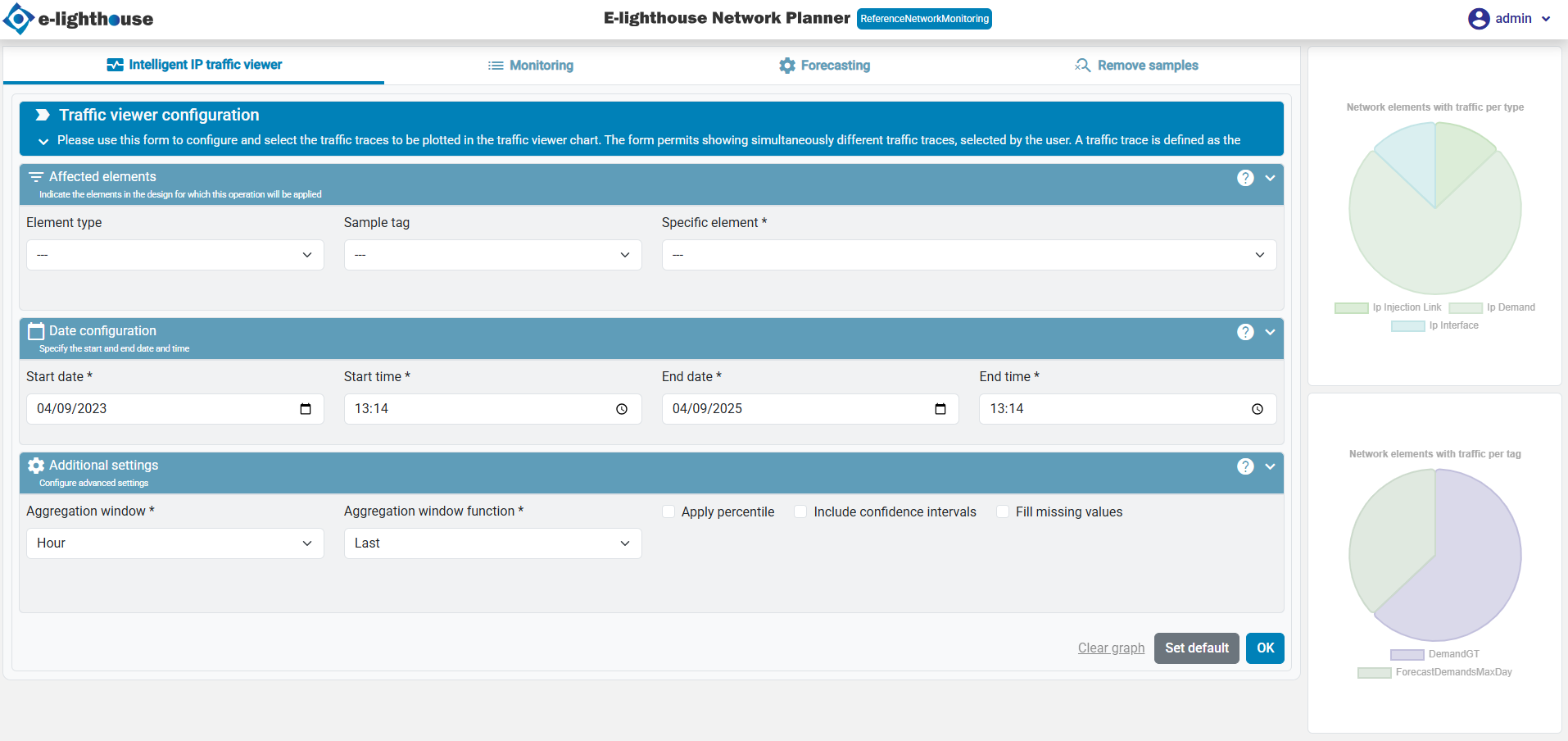
Monitoring
This tab focuses on advanced monitoring and forecasting tools. Users can analyze traffic patterns, identify trends, and gain insights into future network demands.
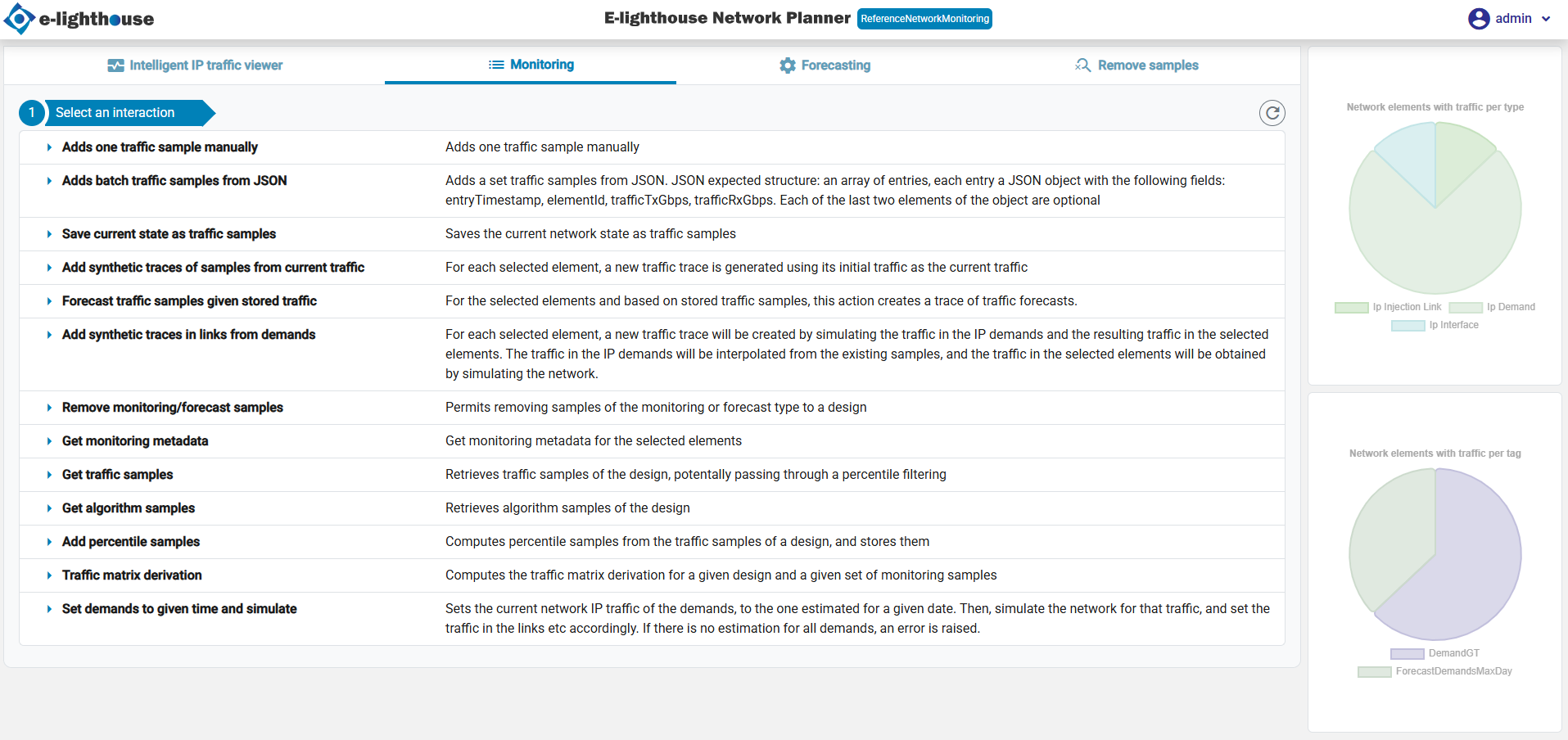
Forecasting
This tab enables users to predict future traffic trends based on historical data.
Key Features
- A forecast configuration form to define prediction parameters.
- Automated generation of forecast graphs.
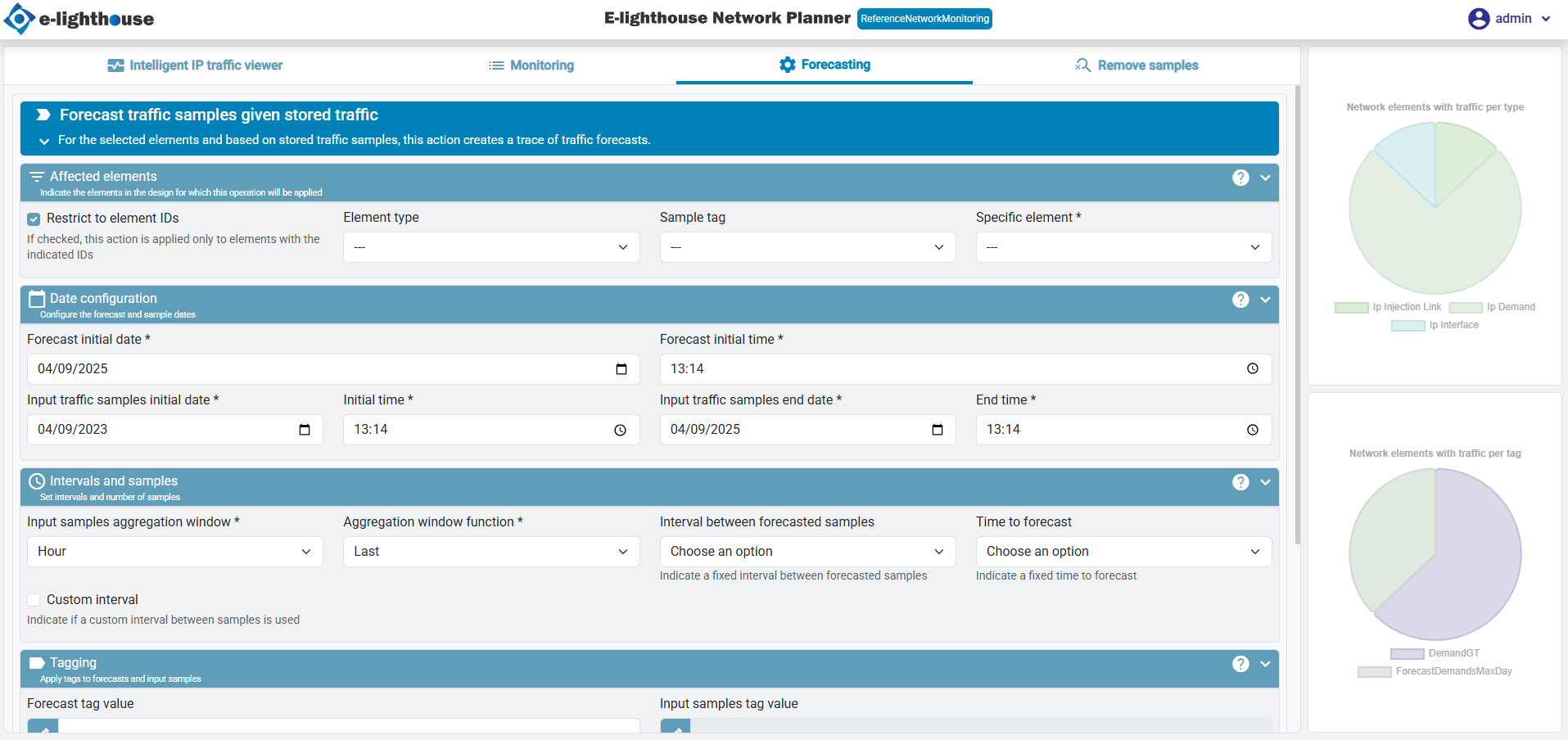
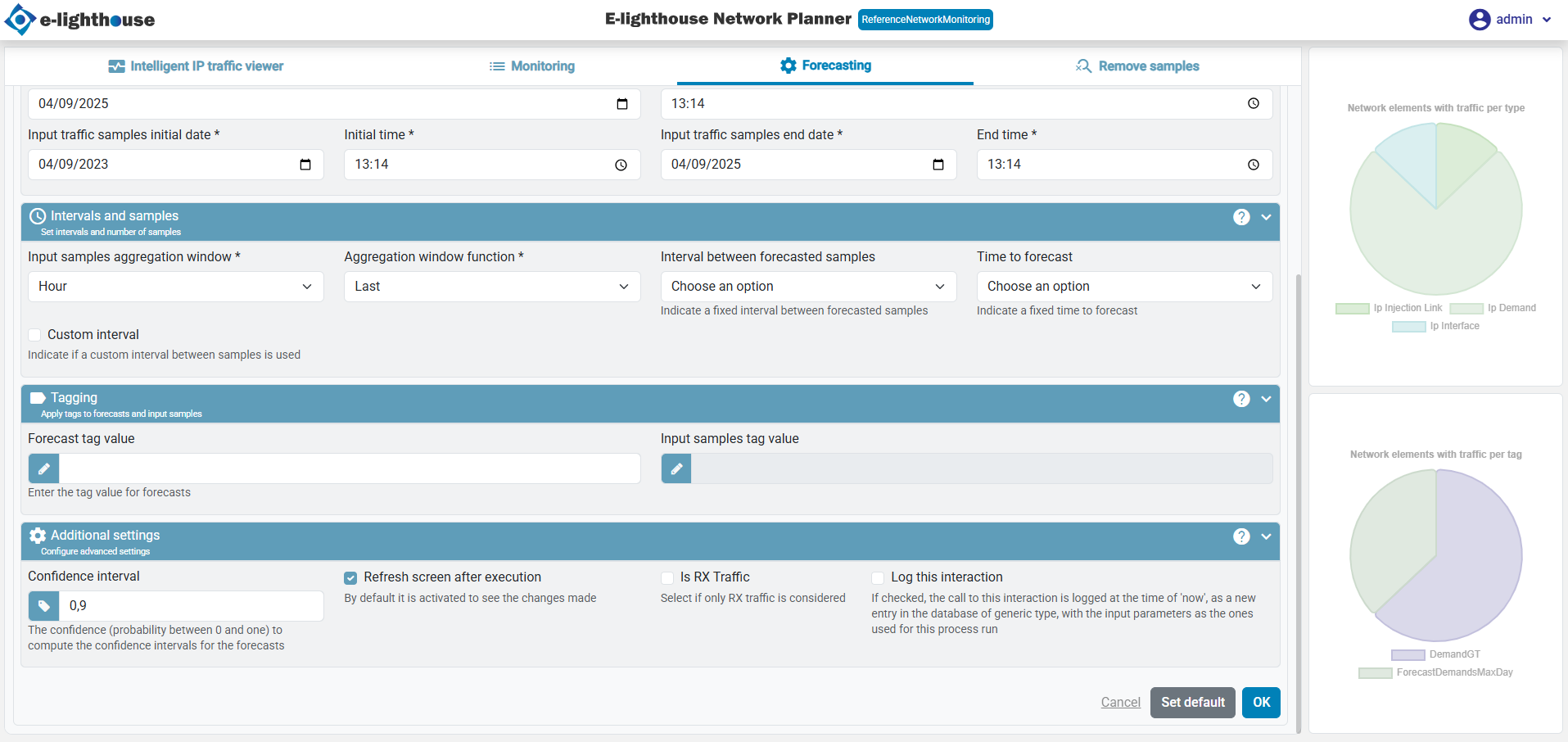
Remove Samples
This tab allows users to remove stored monitoring or forecast samples.
Key Features
- Selection of specific samples to be removed.
- Confirmation prompts to prevent accidental deletions.
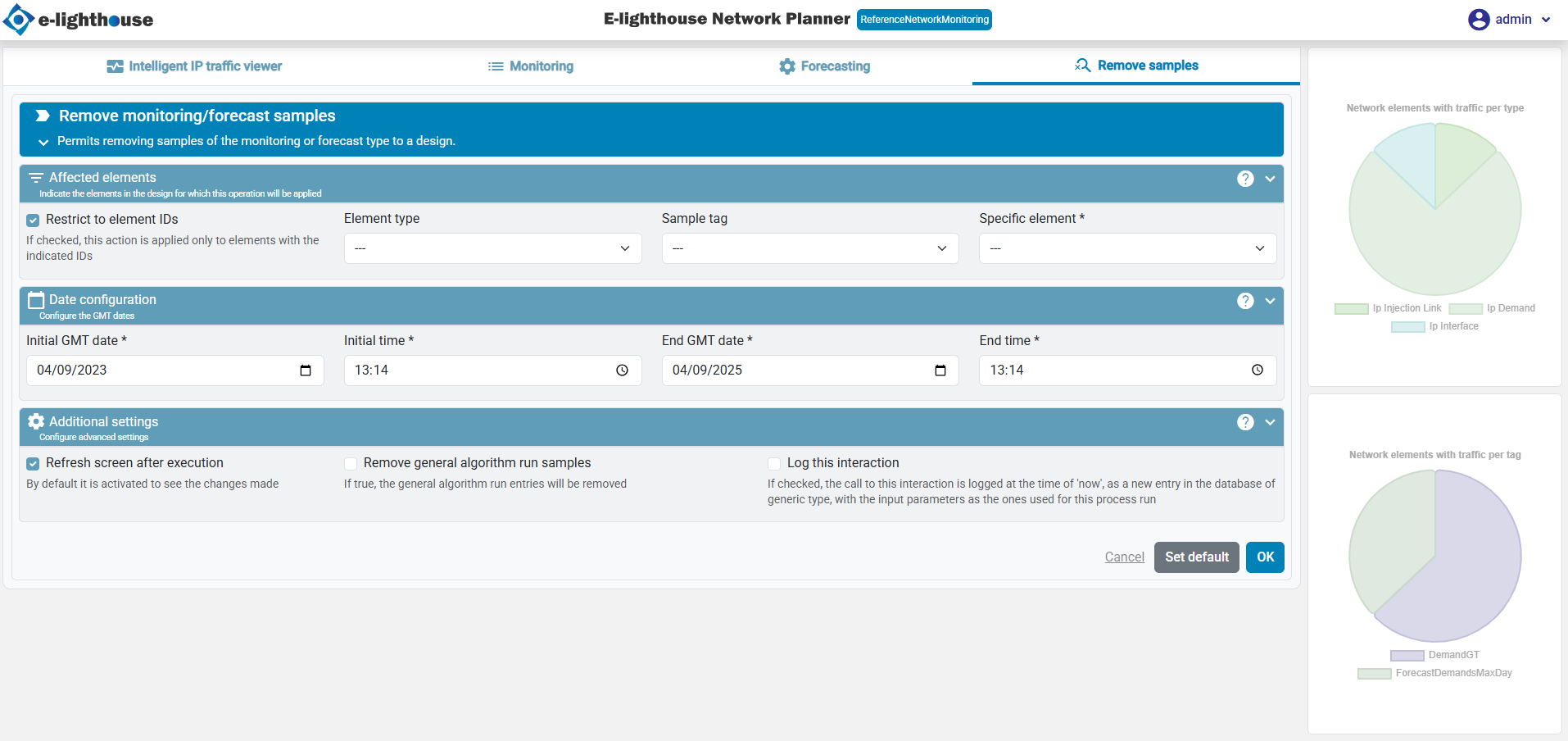
Data Visualization
The Monitoring & Forecast component includes two primary types of charts:
Main Chart
- Displays real-time and historical traffic data.
- Interactive elements allow users to explore detailed insights.
- Supports zooming, legend customization, and data export.
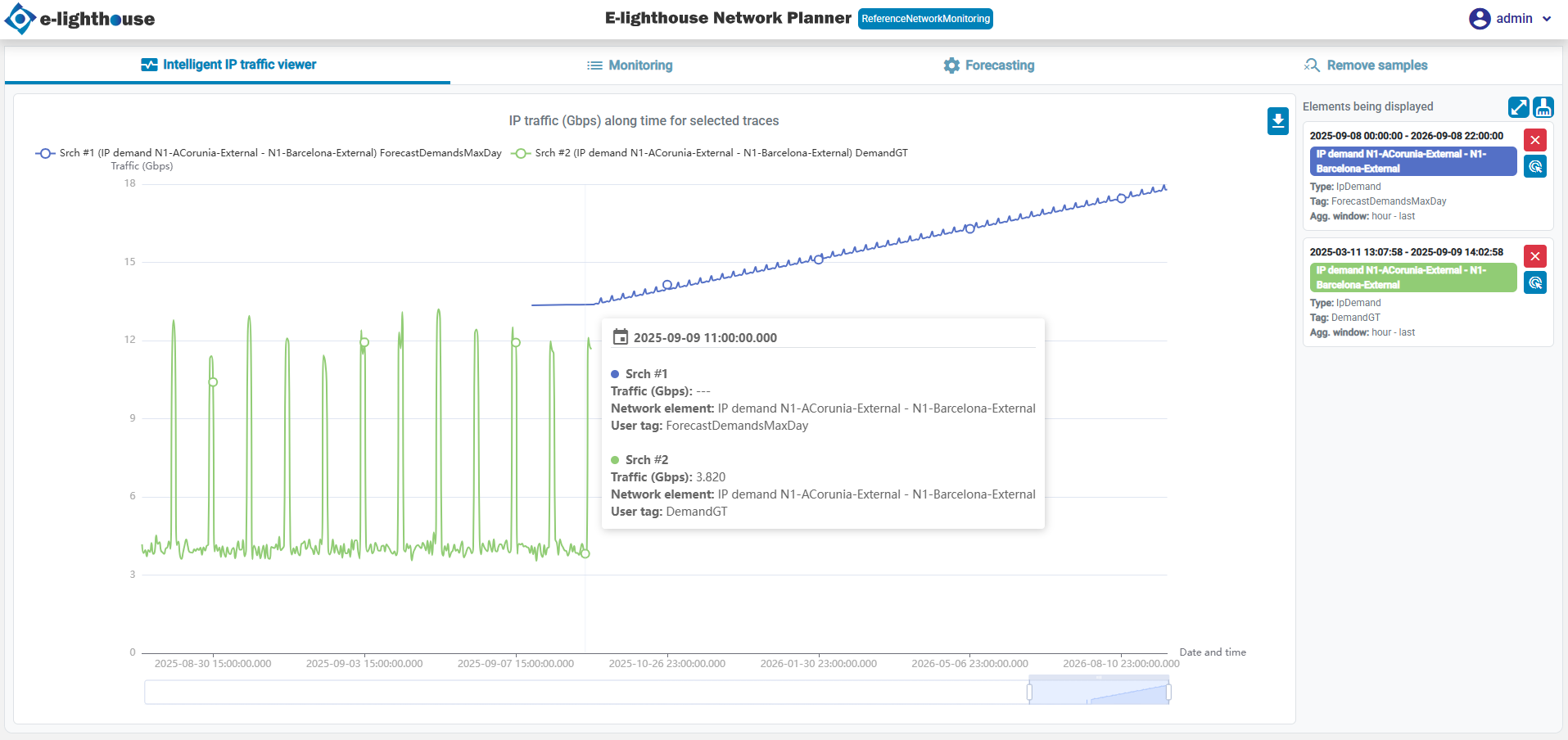
Summary charts
- Provides an overview of traffic distribution by type and tag.
- Helps users quickly identify trends and anomalies.
Network elements with traffic per type
This pie chart provides a breakdown of network traffic by the type of element. It helps users quickly understand which types of network elements are generating the most traffic.
- Use Case: Identify high-traffic element types to optimize network performance.
Network elements with traffic per tag
This chart categorizes traffic based on tags assigned to network elements. Tags can represent user-defined classifications or priorities.
- Use Case: Analyze traffic distribution among different categories to assess network utilization.
By leveraging these tools, users can efficiently monitor, analyze, and predict IP traffic, ensuring optimal network performance and resource planning.
Use cases ↵
Forecast traffic samples given stored traffic ↵
Forecast traffic samples given stored traffic
Video edited on Kapwing
Ended: Forecast traffic samples given stored traffic
Ended: Use cases
Ended: Monitoring & forecast
Ended: Network visualization, analysis & design GUI
Getting Started ↵
Getting Started
Welcome to the Getting Started guide for the Network Design & Simulation Web Application. This section will help you take your first steps with the platform, whether you're a new user or revisiting after a while.
Here, you'll find a step-by-step walkthrough of the core concepts, interface elements, and workflows that will get you up and running in no time.
🔰 What You'll Learn
- How to navigate the application and access key tools
- How to create your first network design
- How to add nodes and controllers
- How to launch a simulation and interpret results
If you're looking for more in-depth workflows, head over to the Using the Application section.
📚 Contents
🚀 First Steps
Set up your environment, log in, and get familiar with the interface layout.
👣 Tours
Take guided tours of the main views and UI components to learn by doing.
🛠️ Create a Design
Learn how to initiate a new design project and define its scope.
🌐 Create a Node
Walkthrough for adding and configuring nodes within your network design.
🎛️ Create a Network Controller
Learn how to create and attach network controllers to coordinate node behavior.
💡 Tip: Don’t worry if you’re new to network simulation — each section is designed to build on the last, so feel free to explore at your own pace.
First Steps
This guide will walk you through your first moments with the E-Lighthouse Network Planner (ENP) web application — from accessing the platform to navigating its core interface.
Whether you're a first-time user or returning after a break, this is the perfect place to get reacquainted.
🔓 Accessing the Application
1. Open the ENP Web App
Launch your preferred web browser and enter the URL provided by your organization to access the ENP platform.
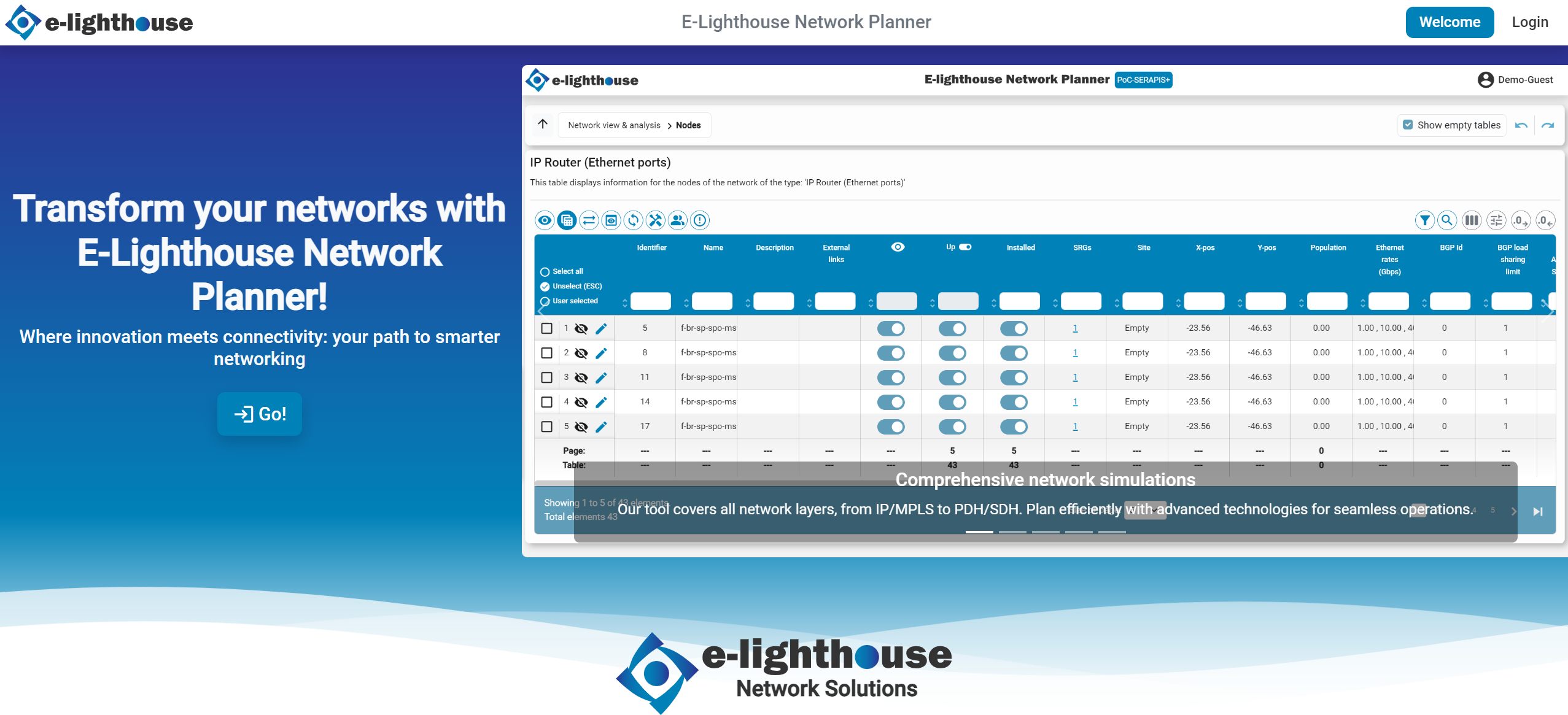
2. Log In
On the welcome screen, locate the Log In button in the upper-right corner of the page. Click it to proceed.
Enter your username (or email) and password in the login form to access your personalized workspace.
🧭 Exploring the Interface
After logging in, you’ll be taken to the main page. Here, you’ll find everything you need to start building, simulating, and analyzing network designs.
We recommend starting with a guided tour to get a feel for the layout, tools, and features of the platform.
👀 Want a visual walkthrough of the UI?
Take the Tour →
✅ Next Step: Create Your First Design
Once you're familiar with the interface, you're ready to create your first network design and begin your journey into network modeling and simulation.
💡 Tip: You can always return to this section later if you
Exploring the User Interface
Once logged in, you’ll enter the main ENP interface — the control center for designing, simulating, and analyzing network topologies. This guided tour will walk you through the most important parts of the application interface.
Use the links below to jump to a specific section of the tour:
🧱 Tour in Topology View
👀 Want to dive deeper?
Topology View →
Step 1 of 7: Toolbar Overview
Explore the vertical toolbar on the left side of the screen. It provides quick access to core functionalities such as adding nodes, running simulations, and visual tools.
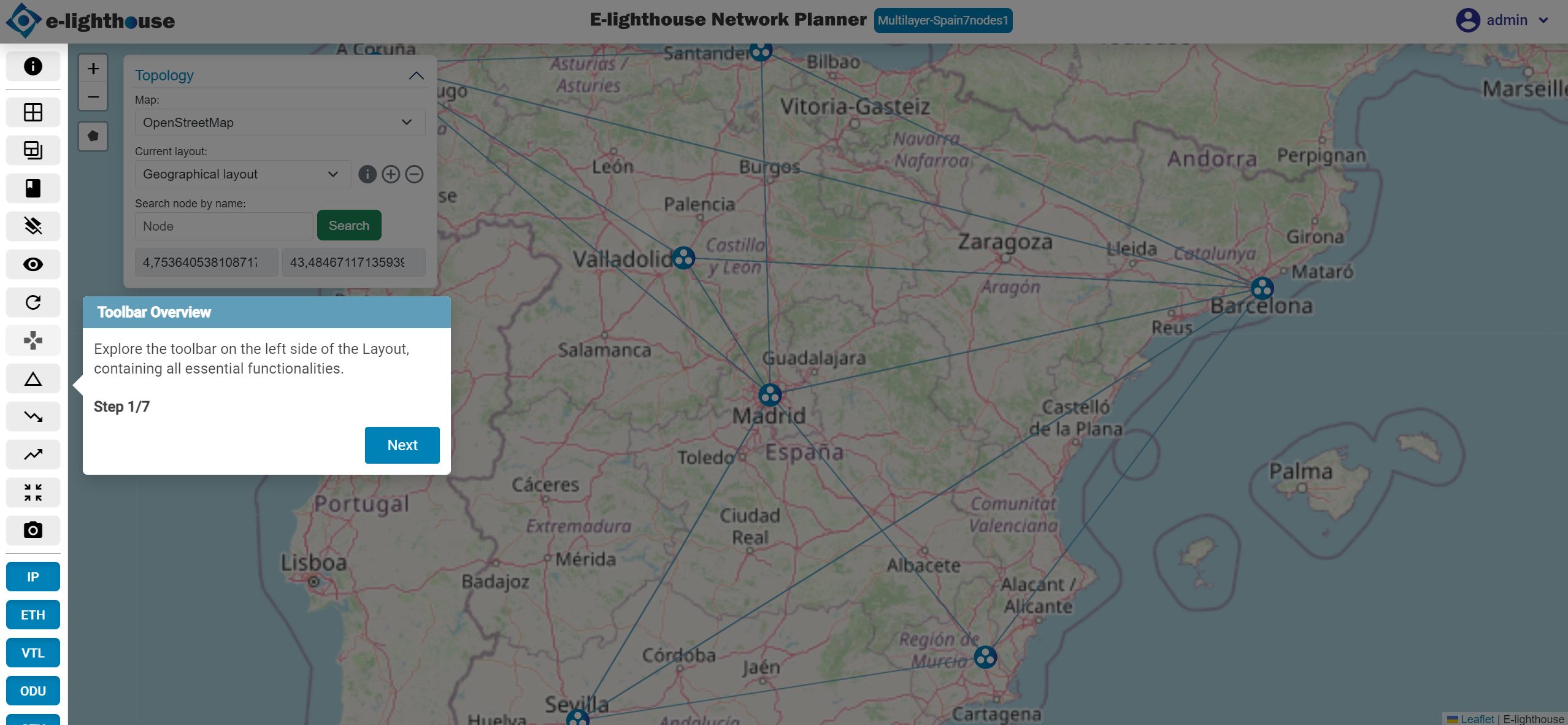
Step 2 of 7: Information Section
Hover over each toolbar button to view tooltips describing their purpose and behavior.
Step 3 of 7: Open Control Window
Click this button to open the Control Window for detailed element editing, configuration, and inspection.
Step 4 of 7: File System
Manage your network designs: create folders, duplicate or delete designs, and upload files.
Step 5 of 7: Map Features
Use the map tools to zoom, draw polygons, measure distances, and take screenshots.
Step 6 of 7: Topology Panel
Expand this panel to change the map type, switch layouts, search for nodes, and track mouse position.
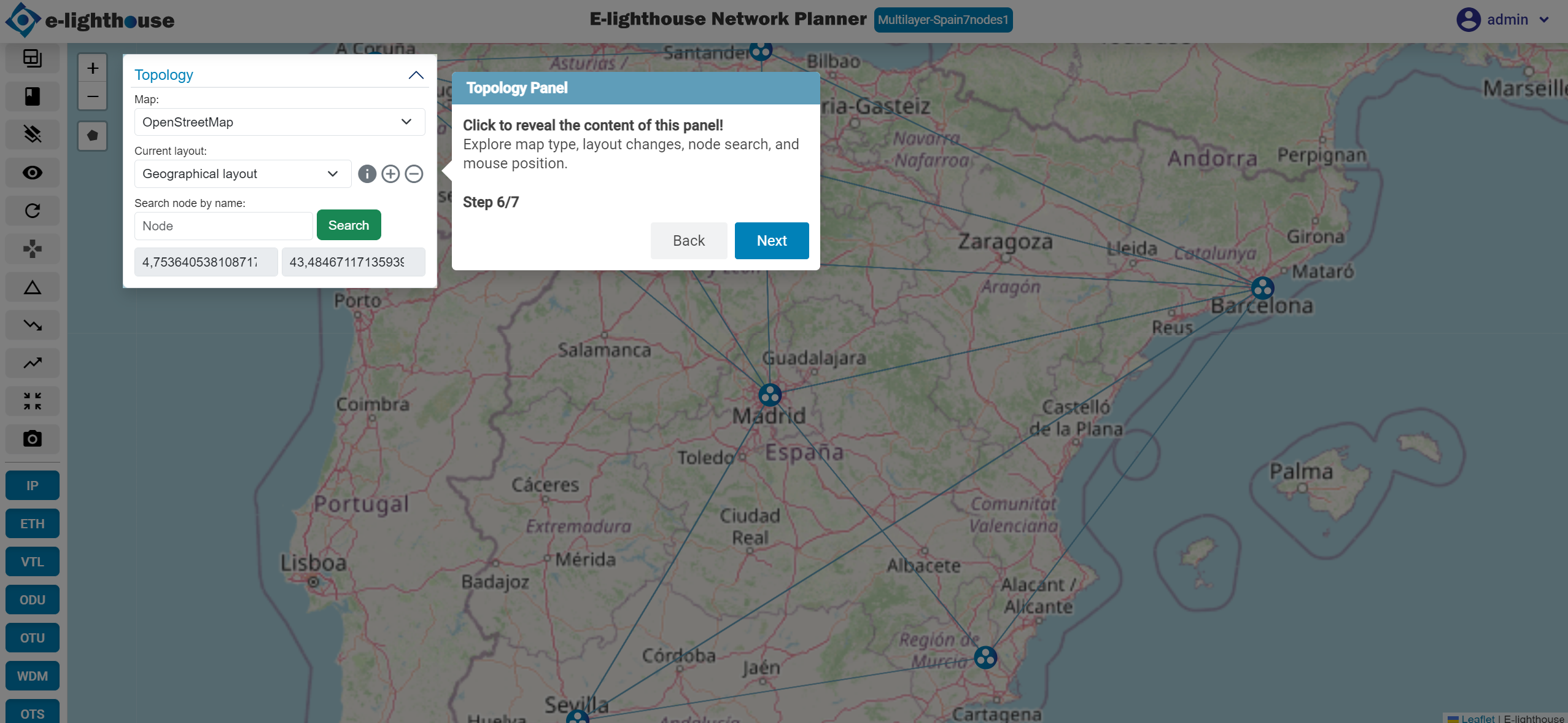
Step 7 of 7: Top Menu Options
Access essential options such as "Go to Topology", "Save", "Help Tour", "Logs", "Settings", "Profile", and "Logout".
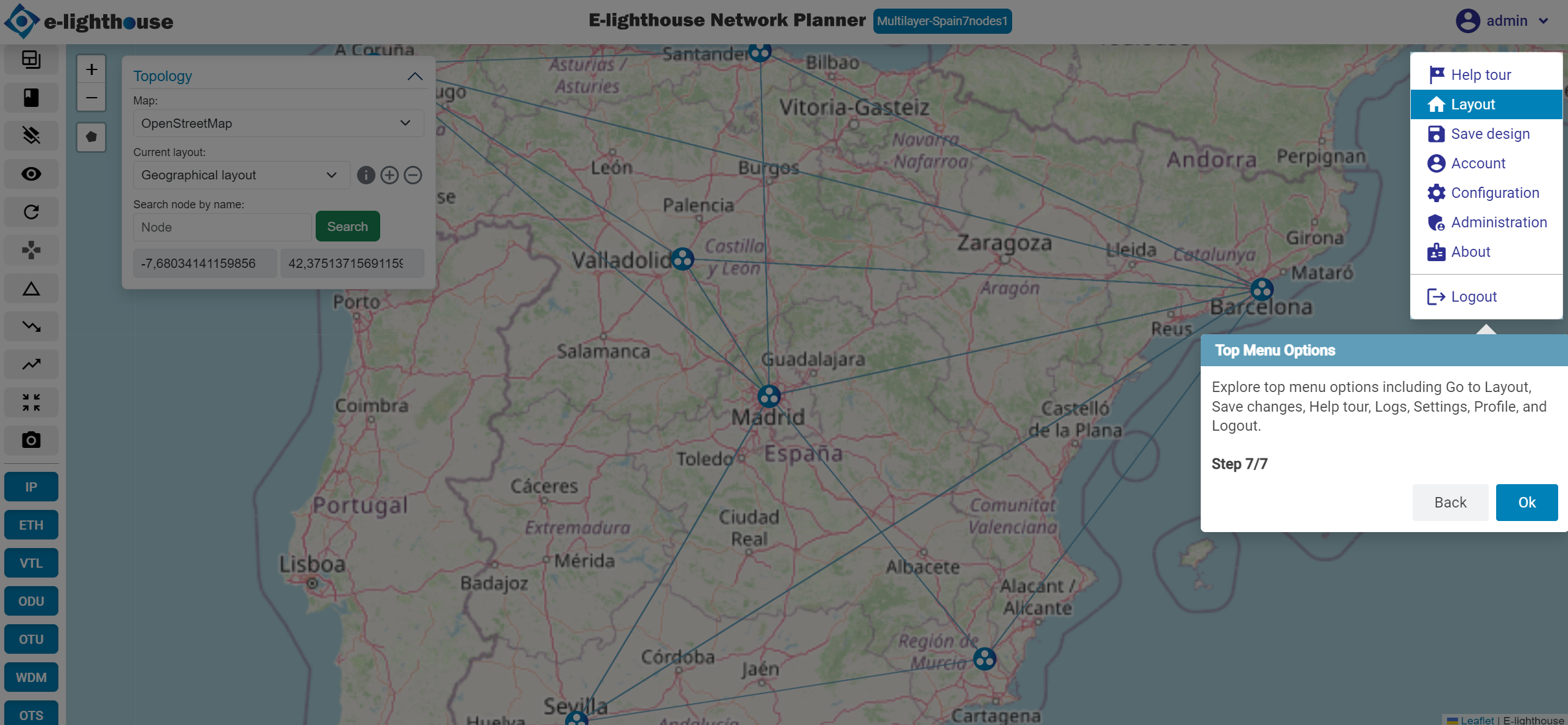
🪟 Tour in Control Window View
👀 Want to dive deeper?
Control Window View →
Step 1 of 10: Folders and Tables Overview
Explore folders and data tables related to the currently loaded topology. Each item shows its name, description, and total row count.
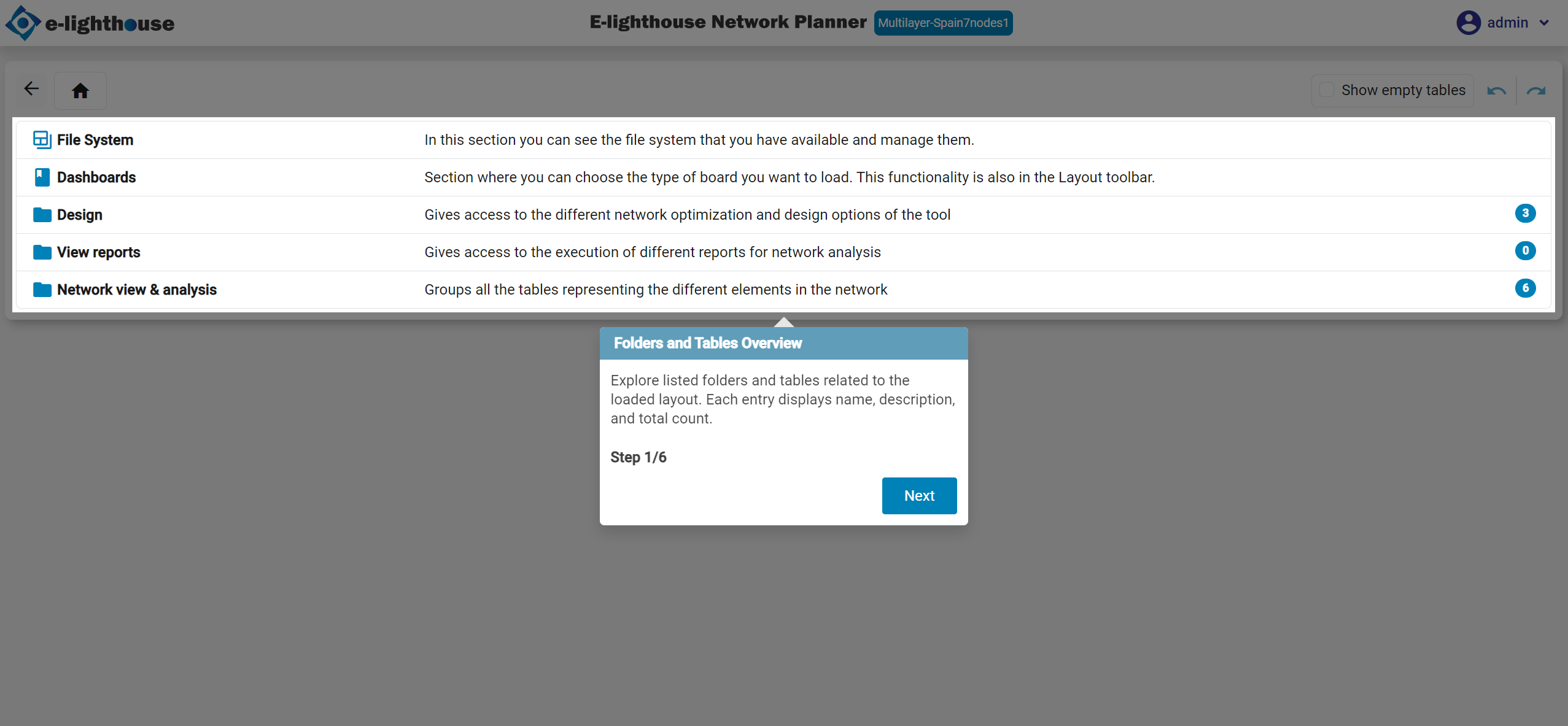
Step 2 of 10: Navigate Back
Click the back arrow to return to the parent folder containing the current table or subfolder.
Step 3 of 10: Current Location Identifier
Check this section to view your current location and hierarchy of parent folders for better context during navigation.
Step 4 of 10: Show Empty Tables
Toggle this checkbox to show all folders and tables — even if some are empty or contain no relevant data from the current topology.
Step 5 of 10: History of Picked Items
Right-click and choose "Pick selected elements" to track and manage selections. You can undo or redo these actions.
Step 6 of 10: Top Menu Options
Use the top menu bar to activate the help tour or access other view settings.
Step 7 of 10: Table Views
Switch between different display modes for the current table, each with its own set of columns and layout.
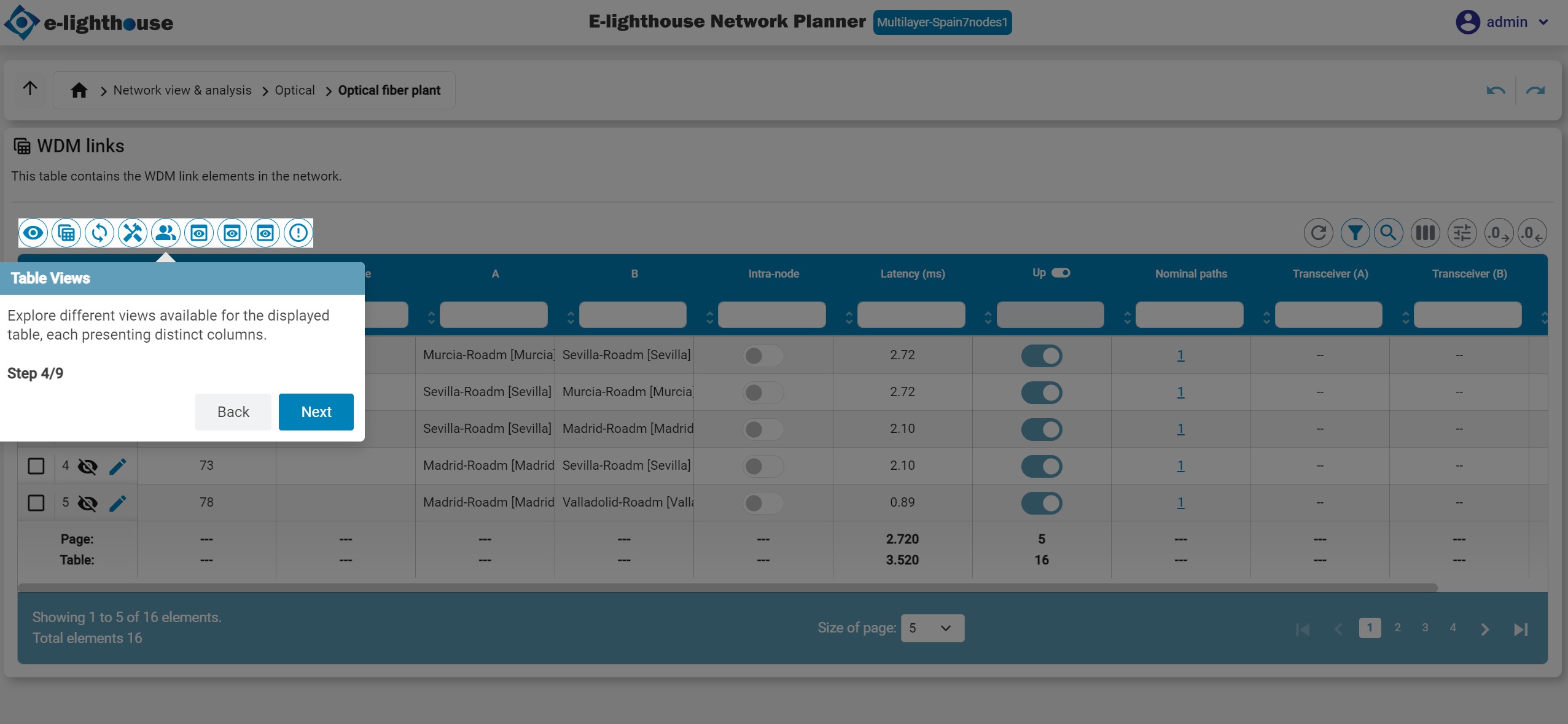
Step 8 of 10: Filtering
Filter table data by typing values or keywords in the header input fields. Filters apply per column.
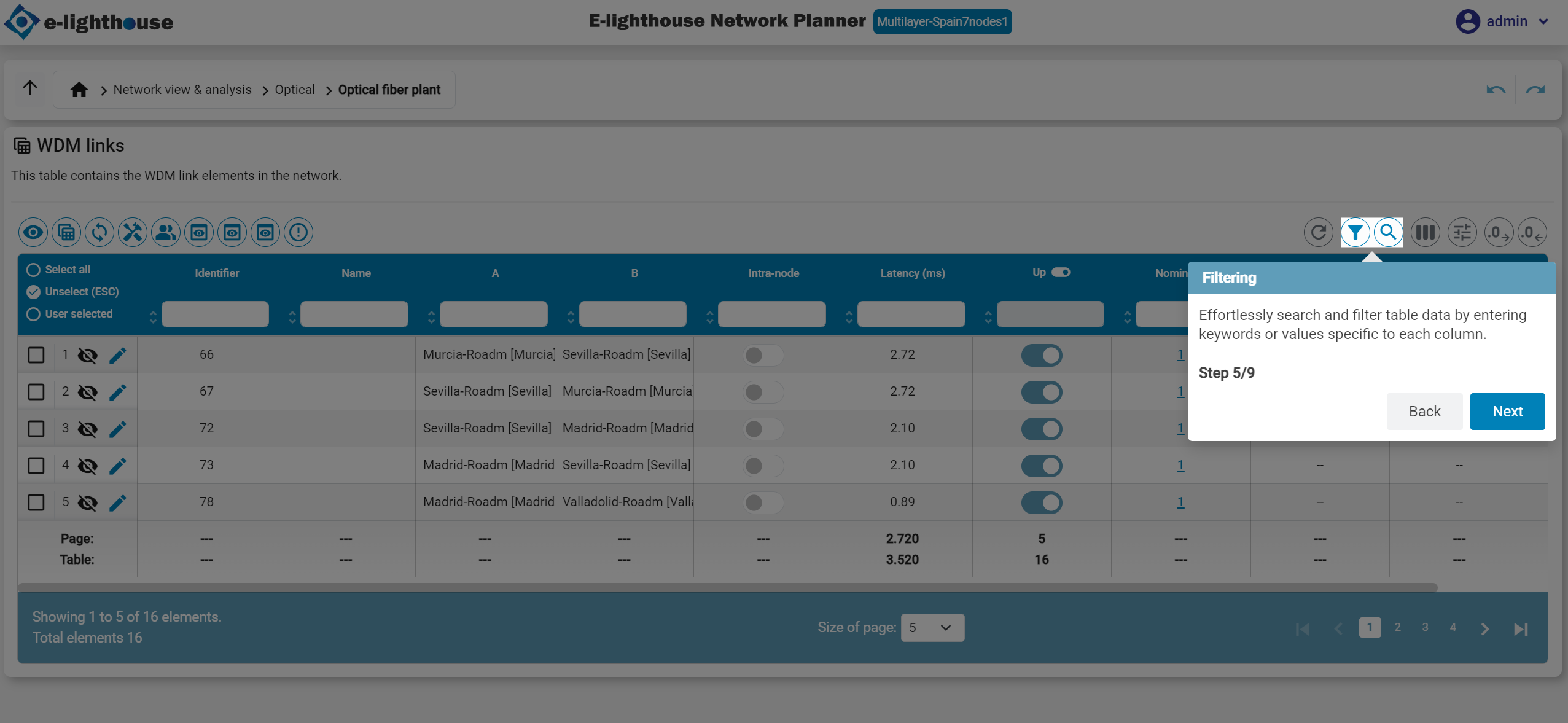
Step 9 of 10: Column Visibility
Show or hide columns in the current view based on what you need to focus on.
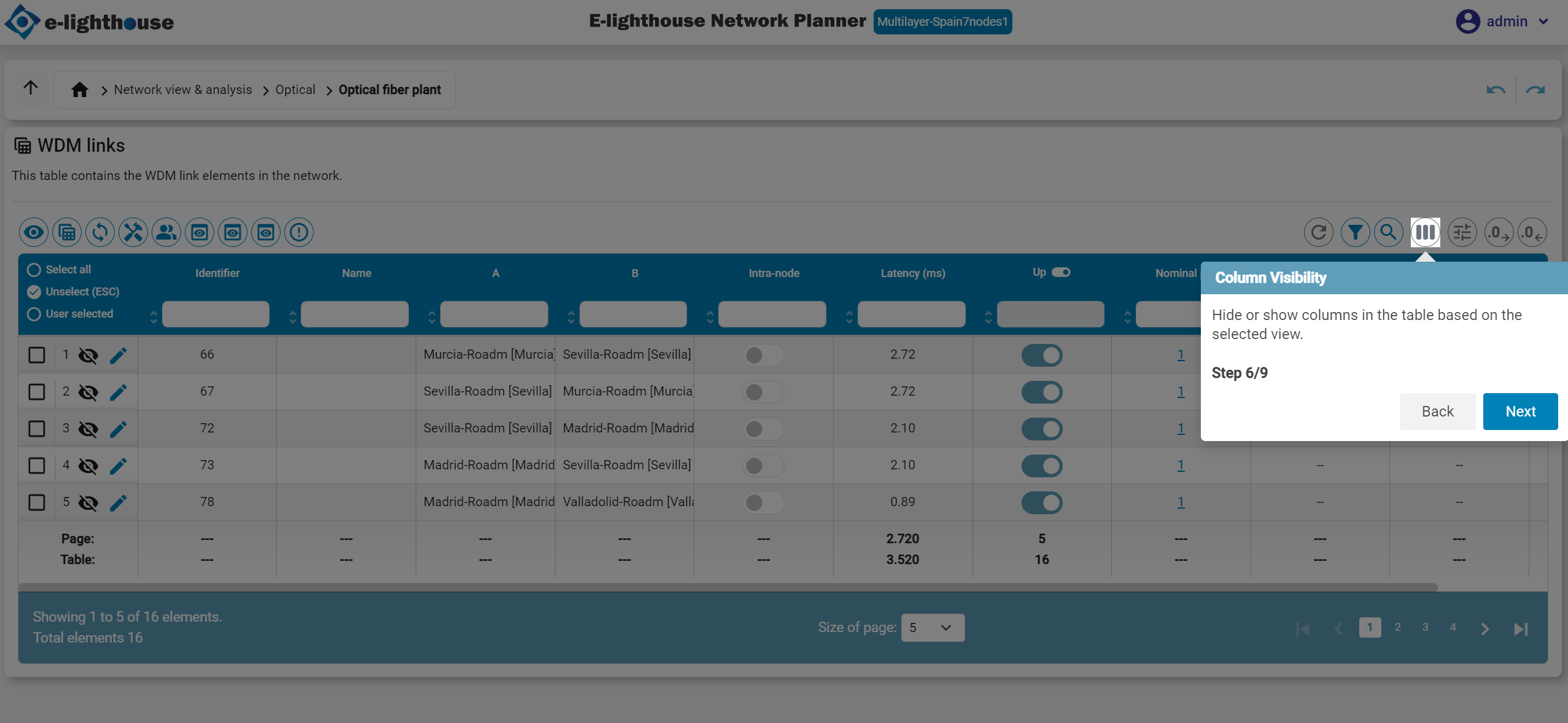
Step 10 of 10: Aggregator Columns & Decimal Places
Toggle the display of aggregator columns to view summary data (like totals or averages), and set how many decimal places are shown in numeric cells.
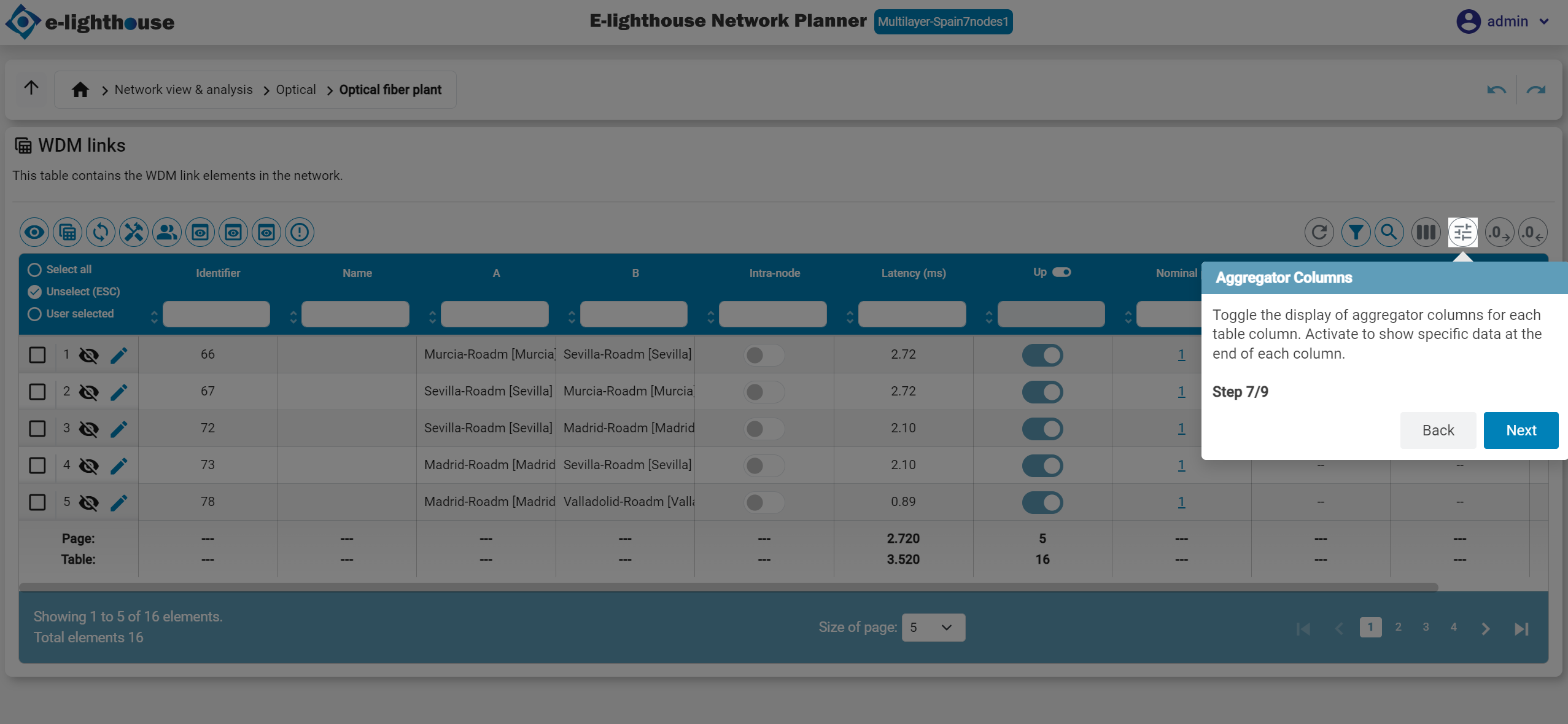
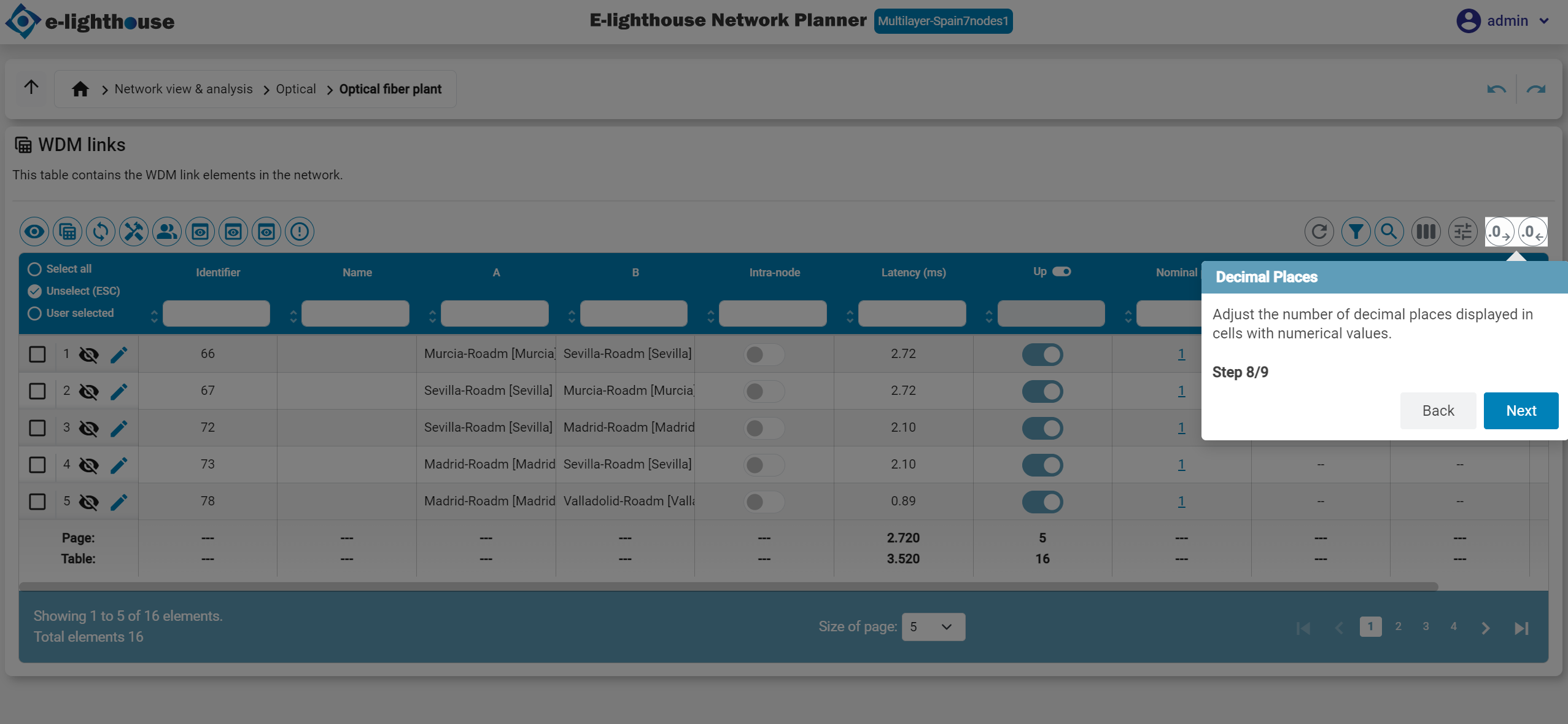
🔜 Next Step: Create Your First Network Design
Now that you're familiar with the interface, you're ready to build your first network!
🛠️ Learn how to start from scratch or modify an existing layout.
Create a Network Design →
Create Your First Network Design
In this walkthrough, you'll build a minimal working network design using the E-Lighthouse Network Planner (ENP) Web Client. We'll create a topology with three router nodes and connect them using IP links.
This tutorial assumes you've already created and loaded a new design. If not, please start with:
👉 How to Create a New Network Design
🧱 Step 1: Open the Topology View
Once your design is loaded, you should see the Topology View window — your workspace for constructing and visualizing network topologies.
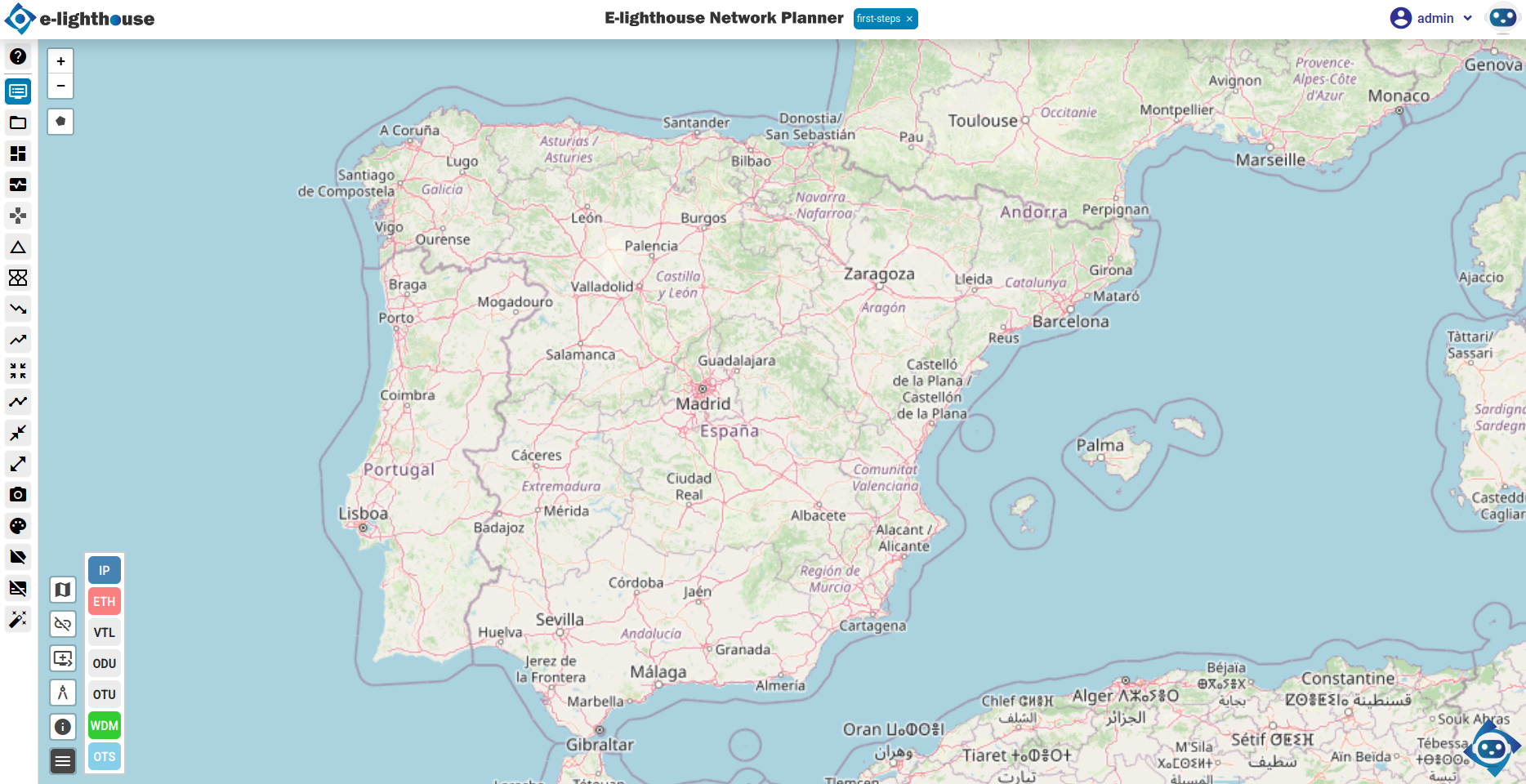
🧩 Step 2: Add Three Router Nodes
Use the right-click context menu to add nodes to your topology.
- Right-click on the map where you want to place the first router.
- Click the "Node" button (usually a "+" icon).
- Select "Add node of type IP Router".
- In the properties panel, set the Node name to
R1. - Repeat this process to create nodes
R2andR3.
💡 Tip: If your nodes are not visible on the map, check the "Hide non-connected nodes" toggle at the bottom-left corner of the map. Disabling this will reveal all nodes, including those not yet linked.
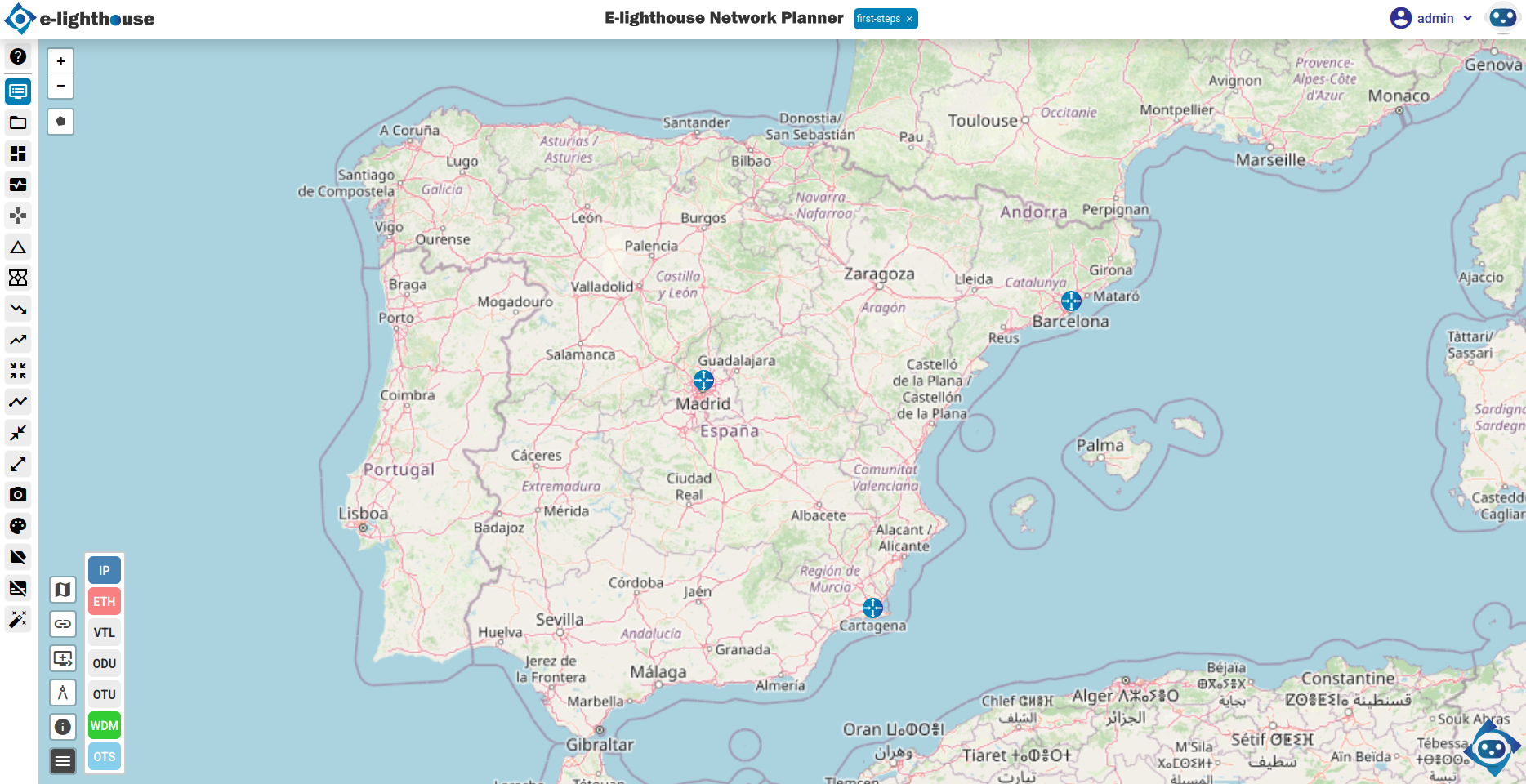
🔗 Step 3: Connect Nodes with IP Links
Now, let’s connect the routers using IP links.
- Right-click on the origin node (e.g.,
R1) and choose "Create a new link". - Click the destination node (e.g.,
R2). A link configuration panel will appear. - Choose "Add IP link over virtual transport connection".
- Set the following link properties:
- Link name:
R1-R2 - Nominal rate:
100 Mbps - Repeat the process to add:
- A link from
R2toR3 - A link from
R3toR1
At this point, you should have a triangle topology connecting all three routers.
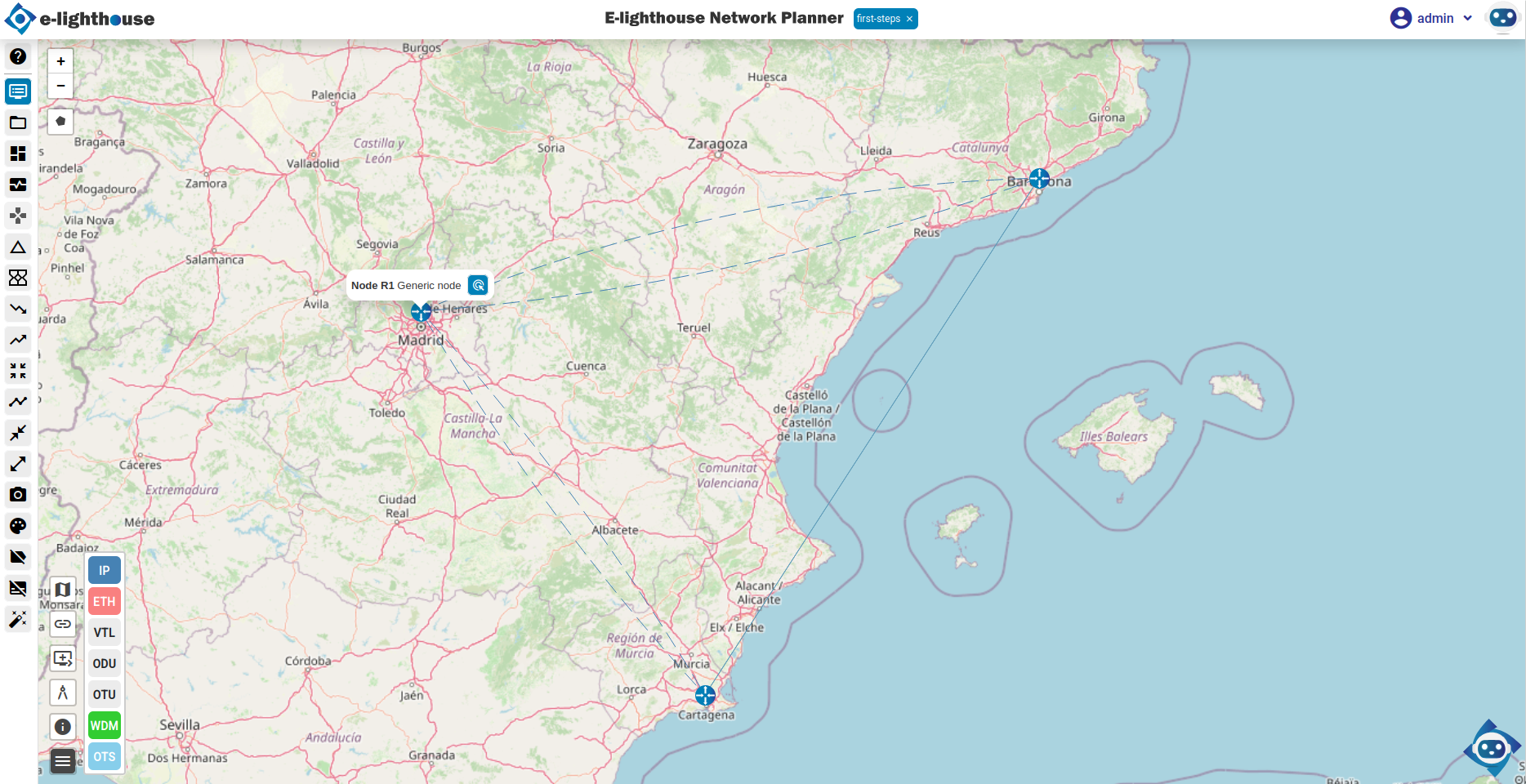
🧠 Step 4: Review Node and Link Properties
You can use the Control Window to inspect and fine-tune node and link attributes.
- Open the Control Window from the top menu.
- Navigate to the Network View & Analysis section.
- Check the Nodes table for information on node metadata.
- In the IP/MPLS folder, go to the Links & Ports subfolder.
- Select the IP Links table to review and edit your created links.
All changes are automatically saved within the current session.
💾 Step 5: Save the Design
Click Save Design in the top menu to persist your changes.
Your design is now ready for simulation or further enhancements.
✅ Summary
You’ve successfully created your first functional network design:
- 🧱 3 IP router nodes
- 🔗 Connected with IP links forming a triangle topology
- 🗺️ Fully visualized in the Topology View
This forms the foundation for exploring simulations, analytics, and network behavior modeling.
Keyboard Shortcuts
The E-lighthouse Network Planner (ENP) Web Client supports several keyboard shortcuts to help you navigate and work more efficiently. This guide outlines the available shortcuts for both the Topology View and the Control Window.
🧭 Topology View Shortcuts
These shortcuts help you interact with the topology layout and manage your design visually.
| Action | Shortcut |
|---|---|
| Open Control Window | C + W |
| Undo last selection/picking | Alt + ← |
| Redo selection/picking | Alt + → |
| Refresh the topology view | Alt + R |
💡 To access the Topology View, select the layout option from the top menu or navigate to it using the keyboard shortcut
C + W.
🪟 Control Window Shortcuts
Use these shortcuts when working inside the Control Window to filter tables, reveal more data, or manage selections.
| Action | Shortcut |
|---|---|
| Show empty tables | Alt + S |
| Show only data-containing entries | Alt + F |
| Undo last selection/picking | Alt + ← |
| Redo selection/picking | Alt + → |
| Deselect all selected rows | Esc |
💡 These shortcuts are active when the Control Window is in focus.
Ended: Getting Started
Using the application ↵
How to Create a New Network Design
This guide walks you through the process of creating a new network design using the E-Lighthouse Network Planner (ENP) Web Client Interface.
Follow these steps to start a new design project from the File System.
1. Access the File System Panel
To begin, open the File System view from the top toolbar of the Web Client. This is the entry point for creating, managing, and importing network designs.
2. Open the New Design Creation Modal
Click the File System button to open a modal dialog window. Alternatively, you can reach this section from the Control Window.
With the modal open, check the toolbar in order to find the button "Create a network design".
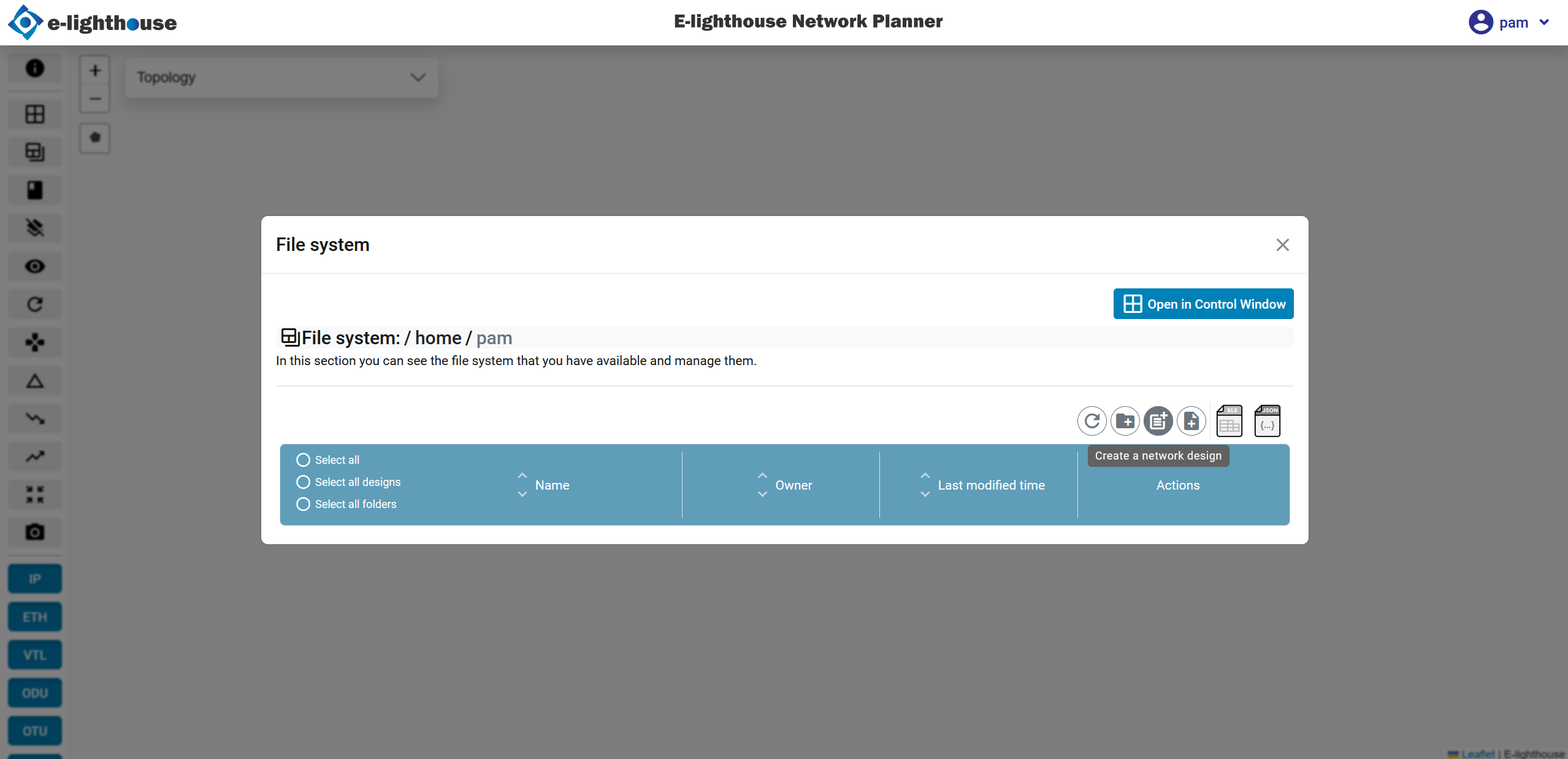
3. Complete the New Design Form
Once the button "create a network design" is pressed, you’ll be presented with a form. Fill in the required details such as:
- Design unique identifier. This field correspond with the name of the network design.
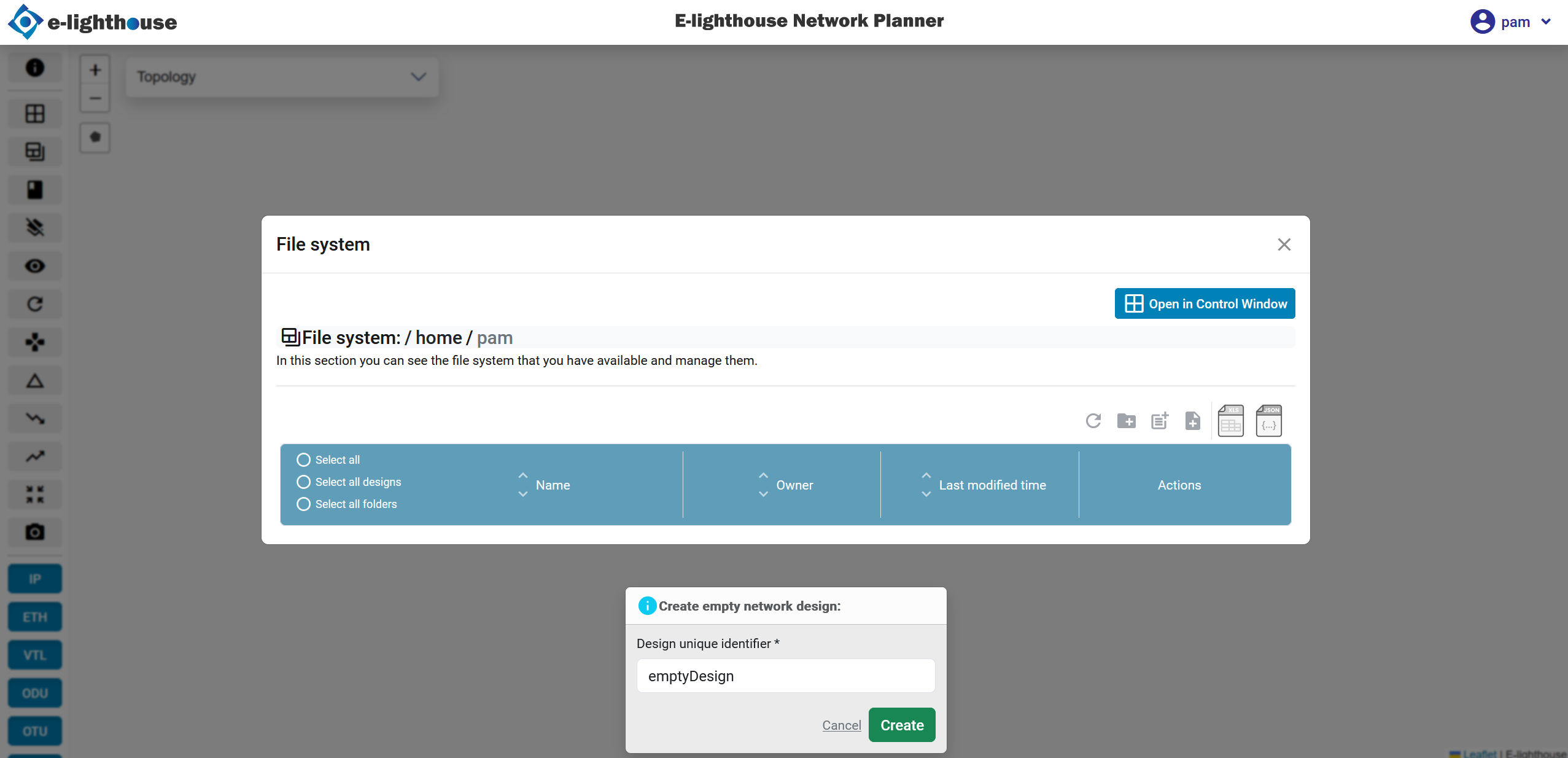
4. Confirm Design Creation
After completing the form, submit it to confirm creation. The system will generate a new design environment, and a confirmation message will appear.
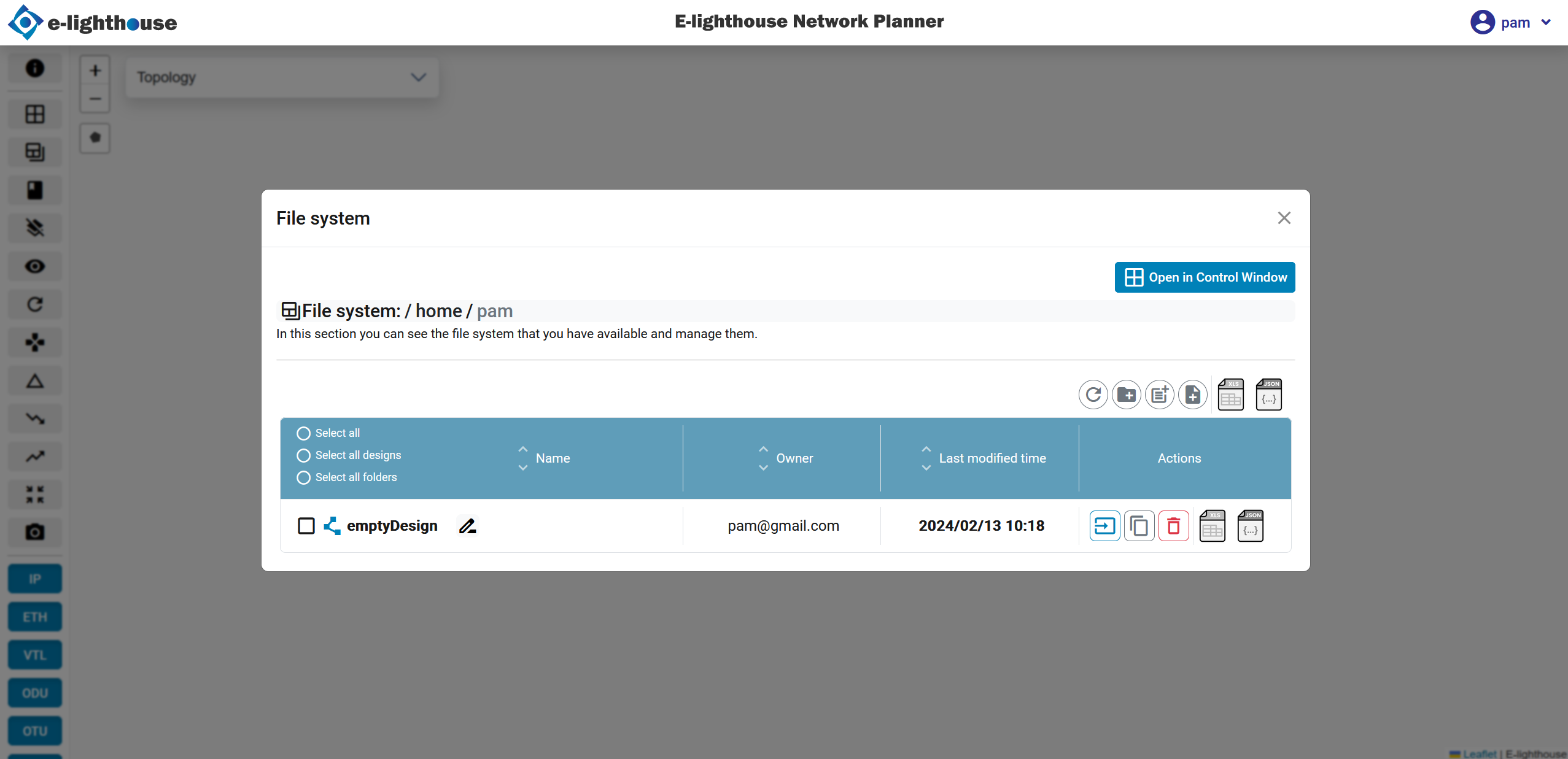
5. Load the New Design
Once the design is created, the file system view will refresh, and the new design will be listed. Click on the design name to load it into the Topology Window.
➕ Additional Features and File Management
To explore file management, import/export options, and design versioning, visit the File System section.
✅ Summary
Creating a new network design in ENP involves accessing the File System, opening the design form, and submitting your design configuration. This process is fully supported by the Web Client and designed to be intuitive for planners and designers.
Add a Network Element to design
To add a network element (node) to your network design, follow the steps below. This guide focuses on creating an IP Router (Ethernet Ports) node using the E-lighthouse Network Planner (ENP) Web Client.
✅ Prerequisite: Make sure you have a network design loaded and opened in the Topology View. If not, follow the Create a Network Design guide first.
🧩 Step 1: Open the Add Node Menu
- In the Topology View, right-click anywhere on the map canvas.
- In the context menu, click the “Node” option (often displayed with a "+" icon).
- Select “Add node of type IP Router (Ethernet ports)” from the list.
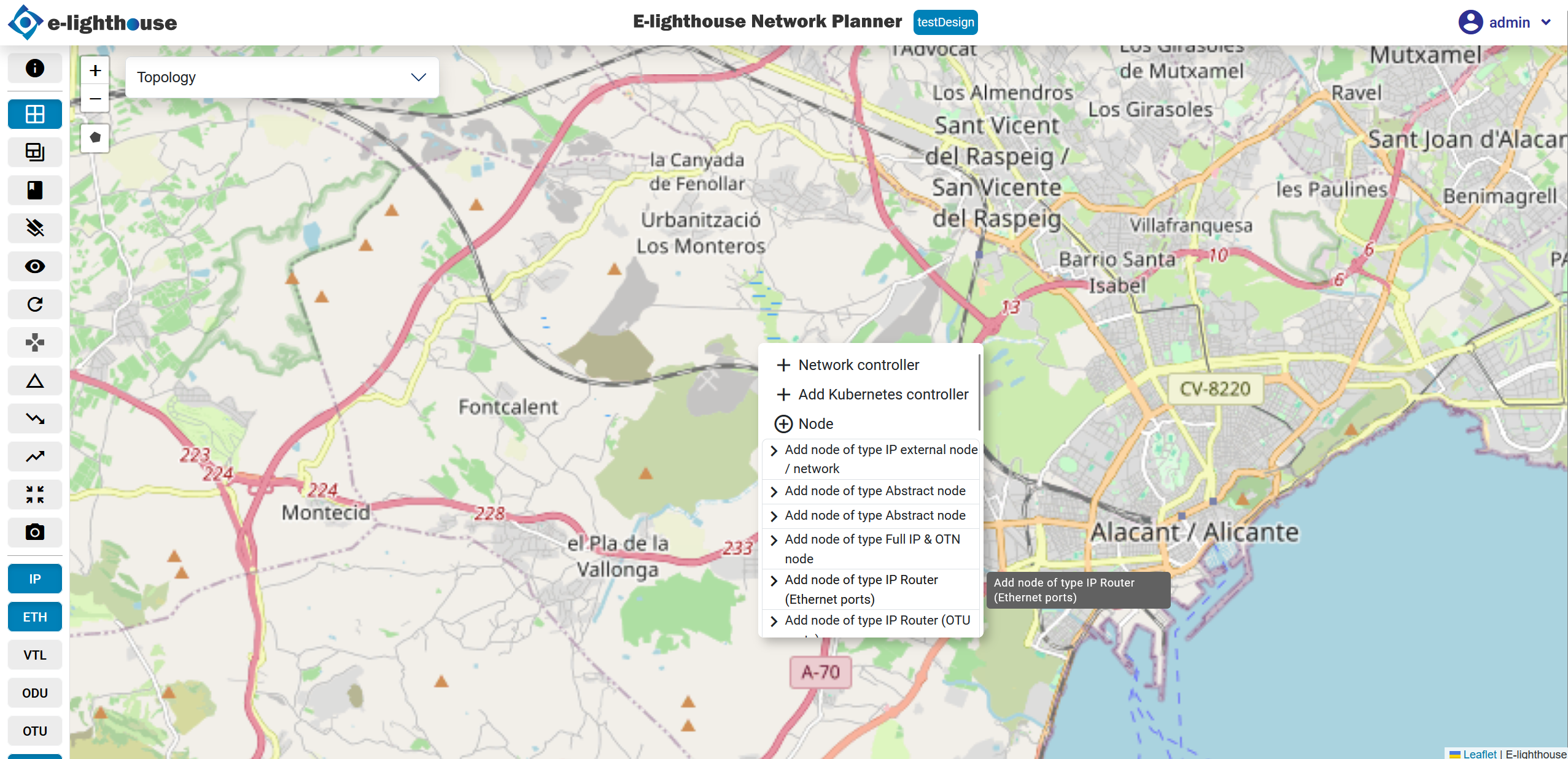
📝 Step 2: Complete the Node Form
Once you select the node type, a configuration panel will open.
- Filter the node types (if necessary) to quickly find IP Router.
- Fill in the required node properties such as:
- Node name
- Technology type
- Location (if applicable)
Then, confirm the creation to add the node to the topology.
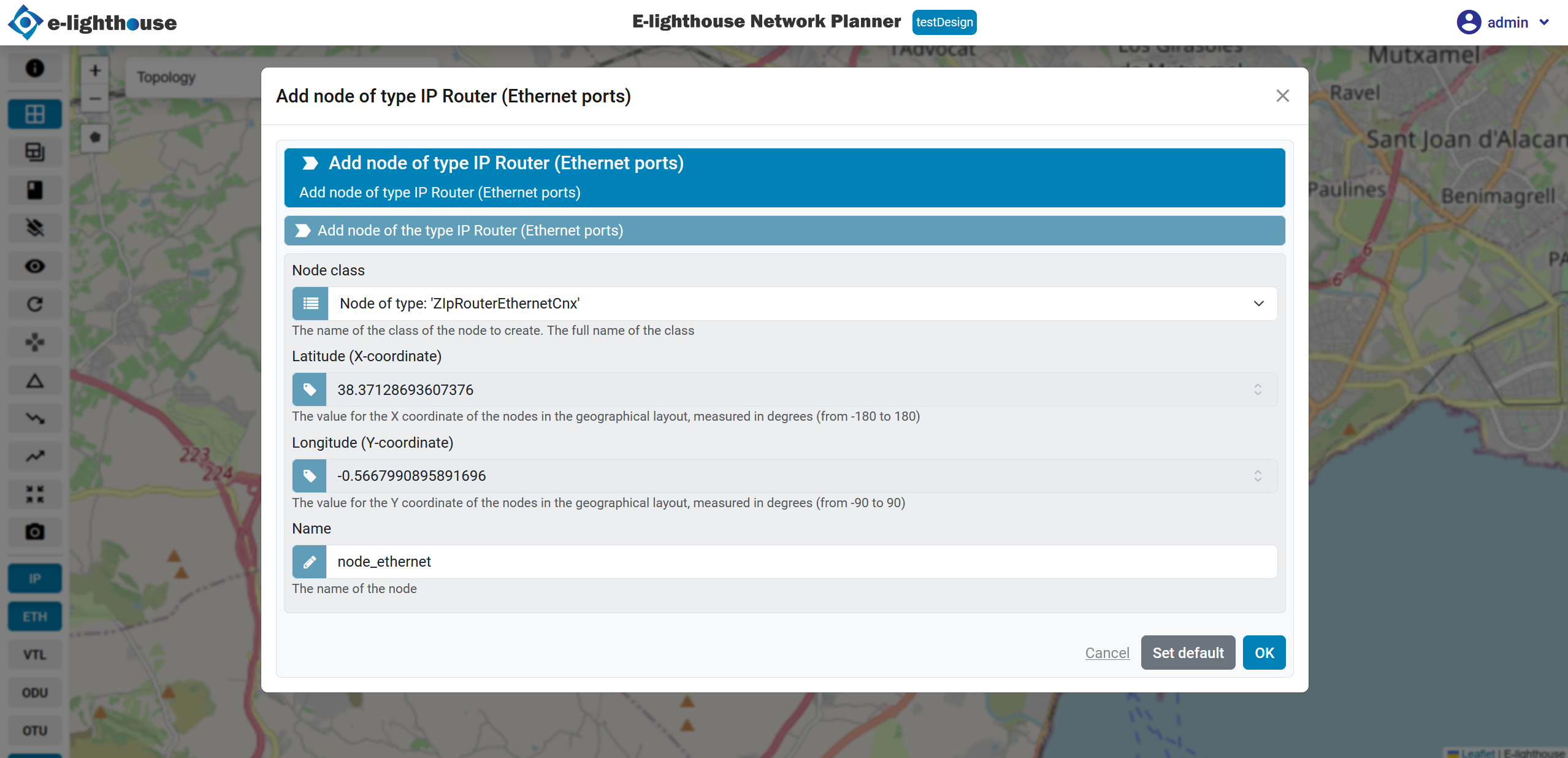
🧠 Step 3: Review the Node in the Control Window
After adding the node, you can view and manage it using the Control Window.
- Open the Control Window from the top menu or use the shortcut (
C + W). - Navigate to the Network view & analysis → Nodes section.
- Open the IP Router table to see the newly added node and its details.
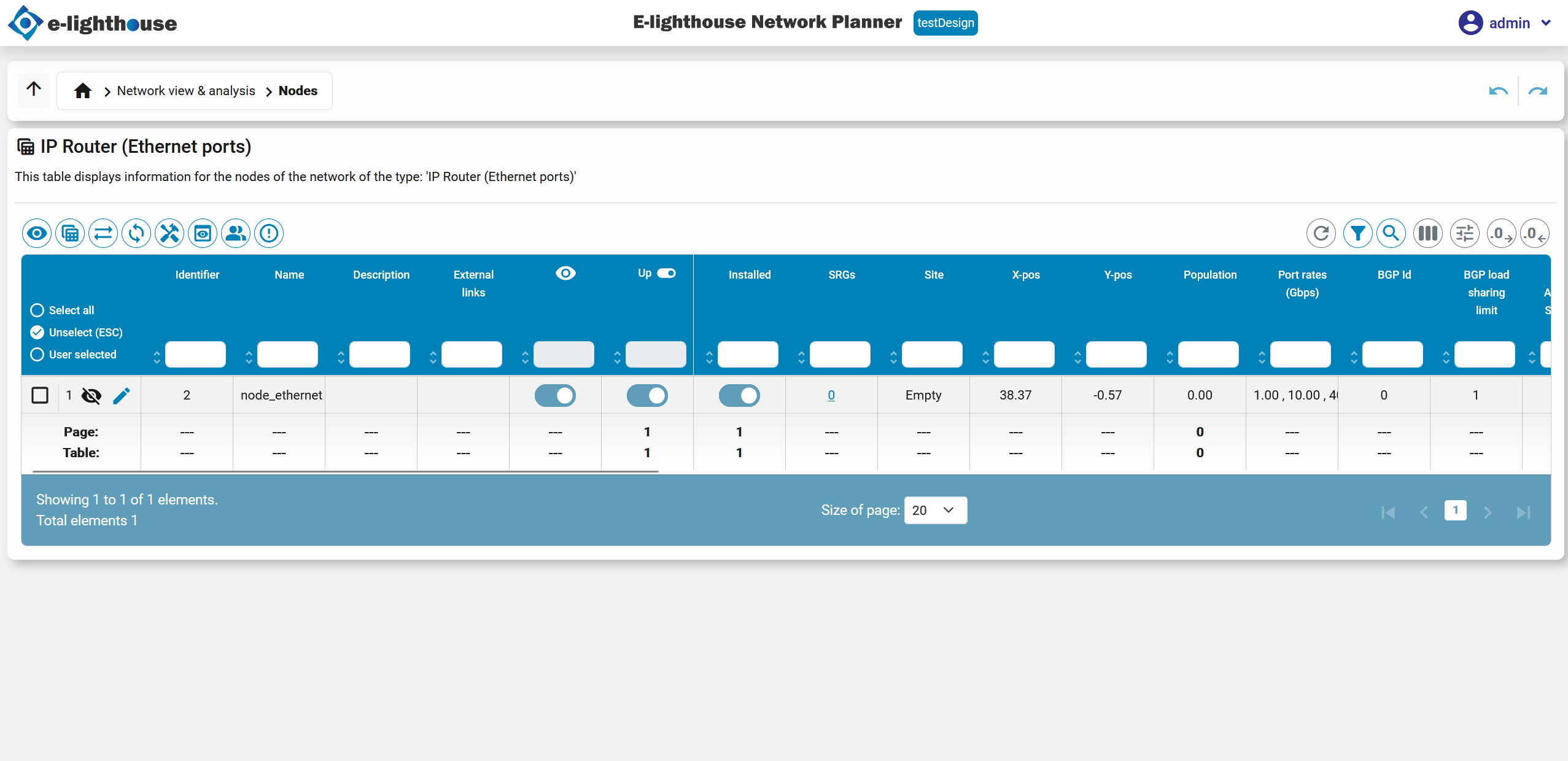
🔎 Additional Tips
-
Nodes that are not yet connected may be hidden on the map.
💡 Tip: Disable the “Hide non-connected nodes” toggle in the bottom-left corner of the map to reveal all nodes.
-
You can continue editing node properties from the Control Window or use the right-click context menu in the Topology View.
✅ Summary
You’ve successfully:
- Opened the context menu and selected an IP Router node type
- Configured and placed a new node on the topology
- Viewed and managed the node using the Control Window
Next, you may want to connect your node to others with links or associate a network controller to simulate behavior.
👉 Continue with Create a Network Controller
Add a Network Controller to design
In this guide, you'll learn how to add and configure a Network Controller in your E-lighthouse Network Planner (ENP) network design.
✅ Prerequisite: Ensure that a network design is loaded and active in the Topology View. If not, start with the Create a Network Design tutorial.
🧠 What is a Network Controller?
In ENP, a Network Controller represents an external SDN controller that governs a subset of nodes and links within a network domain. These controllers can manage behaviors such as routing logic, traffic engineering, and real-time monitoring — typically in IP/MPLS environments.
ENP acts as a multi-domain orchestration platform, meaning it can also connect to optical SDN controllers, enabling unified design and analysis across both packet and transport layers.
When you perform a Topology Discovery, ENP queries the controller’s live state, imports its internal topology view, and integrates it into your design. This may include:
-
Discovered nodes, links, and ports
-
Protocol or configuration metadata
-
Domain boundaries and control scopes
This feature allows ENP to align your network model with real-world controller data — across IP, MPLS, and optical transport domains — providing a foundation for full-stack simulation and orchestration.
⚙️ Step 1: Open the Controller Menu
- In the Topology View, right-click anywhere on the canvas to open the context menu.
- Select the “Network Controller” option.
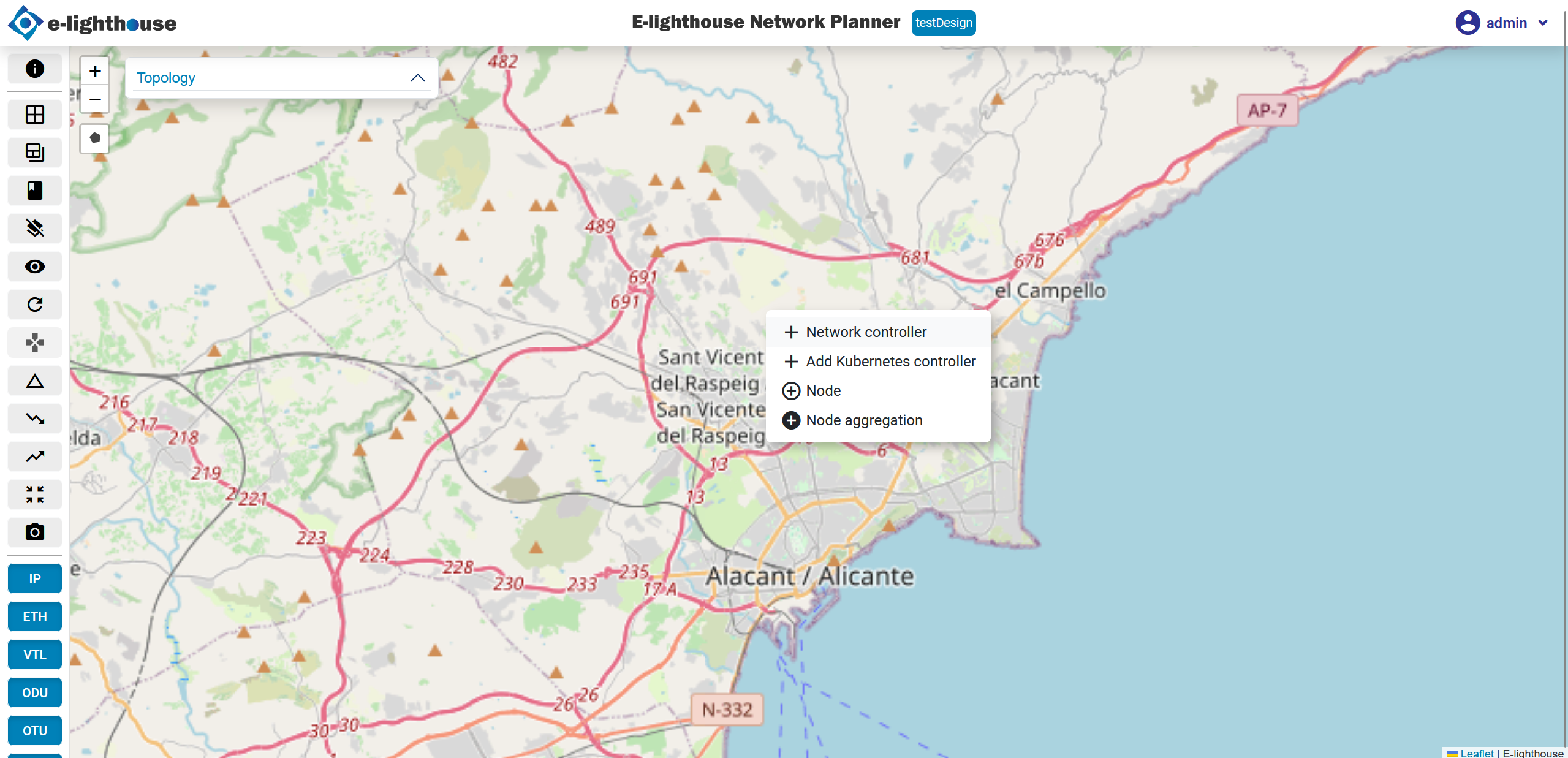
📝 Step 2: Complete the Controller Form
After selecting the option, a configuration form will appear.
Fill in the necessary controller parameters:
- Controller type (e.g., IETF, TAPI, etc.)
- Name
- Description (optional)
- IP address. This is the controller's management IP address.
- Port number. The port used for communication with the controller.
- Authentication (if required)
- Username and password (if applicable)
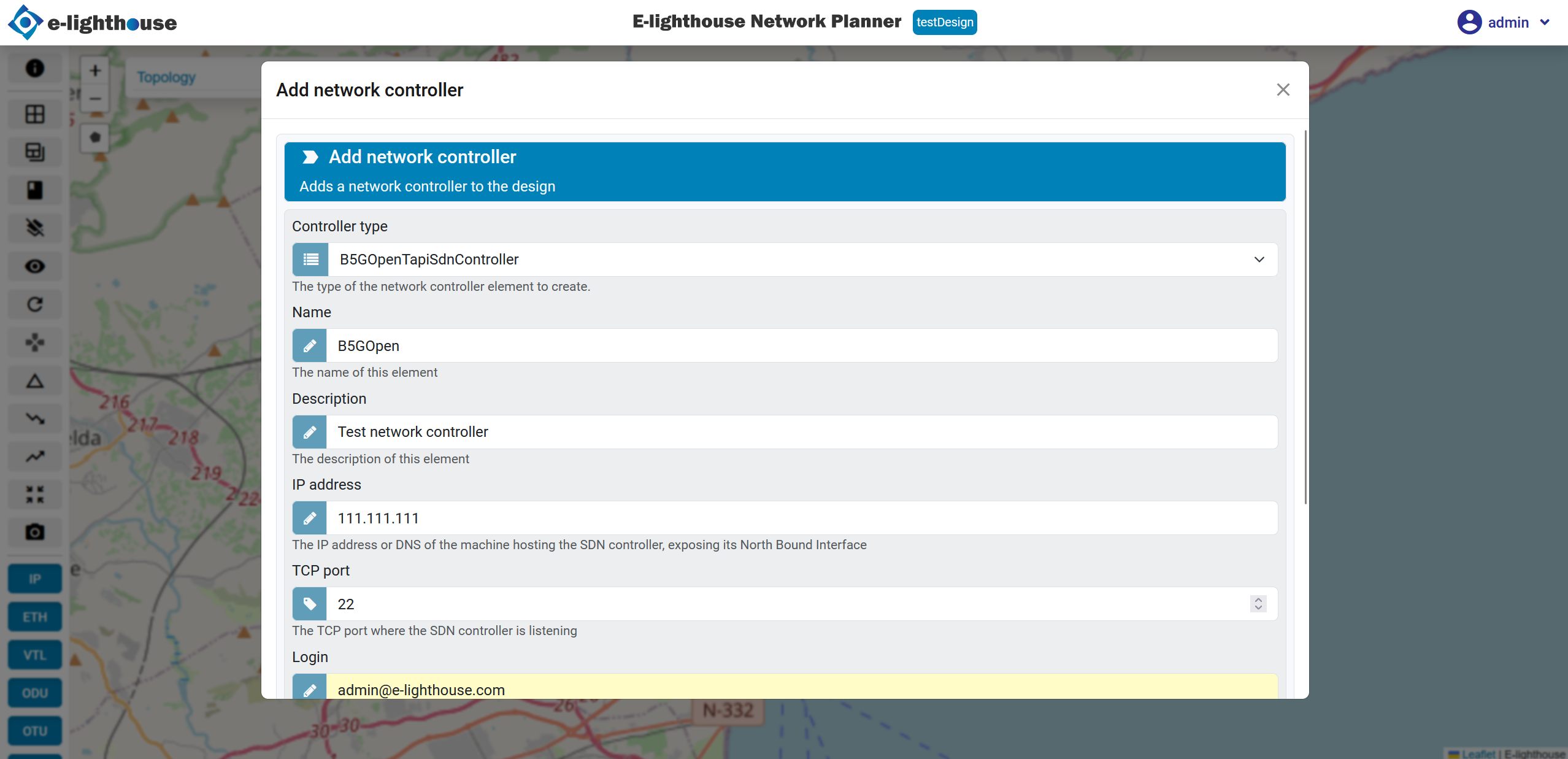
✅ Step 3: Confirm Controller Creation
Once the form is complete, submit it to create the controller. You’ll receive a confirmation message upon successful creation.
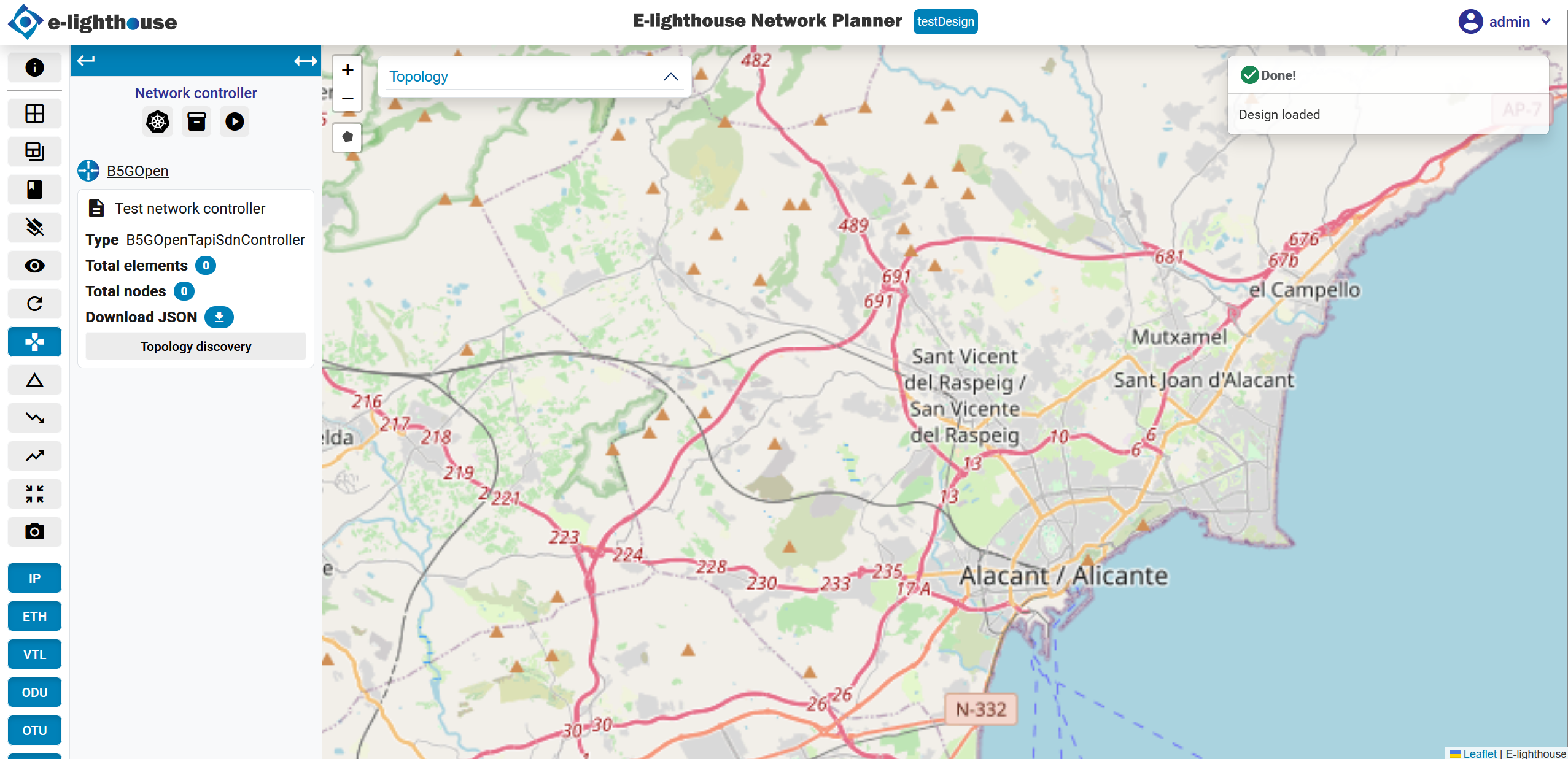
🌐 Step 4: Perform Topology Discovery
To visualize the controller’s managed topology:
- From the Topology View, in the left panel, locate the "Network Controller" section.
- Click the "Topology Discovery" option from the controller context panel.
- ENP will connect to the controller and import its internal topology, displaying the discovered elements on the canvas.
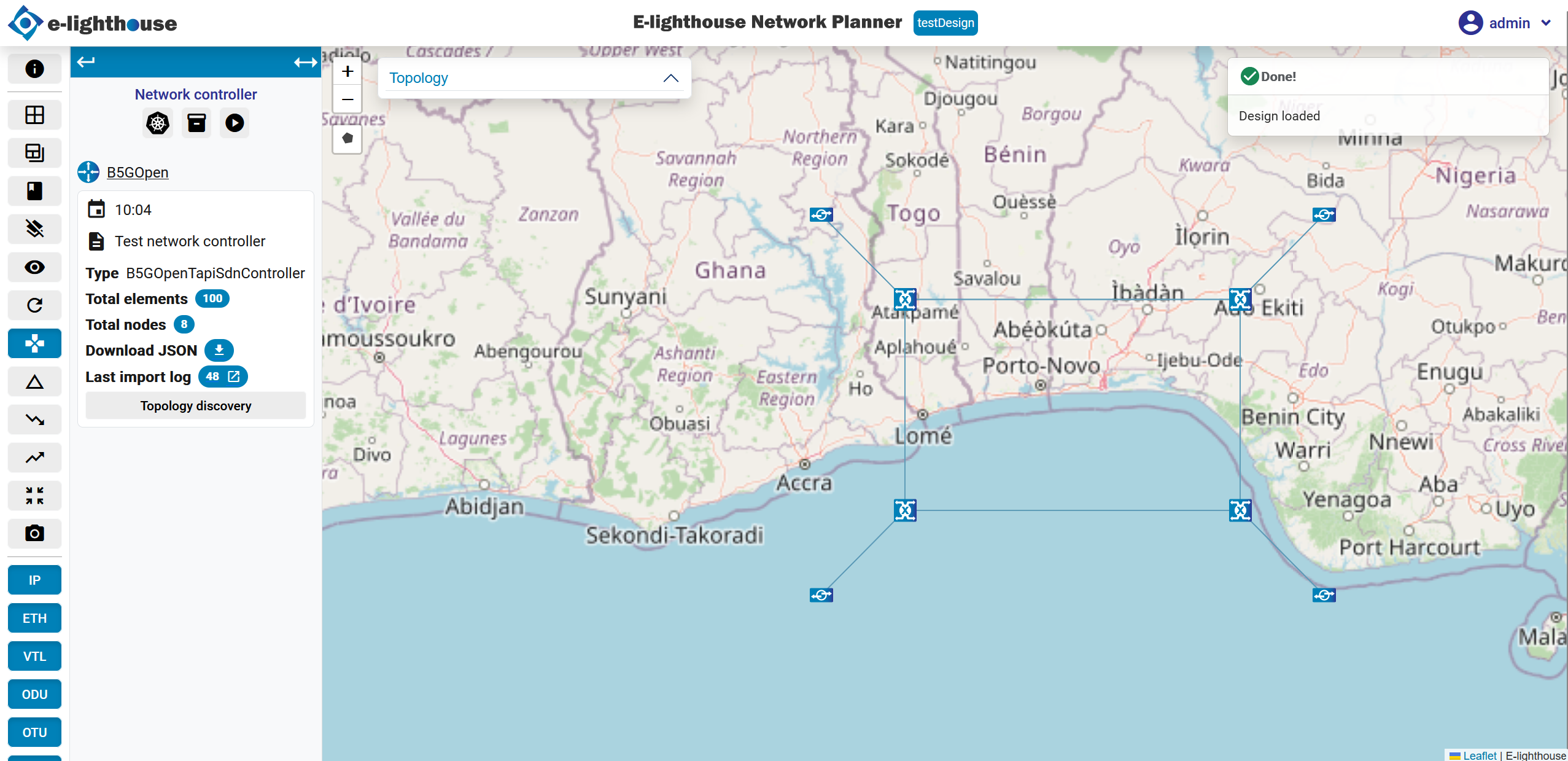
✅ Summary
You’ve successfully added and visualized a Network Controller by:
- Accessing the contextual menu in the Topology View
- Providing key configuration parameters
- Using Topology Discovery to import the controller's internal view of the network
This enables real-time SDN integration and enhances the modeling of dynamic and intelligent networks.
Ended: Using the application
Frequently Asked Questions (FAQ)
Welcome to the E-Lighthouse Network Planner (ENP) FAQ section. Below, you'll find answers to the most commonly asked questions about ENP.
If you need further assistance, feel free to contact our support team.
General Questions
Q1: What is E-Lighthouse Network Planner (ENP)?
A: ENP is a cutting-edge tool for planning, analyzing, and optimizing IP/MPLS/SR and transport multivendor networks.
It provides simulation, forecasting, and optimization capabilities to help network professionals design more efficient and resilient infrastructures.
Q2: Who can benefit from using ENP?
A: ENP is designed for:
- Network planners and architects – To model and optimize network growth.
- Engineers and operations teams – To analyze network resilience, provisioning, and risk scenarios.
- Service providers and enterprises – To optimize transport and IP/MPLS networks for cost efficiency.
- Research institutions and consultants – To conduct simulations and predictive analytics for future network planning.
Q3: What types of networks does ENP support?
A: ENP supports a wide range of network technologies, including:
- IP/MPLS and Segment Routing (SR) networks
- Optical transport networks (OTN/DWDM)
- Microwave and multi-layer (IP + Transport) environments
- Multi-vendor and multi-domain architectures
Q4: How is ENP different from other network planning tools?
A: ENP stands out due to:
- Multilayer analysis: Integrated simulation of IP, optical, and microwave networks.
- Advanced AI-driven forecasting: Traffic demand prediction and network bottleneck analysis.
- Modular architecture: Extensible via plugins for specialized features like smart provisioning and failure analysis.
- Multi-vendor compatibility: Seamless integration with different network controllers, OSS/BSS, and SDN solutions.
Technical Questions
Q5: Does ENP support real-time network data integration?
A: Yes! ENP can ingest real-time network data from:
- Network controllers (e.g., SDN controllers)
- NMS (Network Management Systems)
- OSS/BSS platforms
- Performance monitoring (PM) and telemetry data sources
This allows for up-to-date simulation, forecasting, and risk analysis based on live network conditions.
Q6: Can ENP perform "What-If" scenario simulations?
A: Absolutely. ENP enables What-If analysis to test the impact of:
- Network failures
- New traffic demands
- Topology changes
- Updated routing policies
- Capacity upgrades
Users can visualize and compare before-and-after network states, helping them make informed decisions.
Q7: How does ENP handle network failure analysis?
A: ENP evaluates fault tolerance at the service level, considering:
- Redundancy mechanisms at both IP and transport layers.
- Traffic rerouting strategies in case of failures.
- Recovery mechanisms, including MPLS FRR, SR-TE, OTN protection, and Shared Risk Groups (SRGs).
- Automated risk reports for post-failure assessment.
Q8: Can ENP be customized to a client's specific needs?
A: Yes! ENP offers custom feature development to align with unique client architectures.
Examples of client-specific customizations include:
- Tailored optimization algorithms for network expansion.
- Custom integrations with existing OSS, BSS, NMS, or SDN controllers.
- Personalized reporting and visualization based on enterprise KPIs.
- Automated provisioning workflows aligned with internal business processes.
Deployment & Licensing Questions
Q9: What deployment options are available for ENP?
A: ENP can be deployed in multiple environments, including:
- On-premises installations for high-security environments.
- Private cloud deployment for scalable computing.
- Hybrid deployments integrating on-premises and cloud-based resources.
ENP is designed to be flexible and adaptable to any customer infrastructure.
Q10: Does ENP require internet access to function?
A: No. ENP can be deployed in isolated environments without requiring internet access, making it suitable for secure and air-gapped network environments.
Q11: What licensing options are available?
A: ENP offers flexible licensing models, including:
- Perpetual licenses for long-term installations.
- Subscription-based licensing with regular updates.
- Feature-based modular licensing, allowing customers to select only the functionalities they need.
Contact our sales team for more details on licensing models tailored to your organization.
Support & Training Questions
Q12: What kind of support does ENP provide?
A: ENP provides comprehensive support services, including:
- Technical assistance via email and helpdesk.
- Software updates and patches.
- Performance tuning and troubleshooting assistance.
- Custom feature development support.
Q13: Is training available for new users?
A: Yes! We offer:
- Onboarding sessions for new customers.
- Detailed user documentation and tutorials.
- Personalized training sessions for teams.
- Webinars and workshops on best practices.
If your question isn’t listed here, feel free to reach out to our support team for assistance!